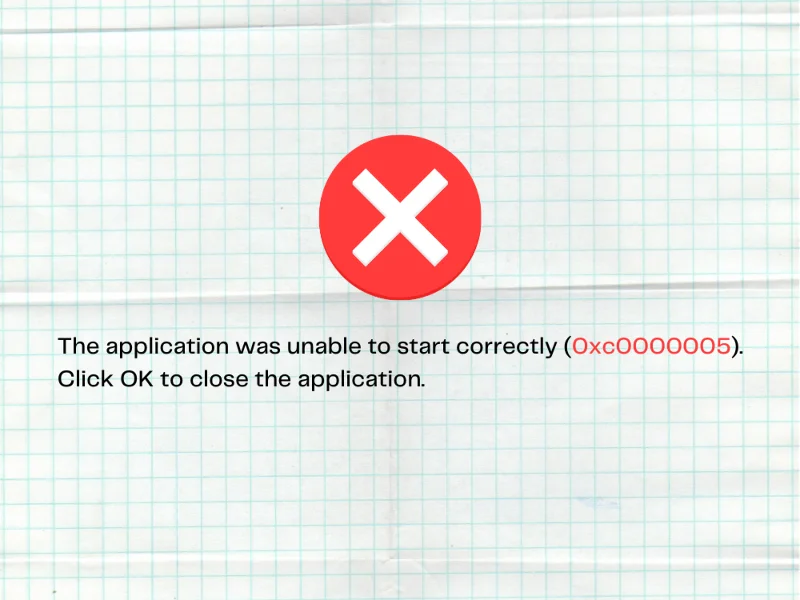
L'erreur d'application 0xc0000005 (violation d'accès) peut se produire lorsque vous essayez d'ouvrir un fichier, de jouer à un jeu ou de lancer un programme. Il est déclenché par des problèmes système qui empêchent Windows d'accéder aux fichiers et paramètres requis pour lancer une ou plusieurs applications.
Par exemple, des utilisateurs ont signalé avoir reçu cette erreur lors de la tentative de lancement de League of Legends. Dans d'autres cas, cela a causé des problèmes audio sur PC. Il peut sembler impossible de résoudre le problème lorsque vous ne pouvez même pas accéder aux outils système de base, mais cela peut néanmoins être fait.
Comment réparer le code d'exception 0xc0000005 sur Windows 10
Découvrez les solutions suivantes pour résoudre l'erreur 0xc0000005. Nous vous suggérons de créer un point de restauration système avant de commencer, afin que vous puissiez facilement annuler les modifications et recommencer à zéro si nécessaire.
1. Redémarrez votre ordinateur
Lancez-vous avec la solution la plus simple possible : redémarrer votre ordinateur. Si l'erreur d'application 0xc0000005 a été causée par un processus suspendu ou un service défectueux, un redémarrage du PC devrait faire l'affaire. Et, si vous voulez être approfondi, vous pouvez effectuer un redémarrage dur du PC afin d'effacer le cache mémoire. Voici comment:
- Éteignez votre ordinateur à partir du menu d'alimentation
- Débranchez le PC de sa source d'alimentation. Si vous avez un ordinateur portable, assurez-vous de retirer sa batterie
- Appuyez sur le bouton d'alimentation et maintenez-le enfoncé pendant 15 à 20 secondes pour vider le cache
- Rebranchez l'ordinateur à sa source d'alimentation et allumez-le
2. Fermez tous les processus de candidature
Si les processus de l'application n'ont pas été correctement fermés la dernière fois que vous avez lancé le programme, il est possible que la situation ait conduit à une erreur de violation d'accès 0xc0000005. Pour le résoudre, assurez-vous de terminer tous les processus avant de relancer un programme spécifique. Voici ce que vous devez faire :
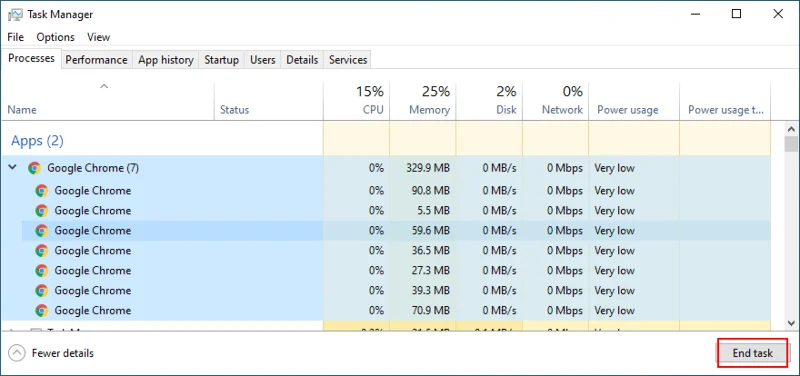
- Appuyez sur Ctrl + Maj + Echap pour ouvrir le Gestionnaire des tâches
- Trouvez votre application et sélectionnez l'ensemble de son arborescence de processus
")
- Cliquez sur Terminer la tâche
- Essayez de lancer le programme maintenant
3. Exécuter en tant qu'administrateur
L'erreur de violation d'accès 0xc0000005 peut être causée par un manque d'autorisations utilisateur lors de la tentative de lancement d'un programme ou d'un outil système spécifique. Pour tester facilement cela, cliquez avec le bouton droit sur le lanceur de l'application et sélectionnez Exécuter en tant qu'administrateur . Si l'option n'apparaît pas dans le menu contextuel, maintenez la touche Maj enfoncée lorsque vous cliquez sur le fichier exécutable.
")
Cependant, si vous essayez d'ouvrir un fichier avec une autre extension que .exe, vous devez exécuter son application avec les droits d'administrateur. Par exemple, supposons que vous essayez d'ouvrir une image PNG à l'aide d'IrfanView. Dans ce cas, vous devez exécuter IrfanView avec les droits d'administrateur, puis ouvrir l'image PNG à l'aide de la visionneuse de photos.
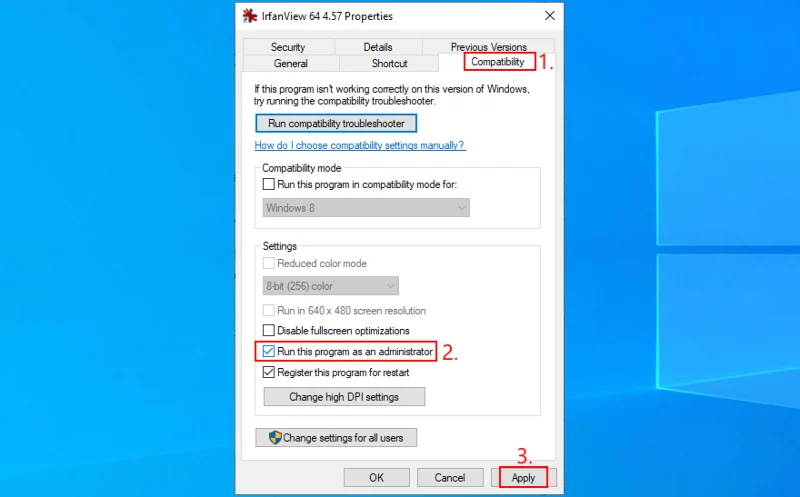
Sinon, si IrfvanView est défini comme visionneuse de photos par défaut sur votre PC Windows 10, cliquez avec le bouton droit sur son fichier de lancement, passez à l' onglet Compatibilité , sélectionnez Exécuter ce programme en tant qu'administrateur , cliquez sur Appliquer et quittez. Vous devriez maintenant pouvoir ouvrir le fichier PNG en double-cliquant simplement dessus dans votre navigateur de fichiers. Windows exécutera automatiquement IrfanView avec des droits élevés.
")
4. Exécutez l'utilitaire de résolution des problèmes de compatibilité des programmes
Windows 10 dispose d'un utilitaire de résolution des problèmes interne dédié à la résolution des problèmes de compatibilité des programmes. Vous pouvez l'utiliser pour réparer l'erreur 0xc0000005 si vous essayez d'ouvrir des fichiers à l'aide d'applications qui ne prennent pas entièrement en charge votre système d'exploitation. Voici comment:
- Cliquez sur le bouton Démarrer , recherchez les paramètres de dépannage et appuyez sur Entrée
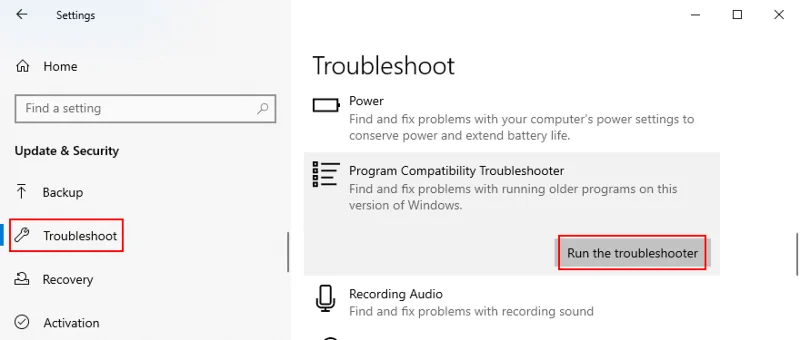
- Cliquez sur Dépanneurs supplémentaires
- Sélectionnez Dépannage de compatibilité des programmes et cliquez sur Exécuter le dépanneur
")
- Choisissez le programme avec lequel vous rencontrez des problèmes. Si ce n'est pas là, sélectionnez Non répertorié et cliquez sur Suivant
- Cliquez sur Parcourir pour rechercher et ajouter le fichier de lancement du programme
- Passez à l'étape suivante et sélectionnez Essayer les paramètres recommandés
- Cliquez sur Tester le programme , observez les résultats, puis cliquez sur Suivant
- Si vous obtenez toujours l'erreur 0xc0000005, choisissez Non, réessayez en utilisant des paramètres différents
- Suivez les étapes restantes de l'assistant
5. Videz le cache de l'application
Vous devez vider le cache de l'application pour supprimer les données temporaires qui pourraient empêcher votre programme de se lancer correctement. Les étapes varient pour chaque programme, c'est donc une bonne idée de rechercher les étapes de suppression du cache en ligne. Voici quelques suggestions.
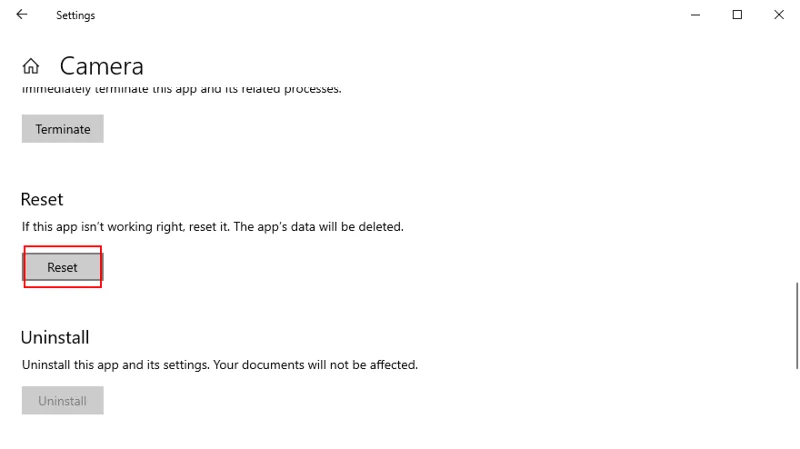
Comment vider le cache d'une application du Microsoft Store :
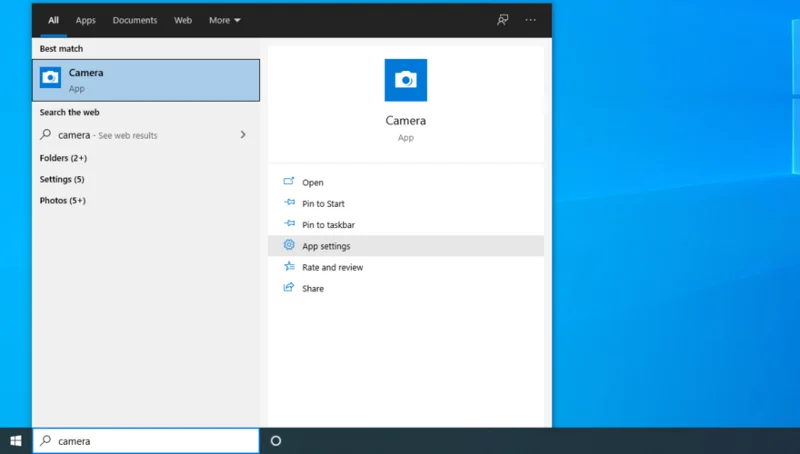
- Cliquez sur le bouton Démarrer , recherchez l'application, sélectionnez-la et cliquez sur Paramètres de l'application
")
- Faites défiler vers le bas et cliquez sur Réinitialiser
")
- Cliquez à nouveau sur Réinitialiser pour confirmer
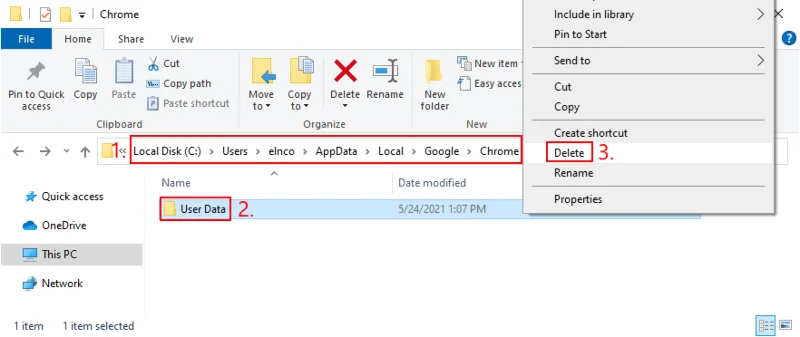
Comment vider le cache de Google Chrome :
- Appuyez sur la touche Win + E pour ouvrir l' explorateur de fichiers
- Cliquez dans la barre d'adresse, tapez
%appdata%et appuyez sur Entrée
- Monter un dossier (de Roaming à AppData )
- Rendez-vous sur Local > Google > Chrome
- Supprimer le dossier Données utilisateur
")
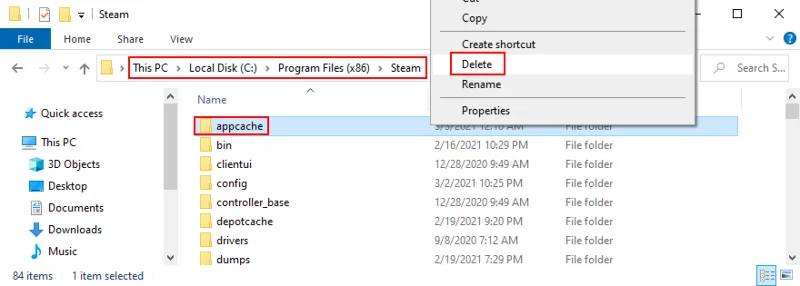
Comment vider le cache Steam (si vous ne pouvez pas jouer à des jeux sur Steam) :
- Ouvrir l' explorateur de fichiers
- Allez à
C:\Program Files (x86)\Steam\si vous avez installé Steam dans le répertoire par défaut
- Supprimer le dossier appcache
")
6. Réinstallez l'application
Il peut y avoir un problème avec l'application que vous essayez de lancer, mais vous pouvez résoudre ce problème en la supprimant de votre PC, puis en la réinstallant. Voici comment procéder correctement :
- Cliquez avec le bouton droit sur la barre des tâches et sélectionnez Gestionnaire des tâches
- Recherchez votre application, choisissez l'ensemble de son arborescence de processus et cliquez sur Fin de tâche
")
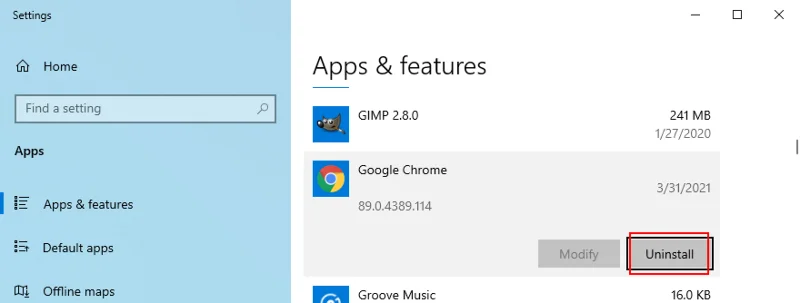
- Cliquez avec le bouton droit sur le bouton Démarrer et accédez à Applications et fonctionnalités
- Sélectionnez votre application dans la liste, cliquez sur Désinstaller et à nouveau pour confirmer
")
- Procéder à l'opération de suppression
- Redémarrez votre ordinateur
- Téléchargez l'application depuis son site officiel
- Installez et essayez de le lancer
7. Réparez et réinstallez .NET Framework
Certains programmes logiciels dépendent de .NET Framework pour fonctionner correctement. Si le package Framework contient des fichiers corrompus, modifiés ou manquants, cela peut être la raison pour laquelle vous continuez à recevoir l'erreur d'application 0xc0000005. Mais vous pouvez facilement résoudre ce problème en réparant .NET Framework à l'aide d'un outil dédié de Microsoft.
Comment utiliser l'outil de réparation Microsoft .NET Framework :
- Téléchargez l'outil de réparation Microsoft .NET Framework sur le site officiel
- Lancez l'application et acceptez les termes de la licence
- Cliquez sur Suivant pour lancer une analyse de l'ordinateur
- Assurez-vous d'appliquer tous les correctifs trouvés par l'outil de réparation, comme le réenregistrement ou le redémarrage du service Windows Installer
Essayez de lancer votre application après avoir utilisé l'outil de réparation. Si vous ne parvenez toujours pas à éliminer le code d'erreur, c'est une bonne idée de réinstaller .NET Framework.
Comment réinstaller Microsoft .NET Framework :
- Appuyez sur la touche Win + R , entrez appwiz.cpl et appuyez sur la touche Entrée
- Recherchez et désinstallez .NET Framework. Si vous avez plusieurs versions installées, assurez-vous de les supprimer toutes
- À l'aide d'un navigateur Web, visitez la page de téléchargement officielle de .NET Framework
- Dans le groupe Versions prises en charge , cliquez sur l'entrée recommandée
- Télécharger la version d'exécution (pour les non-développeurs)
- Installer .NET Framework
- Vérifiez si vous pouvez ouvrir des programmes maintenant
8. Vérifiez les mises à jour du système
Assurez-vous que votre ordinateur Windows 10 est équipé des dernières fonctionnalités, améliorations, correctifs et correctifs de sécurité de Microsoft. S'il y a un problème à l'échelle du système connu pour provoquer l'erreur 0xc0000005, Windows Update s'en occupera probablement bientôt.
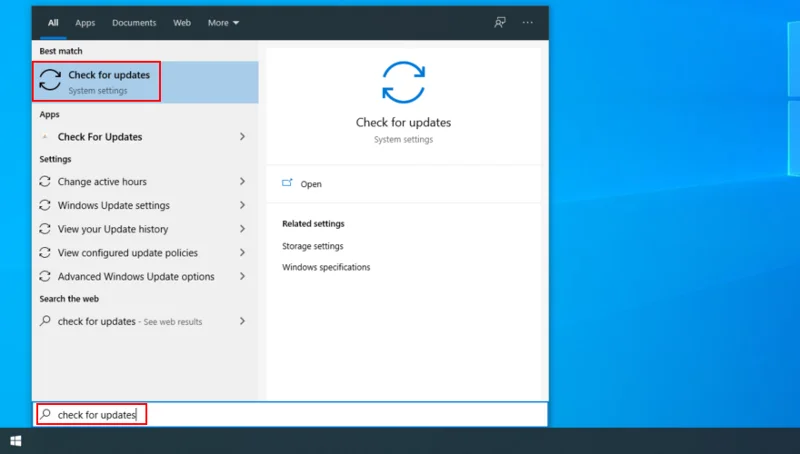
- Appuyez sur la touche Windows , tapez Rechercher les mises à jour et appuyez sur Entrée
")
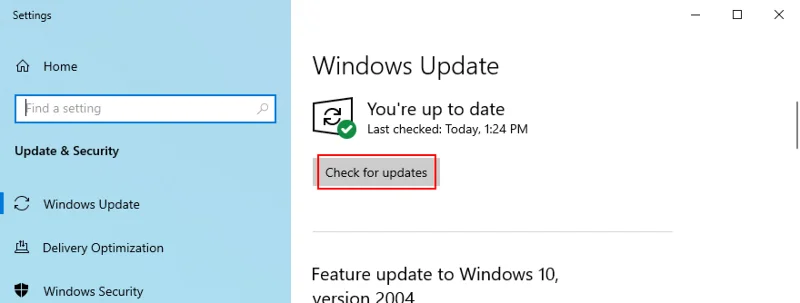
- Si la recherche en ligne ne démarre pas automatiquement, cliquez sur Rechercher les mises à jour
")
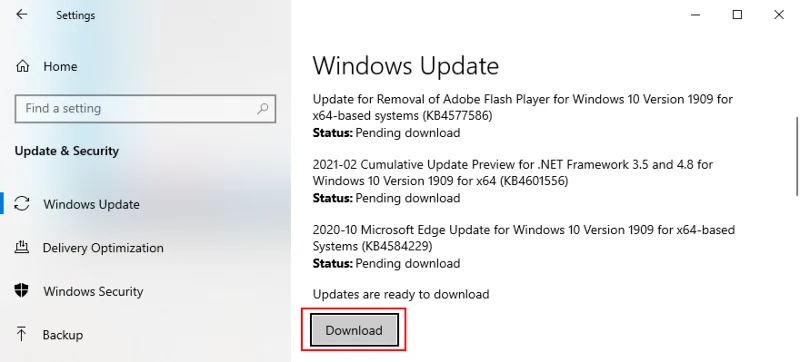
- Attendez quelques secondes jusqu'à ce que Windows et cliquez sur Télécharger s'il y a des mises à jour en attente
")
- Redémarrez votre ordinateur
9. Réinitialiser Windows Update
Si Windows Update ne fonctionne pas correctement et vous donne diverses erreurs, c'est une bonne idée de réinitialiser son cache et tous les composants impliqués dans cet outil en se tournant vers l'environnement de ligne de commande.
- Connectez-vous à Windows 10 à l'aide d'un compte administrateur
- Cliquez sur le bouton Démarrer , recherchez Invite de commandes et ouvrez cette application
- Entrez les lignes de code suivantes (appuyez sur Entrée après chacune) :
- Redémarrez votre ordinateur et essayez à nouveau d'exécuter Windows Update
10. Exécutez l'utilitaire de résolution des problèmes liés au matériel et aux périphériques
L'erreur d'application 0xc0000005 peut être déclenchée par un matériel et des périphériques défectueux. C'est généralement un problème simple, comme la réinstallation rapide d'un périphérique qui n'a pas été correctement configuré sur votre PC.
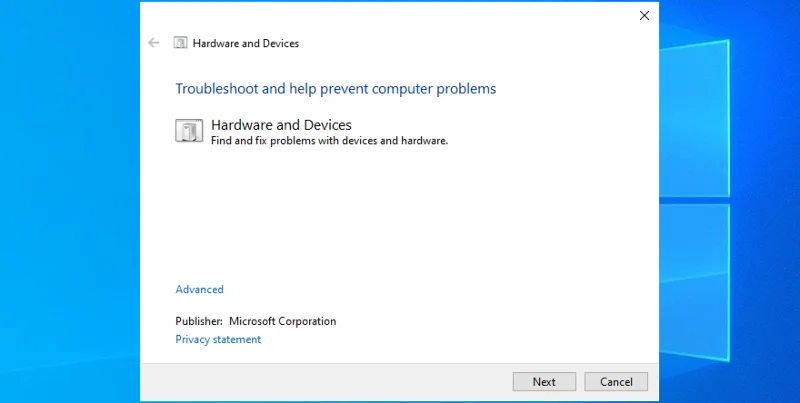
Dans des circonstances normales, vous devriez trouver l'outil dans les paramètres de dépannage . Cependant, si l' utilitaire de résolution des problèmes liés au matériel et aux périphériques est absent de votre ordinateur, voici ce que vous devez faire :
- Appuyez sur la touche Win + R , tapez
msdt.exe -id DeviceDiagnosticet appuyez sur la touche Entrée
- Cliquez sur Suivant et autorisez votre système d'exploitation à appliquer les correctifs
")
- Redémarrez votre PC une fois l'assistant terminé
- Try to launch programs now
11. Fix hard drive corruption
If your hard disk has corrupt files, Windows might not be able to open files or launch programs anymore, resulting in violation error 0xc0000005. But you can fix this problem by using a command-line tool that comes bundled with Microsoft’s operating system, called CHKDSK (Check Disk).
How to use CHKDSK:
- Press Windows key + R, type cmd, and press Ctrl + Shift + Enter to open Command Prompt with elevation rights
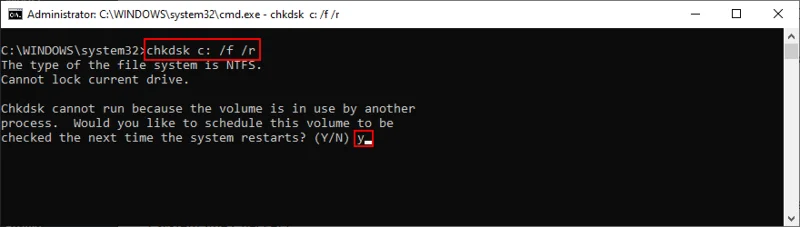
- If Windows is installed on the default C: drive, run
chkdsk c: /f /r. Else, replace c: with the correct partition letter")
- Run y when you’re asked to confirm scheduling CHKDSK during the next system boot
- Restart your computer and wait for CHKDSK to do its job
12. Repair corrupt system files
Your operating system could have corrupt or missing files that prevent applications from running properly on your PC. You can restore damaged items with the help of SFC (System File Checker). Just like CHKDSK, you can operate this tool from the console environment.
How to use SFC:
- Run Command Prompt as admin
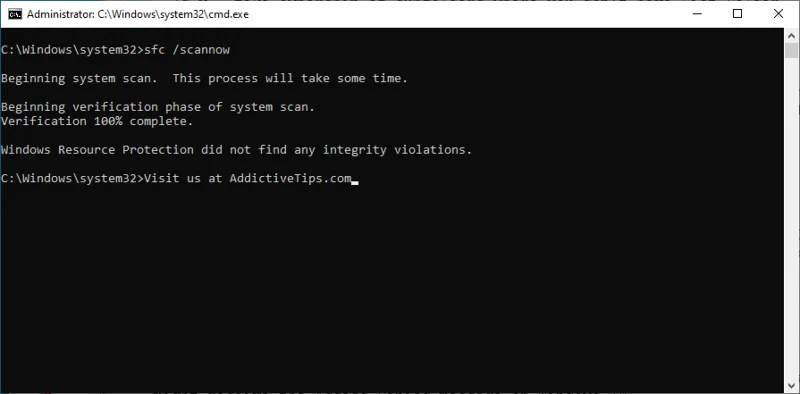
- Type
sfc /scannow and hit Enter")
- Windows will find and repair any issues. Once it finishes, restart your PC
If SFC won’t solve the 0xc0000005 error, you can use DISM (Deployment Image Servicing and Management) to check the component store of the Windows image.
How to use DISM:
- Launch Command Prompt with elevated rights
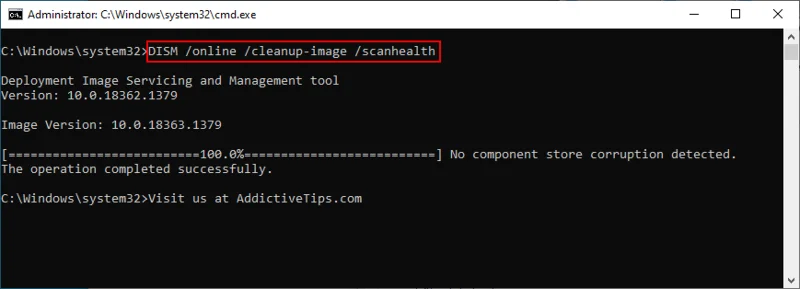
- Run
DISM /online /cleanup-image /scanhealth and wait")
- If it finds any problems, run
DISM /online /cleanup-image /restorehealth
- Once it completes its task, restart your PC
- Open Command Prompt as admin again
- Run SFC (
sfc /scannow)
- Reboot your PC one last time
13. Check the system memory
If you’re experiencing any problems with the system RAM, it could affect all operations in your computer, including critical ones like opening files or launching apps. To fix RAM issues, you can turn to Windows Memory Diagnostic. Here’s how to use it:
- Make sure to save and close any projects you’re currently working on
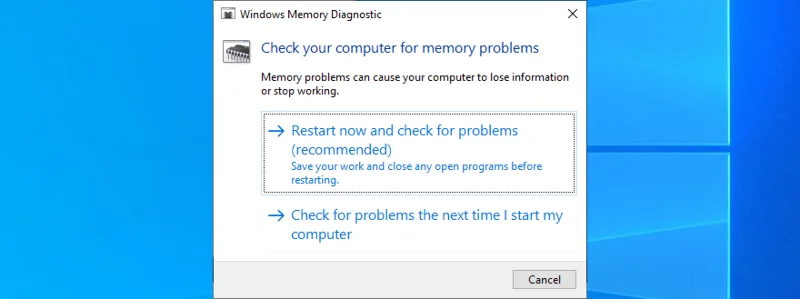
- Click the Start button, search for Windows Memory Diagnostic, and open this app
- Click Restart now and check for problems
")
Your computer will reboot and start checking the system memory for issues. It performs a Standard test by default, but we suggest opting for the Extended version since it’s in-depth. Press F1 to go to options, select Extended, and hit F10.
You can leave your PC unattended while it’s busy identifying memory problems. Once it completes, it will start Windows 10 normally and show the scan results in the notifications center. An alternative solution is MemTest86, which you can use to perform a RAM stress test.
14. Check your drivers
Your device driver might be outdated or incompatible with your operating system. In time, this can lead to error 0xc0000005 when attempting to open files, play games, and launch various applications. Begin the troubleshooting process by checking if your device and video drivers are obsolete and need updating.
How to update drivers:
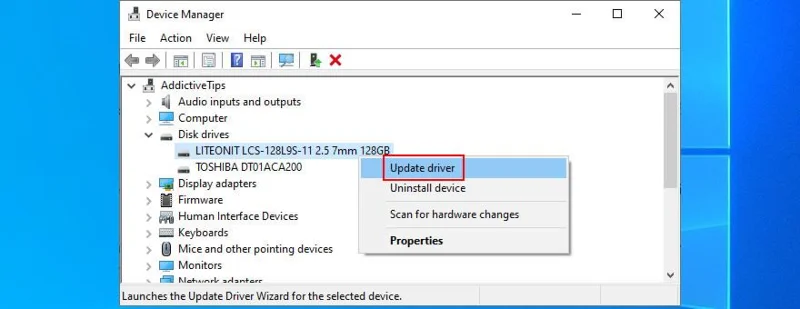
- Right-click the Start button and go to Device Manager
- Click the small arrow next to Disk Drives to extend this group
- Select your disk, right-click it, and choose Update driver
")
- Click Search automatically for drivers. If you get the The best drivers for your device are already installed message, click Search for update drivers on Windows Update. But if you have already checked for system updates, there’s no need to do this again
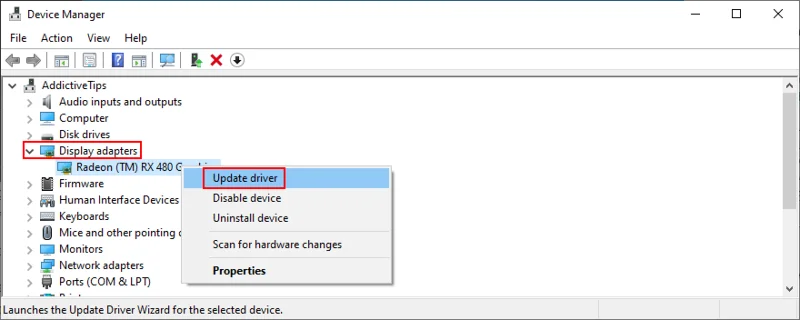
- Do the same for your video driver in the Display adapters category
")
Windows is rarely successful at finding and downloading drivers on its own. In fact, it’s more reliable to do this manually: find the name of your driver in the Properties section, visit the official website, download a newer version, then return to Device Manager to perform the update by selecting the Browse my computer for drivers option.
However, if you’re having a hard time trying to figure out which drivers are obsolete and where to download them from, it’s easier to use a driver update application. It scans your computer, finds obsolete drivers, locates newer versions on the web, and installs them to your computer. And it’s all performed automatically. Plus, you won’t risk getting incompatible drivers that might end up causing more harm to your PC.
How to roll back unsupported drivers:
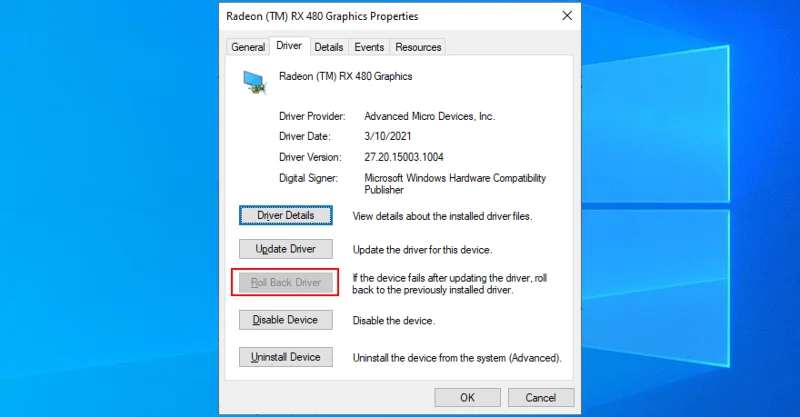
- Press Win key + R, type devmgmt.msc, and hit Enter
- Choose the device with the unsupported driver, right-click it, and go to Properties
- Select the Driver section
- Click Roll Back Driver and follow the steps. If the button’s greyed out and you can’t click it, it’s not possible to make the rollback because there’s no previous driver version saved to your PC. You can skip this step
")
15. Run a malware scan
If your operating system has viruses, it’s no wonder that you keep getting error codes like 0xc0000005 when trying to use your computer. It’s time to use Windows Defender or any other third-party anti-malware solution installed, in order to find and eliminate any threats from your hard drive.
How to use Windows Defender:
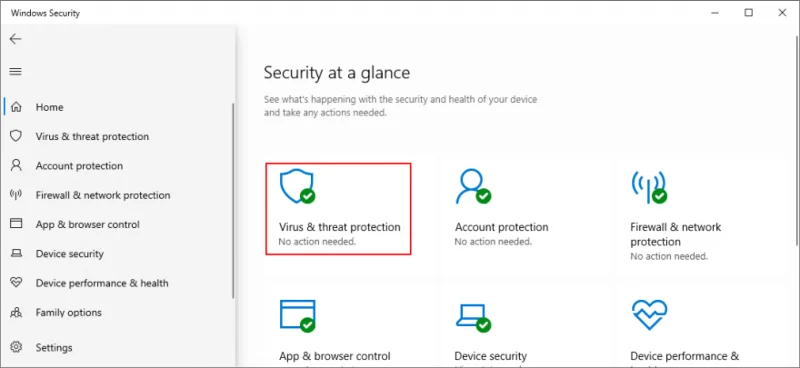
- Press the Win key, search for Windows Security, and launch this app
- Go to Virus & threat protection
")
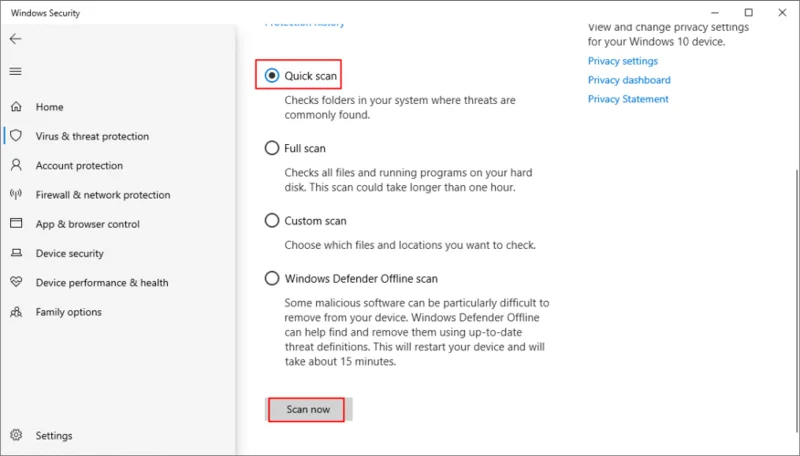
- Choose Quick scan and click Scan now
")
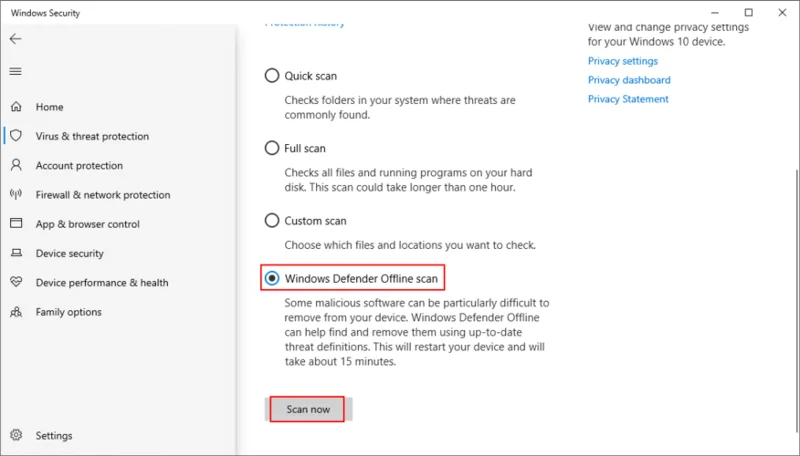
- If no threats are revealed after the quick scan, select Windows Defender Offline scan and click Scan now
")
- Patiently wait while Defender runs the scan. You shouldn’t use your computer during this time since it will be slowed down. If Defender identifies any viruses, allow it to quarantine or remove the suspicious files. Meanwhile, any files you consider safe should be moved to the whitelist in order to exclude them from further scans
16. Temporarily turn off your antivirus
Depending on the third-party antivirus program you have installed, certain security settings might conflict with your computer configuration. In other words, your security program might block your access to your favorite applications due to safety issues.
To quickly put this theory to the test, temporarily disable your antivirus and then try to open the file or launch the application. If you can do so without any more errors, it means that you have to change your antivirus settings and add an exception for your files and applications. Whatever you do, don’t leave the antivirus powered off since you will leave your PC vulnerable to Internet dangers.
17. Temporarily disable your firewall
Your firewall controls which applications are allowed to access the Internet and which outside servers can reach your machine. Normally, an application makes an exception for itself in the system firewall as soon as you set it up. However, if that doesn’t happen on your computer because you or someone else changed firewall settings, you can end up with application errors like 0xc0000005.
Easily test this by deactivating your firewall:
- Log in to Windows 10 with administrator rights
- Press the Windows key, type Check firewall status, and hit Enter
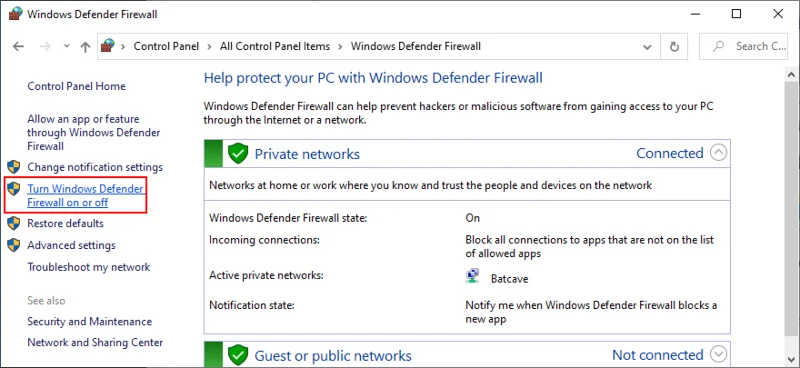
- Click Turn Windows Defender Firewall on or off on the left part of the window
")
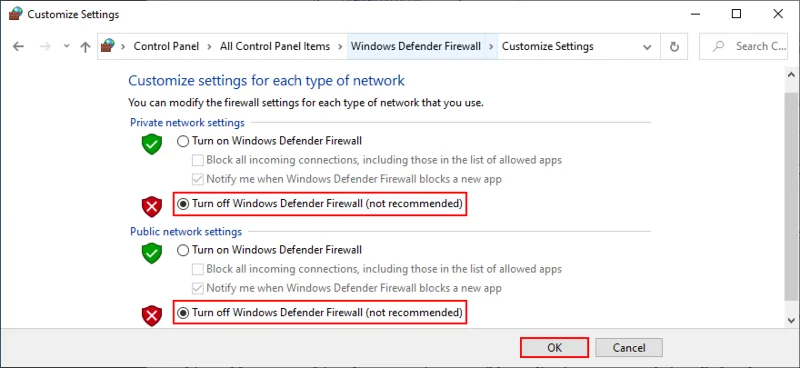
- Set Turn off Windows Defender Firewall at both Private network settings and Public network settings. Click OK
")
Try to launch the application or open the file that was giving you trouble before.
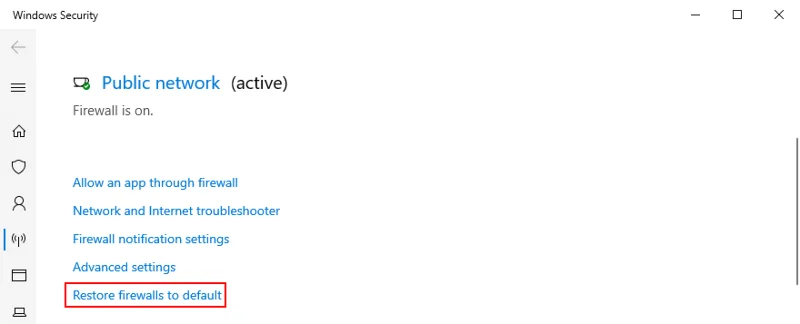
If you’re successful, restore firewall settings to default:
- Search for firewall on your computer and open Firewall & network protection
- Scroll down and click Restore firewalls to default
")
- Click Restore defaults and Yes to confirm
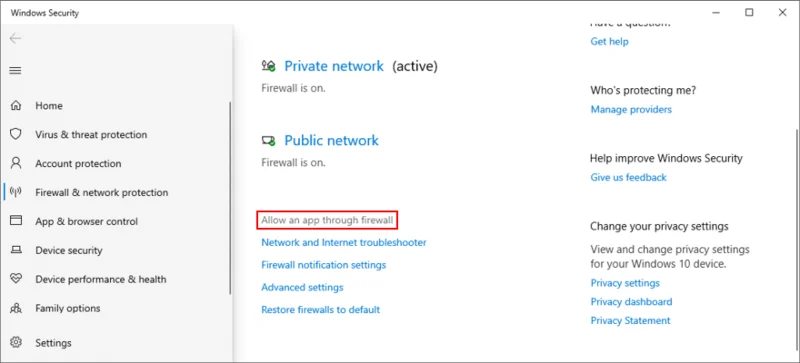
If the 0xc0000005 error returns, add an exception for your app in the firewall:
- Go back to Firewall & network protection
- Click Allow an app through firewall
")
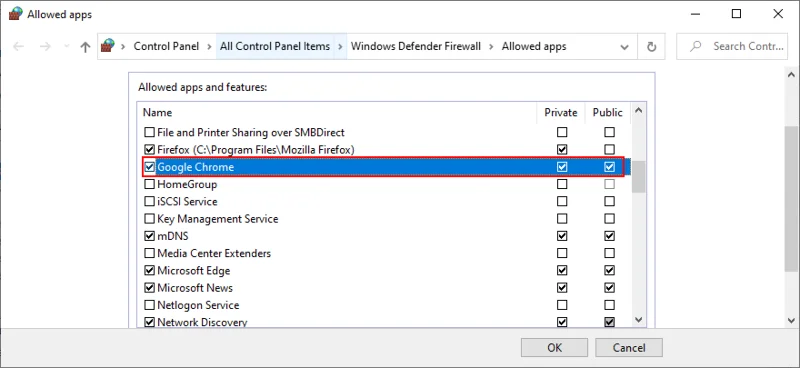
- Click the Change settings button (you need admin rights)
- Search for your app in the list. If it’s not there, click Allow another app, the browse your computer and add your application’s launcher file
- Select your app from the list, check its box, then enable the Private and Public options next to it
")
18. Change Data Execution Prevention settings
Data Execution Prevention (DEP) is a security tool built into Windows 10, whose role is to protect memory pages by stopping applications from deploying malicious code. If the program you’re trying to launch has a behavior seen as malicious, DEP won’t let you access it. It could be the reason why you keep getting the 0xc0000005 violation error.
But you can make an exception for your app in Data Execution Prevention:
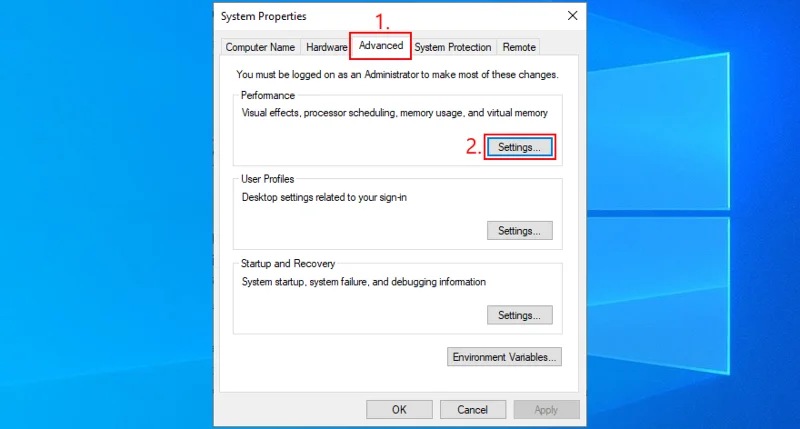
- Press Win key + R, type sysdm.cpl, and press Enter to access System Properties
- Go to the Advanced tab
- At Performance, click the Settings button
")
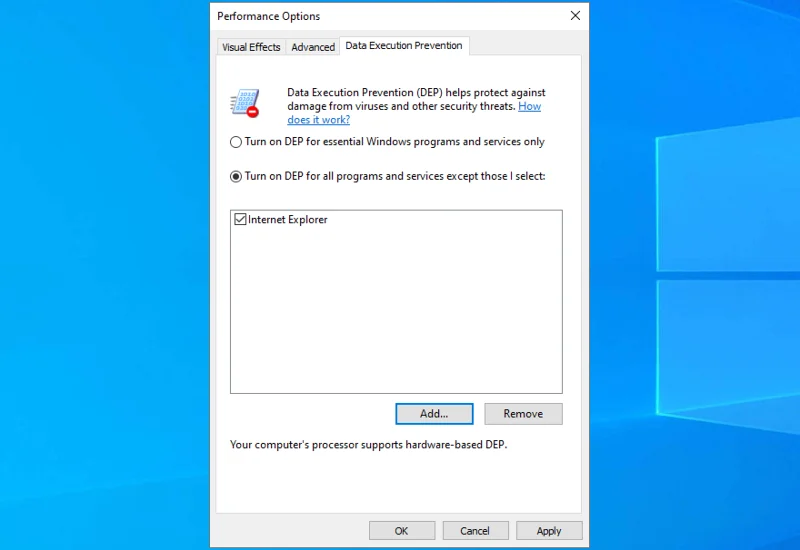
- Switch to the Data Execution Prevention tab
- Select Turn on DEP for all programs and services except those I select
- Click Add, open your application’s executable file, and click OK to confirm. You can do this for multiple programs. However, keep in mind that DEP can’t be turned off for certain programs
")
- Click Apply and exit to the desktop
- Try to open your program now
If you later wish to restore Data Execution Prevention settings to default, retrace the steps above to reach the Data Execution Prevention tab. Then, choose Turn on DEP for essential Windows programs and services only, and click Apply.
19. Disable the LoadAppInit_DLLs registry entry
Another way to fix the 0xc0000005 violation code error is by disabling the LoadAppInit_DLLs registry entry. Don’t worry about damaging computer settings since you will be creating a registry backup before changing anything, just in case you need to restore the original configuration later.
- Click the Start button, search for regedit, and open Registry Editor
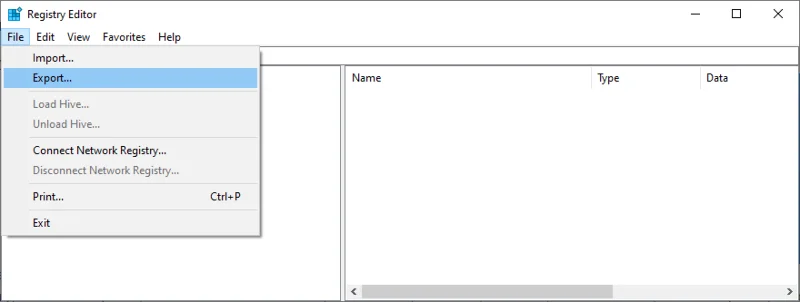
- Open the File menu and click Export
")
- Set a file name and destination, then click Save to create the registry backup file (.reg format)
- Go to this location:
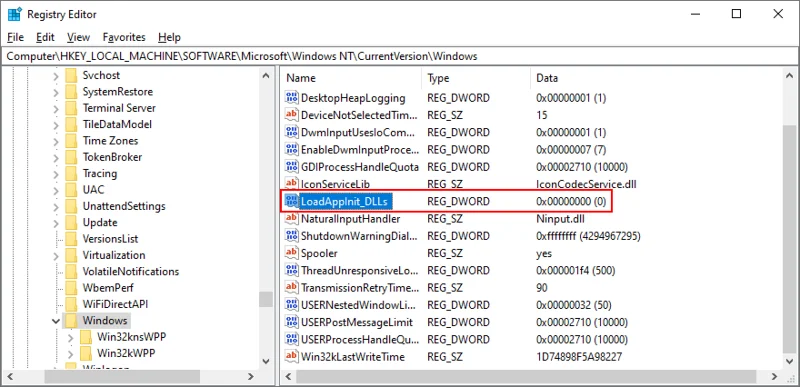
HKEY_LOCAL_MACHINE\SOFTWARE\Microsoft\Windows NT\CurrentVersion\Windows
- Find the LoadAppInit_DLLs entry and check that its Data is set to 0x00000000 (0). If it’s not, double-click the entry, set Value data to 0 and Base to Hexadecimal, then click OK
")
- Exit Registry Editor
If you need to restore the previous registry settings for any reason, just double-click the .reg file you previously exported.
20. Repair the BCD file
If your system’s BCD (Boot Configuration Data) is malfunctioning, Windows might have trouble trying to process the files and settings required for launching programs. But you can repair the BCD file using a Windows installation media:
- Connect an empty USB flash drive into your PC
- Download Media Creation Tool from the official website
- Start the application and follow the steps to set up a Windows installation media disk
- Click the Start button and open the power menu
- While holding down the Shift key, click Restart to boot Windows to the troubleshoot menu
- Select Troubleshoot > Advanced Options > Command Prompt
- Choose your PC account and enter your password to continue
- Write the next commands (hit Enter after each line of code):
-
bootrec /repairbcd
-
bootrec /osscan
-
bootrec /repairmbr
- Exit Command Prompt and start Windows normally
21. Disable startup programs
Your operating system might have trouble accessing files due to conflicting applications that automatically run at every Windows boot. To fix this problem, you should disable all autostart apps:
- Press Ctrl + Shift + Esc to launch Task Manager
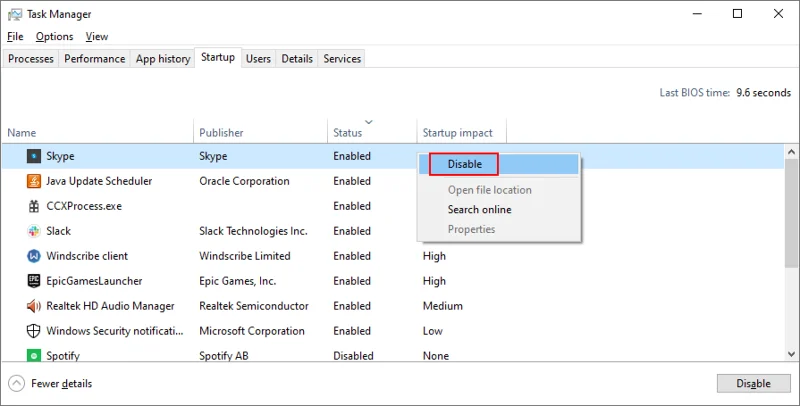
- Go to the Startup section
- Select a program with the Enabled status and click Disable. Do this for all apps with the Enabled status
")
- Restart your computer
22. Run a clean system boot
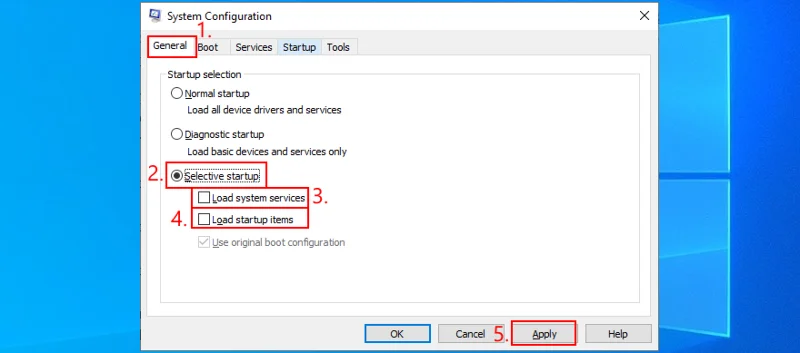
You can run a clean Windows 10 boot in order to disable non-essential system services and startup items that might be affecting your applications and causing the 0xc0000005 error. Here’s what you need to do:
- Click the Start button, search for System Configuration, and press Enter
- Stay in the General tab
- Choose Selective startup
- Disable Load system services and Load startup items
- Click Apply and exit
")
- Right-click the taskbar and open Task Manager
- Go to the Startup area
- Disable all apps with the Enabled status
")
- Reboot your PC
23. Start Windows 10 in Safe Mode
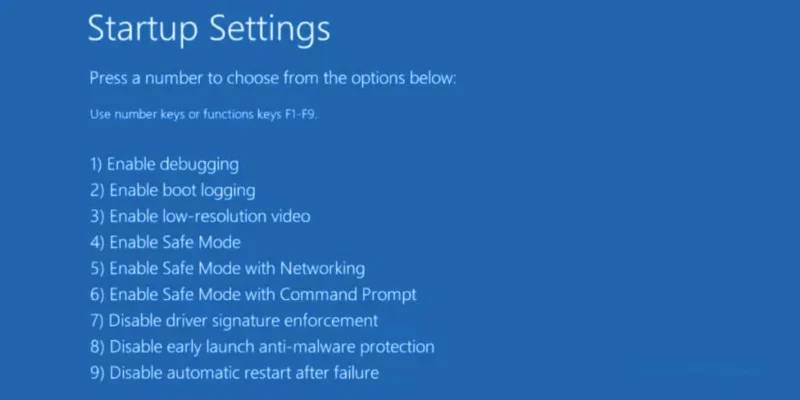
You can start Windows 10 in Safe Mode to create a secured environment for diagnosing computer issues that lead to application error 0xc0000005. Here’s what you need to do:
- Shut down your computer and turn it on. Interrupt the boot sequence three times in a row to reach the Advanced Startup menu
- Select Troubleshoot > Advanced options > Startup Settings
- Click Restart and wait
- Press F5 to boot Windows in Safe Mode with Networking or, if you don’t need Internet access to open the files or launch the applications that are giving you trouble, press F4
")
24. Roll back Windows 10
You can revert Windows 10 to a checkpoint that was recorded before you started experiencing the 0xc0000005 access violation error, thanks to System Restore. Before proceeding, keep in mind that all applications installed beyond the restore point will no longer exist, so you will have to reinstall them.
How to use System Restore:
- Log in to Windows 10 using an admin account
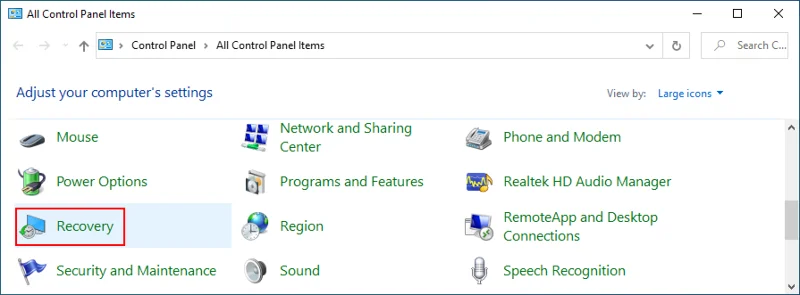
- Press the Win key, search for Control Panel, and open this app
- Select Recovery
")
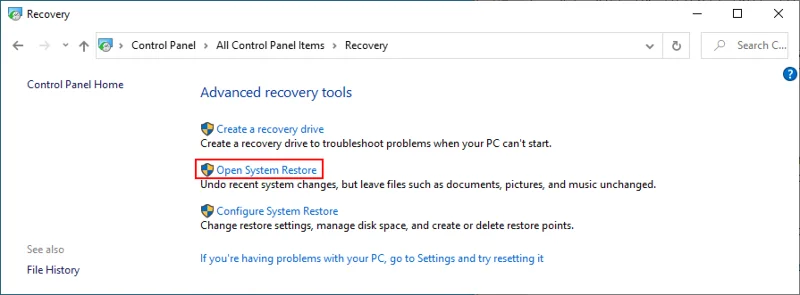
- Click Open System Restore
")
- Select a restore point from the list or click Show more restore points to inspect more options. To find out which apps you will have to reinstall, click Scan for affected programs
- Proceed with the remaining steps. Windows will reboot to complete the restore
25. Use a Linux live distro
Unfortunately, System Restore often fails to work. When you exhaust all your options, it’s time to prepare your PC for a full reset. During preparation, you should back up all personal files and any applications you don’t want to reinstall after the reset. If you’re having a difficult time performing file operations like copying due to various errors, you can create a Linux live distro.
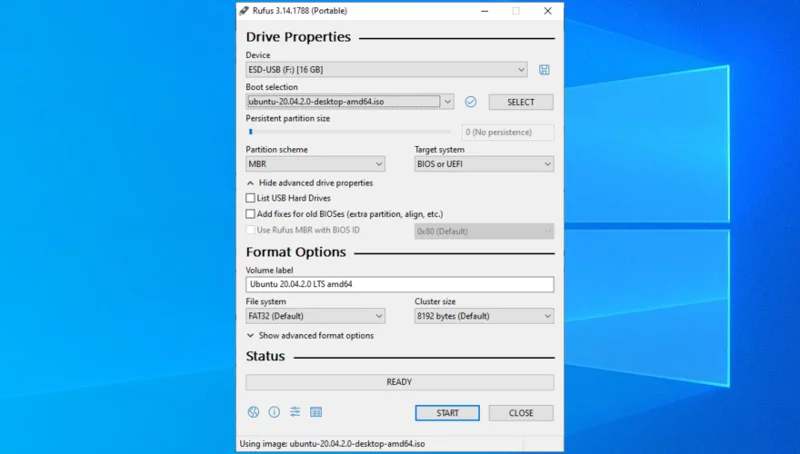
How to create a Linux live distro with Rufus:
- Download a Linux distro like Ubuntu
- Plug a pen drive into your PC. Copy any files you might need later since the drive will be formatted
- Download Rufus from the official website
- Set up and launch Rufus
- Select the pen drive and set Boot section to Disk or ISO image
- Click SELECT and add the Ubuntu ISO image
- Set Partition scheme to MBR
- At File system, select FAT32
- Click OK and wait
")
How to boot Ubuntu from the USB flash drive:
- Make sure the pen drive remains plugged into your computer
- Restart Windows but, before system boot, quickly press the key displayed on the screen to access the boot startup menu (F12 on some computers)
- Choose the USB storage drive with Ubuntu and press Enter
- After Ubuntu loads, access your files and create a backup
26. Reset your PC
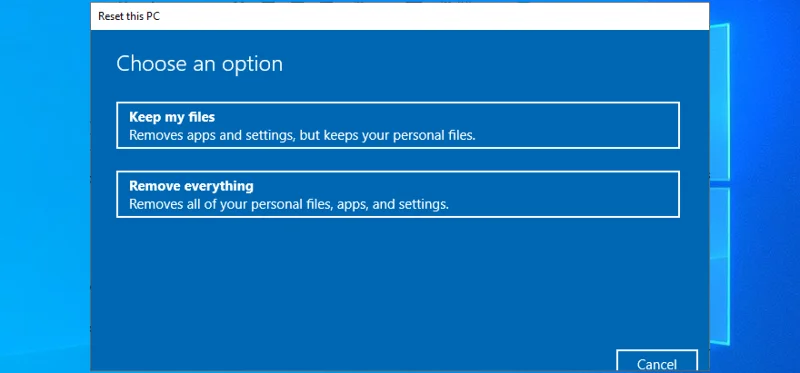
Once you make sure that all your essential files are safely copied somewhere, you can perform a factory reset on Windows 10 by removing not only applications and files, but also by formatting the drive to erase any problem that caused application error 0xc0000005 in the first place.
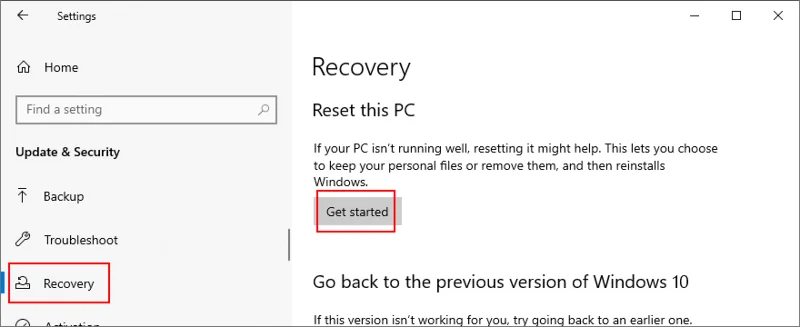
How to reset Windows 10:
- Click the Start button, type Reset this PC, and press the Enter key
- Click the Get started button
")
- Select Remove everything and proceed with the next instructions
")
Application error 0xc0000005 can be fixed
To review, the 0xc0000005 violation error can occur when trying to open files, launch applications, or play games. It indicates an underlying problem with your hard disk or operating system that must be immediately resolved.
You can try a simple solution like restarting your computer, closing all processes, or running the app with administrator rights. However, if the problem is more complicated than that, you can run Program Compatibility Troubleshooter, clear the application cache, reinstall the program, repair and reinstall .NET Framework, check for system updates, or reset the Windows Update components.
It’s also a good idea to run the Hardware and Devices troubleshooter, fix corrupt hard disk and operating system issues, check the system RAM, update or roll back drivers, run a computer malware scan, temporarily disable the antivirus and firewall, change Data Execution Prevention settings, deactivate the LoadAppInit_DLLs registry entry, or repair the BCD file.
Furthermore, you can disable applications that automatically run at every system startup, run a clean system boot, or roll back Windows 10 to a previous checkpoint using System Restore. However, if everything fails, you can use a Linux live distro to access and back up your files in order to prepare for a Windows 10 factory reset that will surely resolve the violation error.
How did you manage to get rid of this error? Tell us about your experience in the comments below.