Une souris est indispensable pour les ordinateurs de bureau, et la plupart des gens l'utilisent même sur leurs ordinateurs portables car le pavé tactile ou le dispositif de pointage est assez inconfortable. Les joueurs sont probablement le meilleur exemple d'un public qui apprécie vraiment la qualité d'une bonne souris avec une sensation de confort, de nombreux boutons et un excellent temps de réponse.
Vous trouverez rarement une souris sans fil dans la réserve d'équipement d'un joueur. Par rapport à une souris filaire, elle a un temps de réponse plus faible car elle se connecte à votre ordinateur via un dongle USB sans fil.
Néanmoins, d'autres types d'utilisateurs préfèrent les souris sans fil pour les activités PC occasionnelles, la navigation sur Internet, le streaming et le travail. Cependant, lorsque votre souris sans fil ne fonctionne pas, vous pourriez être tenté de l'abandonner au profit d'une souris filaire qui ne vous laissera pas tomber.
La souris sans fil ne fonctionne pas
Avant de le faire, vous devez résoudre ce problème pour voir s'il peut être facilement résolu. Des problèmes de fonctionnalité de la souris peuvent survenir quelle que soit la marque, y compris Microsoft, Logitech et HP.
Certains scénarios indésirables que vous pourriez rencontrer :
Comment résoudre les problèmes de souris sans souris
Le premier problème est délicat : comment résoudre les problèmes de souris sur votre ordinateur si vous ne pouvez pas utiliser la souris pour naviguer dans Windows 10. La solution la plus évidente dans ce cas est d'utiliser un autre périphérique de pointage. Par exemple, si vous avez un ordinateur portable, vous pouvez passer au pavé tactile ou au dispositif de pointage.
Si vous n'avez pas de deuxième souris sur votre bureau, essayez d'utiliser un autre périphérique de pointage, comme une tablette graphique. Ou bien, vous pouvez vous fier entièrement à votre clavier pour la navigation sur ordinateur, bien que cela demande un peu de pratique pour apprendre à changer d'onglet et de fenêtre ainsi que comment effectuer des actions similaires à cliquer sur des boutons.
Vous pouvez également essayer d'utiliser Cortana ou une autre solution logicielle de reconnaissance vocale sur votre PC Windows 10. Cependant, nous pensons que le meilleur moyen de résoudre les problèmes de souris consiste à configurer une connexion au bureau à distance à partir d'un autre ordinateur à l'aide de l'application de connexion au bureau à distance intégrée ou d'une application tierce comme TeamViewer .
Comment réparer une souris sans fil si elle ne fonctionne pas sous Windows 10
Suivez ces solutions une par une pour résoudre les problèmes de fonctionnalité de votre souris sans fil sur un ordinateur Windows 10.
1. Vérifiez si tout votre système est gelé
Commencez par vérifier si l'ensemble de votre système d'exploitation est gelé, car votre souris fonctionne peut-être correctement. Si votre session de jeu a été écourtée, vous pouvez facilement le savoir puisque la fenêtre de jeu et le son se bloquent.
Cependant, s'il ne se passait rien sur votre écran lorsque votre souris sans fil a cessé de fonctionner, vérifiez si le clavier est fonctionnel. Si elle a des lumières LED, appuyez sur la Num verrouillage ou majuscules verrouillage des touches pour voir si elles se mettent en marche. Sinon, appuyez sur Ctrl + Alt + Suppr pour voir si votre écran devient bleu et affiche les options d'alimentation et le Gestionnaire des tâches.
Une fois que vous avez déterminé que tout fonctionne parfaitement à l'exception de votre souris, passez aux solutions suivantes.
2. Redémarrez votre ordinateur
Nous savons que cela semble idiot, mais le redémarrage de votre ordinateur peut suffire pour redémarrer votre souris sans fil et la faire fonctionner à nouveau correctement. Il est possible que ses services et pilotes soient suspendus en raison d'autres processus en cours d'exécution, donc le redémarrage de Windows 10 devrait faire l'affaire.
3. Vérifiez la compatibilité de la souris
Si vous avez récemment acheté une nouvelle souris ou l'avez reçue en cadeau, elle ne prend peut-être pas en charge votre système d'exploitation. C'est rare de nos jours puisque la plupart des souris modernes prennent en charge Windows 10.
Mais cela peut quand même arriver, surtout si la marque est nouvelle ou relativement inconnue. Il vous suffit de visiter le site Web du fabricant de votre souris ou de contacter le service client pour confirmer que votre souris USB est compatible avec votre système.
4. Vérifiez la batterie de votre souris
Retournez votre souris pour vérifier si sa lumière est allumée. Ce faisant, regardez de plus près pour vous assurer que la lumière n'est pas recouverte d'un film mince et transparent. Peut-être que vos collègues de bureau voulaient vous faire une petite farce.
Cependant, si le voyant est intermittent ou éteint, cela signifie que votre batterie est faible ou morte, vous devez donc la remplacer. Une fois cela fait, vérifiez si votre souris sans fil fonctionne maintenant.
5. Rapprochez-vous du récepteur USB
Certains utilisateurs connectent leurs ordinateurs portables via leurs téléviseurs intelligents via un câble HDMI et essaient de naviguer sur leurs ordinateurs avec une souris à une grande distance. Cependant, les souris sans fil ne sont pas conçues pour une longue portée, vous devez donc vous rapprocher du récepteur USB pour obtenir un meilleur signal. C'est comme si vous vous rapprochiez du routeur avec votre smartphone pour accéder à Internet.
De plus, vous devez vous assurer que le récepteur USB de la souris n'est pas obstrué par des objets ou à proximité d'autres appareils comme un four à micro-ondes ou un smartphone, car les interférences peuvent empêcher votre souris sans fil de fonctionner sur votre ordinateur Windows 10.
6. Utilisez un autre port USB
Il y a peut-être un problème avec votre port USB, pas avec la souris. Débranchez le récepteur USB de votre ordinateur de bureau ou de votre ordinateur portable et essayez un autre port identique. Sur les ordinateurs de bureau, vous pouvez également essayer l'avant ou l'arrière de l'unité informatique.
Cependant, si votre ordinateur portable n'a pas trop de ports, connectez un concentrateur USB multi-ports, puis connectez votre récepteur USB au concentrateur pour voir si votre souris sans fil fonctionne maintenant.
7. Essayez d'utiliser la souris sur un autre ordinateur
Peut-être que votre souris ne fonctionne pas mal, mais il y a un problème avec les paramètres de votre ordinateur. Le moyen le plus simple de prouver cela est de connecter le récepteur USB de la souris à un autre ordinateur pour voir si cela fonctionne là-bas.
8. Réinstallez la souris et les périphériques USB
Il est possible que votre souris et vos périphériques USB n'aient pas été correctement installés sur votre ordinateur Windows 10. Mais vous pouvez rapidement résoudre ce problème à partir du Gestionnaire de périphériques.
Utiliser une souris
- Cliquez avec le bouton droit sur le bouton Démarrer et accédez au Gestionnaire de périphériques
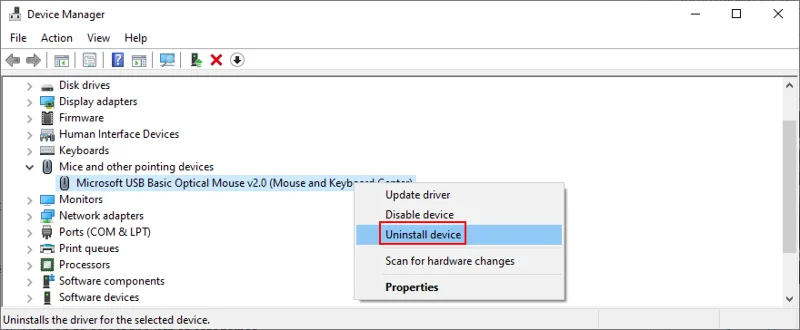
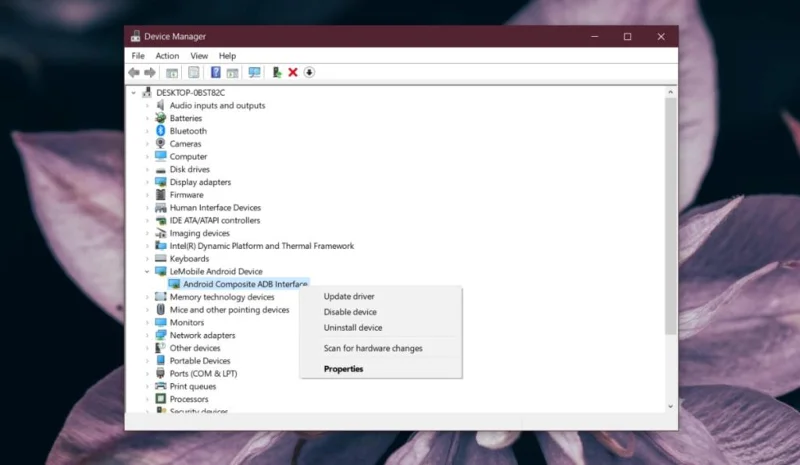
- Développez le menu Souris et autres périphériques de pointage , cliquez avec le bouton droit de la souris et sélectionnez Désinstaller le périphérique
")
- Cochez la case Supprimer le pilote logiciel pour ce périphérique
- Cliquez sur Désinstaller
- Revenir à la fenêtre principale du Gestionnaire de périphériques
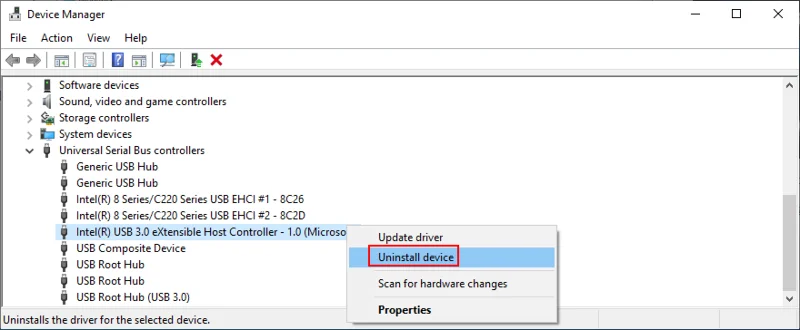
- Ouvrez le groupe de contrôleurs Universal Serial Bus
- Suivez les mêmes étapes pour désinstaller les périphériques de vos ports USB
")
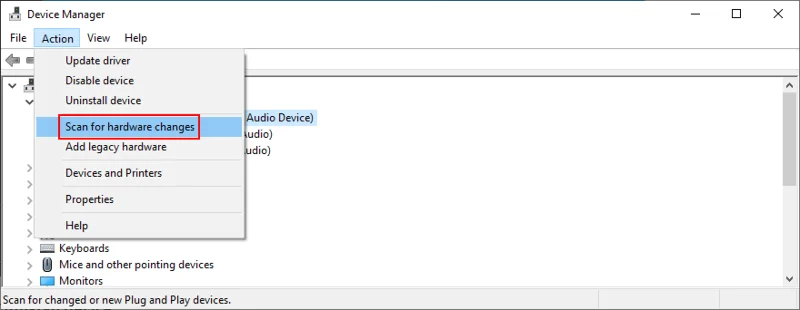
- Ouvrir le menu Action
- Sélectionnez Rechercher les modifications matérielles
")
- Redémarrez votre ordinateur. Windows réinstallera automatiquement les périphériques manquants
- Vérifiez votre souris maintenant
Utilisation du clavier
- Appuyez sur Win + R , tapez devmgmt.msc et appuyez sur Entrée pour lancer le Gestionnaire de périphériques
- Appuyez sur Tab pour sélectionner la liste des catégories
- Utilisez les touches fléchées pour se déplacer vers le bas pour la souris et autres périphériques de pointage catégorie
- Appuyez sur la barre d' espace pour développer ce groupe
- Appuyez sur la touche menu (un rectangle avec trois lignes) ou utilisez Shift + F10 pour ouvrir le menu contextuel
- Appuyez trois fois sur la flèche vers le bas pour sélectionner Désinstaller l'appareil et appuyez sur Entrée
- Appuyez sur Tab jusqu'à ce que vous sélectionniez Supprimer le pilote logiciel pour ce périphérique et appuyez sur la barre d' espace pour cocher sa case
- Appuyez sur Tab pour sélectionner le bouton Désinstaller et appuyez sur Entrée
- Appuyez sur Alt + F4 pour fermer toutes les fenêtres jusqu'à ce que la boîte de dialogue d'arrêt apparaisse
- Utilisez la touche fléchée vers le haut ou vers le bas pour sélectionner l' option Arrêter et appuyez sur Entrée
- Après le redémarrage du PC, Windows réinstallera les périphériques manquants
- Vérifiez si votre souris sans fil fonctionne maintenant
9. Mettez à jour la souris et les pilotes USB
Si la réinstallation des périphériques n'a pas réparé votre souris USB, il est possible que ses pilotes soient obsolètes. Mais vous pouvez résoudre ce problème en utilisant également le Gestionnaire de périphériques.
- Accédez au Gestionnaire de périphériques et parcourez-le en suivant les instructions de la solution 8 à partir de cette liste
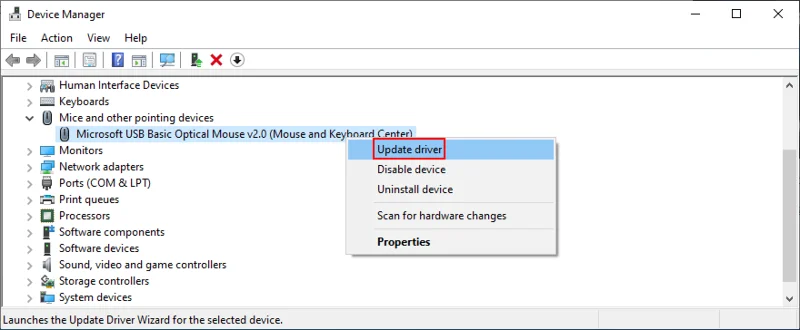
- Cliquez avec le bouton droit sur l'adaptateur de souris (ou appuyez sur la touche de menu ou sur Shift + F12 ) et sélectionnez Mettre à jour le pilote (ou appuyez une fois sur la flèche vers le bas et appuyez sur Entrée )
")
- Cliquez sur Rechercher automatiquement les pilotes (ou appuyez sur Tab pour sélectionner cette option, puis appuyez sur Entrée )
- Si vous recevez le message Les meilleurs pilotes pour votre appareil sont déjà installés , cliquez sur Rechercher les pilotes mis à jour sur Windows Update (ou appuyez sur Tab pour sélectionner cette option et appuyez sur Entrée )
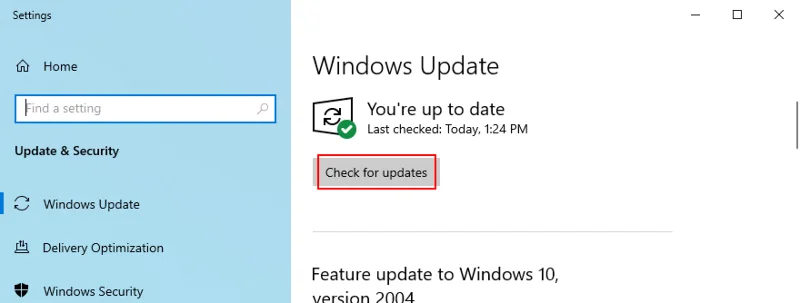
- Une fois les paramètres de Windows Update ouverts, votre système d'exploitation devrait immédiatement commencer à rechercher des mises à jour. Si ce n'est pas le cas, cliquez sur Rechercher les mises à jour (ou appuyez sur Tab jusqu'à ce que vous sélectionniez ce paramètre et appuyez sur Entrée )
")
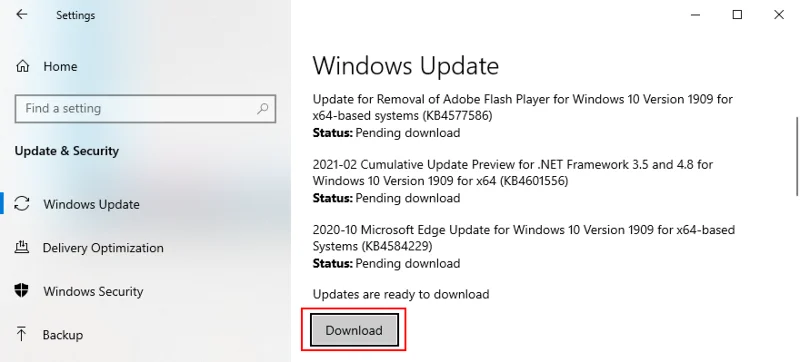
- Attendez patiemment pendant que Windows recherche les mises à jour. S'il y a quelque chose en attente, cliquez sur Télécharger ou Installer maintenant (en fonction de ce que votre écran affiche)
")
- Redémarrez votre ordinateur pour finaliser la mise à jour du système
- Revenez au Gestionnaire de périphériques et effectuez les mêmes étapes pour mettre à jour vos ports USB à partir du menu des contrôleurs Universal Serial Bus . Cependant, il n'est pas nécessaire de vérifier les mises à jour du système si vous l'avez déjà fait pour votre pilote de souris
Malheureusement, Windows 10 n'est pas très efficace lorsqu'il s'agit de rechercher des pilotes à l'aide de Windows Update. Il existe ici deux solutions de contournement : vous pouvez soit télécharger et installer le pilote par vous-même, soit vous tourner vers une application de mise à jour du pilote .
Pour les mises à jour manuelles, vous devez visiter le site Web du fabricant de votre souris pour localiser et télécharger un pilote plus récent compatible avec votre système d'exploitation. Cependant, si vous ne voulez pas risquer d'obtenir un pilote non pris en charge et de faire plus de dégâts, vous pouvez vous tourner vers une application spécialisée qui détecte et met à jour automatiquement tous vos pilotes.
10. Revenez en arrière sur la souris ou les pilotes USB
Si vous avez déjà installé un pilote de souris incompatible, vous devez le supprimer immédiatement de votre ordinateur et revenir à la version précédente. Même si vous n'êtes pas sûr de cela, c'est toujours une bonne idée d'effectuer la restauration si possible. Voici ce que vous devez faire :
- Accédez au Gestionnaire de périphériques et parcourez-le en suivant les étapes détaillées dans la solution 8 à partir de cette liste
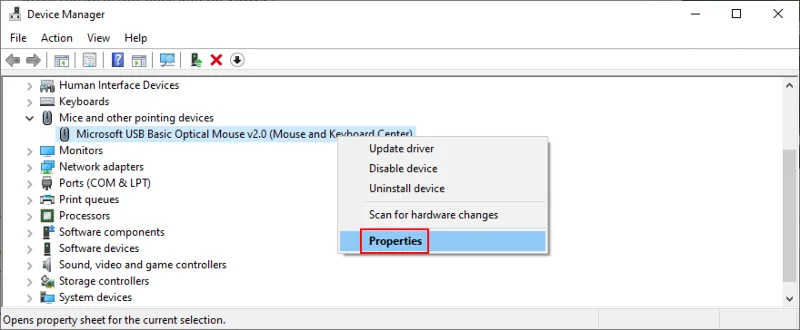
- Faites un clic droit sur votre souris et sélectionnez Propriétés (ou appuyez sur la touche de menu ou sur Shift + F12 , appuyez une fois sur la flèche vers le haut et appuyez sur Entrée )
")
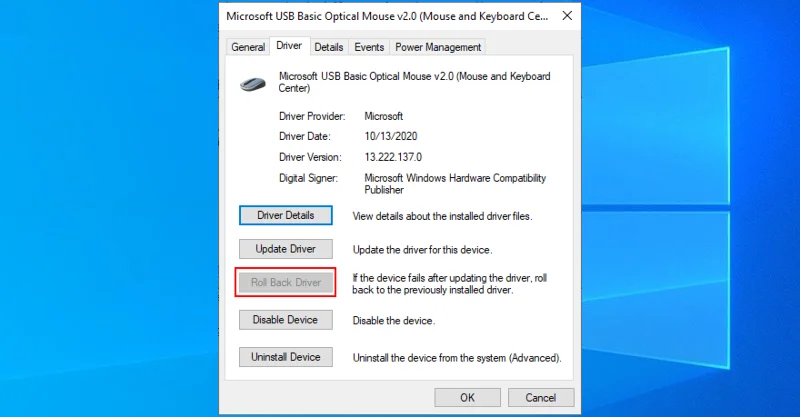
- Cliquez sur l' onglet Pilote (ou appuyez sur Tab jusqu'à ce que vous sélectionniez l' onglet Général et appuyez sur la touche fléchée droite pour accéder à Pilote )
- Cliquez sur Roll Back Driver et suivez les instructions à l'écran (ou appuyez trois fois sur Tab pour sélectionner Roll Back Driver et appuyez sur Entrée )
- Si le bouton Roll Back Driver est grisé, cela signifie que vous ne pouvez pas effectuer le rollback car il n'y a pas de version précédente du pilote sur votre PC
")
- Faites de même pour vos ports USB dans la catégorie des contrôleurs Universal Serial Bus pour effectuer la restauration si cela est autorisé
11. Vérifiez les paramètres de gestion de l'alimentation USB
Des paramètres de port USB incorrects peuvent être une autre raison pour laquelle votre souris sans fil ne fonctionne pas sur votre ordinateur Windows 10. Par défaut, votre système d'exploitation est autorisé à maintenir les ports USB désactivés lorsqu'ils ne sont pas utilisés, afin d'économiser de l'énergie. Mais cela devient problématique lorsque les ports ne sont pas activés lorsque vous branchez votre récepteur USB. Voici comment résoudre ce problème :
- Accédez au Gestionnaire de périphériques et déplacez-vous en suivant les instructions fournies dans la solution 8 à partir de cette liste
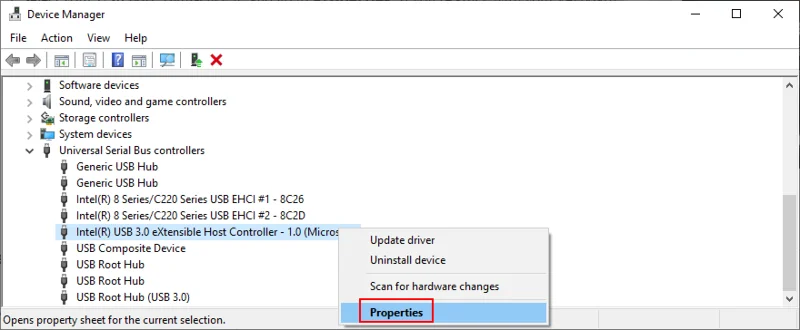
- Étendre le groupe de contrôleurs Universal Serial Bus
- Sélectionnez votre périphérique USB, cliquez dessus avec le bouton droit et accédez à Propriétés . Si vous êtes coincé avec votre clavier, appuyez sur la touche de menu ou sur Shift + F12 , appuyez une fois sur la flèche vers le haut et appuyez sur Entrée pour accéder aux propriétés
")
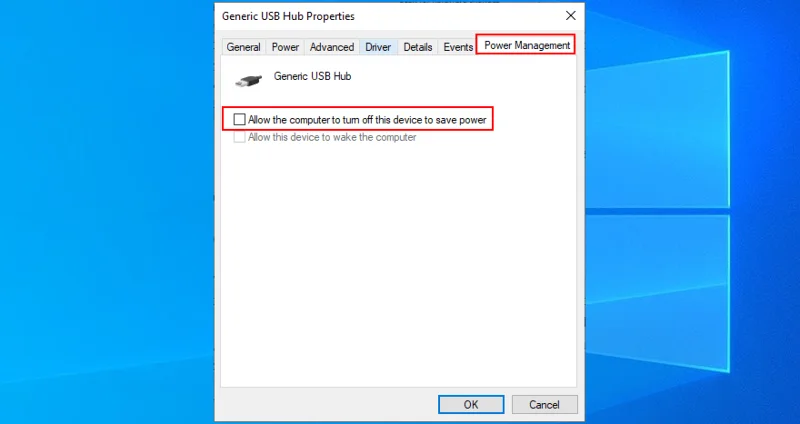
- Basculez vers la section Gestion de l' alimentation (appuyez sur Tab jusqu'à ce que vous sélectionniez la zone des onglets et utilisez les touches fléchées pour accéder à Gestion de l'alimentation )
- Décochez Autoriser l'ordinateur à éteindre cet appareil pour économiser de l'énergie (appuyez sur Tab pour sélectionner cette option, puis appuyez sur la barre d'espace )
")
- Click OK (press Tab until you select OK, then Enter)
- Reboot your PC (press Alt + F4 until you reach the shutdown menu, then select Restart and press Enter)
- Check if your cordless mouse works now
12. Run the Hardware and Devices troubleshooter
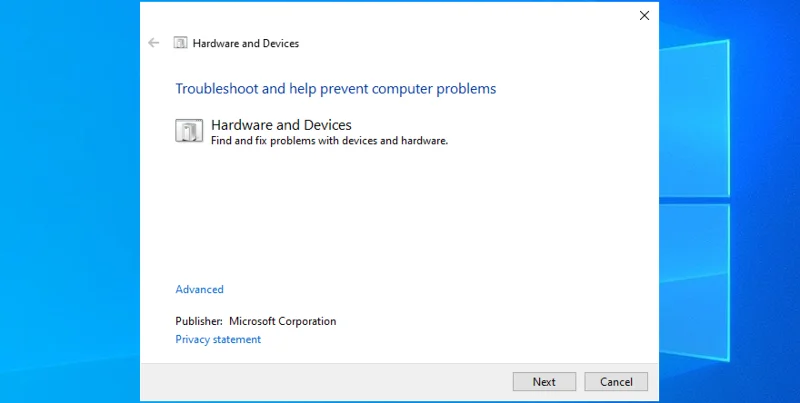
Windows 10 has internal troubleshooters for all critical parts of the system, including hardware and devices. It can help you fix common problems that might be preventing your mouse or USB ports from working correctly, so it’s worth a shot. Normally, you can find it in Settings > Troubleshooters. But if the Hardware and Devices troubleshooter is missing from that list, you can launch it using the Run tool. Here’s how:
- Press the Win key + R, type
msdt.exe -id DeviceDiagnostic, and press Enter
- Click Next (press Tab until you select Next and hit Enter)
")
- Follow the wizard steps and apply any available fixes
- Restart your operating system
- Try to use your USB mouse now
13. Disable Fast Startup mode
Fast Startup is a Windows 10 feature that makes sure not all processes and services are shut down, in order to start your operating system faster after a shutdown. However, it’s been known that Fast Startup has caused multiple problems to Windows users, including Blue Screen of Death errors.
In some cases, it can also prevent your wireless mouse from working properly. However, you can easily fix this issue by disabling Fast Startup on Windows 10. Here’s what you need to do:
- Make sure to sign in to Windows 10 using an administrator account
- Press Win key + R, type control panel, and press Enter to open this app
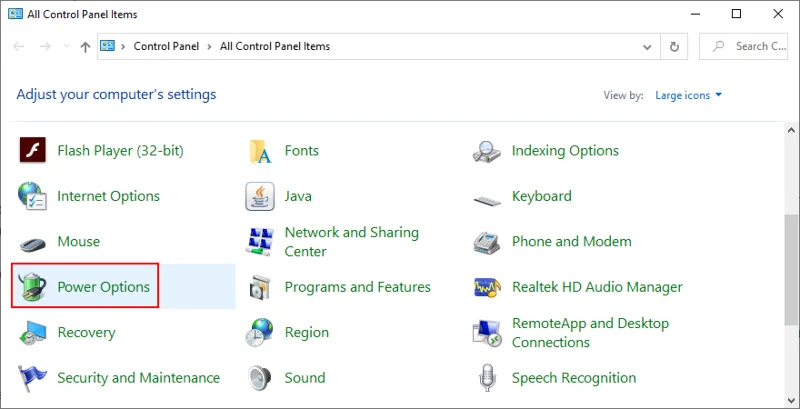
- Click Power Options (or use the arrow keys to move around, select Power Options, and press Enter)
")
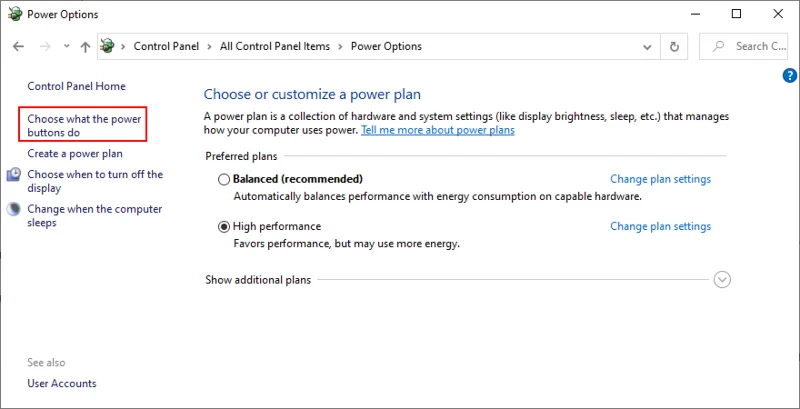
- Select Choose what the power buttons do on the left side (or press Tab to select this option and Enter to click it)
")
- Click Change settings that are currently unavailable (or press Tab until the option is selected, then hit Enter)
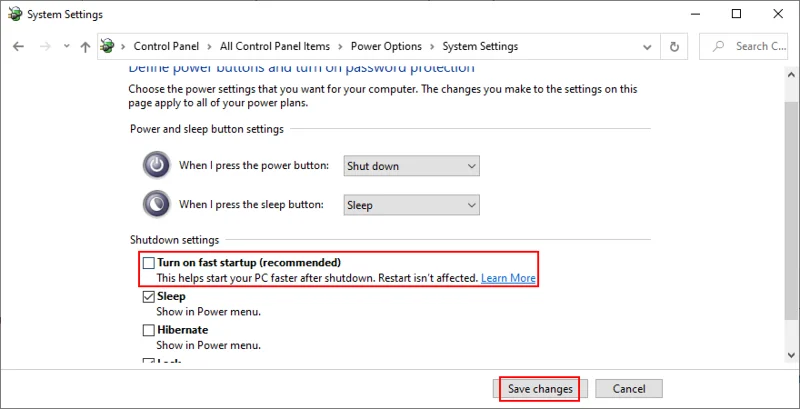
- Disable Turn on fast startup (use Tab or arrow keys to select the option, then press Spacebar to uncheck the box)
")
- Click Save changes (use Tab or arrow keys to select the button, then hit Enter)
- Restart your computer and try to use your cordless mouse now
14. Close all running applications
If you have resource-demanding applications or games launched, it’s no wonder that your USB mouse freezes every now and then. But you can fix this problem by terminating all programs you’re not currently using. The best way to do this is by ending their task from Task Manager.
How to terminate running processes:
- Click the Start button, search for Task Manager, and press Enter to open this app
- Remain in the Processes tab. If you’re in another area, use Tab to select the tabs and the arrow keys to switch to the Processes section
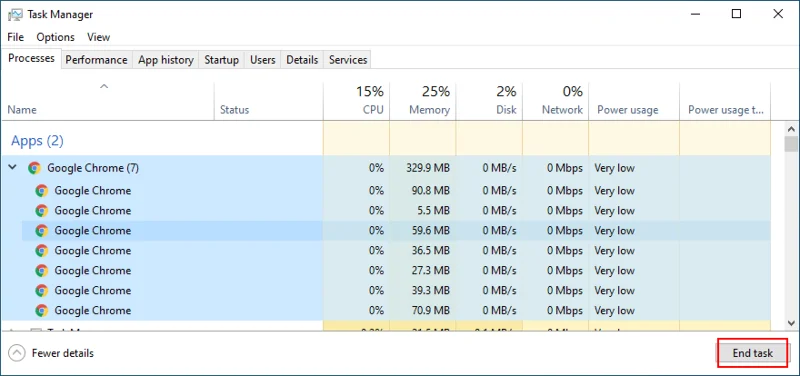
- Select an unused application and click End task. Or, use the Tab key to select the list of processes and press the arrow keys to navigate. Once you select an app, press Tab until you select the End task button and hit Enter (or press the menu key or Shift + F12 to open the right-click menu, then use the up and down arrows to select End task, and hit Enter)
")
- Do this for all applications you don’t recognize or use
- Try to use your wireless mouse now
It might be necessary to restart the computer after exiting all applications. However, if all or part of these programs are scheduled to automatically run at Windows boot, then your work will have been in vain. In that case, you should return to Task Manager to disable all startup apps.
How to disable startup apps:
- Click the Start button, type Task Manager, and press Enter to open this app
- Go to the Startup tab. If you’re using a keyboard, press the Tab key until you select the tabs area, and use the arrow keys to navigate to Startup
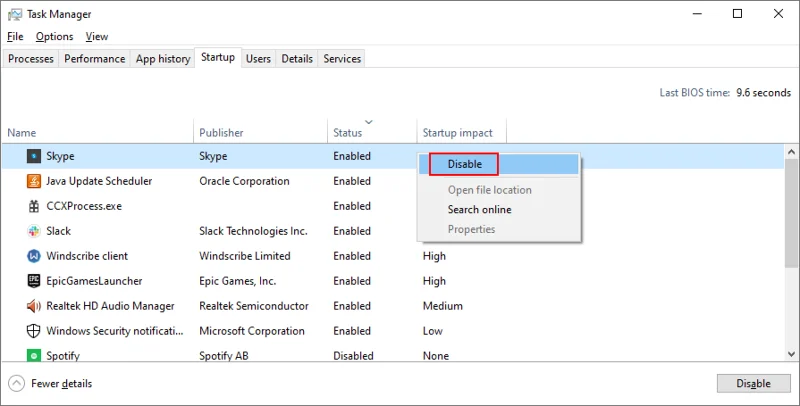
- Select an app and click Disable. Or, press Tab until you select the list of apps, use the arrow keys to navigate and select an app. Then press Tab until you select the Disable button and hit Enter (or press the menu button or Shift + F12 to open the context menu, use the arrow keys to select Disable, and press Enter)
")
- Do this for all startup apps with the Enabled status
- Restart your computer and see if you can use your USB mouse now
15. Run a clean boot
A better idea than disabling startup apps is running a clean boot on Windows 10. In addition to stopping all programs that automatically run at Windows startup, you will be also disabling scheduled services. It’s a step forward toward fixing your wireless mouse if it’s not working on your Windows 10 PC.
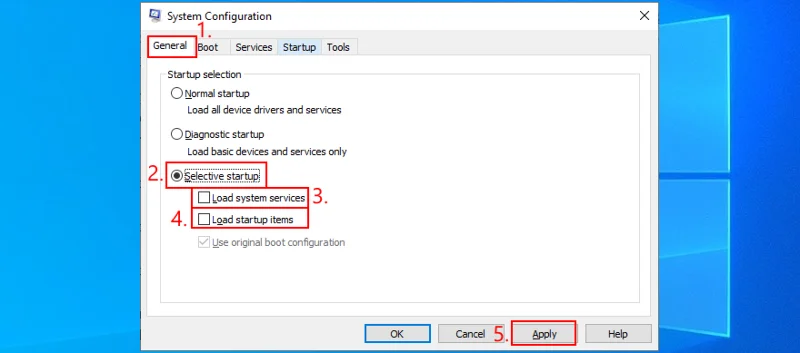
- Press Win key + R, type msconfig, and hit Enter to open the System Configuration app
- Stay in the General tab. If you’re somewhere else, press Tab until you select the tabs area and use the arrow keys to go to General
- At Startup selection, select Selective startup and disable Load system services and Load startup items. Or, press Tab until you reach Selective startup, use the arrow keys to select Load system services and Load startup items, then press Spacebar at each setting to disable it
")
- Click Apply and exit. Or press Tab until you reach the Apply button, hit Enter, and press Esc
- Follow the instructions at Solution 14 from this list to disable startup apps
- Restart your computer and check your cordless mouse for issues
16. Start Windows 10 in Safe Mode
Running Windows 10 in Safe Mode means starting your operating system in a basic state, with all non-important drivers and files disabled. It’s a bit more strict than clean boot, but it helps you narrow down the root of the problem.
If your wireless mouse works in Safe Mode, it means that there’s no problem with the default Windows settings and standard drivers. Here’s what you need to do:
- Shut down your computer, turn it on, and then shut it down by force. Do this three times to boot to Troubleshoot mode
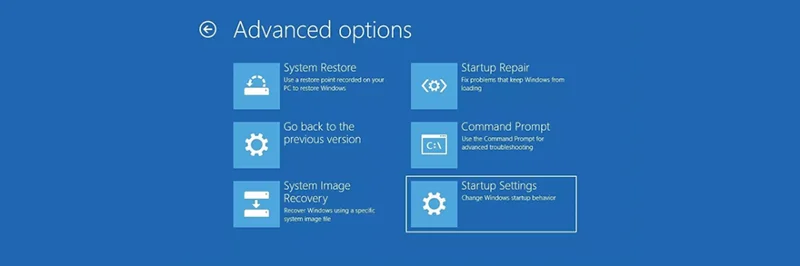
- Go to Troubleshoot > Advanced options > Startup Settings. If you can’t use a mouse, then use the Tab key to navigate and Enter to access options
")
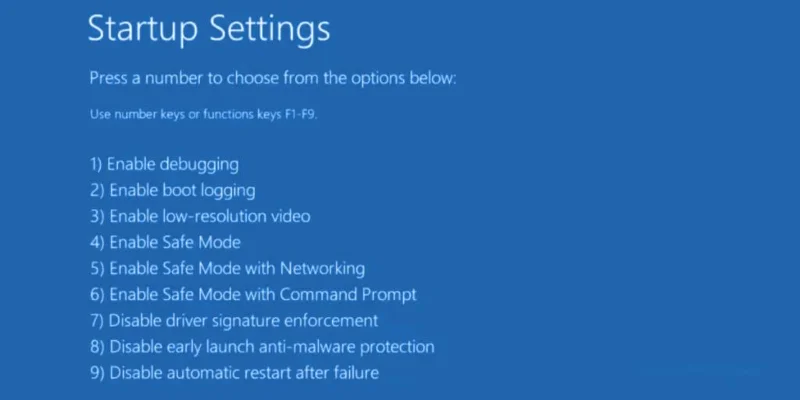
- Select Restart and press F4 to start Windows in Safe Mode (without networking features)
")
- After Windows boots, check if you can use your USB mouse
17. Unplug other peripheral devices
Your USB mouse might interfere with other external devices currently attached to your computer. If you have recently purchased or received a new device as a gift, like a webcam or Wi-Fi adapter, try unplugging it from your PC to see if this fixed your mouse issue.
If you’re unsure, unplug everything except for your mouse and keyboard. Then, shut down your computer, start Windows again, and inspect results. If your wireless mouse is working now, start plugging in your devices one at a time until your mouse starts malfunctioning again.
Once you spot the bad apple, you can reinstall the device, repair it, send it back to your manufacturer if you have a warranty, or just drop and replace it with something else.
18. Run SFC
Any corrupt files in your operating system could be causing device functionality issues, even with your mouse. However, you should be able to fix damaged files by turning to an internal Windows utility called SFC (System File Checker). Here’s how to use it:
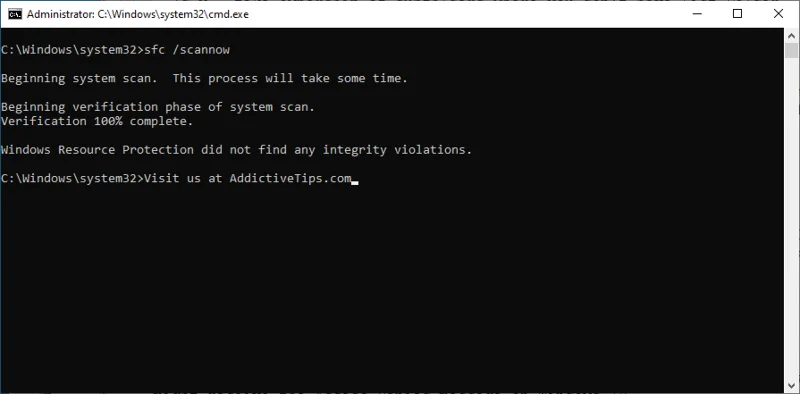
- Press Windows key + R, type cmd, and press Ctrl + Shift + Enter to open Command Prompt as administrator
- Type
sfc /scannow and press Enter")
- Patiently wait while SFC does its job. Once it finishes, restart your computer
- Check if you can use your USB mouse now
19. Uninstall system updates
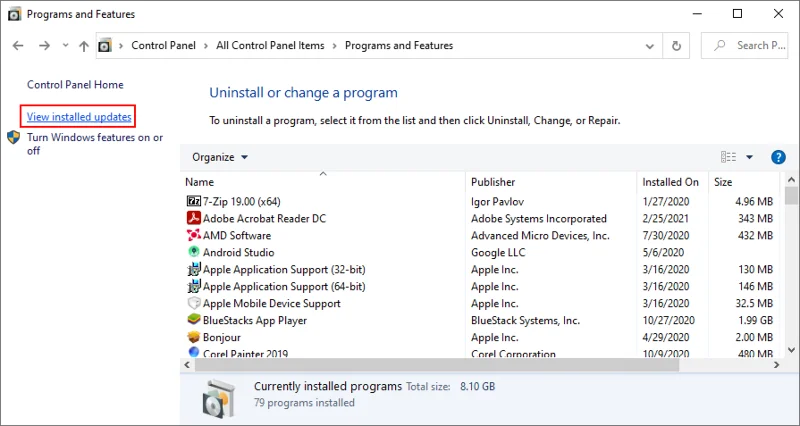
Long-time Windows users are familiar with the fact that certain system updates shouldn’t be released because they end up harming computers. A bad update could be the reason why your wireless mouse isn’t working properly anymore, especially if you have recently gone through an update. To solve this matter, you should uninstall the most recent Windows update. Here’s how:
- Press Win key + R, type appwiz.cpl, and press Enter
- Click View installed updates. Or, press Tab until you select View installed updates, then press Enter
")
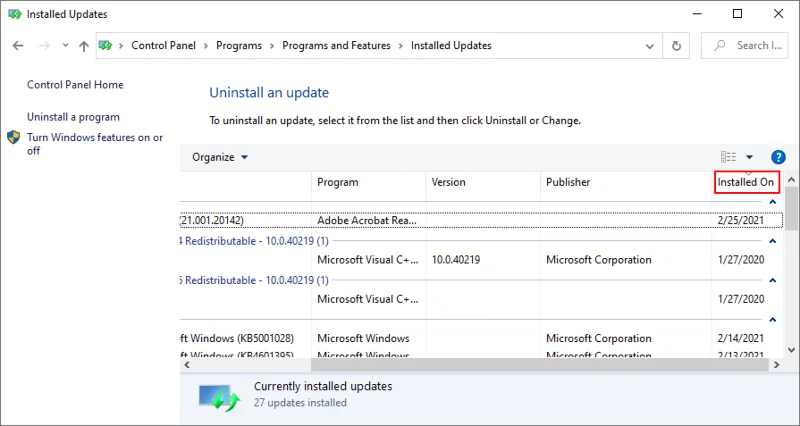
- Click the Installed on column to sort updates by date of installation (newest first). Or, press Tab until you select the Name column, then use the arrow keys to go to Installed On, and press Enter once or twice
")
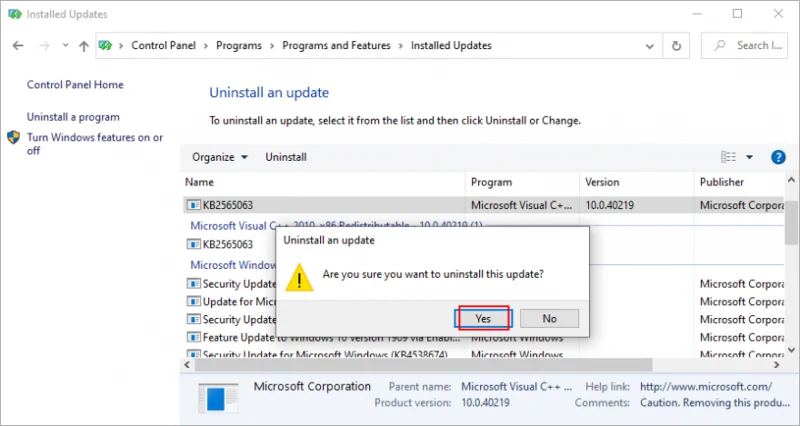
- Double-click the first update in the Microsoft Windows category and click Yes to confirm uninstall. Or, press Tab until you select the updates area, use the arrow keys to navigate to the update, then press Enter to perform the uninstall and Enter again to confirm (on the Yes option)
")
- Restart your computer and check your mouse
20. Check your PC for malware
If your computer has viruses and if critical files in charge of your mouse device were infected, it’s no wonder that your wireless mouse is not working anymore on Windows 10. But you can run a malware scan to fix this problem. If you don’t have a third-party security solution installed, turn to Windows Defender.
How to use Windows Defender:
- Press the Win key, type Windows Security, and press Enter to open this program
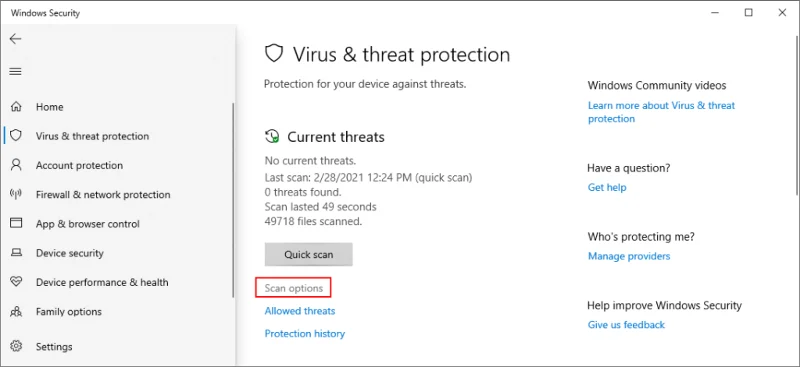
- Click Virus & threat protection (or, press Tab until you select this option and hit Enter)
")
- Click Scan options or use the arrow keys to navigate there and hit Enter
")
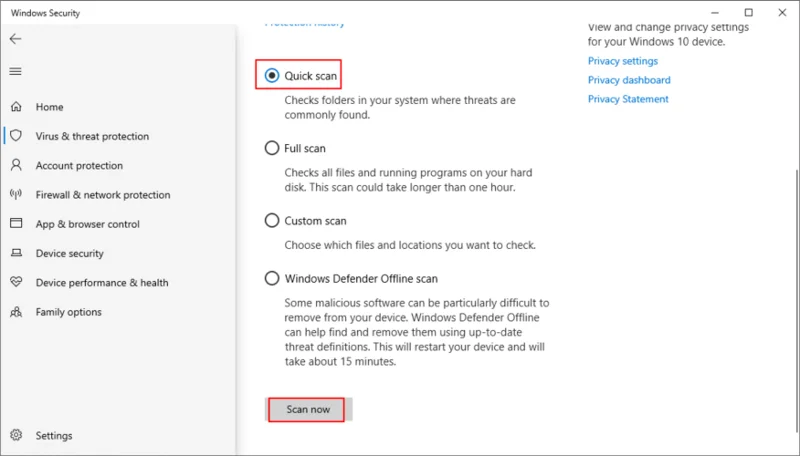
- Select Quick scan and click Scan now. Or, press Tab until you select the scan options, hit Spacebar at Quick scan, then press Tab to select Scan now and hit Enter
")
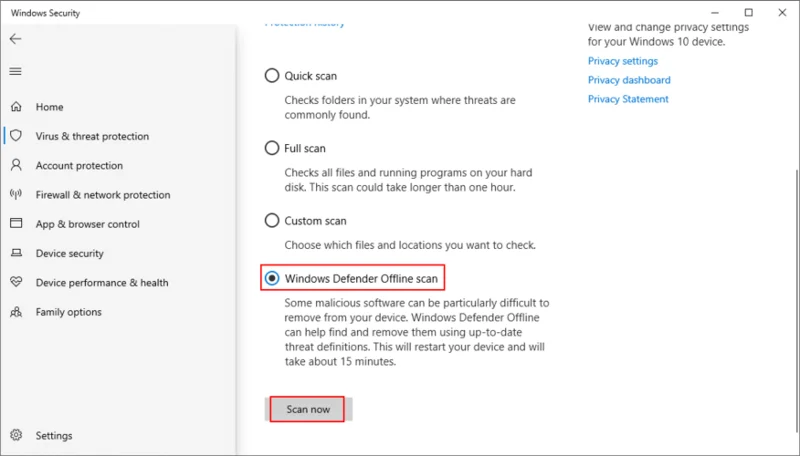
- If the search is unsuccessful, run another scan after selecting Windows Defender Offline scan mode
")
- Patiently wait until the scan is carried out and allow Windows to remove any infected files
- Restart your computer and check if your mouse works now
21. Uninstall game controller software
You can use a PS4 controller on Windows 10 to play awesome games like Dark Souls, for example. However, certain game controller software applications can interfere with your mouse’s USB receiver, preventing you from using it on your computer.
If you recently installed tools like MotioninJoy, Keysticks or JoyToKey, you should remove them from your computer to restore the functionality of your wireless mouse.
How to uninstall game controller apps:
- Press Win key + R, type appwiz.cpl, and press Enter
- Find the app in the list, double-click it, and click Yes to confirm its removal
- Click Yes again if prompted by UAC (User Account Control) to uninstall
- If you’re glued to your keyboard, press Tab until you reach the list of apps, use the arrow keys to navigate to the game controller tool, then press Enter and follow the removal instructions
22. Change BIOS or UEFI settings
USB settings can be enabled and disabled from BIOS or UEFI mode. If you or someone else with access to your computer has changed the BIOS configuration, perhaps the USB support was deactivated there and must be turned on again. It’s really easy to make it happen:
- Restart your computer (press Alt + F4, press Tab to select Restart from the menu, then hit Enter)
- Before Windows boots, quickly press the key shown on the screen to access BIOS setup
- Using your arrow keys, navigate to the Devices section
- Depending on your BIOS type, find and access any area about USB
- Make sure to enable USB support
- Save the current BIOS configuration and quit to Windows
- Check if you can use your wireless mouse now
23. Check if you have the mouhid.sys file
mouhid.sys (Mouse HID Driver) is the kernel device driver responsible for your mouse interface. Without this file, you can’t use any mouse, no matter what you do. Get started by verifying that you have this item.
Where to find mouhid.sys:
- Press Win + R to open File Explorer
- Navigate to the address bar by pressing Tab
- Hit the Enter key and paste the following location:
%SystemRoot%\System32\drivers\
- Press Enter
- Search for the mouhid.sys file in this list
- If you find it, press Win key + R, type cmd, press Ctrl + Shift + Enter to launch Command Prompt as admin
- Type
sc config mouhid start=demand and press Enter to restore the mouhid.sys configuration to default
- If the file’s not there or if it’s changed or damaged, you must create a Windows installation media disc and restore it from there
How to create Windows installation media:
- Connect an empty USB flash drive to your PC
- Download Media Creation Tool from the official website
- Launch the program and follow the instructions to create a Windows installation media USB disk
How to restore mouhid.sys from the Windows installation media:
- Sign in to Windows 10 using an administrative account
- Make sure the pen drive with the Windows installation media is plugged into the PC
- Download 7-Zip and install it on your PC
- Press Win + E to open File Explorer
- Navigate to the USB flash drive
- Open the Sources folder
- Locate the install.esd file
- Right-click install.esd (or press the menu key or Shift + F12) and open it with 7-Zip (Open archive)
- Browse the install.esd file contents in 7-Zip, then locate and copy the mouhid.sys file
- Switch back to File Explorer and go to the following location:
%SystemRoot%\System32\drivers\
- Paste the mouhid.sys file here. If it already exists, overwrite the existing item
- Restart your computer
If the mouhid.sys file is currently being used by Windows, it won’t allow you to overwrite it. However, there are a couple of workarounds: taking ownership and using Unlocker to delete the corrupt file.
How to take ownership of mouhid.sys:
- Sign in to Windows 10 using an administrator account
- Press Win key + E to open File Explorer
- Navigate to:
%SystemRoot%\System32\drivers\
- Right-click mouhid.sys and go to Properties. Or, press the menu key or Shift + F12, hit the up arrow, and press Enter
- Switch to the Security section. Or, press Tab until you select the area of tabs, then press the right arrow to go to Security
- Click Advanced. Or, press Tab until you select that button and press Enter
- Next to Owner, click Change. Or, press Tab until you select Change, then press Spacebar
- Type Administrators and click Check names. Or, press Tab to select Check names, then hit Enter
- Press OK, then Apply and OK twice
- Once returned to the Properties panel, click Edit (press Tab to select the option, then Enter)
- At Full control, click Allow. Or, press Tab until you reach the Allow box and press Spacebar to enable it
- Click Apply (press Tab until you reach Apply and hit the Enter key)
- After confirming the action, exit all windows
How to delete mouhid.sys with Unlocker:
- Download Unlocker. The app is not available for download from the official website anymore, but you can find it on third-party mirror websites
- Unzip and install the application. Be careful during setup since Unlocker offers to download and install unrelated, third-party programs. You can refuse those offers by unchecking their options before clicking Next
- If you get an error when trying to unzip or install Unlocker, it means that Windows Defender or your third-party antivirus tool is blocking it (the threat is called
PUA:Win32/Presenoker). You must allow it on your device to be able to use Unlocker. Don’t worry since you can delete it afterward
- Launch the Unlocker app
- Using the built-in file browser, navigate to the
%SystemRoot%\System32\drivers\ location (if Windows is installed on the default C: drive, then go to Windows > System32 > drivers)
- Select the mouhid.sys file and press OK
- Open the No action menu and select Delete, then press OK
- Since it’s a system file currently being used by your computer, Unlocker will offer to delete it during the next Windows boot. Accept this offer
- Reboot your computer
- Open File Explorer using Win key + E
- Navigate to the location where you copied the mouhid.sys file from the Windows installation media. Copy it again
- Now, go to
%SystemRoot%\System32\drivers\ and paste the file. You shouldn’t get permission errors anymore
- Restart your computer again. Your wireless mouse should work now on Windows 10
24. Use System Restore
Rolling back Windows 10 to a previous checkpoint when your mouse still worked in a simple way to fix the problem if it occurred due to an unknown software event. However, this means that System Restore must have been enabled on your PC a long time ago, and that you have at least one restore point created before your cordless mouse stopped working. Here’s what you need to do:
- Log in to Windows 10 with an admin account
- Press Win key + R, type control panel, and hit Enter
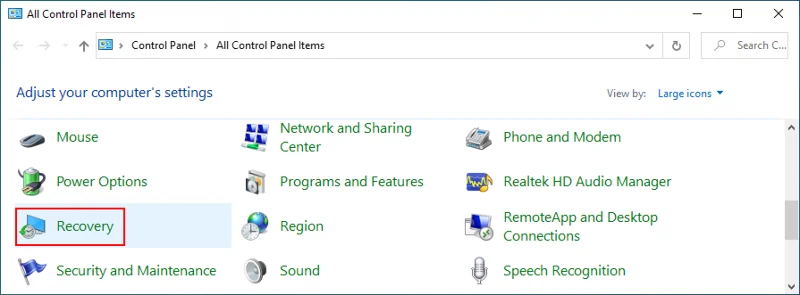
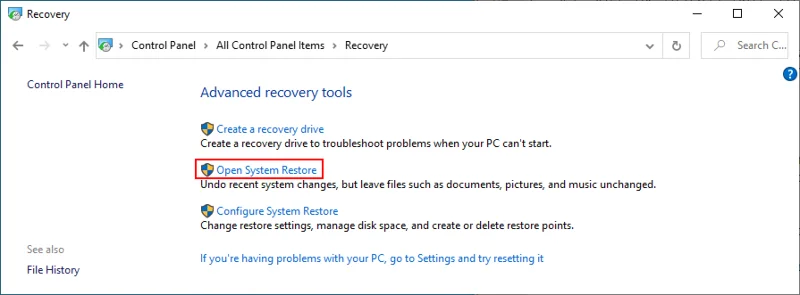
- Select Recovery. Or, use the arrow keys to navigate to this option and press Enter
")
- Click Open System Restore. Or, press Tab until you reach the Advanced recovery tools menu, move to Open System Restore using the arrow keys, and hit Enter
")
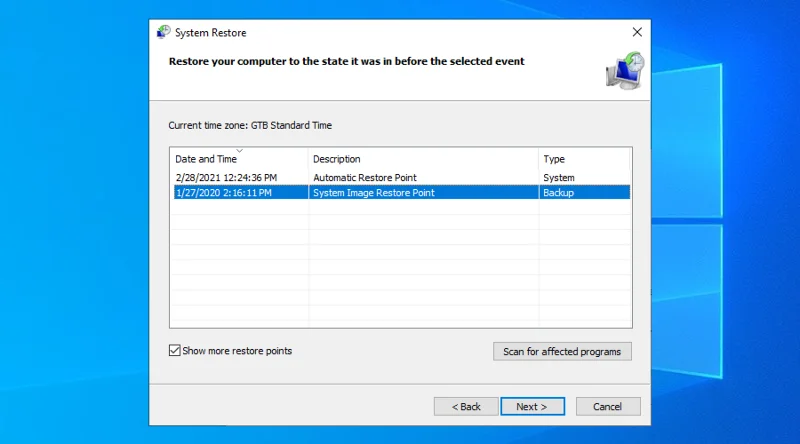
- Select a restore point from the list and click Next. Or, use Tab to switch to the list of restore points, move with the arrow keys to select a checkpoint, press Tab until you reach the Next button, and hit Enter
")
- Follow the on-screen instructions
- After Windows restarts, check if you still have problems with your wireless mouse
25. Use Event Viewer
If you still can’t figure out what’s wrong in order to fix the problem, we recommend getting in touch with the tech support of your mouse manufacturer. They should be able to shed some light on the matter.
Before doing so, it’s a good idea to collect as much information as possible about your mouse, and the best way to do that is by using Event Viewer.
How to use Event Viewer:
- Press the Windows key, type Device Manager, and hit Enter to open this app
- Extend the Mice and other pointing devices group. Or, press Tab, use the arrow keys to navigate to the category, and press the right arrow key to extend the group
- Right-click your mouse adapter and go to Properties. Or, press the menu key or Shift + F12, press the up arrow, and hit Enter
")
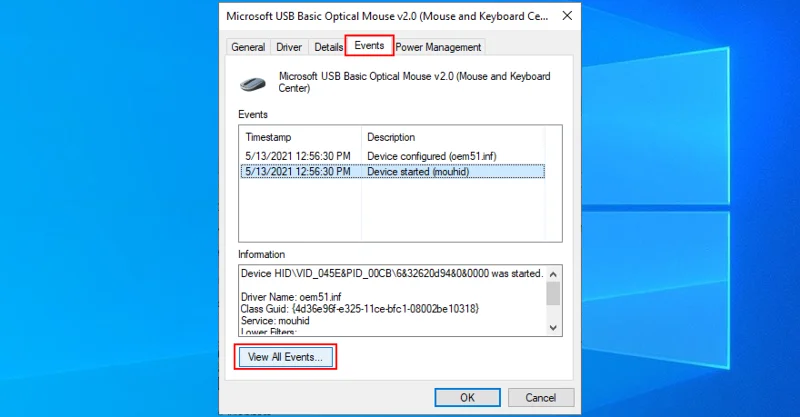
- Switch to the Events tab. Or, press Tab until you reach the tabs area and use the arrow keys to go to Events
")
- Click View All Events. Or, press Tab until you select that button and press Enter
- Copy the information found in the events list (at General and Details)
If you don’t want to contact tech support, you can look up more information on Google based on the mouse events registered by your system. You could also plug the USB receiver into another PC to compare the event logs.
26. Reset Windows 10
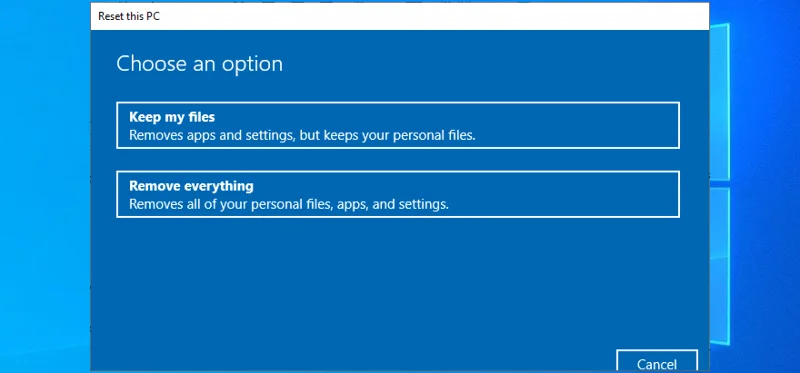
Performing a factory reset on Windows 10 is the last resort to restore the original system files. However, you should only proceed with this solution if you’re absolutely sure that your mouse is supported by your operating system and not damaged in any way.
Your personal files will be left untouched, so you don’t need to perform backups. But you will have to reinstall all your applications and games installed on the same drive as Windows.
How to reset Windows 10:
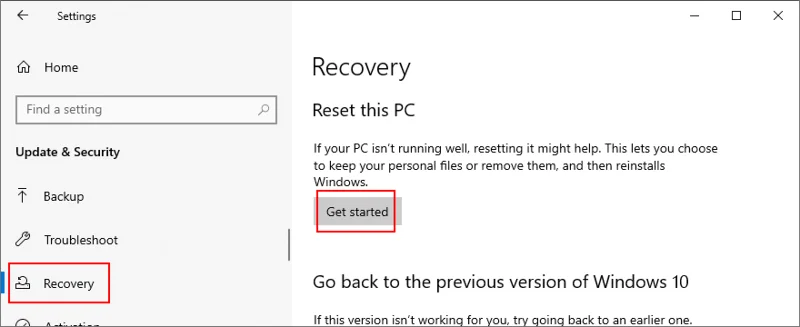
- Press the Win key, type Reset this PC, and hit Enter
- At Reset this PC, click Get started. Or, press Tab until you select this button, then hit Enter
")
- Choose Keep my files
")
- Proceed with the on-screen steps
You can fix a non-working wireless mouse
To review, if your cordless mouse is not working on Windows 10, there could be a problem with the device or your computer settings. The most delicate part is troubleshooting the problem without a mouse, unless you can control your PC remotely from another computer. Still, your keyboard is your friend.
Get started by checking if your entire system is frozen. You can try simple solutions like restarting your PC, checking the mouse compatibility and battery, moving closer to the USB receiver and ensuring that it’s not obstructed, connecting to a different USB port, and trying to use the malfunctioning mouse on another machine.
Next, you should reinstall the mouse and USB devices, update or roll back their drivers, check the USB power management settings, run the internal Hardware and Devices troubleshooter, turn off Fast Startup, terminate all running programs, run a clean boot, start Windows 10 in Safe Mode, and unplug other external devices except for the mouse USB receiver.
Furthermore, you can run SFC to find and fix corrupt system files, uninstall bad system updates, check your PC for malware, uninstall any game controller tools, change BIOS or UEFI settings, check if you have the mouhid.sys file, use System Restore to roll back to a previous checkpoint, and consult Event Viewer to get more details before contacting tech support.
If everything fails but you’re certain that the USB mouse works on any other computer, you can reset Windows 10 to factory settings and, subsequently, reinstall all system files that might be corrupt, missing, or damaged.
How did you manage to get your wireless mouse working again? Tell us all about it in the comments below.