Windows 11 25H2の起動可能なUSBインストールメディアを作成する方法
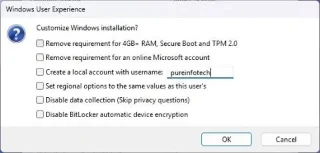
Windows 11 25H2の起動可能なUSBインストーラーを作成するには、Rufus、Ventoy、コマンドプロンプト、およびメディア作成ツールを使用できます。その方法は次のとおりです。
Windows 11 の動作が遅い、不安定、または単にクリーンな状態にしたい場合は、クリーンインストールを実行するのが最も確実な方法です。また、ハードディスクが空の状態で新しいデバイスをセットアップできる唯一の方法でもあります。このガイドでは、USB ドライブ、ISO ファイル、PC のリセット、クラウドダウンロードなど、ライセンス認証を維持したまま Windows 11 をクリーンインストールするすべての方法をステップバイステップで解説します。
Windows 11では、クリーンインストールと は、ハードドライブを完全に消去し、オペレーティングシステムを新規にインストールすることを意味します。インストールするバージョンは、25H2、24H2(または近日公開予定の26H2)のいずれかです。このプロセスでは、カスタム設定、ドライバー、アプリ、個人ファイルなど、すべてが削除され、ノートパソコンやデスクトップパソコンがまっさらな状態になります。
互換性のあるハードウェアで最新バージョンのオペレーティングシステムにアップグレードするには、クリーンインストールが最適な方法となる場合が多いです。クリーンインストールは、インストールエラーを防ぎ、既存のシステム問題を修正するのに役立ちます。コンピューターが長期間同じ設定で動作している場合、このタイプのインストールによって、パフォーマンスの低下、起動やシャットダウンの問題、メモリの問題、アプリのクラッシュなどを解決できます。また、Windows 10、8.1、7などの古いバージョンからアップグレードする場合にも推奨される方法です。さらに、このプロセスでは、 メーカーのデフォルト設定でプリインストールされている不要なブロートウェアを削除することもできます。
一方、このプロセスでは、Microsoft Edge、Microsoft Store、その他のプリインストールアプリなどのアプリは削除されないため、オペレーティングシステムの不要な機能を完全に削除することはできません。オペレーティングシステムの不要な機能を削除したい場合は、手動で設定をカスタマイズする必要があります。
ファイルは失われてしまいますか?
はい、クリーンインストールではすべてが消去されるため、事前にバックアップを取っておかないと、個人ファイル、アプリ、設定がすべて失われます。重要なデータの損失を防ぐには:
Windows 11は引き続きアクティベートされた状態を維持しますか?
はい。お使いのWindows 10コンピューターが以前にライセンス認証されていた場合、Windows 11のインストール後に自動的に再認証されます。プロダクトキーを入力する必要はありません。
クリーンインストールを実行する方法
マイクロソフトは、 Windows 11のインストールを実行するための複数の方法をサポートしています。
このガイドでは、お使いのコンピューターにWindows 11 25H2およびバージョン24H2をインストールするためのすべての手順を説明します。
重要:この処理を実行すると、デバイス上のすべてのデータが削除されます。処理を進める前に、コンピュータの完全なバックアップを作成することをお勧めします。ご注意ください。インストール中に問題が発生した場合は、以下のトラブルシューティング手順をお試しください。
USBフラッシュドライブを使用するのが、Windows 11のクリーンインストールを行う最も簡単で確実な方法です。メディア作成ツール、コマンドプロンプト、Rufus、またはその他のサードパーティ製ツールを使用して、起動可能なUSBを作成できます。
この方法を選択する場合は、お使いのコンピューターが USBフラッシュドライブから起動できることを確認する必要があります。そのためには、UEFI(BIOSとも呼ばれます)の設定を変更する必要があります。コンピューターの種類によって設定が異なるため、これらの設定へのアクセス方法や調整方法については、メーカーのサポートWebサイトをご確認ください。
Windows 11 24H2以降、MicrosoftはWindowsセットアップの画面デザインを刷新しました。ほとんどの手順は同じですが、インストールするバージョンによっては一部の手順が異なります。ただし、これはUSBから起動してセットアップを開始する場合にのみ適用されます。
このインストール方法を強くお勧めします。セットアップには少し時間がかかりますが、潜在的な問題を最小限に抑え、インストール後のシステムのスムーズな動作を保証します。
USBメモリからWindows 11をクリーンインストールするには、以下の手順に従ってください。
Windows 11 25H2 USBフラッシュドライブを使用してPCを起動します。
続行するには、いずれかのキーを押してください。
インストール言語とフォーマットを選択してください。
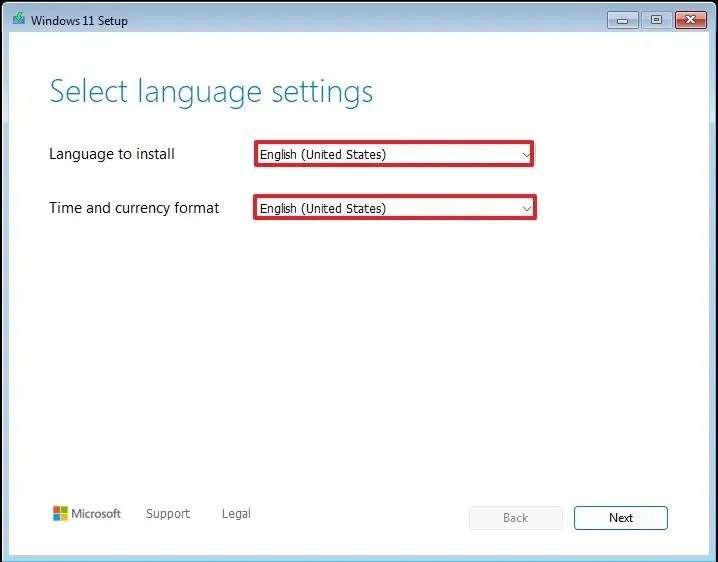
「次へ 」ボタンをクリックしてください。
キーボードと入力方法を選択してください。
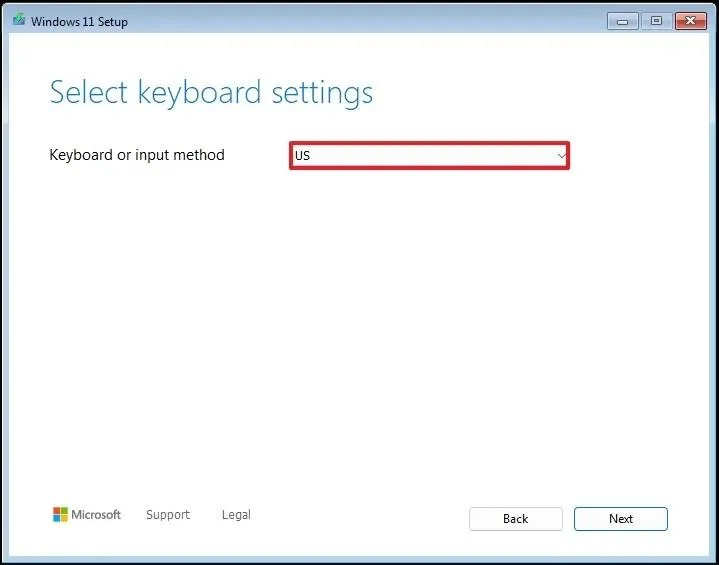
「次へ」ボタンをクリックしてください。
「Windows 11をインストールする」オプションを選択してください。
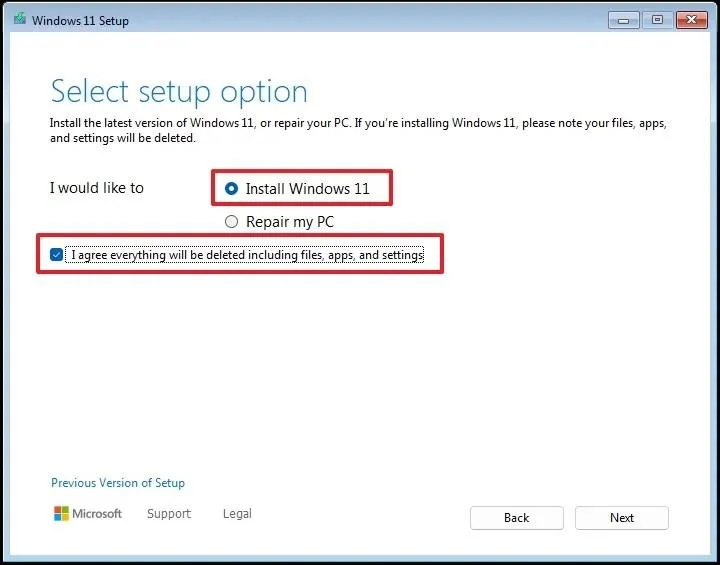
この処理によってコンピュータ上のすべてが削除されることを確認するには、「ファイル、アプリ、設定を含むすべてが削除されることに同意します」オプションにチェックを入れてください 。
「次へ」ボタンをクリックしてください。
「プロダクトキーを持っていません」のオプションをクリックしてください。
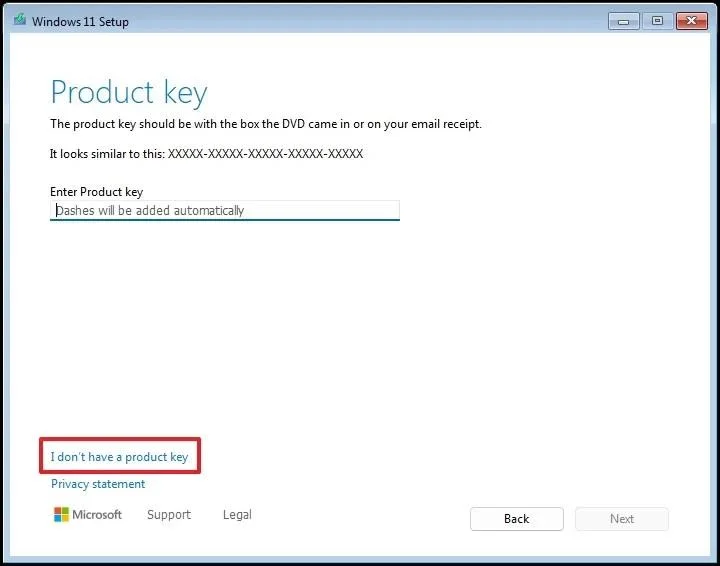
簡単な注意事項:再インストールを実行すると、コンピューターは自動的にアクティベートされます。新しいコンピューターの場合は、プロダクトキーを入力する必要があります。プロダクトキーは、後で設定アプリから入力してアクティベートすることもできます。
ライセンスキーで有効化できる「Windows 11」のエディションを選択してください(該当する場合)。
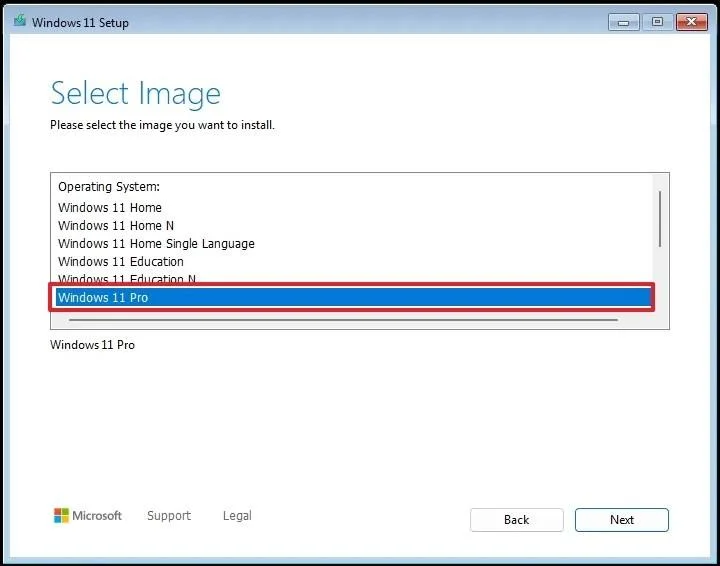
「次へ」ボタンをクリックしてください。
同意するボタンをクリックしてください
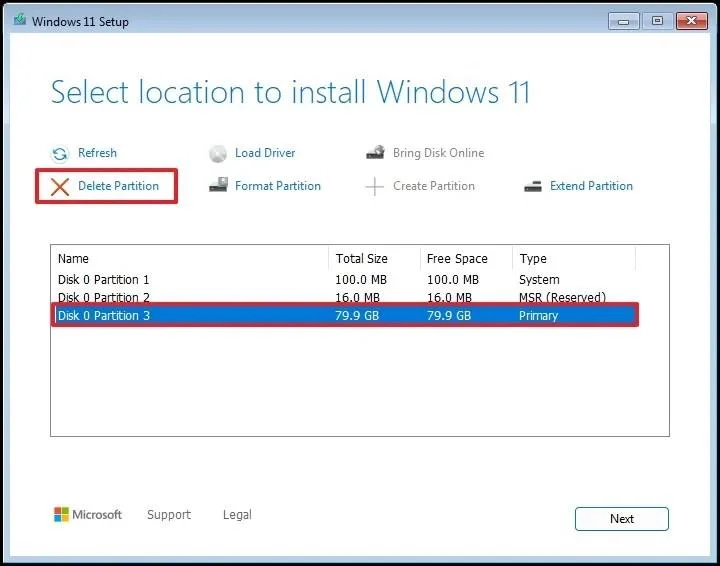
Windows 11をインストールするハードドライブ上の各パーティションを選択し、「削除」ボタンをクリックします。(通常、「ドライブ0」にはすべてのインストールファイルが格納されています。)
オペレーティングシステムをインストールするハードドライブ(ドライブ0 未割り当て領域)を選択してください。
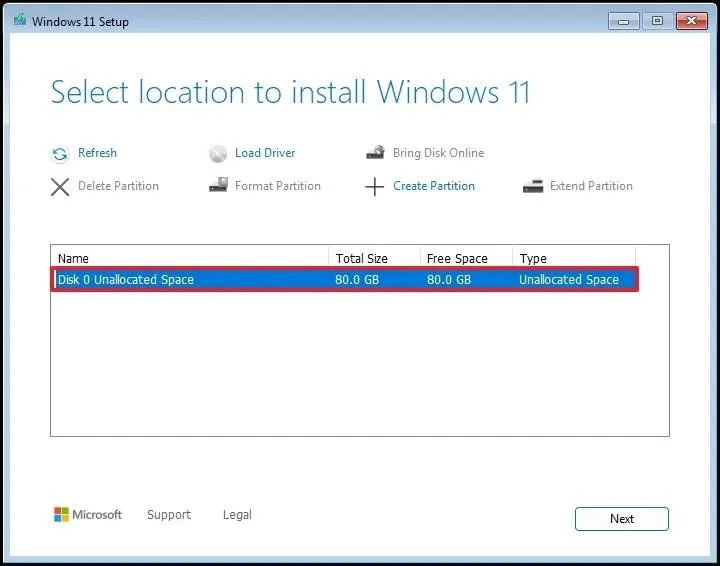
「次へ」ボタンをクリックしてください。
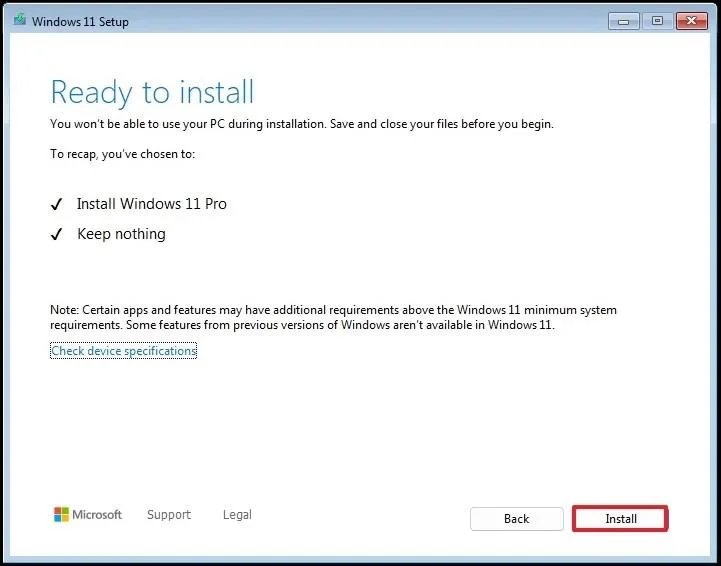
「インストール」ボタンをクリックしてください。
インストール後の初期設定画面(OOBE)の最初のページで、地域設定を選択してください。
ご注意:マイクロソフトは常に初期設定の手順を変更したり、新しい方法をテストしたりしています。そのため、以下の手順の順序が異なったり、追加の画面が表示されたりする場合があります。
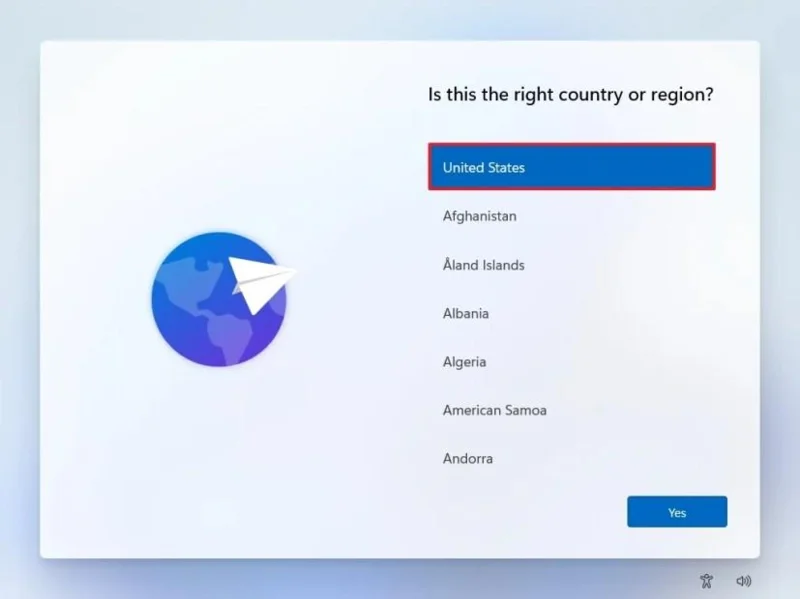
「はい」ボタンをクリックしてください。
キーボードレイアウトの設定を選択してください。
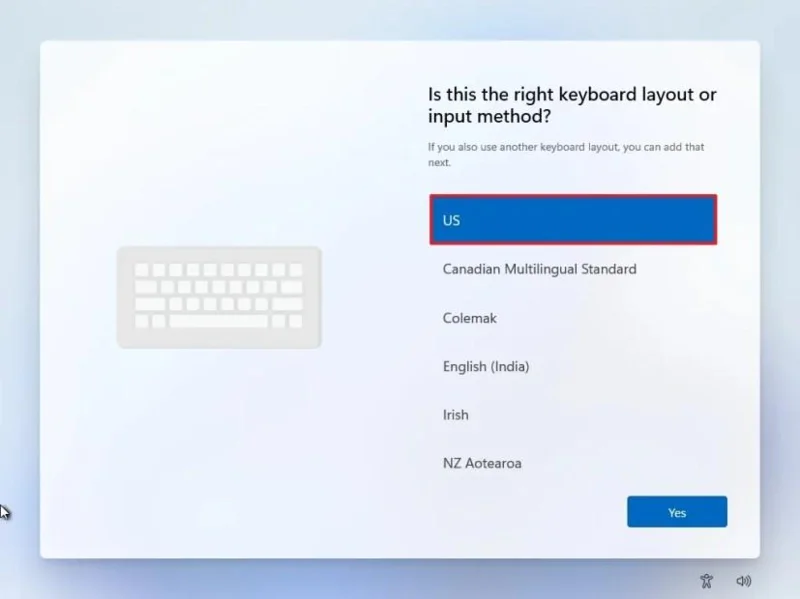
「はい」ボタンをクリックしてください。
2つ目のレイアウトを設定する必要がない場合は、 「スキップ」ボタンをクリックしてください。
コンピュータはイーサネット接続を使用して自動的にネットワークに接続します。無線接続の場合は、手動で接続を設定する必要があります(セキュリティキーが必要になる場合があります)。
(任意)コンピュータの名前を確認してください。
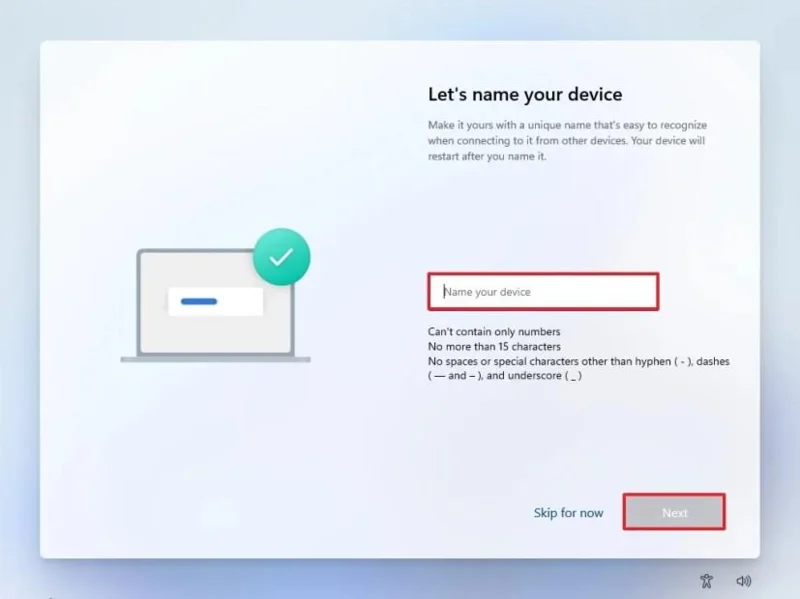
補足:この手順は任意ですが、ネットワーク上、Microsoft アカウント上、およびバックアップからの復元時にデバイスを識別しやすくするために、名前を設定することを強くお勧めします。また、この手順を完了すると、セットアップが再起動して新しい名前が適用されますが、設定を続行するために中断したところから再開されます。
「次へ」ボタンをクリックしてください。(デバイスは自動的に再起動します。)
Windows 11 Proの場合は、 「個人利用向けにセットアップする」オプションを選択してください。このオプションは「Home」エディションでは利用できません。
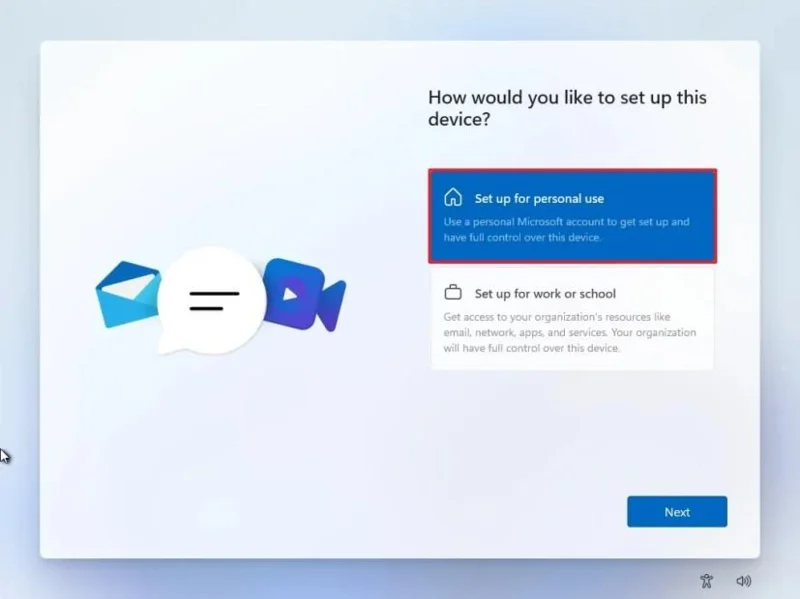
ちょっとしたコツ:「職場または学校向けにセットアップする」オプションを使用すると、Microsoft アカウントをスキップしてローカル アカウントを作成できます。
「次へ」ボタンをクリックしてください。
「サインイン」ボタンをクリックしてください。
Windows 11アカウントを作成するには、Microsoftアカウントのメールアドレスを確認してください。
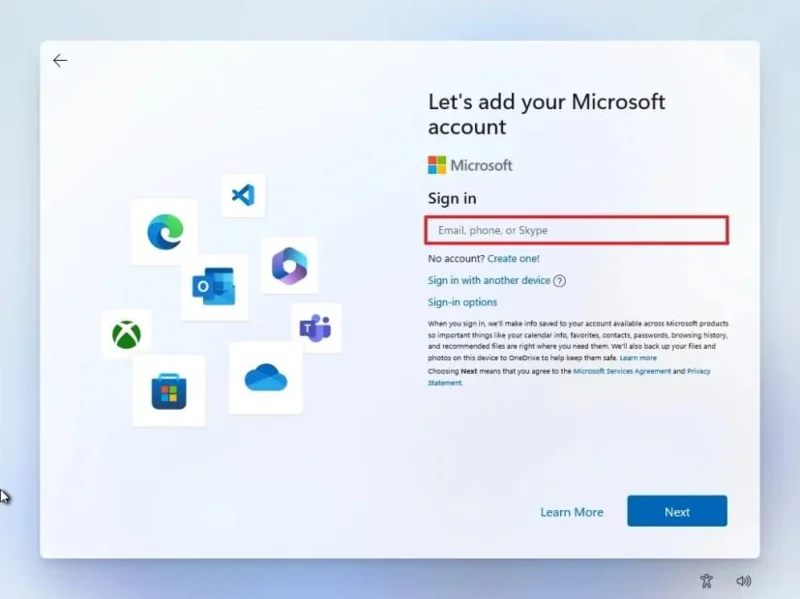
「次へ」ボタンをクリックしてください。
Microsoftアカウントのパスワードを確認してください。
「次へ」ボタンをクリックしてください。
「PINを作成」ボタンをクリックしてください。
新しい4桁のWindows Hello PINを作成してください。
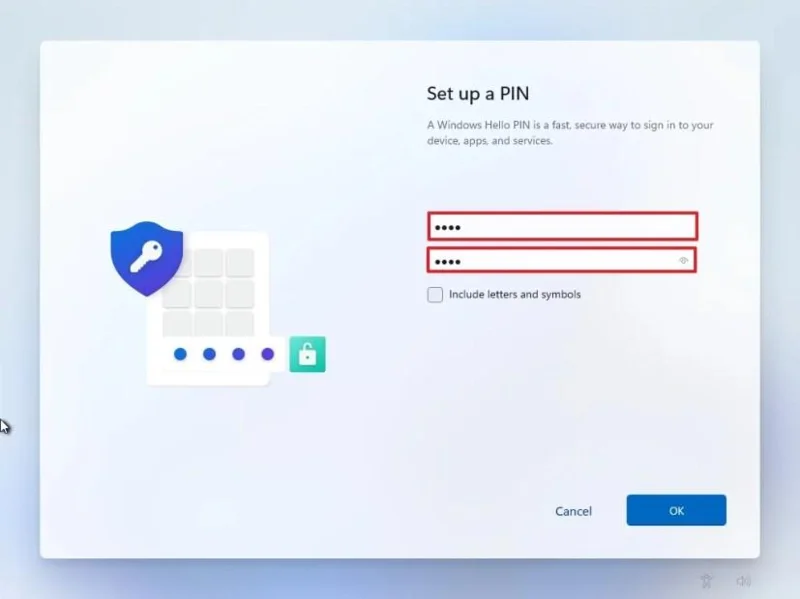
「OK」ボタンをクリックしてください。
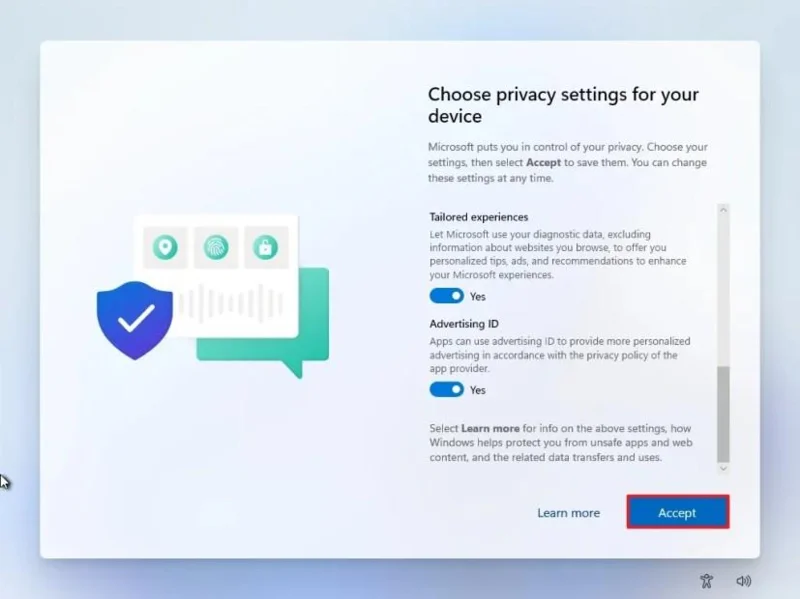
各プライバシー設定の切り替えスイッチをオンまたはオフにして、ご自身の状況に最適な設定を選択してください。
「次へ」ボタンをクリックしてください。
もう一度「次へ」ボタンをクリックしてください。
「同意する」ボタンをクリックしてください 。
「その他のオプション」設定をクリックしてください。
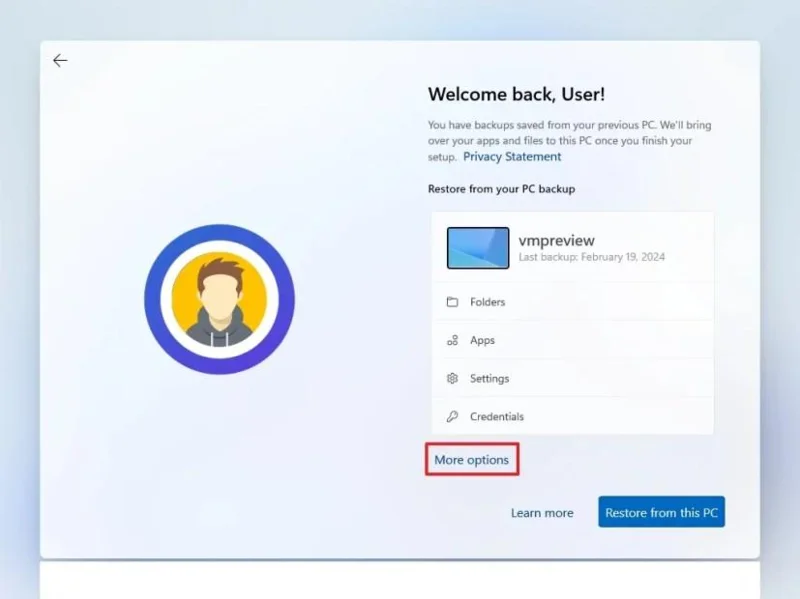
ちょっとしたヒント: OneDriveアカウントに保存されているシステムバックアップから、ファイル、アプリ、設定、認証情報を復元するには、 「このPCから復元」ボタンをクリックすることもできます。Windowsバックアップアプリの詳細については、こちらのガイドをご覧ください。
「新しいPCとしてセットアップする」オプションをクリックしてください。
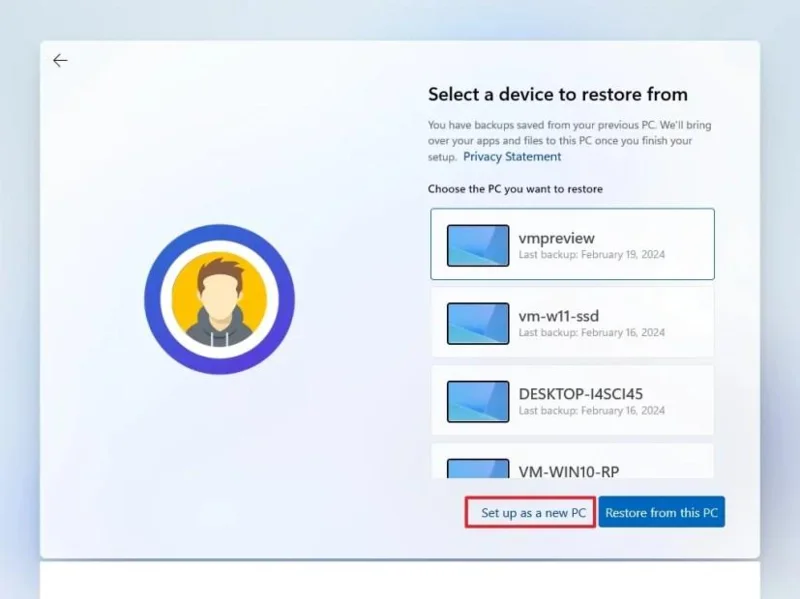
「新しいPCとしてセットアップする」オプションをもう一度クリックしてください。
(オプション)「エクスペリエンスをカスタマイズしましょう」ページで、デバイスの使用方法を1つ以上選択すると、オペレーティングシステムがエクスペリエンス中にツールやサービスのカスタマイズを提案できるようになります。
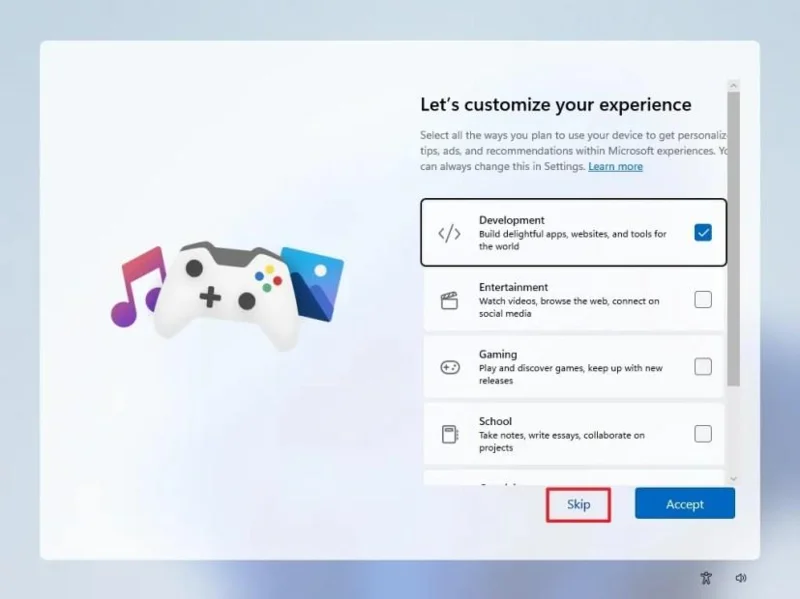
続行するには「同意する」ボタンをクリックしてください。または、この設定手順をスキップするには「スキップ」ボタンをクリックしてください。
(オプション)コードを使用してAndroidスマートフォンをリンクするか、「スキップ」オプションをクリックしてください。
(オプション)コードを使用してスマートフォンにOneDriveアプリをダウンロードするか、「スキップ」オプションをクリックしてください。
Microsoft Edge以外のブラウザを使用する場合は、「今はしない」ボタンをクリックしてください。
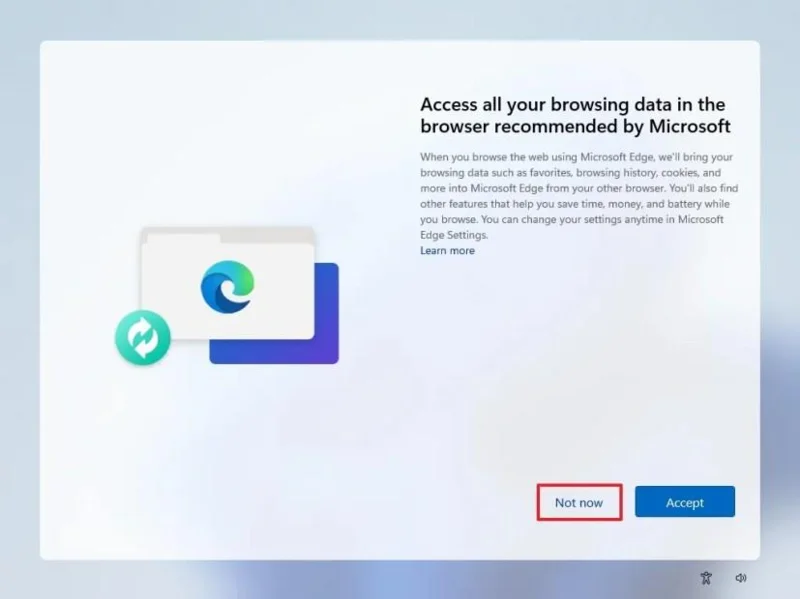
これらの手順を完了すると、Windows 11 25H2 がコンピューターへのクリーンインストールを完了します。
あるいは、ファイルエクスプローラーでISOファイルをマウントして、既にオペレーティングシステムがインストールされているデバイスにクリーンインストールまたはインプレースアップグレードを実行することもできます。
ISOファイルを使用してWindows 11をクリーンインストールするには、以下の手順に従ってください。
「Windows 11 ディスクイメージ (ISO) のダウンロード」セクションで、Windows 11のオプションを選択してください。
ダウンロードボタンをクリックしてください。
インストール言語を選択してください。
確認ボタンをクリックしてください。
ダウンロードボタンをクリックして、Windows 11のISOファイルをデバイスに保存してください。
ISOファイルを右クリックして、「マウント」オプションを選択します。
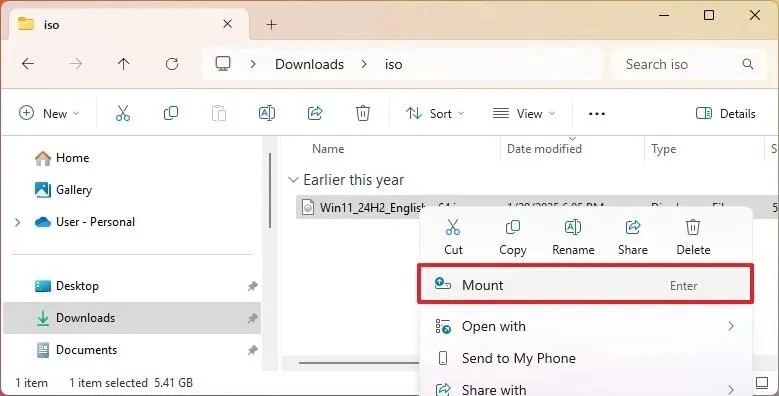
[/tbx]ヒント:このオプションが表示されない場合は、「プログラムから開く」メニューを選択し、「Windowsエクスプローラー」を選択してください。[/tbx]
左側のナビゲーションペインから仮想ドライブを選択してください。
Windows 11のインストールを開始するには、Setup.exeファイルをダブルクリックしてください。
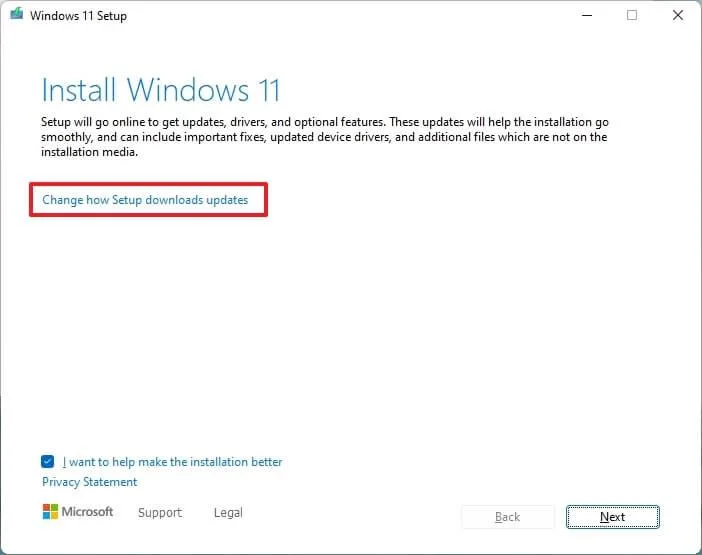
(オプション)「Windows セットアップによる更新プログラムのダウンロード方法を変更する」オプションをクリックします。
「今はしない」を選択してください。
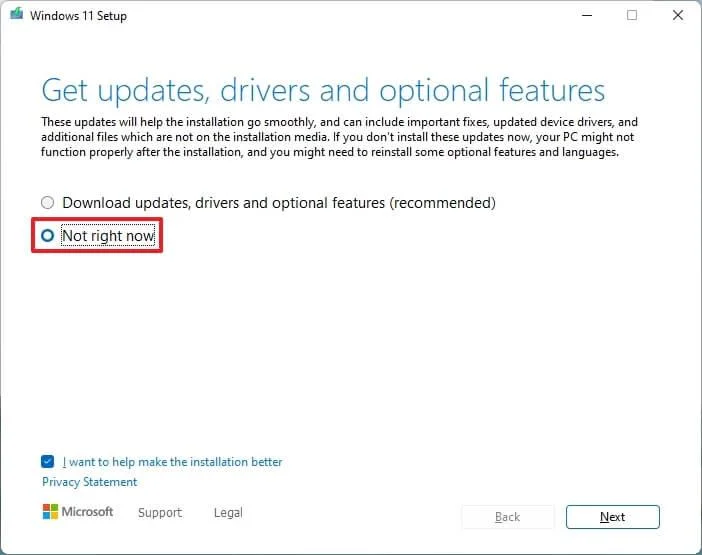
「次へ」ボタンをクリックしてください。
利用規約に同意する場合は、 「同意する」ボタンをクリックしてください。
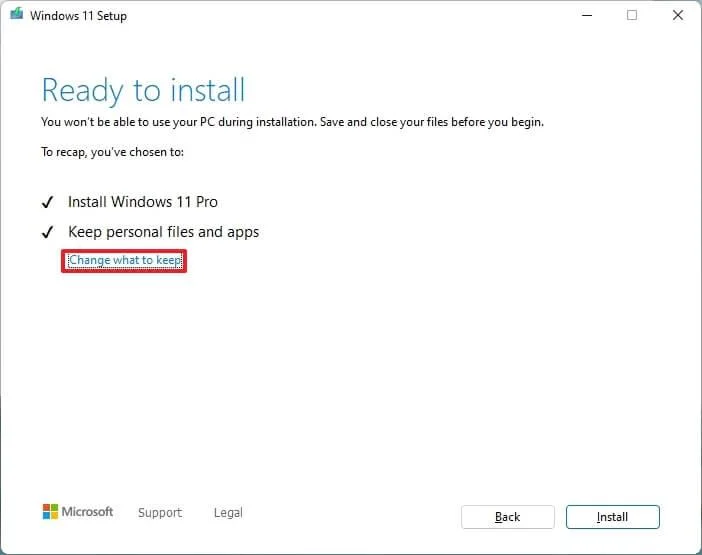
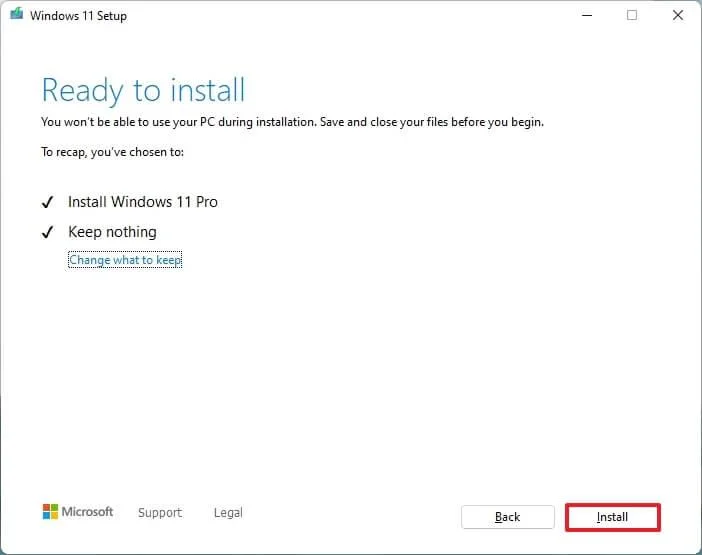
「保持する項目を変更する」オプションをクリックしてください。
「何もしない」を選択してください。
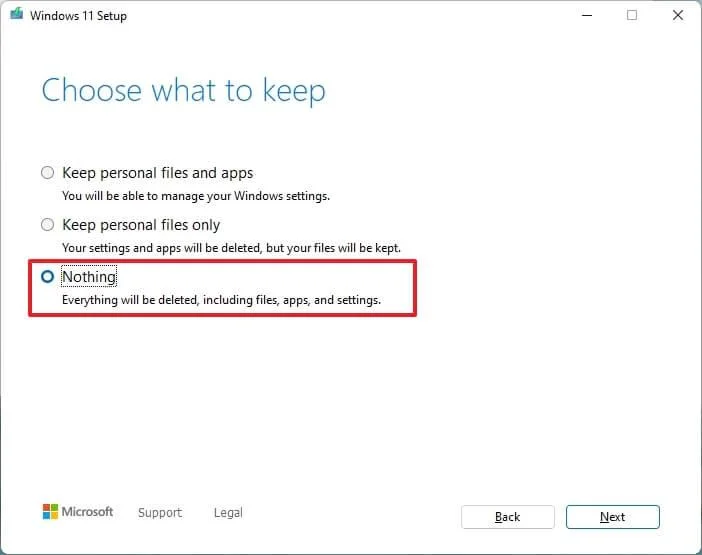
「次へ」ボタンをクリックしてください。
「インストール」ボタンをクリックしてください。
「次へ」ボタンをクリックしてください。
インストール後の初期設定画面(OOBE)の最初のページで、地域設定を選択してください。
「はい」ボタンをクリックしてください。
キーボードレイアウトの設定を選択してください。
「はい」ボタンをクリックしてください。
2つ目のレイアウトを設定する必要がない場合は、 「スキップ」ボタンをクリックしてください。
コンピュータはイーサネット接続を使用して自動的にネットワークに接続します。無線接続の場合は、手動で接続を設定する必要があります(セキュリティキーが必要になる場合があります)。
(任意)コンピュータの名前を確認してください。
補足:この手順は任意ですが、ネットワーク上、Microsoft アカウント上、およびバックアップからの復元時にデバイスを識別しやすくするために、名前を設定することを強くお勧めします。また、この手順を完了すると、セットアップが再起動して新しい名前を適用し、中断したところから設定を再開します。
「次へ」ボタンをクリックしてください。(デバイスは自動的に再起動します。)
Windows 11 Proの場合は、 「個人利用向けにセットアップする」オプションを選択してください。このオプションは「Home」エディションでは利用できません。
ちょっとしたコツ:「職場または学校向けにセットアップする」オプションを使用すると、Microsoft アカウントをスキップしてローカル アカウントを作成できます。
「次へ」ボタンをクリックしてください。
「サインイン」ボタンをクリックしてください。
Windows 11アカウントを作成するには、Microsoftアカウントのメールアドレスを確認してください。
「次へ」ボタンをクリックしてください。
Microsoftアカウントのパスワードを確認してください。
「次へ」ボタンをクリックしてください。
「PINを作成」ボタンをクリックしてください。
新しい4桁のWindows Hello PINを作成してください。
「OK」ボタンをクリックしてください。
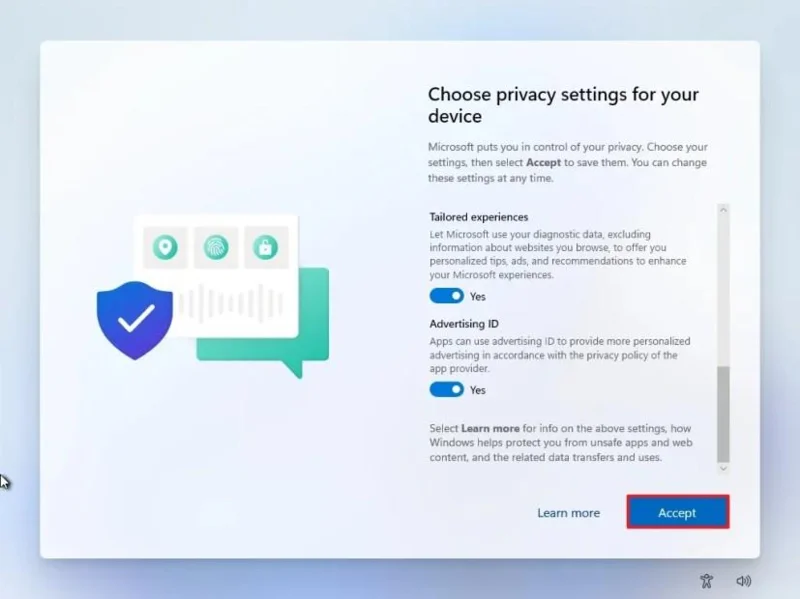
各プライバシー設定の切り替えスイッチをオンまたはオフにして、ご自身の状況に最適な設定を選択してください。
「次へ」ボタンをクリックしてください。
もう一度「次へ」ボタンをクリックしてください。
「同意する」ボタンをクリックしてください 。
「その他のオプション」設定をクリックしてください。
ちょっとしたヒント: OneDriveアカウントに保存されているシステムバックアップから、ファイル、アプリ、設定、認証情報を復元するには、 「このPCから復元」ボタンをクリックすることもできます。Windowsバックアップアプリの詳細については、こちらのガイドをご覧ください。
「新しいPCとしてセットアップする」オプションをクリックしてください。
「新しいPCとしてセットアップする」オプションをもう一度クリックしてください。
(オプション)「エクスペリエンスをカスタマイズしましょう」ページで、デバイスの使用方法を1つ以上選択すると、オペレーティングシステムがエクスペリエンス中にツールやサービスのカスタマイズを提案できるようになります。
続行するには「同意する」ボタンをクリックしてください。または、この設定手順をスキップするには「スキップ」ボタンをクリックしてください。
(オプション)コードを使用してAndroidスマートフォンをリンクするか、「スキップ」 オプションをクリックしてください。
(オプション)コードを使用してスマートフォンにOneDriveアプリをダウンロードするか、「スキップ」オプションをクリックしてください。
Microsoft Edge以外のブラウザを使用する場合は、「今はしない」ボタンをクリックしてください。
これらの手順を完了すると、メディア作成ツールやUSBフラッシュドライブを使用してシステムをアップグレードする場合と同様に、クリーンインストールプロセスが開始されます。
回復設定を使用すると、Windows 11 を新規にインストールできます。メディア作成ツール、起動可能な USB メモリ、または ISO ファイルを使用する場合とは異なり、この方法は、コンピューターに既に Windows 11 がインストールされている場合にのみ利用可能です。
Windows 10、8.1、または7からアップグレードする場合は、USBインストーラーまたはISOファイルを使用する必要があります。これらのバージョンでは、回復オプションは利用できません。
ローカルイメージを使用して「このPCをリセット」機能でWindows 11をクリーンインストールするには、以下の手順に従ってください。
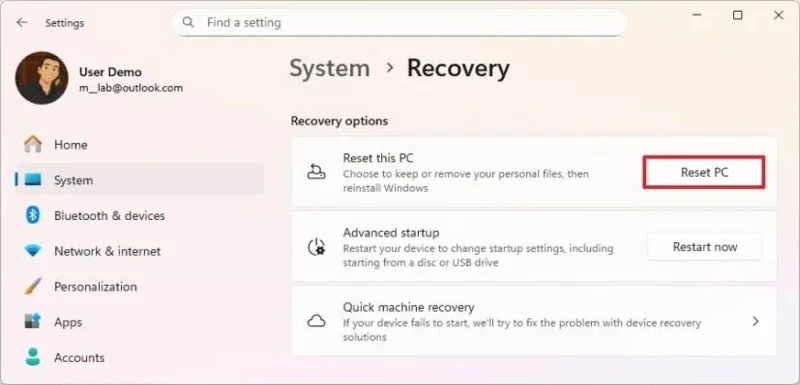
設定を開く。
「システム」をクリックしてください。
右側の「回復」をクリックしてください。
Click the Reset PC button in the “Reset this PC” setting under the “Recovery options” section.
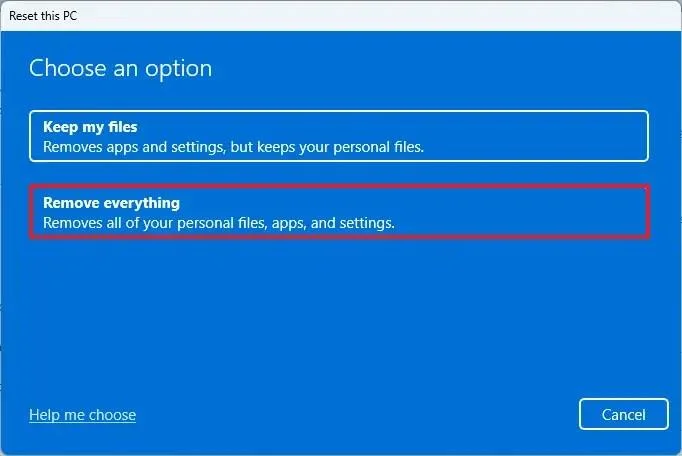
Click the Remove everything option to perform a fresh install of Windows 11.
Click the Local reinstall option.
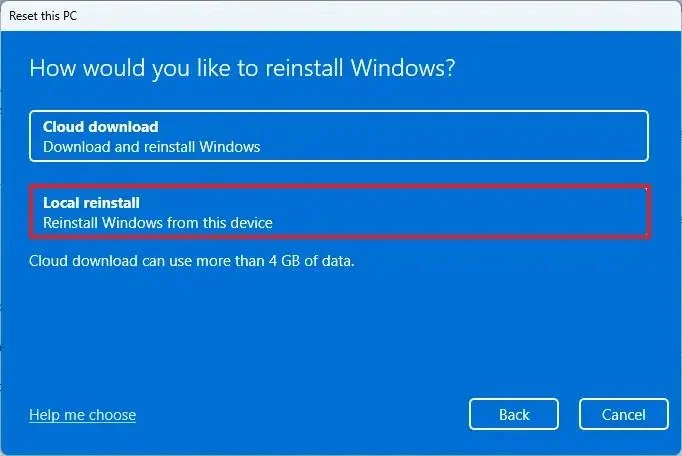
(Optional) Click the Change settings option.
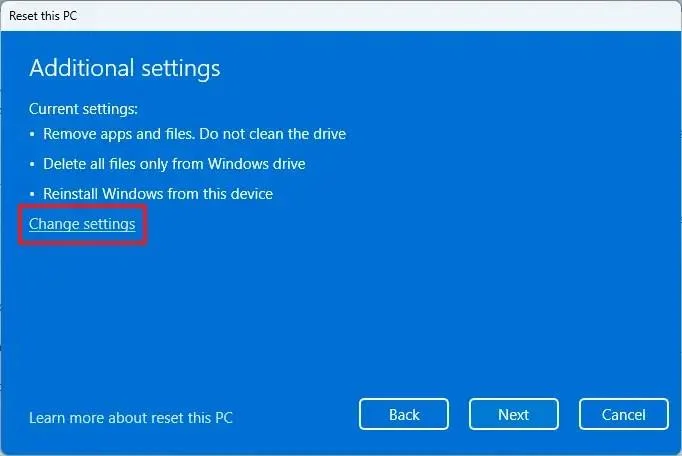
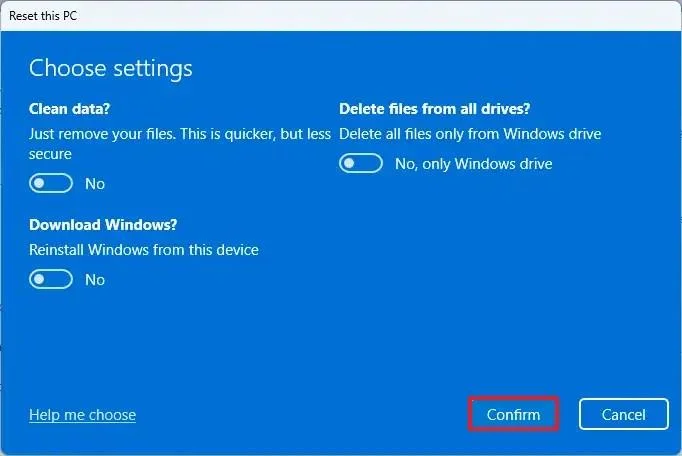
Configure the reinstallation options:
Clean data: If set to No (recommended), the setup will quickly delete files, apps, and settings without securely wiping the drive. If set to Yes, Windows will thoroughly erase the drive before reinstalling the operating system, which takes longer but ensures that all data is completely removed.
Delete files from all drives: If set to No (recommended), only the installation drive (usually the C: drive) will be erased. If set to Yes, all drives on the device will be wiped, so be sure to back up any important data before choosing this option.
Download Windows: If set to No (recommended), Windows will use the local installation files already on your device. If set to Yes, the setup will download the latest version of Windows 11 from the cloud, ensuring you get the most up-to-date installation.
Click the Confirm button.
Click the Next button.
Click the Reset button.
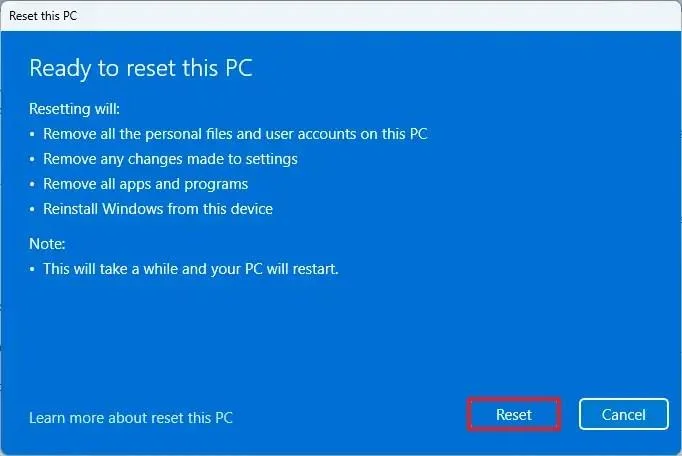
Click the Next button.
Choose your region setting on the first page of the out-of-the-box experience (OOBE) after the installation.
Click the Yes button.
Select your keyboard layout setting.
Click the Yes button.
Click the Skip button if you do not need to configure a second layout.
The computer will automatically connect to the network using an Ethernet connection. You must set up the connection manually on a wireless connection (a security key may be required).
(Optional) Confirm a name for the computer.
Quick note: This is an optional step, but it’s highly recommended to set a name to make it easier to identify the device in the network, on your Microsoft account, and when restoring your computer from backup. Additionally, after completing this step, the setup will restart to apply the new name, and it’ll resume where you left off to continue with the settings.
Click the Next button. (The device will restart automatically.)
Select the “Set up for personal use” option for Windows 11 Pro. This option is not available for the “Home” edition.
Quick tip: Use the “Set up for work or school” option to skip the Microsoft account and create a local account.
Click the Next button.
Click the Sign in button.
Confirm your Microsoft account email to create a Windows 11 account.
Click the Next button.
Confirm your Microsoft account password.
Click the Next button.
Click the Create PIN button.
Create a new four-digit Windows Hello PIN.
Click the OK button.
Turn on or off the toggle switch for each privacy setting to confirm the one that best suits your situation.
Click the Next button.
Click the Next button again.
Click the Accept button.
Click the More options setting.
Quick tip: You can also click the “Restore from this PC” button to restore your files, apps, settings, and credentials from the system backup available in your OneDrive account. You can learn more about the Windows Backup app in this guide.
Click the “Set up as a new PC” option.
Click the “Set up as a new PC” option again.
(Optional) On the “Let’s customize your experience” page, select one or more ways you plan to use the device to allow the operating system to suggest tools and service customization during this experience.
Click the Accept button to continue. Or click the Skip button to skip this part of the setup.
(Optional) Use the code to link your Android phone, or click the “Skip” option.
(Optional) Use the code to download the OneDrive app on your phone or click the Skip option.
Click the “Not now” button if you will be using a browser other than Microsoft Edge.
Once you complete the steps, the recovery feature will automatically start and reinstall Windows 11 from a local copy of the setup image stored on your computer.
If you have a computer from a major brand such as HP, Dell, or Acer, this process will restore it to factory settings. That means it will reinstall all the software, drivers, and tools that came with it when you first bought it.
However, if you don’t want to restore the factory setup and prefer a clean Windows 11 install, you have another option. Instead of using the local image, select the “Cloud Download” option. I’ll show you how to do that in the steps below.
The Reset this PC feature includes the “Cloud Download” option, which lets you reinstall Windows 11 with a clean installation, removing apps, files, and settings, just like the local reinstall option. The key difference is that this option downloads fresh installation files directly from Microsoft’s servers, rather than using existing files.
This option is useful when the local installation files are corrupted or if you want a cleaner setup without the manufacturer’s preinstalled software and settings. However, keep in mind that:
To perform a clean installation of Windows 11 with the “Cloud Download” option, use these steps:
Open Settings.
Click on System.
Click on Recovery on the right side.
Click the Reset PC button in the “Reset this PC” setting under the “Recovery options” section.
Click the Remove everything option to perform a fresh install of Windows 11.
Click the Cloud reinstall option.
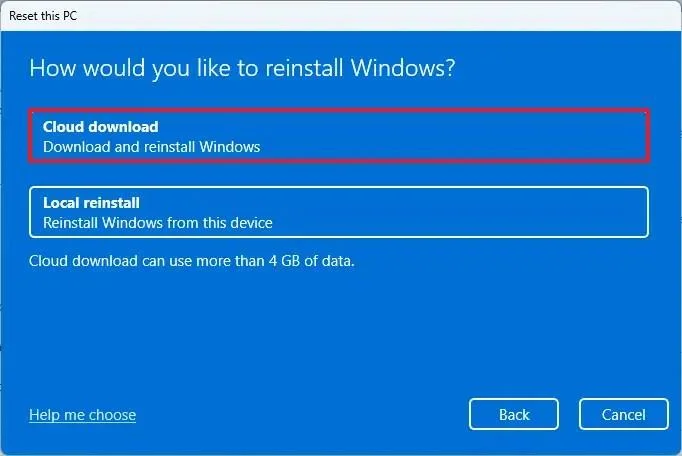
(Optional) Click the Change settings option.
Configure the reinstallation options:
Clean data: If set to No (recommended), the setup will quickly delete files, apps, and settings without securely wiping the drive. If set to Yes, Windows will thoroughly erase the drive before reinstalling the operating system, which takes longer but ensures that all data is completely removed.
Delete files from all drives: If set to No (recommended), only the installation drive (usually the C: drive) will be erased. If set to Yes, all drives on the device will be wiped, so be sure to back up any important data before choosing this option.
Download Windows: If set to No (recommended), Windows will use the local installation files already on your device. If set to Yes, the setup will download the latest version of Windows 11 from the cloud, ensuring you get the most up-to-date installation.
Click the Confirm button.
Click the Next button.
Click the Reset button.
Click the Next button.
Choose your region setting on the first page of the out-of-the-box experience (OOBE) after the installation.
Click the Yes button.
Select your keyboard layout setting.
Click the Yes button.
Click the Skip button if you do not need to configure a second layout.
The computer will automatically connect to the network using an Ethernet connection. You must set up the connection manually on a wireless connection (a security key may be required).
(Optional) Confirm a name for the computer.
Quick note: This is an optional step, but it’s highly recommended to set a name to make it easier to identify the device in the network, on your Microsoft account, and when restoring your computer from backup. Also, after completing this step, the setup will restart to apply the new name, but it’ll start where you left off to continue with the settings.
Click the Next button. (The device will restart automatically.)
Select the “Set up for personal use” option for Windows 11 Pro. This option is not available for the “Home” edition.
Quick tip: Use the “Set up for work or school” option to skip the Microsoft account and create a local account.
Click the Next button.
Click the Sign in button.
Confirm your Microsoft account email to create a Windows 11 account.
Click the Next button.
Confirm your Microsoft account password.
Click the Next button.
Click the Create PIN button.
Create a new four-digit Windows Hello PIN.
Click the OK button.
Turn the toggle switch for each privacy setting to confirm the option that best suits your situation.
Click the Next button.
Click the Next button again.
Click the Accept button.
Click the More options setting.
Quick tip: You can also click the “Restore from this PC” button to restore your files, apps, settings, and credentials from the system backup available in your OneDrive account. You can learn more about the Windows Backup app in this guide.
Click the “Set up as a new PC” option.
Click the “Set up as a new PC” option again.
(Optional) On the “Let’s customize your experience” page, select one or more ways you plan to use the device to allow the operating system to suggest tools and service customization during this experience.
Click the Accept button to continue. Or click the Skip button to skip this part of the setup.
(Optional) Use the code to link your Android phone, or click the “Skip” option.
(Optional) Use the code to download the OneDrive app on your phone or click the “Skip” option.
Click the “Not now” button if you will be using a browser other than Microsoft Edge.
After you complete the steps, the feature will reset the computer by erasing and reinstalling a fresh copy of Windows 11 downloaded from the cloud.
If your computer doesn’t boot, you can use the Windows Recovery Environment (WinRE) to access the same Reset this PC option. This allows you to reinstall Windows 11 even when the system won’t start normally.
However, WinRE can only reinstall the same version of Windows on your device. To upgrade to the latest version, you’ll need to use a USB flash drive, the Media Creation Tool, or an ISO file.
To clean install Windows 11 from WinRE, use these steps:
Power on the device.
Immediately after the Power-On Self-Test (POST), press the Power button again to shut down.
Repeat steps 1 and 2 twice, and in the third restart, the operating system should enter the Windows Recovery Environment (Windows RE).
Quick note: Windows 11 has multiple ways to open the Advanced startup settings. You can use these alternative options if you are unable to access the recovery environment.
Click the Advanced options button.
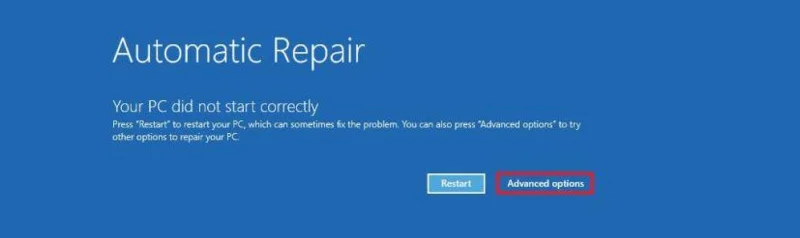
Click on Troubleshoot.
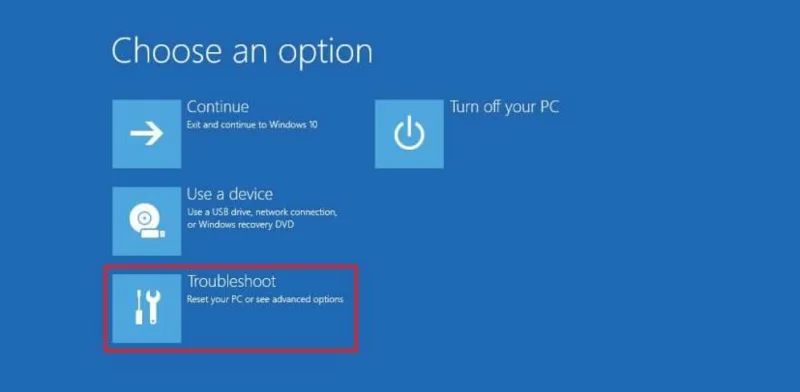
Click the Reset this PC option.
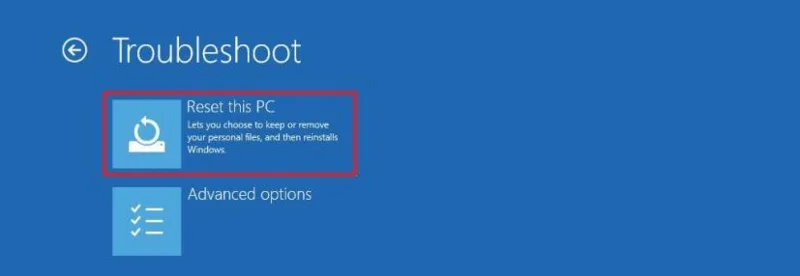
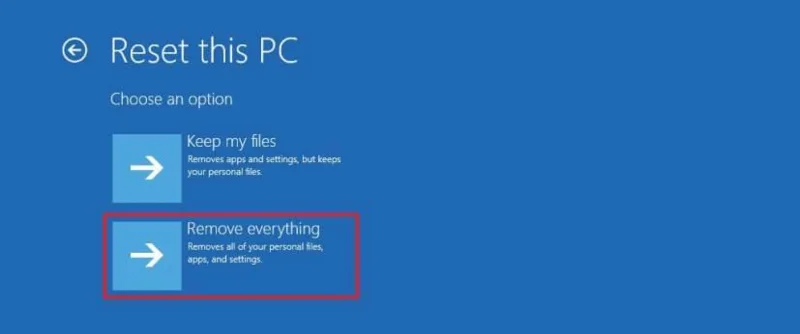
Select the Remove everything option.
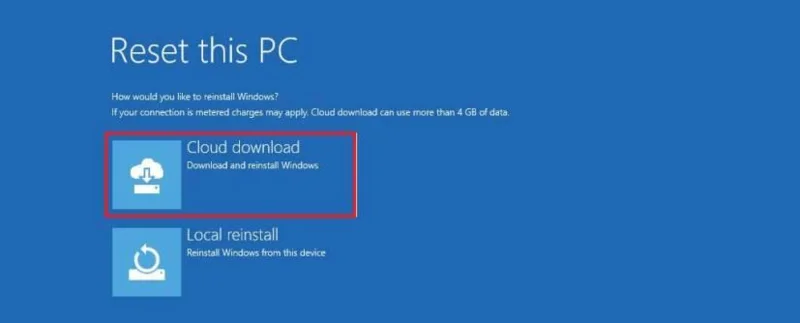
Click Cloud Download or Local Reinstall to continue:
Cloud Download – Downloads a fresh copy of Windows 11 from Microsoft’s servers and performs a clean installation. This option ensures you receive the latest files, but it requires an internet connection.
Local Reinstall – Uses the existing installation files on your computer to reinstall Windows 11. This option is faster and doesn’t require an internet connection, but it may not work if the local files are corrupted.
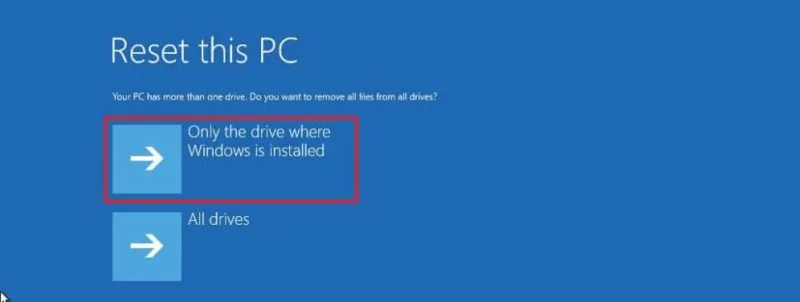
Select the “Only the drive where Windows is installed” option. (The All drives option will delete the data on all drives. This option is usually recommended only when you have to decommission the device.)
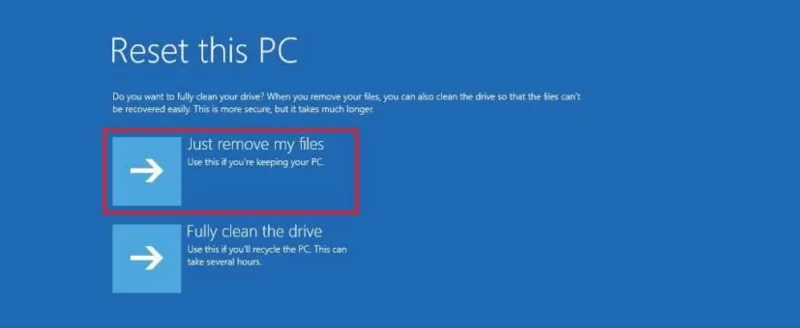
Select the “Just remove my files” or “Full clean the drive” option.
Just remove my files – Quickly deletes all files from the drive, but doesn’t securely erase them. This is faster but less secure.
Fully clean the drive – Erases everything and securely wipes the drive, which can take several hours. This option is best if you’re giving away or selling your device to ensure no data can be recovered.
Click the Reset button.
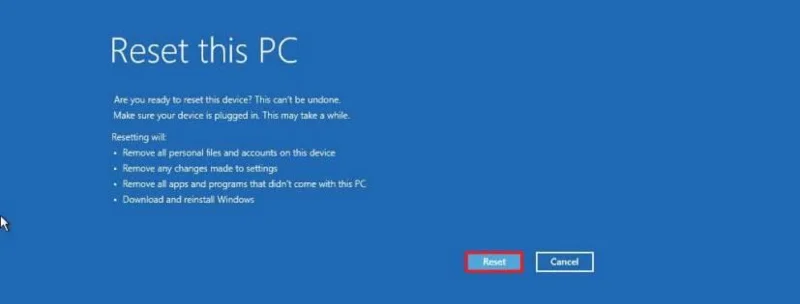
Click the Next button.
Choose your region setting on the first page of the out-of-the-box experience (OOBE) after the installation.
Click the Yes button.
Select your keyboard layout setting.
Click the Yes button.
Click the Skip button if you do not need to configure a second layout.
The computer will automatically connect to the network using an Ethernet connection. You must set up the connection manually on a wireless connection (a security key may be required).
(Optional) Confirm a name for the computer.
Quick note: This is an optional step, but it’s highly recommended to set a name to make it easier to identify the device in the network, on your Microsoft account, and when restoring your computer from backup. Additionally, after completing this step, the setup will restart to apply the new name and resume where you left off to continue configuring the settings.
Click the Next button. (The device will restart automatically.)
Select the “Set up for personal use” option for Windows 11 Pro. This option is not available for the “Home” edition.
Quick tip: Use the “Set up for work or school” option to skip the Microsoft account and create a local account.
Click the Next button.
Click the Sign in button.
Confirm your Microsoft account email to create a Windows 11 account.
Click the Next button.
Confirm your Microsoft account password.
Click the Next button.
Click the Create PIN button.
Create a new four-digit Windows Hello PIN.
Click the OK button.
Turn the toggle switch for each privacy setting to confirm the option that best suits your situation.
Click the Next button.
Click the Next button again.
Click the Accept button.
Click the More options setting.
Quick tip: You can also click the “Restore from this PC” button to restore your files, apps, settings, and credentials from the system backup available in your OneDrive account. You can learn more about the Windows Backup app in this guide.
Click the “Set up as a new PC” option.
Click the “Set up as a new PC” option again.
(Optional) On the “Let’s customize your experience” page, select one or more ways you plan to use the device to allow the operating system to suggest tools and service customization during this experience.
Click the Accept button to continue. Or click the Skip button to skip this part of the setup.
(Optional) Use the code to link your Android phone, or click the “Skip” option.
(Optional) Use the code to download the OneDrive app on your phone, or click the “Skip” option.
Click the “Not now” button if you will be using a browser other than Microsoft Edge.
Once you complete the steps, Windows 11 will reinstall, resolving the existing problems. The completion time will depend on your computer hardware configuration and the selected reset configuration.
The Media Creation Tool no longer includes an option to perform a clean installation or in-place upgrade. You can only use the tool to create bootable media for installation using a USB flash drive or ISO file.
If you want to proceed with the Media Creation Tool, you can create an installation media and launch the setup from the USB flash drive.
To use the Media Creation Tool to create a bootable USB install media and proceed with the Windows 11 setup, use these steps:
Click the Download Now button under the “Create Windows 11 installation media” section.
Double-click the MediaCrationToolW11.exe file to launch the tool.
Click the Accept button.
Click the Next button.
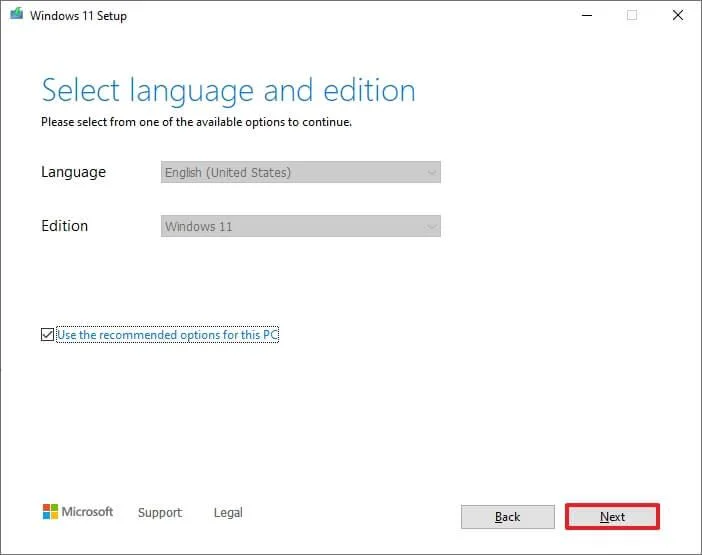
Quick note: If you create a Windows 11 USB for another device, you can also clear the “Use the recommended options for this PC” option to select the correct language, architecture, and edition.
Select the USB flash drive option.
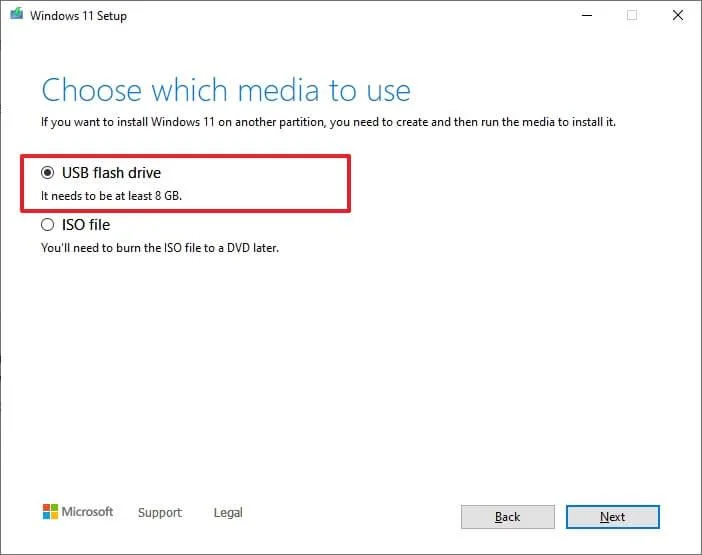
Click the Next button.
Select the USB flash drive from the list, but ensure it has no important files, as this process will erase everything on it.
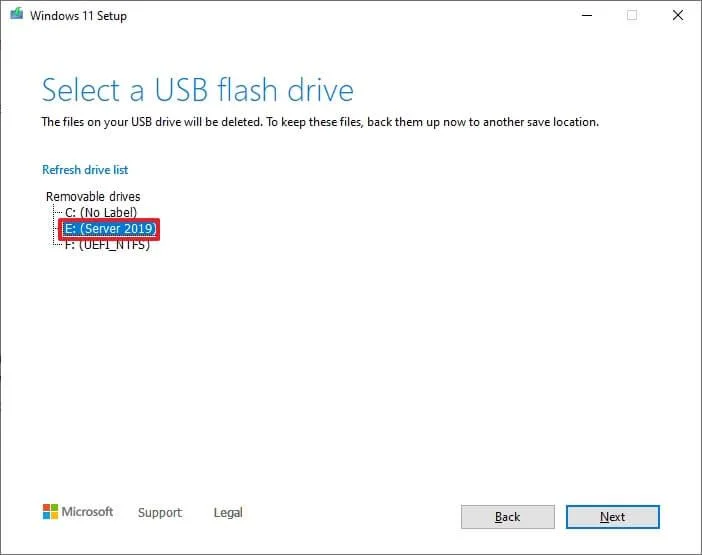
Click the Next button.
Click the Finish button.
Open the installation media with File Explorer.
Double-click the Setup.exe file to begin the Windows 11 installation.
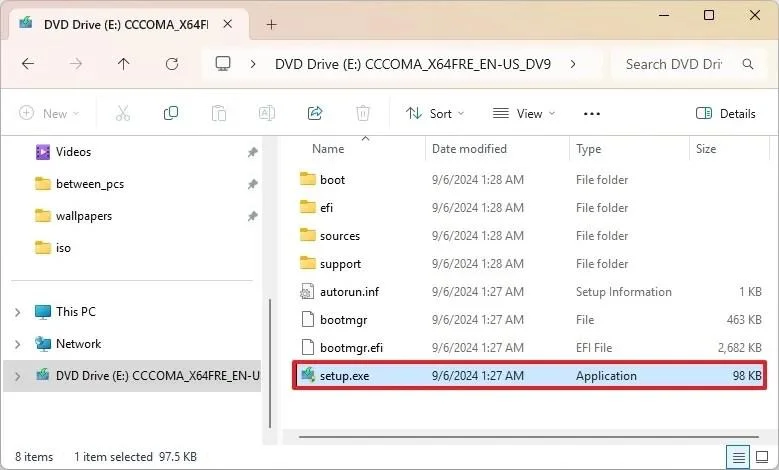
(Optional) Click the “Change how Windows Setup downloads updates” option.
Select the “Not right now” option.
Click the Next button.
Click the Accept button to agree to the terms.
Click the “Change what to keep” option.
Select the Nothing option.
Click the Next button.
「インストール」ボタンをクリックしてください。
「次へ」ボタンをクリックしてください。
インストール後の初期設定画面(OOBE)の最初のページで、地域設定を選択してください。
「はい」ボタンをクリックしてください。
キーボードレイアウトの設定を選択してください。
「はい」ボタンをクリックしてください。
2つ目のレイアウトを設定する必要がない場合は、 「スキップ」ボタンをクリックしてください。
コンピュータはイーサネット接続を使用して自動的にネットワークに接続します。無線接続の場合は、手動で接続を設定する必要があります(セキュリティキーが必要になる場合があります)。
(任意)コンピュータの名前を確認してください。
補足:この手順は任意ですが、ネットワーク上、Microsoft アカウント上、およびバックアップからの復元時にデバイスを識別しやすくするために、名前を設定することを強くお勧めします。また、この手順を完了すると、セットアップが再起動して新しい名前を適用し、中断したところから設定を再開します。
「次へ」ボタンをクリックしてください。(デバイスは自動的に再起動します。)
Windows 11 Proの場合は、 「個人利用向けにセットアップする」オプションを選択してください。このオプションは「Home」エディションでは利用できません。
ちょっとしたコツ:「職場または学校向けにセットアップする」オプションを使用すると、Microsoft アカウントをスキップしてローカル アカウントを作成できます。
「次へ」ボタンをクリックしてください。
「サインイン」ボタンをクリックしてください。
Windows 11アカウントを作成するには、Microsoftアカウントのメールアドレスを確認してください。
「次へ」ボタンをクリックしてください。
Microsoftアカウントのパスワードを確認してください。
「次へ」ボタンをクリックしてください。
「PINを作成」ボタンをクリックしてください。
新しい4桁のWindows Hello PINを作成してください。
「OK」ボタンをクリックしてください。
各プライバシー設定のトグルスイッチを切り替えて、ご自身の状況に最適なオプションを選択してください。
「次へ」ボタンをクリックしてください。
もう一度「次へ」ボタンをクリックしてください。
「同意する」ボタンをクリックしてください 。
「その他のオプション」設定をクリックしてください。
ちょっとしたヒント: OneDriveアカウントに保存されているシステムバックアップから、ファイル、アプリ、設定、認証情報を復元するには、 「このPCから復元」ボタンをクリックすることもできます。Windowsバックアップアプリの詳細については、こちらのガイドをご覧ください。
「新しいPCとしてセットアップする」オプションをクリックしてください。
「新しいPCとしてセットアップする」オプションをもう一度クリックしてください。
(オプション)「エクスペリエンスをカスタマイズしましょう」ページで、デバイスの使用方法を1つ以上選択すると、オペレーティングシステムがエクスペリエンス中にツールやサービスのカスタマイズを提案できるようになります。
続行するには「同意する」ボタンをクリックしてください。または、この設定手順をスキップするには「スキップ」ボタンをクリックしてください。
(オプション)コードを使用してAndroidスマートフォンをリンクするか、「スキップ」 オプションをクリックしてください。
(オプション)コードを使用してスマートフォンにOneDriveアプリをダウンロードするか、「スキップ」オプションをクリックしてください。
Microsoft Edge以外のブラウザを使用する場合は、「今はしない」ボタンをクリックしてください。
クリーンインストール後、Windows 11 PCはより高速に動作し、エラーや不要なファイルが減ります。ファイルのバックアップ、必要なアプリの再インストール、プライバシー設定のカスタマイズを忘れずに行ってください。
どのインストール方法(USB、ISO、クラウドダウンロード)が一番うまくいきましたか?コメント欄で教えてください。
オペレーティングシステムのクリーンインストール手順に関するよくある質問とその回答を以下に示します。
パソコンがUSBドライブから起動しない場合はどうすればいいですか?
デバイスがUSBブートメディアから起動しない場合は、UEFI(BIOS)を設定し、起動順序をUSBから起動するように変更する必要があります。一部のデバイスには、起動時にファンクションキーまたはESCキーを使用して開くことができるブートメニューがあり、USBブートドライブからデバイスを起動できます。
コンピューターがUSBから起動するように設定されているにもかかわらず、セットアップ画面にアクセスできない場合は、インストールメディアまたはUSBフラッシュドライブが破損している可能性があります。この場合は、別のフラッシュドライブを使用して起動可能なメディアを再作成できます。
Windows 11をインストールする前に、すべてのデータが完全に消去されていることを確認するにはどうすればよいですか?
データを完全に消去するには、ドライブを再フォーマットする必要があります。特別なツールは必要ありません。最も簡単な方法は、「このPCをリセット」オプションのいずれかを使用して、「データの消去」オプションを選択することです。USBブートメディアを使用している場合は、パーティションを削除した後、その領域全体を使用して新しいパーティションを作成し、「パーティションのフォーマット」オプションを使用してください。
Windows 11のクリーンインストールには、何かリスクはありますか?
はい、クリーンインストールを実行すると、ハードドライブ上のすべてのデータが削除されます。つまり、ファイルのバックアップを作成していない場合、クラウドストレージサービスを利用しない限り、ファイルを復元することはできません。
このプロセスは元に戻せません。インストールを開始すると、セットアップによって既存のファイルがすべて削除されます。復元するには、これらの手順に進む前に作成した完全バックアップを使用するしかありません。
Windows 11をクリーンインストールした後、TPMをリセットするにはどうすればよいですか?
通常、コンピュータのファームウェアにあるトラステッドプラットフォームモジュール(TPM)チップをリセットする必要はありません。実際、インストール中にシステムが自動的に暗号化を有効にし、Windows Helloの情報はTPM内に自動的に保存されます。
クリーンインストールとアップグレードの違いは何ですか?
クリーンインストールでは、Windows 11を再インストールする前にハードドライブ上のすべて(アプリ、ファイル、設定、ドライバーなど)が削除され、完全にまっさらなシステムになります。アップグレードでは、ファイルとアプリは保持されたまま、新しいバージョンのWindowsがインストールされます。最大限の安定性を求める場合や、深刻なシステム問題を解決したい場合は、クリーンインストールが推奨されます。
ライセンス認証を失わずにWindows 11をクリーンインストールすることはできますか?
はい。お使いのデバイスで以前にWindows 11(またはWindows 10)がアクティベートされていた場合、再インストール後にインターネットに接続すると自動的に再アクティベートされます。プロダクトキーを再入力する必要はありません。
クリーンインストールにはプロダクトキーが必要ですか?
当該デバイスが以前にWindows 10または11でアクティベートされたことがない場合にのみ、この操作が必要です。それ以外の場合は、Microsoftのサーバーに保存されているデジタルライセンスによってシステムが自動的に再アクティベートされます。
USBドライブを使わずにクリーンインストールできますか?
はい。 「このPCをリセット」機能を使用するか、ファイルエクスプローラーでISOファイルをマウントすることで、Windows 11を再インストールできます。ただし、起動可能なUSBドライブを使用するのが、最も信頼性が高く、汎用性の高い方法です。
「このPCをリセットする」機能は、クリーンインストールと同じですか?
いいえ、ユーザーの経験に基づくと、多くの場合、既存のイメージから復元されるため、メーカーの不要なソフトウェアや未解決の問題が残る可能性があり、USBまたはISOファイルを使用した新規インストールの方が望ましいです。
ローカル再インストールとクラウドダウンロードの違いは何ですか?
ローカル再インストールでは、コンピューターに既に存在するセットアップファイルを使用してWindows 11を再インストールします。この方法は高速ですが、破損したファイルが再利用される可能性があります。一方、クラウドダウンロードオプションでは、Microsoftのサーバーから最新のイメージを直接取得します。この方法は時間がかかりますが、よりクリーンで最新のインストールが保証されます。
セットアップ中にすべてのパーティションを削除する必要がありますか?
オペレーティングシステムをインストールするドライブ(通常はドライブ0)のパーティションのみを削除すれば十分です。すべてのパーティションを削除すれば完全にクリーンなインストールが実現しますが、必ず事前にファイルのバックアップを取っておいてください。
プロダクトキーの入力を省略した場合、どうなりますか?
セットアップ時にプロダクトキーの入力をスキップできます。Windows 11はインストールされ、起動しますが、壁紙やテーマの変更など、すべてのカスタマイズオプションを有効にするには、後でライセンス認証を行う必要があります。既にデジタルライセンスをお持ちの場合は、インストール後に自動的にライセンス認証が行われます。
Windows 11のクリーンインストールにはどれくらい時間がかかりますか?
インストール自体は、ストレージの速度とシステム性能によって異なりますが、通常20分から45分程度かかります。初期設定(OOBE)を完了するには、さらに5分から10分ほどかかります。
Windows 10のプロダクトキーを使ってWindows 11をアクティベートできますか?
はい。Windows 10とWindows 11は同じ認証インフラストラクチャを共有しています。Windows 10のプロダクトキーは、インストール中またはインストール後に入力することで、Windows 11をアクティベートできます。
クリーンインストールは、パフォーマンスの問題やマルウェア感染を解決しますか?
はい。クリーンインストールは、破損したシステムファイル、レジストリの問題、マルウェア、不要なプログラムなどを削除します。多くの場合、システムのパフォーマンスと安定性を完全に回復させる最良の方法です。
クリーンインストール後、ドライバーを再インストールする必要はありますか?
Windows 11はほとんどのドライバーを自動的に検出してインストールします。ただし、最高のパフォーマンスを得るためには、インストール後にメーカーのサポートサイトから特定のハードウェアドライバー(グラフィック、チップセット、Wi-Fi、Bluetoothなど)をダウンロードすることをお勧めします。
23H2や24H2のような古いバージョンをクリーンインストールすることはできますか?
はい、該当バージョンのISOファイルをお持ちであれば可能です。ただし、セキュリティと互換性をより確実にするため、最新バージョン(例えばバージョン25H2)をインストールすることをお勧めします。
Windows 10からWindows 11にクリーンインストールで移行することはできますか?
もちろんです。Windows 10からWindows 11へのクリーンインストールは、特に現在のインストール環境に安定性の問題があったり、時間の経過とともに不要なファイルが蓄積されていたりする場合、多くの場合最良のアップグレード方法です。
Windows 11のインストール後、サードパーティ製の不要なソフトウェアを削除するツールを使うべきでしょうか?
できますが、お勧めしません。デブロートツールや重いスクリプトを使用すると、将来のアップデートや安定性に問題が生じる可能性があります。
クリーンインストール後、Microsoft 365(Office)とOneDriveのデータはどうなりますか?
通常、クリーンインストールを行う前にOfficeやOneDriveを非アクティブ化する必要はありません。サブスクリプションはそのまま維持され、OneDriveのデータはクラウド上に残ります。再インストールしてサインインするだけで済みます。
Windows 11にアップグレードする際、クリーンインストールが必要ですか、それとも既存のシステムをそのままアップグレードできますか?
必ずしもそうする必要はありません。多くのユーザーにとって、インプレースアップグレードは有効な方法です。しかし、最高のパフォーマンス、残存問題の軽減、そして「レガシーシステムの残骸」の最小化のためには、クリーンインストールが推奨されることがよくあります。
どのような方法を使っていますか?何か質問はありますか?コメント欄でお知らせください。
Windows 11 25H2の起動可能なUSBインストーラーを作成するには、Rufus、Ventoy、コマンドプロンプト、およびメディア作成ツールを使用できます。その方法は次のとおりです。
Windows 11 用の KB5074157 (ビルド 26220.7653) は、ダークモードを改善し、WebP 壁紙のサポートを追加し、タスクバー、スタート、Bluetooth などの問題を修正します。
Windows 11向けの2026年1月アップデートであるKB5074109は、クラッシュ、起動失敗、Outlookの問題、アンインストールエラーを引き起こし、ユーザーはそれを削除せざるを得なくなった。
ChatGPTの会話がGoogle検索に表示されないようにするには、公開されているChatGPTの共有リンクを確認して削除する方法をご紹介します。
Windows 11でAndroidアプリを実行するには、Microsoft StoreまたはPowerShellを使用してWindows Subsystem for Android(WSA)をインストールできます。手順は以下のとおりです。
OpenAIはデフォルトでChatGPTの会話内容をAIの学習のために収集しますが、プライバシー保護のためにこの機能を無効にする方法をご紹介します。
Windows 11ビルド27913(Canary)では、設定UIが再設計され、Vistaの起動音が復元され、黒画面の壁紙の問題が解決されるなど、さまざまな改善が施されています。
Windows 11 用ビルド 26120.4733 (KB5062651) がベータ チャネルでリリースされ、新しい AI 画像説明、アプリのアクセス許可の再設計、および管理者保護が提供されます。
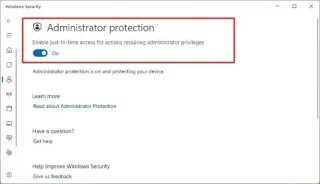
Windows 11 25H2 用のビルド 26200.5702 (KB5062653) では、AI による画像の説明、新しい管理者セキュリティ、再設計されたアクセス許可ダイアログなどが追加されています。
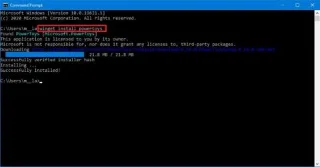
Windows 10では、wingetコマンドを使用してアプリをインストールできるようになりました。以下は、Windowsパッケージマネージャーを使用してアプリをインストールする手順です。