失われたパーティションとハードディスクデータを安全に復元する方法
TestDiskとPhotoRecを使って、失われたパーティションやファイルを復元する方法を学びましょう。ソースドライブを保護し、安全にスキャンを行い、復元したデータを別のディスクに保存します。
A useful screen-tearing fix is not simply a configuration change that makes one video look better. The result should be repeatable: horizontal splits should disappear during window dragging, page scrolling, and full-screen video; the desktop should remain responsive; the correct refresh rate should stay selected after login; and the change should not introduce black screens, stutter, or higher-than-expected latency.
On current Pardus releases, start by identifying the display session and the Xorg driver actually in use. Pardus 25 ships with Xfce 4.20.2 as its lightweight desktop option and GNOME 48.4 as its other main desktop, while Pardus 25.1 includes Debian 13.4 maintenance updates and Linux kernel 6.12.74. That matters because an X11-specific Intel configuration should not be applied blindly to a Wayland session. See the Pardus 25 release notes and Pardus 25.1 release notes.
The practical order is: identify the session and driver, update the graphics stack, confirm compositor and monitor settings, then use the Intel Xorg TearFree option only when the legacy intel DDX is actually active. Debian currently recommends the built-in Xorg modesetting driver for Intel hardware from roughly 2007 onward rather than installing xserver-xorg-video-intel by default. The Debian GraphicsCard documentation is useful context for this distinction.
Open a terminal and check the session type first:
echo $XDG_SESSION_TYPE
lspci -k | grep -A3 -E 'VGA|Display'
If the first command returns x11, the Xorg-specific checks in this guide apply. If it returns wayland, do not create an Xorg device file just to solve tearing; update the system and troubleshoot the compositor/session instead. The second command should show an Intel display controller and typically a kernel driver such as i915 on many Intel systems.
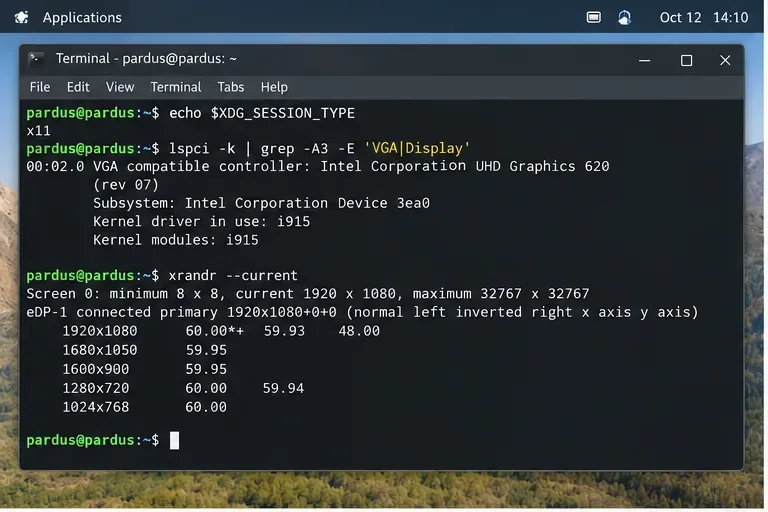
Quality check: write down the output name, such as eDP-1, and the mode marked with an asterisk by xrandr. You will use those values to verify that later changes did not alter the display unexpectedly.
Graphics tearing can come from the window manager, Mesa, Xorg, or the kernel display driver. Before adding a permanent override, install the updates already provided for your Pardus release:
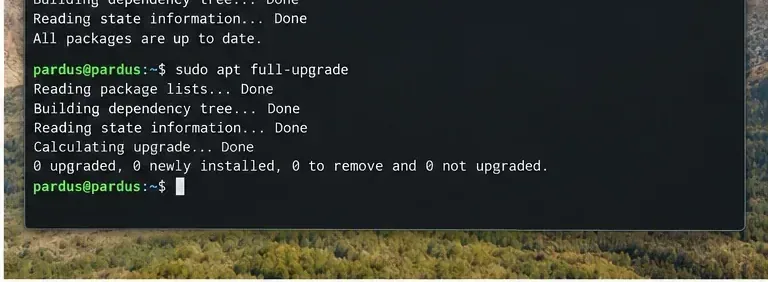
sudo apt update
sudo apt full-upgrade
Reboot if the update installs a new kernel, Mesa stack, or X server components. This is especially important on Pardus 25 because the current point releases have continued to receive kernel and Debian-base updates.
品質チェック:以前ティアリングが発生したのと同じスクロール動画または全画面動画をテストしてください。アップデートと再起動後に問題が解消されている場合は、別のグラフィックレイヤーの回避策を追加するのではなく、ここで作業を終了してください。
Xfceデスクトップの場合、設定 > ウィンドウマネージャーの調整 > コンポジターを開き、ディスプレイ合成が有効になっていることを確認してください。コンポジターは、ウィンドウの内容を最終的なデスクトップ画像に組み立てる役割を担っています。これを無効にすると、ウィンドウの移動時やビデオ再生時に画面のティアリングが目立つようになることがあります。
これは、Xorg DDXドライバの変更を強制しないため、リスクの低い最初の変更です。他のコンポジタの詳細を変更する前にテストを行ってください。特定のXfceビルドで表示されるすべてのチェックボックスが、Pardusのバージョン間で同一であるとは限りません。
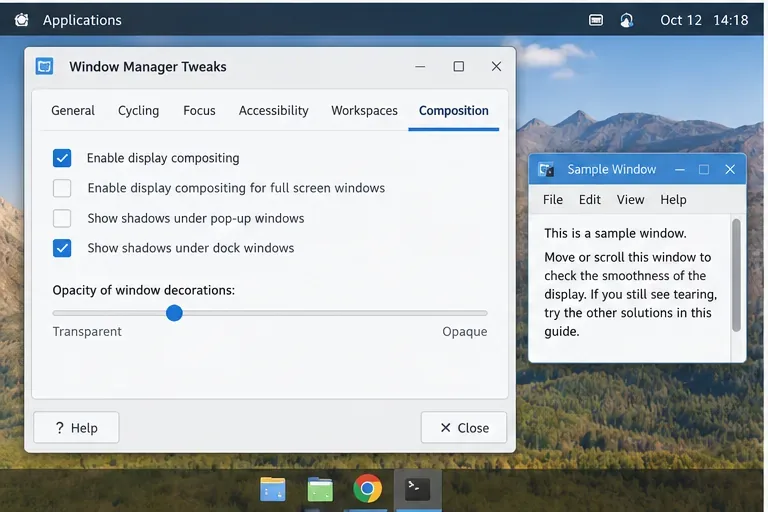
品質チェック:詳細な背景画像上で大きなウィンドウを水平方向にドラッグし、長いウェブページをスクロールしてみてください。改善は複数のアプリケーションで確認できるはずです。もし特定のメディアプレーヤーでのみ画面の乱れが発生する場合は、デスクトップ全体を変更するのではなく、そのアプリケーションのビデオ出力設定または同期設定を調べてください。
X11 では、xrandr利用可能なモードを報告し、現在のモードにアスタリスクを付けます。マニュアルには--output、出力、解像度、および最も近い利用可能なリフレッシュレートを選択するための--mode、、、およびが記載--rateされています。Debianの xrandr マニュアルを参照してください。
xrandr --current
お使いのディスプレイが目的のモードをサポートしているにもかかわらず、別のレートが選択されている場合は、正しい値を一時的にテストしてください。例の出力とレートを、実際にお使いの機器に表示される値に置き換えてください。
xrandr --output eDP-1 --mode 1920x1080 --rate 60
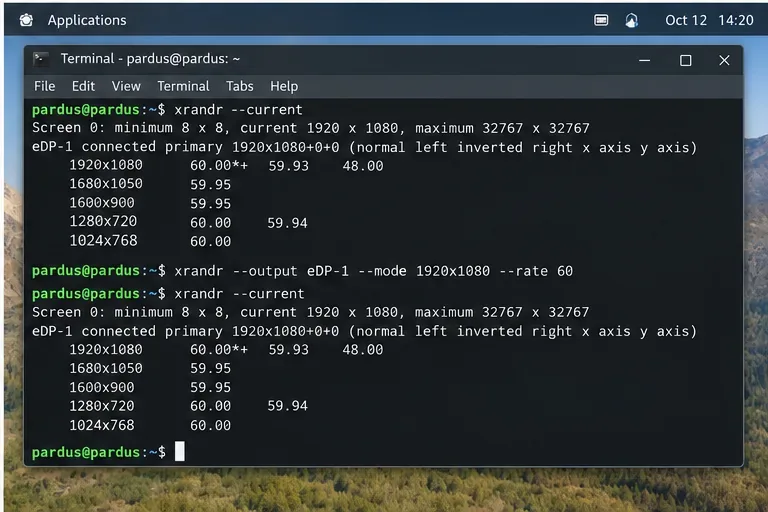
品質チェック:確認xrandr --current:これで、意図したモードとレートがマークされます。外部モニターを接続したときにティアリングが変化する場合は、各出力を個別にテストしてください。複数のモニターでリフレッシュレートが混在するレイアウトでは、単一のディスプレイでは発生しないコンポジターのタイミングの問題が顕在化する可能性があるためです。
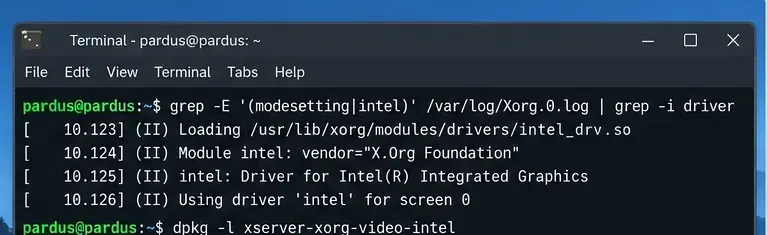
次のステップでは、従来のIntelTearFreeオプションが適切かどうかを判断します。X11では、現在のXorgログを確認してください。
grep -E '(modesetting|intel)' /var/log/Xorg.0.log | grep -i driver
ディストリビューションがXorgログをジャーナルに保存する場合は、以下を使用してください。
journalctl -b | grep -Ei 'Xorg|modesetting|intel'
アクティブなドライバが の場合modesetting、スイッチを取得するためだけにレガシー Intel DDX をインストールしないでくださいTearFree。Debian は、新しいハードウェアで古い Intel Xorg ドライバを使用することを明確に推奨しておらず、代わりに組み込みのモード設定ドライバを推奨しています。ログに既に と表示されている場合Using driver 'intel'、以下の Intel-driver オプションは有効なターゲット テストです。
Debian のintel(4)マニュアルにはOption "TearFree" "boolean"、TearFree がバックバッファを介してレンダリングし、垂直リフレッシュと同期してディスプレイを更新することが説明されています。トレードオフとして、フレームバッファメモリの増加、余分なコピー、場合によってはスループットの低下、およびわずかな出力遅延が発生します。Debian intel(4) マニュアルを参照してください。
Xorgログでintelドライバがアクティブであることが確認できた場合にのみ、次のような小さな設定ファイルを作成します/etc/X11/xorg.conf.d/20-intel.conf。
Section "Device"
    Identifier "Intel Graphics"
    Driver "intel"
    Option "TearFree" "true"
EndSection
ログアウトして再度ログインするか、再起動してXorgの設定を再読み込みしてください。
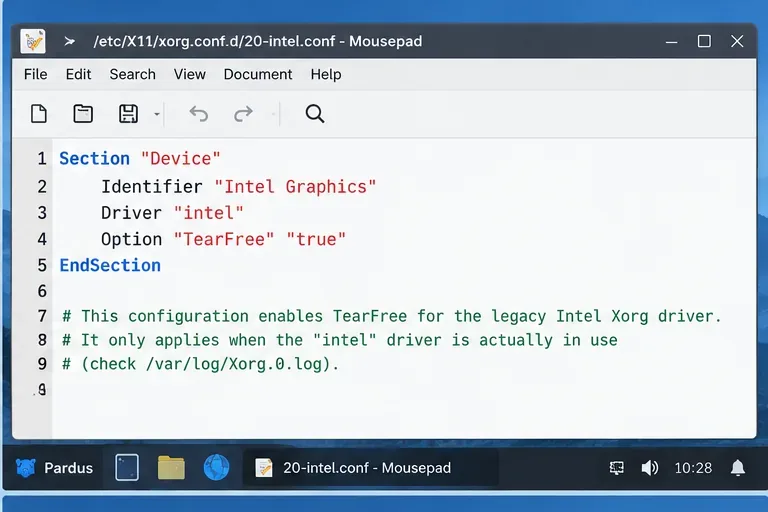
品質チェック:デスクトップは正常に起動し、選択した解像度が維持され、以前使用したのと同じ再現可能なテストでティアリングが発生しないことを確認してください。入力の反応が著しく遅くなったり、ワークロードのレンダリングスループットが低下したりする場合は、視覚的な改善とトレードオフを比較検討してください。
デスクトップに戻ったら、Xorgログで該当オプションを確認し、元のビジュアルテストを再度実行してください。
grep -i tearfree /var/log/Xorg.0.log
TearFreeが有効になっていることを示すログエントリは、Xorgが設定を受け入れた証拠であり、それ自体がすべてのアプリケーションでティアリングが発生しないことを保証するものではありません。高速スクロール、ウィンドウのドラッグ、および水平方向の動きがはっきりと見えるフルスクリーンビデオを少なくとも1つ再生してテストしてください。
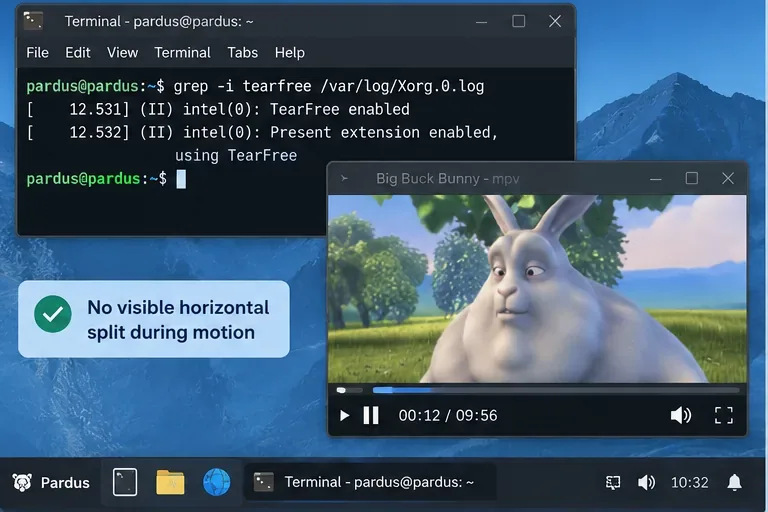
合格基準:複数の動きの多いテストで水平方向の画面分割が持続しないこと、新たな黒画面やちらつきが発生しないこと、意図しないリフレッシュレートの変更がないこと、許容できないほどのカクつきがないこと。画面のティアリングが1つのアプリケーションのみで発生する場合は、アプローチを変更し、そのアプリケーションのレンダリングパスを調査してください。
Xorgが正しく起動しない場合、パフォーマンスが低下する場合、またはこのオプションが何ら意味のある変化をもたらさない場合は、追加したファイルを削除して、以前のドライバの動作に戻してください。
sudo rm /etc/X11/xorg.conf.d/20-intel.conf
その後、ログアウトして再度ログインするか、再起動してください。 内の無関係なファイルを削除しないでください/etc/X11/xorg.conf.d/。
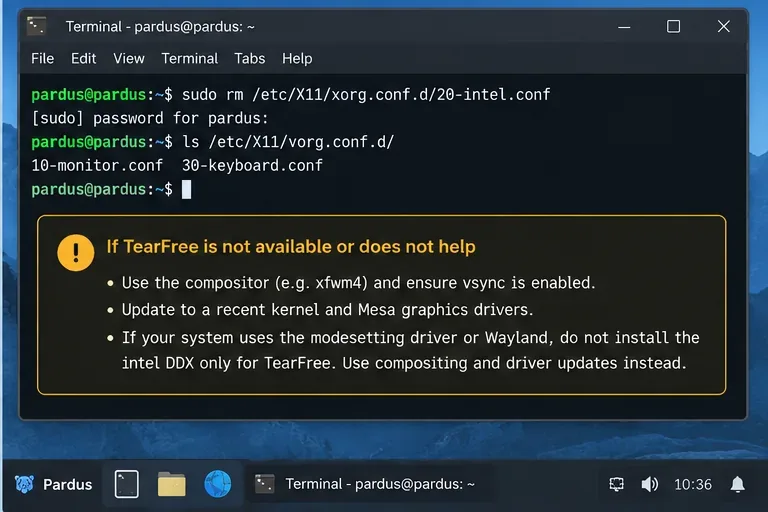
次のいずれかに該当する場合は、Intel DDX TearFree方式の使用を中止してください。
TearFreeオプションは記載されていません。Debian modesetting(4) マニュアルを参照してください。Intelグラフィックスの設定で、Pardusのリリース、デスクトップ環境、GPU世代、ディスプレイ構成、アプリケーションを問わず、ティアリングのない表示を保証できるものはありません。従来のIntel DDX TearFreeオプションは実在し、ドキュメントにも記載されていますが、意図的に条件付きのソリューションとなっています。つまり、このドライバーが実際に動作しているX11システムにのみ適用され、Debian系システムにおける最新のIntelハードウェアでは、このドライバーはもはや推奨されるデフォルト設定ではありません。
最も確実な結果を得るには、原因に見合った介入を行うことが重要です。コンポジタの同期と適切なリフレッシュレートで問題が解決する場合は、そこで作業を止めましょう。レガシーなIntelドライバが既にアクティブになっている場合は、TearFreeテストが適切な測定テストとなります。モード設定またはWaylandを使用している場合は、古いドライバをシステムに強制的にインストールするのではなく、最新のスタックを使用し、コンポジタ、リフレッシュ、カーネル、Mesa、およびアプリケーションの動作を診断してください。
echo $XDG_SESSION_TYPEXorg専用の手順を適用する前に確認してください。xrandrX11でモニターの実際のモードとリフレッシュレートを確認してください。Option "TearFree" "true"Xorgがドライバを使用している場合にのみ使用してくださいintel。TestDiskとPhotoRecを使って、失われたパーティションやファイルを復元する方法を学びましょう。ソースドライブを保護し、安全にスキャンを行い、復元したデータを別のディスクに保存します。
CoBangを使えば、Webカメラまたは画像ファイルでLinux上でQRコードをスキャンできます。インストールオプション、セットアップ手順、Flatpakカメラへのアクセスに関する修正方法については、こちらをご覧ください。
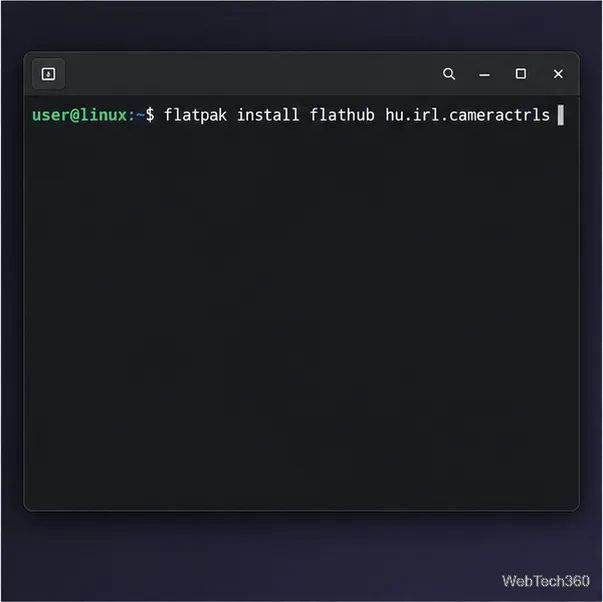
Cameractrlsを使用してLinux上でウェブカメラの設定を変更しましょう。露出、色、フリッカー低減などのサポートされているコントロールを調整し、互換性のあるビデオモードを確認できます。
LinuxにPhpStormをインストールするには、JetBrains Toolboxを使用するか、スタンドアロンのtar.gzアーカイブを使用するか、SnapおよびArch AURオプションを選択してください。Javaは既にバンドルされています。
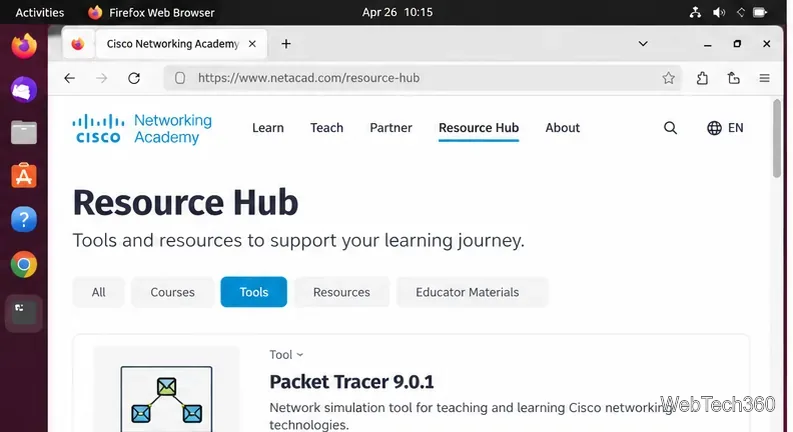
Cisco Packet Tracer 9.0.1 を Ubuntu 64 ビット版にダウンロードし、APT を使用して DEB パッケージをインストールし、ターミナルでライセンスに同意してサインインすると、ラボを開始できます。
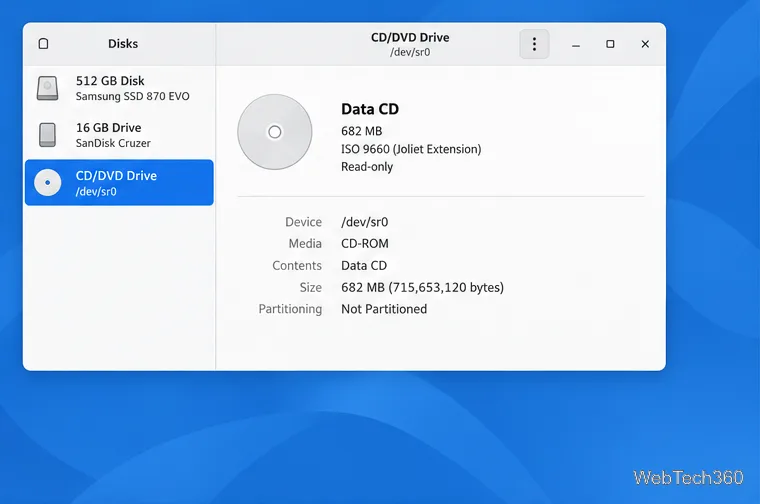
Linux上でGNOME Disksまたはddコマンドを使用してCD-ROM ISOイメージを作成します。光学ドライブを識別し、コピーを監視し、イメージを検証し、破損したディスクやオーディオディスクに別のツールが必要な場合を把握できます。
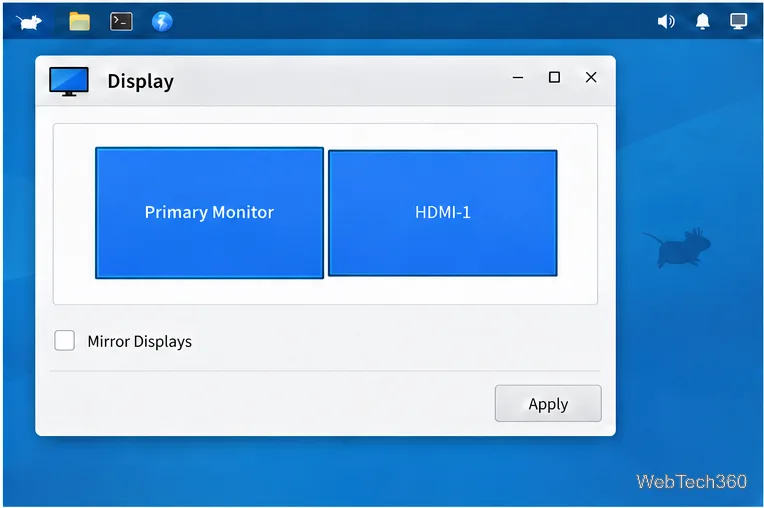
各ディスプレイごとに個別のXFCE 4パネルを作成し、2番目のパネルを右側の出力に割り当て、位置とサイズを調整し、必要なランチャーとステータス項目を追加します。
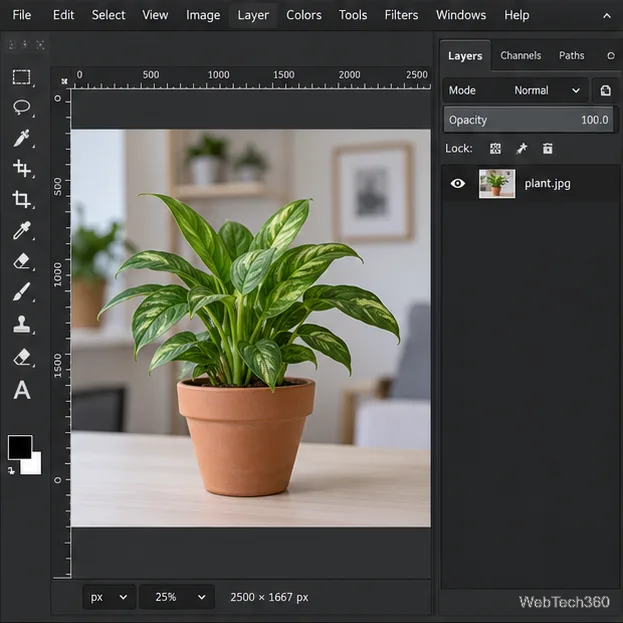
LinuxでGIMPを使って写真の背景を削除する方法:被写体をトレースし、選択した背景を削除し、透明度を保持して、再利用可能なPNG形式でエクスポートします。
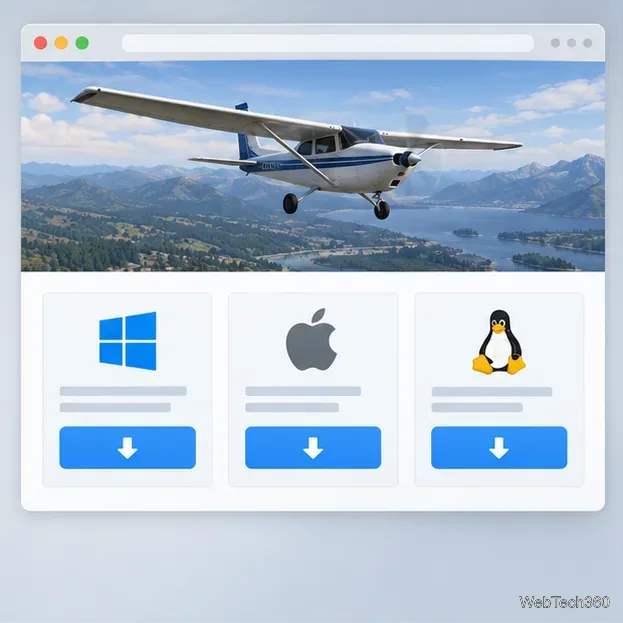
FlightGearは公式サイトから無料でダウンロードできます。Windows、macOS、Linuxの各パッケージを比較し、データファイルをインストールして、最初のフライトを開始しましょう。
OKSamplerはMP3クリップをキーボードのキーにマッピングし、音声をループ再生できます。この旧型フリーウェアの機能、旧機能が失われた箇所、ダウンロード前に確認すべき点について解説します。