Are you ready to dive deeper into the world of Windows 11? Enabling Windows 11 Developer Mode is your gateway to powerful features like sideloading apps, running scripts, and testing custom software without restrictions. Whether you're a budding developer, a tech hobbyist, or just curious about advanced capabilities, this guide will walk you through the process smoothly. No jargon, no hassle – just clear steps to get you up and running. Let's empower your PC and spark some excitement in your workflow! 🚀
What is Windows 11 Developer Mode and Why Enable It?
Developer Mode in Windows 11 transforms your device into a versatile development hub. It allows you to install unsigned apps, access advanced debugging tools, and even deploy apps from sources outside the Microsoft Store. Imagine bypassing traditional app limits to test your own creations or experiment with third-party tools – it's like giving your PC superpowers!
Why bother? For developers, it's essential for building and testing Universal Windows Platform (UWP) apps. For everyday users, it opens doors to productivity boosts, like running custom scripts or installing specialized software. Plus, it's reversible, so you can toggle it off anytime. According to Microsoft's official documentation, enabling this mode is safe when done correctly, ensuring your system stays secure while unlocking creativity. Feel the thrill of full control – your tech journey just got more adventurous!

Prerequisites Before Enabling Developer Mode in Windows 11
Before we jump in, let's ensure you're set up for success. Enabling Windows 11 Developer Mode requires a few basics:
- Compatible Device: Any PC running the latest Windows 11 build. Check for updates via Settings > Windows Update.
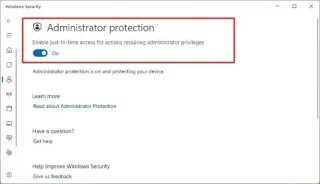
- Admin Access: You'll need administrator privileges – a must for system tweaks.
- Backup Your Data: Though rare, changes can sometimes lead to hiccups. Use OneDrive or an external drive for peace of mind. 😊
- Internet Connection: For downloading any required packages during the process.
Pro tip: If you're on a work or school device, check with your IT admin first – policies might restrict this. Ready? Let's enable it step by step!
Step-by-Step Guide: How to Enable Windows 11 Developer Mode
Activating Developer Mode is straightforward and takes just a few minutes. We'll use the built-in Settings app for the safest method. Follow these numbered steps, and you'll be coding or sideloading in no time.
- Open Settings: Click the Start button (Windows icon) and select Settings, or press Windows + I for a quick launch. It's your control center for all things Windows 11!
- Navigate to Privacy & Security: In the Settings menu, scroll down to Privacy & security. This section houses developer options – click it to expand.
- Access For Developers: Under Privacy & security, look for For developers on the right-hand side. Click it to reveal the magic. If you don't see it, ensure your Windows is fully updated.
- Toggle Developer Mode On: You'll see a toggle switch for Developer Mode. Flip it to "On." Windows 11 will prompt a confirmation dialog – read it carefully, as it explains potential security implications. Click "Yes" to proceed. A quick restart might be suggested; go ahead and reboot if prompted. ⭐
- Verify Activation: After restarting, return to Settings > Privacy & security > For developers. You should now see options like "Sideload apps" and "Windows Store apps" enabled. Success! Your PC is now developer-ready.
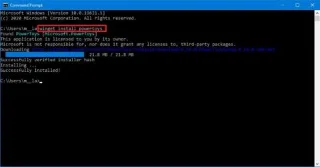
That's it – you've just unlocked Windows 11 Developer Mode! But wait, there's more to explore. If you're using PowerShell or need command-line activation (advanced users only), you can run Get-WindowsDeveloperLicense in an elevated PowerShell window. For the full details, check Microsoft's guide: Enable your device for development.
![Developer Mode Toggle in Windows 11 Settings]()
Benefits of Windows 11 Developer Mode: What Can You Do Now?
With Developer Mode enabled, the possibilities are endless. Here's a quick rundown of the perks to keep you motivated:
| Feature |
What It Unlocks |
Why It's Awesome |
| Sideloading Apps |
Install .appx or .msix packages directly |
Access beta software or custom builds without Store limits – perfect for testing! |
| Device Portal |
Remote debugging via Wi-Fi |
Develop on the go; connect your phone or another device seamlessly. |
| Script Execution |
Run PowerShell scripts freely |
Automate tasks and boost efficiency – say goodbye to manual drudgery. 👏 |
| UWP Development |
Full access to Visual Studio tools |
Build modern apps that shine on Windows 11's sleek interface. |
These features aren't just technical; they make your computing experience more dynamic and fun. Imagine deploying your first sideloaded app – that "aha!" moment is priceless!
Troubleshooting Common Issues When Enabling Developer Mode
Even the smoothest processes can hit snags. If Windows 11 Developer Mode won't enable, try these fixes:
- Missing Option? Update Windows: Go to Settings > Windows Update > Check for updates. Install any available patches.
- Permission Error? Ensure you're logged in as an admin. Right-click Settings and select "Run as administrator."
- Toggle Stuck? Restart your PC in Safe Mode (hold Shift during restart) and try again. If persistent, use the Command Prompt: Run
dism /online /enable-feature /featurename:Microsoft-Windows-Subsystem-Linux as admin (adapt for your needs).
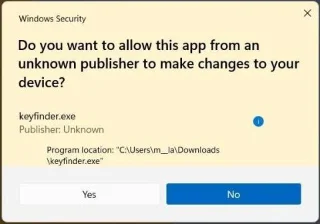
- Security Warnings? They're normal – Developer Mode does increase exposure to unverified apps, so only install trusted sources. Windows Defender remains active to protect you.
If issues persist, visit the Microsoft Community forums for community wisdom. Remember, troubleshooting is part of the adventure – you've got this! 😎
![Troubleshooting Developer Mode in Windows 11]()
How to Disable Windows 11 Developer Mode If Needed
Changed your mind? Disabling is as easy as enabling. Head back to Settings > Privacy & security > For developers, and toggle Developer Mode off. Restart, and poof – back to standard mode. This restores default security settings without losing data. It's flexible, just like Windows 11 itself.
Final Thoughts: Elevate Your Windows 11 Experience
Enabling Windows 11 Developer Mode isn't just a setting – it's an invitation to innovate and explore. From sideloading your favorite tools to crafting custom apps, you've now got the keys to a more powerful PC. Dive in, experiment safely, and watch your productivity soar. What's your first project? Share in the comments below – let's build something amazing together! If this guide helped, give it a thumbs up and stay tuned for more Windows tips. 🔓
Information based on the latest Windows 11 updates as of 2026. Always verify with official sources for your specific build.