如何在Linux系統上使用Cameractrls更改網路攝影機設置
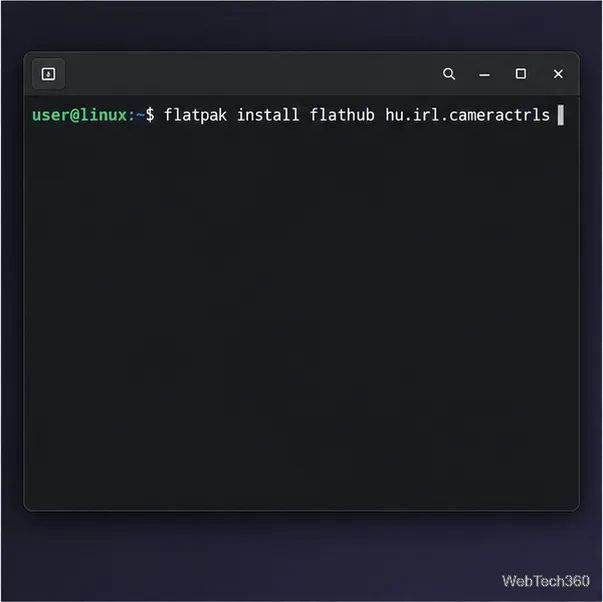
使用 Cameractrls 在 Linux 上變更網路攝影機設定:調整曝光、色彩、減少閃爍和其他支援的控件,然後檢查相容的視訊模式。
The simplest reliable way to switch PipeWire outputs from a script on Debian is to use wpctl, the WirePlumber command-line tool: identify the two sink nodes you care about, inspect the current default sink, and call wpctl set-default ID for the other one. This is preferable to hard-coding a numeric node ID because PipeWire object IDs can change when devices disconnect, reconnect, or the session restarts.
This guide uses a two-device toggle—for example, laptop speakers and Bluetooth headphones—and deliberately keeps the logic compatible with both current Debian 13 (Trixie) and Debian 12 (Bookworm). As of October 2026, Debian's package pages list WirePlumber 0.5.8 in Debian 13 and 0.4.13 in Debian 12. Newer WirePlumber releases provide additional listing features, but wpctl status -n, wpctl inspect, and wpctl set-default are the common denominator needed here.
Use this approach when PipeWire is already handling desktop audio and you want a keyboard shortcut, launcher, shell alias, or hotkey to alternate between two outputs. It works well for a built-in analog output plus USB DAC, HDMI monitor, Bluetooth headset, or another sink that appears under the Sinks section of wpctl status.
It is not the right tool for every routing problem. wpctl set-default changes the default target used for streams that need automatic connection. It does not promise that every already-running application will immediately migrate an existing stream. Some applications follow the new default automatically; others may need their stream moved separately or the application restarted.
Confirm that the user-level PipeWire and WirePlumber session is healthy. The official WirePlumber documentation recommends checking the daemon with systemctl --user status wireplumber. Debian also recommends the pipewire-audio metapackage on Debian 12 and newer when setting up a complete PipeWire audio stack.
systemctl --user status wireplumber
systemctl --user status pipewire pipewire-pulse
If wpctl is missing, install WirePlumber and the normal PipeWire audio components rather than trying to substitute an unrelated mixer utility:
sudo apt update
sudo apt install pipewire-audio wireplumber
Do not run wpctl with sudo. PipeWire and WirePlumber normally operate in your desktop user's session, so the command should connect to that user's media graph.
Run:
wpctl status -nThe -n option asks wpctl to show object names instead of human-friendly descriptions. Under Audio → Sinks, note the names of the two outputs you want to toggle. A machine might show a built-in sink resembling alsa_output.pci-0000_00_1f.3.analog-stereo and a Bluetooth sink beginning with bluez_output..
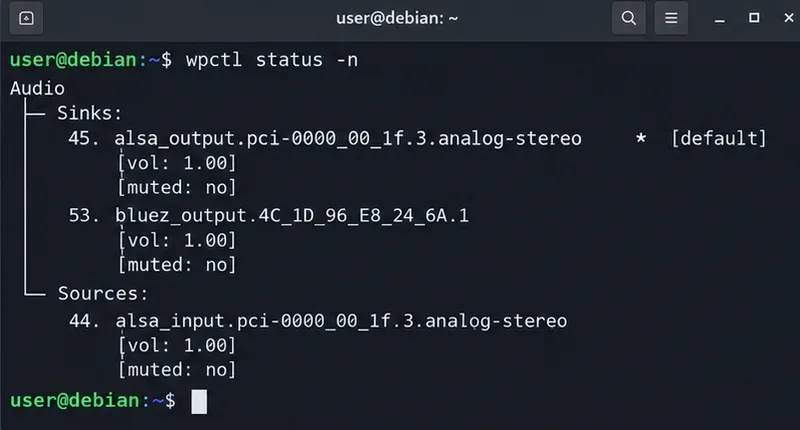
wpctl status -n:在 Sinks 部分下識別穩定的名稱片段,而不是將數位 ID 複製到腳本中。選擇一個足夠獨特的片段,使其僅與目標輸出相符。對於內建音效卡,完整的alsa_output...節點名稱通常是明智的選擇。對於藍牙設備,bluez_output.只有當您通常只連接一個藍牙音訊輸出設備時,較短的片段才方便。如果您經常連接多個藍牙輸出設備,請使用與目標裝置對應的較長片段。
在編寫交換器腳本之前,請檢查以下顯示的 ID 之一wpctl status -n:
wpctl inspect 45替換45為系統中的目前 ID。尋找諸如 `<output_id>`node.name和 `<output_id> ` 之類的屬性media.class。對於播放輸出,`<output_id>`media.class應該標識一個音訊接收器。數字 ID 可用於檢查和立即執行set-default命令,但下面的腳本每次執行時都會解析一個新的 ID。
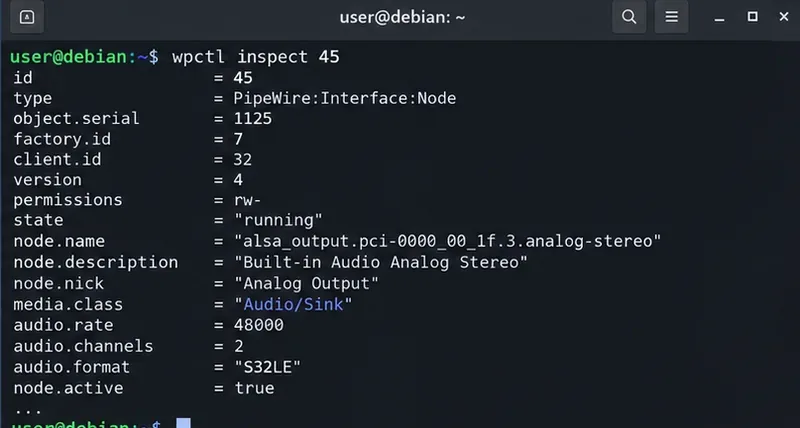
您也可以在不知道數位 ID 的情況下,詢問 WirePlumber 目前預設的接收器是哪一個:
wpctl inspect @DEFAULT_AUDIO_SINK@WirePlumber 記錄了該特殊標識符@DEFAULT_AUDIO_SINK@,並在運行時解析為當前預設播放節點。
如有必要,請建立個人可執行檔目錄,然後開啟腳本:
mkdir -p ~/.local/bin
nano ~/.local/bin/toggle-audio-output貼上以下程式碼,並將SINK_A`and`替換SINK_B為您自己的wpctl status -n輸出片段:
#!/usr/bin/env bash
set -euo pipefail

# Replace these with distinctive fragments from `wpctl status -n`.
SINK_A="alsa_output.pci-0000_00_1f.3.analog-stereo"
SINK_B="bluez_output."

find_sink_id() {
    local needle="$1"
    wpctl status -n | awk -v n="$needle" '
        /Sinks:/   { in_sinks=1; next }
        /Sources:/ { in_sinks=0 }
        in_sinks && index($0, n) {
            for (i=1; i<=NF; i++) {
                if ($i ~ /^[0-9]+\.$/) {
                    gsub(/\./, "", $i)
                    print $i
                    exit
                }
            }
        }'
}

current_name="$(
    wpctl inspect @DEFAULT_AUDIO_SINK@ |
    awk -F'= ' '/node.name/ {
        gsub(/"/, "", $2)
        print $2
        exit
    }'
)"

if [[ "$current_name" == *"$SINK_A"* ]]; then
    target_pattern="$SINK_B"
elif [[ "$current_name" == *"$SINK_B"* ]]; then
    target_pattern="$SINK_A"
else
    # If the current default is neither target, switch to A first.
    target_pattern="$SINK_A"
fi

target_id="$(find_sink_id "$target_pattern")"

if [[ -z "$target_id" ]]; then
    printf 'No available sink matched: %s\n' "$target_pattern" >&2
    exit 1
fi

wpctl set-default "$target_id"
printf 'Default audio sink changed to ID %s\n' "$target_id"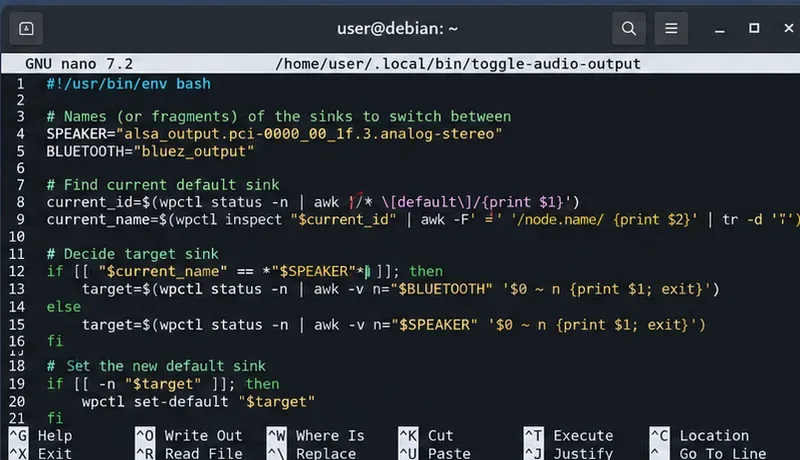
wpctl set-default。PipeWire 對象 ID 是會話對象,因此將 ID 等資訊視為45永久設備識別碼是不安全的。腳本改為儲存可識別的節點名稱片段,解析目前的 Sinks 部分,並僅在切換時提取數字 ID。
腳本會請求@DEFAULT_AUDIO_SINK@其名稱。這樣就避免了在確定目前選取的水槽時node.name依賴星號的視覺位置。然後,它會將該名稱與和進行比較。wpctl statusSINK_ASINK_B
儲存文件,然後運行:
chmod +x ~/.local/bin/toggle-audio-output
~/.local/bin/toggle-audio-output
wpctl status -n
如果目標接收器可用,則腳本應列印其選擇的 ID。再次運行腳本,它應該選擇另一個已配置的接收器。使用 `.`wpctl status -n或透過檢查 `.`來確認結果@DEFAULT_AUDIO_SINK@。
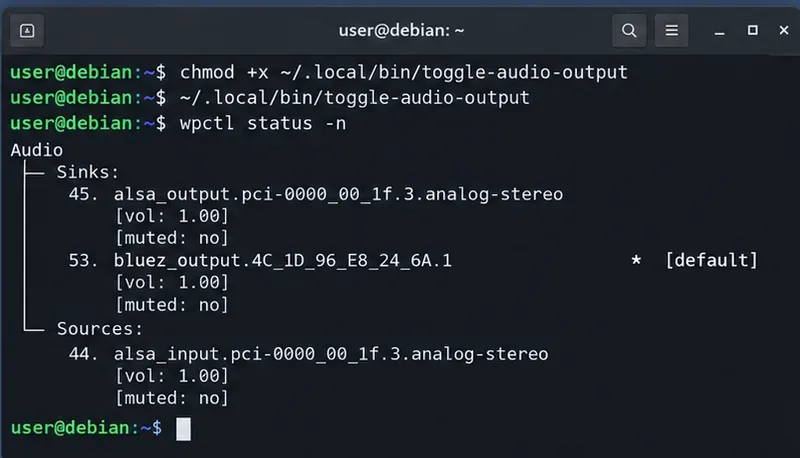
wpctl status -n並確認目標接收器是否已設定為預設值。WirePlumber 文件wpctl set-default ID中提到,可以將接收器或來源設定為預設目標。在現代 WirePlumber 中,使用者選擇的預設目標會被記住,並且優先順序可能高於自動優先級選擇。如果您之後希望 WirePlumber 恢復為自動預設選擇,請使用:
wpctl clear-default終端測試穩定可靠後,將其綁定/home/YOUR_USER/.local/bin/toggle-audio-output到桌面鍵盤快速鍵。請使用絕對路徑,因為~某些快速鍵啟動器不會展開 shell 簡寫。具體的快捷鍵介面取決於桌面環境,因此,首先要確保腳本在普通使用者終端中能夠正常運作。
如果快捷方式運行但wpctl報告無法連接,則可能是啟動器沒有繼承預期的使用者會話環境。請在圖形會話的終端機中驗證相同的命令,然後檢查桌面環境的捷徑執行規則。不要透過在腳本前添加句點來解決此問題sudo。
目標設備可能已斷開連接、節點名稱已更改,或者您的模式過於具體。請wpctl status -n重新運行腳本並更新相應的SINK_A值SINK_B。對於藍牙設備,請在運行腳本前確認耳機已連接並已啟用音訊輸出。
這可能是正常現象。上游文件將其描述set-default為選擇需要自動連接的新流的目標。如果某個應用程式的現有串流仍然連接到舊的接收器,請停止並重新啟動播放,或重新開啟應用程式。如果您確實需要遷移現有流,請將其視為單獨的路由任務,而不是假設系統set-default會保證成功。
請SINK_B更具體地說明。例如,通用模式bluez_output.僅適用於只有一個相符的藍牙接收器的情況。當可以同時連接多個無線輸出時,請使用完整的節點名稱或唯一的中間片段。
查看:
systemctl --user status wireplumber
journalctl --user -u wireplumber上游文件建議systemctl --user --now enable wireplumber在守護程序已安裝但未啟用時進行此操作。在已設定的 Debian 桌面系統上,請先調查使用者服務停止的原因,然後再重複重啟整個音訊堆疊。
| Debian 版本 | 電線水管工套餐 | 該腳本的實際意義 |
|---|---|---|
| Debian 12 (Bookworm) | 標準庫中的 0.4.13 版本 | 使用此處所示的相容wpctl status -n、inspect和set-default工作流程。 |
| Debian 13 (Trixie) | 標準庫中的 0.5.8 版本 | 同樣的腳本也能運作;新版 WirePlumber 也擴充了 CLI 和基於 JSON 的設定功能。 |
請勿將 WirePlumber 0.5 的設定範例直接複製到較舊的 0.4 版本。 WirePlumber 0.5 更改了其設定係統;本教學透過使用命令列操作而非持久性策略檔案來規避版本差異。
systemctl --user status wireplumber顯示會話管理器正在運作。wpctl status -n在「接收器」下列出兩個預期輸出。wpctl inspect @DEFAULT_AUDIO_SINK@傳回一個有效的目前播放節點。有關指令語意學和目前 WirePlumber 行為,請參閱WirePlumber 官方 wpctl 手冊和WirePlumber 官方入門指南。有關 Debian 特定軟體包和設定訊息,請使用Debian PipeWire 文件、Debian 12 WirePlumber 軟體包頁面和Debian 13 WirePlumber 軟體包頁面。
使用 Cameractrls 在 Linux 上變更網路攝影機設定:調整曝光、色彩、減少閃爍和其他支援的控件,然後檢查相容的視訊模式。
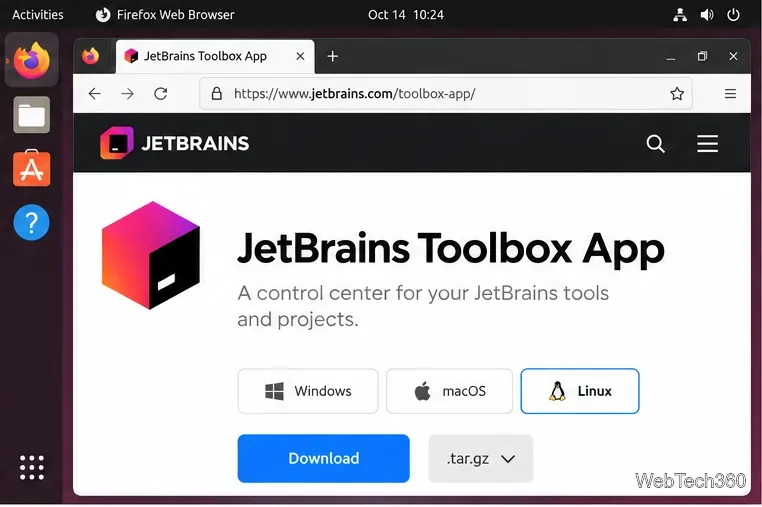
在 Linux 系統上,您可以使用 JetBrains Toolbox 或獨立的 tar.gz 壓縮套件安裝 PhpStorm,此外還有 Snap 和 Arch AUR 版本可供選擇。 Java 已預先安裝。
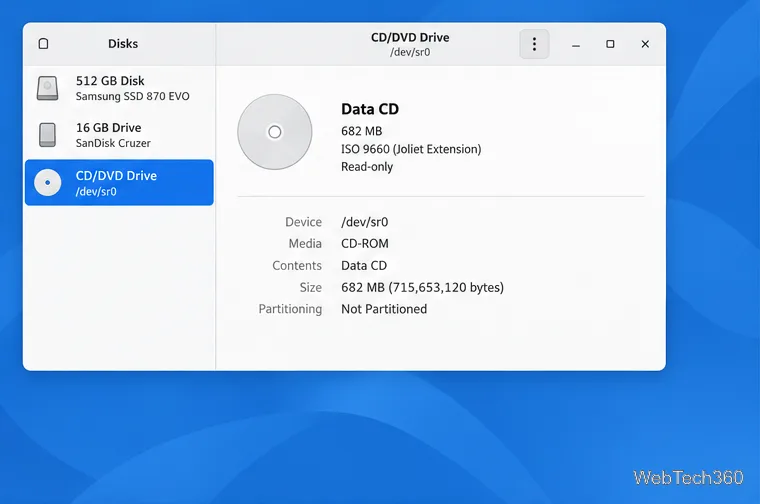
在 Linux 上使用 GNOME Disks 或 dd 建立 CD-ROM ISO。識別光碟機,監控複製過程,驗證鏡像,並了解何時損壞的光碟或音訊光碟需要其他工具。
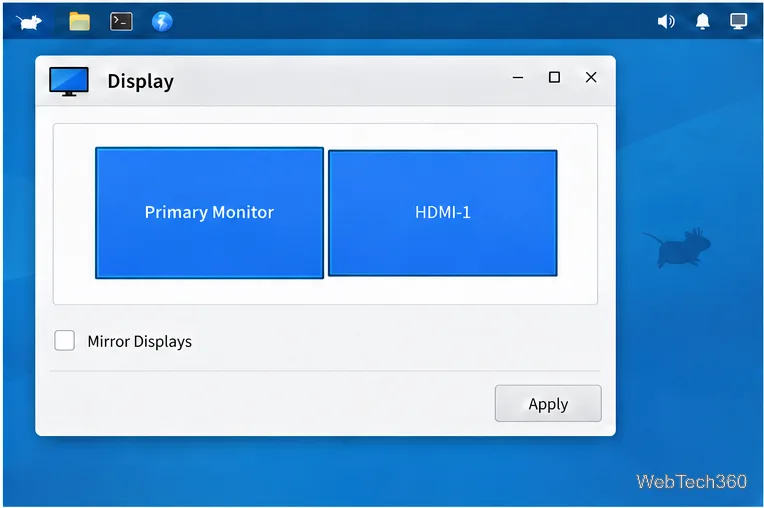
為每個顯示器建立一個單獨的 XFCE 4 面板,將第二個面板指派給正確的輸出,調整其位置和大小,並新增所需的啟動器和狀態項目。
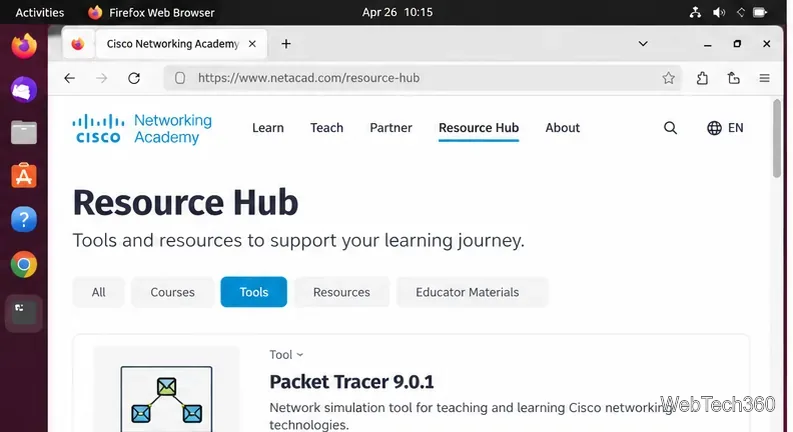
下載適用於 Ubuntu 64 位元系統的 Cisco Packet Tracer 9.0.1,使用 APT 安裝 DEB 軟體包,在終端機中接受許可協議,然後登入以啟動實驗環境。
在 Linux 系統上使用 GIMP 去除照片背景:描繪主體,刪除選定的背景,保持透明度,並匯出可重複使用的 PNG 檔案。
從官方網站免費下載 FlightGear。比較 Windows、macOS 和 Linux 版本的軟體包,安裝資料文件,即可開始您的首次飛行。
在瀏覽器中開啟 Google Tasks,新增 Chrome 捷徑或應用程式啟動,並透過行事曆和 Gmail 管理有日期的待辦事項。
OKSampler 可以將 MP3 片段對應到鍵盤按鍵,並支援音訊循環播放。了解這款經典免費軟體的功能、其舊功能的缺失以及下載前需要檢查的事項。
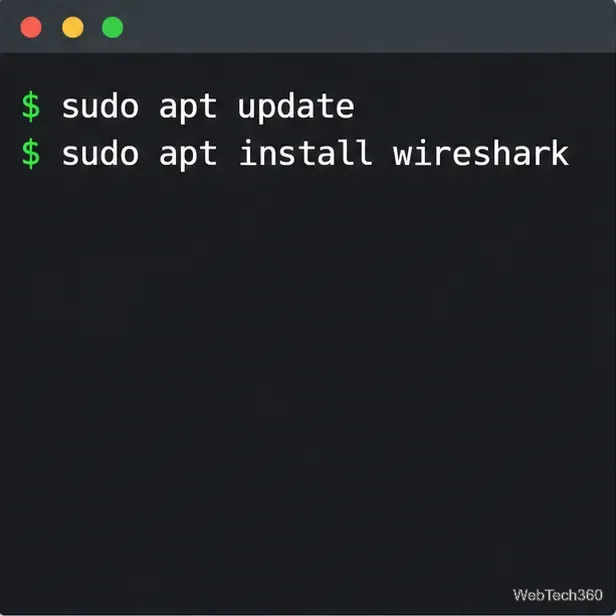
使用目前軟體包命令在 Ubuntu、Debian、Fedora、Arch 或 openSUSE 上安裝 Wireshark,然後安全地配置即時資料包擷取。