حمّل لعبة FlightGear مجاناً: دليل التثبيت الرسمي

حمّل برنامج FlightGear مجاناً من الموقع الرسمي. قارن بين حزم Windows و macOS و Linux، وثبّت ملفات البيانات، وابدأ رحلتك الأولى.
If Pardus 23 says that no Bluetooth adapter is available, the fastest way to solve the problem is to find out where detection is failing. A Bluetooth device has to pass through several layers before the desktop can use it: the computer firmware must expose the hardware, the Linux kernel must recognize it, the radio must not be blocked, the BlueZ Bluetooth service must be running, and the desktop must be able to talk to that service.
This guide follows that order. It is written for newcomers, but it avoids the common mistake of installing random drivers before checking what the system can already see. Pardus 23 is based on the Debian 12 generation and uses the Linux 6.1 series in its 23.x releases. The Pardus project lists both XFCE and GNOME editions for the Pardus 23 line, so the graphical menus can look different while the terminal checks below remain applicable. As of October 2026, Pardus 23.5 remains within the support window published by Pardus. See the official Pardus version schedule and the Pardus 23 release notes.
“Bluetooth adapter not found” is different from “my headphones are not found.” An adapter, also called a Bluetooth controller, is the radio inside the computer or USB dongle that provides Bluetooth. A headset, mouse, phone, or keyboard is a separate Bluetooth device.
bluetoothctl list shows a controller, Linux can already see a Bluetooth adapter. Your problem is more likely power, scanning, pairing, or device compatibility.bluetoothctl list shows no controller, continue with the hardware, rfkill, service, and firmware checks below.You will need an administrator password for commands beginning with sudo. Save any open work before restarting services or rebooting.
Open a terminal and start with:
lsusbMany built-in Bluetooth radios are internally connected through USB even when Wi-Fi is on the same laptop card. Look for a line mentioning Bluetooth or a vendor such as Intel, Realtek, Broadcom, Qualcomm, Cambridge Silicon Radio, or another radio manufacturer. You can also inspect PCI devices for the combined wireless controller:
lspci -nnk | grep -iA3 -E 'network|wireless|bluetooth'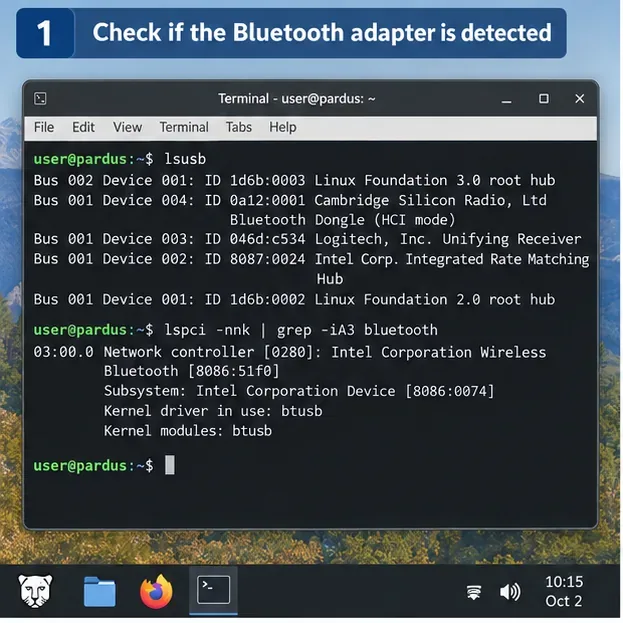
What the result means: if the adapter appears in lsusb, the hardware is at least being enumerated by the kernel. That is useful progress; do not jump straight to buying another adapter. If neither command shows relevant hardware, shut down the computer fully, check any wireless key or physical radio switch, and inspect BIOS/UEFI settings for wireless or Bluetooth controls. A USB dongle should also be tested in another USB port.
If you are using a virtual machine, remember that the host computer must pass the Bluetooth USB device through to the guest. Pardus cannot detect hardware that the virtualization layer does not expose.
rfkill is the Linux mechanism used to disable or enable radio transmitters such as Wi-Fi and Bluetooth. Run:
rfkill listFind the Bluetooth entry. The important fields are Soft blocked and Hard blocked.
sudo rfkill unblock bluetooth.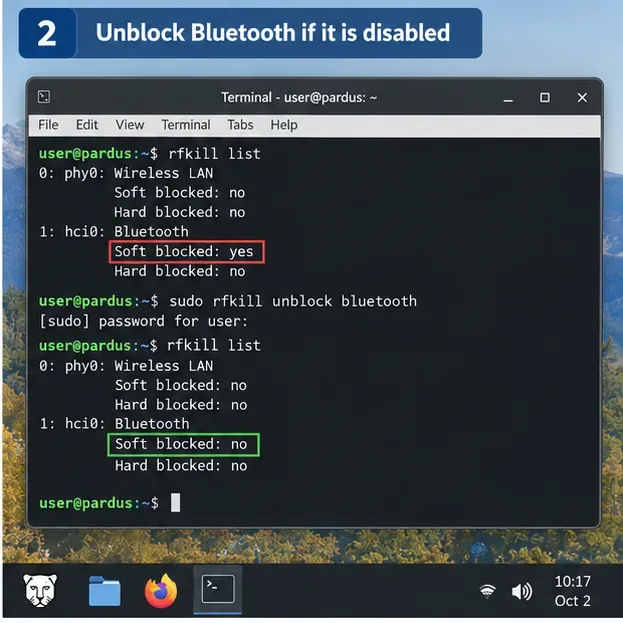
The behavior of rfkill unblock and hard blocks is documented in the Debian rfkill manual and the Linux wireless rfkill documentation.
BlueZ is the standard Linux Bluetooth protocol stack. Its background service, bluetoothd, manages Bluetooth controllers and devices. Check it with:
systemctl status bluetoothIf the service is installed but inactive, start it and enable it for future boots:
sudo systemctl enable --now bluetooth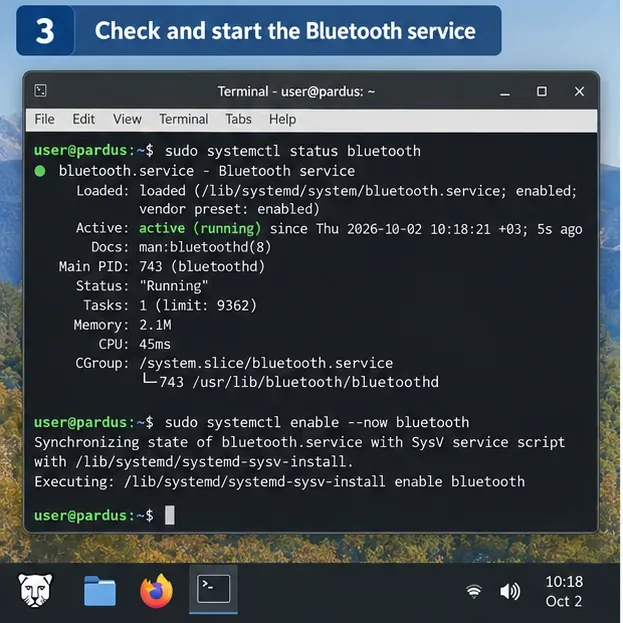
If the command reports that bluetooth.service does not exist, skip ahead to the package check. If the service starts but immediately fails again, do not repeatedly restart it. Check the logs in Step 6 because they can reveal a missing firmware file or driver error.
Now run:
bluetoothctl list
bluetoothctl show
The list command lists available Bluetooth controllers; show displays properties for the selected controller. These commands are documented in the Debian bluetoothctl manual.
If a controller appears but is powered off, enter the interactive tool:
bluetoothctl
power on
show
quit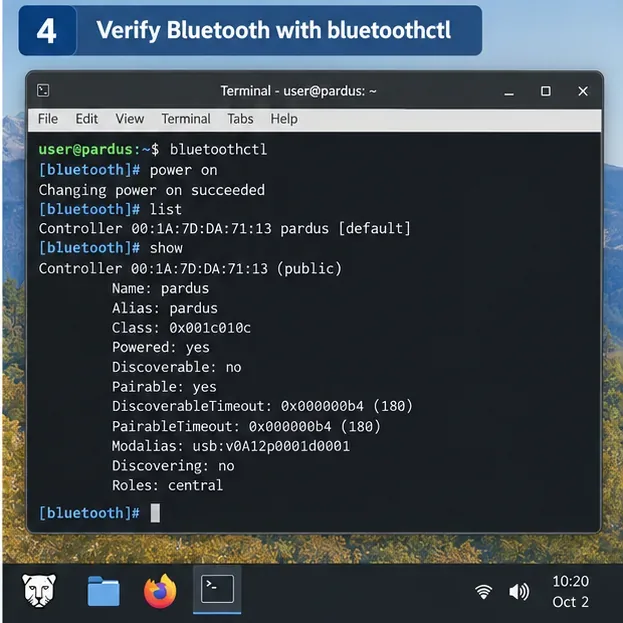
At this point, an “adapter not found” message in one desktop app may be a desktop-session or GUI issue rather than a missing kernel device. Log out and back in, or reboot once after completing the update and service checks below. If bluetoothctl list is empty, keep going.
يتلقى Pardus 23 تحديثات الحزم عبر مستودعات Pardus، ويوصي المشروع بالحفاظ على تثبيت Pardus 23 الحالي محدّثًا. كما تُشير ملاحظات تحديث Pardus إلى تحديث BlueZ خلال دورة حياة الإصدار 23.x. يمكنك استخدام تطبيق Pardus Updater، أو استخدام APT من سطر الأوامر.
sudo apt update
sudo apt upgrade
ثم تحقق من الحزم الأساسية:
dpkg -l bluez bluetoothإذا كانت أي من الحزمتين مفقودة، فقم بتثبيتها:
sudo apt install bluez bluetooth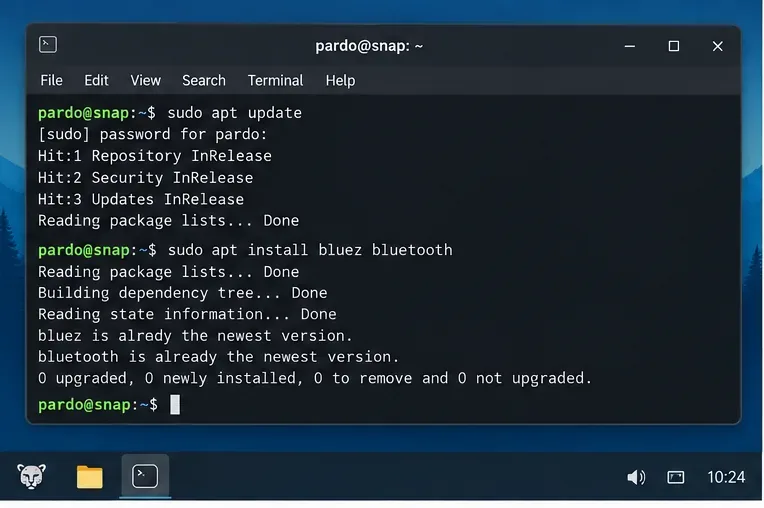
لا تعتبر إعادة تثبيت الحزمة حلاً شاملاً. إذا لم يتعرف نظام التشغيل على المحول، فلن تؤدي إعادة تثبيت BlueZ وحدها إلى ظهور الجهاز. يُعد إشعار تحديث Pardus 23 الرسمي مرجعًا مفيدًا لقاعدة حزم الإصدار 23.x المُحدّثة.
في هذا السياق، يُشير مصطلح "البرنامج الثابت" إلى ملف ثنائي صغير يُحمّله نظام التشغيل على بعض شرائح الاتصال اللاسلكي. وهو يختلف عن برنامج BIOS/UEFI الثابت الخاص بلوحة الأم. قد يظهر مُحوّل البلوتوث في النظام، lsusbولكنه قد يفشل في التهيئة إذا كان ملف البرنامج الثابت المطلوب مفقودًا.
تحقق من رسائل النواة الأخيرة:
sudo dmesg | grep -iE 'bluetooth|btusb|firmware'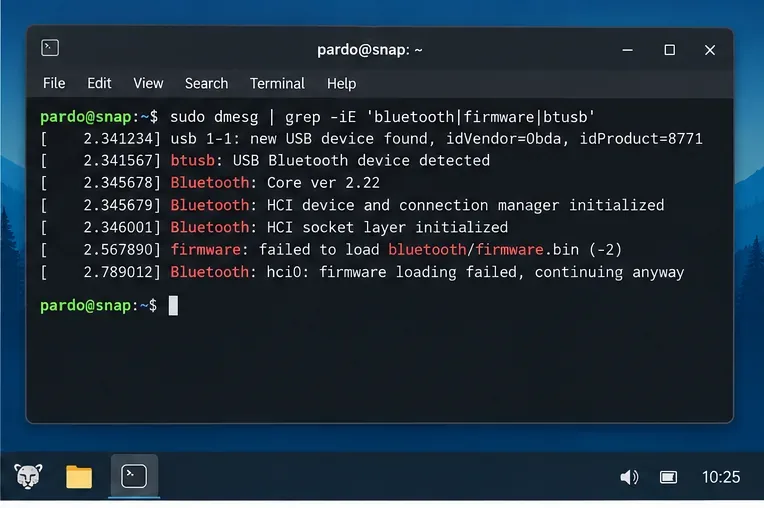
انتبه لعبارات مثل firmware: failed to load"أو Direct firmware load failed" Bluetooth: hci0أو "أو btusb". اسم الملف والشركة المصنعة مهمان. لا تقم بتثبيت أي حزمة برامج ثابتة تجدها.
بالنسبة لأنظمة دبيان من الجيل الثاني عشر، تُوفّر حزم البرامج الثابتة من خلال non-free-firmwareالمكوّن. يتضمن تكوين المستودع الرسمي لنظام باردوس 23 هذا المكوّن. ومن الأمثلة من كتالوج حزم دبيان الرسمي ما يلي:
استخدم مُعرّفات المورّد/الجهاز من الخطوة 1 واسم الملف المفقود dmesgلتحديد الحزمة المناسبة. إذا لم تتمكن من تحديد الجهاز بدقة، فمن الأفضل جمع المُعرّفات والتواصل مع دعم Pardus بدلاً من إضافة مستودعات خارجية أو تنزيل ملفات برامج ثابتة عشوائية.
بعد تثبيت الحزمة الصحيحة، أعد تشغيل الخدمة:
sudo systemctl restart bluetooth
systemctl is-active bluetooth
bluetoothctl list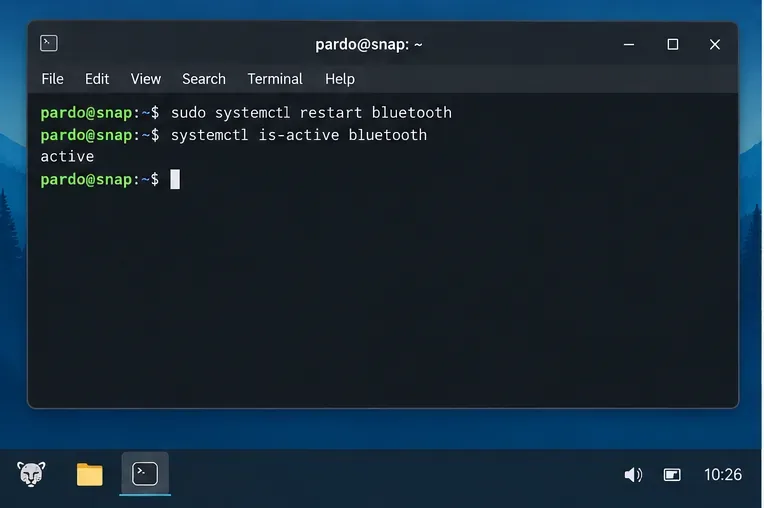
إذا قمت بتثبيت برنامج ثابت جديد، فإن إعادة تشغيل الجهاز بالكامل هي الخطوة التالية الأنسب، لأنها تجبر نواة النظام على إعادة تهيئة جهاز البلوتوث من جديد عند بدء التشغيل. بعد إعادة التشغيل، كرر الخطوات السابقة rfkill list. bluetoothctl listلن تحتاج إلى تكرار تثبيت الحزمة.
بمجرد bluetoothctl listظهور وحدة التحكم وتأكيد bluetoothctl showتشغيلها، افتح إعدادات البلوتوث في بيئة سطح المكتب. شغّل البلوتوث وانتظر بضع ثوانٍ حتى تظهر الأجهزة.
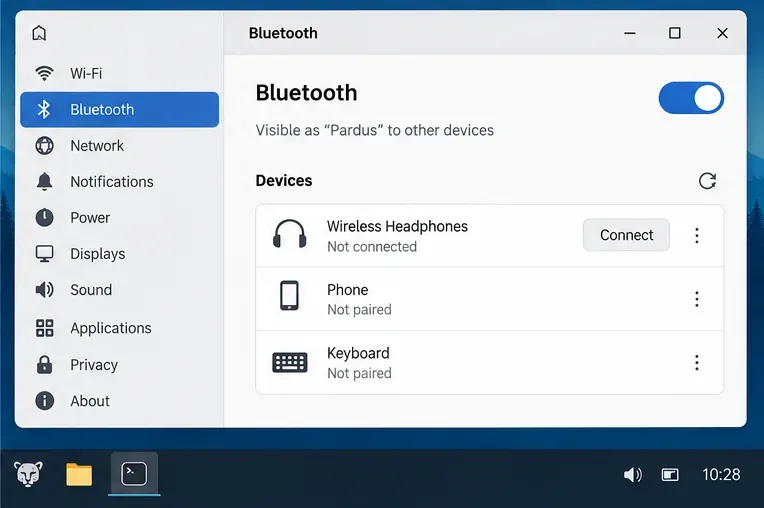
لا تُقدّم بيئتا سطح المكتب XFCE وGNOME نفس عناصر التحكم تمامًا، لذا لا تقلق إذا لم تكن لوحة التحكم لديك متطابقة. يدعم برنامج Pardus رسميًا كلا بيئتي سطح المكتب في إصدار Pardus 23.
| ما تراه | الإجراء التالي الأكثر فائدة |
|---|---|
لا يوجد جهاز بلوتوث متصل lsusb، ولا وحدة تحكم لاسلكية ذات صلة، ولا يوجد إدخال لإيقاف تشغيل البلوتوث. | تحقق من BIOS/UEFI، أو وحدة تحكم لاسلكية فعلية، أو وصلة USB، أو عطل في الجهاز. من غير المرجح أن تُجدي تغييرات حزمة البرامج نفعاً حتى يتم الكشف عن عطل في الجهاز. |
تم إدراج تقنية البلوتوث وحظرها rfkillبرمجياً | قم بتشغيل البرنامج sudo rfkill unblock bluetooth، ثم أعد فحص الخدمة ووحدة التحكم. |
| تم حظر تقنية البلوتوث بشكل كامل | استخدم مفتاح الراديو/مفتاح الوظائف في الكمبيوتر المحمول أو إعدادات BIOS/UEFI. لا يمكن لبرنامج إلغاء الحظر تجاوز الحظر المادي. |
systemctl status bluetoothيقول إن الخدمة مفقودة | قم بتثبيت حزم BlueZ/Bluetooth من مستودعات Pardus. |
يظهر الجهاز lsusbولكنه dmesgيُبلغ عن ملف برنامج ثابت مفقود | حدد مُعرّف مُورّد المُحوّل/الجهاز وقم بتثبيت حزمة البرامج الثابتة المُطابقة بدلاً من التخمين. |
bluetoothctl listيعرض وحدة تحكم | تم اكتشاف المحول. انتقل إلى استكشاف أخطاء الطاقة أو المسح الضوئي أو الاقتران أو جلسة سطح المكتب بدلاً من البحث عن برنامج التشغيل. |
bluetoothctl listظهر جهاز تحكم، فهذا يعني أن المحول موجود حتى لو لم تكن سماعات الرأس ظاهرة بعد.systemctl statusسجل النظام أو في ملف النظام dmesg.إذا لم يظهر المحول في lsusbقوائم الأجهزة ذات الصلة بعد إيقاف التشغيل الكامل، وفحص BIOS/UEFI، وفحص منفذ USB، فقد تكون المشكلة على مستوى نظام التشغيل. وبالمثل، إذا لم يتم اكتشاف نفس محول بلوتوث USB على جهاز كمبيوتر آخر، فمن المحتمل أن تكون المشكلة في المحول نفسه.
إذا تم اكتشاف الجهاز ولكن فشل تحميل ملف برنامج ثابت معين بشكل متكرر حتى بعد تثبيت حزمة البرامج الثابتة الصحيحة لنظام Pardus/Debian، فقم بتسجيل مخرجات هذه الأوامر قبل طلب المساعدة:
uname -a
lsusb
rfkill list
systemctl status bluetooth --no-pager
bluetoothctl list
sudo dmesg | grep -iE 'bluetooth|btusb|firmware'
يرجى ذكر رقم إصدار Pardus 23 بالتحديد، وما إذا كنت تستخدم XFCE أو GNOME. هذه المعلومات تُسهّل كثيراً تحديد ما إذا كانت المشكلة متعلقة بالأجهزة أو البرامج الثابتة أو نواة النظام أو BlueZ أو طبقة سطح المكتب، دون الحاجة إلى التخمين.
إنّ الحل الأمثل لمشكلة "لم يتم العثور على محول بلوتوث" على نظام Pardus 23 ليس أمرًا واحدًا، بل هو مسار تشخيصي مختصر: تأكد من أن نظام Linux يتعرف على الجهاز، ثم امسح أي حظر لـ rfkill، وتحقق من تثبيت برنامج BlueZ وتشغيله، وتأكد من إمكانية bluetoothctlرؤية وحدة التحكم، وبعد ذلك فقط افحص البرامج الثابتة. إذا ظهرت وحدة التحكم bluetoothctl، فتوقف عن اعتبار المشكلة متعلقة بمحول مفقود، وانتقل إلى عملية الاقتران العادية أو استكشاف أخطاء اكتشاف الجهاز وإصلاحها.
حمّل برنامج FlightGear مجاناً من الموقع الرسمي. قارن بين حزم Windows و macOS و Linux، وثبّت ملفات البيانات، وابدأ رحلتك الأولى.
يقوم برنامج OKSampler بربط مقاطع MP3 بمفاتيح لوحة المفاتيح، كما يتيح تكرار الصوت. تعرّف على وظائف هذا البرنامج المجاني القديم، وحدود ميزاته القديمة، وما يجب التحقق منه قبل التنزيل.
افتح مهام جوجل في متصفح، وأضف اختصارًا لمتصفح كروم أو قم بتشغيلها على غرار التطبيقات، وقم بإدارة المهام المؤرخة من خلال التقويم وجيميل.
قم بتثبيت نسخة لينكس من لعبة Don't Starve Together عبر Steam، وابدأ عالمًا جديدًا، أو انضم إلى أصدقائك باتباع خطوات الإعداد واستكشاف الأخطاء وإصلاحها هذه.
قم بإعداد Squad على نظام Linux باستخدام Steam Play و Proton، ثم قم بتثبيت اللعبة، واختر أداة التوافق، وقم باستكشاف مشكلات مكافحة الغش وإصلاحها.
قم بتنزيل ملف LMDE 5 ISO المؤرشف والتحقق منه، ثم أنشئ قرص USB قابلًا للإقلاع، واختر إعدادات التثبيت الآمنة. انتهى دعم Elsie؛ راجع إصدار LMDE الحالي.
قم بإنشاء قرص USB لتثبيت نظام التشغيل Windows 11 على نظام Linux باستخدام Ventoy: احصل على ملف ISO الرسمي، وقم بتثبيت Ventoy بأمان، وانسخ الصورة، وقم بتشغيل جهاز الكمبيوتر المستهدف.
تعلم كيفية تشغيل لعبة It Takes Two على نظام Linux باستخدام Steam Proton، وتثبيت إصدار Steam، وتمكين التوافق، وإعداد وضع اللعب التعاوني، وحل مشاكل التشغيل.
قم بتثبيت Wireshark على Ubuntu أو Debian أو Fedora أو Arch أو openSUSE باستخدام أوامر الحزمة الحالية، ثم قم بتكوين التقاط الحزم المباشر بأمان.
قم بتثبيت Steam على نظام Linux، ثم احصل على نسخة Slay the Spire الأصلية لنظام Linux من مكتبتك، وقم بتشغيلها. يتضمن ذلك خطوات عملية لحل مشاكل بدء التشغيل الشائعة.