Inicio
» LINUX
»
Fix "Temporary Failure Resolving DNS" in Debian 12 with systemd-resolved
Fix "Temporary Failure Resolving DNS" in Debian 12 with systemd-resolved
The error Temporary failure in name resolution means an application could not turn a hostname such as deb.debian.org into an IP address. On Debian 12 (Bookworm), that does not automatically mean systemd-resolved is broken. Debian 12 does not install systemd-resolved by default, and DNS may instead be managed directly by NetworkManager, ifupdown, DHCP tooling, or another resolver. If you have deliberately enabled systemd-resolved, the fastest fix is to identify which layer is failing before changing configuration.
This practical reference focuses on systems that use, or are intended to use, systemd-resolved. Debian's Bookworm package documentation says installing systemd-resolved switches /etc/resolv.conf to systemd-resolved management. The service itself provides a local DNS stub on 127.0.0.53 and accepts upstream DNS information from global configuration, per-link network configuration, DHCP, resolvectl, and network-management services. See the Debian systemd-resolved package page and Debian systemd-resolved manual.
Quick diagnosis checklist
Check
Command
What the result tells you
Basic network path
ping -c 3 1.1.1.1
If an IP works but a hostname does not, investigate DNS. ICMP can be blocked, so do not treat a failed ping as proof that the network is down.
Resolver service
systemctl is-active systemd-resolved
active confirms the daemon is running; it does not prove upstream DNS is usable.
Effective DNS
resolvectl status
Shows global and per-link DNS servers, scopes, routing domains, and the active resolver mode.
glibc lookup path
getent ahosts debian.org
Tests hostname resolution through the system's Name Service Switch path rather than only a DNS-specific tool.
Resolver logs
journalctl -u systemd-resolved -b
Useful for unavailable DNS servers, fallback behavior, and protocol problems.
1. Confirm that the problem is DNS, not general connectivity
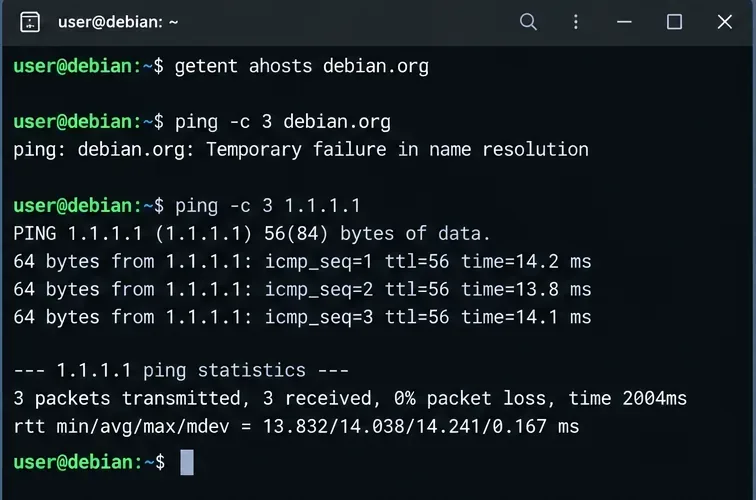
Start by testing a hostname and then an IP address:
If the hostname lookup fails while the direct IP test succeeds, DNS is the likely fault domain. If both fail, first inspect the interface, route, gateway, VLAN, Wi-Fi association, firewall, or upstream network. A DNS change cannot repair a missing default route.
A direct IP ping succeeds while resolving debian.org fails, a useful sign that connectivity exists but DNS resolution is broken.
For a more deterministic routing check, also run:
ip address
ip route
You should normally have an address on the expected interface and a default route. The exact interface name may be enp1s0, ens160, eth0, or something else.
2. Check whether systemd-resolved is actually in use
Do not assume it is present just because the machine uses systemd. Check both the package and service:
dpkg -s systemd-resolved 2>/dev/null | grep '^Status'
systemctl status systemd-resolved --no-pager
resolvectl status
If the package is absent and your machine has another working DNS-management design, installing systemd-resolved is not automatically the correct fix. If the system is supposed to use it and the service is installed but stopped, enable and start it:
sudo systemctl enable --now systemd-resolved
If that command fails, inspect the logs before repeatedly restarting the service:
journalctl -u systemd-resolved -b --no-pager
3. Inspect /etc/resolv.conf before replacing it
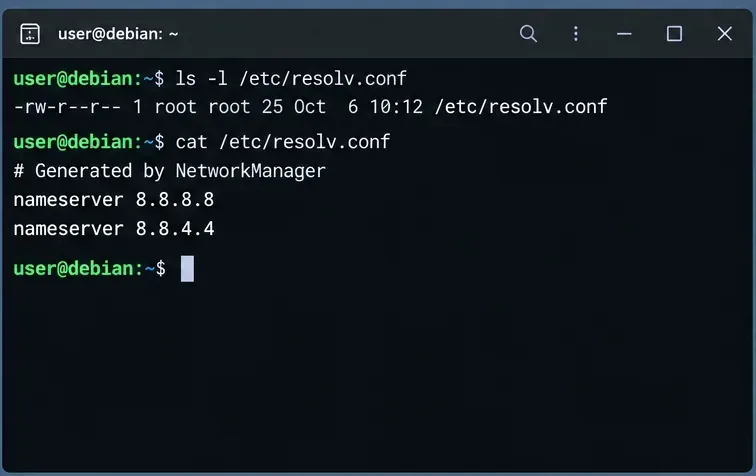
The most common configuration mistake is treating /etc/resolv.conf as an isolated file. With systemd-resolved, it can operate in several supported modes. The upstream-recommended stub mode links /etc/resolv.conf to /run/systemd/resolve/stub-resolv.conf, which points traditional DNS clients at 127.0.0.53. Another valid mode links to /run/systemd/resolve/resolv.conf, which exposes known upstream servers directly but loses systemd-resolved's per-link DNS routing for applications that read that file directly.
ls -l /etc/resolv.conf
cat /etc/resolv.conf
Inspect whether /etc/resolv.conf is a regular file or a symlink before changing it; different network managers use different ownership models.
A regular file is not automatically wrong. NetworkManager or another resolver manager may intentionally own it. However, if this host is designed to use systemd-resolved stub mode, a stale regular file, dangling symlink, or file pointing at unreachable nameservers can cause lookup failures.
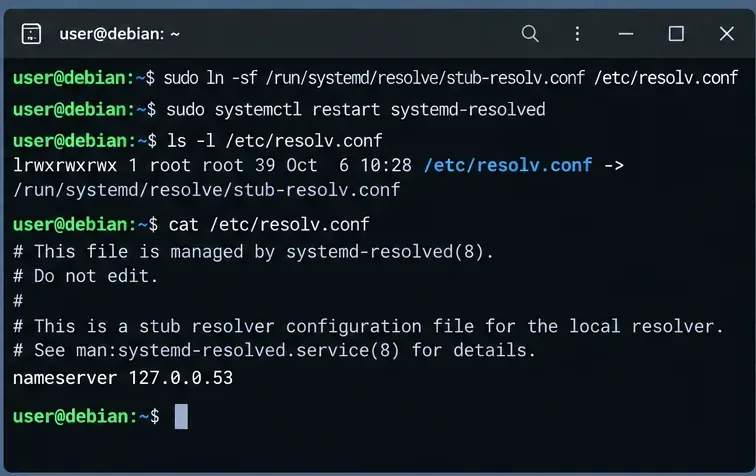
Restore the recommended stub link when stub mode is intended
When this host is intentionally using systemd-resolved in stub mode, /etc/resolv.conf can point to the maintained stub file at /run/systemd/resolve/stub-resolv.conf.
Seeing nameserver 127.0.0.53 in the stub file is expected. It is the local listener, not the upstream DNS server. Use resolvectl status to see which upstream servers systemd-resolved will actually contact. This distinction is documented in the systemd-resolved Bookworm manual.
4. Check whether systemd-resolved has a usable upstream DNS server
Run:
resolvectl status
Focus on the link that carries the default route. A healthy configuration should normally show one or more DNS servers for that link or suitable global DNS servers. If no usable DNS server is present, fixing the symlink alone will not help: the local stub has nowhere useful to send queries.
You can test the resolver directly:
resolvectl query debian.org
The Debian resolvectl manual documents status, query, flush-caches, and the per-link DNS commands used for inspection and troubleshooting.
5. If NetworkManager owns the interface, fix DNS in the connection profile
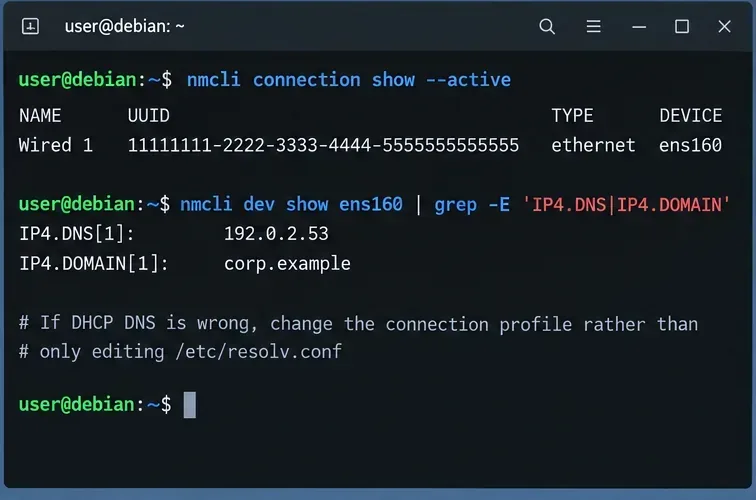
On desktop installations and many general-purpose Debian systems, NetworkManager may provide per-link DNS information to systemd-resolved. First identify the active profile and current DNS values:
nmcli connection show --active
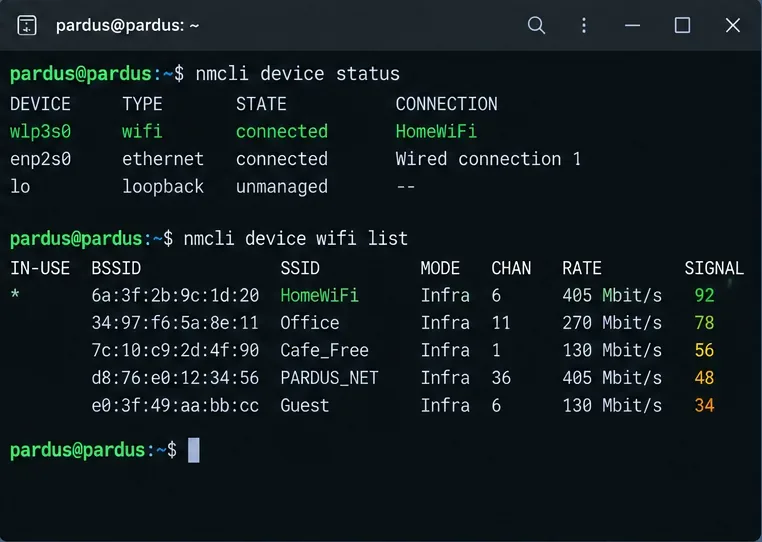
nmcli device show
On NetworkManager systems, inspect and change DNS on the connection profile instead of repeatedly hand-editing /etc/resolv.conf.
If DHCP is supplying a bad DNS server, change the NetworkManager profile rather than editing /etc/resolv.conf after every reboot. For example, if your network policy permits public resolvers:
Reemplace el nombre del perfil y los servidores DNS con valores apropiados para su red. Las redes corporativas, las VPN, los entornos de Active Directory y las configuraciones de DNS dividido a menudo requieren resolvedores internos; el DNS público puede causar problemas con los nombres de host privados. La documentación de referencia de configuración oficial de NetworkManager describe su integración con systemd-resolved.
6. Si systemd-networkd es el propietario de la interfaz, configure el DNS por enlace.
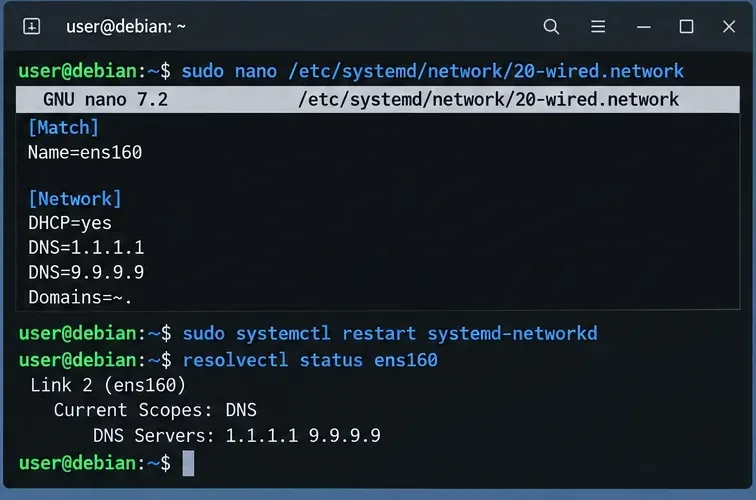
Para servidores que utilizan systemd-networkd, coloque la configuración DNS en el .networkarchivo correspondiente en /etc/systemd/network/. Un ejemplo sencillo basado en DHCP es:
UseDNS=noEsto importa cuando se desea ignorar específicamente los servidores DNS proporcionados por DHCP. Sin él, se utiliza DHCP DNS por defecto. Domains=~.Es un dominio de solo enrutamiento para la raíz DNS, lo que hace que ese enlace sea adecuado para consultas que no coinciden con un dominio de enrutamiento más específico. No lo agregue indiscriminadamente en sistemas con múltiples conexiones o VPN donde la división de DNS es intencional.
sudo systemctl restart systemd-networkd
resolvectl status ens160
Con systemd-networkd, el DNS se puede definir por enlace en un archivo .network y luego verificarse con resolvectl.
7. Utilice el archivo global resolved.conf solo cuando realmente desee DNS para todo el sistema.
/etc/systemd/resolved.confo bien, se puede insertar un archivo /etc/systemd/resolved.conf.d/que defina los servidores DNS del sistema. Esto resulta útil para una política a nivel de host, pero es menos preciso que la configuración por enlace en máquinas con VPN, múltiples interfaces o zonas DNS privadas.
Generalmente, una solución local es más limpia que editar el archivo principal del proveedor:
sudo systemctl restart systemd-resolved
resolvectl status
El manual resolved.conf de Debian explica que DNS=proporciona servidores DNS del sistema y que las configuraciones de administrador /etc/systemd/resolved.conf.d/tienen prioridad sobre las configuraciones de menor prioridad.
8. Vacíe las cachés solo después de corregir la configuración subyacente.
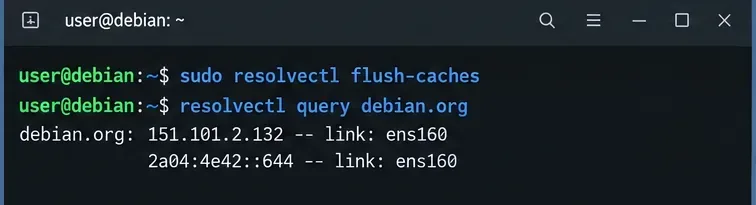
Una caché obsoleta puede dificultar la resolución de problemas, pero vaciar la caché no sustituye la reparación de un servidor ascendente inaccesible o una configuración de enlace rota. Después de realizar un cambio de configuración real, puede ejecutar:
Tras corregir la configuración DNS, vacíe la caché solo cuando sea útil para solucionar problemas y consulte un nombre de host directamente a través de systemd-resolved.
La propia documentación de Systemd señala que las cachés se vacían automáticamente cuando cambia la configuración de red, por lo que vaciarlas manualmente de forma repetida no debería ser la solución principal.
9. Lea el registro del solucionador cuando persista el fallo.
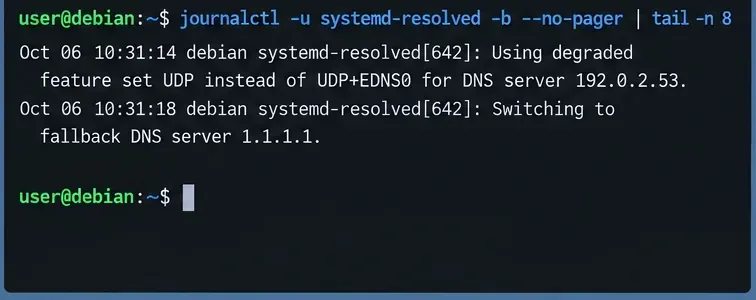
Si resolvectl statusparece razonable pero las consultas siguen agotando el tiempo de espera, inspeccione el registro del resolvedor local de arranque:
El registro systemd-resolved puede revelar fallos en los servidores ascendentes, un manejo de protocolos degradado y comportamientos de reserva.
Busque tiempos de espera del servidor repetidos, cambios en el servidor de reserva, fallos de validación DNSSEC o mensajes que indiquen funciones de protocolo reducidas. Un resolvedor puede estar funcionando con normalidad aunque su servidor ascendente configurado sea inaccesible a través de un cortafuegos, una VPN, una política de enrutamiento o una lista de control de acceso (ACL) de red.
10. Verifique la ruta de búsqueda completa.
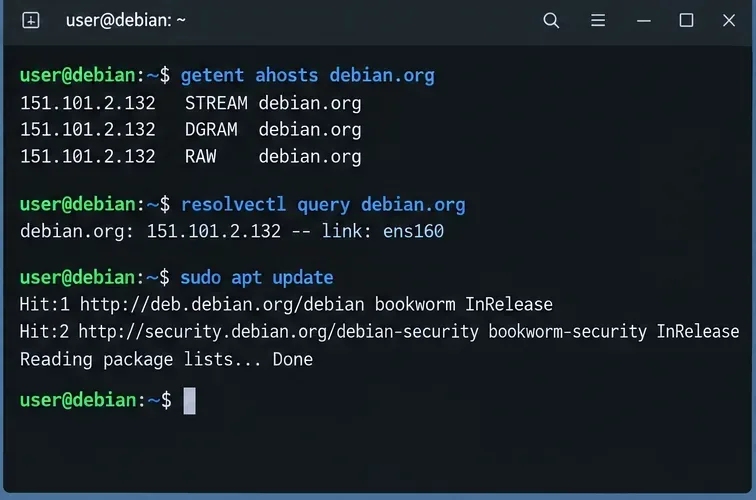
No se detenga después de una resolvectlconsulta exitosa. Verifique la ruta utilizada por las aplicaciones normales:
Para finalizar, pruebe tanto la ruta del resolvedor del sistema como la aplicación que falló originalmente, como por ejemplo apt.
getentes útil porque las búsquedas de nombres de host de glibc siguen la hosts:línea en /etc/nsswitch.conf. Si resolvectl querytiene éxito pero getentfalla, inspeccione esa configuración de NSS. El manual de nss-resolve de Debian describe el módulo opcional libnss-resolvey un orden recomendado que puede enrutar las búsquedas de nombres de host de glibc a través de systemd-resolved manteniendo las alternativas.
Síntomas comunes y el lugar más probable donde buscar
Síntoma
Área probable
Siguiente comprobación
La conectividad IP funciona; todos los nombres de host fallan.
Servidor DNS, servicio de resolución o resolv.conf
resolvectl statusyls -l /etc/resolv.conf
resolvectl queryfunciona; las aplicaciones normales fallan
Ruta de resolución NSS o específica de la aplicación
getent ahostsy/etc/nsswitch.conf
El DNS falla después de reiniciar o reconectar.
Configuración propiedad del administrador de red
Perfil de NetworkManager o systemd-networkd
Los nombres públicos funcionan; los nombres internos fallan.
DNS dividido, VPN, dominios de enrutamiento
Servidores DNS por enlace y Domains=enresolvectl status
Solo falla una aplicación.
Resolutor de aplicación, contenedor, proxy o personalizado
Compara esa aplicación con getentyresolvectl query
Orden de reparación recomendada
Confirme que existe conectividad de red básica y la ruta predeterminada.
Confirme si systemd-resolvedrealmente está destinado a administrar el DNS en este host.
Verifique systemd-resolvedel estado del servicio y resolvectl status.
Inspeccione /etc/resolv.confla propiedad y el modo de enlace simbólico antes de modificarlo.
Si se desea utilizar el modo stub, restablezca el stub-resolv.confenlace.
Corrija el DNS ascendente en el propietario real: NetworkManager, systemd-networkd, DHCP, VPN o configuración global resuelta.
Vacíe la caché solo después de corregir la configuración.
Verificar con resolvectl, getent, y la aplicación que falló originalmente.
El principio fundamental es la propiedad: /etc/resolv.confsystemd-resolved y el gestor de red forman parte de una misma cadena de resolución. Una solución permanente modifica el DNS en la capa que lo gestiona, en lugar de reemplazar repetidamente el archivo final generado.