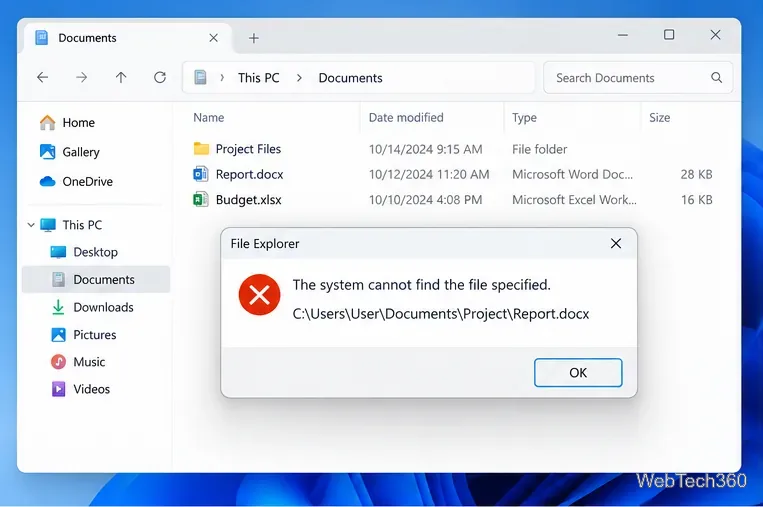
Le système ne peut pas trouver le fichier spécifié est un message d'erreur qui peut se produire sur Windows 10 lorsque vous essayez d'ouvrir ou de supprimer un fichier, de lancer une application, de mettre à jour le système d'exploitation, de sauvegarder des données ou d'effectuer d'autres opérations sur les fichiers.
Dans des scénarios plus graves, l'erreur apparaît lorsque vous essayez de démarrer votre système d'exploitation, affichant à la place un écran orange . Cependant, il existe plusieurs façons de réparer ce problème, selon l'endroit où vous le rencontrez.

Comment réparer Le système ne peut pas trouver le fichier spécifié erreur sur Windows 10
Découvrez les correctifs suivants. Si possible, assurez-vous de créer un point de restauration système afin de pouvoir rétablir Windows 10 si vous devez démarrer les solutions à partir de zéro.
1. Redémarrez votre ordinateur
Peut-être que Windows affiche Le système ne peut pas trouver le fichier spécifié erreur en raison d'un processus suspendu ou d'un service qui ne répond pas. C'est donc une bonne idée de commencer par quelque chose d'aussi basique que le redémarrage de votre ordinateur. Une idée encore meilleure est de redémarrer votre PC en dur. Après l'arrêt, débranchez la source d'alimentation et maintenez le bouton d'alimentation enfoncé pendant 20 à 30 secondes pour effacer le cache du PC. Ensuite, démarrez votre système d'exploitation et vérifiez si votre problème est maintenant résolu.
2. Mettre à jour Windows 10
L'ajout des dernières mises à jour à votre système d'exploitation est essentiel pour la maintenance de votre ordinateur, rendue possible par Windows Update. Ce service doit s'exécuter automatiquement en arrière-plan, rechercher en permanence les mises à jour et vous avertir lorsqu'une action supplémentaire est requise.
Recherchez dans le centre de notifications ou le menu des options d'alimentation les points rouges indiquant un redémarrage en attente, surtout si vous n'avez pas éteint votre ordinateur depuis longtemps. Sinon, vous pouvez rechercher manuellement les mises à jour :
- Cliquez sur le bouton Démarrer , tapez vérifier les mises à jour et appuyez sur Entrée

- Cliquez sur Rechercher les mises à jour et attendez

- S'il y a quelque chose en attente, cliquez sur Télécharger

- N'éteignez pas et ne redémarrez pas votre PC pendant cette période. Une fois les mises à jour téléchargées et installées, effectuez un redémarrage du PC pour finaliser la tâche
3. Exécutez l'utilitaire de résolution des problèmes de Windows Update
De nombreux utilisateurs ne peuvent pas exécuter Windows Update en raison de l' erreur Le système ne peut pas trouver le fichier spécifié . Dans ce cas, vous devez utiliser l' utilitaire de résolution des problèmes de Windows Update pour rechercher et résoudre les problèmes courants qui empêchent cette application de s'exécuter :
- Cliquez sur le bouton Démarrer , tapez Paramètres de dépannage et appuyez sur Entrée
- Cliquez sur Dépanneurs supplémentaires
- Sélectionnez Windows Update et cliquez sur Exécuter l'utilitaire de résolution des problèmes

- Appliquer les correctifs identifiés par le dépanneur
- Redémarrez votre PC et essayez d'exécuter Windows Update maintenant
4. Vérifiez les services Windows Update
Certains utilisateurs désactivent le service Windows Update car il interrompt leurs activités et prend une éternité pour arrêter, démarrer ou redémarrer leur ordinateur lors de tâches urgentes. Cependant, s'il reste désactivé, le service ne pourra pas récupérer les mises à jour critiques, ce qui entraînera divers problèmes informatiques.
Comment redémarrer les services Windows Update :
- Appuyez sur la touche Win + R , tapez services.msc et appuyez sur Entrée pour ouvrir l' application Services
- Recherchez et double-cliquez sur Windows Update pour afficher ses propriétés

- Définissez le type de démarrage sur Automatique (démarrage différé)
- Cliquez sur le bouton Démarrer pour démarrer le service immédiatement
- Cliquez sur Appliquer et revenez à la fenêtre principale

- Trouvez le service de transfert intelligent en arrière - plan et les services de préparation des applications pour modifier les mêmes paramètres ci-dessus

C'est aussi une bonne idée de désactiver le service de liste réseau, qui est parfois en conflit avec le service Windows Update :
- Recherchez et double-cliquez sur Network List Service pour accéder à ses propriétés

- Définir le type de démarrage sur Désactivé
- Cliquez sur Arrêter pour mettre fin au service
- Cliquez sur Appliquer et quittez le bureau

- Essayez d'exécuter Windows Update maintenant
5. Démarrez Windows 10 en mode sans échec
Si l' erreur Le système ne peut pas trouver le fichier spécifié est déclenchée par un pilote ou un service tiers défectueux, vous pouvez exécuter Windows 10 en mode sans échec pour désactiver automatiquement tous les pilotes et services qui n'appartiennent pas à votre système d'exploitation. Voici ce que vous devez faire :
- Cliquez avec le bouton droit sur le bouton Démarrer et accédez à Paramètres
- Sélectionnez Mise à jour et sécurité

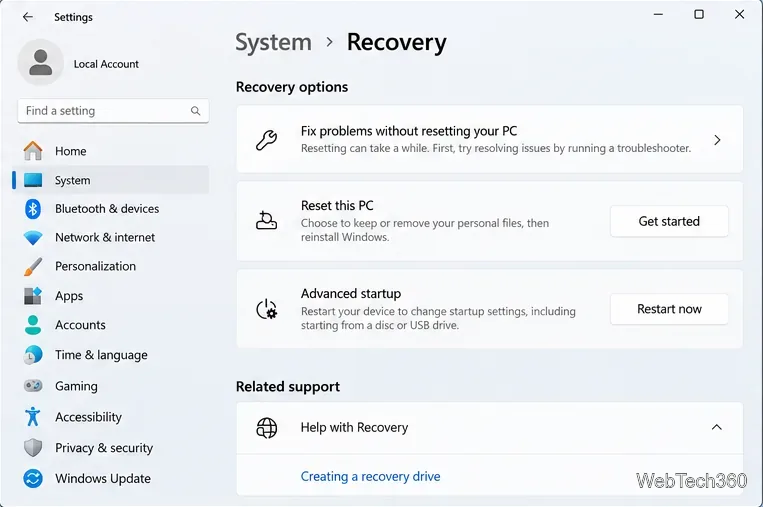
- Aller à la récupération
- Au démarrage avancé , cliquez sur Redémarrer maintenant

- Allez dans Dépannage > Options avancées > Paramètres de démarrage

- Cliquez sur Redémarrer
- Si vous n'avez pas besoin d'un accès Internet, appuyez sur F4 . Sinon, appuyez sur F5 pour activer le mode sans échec avec mise en réseau

6. Désactiver les applications de démarrage
Si le mode sans échec n'a pas aidé à corriger l' erreur Le système ne peut pas trouver le fichier spécifié , essayez de désactiver les programmes de démarrage . Par exemple, vous pouvez avoir une application de sécurité programmée pour s'exécuter automatiquement chaque fois que vous allumez votre ordinateur, ce qui est en conflit avec les processus système critiques. Il peut être difficile d'identifier le coupable, il vaut donc mieux tout éteindre.
Comment désactiver les programmes de démarrage :
- Cliquez avec le bouton droit sur la barre des tâches de Windows 10 et sélectionnez Gestionnaire des tâches
- Allez dans la section Démarrage
- Pour chaque application avec le statut Activé , sélectionnez son entrée et cliquez sur Désactiver

- Redémarrez votre ordinateur
7. Nettoyer le démarrage du système d'exploitation
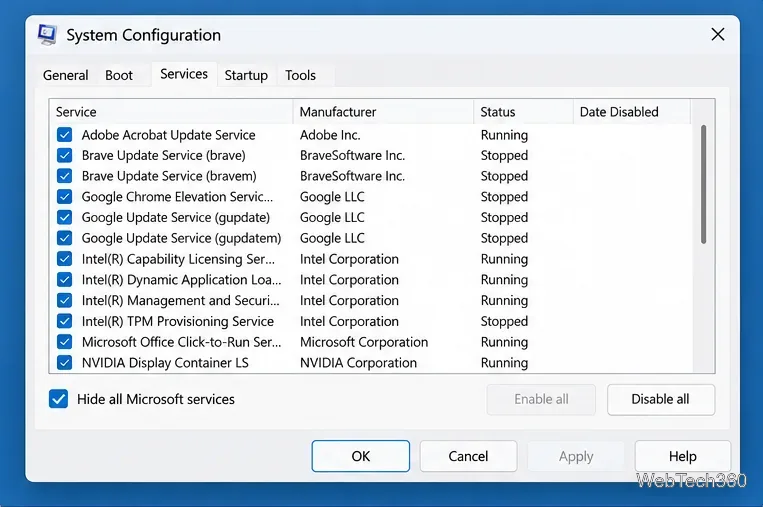
L'exécution d'un démarrage en mode minimal sur Windows 10 est quelque peu similaire au mode sans échec. La différence est que le démarrage en mode minimal désactive non seulement les périphériques et services non essentiels, mais également les éléments de démarrage. Voici comment le configurer :
- Appuyez sur la touche Win + R , tapez msconfig et appuyez sur Entrée pour ouvrir l' application de configuration du système
- Rester dans l' onglet Général
- Choisissez Démarrage sélectif
- Décochez Charger les services système et Charger les éléments de démarrage
- Cliquez sur Appliquer

- Passer à l' onglet Démarrage
- Cliquez sur Ouvrir le gestionnaire de tâches
- Désactivez toutes les applications de démarrage avec le statut Activé

- Redémarrez votre ordinateur
Si vous devez par la suite restaurer les paramètres de démarrage par défaut, ouvrez l'application Configuration système et sélectionnez Démarrage normal .
8. Désinstallez les applications tierces
Obtenir l' erreur Le système ne peut pas trouver le fichier spécifié après le lancement de l'application peut signaler un conflit logiciel. Peut-être que votre programme est en conflit avec un autre, comme deux programmes antivirus avec des moteurs en temps réel séparés. Il n'y a rien à faire à part supprimer l'autre application de votre ordinateur.
- Cliquez avec le bouton droit sur le bouton Démarrer et sélectionnez Applications et fonctionnalités
- Recherchez et sélectionnez un programme dans la liste
- Cliquez sur Désinstaller puis à nouveau pour confirmer
- Continuer avec l'assistant
- Redémarrez votre ordinateur
Cependant, si le programme a modifié les paramètres du registre, le programme de désinstallation par défaut de Windows n'aidera pas à les restaurer. Au lieu de cela, vous devez utiliser un programme de désinstallation de logiciel qui supprime non seulement un programme, mais également tous les fichiers et entrées de registre restants.
9. Déconnectez les appareils externes
Les conflits peuvent également être causés par des périphériques non pris en charge récemment connectés à votre ordinateur. Si vous avez récemment acheté ou reçu un nouveau morceau de matériel comme un cadeau, comme un adaptateur Wi-Fi, nouveau casque, une webcam ou un lecteur flash USB, retirez -le immédiatement de votre PC puis redémarrez pour vérifier si cela a résolu le La le système ne peut pas trouver le fichier spécifié erreur.
Ce n'est peut-être pas la faute de l'appareil mais celle de votre port. Essayez de changer de port USB si plusieurs options sont disponibles. Sinon, branchez un concentrateur USB multiport sur l'ordinateur, puis votre appareil sur le concentrateur au lieu de directement sur votre PC. Cela fonctionne parfois.
10. Exécutez CHKDSK
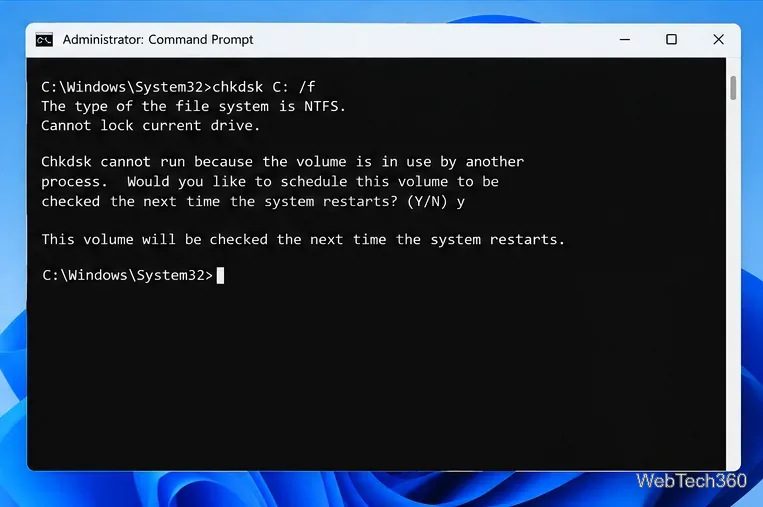
CHKDSK (Check Disk) est un outil interne de Windows que vous pouvez utiliser à partir de l'environnement de ligne de commande. Il aide à réparer les problèmes de corruption du disque dur et les secteurs défectueux qui peuvent empêcher votre ordinateur de fonctionner correctement et provoquer l' erreur Le système ne peut pas trouver le fichier spécifié en conséquence.
Comment utiliser CHKDSK :
- Cliquez sur le bouton Démarrer , tapez Invite de commandes , sélectionnez cette application et cliquez sur Exécuter en tant qu'administrateur
- Si Windows est installé sur le lecteur C: par défaut, tapez
chkdsk c: /f /r. Sinon, assurez-vous de remplacer c:par la lettre de partition du système d'exploitation
- Lorsqu'on lui a demandé de planifier CHKDSK au prochain redémarrage du système, tapez y et appuyez sur Entrée
- Redémarrez votre PC et attendez que CHKDSK fasse son travail
11. Exécutez SFC
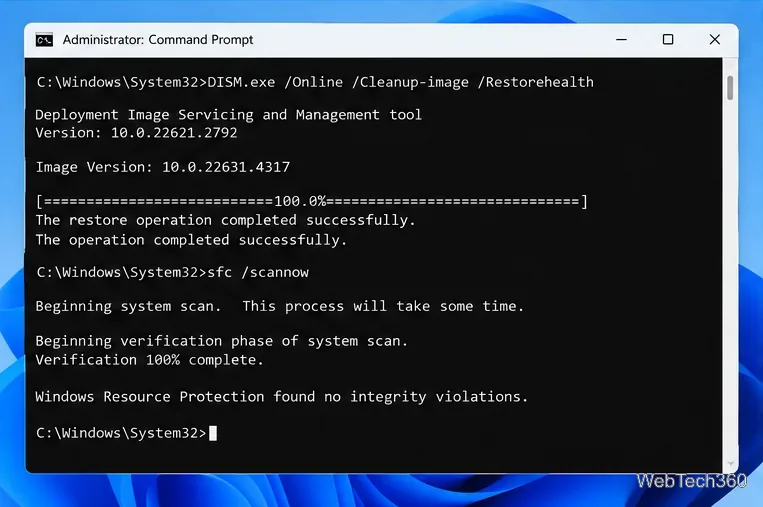
Si vous obtenez toujours l' erreur Le système ne trouve pas le fichier spécifié après avoir exécuté l'outil CHKDSK, vous devriez peut-être porter votre attention sur le système car il peut contenir des fichiers corrompus ou manquants. SFC (System File Checker) peut vous aider à cet égard.
Comment utiliser SFC :
- Démarrer Windows 10 en mode sans échec
- Appuyez sur la touche Win + R et appuyez sur Entrée pour exécuter l'invite de commande
- Écrivez
sfc /scannowet appuyez sur Entrée
- Une fois SFC terminé, redémarrez votre PC
12. Exécutez DISM
DISM (Deployment Image Servicing and Management) est un outil plus avancé que SFC car il peut vérifier l'intégrité du magasin de composants dans le fichier image Windows.
Comment utiliser DISM :
- Démarrer Windows 10 en mode sans échec
- Ouvrir l'invite de commande
- Tapez
DISM /online /cleanup-image /scanhealthet appuyez sur Entrée
- If it identifies any errors, run
DISM /online /cleanup-image /restorehealth to get rid of them
- After it finishes, restart Windows 10 in Safe Mode
- Open Command Prompt and run SFC (
sfc /scannow)
- Restart your PC normally
13. Consult the system log
You can find out the exact device driver that’s causing the The system cannot find the file specified error by consulting the system log file. Here’s what you need to do:
- Press Win key + E to open Windows Explorer
- Go to the following address:
%SystemRoot%\INF
- Find and open the setupapi.dev or setupapi.dev.log file in Notepad

- Press Ctrl + F, type system cannot find the file, and press Enter

- At FilePath, copy the name of the driver
- Open a web browser and enter the driver file name to find out the device it belongs to
Once you identify the guilty device, you can take further action in Device Manager (proceed with the following solutions).
14. Quickly reinstall devices
By taking into account the driver and device found in the system log, you should head over to Device Manager in order to reinstall the device. If it wasn’t properly installed on your Windows 10 PC, this method should fix it. Here’s what you need to do:
- Right-click the Start button and select Device Manager
- Find the device and double-click it
- Switch to the Driver tab and click Driver Details
- Here you can double-check that the driver file matches the information you found in the system log
- Return to the main window of Device Manager
- Right-click the device and select Uninstall device

- Check Delete the driver software for this device and click Uninstall to confirm
- Open the Action menu and select Scan for hardware changes

- If the device doesn’t reappear in Device Manager, reboot your PC since Windows will auto-reinstall the missing adapter
15. Update device drivers
It’s possible that the device is properly installed on your computer but its driver is outdated. The solution here is to update the obsolete drivers:
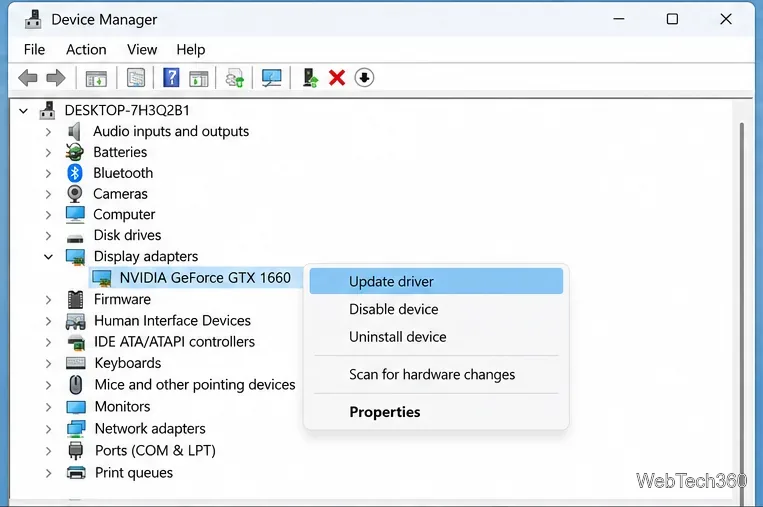
- Press Win key + R, type devmgmt.msc, and press Enter
- Right-click the device and select Update driver

- Click Search automatically for drivers and follow the on-screen instructions
If the online search doesn’t return any results, click Search for updated drivers on Windows Update. However, if you have already checked for system updates or the dedicated service doesn’t work, then you have to manually download and install drivers.
However, if you don’t want to risk installing an unsupported driver, it’s better to use a driver update tool. Besides, you can use it to update all your obsolete drivers at the same time, without risking compatibility issues.
16. Roll back drivers
If you have already downloaded an unsupported driver, you must roll it back to the previous version before performing the update. Here’s what you need to do:
- Click the Start button, search for Device Manager, and press Enter
- Right-click a device and go to Properties
- Select the Driver section
- Click Roll Back Driver and follow the instructions. If the button is greyed out, you can skip this step since you can’t perform the rollback

17. Reinstall programs
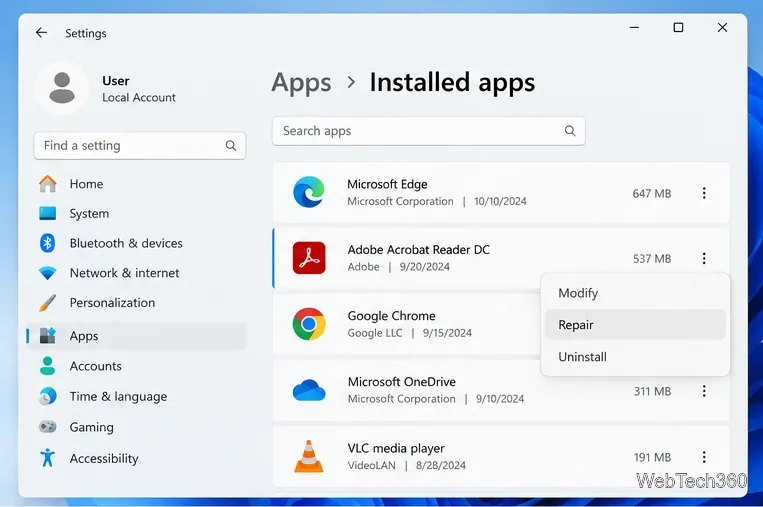
Some software applications should be reset, repaired, or reinstalled, depending on the available operations. It certainly applies in the scenario where the The system cannot find the file specified error started appearing on your screen after a recent software change.
You have multiple options when it comes to Microsoft Store apps. Click the Start button, search for a program, and go to App settings. From that section, you can repair or reset the app with one click. And, if those two options fail, you should uninstall the app and reinstall it from Microsoft Store.
It’s simpler with regular software programs since the repair option rarely works. Instead, you can uninstall the application from Apps & Features, then download it again from its official website and proceed with the setup operation.
18. Check registry settings
If you can’t open files or launch applications due to the The system cannot find the file specified error, you should inspect registry settings to make sure that everything is in order. It’s pretty easy. Here’s what you need to do:
- Click the Start button, search for Registry Editor, and hit Enter to open this app
- Open the File menu and click Export

- Create a registry backup by setting a file name, picking a destination, and clicking Save. If you need to restore the initial registry configuration later, just double-click the .reg file
- Visit the following address:
Computer\HKEY_LOCAL_MACHINE\SOFTWARE\Microsoft\Windows\CurrentVersion\
- Look for the RunOnce key (looks like a folder in the tree on the left)

- If the key doesn’t exist, right-click the CurrentVersion key and select New > Key

- Set the key name to RunOnce
- Now, go to this location:
Computer\HKEY_CURRENT_USER\SOFTWARE\Microsoft\Windows\CurrentVersion\

- Take the same steps: if the RunOnce key doesn’t exist, create it
- Exit Registry Editor
19. Restore the original registry settings
If the system registry suffered more modifications that you can’t identify, it’s easier to restore its configuration to factory values, which is more effective than using a registry cleaner. Here’s how to make it happen.
- Click the Start button, search for Registry Editor, and launch this tool
- Create a registry backup:
- Open the File menu and click Export
- Set a file name and destination
- Click Save to create a backup of the current registry settings
- Press the Windows key and click the power button to view power options
- While holding down the Shift key, click Restart to reboot Windows in troubleshooting mode
- Select Troubleshoot > Advanced options > Command Prompt
- Choose your PC account and enter your password to continue
- Write the following commands and hit Enter after each one:
-
cd %SystemRoot%\System32\config
-
ren %SystemRoot%\System32\config\DEFAULT DEFAULT.old
-
ren %SystemRoot%\System32\config\SAM SAM.old
-
ren %SystemRoot%\System32\config\SECURITY SECURITY.old
-
ren %SystemRoot%\System32\config\SOFTWARE SOFTWARE.old
-
ren %SystemRoot%\System32\config\SYSTEM SYSTEM.old
-
copy %SystemRoot%\System32\config\RegBack\DEFAULT %SystemRoot%\System32\config\
-
copy %SystemRoot%\System32\config\RegBack\DEFAULT %SystemRoot%\System32\config\
-
copy %SystemRoot%\System32\config\RegBack\SAM %SystemRoot%\System32\config\
-
copy %SystemRoot%\System32\config\RegBack\SECURITY %SystemRoot%\System32\config\
-
copy %SystemRoot%\System32\config\RegBack\SYSTEM %SystemRoot%\System32\config\
-
copy %SystemRoot%\System32\config\RegBack\SOFTWARE %SystemRoot%\System32\config\
- Restart your computer
20. Uninstall system updates
Some Windows updates end up harming your computer and causing various problems, including the The system cannot find the file specified error. In this case, the best course of action is to remove the most recent system update. Here’s how:
- Press Win key + R, type appwiz.cpl, and hit Enter

- Click View installed updates

- To sort the updates by time of installed, click the Installed On column

- Search for the Microsoft Windows category
- Double-click the first update in that group
- When asked to confirm its uninstall, click Yes

- Restart your computer
If you can’t boot Windows due to the The system cannot find the file specified error, you can interrupt the startup sequence three times in a row to start Windows troubleshooting mode. Then go to Troubleshoot > Advanced Options > Uninstall Updates.
21. Check your computer for malware
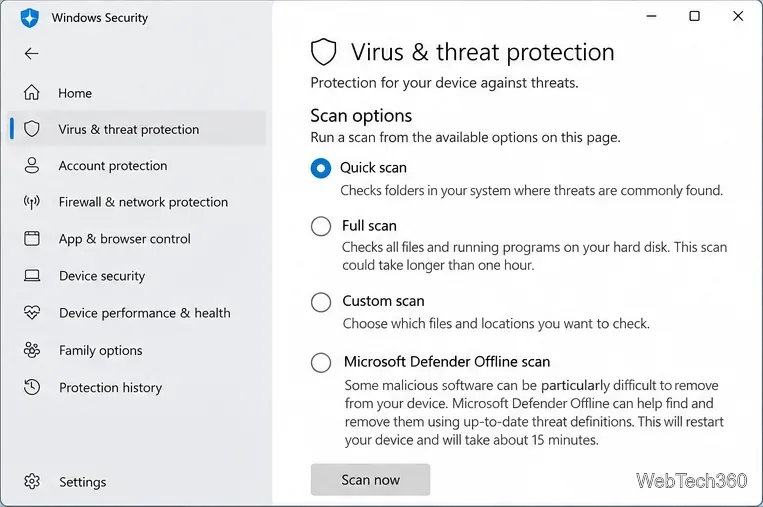
A malware agent could have infected system files, thus preventing you from opening any files or launching applications. To fix this issue, you can resort to Windows Defender:
- Press the Win key, search for Windows Security, and open this app
- Select Virus & threat protection

- Click Scan options

- Pick Quick scan and click Scan now

- If it doesn’t find any threats, choose Windows Defender Offline scan and click Scan now

- Allow Windows to quarantine or remove any suspicious files. If you think some of those files are safe, make sure to add them to the whitelist, in order to exclude them from any upcoming scans
If you have a third-party security solution that you rely on, make sure to adjust the steps above.
22. Use a Linux live distro
You might think that your data will be lost forever due to this serious error. And it might be impossible to even perform a disk backup because Windows doesn’t recognize the selected files. If there’s a major problem with your OS that requires system reset, you can save your files with the help of a Linux live distro.
Simply put, you will be creating a USB flash drive that boots a Linux-based operating system (e.g. Ubuntu), in order to gain access to your files and copy them somewhere safe. Since it’s not Windows, you shouldn’t be getting the The system cannot find the file specified error anymore. Then, you can safely proceed with more dangerous scenarios that involve data loss, like disk formatting.
How to create a Linux live distro with Rufus:
- Download a Linux distro. If you can’t decide which, we suggest Ubuntu since it’s intuitive
- Connect a USB flash drive to your PC. Make sure it doesn’t contain any files you might need later since the disk will be formatted
- Download Rufus from the official website
- Install and run Rufus
- Choose the pen drive and set Boot section to Disk or ISO image
- Click SELECT and add the Ubuntu ISO
- Set Partition scheme to MBR
- At File system, select FAT32

- Click OK and wait for Rufus to create your Linux live distro drive
How to boot Linux from the USB flash drive:
- Keep the flash drive plugged into your PC
- Restart Windows
- Right after your display turns on and before Windows boots, press the key shown on the screen to enter the boot startup menu (e.g. F12)
- Select the USB storage drive and hit Enter
- Once Ubuntu loads, create a backup of your files
23. Change drive letters
You might be experiencing file access errors due to your HDD or SSD. For instance, if it doesn’t have a partition letter assigned, or if it shares the letter with another drive, you should immediately fix this problem. The simplest way to do this is by using Disk Management.
How to assign drive letters with Disk Management:
- Press Win key + R, type diskmgmt.msc, and press Enter
- In Disk Management, select the drive that’s giving you trouble
- Right-click the drive and select Change Drive Letters and Paths

- If the drive already has a letter
- Click Change
- Set a new drive letter
- Click OK
- If the drive doesn’t have a letter
- Click Add
- At Mount in the following empty NTFS folder, click Browse
- Set the new drive path by selecting an empty NTFS folder and click OK
- Then, click OK to confirm
- Quit to the desktop
However, if you can’t access Disk Management or if it doesn’t identify your drive, you can turn to the console environment.
How to assign drive letters with Command Prompt:
- Press Windows key + R, type cmd, then press Ctrl + Shift + Enter to launch Command Prompt with elevated rights
- Type
diskpart and hit Enter to use the partition manager built into Windows
- Run
list volume to view all current drives
- Check out the number assigned to your disk or partition. Run
select volume # and use that number (e.g. select volume 4)
- Write
assign letter= and add the new drive letter (e.g. assign letter=e). Hit Enter
- Quit to the desktop
24. Format the partition
If changing the drive letter didn’t help get rid of the The system cannot find the file specified error, it’s time to format the partition. Keep in mind that it means losing everything saved there.
So, you should perform a backup before proceeding with this solution. If you can’t perform the backup in Windows, check out the previous solution on how to create a backup from a Linux distro.
How to format a partition using Windows Explorer:
- Press Win key + E to open File Explorer on Windows 10
- Select the drive, right-click it, and choose Format

- At File system, select NTFS
- Leave Quick Format enabled
- Click Start

How to format a partition using Disk Management:
- Right-click the Start button and launch Disk Management
- Pick the partition, right-click it, and select Format
- Set File system to NTFS
- Leave Perform a quick format enabled
- Click OK

How to format a partition using Command Prompt:
- Press the Win key, search for Command Prompt, and click Run as administrator. If prompted by User Account Control, click Yes
- Type
diskpart and press Enter
- Run
list volume to view all volumes
- Identify the number of your partition and use it when entering
select volume # (e.g. select volume 5)
- Run
format fs=ntfs to format the partition as NTFS
25. Roll back the operating system
You can roll back Windows 10 to a restore point that was recorded before you started experiencing the The system cannot find the file specified error, thanks to System Restore. It means undoing all software modifications made to your computer that you can’t detect and which somehow led to file access and application launch issues. However, it automatically means that all programs you installed after the restore point was recorded will no longer exist, so you will have to install them again.
How to use System Restore:
- Sign in to Windows 10 with an administrator account
- Click the Start button, find Control Panel, and open this app
- Select Recovery

- Click Open System Restore

- Choose a restore point or click Show more restore points to get more options. Click Scan for affected programs to discover the exact applications you will have to reinstall

- After making a selection, click Next and follow the remaining steps
If you can’t boot Windows 10, interrupt the startup three times in a row to access system troubleshooting mode. Then, go to Troubleshoot > Advanced Options > System Restore.
26. Reset Windows 10
If you still can’t shake off the The system cannot find the file specified error or if System Restore didn’t work, there’s nothing left to do except restore Windows 10 to factory settings. It means uninstalling all your applications and reverting the system configuration to default. But you can keep your personal files, so it’s not necessary to perform a backup.
How to reset Windows 10:
- Right-click the Start button and select Settings
- Click Update & Security and select Recovery
- At Reset this PC, click Get started

- Pick Keep my files and follow the remaining instructions

You can also turn your PC on and off three times to launch Advanced Startup mode before Windows boot. There, you can go to Troubleshoot > Reset your PC.
If you managed to get hold of your files by using the Linux live distro, we suggest performing a clean reset by selecting the Remove everything option instead of Keep my files.
Error The system cannot find the file specified can be fixed
To review, you can try to fix the The system cannot find the file specified error by restarting your PC, updating Windows 10, running the Windows Update troubleshooter, checking the Windows Update services, starting the OS in Safe Mode, disabling startup apps, running a clean boot, and uninstalling third-party applications.
It’s also a good idea to disconnect external devices, run CHKDSK, SFC and DISM, investigate the system log, reinstall devices, update or roll back drivers, reinstall programs, check registry settings or restore the registry to default, uninstall system updates, run a malware scan, use a Linux live distro, change drive letters, format partitions, use System Restore, and reset Windows 10.
How did you repair this error? Let us know in the comments below.