如何建立可啟動的 Windows 11 25H2 USB 安裝介質
要建立 Windows 11 25H2 可啟動 USB 安裝程序,您可以使用 Rufus、Ventoy、命令提示字元和媒體建立工具,以下是具體操作方法。
如果您想知道升級到Windows 11後該做什麼,在本指南中,我將與您分享我通常用來修復預設設定限制的檢查清單,從確保每個硬體都正確配置到保護作業系統以個性化體驗等等。
儘管 Windows 11 已經發布幾年了,但許多人仍然猶豫是否升級,原因多種多樣,因人而異。不過,這些原因通常包括:缺少經典功能、某些元素的位置對使用者來說不太方便、擔心效能問題(尤其是對遊戲玩家而言),以及許多人認為不必要的附加功能,例如人工智慧整合。
如果您的電腦需要升級,或者您最近購買了一台新的筆記型電腦或桌上型電腦,您可以透過多種方式讓 Windows 11 變得更好。
在本指南中,我將概述升級到新版作業系統後我的一些建議。這些說明同樣適用於透過購買新電腦來升級作業系統的使用者。
升級到 Windows 11 後的 23 個必要步驟
如果您最近將電腦從 Windows 10 升級到 Windows 11,或者在使用舊版作業系統很長時間後正在設定新系統,您可以參考這些建議來確保您的系統設定正確,並且更符合您的偏好。
1. 檢查並安裝系統更新
與其他平台一樣,在 Windows 11 上,保持電腦更新對於修復安全漏洞、提高效能和穩定性以及存取新功能至關重要。
升級到 Windows 11 或設定新裝置後,您應該檢查並安裝最新的系統和驅動程式更新。
安裝系統更新
若要檢查並安裝 Windows 11 更新,請依照下列步驟操作:
打開設定。
點選「Windows 更新」。
(可選)勾選「在更新可用時立即取得最新更新」開關,即可在更新自動推送給所有人之前下載更新。
點選“檢查更新”按鈕。
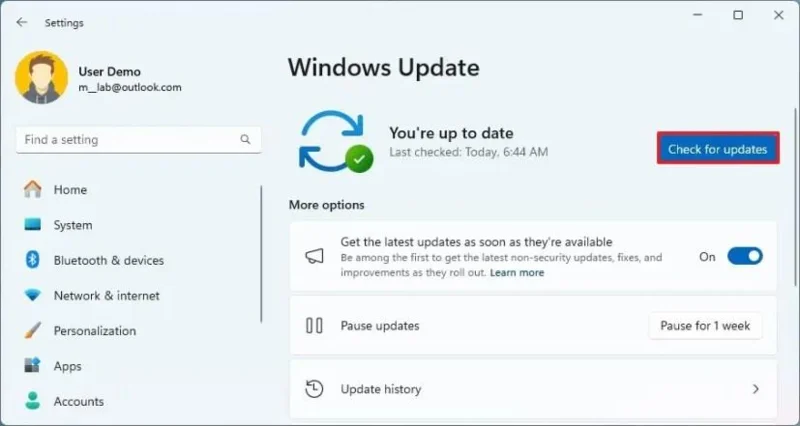
點擊“下載並安裝”選項(如果適用)。
簡要說明:可選更新通常包含微軟計劃在下一個「補丁星期二」發布中推出的非安全性變更。雖然安裝即將發布的更新的預覽版,但有時您可能需要提前安裝更新以解決問題或相容性問題。
點選“立即重新啟動”按鈕。
完成這些步驟後,如果有可用更新,它將自動下載並安裝。
這是更新電腦最簡單的方法,但您也可以使用其他幾種方法將 Windows 11 系統更新到最新版本。
2. 檢查並安裝缺少的驅動程式
雖然使用「Windows 更新」設定來更新驅動程式是一個不錯的開始,但如果系統無法偵測到某些裝置或它們是選用安裝項,您可能仍然需要手動安裝這些裝置。
從“設定”安裝驅動程式
若要透過 Windows 更新檢查和更新驅動程序,請按照下列步驟操作:
打開設定。
點選「Windows 更新」。
點選“進階選項”標籤。
點擊“可選更新”部分下的“可選更新”設定。
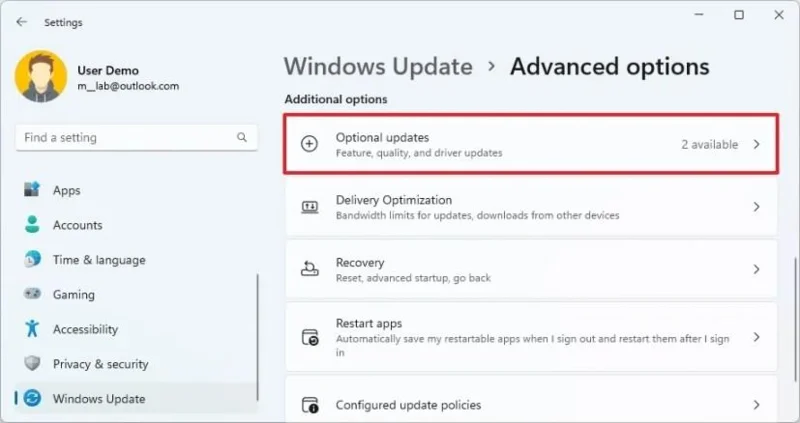
點擊驅動程式更新設定。
選擇您的裝置缺少的裝置驅動程式。
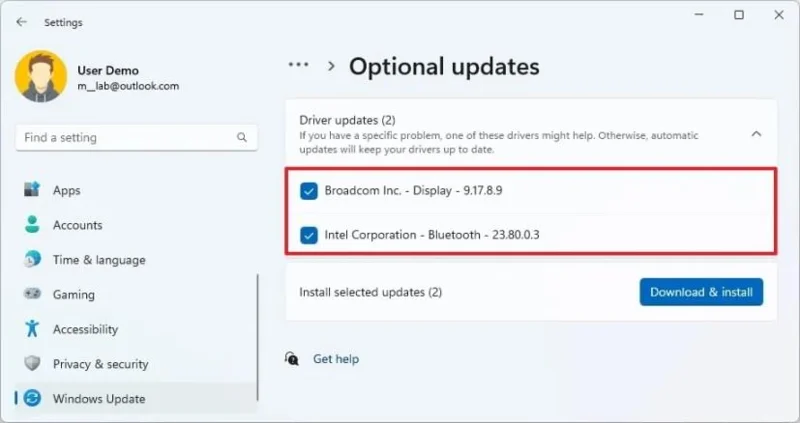
點擊“下載並安裝”按鈕。
完成這些步驟後,缺少的驅動程式將在 Windows 11 上安裝。
從裝置管理員安裝驅動程式
若要從裝置管理員檢查和更新缺少的驅動程序,請按照以下步驟操作:
打開開始。
搜尋「裝置管理員」,然後點選第一個搜尋結果開啟該應用程式。
右鍵單擊缺少驅動程式的設備,然後選擇“更新驅動程式”選項。
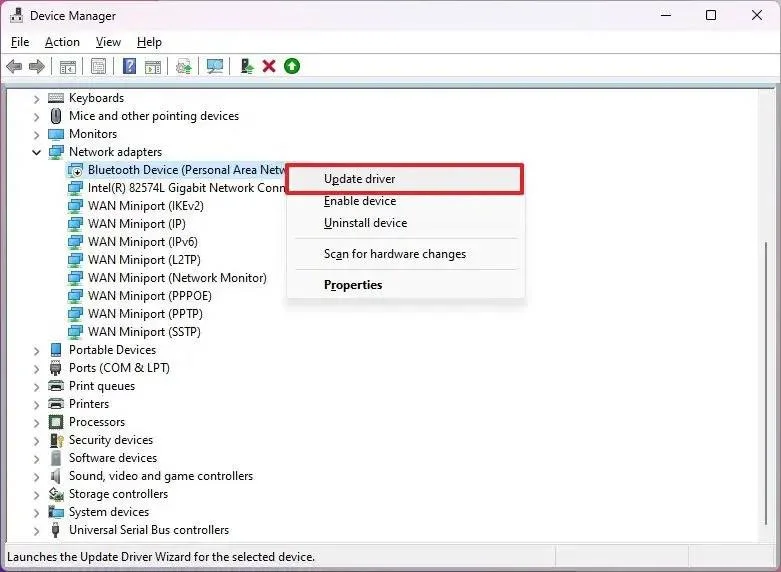
簡要說明:該設備可能帶有黃色標記,並被標記為未知設備。
點擊“瀏覽我的電腦以尋找驅動程式”選項。
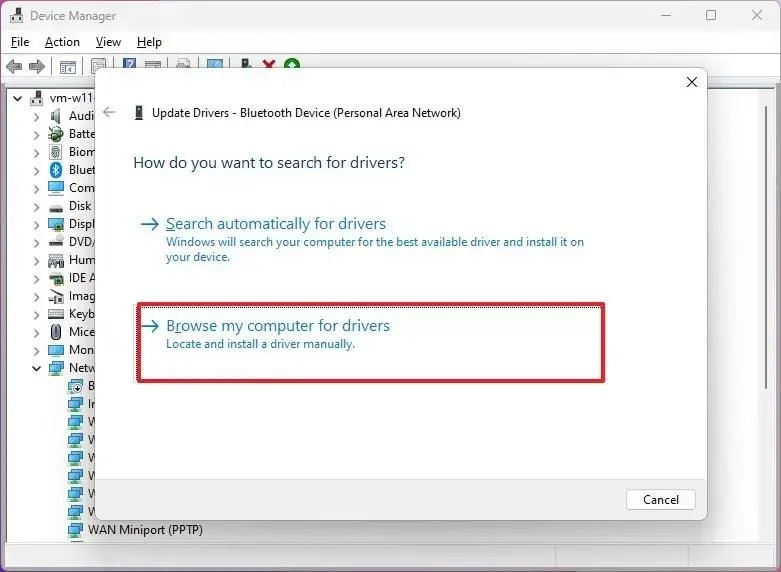
點選「瀏覽」按鈕,選擇包含缺少驅動程式檔案的資料夾。
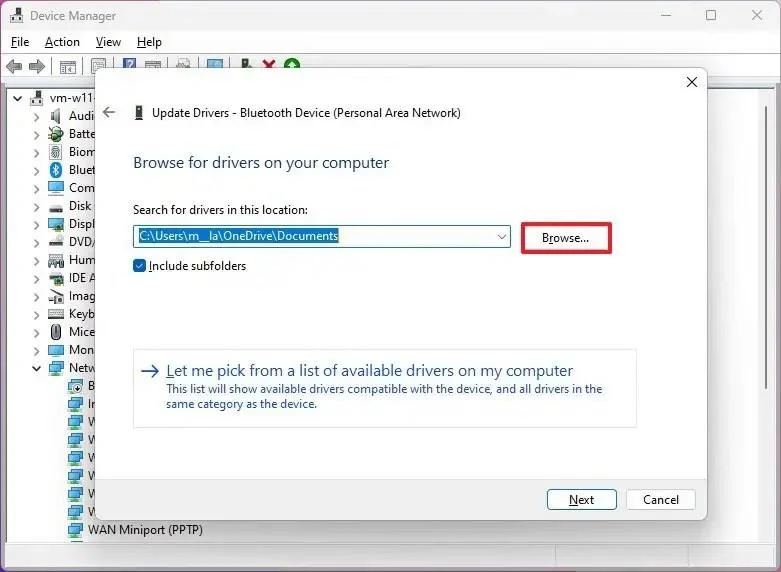
點選“確定”按鈕。
勾選“包含子資料夾”選項。
點擊“下一步”按鈕。
請按照螢幕上的指示進行操作(如適用)。
完成這些步驟後,驅動程式將會安裝,使裝置能夠與 Windows 11 進行互動。
3. 從 Windows 11 卸載預裝軟體
Windows 11 預先安裝了一系列應用程式。有些來自微軟,有些則來自製造商(如果您使用的是品牌電腦)。這些應用程式通常被稱為“臃腫軟體”,因為它們毫無用處,只會佔用桌面空間。
如果你想在升級後擁有一個乾淨整潔的系統,請花時間檢查並刪除那些你不會在電腦上使用的應用程式。
若要在 Windows 11 上解除安裝不必要的應用程序,請依照下列步驟操作:
打開設定。
點選“應用”。
點選「已安裝的應用程式」標籤。
選擇要刪除的應用程式。
點選應用程式選單(三個點)按鈕,然後選擇「卸載」按鈕。
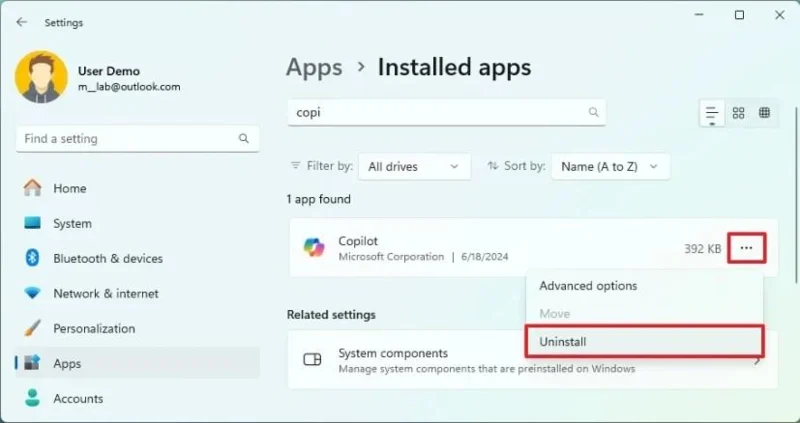
再次點選「卸載」按鈕確認。
請依照螢幕上的指示操作(如有)。
完成這些步驟後,該應用程式及其所有相關檔案將從您的電腦中刪除。
也可以從 Windows 11 的“開始”功能表、“Windows 搜尋”、“控制台”,甚至“命令提示字元”和“PowerShell”中移除應用程式。您也可以參考我寫的這篇指南,徹底精簡 Windows 11 的預先安裝軟體。
4. 在 Windows 11 上安裝應用
雖然先前的建議解釋了卸載應用程式的步驟,但您可能還需要安裝一些能夠提升電腦使用體驗的應用程式。這些應用程式包括工作或學習用的效率工具、娛樂應用程式、通訊應用程式等等。
安裝應用程式的建議方法是使用 Microsoft Store,但您也可以從開發者的網站下載安裝程序,並按照他們的說明將其安裝到您的電腦上。
若要從 Microsoft Store 安裝應用,請依照下列步驟操作:
開啟Microsoft Store應用程式。
使用頁面頂部的搜尋框搜尋該應用程式。
點選「取得」(或「安裝」)按鈕。
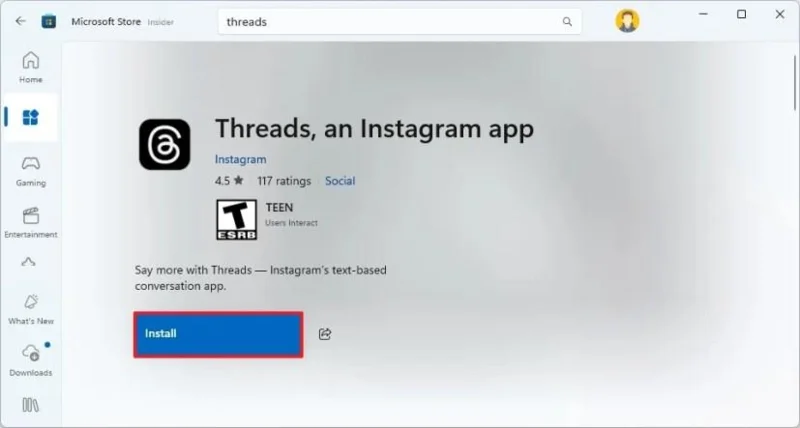
如果您訂閱了 Microsoft 365,您也可以透過您的 Microsoft 帳戶安裝 Word、Excel 和其他 Office 應用程式。
盡可能避免從不可信的來源下載應用程式。
5. 將瀏覽器和應用程式設定為預設應用
升級到 Windows 11 時,您需要確保將常用的應用程式設定為系統預設應用程式。通常情況下,您只需要將常用的瀏覽器設定為預設應用程式即可;但如果您希望使用多個應用程式來執行特定任務,則可能還需要對它們進行設定。
若要在 Windows 11 上設定預設瀏覽器或應用,請依照下列步驟操作:
打開設定。
點選“應用”。
點選左側的「預設應用」頁面。
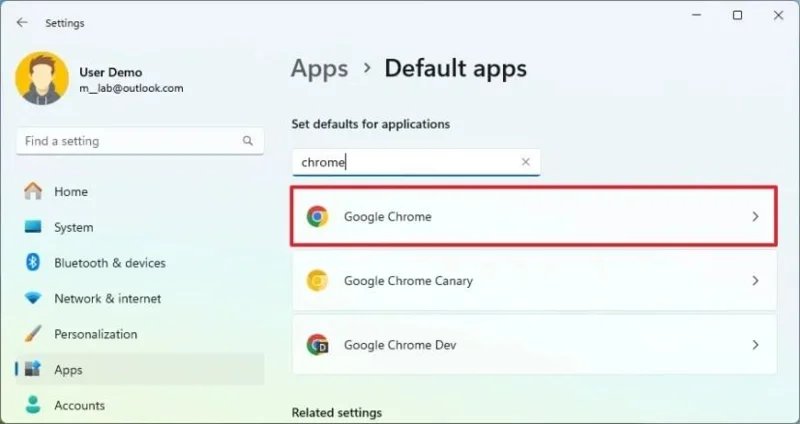
選擇(例如)Google Chrome 瀏覽器 ,將其設定為 Windows 11 上的新預設瀏覽器。
點擊“設定預設值”按鈕。
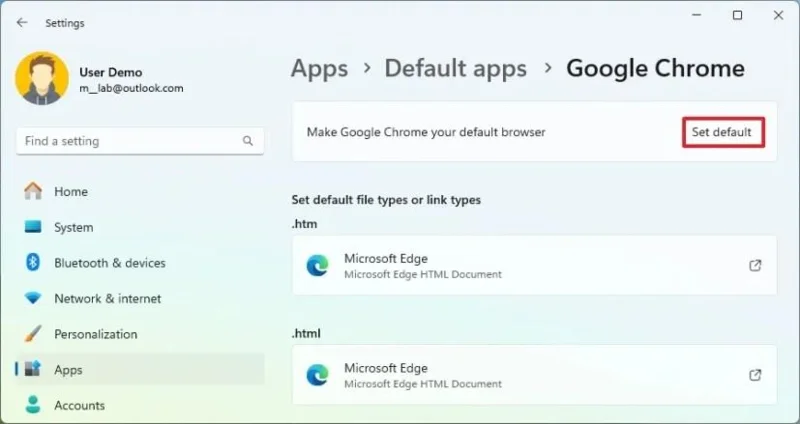
(可選)點擊“.pdf”協議,然後選擇“設定預設值”按鈕,將您喜歡的瀏覽器設定為新的預設瀏覽器。
完成這些步驟後,系統將使用您配置為預設的應用程式啟動特定檔案或連結。
6. 自訂工作列
此版本作業系統中最具爭議的改動之一是重新設計的任務欄,它缺少許多實用的傳統功能,並引入了新的預設行為。不過,您可以透過調整對齊方式、移除不常用的按鈕以及整理應用程式來稍微改善工作列的使用體驗。
將工作列圖示左對齊
若要在 Windows 11 中將工作列移到左側,請依照下列步驟操作:
打開設定。
點選個性化設定。
點擊工作列。
點選「工作列行為」選項。
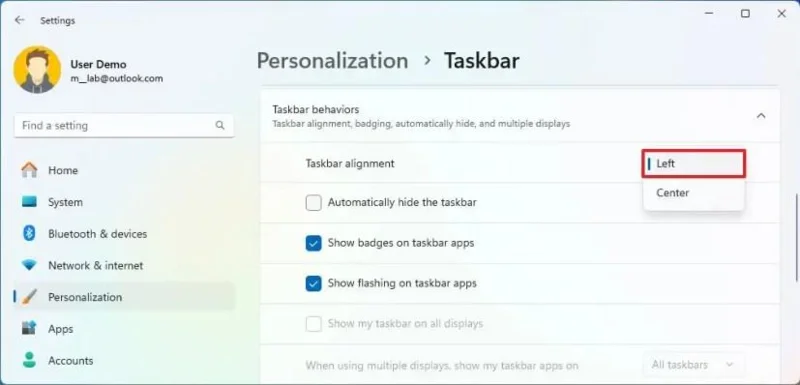
在「工作列對齊方式」設定中選擇「左對齊」選項,使圖示向左對齊。
完成這些步驟後,「開始」按鈕和其他圖示將排列在工作列的左側。
停用工作列小工具和搜尋圖標
若要停用工作列小工具和搜尋圖標,請按以下步驟操作:
打開設定。
點選個性化設定。
點擊工作列。
點選「工作列項目」設定。
在“搜尋”設定中選擇“隱藏”選項。
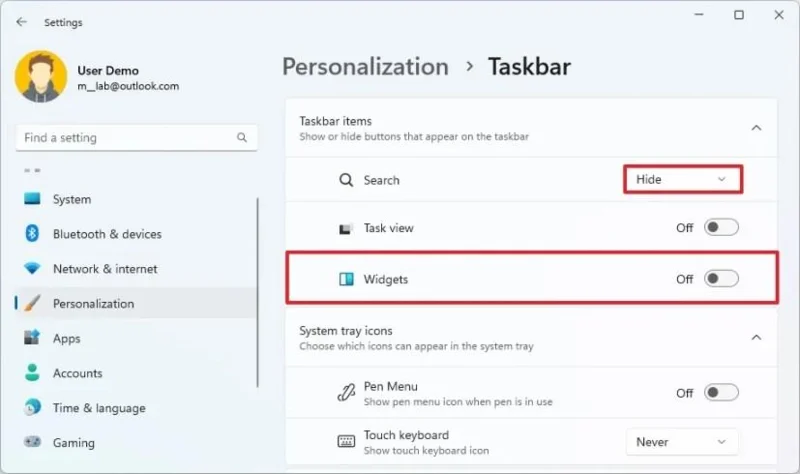
(可選)如果您不使用此功能,請關閉任務視圖切換開關。
關閉小工具切換開關。
完成這些步驟後,搜尋、任務檢視和小工具的圖示將不再出現在工作列中。
整理工作列應用
若要在工作列中整理應用,請依下列步驟操作:
打開開始。
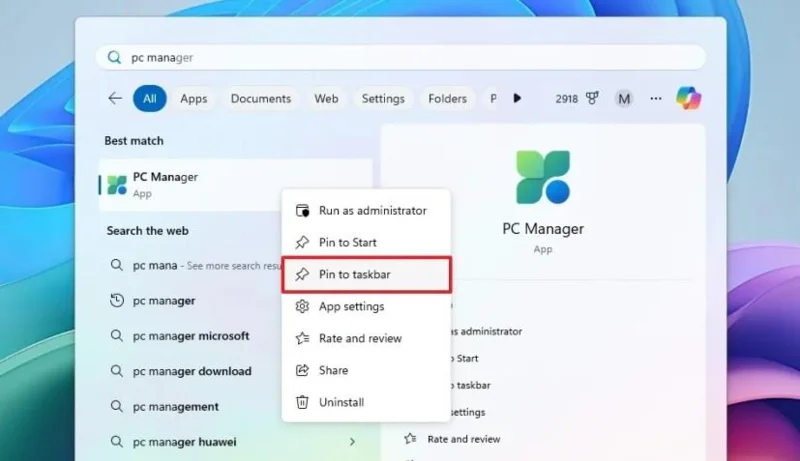
(選項 1)搜尋該應用程式,右鍵單擊第一個搜尋結果,然後選擇「固定到工作列」選項。
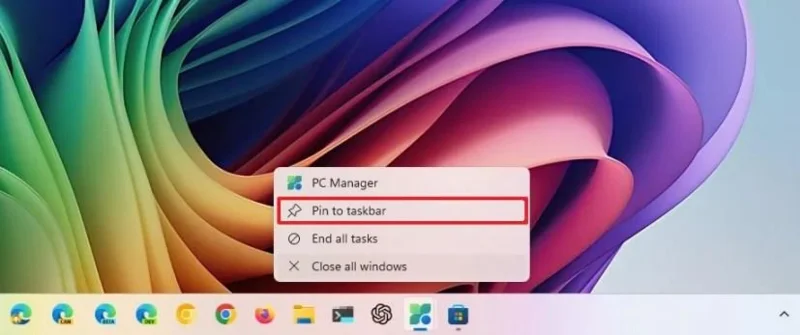
(選項 2)如果應用程式已在運行,請右鍵單擊圖示並選擇“固定到工作列”選項。
如果要移除某個應用,請右鍵單擊該應用程式圖標,然後選擇「從工作列取消固定」選項。
完成這些步驟後,您的工作列將更加整潔有序。將應用程式放置在特定位置後,您可以使用「Windows 鍵 + 應用程式位置編號」快速鍵啟動應用程式。
7. 自訂「開始」選單
Windows 11 中重新設計的另一個功能是「開始」功能表。它從動態磁貼設計轉變為簡單的圖示設計,並包含一個無法完全停用的推薦部分。
如果您剛開始使用 Windows 11,可以透過多種方式改善「開始」功能表體驗。例如,您可以將常用應用程式固定以便快速訪問,建立資料夾來分組相關應用,減少推薦和廣告,以及自訂選單中顯示的按鈕。
整理置頂部分
若要在「開始」功能表中固定和建立資料夾,請按以下步驟操作:
打開開始。
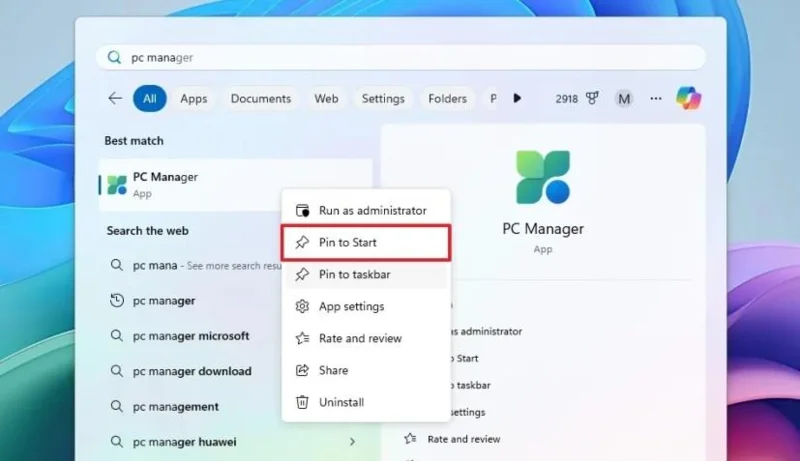
搜尋應用,右鍵單擊搜尋結果中的第一個,然後選擇“固定到開始畫面”選項,將其固定到“已固定”部分。
點擊、拖放一個應用到另一個應用程式上,即可建立資料夾。
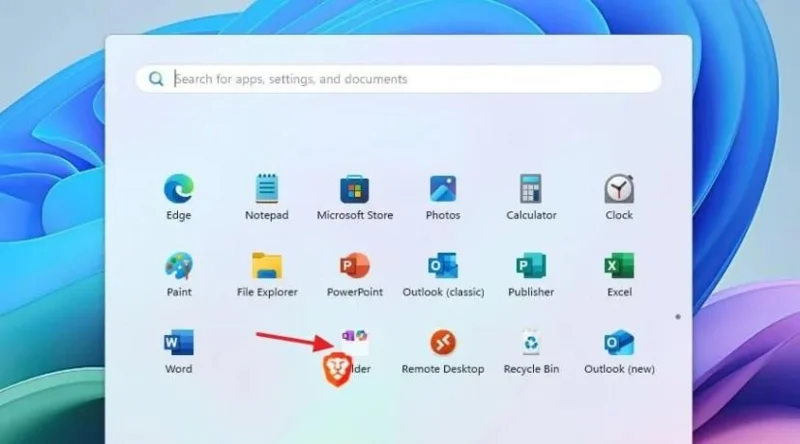
(可選)點選、拖曳至同一資料夾。
(可選)按一下資料夾,然後按一下「編輯名稱」以變更資料夾名稱。
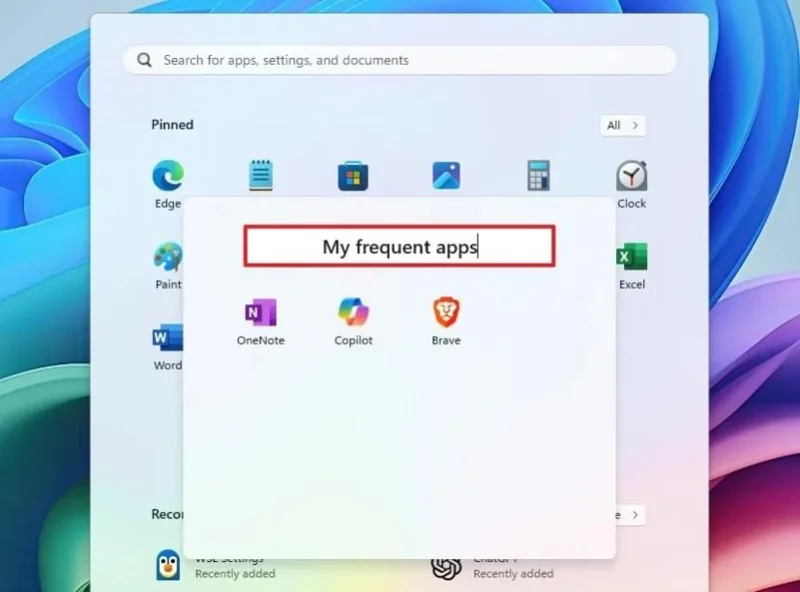
完成這些步驟後,您將擁有一個更清晰的「已置頂」頁面。請注意,您可以建立多個置頂頁面。當該部分內容填滿後,下次您置頂其他應用程式時,系統會自動建立新頁面。
自訂開始功能表推薦
若要自訂「開始」功能表推薦部分,請依照下列步驟操作:
打開設定。
點選個性化設定。
點選“開始”頁面。
關閉“顯示最近新增的應用”開關。
關閉“顯示最常用應用”開關。
關閉「顯示技巧、應用程式推廣等建議」開關,即可停用 Microsoft Store 應用程式中的廣告。
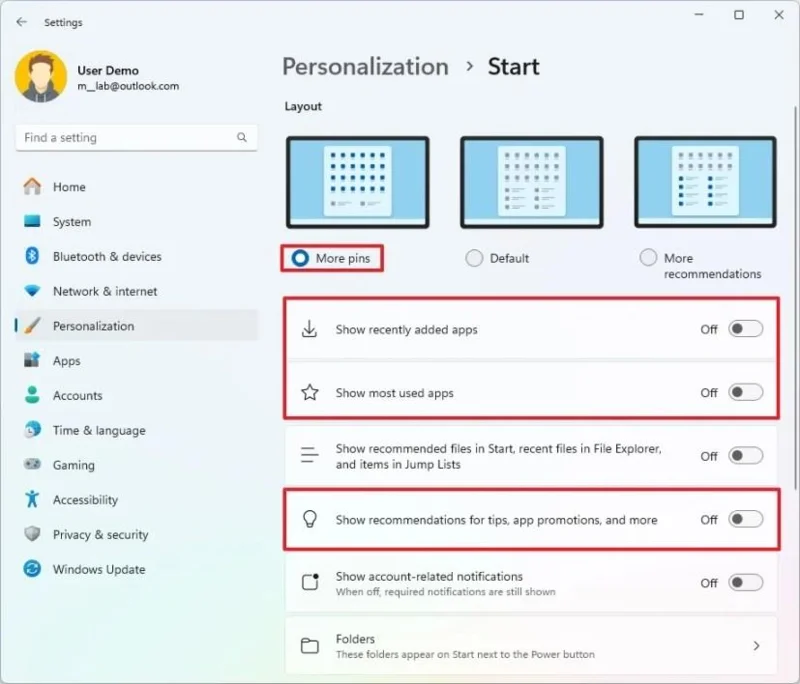
(可選)選擇「更多固定」選項,允許「開始」功能表顯示「已固定」部分中的更多應用程式。
完成這些步驟後,「開始」功能表將不再建議應用,也不會在「推薦」部分顯示最近安裝或使用的應用程式。
自訂開始功能表帳戶管理器
若要停用帳戶管理員選單中顯示的通知,請依照下列步驟操作:
打開設定。
點選個性化設定。
點選“開始”頁面。
關閉「顯示帳戶相關通知」開關,即可停用通知和其他功能在帳戶管理員選單中的顯示。
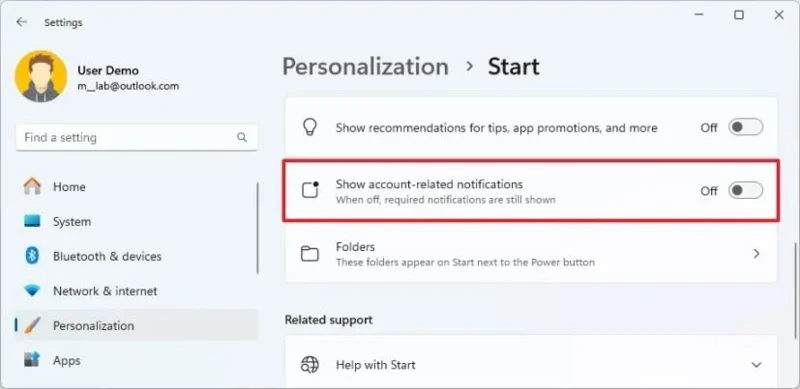
完成這些步驟後,「開始」功能表中的帳戶管理員功能表將不再顯示通知和其他類型的提醒。
自訂「開始」功能表資料夾按鈕
若要變更「開始」功能表中「電源」功能表旁的按鈕,請依下列步驟操作:
打開設定。
點選個性化設定。
點選“開始”頁面。
點選“資料夾”設定。
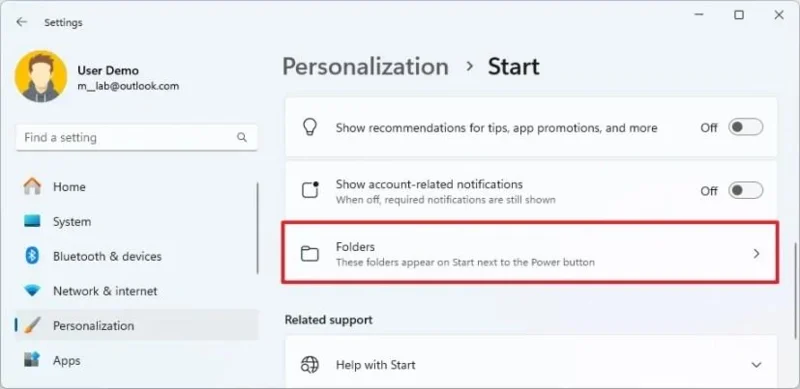
啟用您希望在「開始」功能表中顯示的資料夾(例如,「設定」、「檔案總管」、「下載」)。
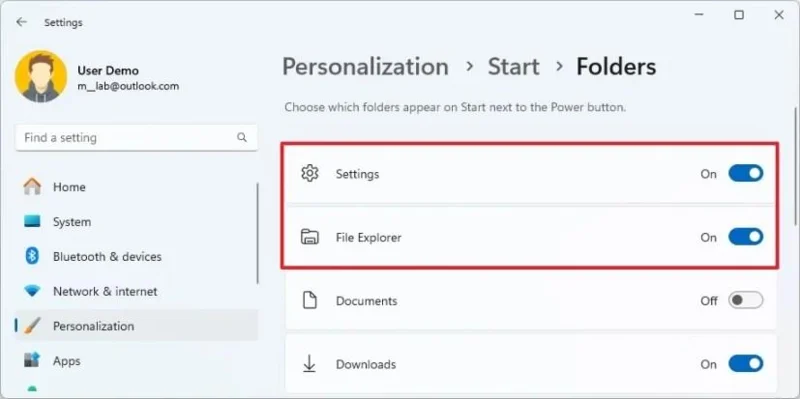
完成這些步驟後,資料夾按鈕將出現在「開始」功能表的電源按鈕旁邊。
8. 選擇系統色彩模式
在新作業系統版本上線時,您可以體驗不同的色彩模式,找到最符合您喜好和需求的模式。
Windows 11 內建兩種色彩模式:淺色和深色。您也可以變更強調色,並將特定顏色設為預設系統顏色模式,但這需要進行一些特定的設定。
我喜歡淺色模式,但很多人覺得深色模式對眼睛比較舒服。
變更系統色彩模式
若要在 Windows 11 上變更顏色模式,請依照下列步驟操作:
打開設定。
點選個性化設定。
點選“顏色”選項卡。
(選項 1)在「選擇你的模式」設定中選擇「深色」選項以啟用深色模式。
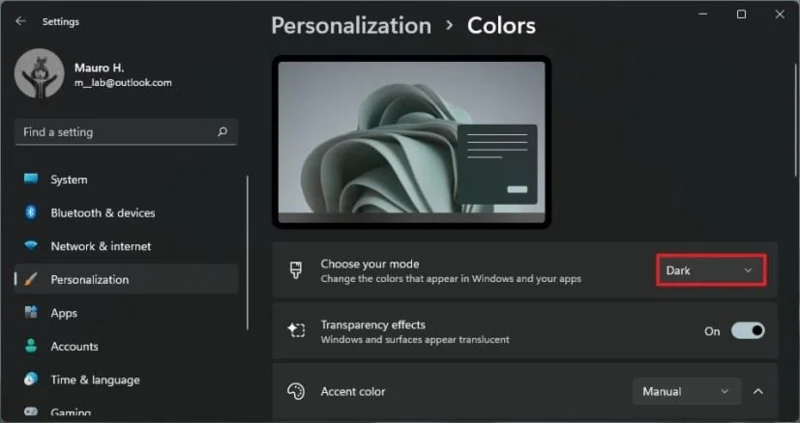
完成這些步驟後,Windows 11 的系統顏色將變成深色模式。
更改系統強調色
若要將強調色用作系統色彩模式,請依下列步驟操作:
打開設定。
點選個性化設定。
點選“顏色”選項卡。
在“選擇模式”設定中選擇“自訂”選項。
在「選擇預設 Windows 模式」設定中選擇「深色」選項。
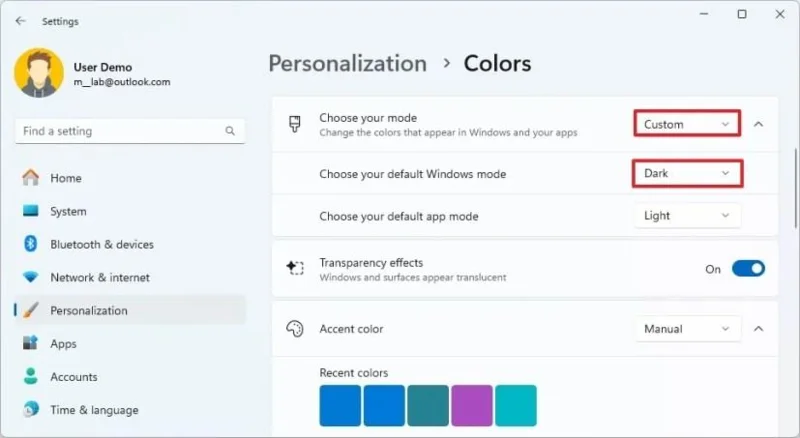
在「強調色」設定中選擇「手動」選項,即可選擇特定的強調色。
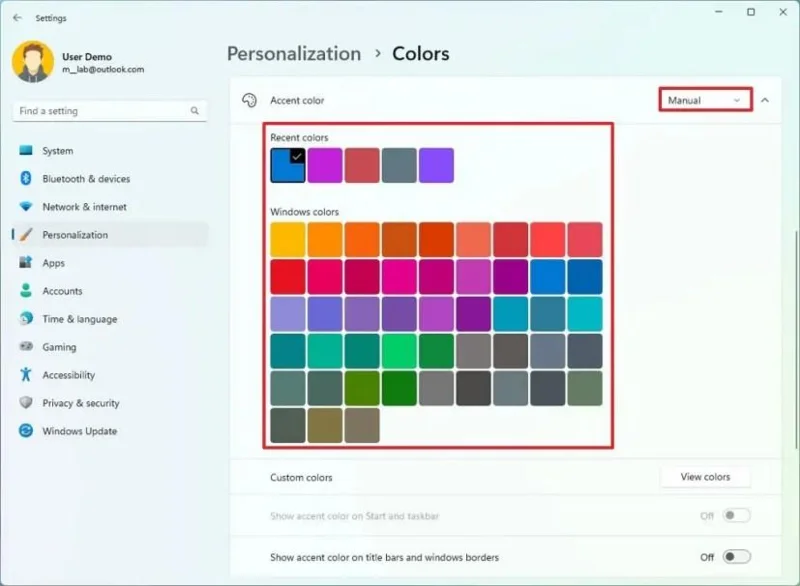
選擇貫穿整個系統的強調色。
(可選)點選「自訂顏色」設定中的「檢視顏色」按鈕。
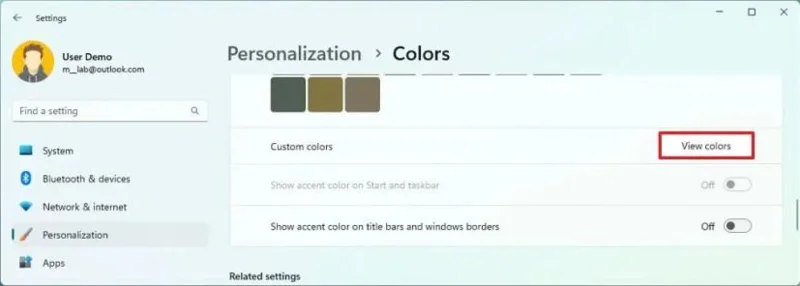
創建自訂強調色,用於桌面和應用程式。
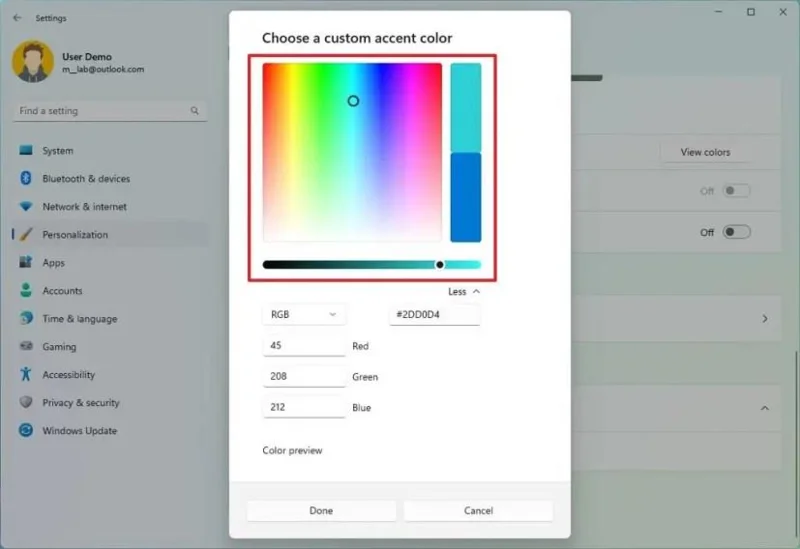
小技巧:點選「更多」選單,即可使用 RGB 和 HSV 值選擇顏色。
點擊“完成”按鈕。
開啟「在開始功能表和工作列上顯示強調色」開關,即可在工作列和開始功能表中顯示強調色。
啟用「在標題列和視窗邊框上顯示強調色」開關,即可在檔案總管和其他應用程式中顯示強調色。
完成這些步驟後,顏色模式將與您選擇的強調色相符。
9. 更改系統桌布主題
在 Windows 11 中,主題功能可讓您透過自訂桌布、顏色和聲音來個性化您的桌面體驗。
作業系統自備多種主題可供選擇,您也可以從 Microsoft Store 找到更多主題。此外,您還可以使用「Windows 對焦」功能,該功能每天動態更換桌面背景。
若要在 Windows 11 上變更主題,請依照下列步驟操作:
打開設定。
點選個性化設定。
點選“主題”頁面。
(選項 1)選擇可用主題並立即套用。
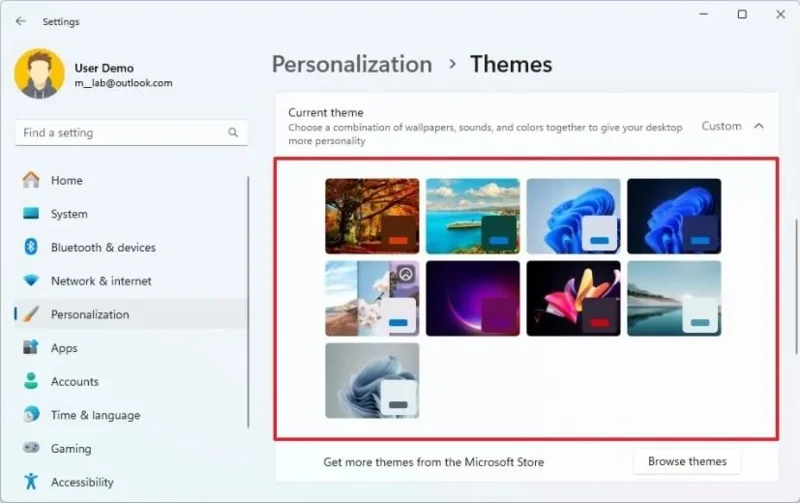
(選項 2)選擇「視窗聚焦」主題,動態變更桌布。
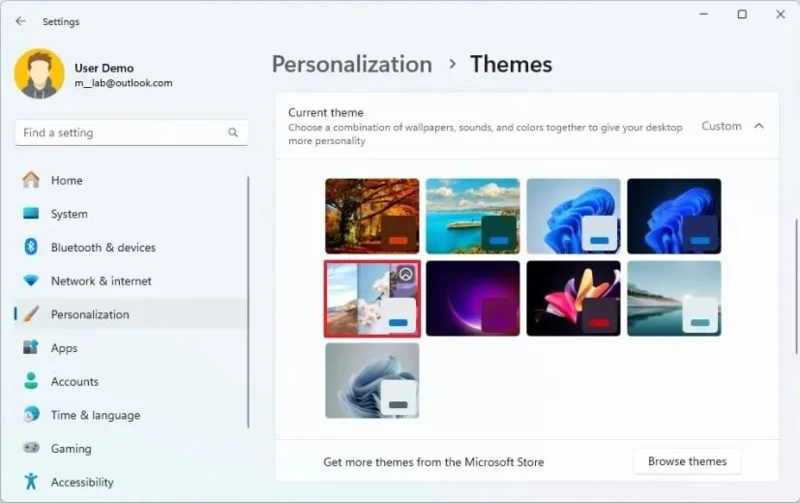
(選項 3)點選「瀏覽主題」按鈕開啟 Microsoft Store。
請選擇一個可用的免費主題。
點擊“安裝”按鈕。
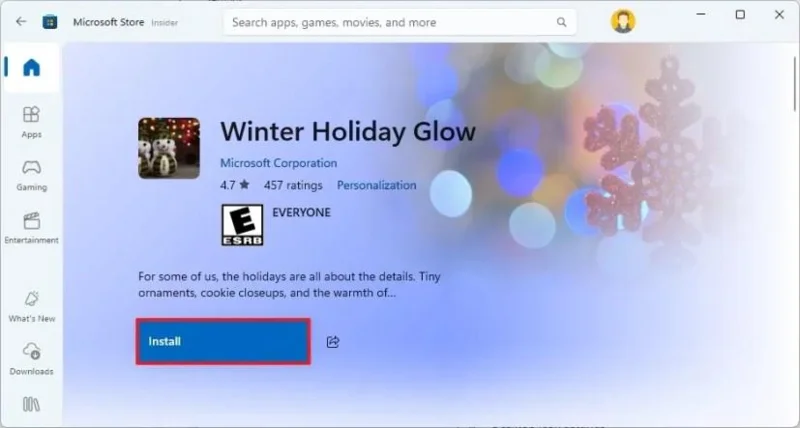
在「設定」應用程式的「主題」頁面中選擇新安裝的主題。
完成這些步驟後,主題將會套用,桌面桌布也會隨之更改。
10. 變更滑鼠指標和遊標顏色
If you don’t like the plain white pointer and cursor for the mouse, you can change the colors to make the experience a little more personal.
To change the mouse pointer and cursor color, use these steps:
Open Settings.
Click on Accessibility.
Click the Mouse pointer and touch page.
Select the Custom option under the “Mouse pointer” section.
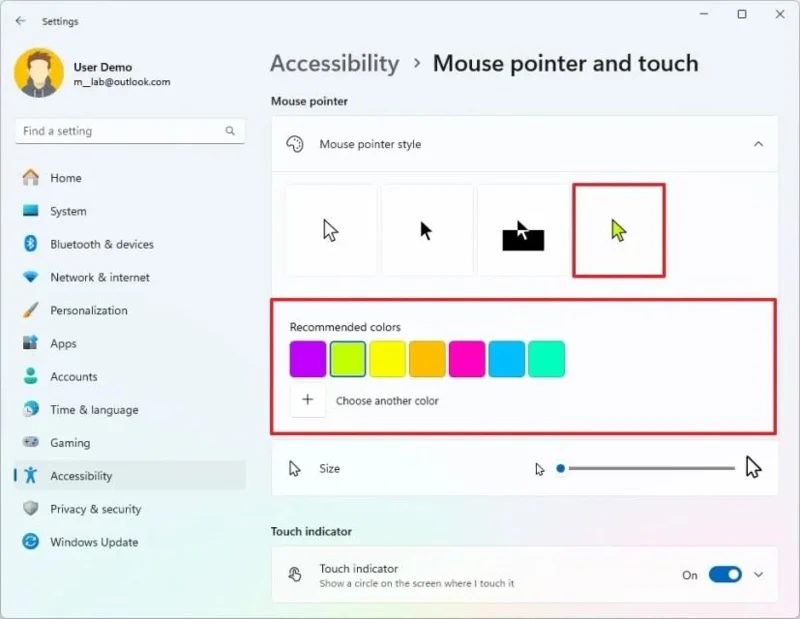
Quick tip: You can also choose from three other styles, including White, Black, and Inverted.
Select one of the recommended colors.
(Optional) Click the “Choose another color” option to create a custom color for the mouse pointer.
Once you complete the steps, the new color will apply to the mouse cursor and pointer.
11. Disable system notifications
On Windows 11, notifications can be both helpful and disruptive. If you find that they break your workflow, you can turn on the “Do not disturb” feature to prevent toast notifications from interrupting you. However, since messages can be important, you can always click the bell icon or use the “Windows key + N” keyboard shortcut to open the “Notifications” dashboard to find your missed notifications.
To enable the “Do not disturb” feature on Windows 11, use these steps:
Open Settings.
Click on System.
Click the Notifications tab.
Turn on the “Do not disturb” toggle switch to stop distractions on Windows 11.
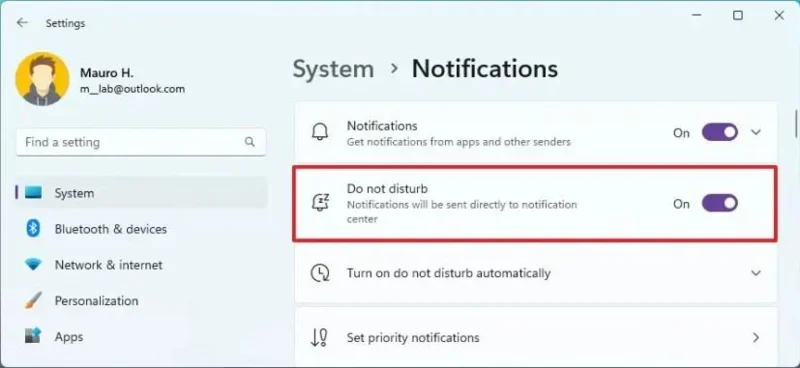
Once you complete the steps, the system will silence all notification banners, but it will collect the notification in the Notification center (Windows key + N).
12. Disable widgets in the Lock screen
The Lock screen is the experience that appears before the Sign-in screen, and by default, now shows different widgets to surface different types of information, such as weather, traffic, sports, and finances. However, you can turn off this feature if you don’t find it useful.
To turn off the Lock screen widgets on Windows 11, use these steps:
Open Settings.
Click on Personalization.
Click the Lock screen tab.
Select the None option in the “Lock screen status” setting.
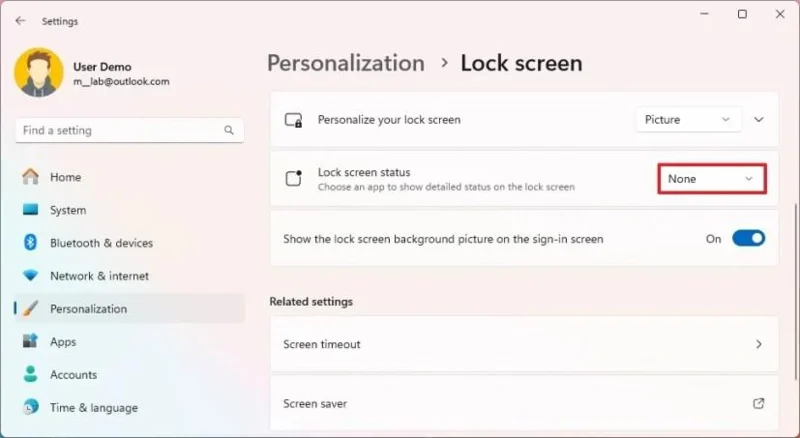
After you complete the steps, the Lock screen will no longer show weather, sports, finance, or traffic information.
13. Enable System Protection
System Protection (also known as “System Restore) is a feature that allows the system to create restore points automatically during specific events (system and driver updates, configuration changes, and app installs) to protect the current setup. In the event of an issue, you can use a restore point to undo the system changes.
The System Protection feature has saved a setup of mine more than once, but for some odd reason (probably to minimize storage usage), Microsoft now turns off the feature by default. As a result, after upgrading to Windows 11, turning on this feature should be a priority.
To enable System Protection on Windows 11, use these steps:
Open Settings.
Click on System.
Click the System protection option under the “Device specifications” section.
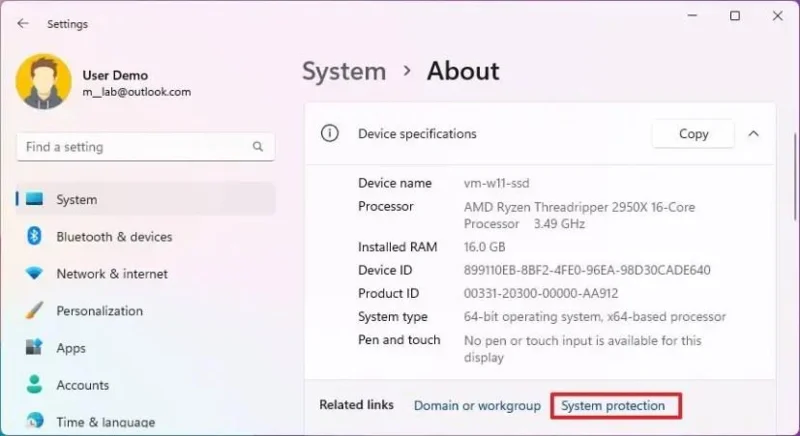
Select the system drive (C) and click the Configure button under the “Protection Settings” section.
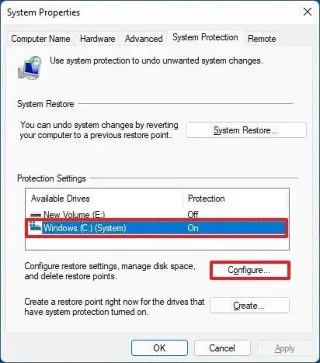
Select the “Turn on system protection” option to enable the feature.
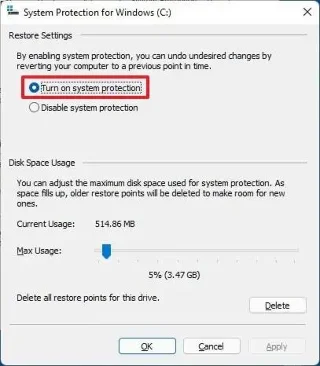
(Optional) Select the “Disable system protection” option to disable the feature.
Click the Apply button.
Click the OK button.
Once you complete the steps, you will now be able to create restore points whenever system changes occur on your computer, such as system updates, program installations, or misconfiguration.
Although the feature works automatically, I usually like to schedule a daily restore point to ensure the system always has a restore point ready. You can also use these instructions to create restore points manually on Windows 11.
14. Enable hibernation
Hibernate is another hidden gem of Windows 11 that should be enabled by default, especially for laptops. This feature saves the contents loaded into memory onto the hard drive to shut down the device completely, preserving your current session with all the running apps. This allows you to pick up where you left off the next time you turn on the computer.
I use this feature on my main desktop computer and my laptop. It uses additional storage to save the content in memory, but it saves energy, and I can use the same Windows session for months without restarting.
To enable and configure hibernation of Windows 11, use these steps:
Open Start.
Search for Command Prompt, right-click the top result, and select the Run as administrator option.
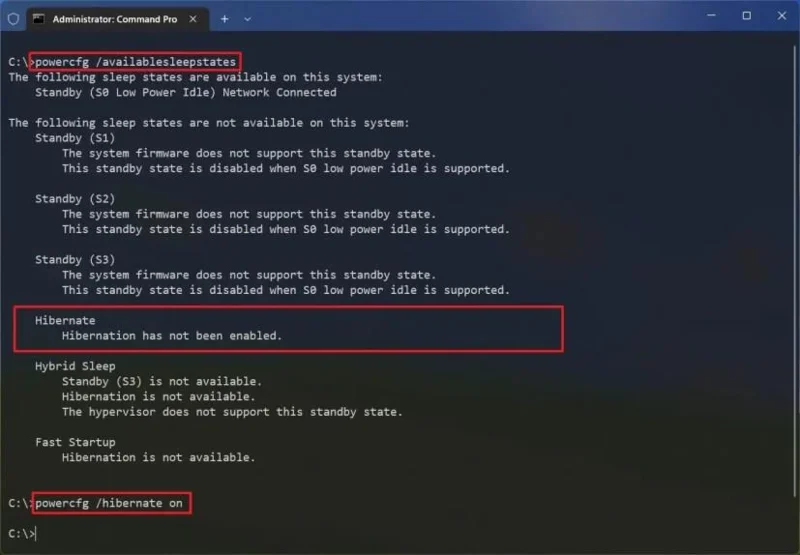
Type the following command to check the state of hibernation and press Enter:
powercfg /availablesleepstates
Type the following command to enable the Hibernate feature and press Enter:
powercfg /hibernate on
Close the Command Prompt console.
Open Control Panel.
Click on Hardware and Sound.
Click on Power Options.
Click the “Choose what the power button does” option.
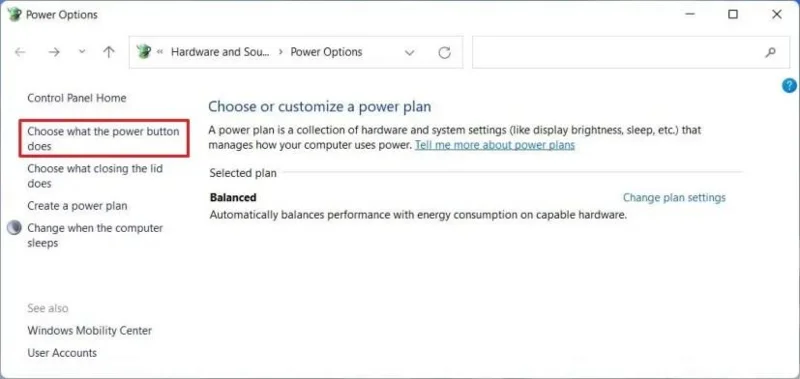
Click the “Change settings that are currently unavailable” option.
Check the Hibernate option under the “Shutdown settings” section.
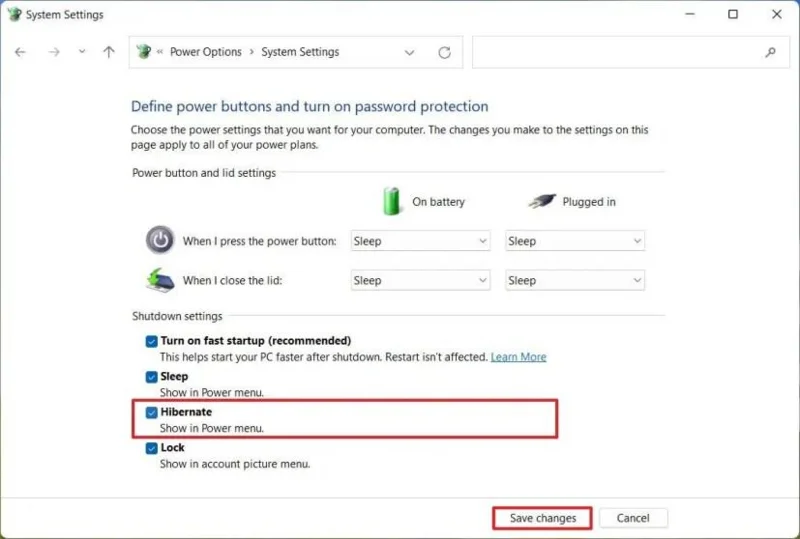
(Optional) Under the “Power button and lid settings” section, choose the Hibernate option in the “When I press the power button” setting to hibernate the computer when pressing the power button.
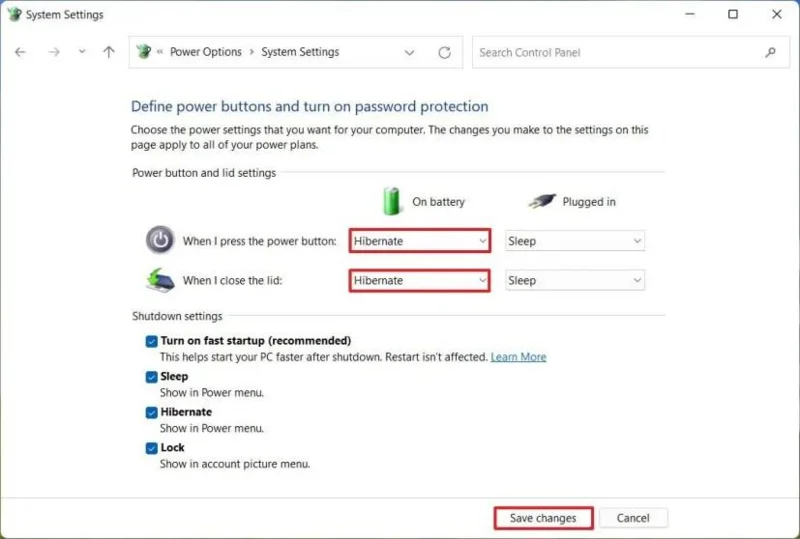
Choose the Hibernate option in the “When I close the lid” setting to allow hibernation when closing the laptop’s lid.
Once you complete the steps, the system will enable hibernation on Windows 11, and the option will be available in the Start menu’s Power menu.
While you can configure the power button and lid close action to hibernate from the Control Panel, starting on Windows 11 24H2 and higher releases, you can also configure these features from Settings > System > Power (Power & battery) with the “Lid & power button controls” (or “Power button controls”) setting.
15. Disable Snap Layouts top enge menu
On Windows 11, Snap Assist is a great feature to organize your windows when working with multiple applications. However, since you can use keyboard shortcuts or the Snap Layouts menu from the maximize button, the additional layouts menu that appears at the top edge of the screen when adding a window seems redundant. As a result, it’s another feature that I like to disable on a new installation of the operating system.
To turn off the Snap Layouts menu at the top of the screen, use these steps:
Open Settings.
Click on System.
Click the Multitasking page.
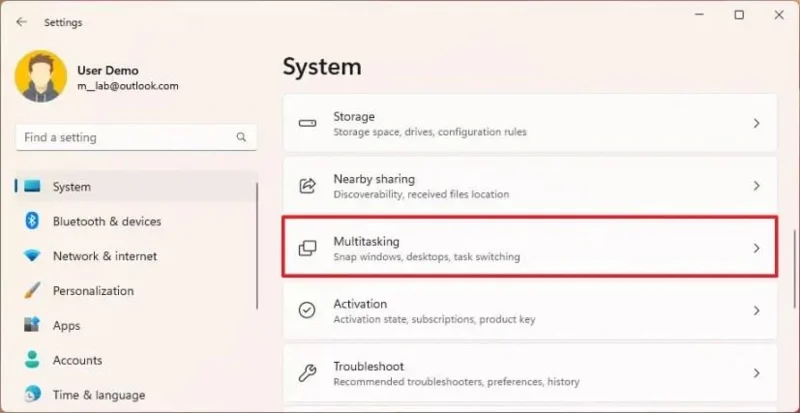
Click the Snap windows setting.
Clear the “Show snap layouts when I drag a window to the top of my screen” option to disable the Snap layout at the top of the screen.
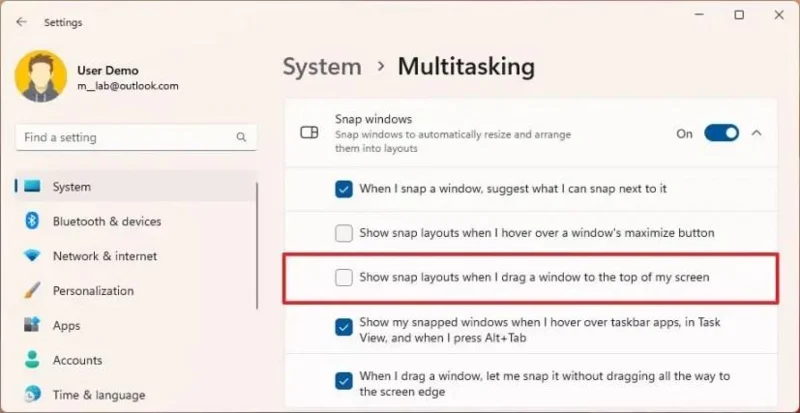
(Optional) Clear the “Show snap layouts when I hover over a window’s maximize button” option to disable Snap layouts completely.
Once you complete the steps, dragging a window to the top of the screen will no longer show the Snap layouts drop-down interface. However, you can still use Snap Assist with the keyboard shortcuts or by hovering over the maximize button.
16. Disable startup apps
After configuring the applications you will be using on your computer, it’s a good idea to check and turn off some of the applications that are registered to launch automatically during startup. This will improve startup time, save energy, prolong battery life, and increase the overall performance.
To turn off apps at startup on Windows 11, use these steps:
Open Settings.
Click on Apps.
Click the Startup page.
(Optional) Select the Startup impact option from the “Sort by” setting.
Turn off the toggle switch for each program you don’t use frequently to stop it from running and wasting resources at startup.
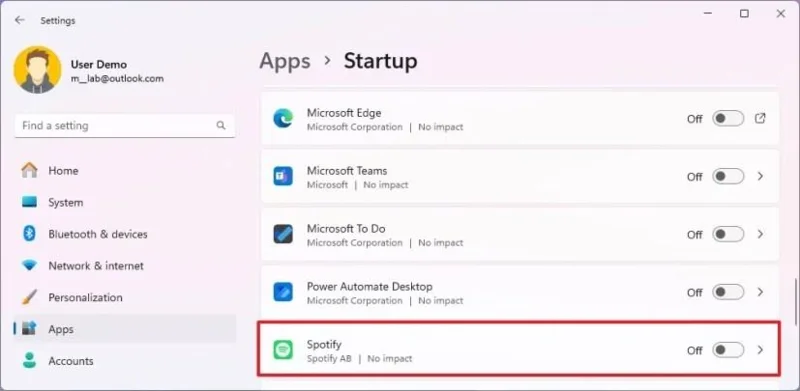
Once you complete the steps, the apps you turned off will no longer run automatically on startup, speeding up the system startup process and overall performance.
17. Enable automatic time synchronization
Although the operating system can detect and set the correct date and time on your computer, it’s not always the case, and your computer must never lose synchronization as a clock out-of-sync can cause connectivity problems since many services and apps rely on this information for security and to work correctly.
To set the time and zone information automatically on Windows 11, use these steps:
Open Settings.
Click on Time & language.
Click the Date & time page.
Turn on the “Set time zone automatically” toggle switch.
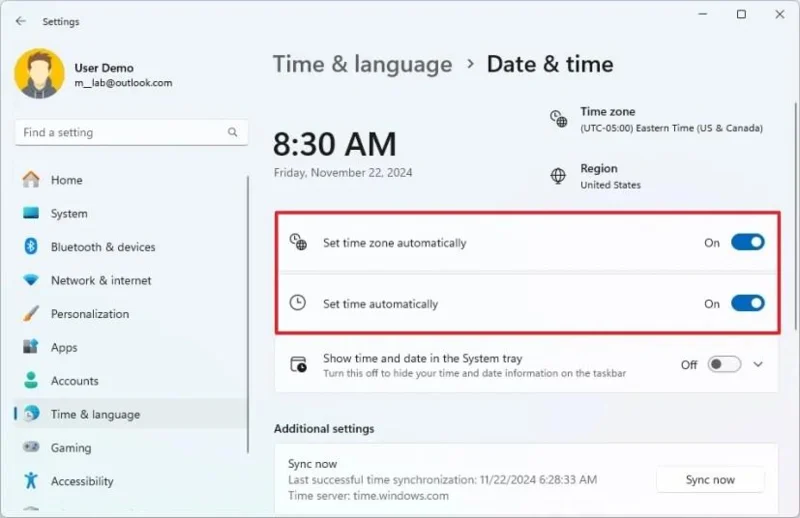
Turn on the “Set time automatically” toggle switch.
Once you complete the steps, the system clock will adjust automatically based on your time zone.
18. Change screen and sleep timeout
By design, Windows 11 conserves energy by automatically entering your computer into sleep mode after a period of inactivity. While this is beneficial for battery life and energy savings, it can disrupt your workflow if you frequently step away from your desk only to return to a locked screen. However, you can change the power settings to configure when the computer turns off the screen and enters sleep mode.
To change screen and computer timeout settings, use these steps:
Open Settings.
Click on System.
Click the Power & battery page.
Click the “Screen and sleep” (or “Screen, sleep, & hibernate timeouts”) setting under the “Power” section.
Choose how long the computer should wait before turning off the screen while plugged in or when running on battery.
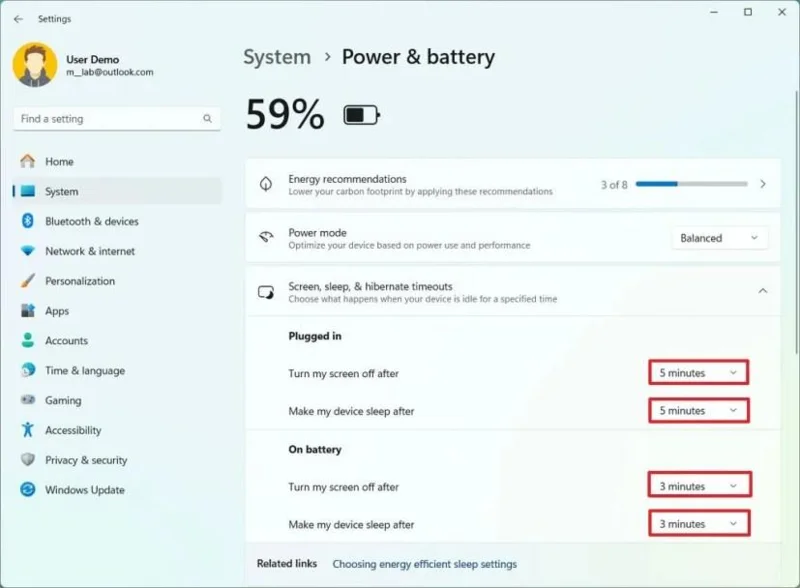
Choose how long the computer should wait before going to sleep while plugged in or when running on battery.
Once you complete the steps, the device will turn off the screen and enter into sleep mode according to your configuration.
19. Delete previous version of Windows 11
如果您是從 Windows 10 或更早版本的 Windows 11 升級到 Windows 10,系統會建立先前安裝版本的副本,以便在出現問題時可以還原到先前的版本。但是,如果升級後系統運作正常,先前的安裝版本副本將保留十天,佔用硬碟上的寶貴空間。
如果新安裝運作順利,您可以安全地刪除先前安裝的文件,從而釋放電腦上的幾個 GB 空間。
若要刪除舊版的 Windows 11,請依照下列步驟操作:
打開設定。
點選系統。
點選右側的「儲存」頁面。
點擊“本機磁碟”部分下的“臨時檔案”設定。
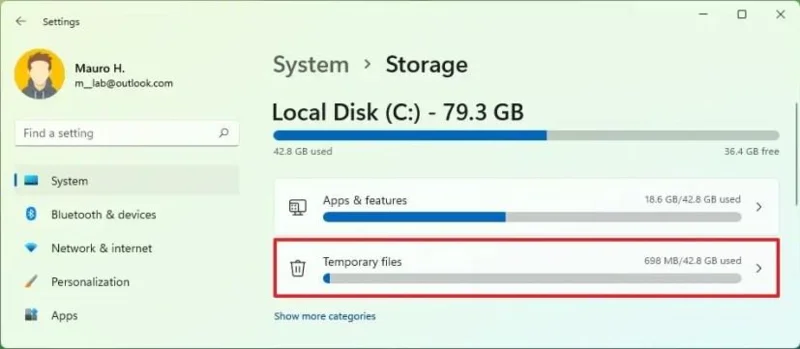
選取「先前的 Windows 安裝」選項
(可選)選擇要從 Windows 11 中刪除的暫存檔案。
點選“刪除檔案”按鈕。
完成這些步驟後,系統將刪除先前安裝的文件,從而釋放主磁碟機上的空間。
20. 啟用「結束任務」選項
雖然您可以點擊「關閉」按鈕來退出無回應的應用程式,但這並不會奏效,您必須透過任務管理器強制結束該應用程式。不過,您可以在「開發者選項」設定中啟用選項,從而在工作列上下文功能表中新增「結束任務」選項,以便從中強制結束無回應的應用程式。
若要啟用「結束任務」選項以終止無回應的應用程序,請按以下步驟操作:
打開設定。
點選系統。
點選“開發者”標籤。
開啟「結束任務」切換開關。
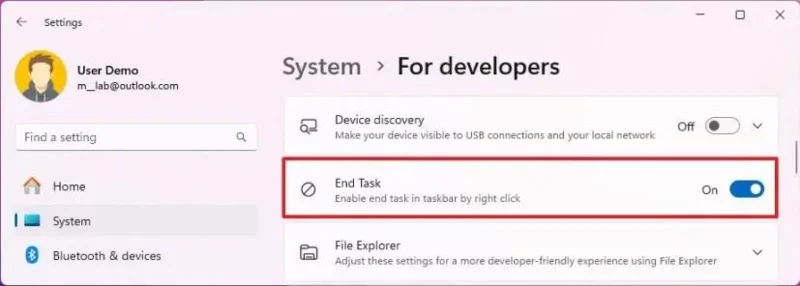
完成這些步驟後,該功能即可在工作列上下文功能表中使用。
如果應用程式無回應,請右鍵單擊工作列中的應用程式按鈕,然後選擇「結束任務」選項來終止它,而不是開啟工作管理員來執行相同的操作。
21. 關閉「建議操作」功能,避免不必要的干擾。
「建議操作」功能會在您將日期、時間或電話號碼複製到剪貼簿時開啟內嵌選單,用於建立行事曆事件或撥打電話。但如果您不需要此功能,系統也提供了一個選項將其關閉。
若要在 Windows 11 上關閉「建議操作」內嵌彈出窗口,請依照下列步驟操作:
打開設定。
點選系統。
點選剪貼簿標籤。
關閉“建議操作”開關即可停用此功能。
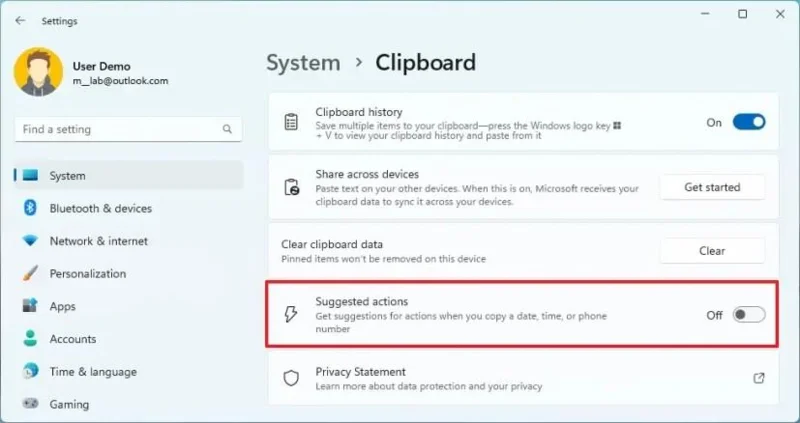
完成這些步驟後,當您選擇並複製日期、時間和電話號碼時,系統將不再顯示建立日曆、搜尋網路或撥打電話的建議。
22. 更改檔案總管預設設定
文件資源管理器通常帶有適用於大多數用戶的最佳設置,但我總是喜歡將啟動頁面更改為“此電腦”而不是“主頁”,並將文件管理器設置為顯示已知文件的擴展名,以使用戶體驗更加友好。
更改檔案總管啟動頁面
若要將檔案總管中的預設起始頁變更為“此電腦”,請按下列步驟操作:
開啟檔案總管。
點選「查看更多」(三個點)下拉選單,然後選擇「選項」。
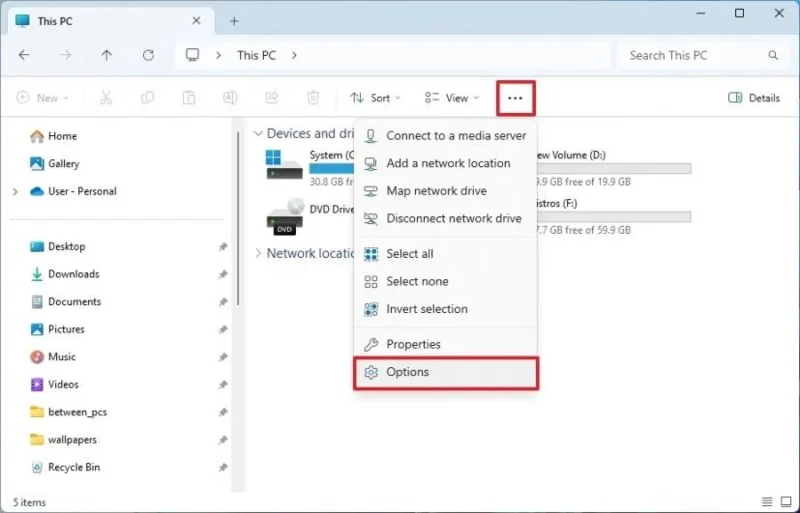
點選“常規”選項卡。
從「開啟檔案總管」功能表中選擇「此電腦」選項。
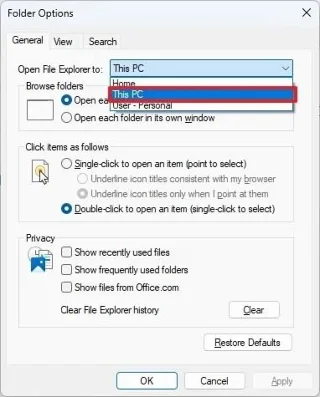
點擊“應用”按鈕。
點選“確定”按鈕。
完成這些步驟後,下次開啟檔案總管時,它將開啟「此電腦」而不是「首頁」。
您也可以透過登錄機碼變更檔案總管的啟動頁面。
顯示已知檔案的隱藏副檔名
若要在 Windows 11 上顯示隱藏的檔案副檔名,請依照下列步驟操作:
開啟檔案總管。
點擊命令列中的“查看”選單按鈕。
選擇“顯示”子選單,然後選擇“檔案副檔名”選項。
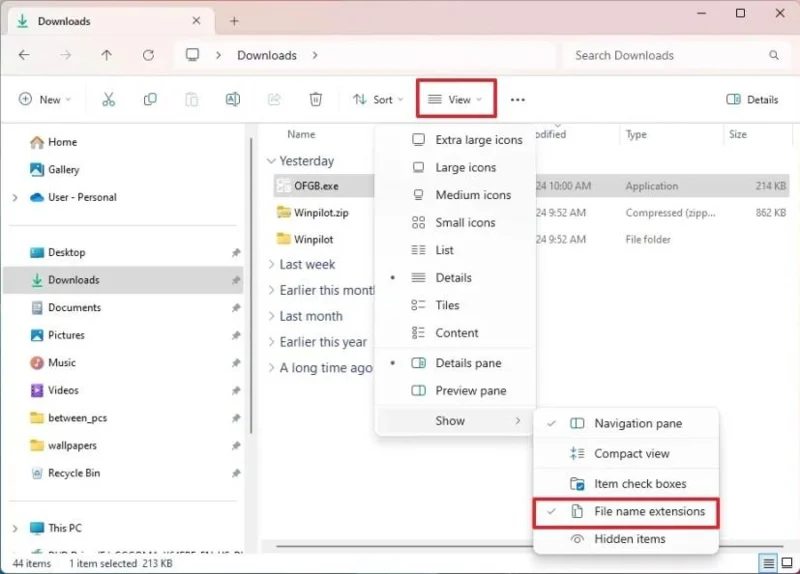
完成這些步驟後,檔案總管將顯示已知檔案類型的副檔名,例如.txt.txt .exe、.md 和.docx.txt。
或者,您也可以透過「設定」應用程式和「命令提示字元」來變更檔案副檔名的可見性。
23. 建立完整備份,以防硬體或軟體故障
升級和設定 Windows 11 後,最好對電腦進行完整備份,以防出現嚴重的系統問題、勒索軟體等惡意軟體攻擊、硬體故障或升級作業系統磁碟機時發生意外。
若要建立 Windows 11 的完整備份,請依照下列步驟操作:
打開開始。
搜尋「控制台」,然後點擊第一個搜尋結果以開啟該應用程式。
點選“系統和安全性”。
點選文件歷史記錄。
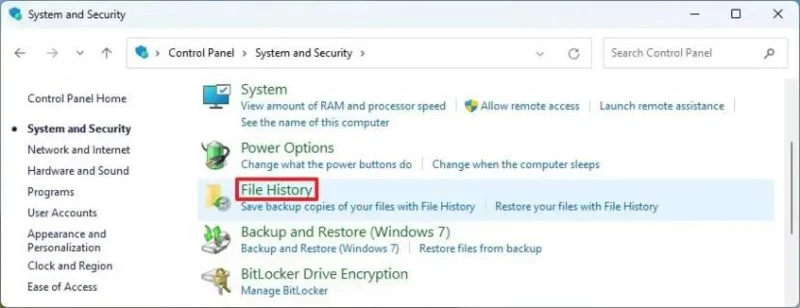
從左側窗格中按一下「系統映像備份」選項。
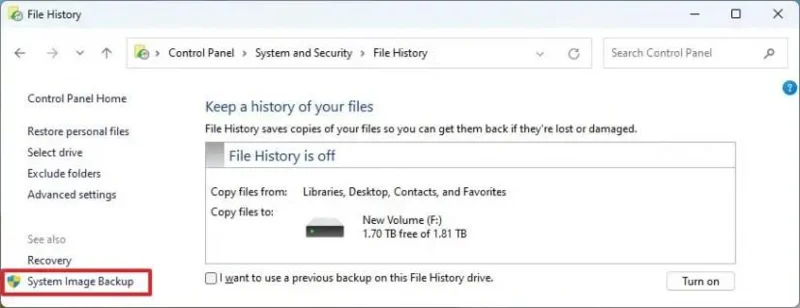
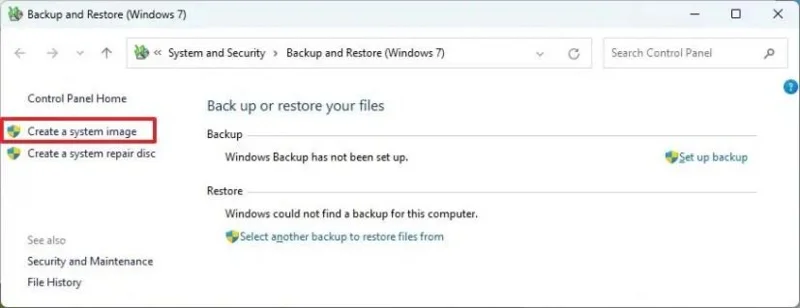
從左側窗格中按一下「建立系統映像」選項。
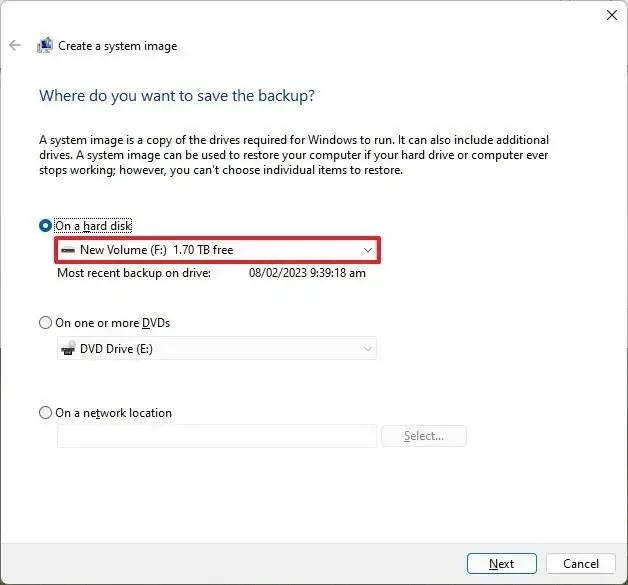
選擇外部磁碟機以儲存備份。
點擊“下一步”按鈕。
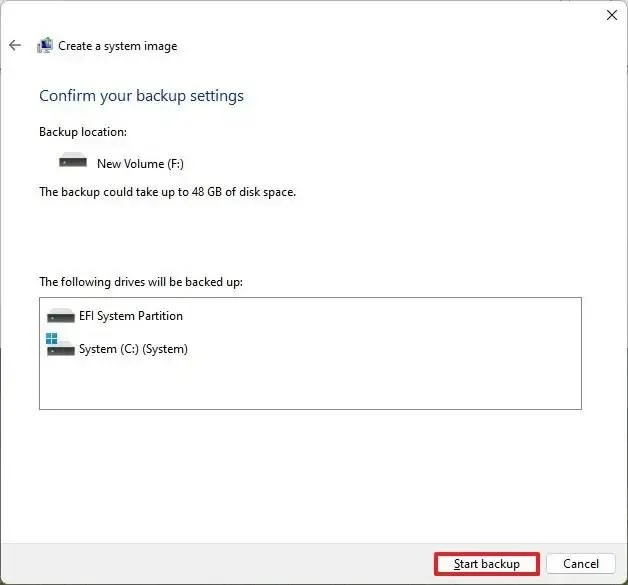
點選“開始備份”按鈕。
點擊“否”按鈕。
點擊“關閉”按鈕。
完成這些步驟後,Windows 11 裝置的完整備份(包括安裝檔案、設定、程式和個人檔案)將會建立在外部儲存裝置上。
如果您只想建立檔案備份,可以使用檔案記錄、Windows 備份或 OneDrive。
在本指南中,我概述了我通常在電腦上使用的設定和功能。由於每個人的偏好不同,並非所有內容都適用於所有人。但是,您可以將這些說明作為配置新電腦或從舊版本作業系統升級到新系統的起點。
其他一些您可能需要啟用的功能包括適用於 Linux 的 Windows 子系統 (WSL),尤其適合同時使用 Linux 和 Windows 的使用者。啟用Windows 沙盒功能後,您可以在不影響主系統的情況下測試應用程式或造訪不受信任的網站。此外,您還可以啟用 sudo 命令,以便在無需以管理員身分執行控制台的情況下,從 Windows 終端以管理員身分執行命令。
如果是筆記型電腦,建議同時啟用裝置加密或BitLocker。它們功能相同,但根據您使用的是 Windows 11 專業版還是家用版,操作略有不同。
最後,您還可以安裝 PowerToys,這是一套由微軟創建的工具,旨在幫助您改善 Windows 11 使用體驗。
您也可以查看我整理的Windows 11安全建議完整清單。
你的 Windows 11 預設設定是什麼?如有任何疑問,請在下方評論區留言。如果我遺漏了什麼,也請在留言區告訴我你的建議。
要建立 Windows 11 25H2 可啟動 USB 安裝程序,您可以使用 Rufus、Ventoy、命令提示字元和媒體建立工具,以下是具體操作方法。
KB5074157(版本 26220.7653)適用於 Windows 11,改進了深色模式,增加了 WebP 壁紙支持,並修復了任務欄、開始功能表、藍牙等問題。
KB5074109 是 Windows 11 的 2026 年 1 月更新,它導致了崩潰、啟動失敗、Outlook 問題和卸載錯誤,迫使用戶將其刪除。
要防止您的 ChatGPT 對話出現在 Google 搜尋中,請檢查並刪除公開共享的 ChatGPT 鏈接,方法如下。
您可以透過 Microsoft Store 或 PowerShell 安裝適用於 Android 的 Windows 子系統 (WSA),從而在 Windows 11 上執行 Android 應用程式。方法如下。
OpenAI 預設會收集您的 ChatGPT 對話內容用於 AI 訓練,以下是如何停用此功能以更好地保護隱私的方法。
Windows 11 版本 27913(Canary)帶來了重新設計的設定介面,恢復了 Vista 啟動聲音,修復了黑屏桌布問題等等。
Windows 11 版本 26120.4733 (KB5062651) 在 Beta 頻道中引入了新的 AI 圖像描述、應用程式權限重新設計以及管理員保護功能。
Windows 11 25H2 版本 26200.5702 (KB5062653) 帶來了 AI 映像描述、新的管理員安全功能、重新設計的權限對話方塊等。
現在您可以使用 winget 命令在 Windows 10 上安裝應用程序,以下是使用 Windows 軟體套件管理器執行此操作的步驟。