如何建立可啟動的 Windows 11 25H2 USB 安裝介質
要建立 Windows 11 25H2 可啟動 USB 安裝程序,您可以使用 Rufus、Ventoy、命令提示字元和媒體建立工具,以下是具體操作方法。
您可以設定雙啟動系統,執行Windows 10和 Windows 11(反之亦然)。在本指南中,我將逐步介紹三種不同的設定方法。雙重啟動(或多啟動)系統可讓您在同一台電腦上安裝和執行兩個作業系統,使您能夠在啟動時從引導程式中選擇所需的作業系統環境。
能夠啟動多個作業系統在不同情況下都非常有用。例如,如果您仍在使用 Windows 10,可以使用雙重啟動設定來體驗Windows 11,而無需完全升級。同樣,如果您的電腦已安裝最新版本的 Windows,則可能需要額外安裝一個版本才能與某些應用程式相容。您也可以使用雙啟動來測試 Windows 預覽體驗計畫中的預覽版本,而不會影響您的主要係統環境。
無論出於何種原因,在 Windows 系統上設定雙啟動都很簡單。您可以透過以下三種方式實現:
在本指南中,我將概述在 2026 年使用 Windows 10 和 11 設定雙啟動系統的三種方法。這些說明也可用於在 Windows 10 上安裝 Windows 11 雙重啟動,甚至在 Windows 10 上安裝 Windows 10 雙重啟動。
在繼續操作之前,您必須了解,使用 Windows 11 和 Windows 10 設定雙重啟動與設定 Windows 10 和 Windows 11 是不同的。原因是Windows 11 的系統需求高於Windows 10,如果您不確認系統需求,可能無法完成設定。 (如果您的電腦硬體不符合要求,您可以透過建立特殊的 USB 啟動磁碟來繞過這些要求。)
如果您已有執行 Windows 11 的設備,則無需額外步驟即可將 Windows 10 安裝為第二個作業系統。但是,如果您使用的是運行 Windows 10 的計算機,則必須確保該設備使用 UEFI作為韌體類型,TPM 2.0 已啟用,並且計算機配備受支援的 AMD 或 Intel 處理器。此外,至少需要 4GB 記憶體和 64GB 儲存空間,安全啟動並非必需,但可能需要啟用。
由於您將使用相同的硬件,因此如果您使用的是相容版本的作業系統(例如 Windows 11 和 10),則可以使用相同的產品金鑰啟動 Windows 。
如果您想建立 Windows 10 和 Windows 11 雙啟動系統,則需要縮小目前分割區,以便為新安裝騰出空間。然後,在 Windows 安裝程式中,您可以使用未指派的空間繼續進行 Windows 11 的標準安裝。以下是具體操作方法。
1. 建立 USB 啟動磁碟
若要使用 Rufus 建立 Windows 11 啟動 U 盤,請依照下列步驟操作:
點擊「下載」部分下的連結下載最新版本。
雙擊Rufus可執行檔啟動該工具。
點擊頁面底部的「設定」按鈕(從左邊數來第三個按鈕)。
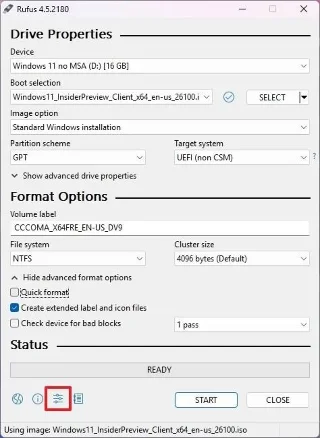
在「設定」部分的「檢查更新」設定中選擇「每日」選項。
點擊“關閉”按鈕。
再次點選“關閉”按鈕。
再次打開Rufus。
(可選)在「設備」部分選擇USB。
點擊右側的向下箭頭按鈕,然後選擇“下載”選項。
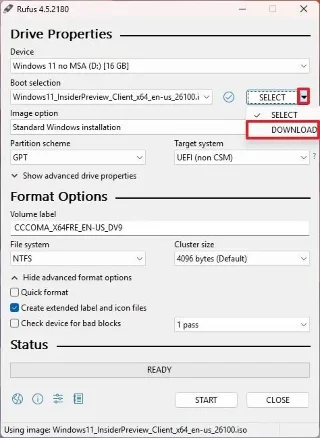
點擊下載按鈕。
選擇Windows 11選項。
點擊“繼續”按鈕。
選擇“24H2”選項以選擇 Windows 11 2024 更新。
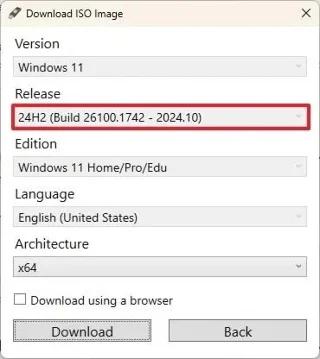
點擊“繼續”按鈕。
選擇Windows 11 家用版/專業版/教育版選項。
點擊“繼續”按鈕。
選擇Windows 11安裝語言。
點擊“繼續”按鈕。
選擇 x64 架構選項。
點擊下載按鈕。
選擇 Windows 11 ISO 檔案自動儲存的位置。
在「映像選項」設定下,選擇「標準 Windows 11 安裝」選項。
(可選)下載完成後繼續使用預設設定。
(可選)在「卷標」設定下指定磁碟機的名稱(例如,Windows 11 安裝程式)。
點擊“開始”按鈕。
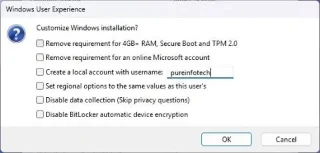
清除「Windows 使用者體驗」頁面中的所有選項,以建立未經修改的安裝媒體。
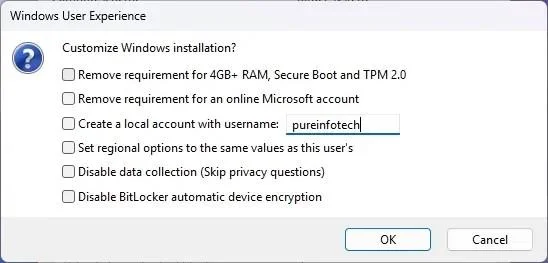
點選“確定”按鈕。
完成這些步驟後,Rufus 工具將使用 Windows 11 安裝媒體建立可啟動媒體。
您也可以使用媒體建立工具、命令提示字元和名為 Ventory 的第三方工具建立可啟動 USB 。
2. 縮小並建立分區
如果您有另一塊硬碟,則無需修改主分割區,因為您可以使用輔助硬碟安裝作業系統。如果您的系統只有一塊硬碟,則必須縮小分割區,以便為新安裝騰出空間。
若要從磁碟管理建立雙啟動系統分割區,請依下列步驟操作:
打開開始。
搜尋「建立和格式化硬碟分割區」,然後點擊第一個搜尋結果開啟磁碟管理應用程式。
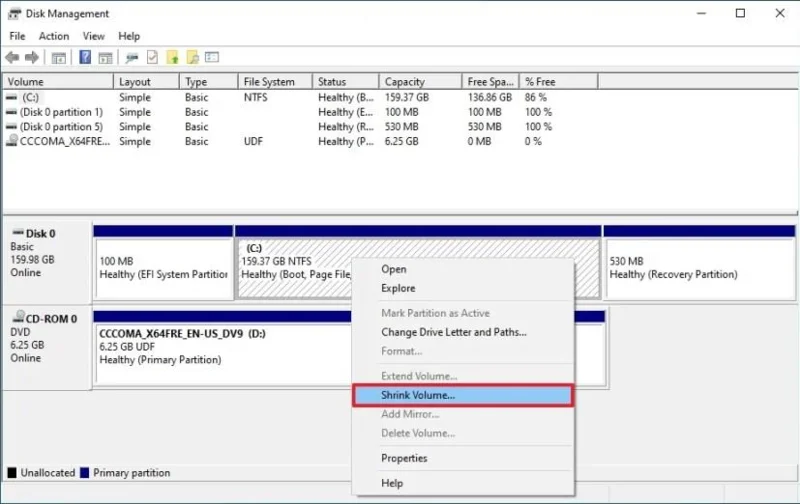
右鍵單擊安裝磁碟機(C:),然後選擇“壓縮磁碟區”選項。
請確認至少有 64GB 的儲存空間(建議更多)。
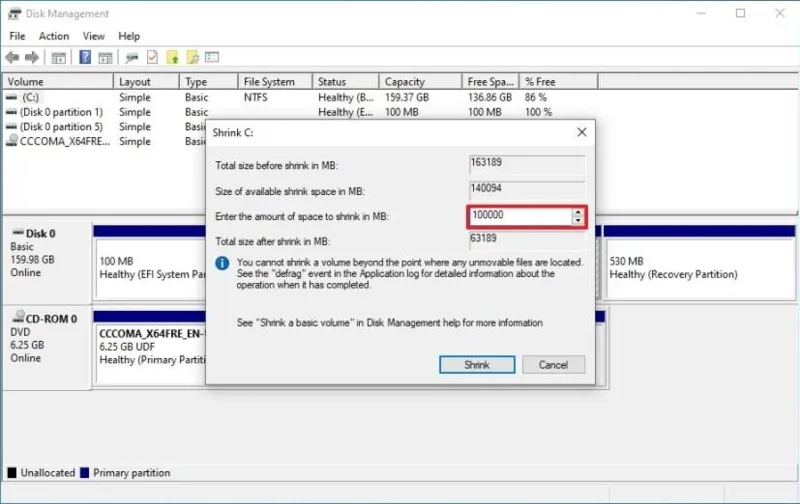
點擊“縮小”按鈕。
建立分割區後,關閉設備,然後按照下列步驟繼續操作,即可在 Windows 10 和 Windows 11 雙系統啟動。
您無需透過磁碟管理建立新分割區,因為 Windows 安裝程式會在安裝過程中自動設定所需的分割區。您只需確保有足夠的可用空間。
3. 在分割區安裝 Windows 11
若要安裝 Windows 11 以建立與 Windows 10 的雙啟動系統,請依照下列步驟操作:
使用Windows 11 USB 隨身碟啟動電腦。
按任意鍵繼續。
選擇安裝語言和格式。
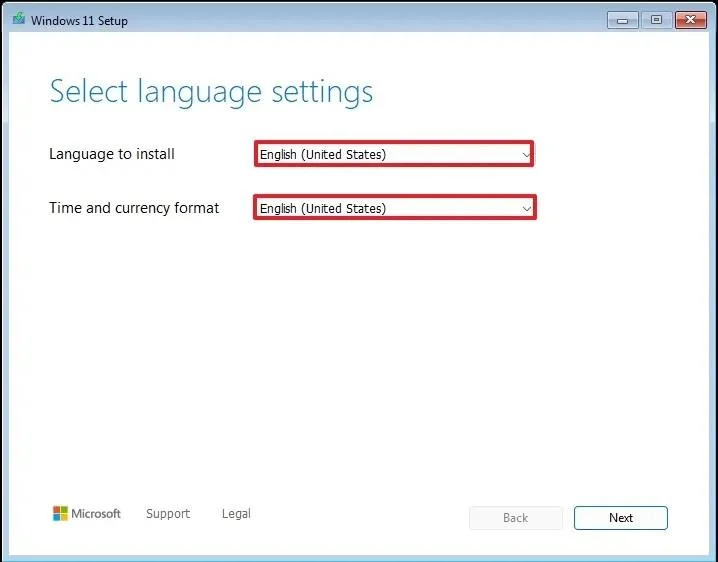
點擊“下一步” 按鈕。
選擇鍵盤和輸入法。
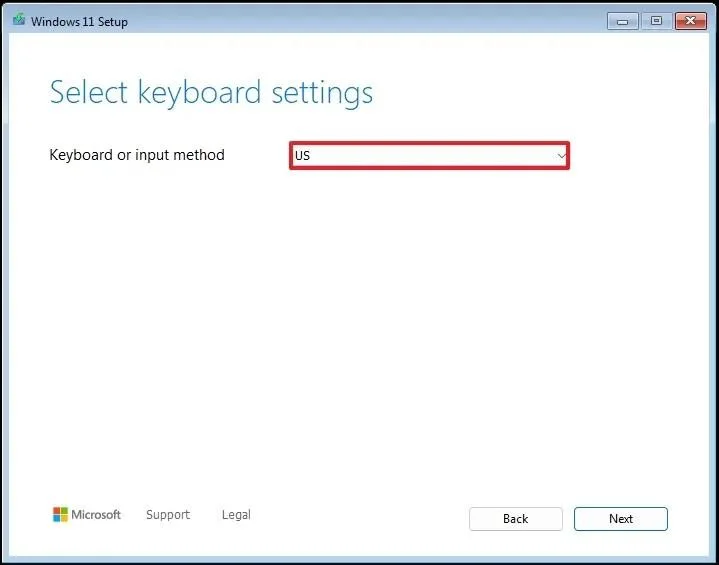
點擊“下一步”按鈕。
選擇“安裝 Windows 11”選項。
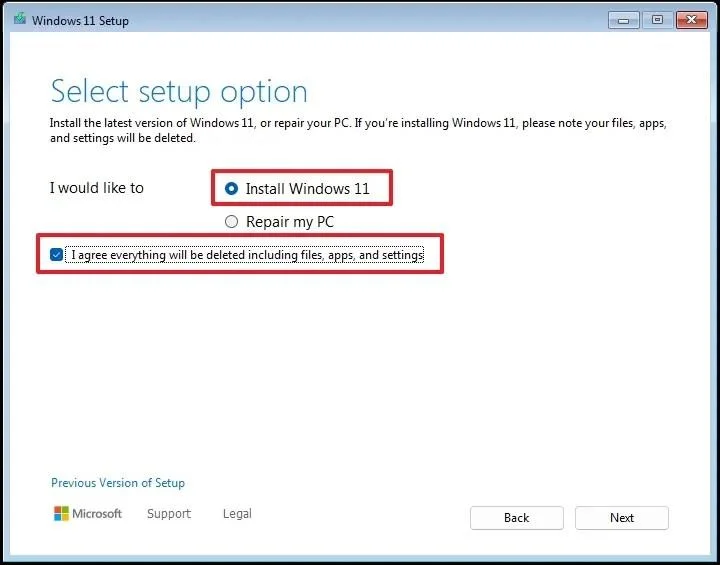
勾選“我同意所有選項”以確認此過程將刪除電腦上的所有內容。
點擊“我沒有產品金鑰”選項。
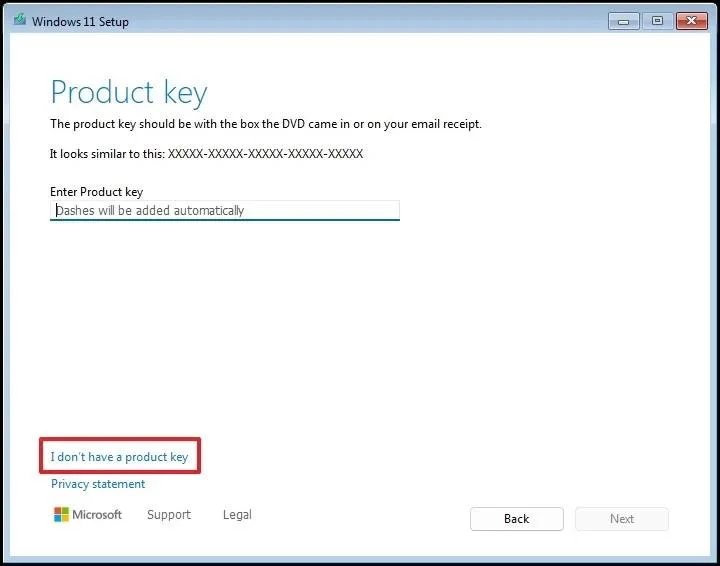
簡要說明:重新安裝系統後,電腦將自動啟動。如果是新計算機,則需要提供產品金鑰。您也可以稍後透過「設定」套用輸入產品金鑰進行啟動。
選擇您的許可證金鑰可啟動的「Windows 11」版本(如果適用)。
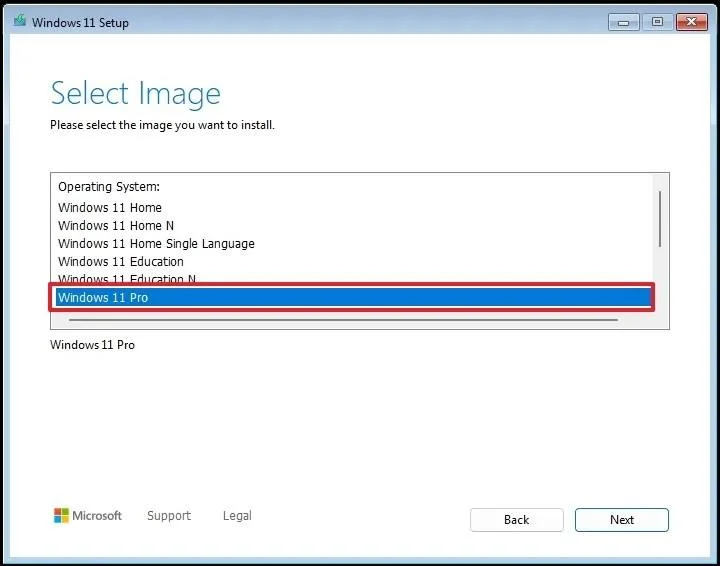
點擊“下一步”按鈕。
點擊“接受”按鈕
選擇硬碟上要安裝 Windows 11 的每個分割區,然後按一下「刪除」按鈕。 (通常,「磁碟機 0」是包含所有安裝檔案的磁碟機。)
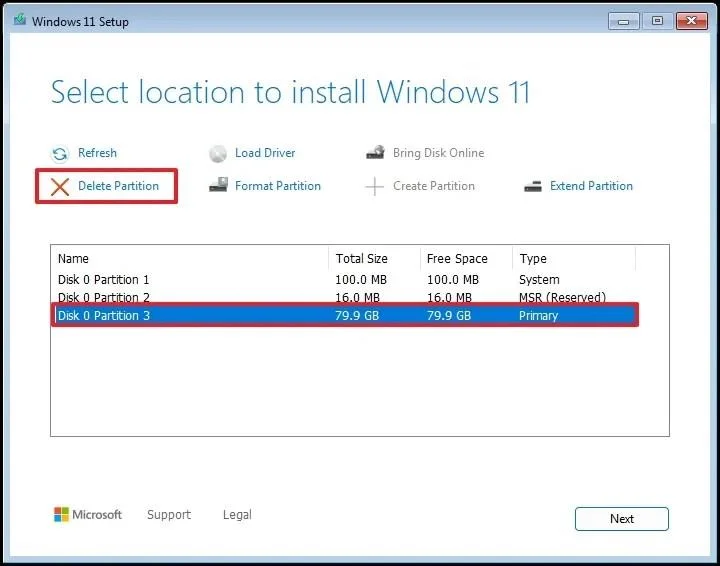
選擇硬碟(磁碟機 0 未分配空間)安裝作業系統。
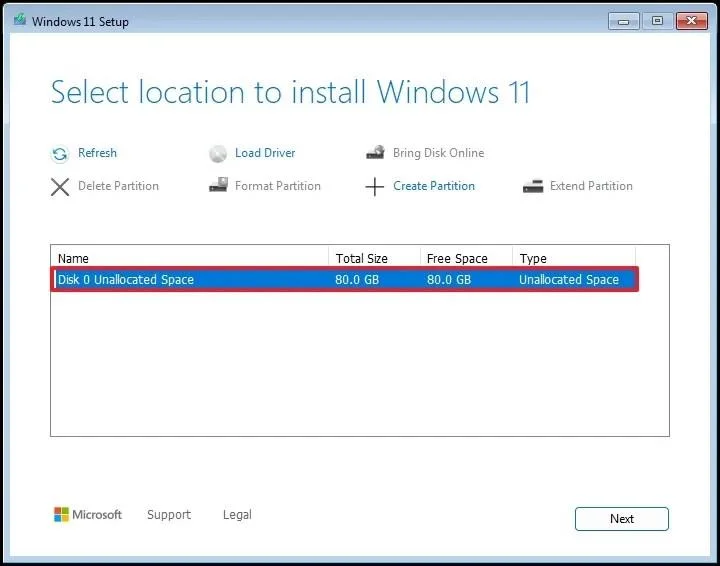
點擊“下一步”按鈕。
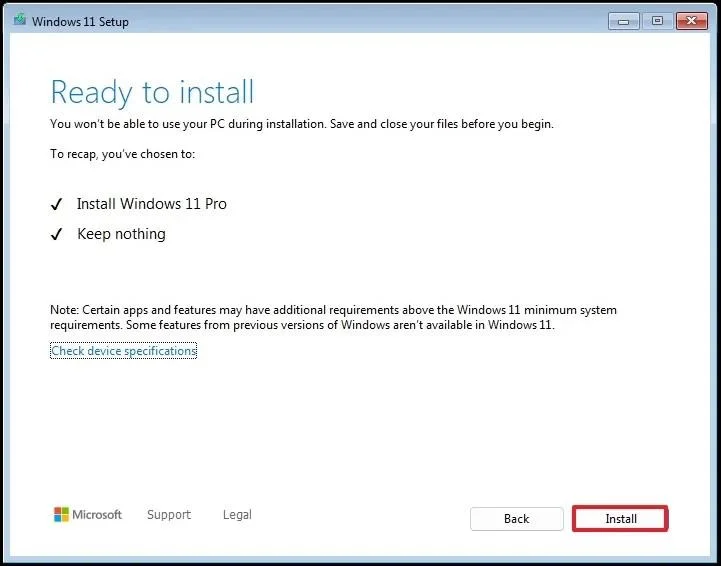
點擊“安裝”按鈕。
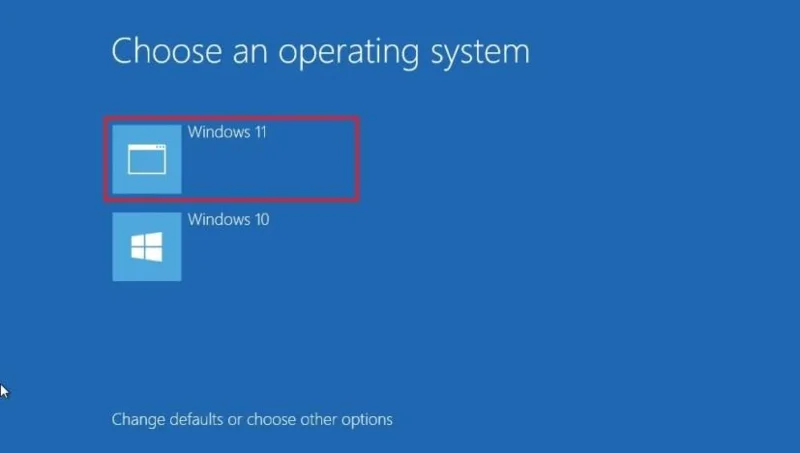
在啟動選單中選擇“Windows 11”選項(如果適用)。
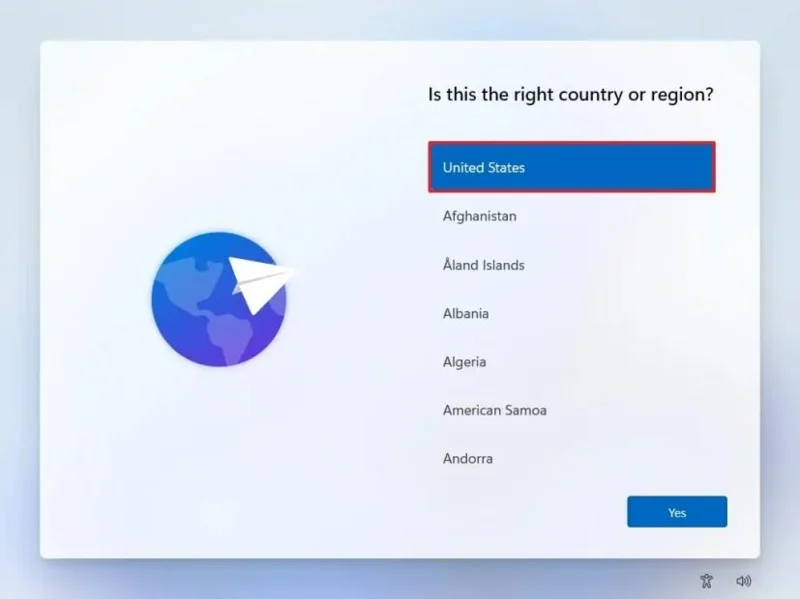
選擇您的地區,繼續體驗全新開箱即用體驗 (OOBE)。
完成這些步驟後,您將能夠在同一台電腦上使用兩個不同的作業系統。
如果您想安裝 Windows 10 和 10 雙系統,或 Windows 11 和 11 雙系統,操作步驟都相同。此外,您也不會局限於安裝兩個作業系統。您可以隨時建立額外的分割區來設定三系統啟動,甚至安裝更多作業系統。
(可選)移除作業系統
如果您不再需要使用雙啟動設置,可以隨時撤銷這些變更。
若要從電腦中刪除第二個 Windows 安裝,請依照下列步驟操作:
打開開始。
搜尋「建立和格式化硬碟分割區」,然後點擊第一個搜尋結果開啟磁碟管理應用程式。
右鍵點選要刪除的安裝分割區,然後選擇「刪除磁碟區」選項。
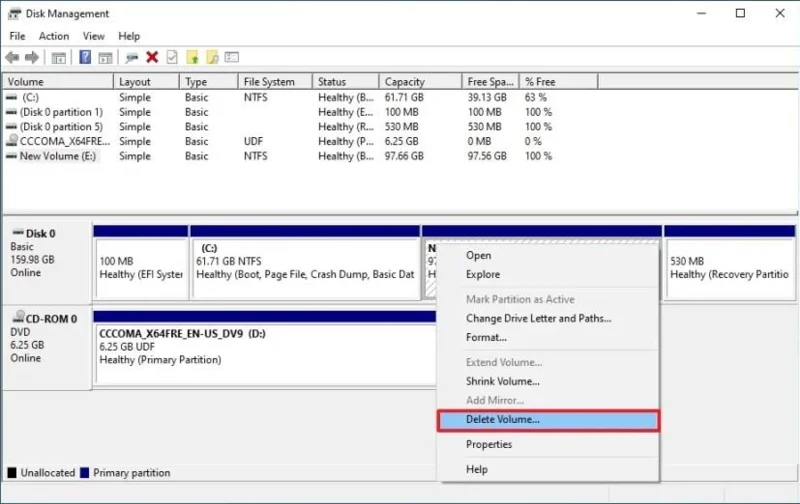
點擊“是”按鈕。
(可選)右鍵單擊目前安裝分割區(C:),然後按一下「擴充卷」選項,將空閒空間移至系統。
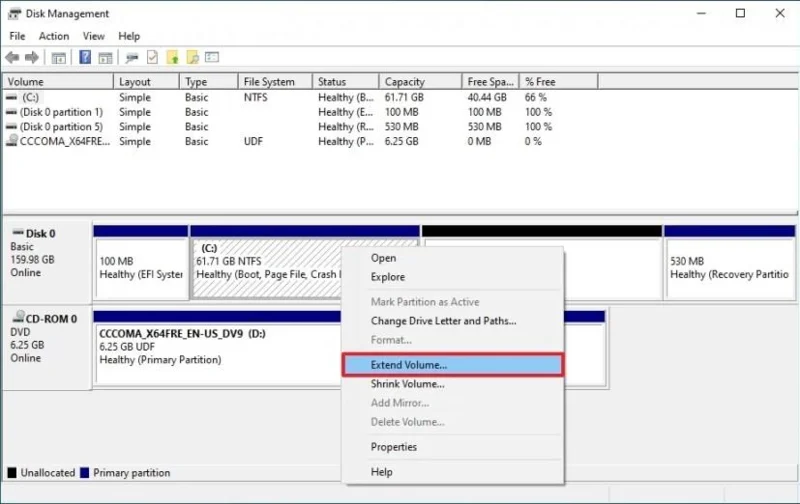
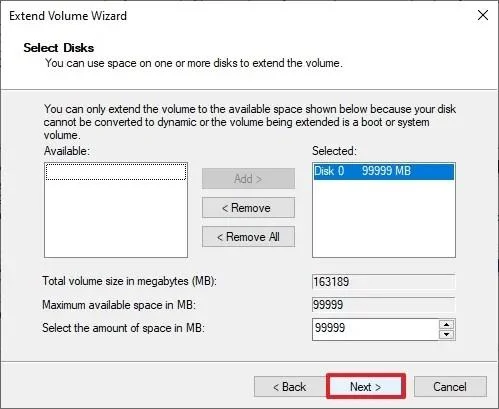
點擊“下一步”按鈕。
再次點選“下一步”按鈕。
點擊“完成”按鈕。
完成這些步驟後,電腦將再次只有一個作業系統。
如果您有單獨的硬碟,則可以在不修改原有系統設定的情況下安裝另一個 Windows 系統。方法如下。
1. 建立 USB 啟動磁碟
若要使用 Rufus 建立 Windows 11 啟動 U 盤,請依照下列步驟操作:
點擊「下載」部分下的連結下載最新版本。
雙擊Rufus可執行檔啟動該工具。
點擊頁面底部的「設定」按鈕(從左邊數來第三個按鈕)。
在「設定」部分的「檢查更新」設定中選擇「每日」選項。
點擊“關閉”按鈕。
再次點選“關閉”按鈕。
再次打開Rufus。
(可選)在「設備」部分選擇USB。
點擊右側的向下箭頭按鈕,然後選擇“下載”選項。
點擊下載按鈕。
選擇Windows 11選項。
點擊“繼續”按鈕。
選擇“24H2”選項以選擇 Windows 11 2024 更新。
點擊“繼續”按鈕。
選擇Windows 11 家用版/專業版/教育版選項。
點擊“繼續”按鈕。
選擇Windows 11安裝語言。
點擊“繼續”按鈕。
選擇 x64 架構選項。
點擊下載按鈕。
選擇 Windows 11 24H2 ISO 檔案自動儲存的位置。
在「映像選項」設定下,選擇「標準 Windows 11 安裝」選項。
(可選)下載完成後繼續使用預設設定。
(可選)在「卷標」設定下指定磁碟機的名稱(例如,Windows 11 安裝程式)。
點擊“開始”按鈕。
清除「Windows 使用者體驗」頁面中的所有選項,以建立未經修改的安裝媒體。
點選“確定”按鈕。
完成這些步驟後,Rufus 工具將使用 Windows 11 安裝媒體建立可啟動媒體。
2. 在單獨的硬碟上安裝 Windows 11
若要在單獨的硬碟上設定雙啟動系統,請依照下列步驟操作:
使用Windows 11 USB 隨身碟啟動電腦。
按任意鍵繼續。
選擇安裝語言和格式。
點擊“下一步” 按鈕。
選擇鍵盤和輸入法。
點擊“下一步”按鈕。
選擇“安裝 Windows 11”選項。
勾選“我同意所有選項”以確認此過程將刪除電腦上的所有內容。
點擊“我沒有產品金鑰”選項。
選擇您的許可證金鑰可啟動的「Windows 11」版本(如果適用)。
點擊“下一步”按鈕。
點擊“接受”按鈕
選擇硬碟上要安裝 Windows 11 的每個分割區,然後按一下「刪除」按鈕。 (通常,「磁碟機 0」是包含所有安裝檔案的磁碟機。)
選擇硬碟(磁碟機 0 未分配空間)安裝作業系統。
點擊“下一步”按鈕。
點擊“安裝”按鈕。
在啟動選單中選擇“Windows 11”選項(如果適用)。
選擇您的地區,繼續體驗全新開箱即用體驗 (OOBE)。
完成這些步驟後,Windows 11 將安裝到另一個硬碟上。
(可選)移除作業系統
若要從電腦中刪除第二個安裝以撤銷更改,請按以下步驟操作:
打開開始。
搜尋「建立和格式化硬碟分割區」,然後點擊第一個搜尋結果開啟磁碟管理應用程式。
右鍵點選要刪除的安裝分割區,然後選擇「刪除磁碟區」選項。
點擊“是”按鈕。
重複步驟 3,直到從磁碟機中刪除所有分割區。
(可選)右鍵單擊未指派空間,然後選擇“新簡單磁碟區”選項。
點擊“下一步”按鈕。
再次點選“下一步”按鈕。
(可選)確認驅動器的驅動器號。
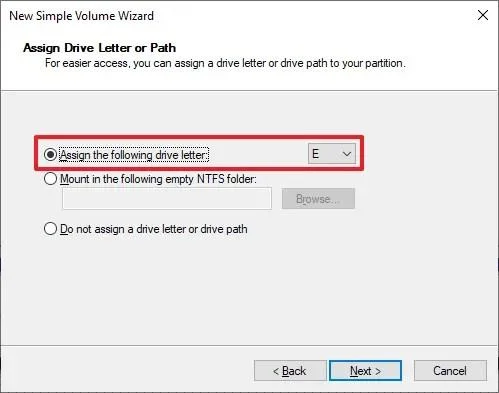
點擊“下一步”按鈕。
在「卷標」設定中確認磁碟機的名稱。
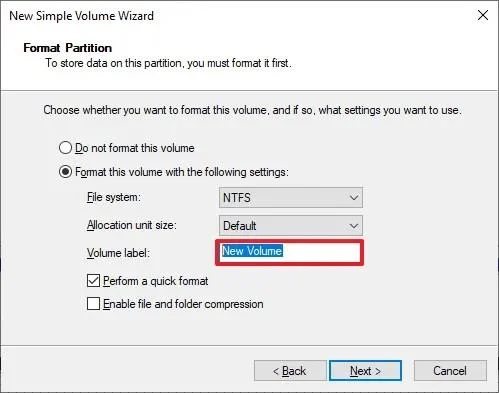
繼續使用預設設定。
點擊“下一步”按鈕。
點擊“完成”按鈕。
完成這些步驟後,電腦將再次只有一個作業系統。
或者,您也可以利用虛擬硬碟 (VHDX) 設定雙啟動系統,而無需使用 USB 隨身碟或修改現有設定。配置完成後,無需虛擬化,Windows 11 將能夠充分利用電腦的硬體。
這種方法可讓您在執行 Windows 10 或 Windows 11 的電腦上建立雙啟動系統,並可以選擇使用任一版本作為第二個作業系統。
過去,使用 VHDX 進行原生啟動不支援升級到更高版本的 Windows。但是,此限制已解決,您現在應該可以直接升級作業系統。如果升級過程失敗,您可以刪除現有安裝程式並重新建立以解決問題。
1. 下載 Windows 11 ISO 文件
若要下載 Windows 11 ISO 文件,請依照下列步驟操作:
在「下載適用於 x64 的 Windows 11 磁碟映像 (ISO)」部分,選擇Windows 11 選項。
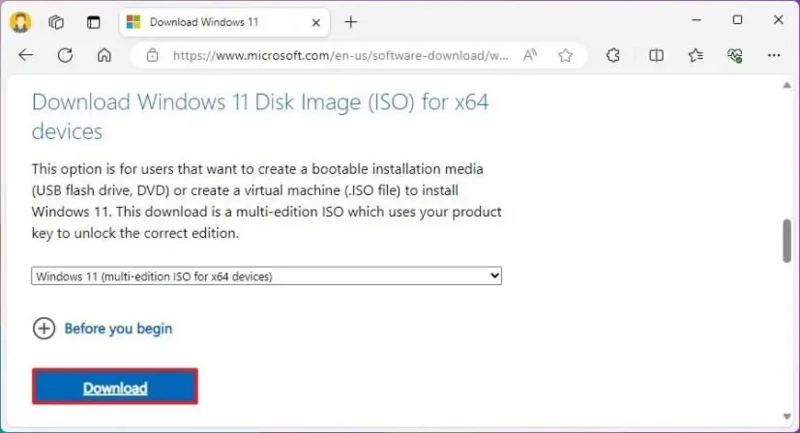
點擊下載按鈕。
選擇安裝語言。
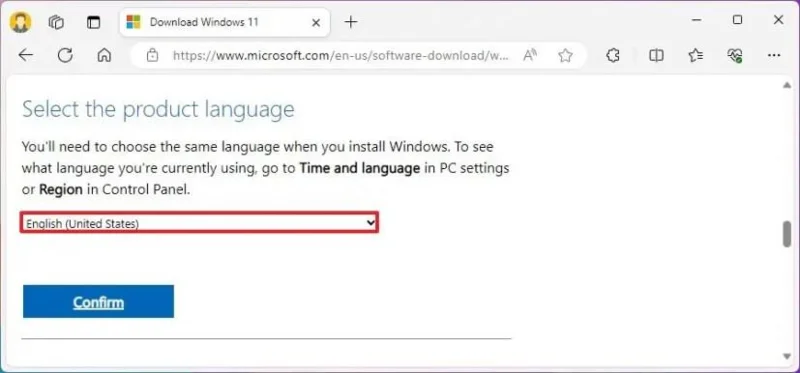
點擊“確認”按鈕。
點擊「下載」按鈕,將目前的 Windows 11 ISO 檔案儲存到您的電腦。
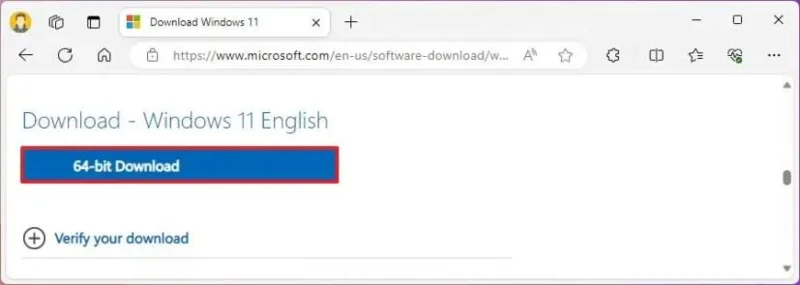
完成這些步驟後,Windows 11 的 ISO 檔案將下載到您的電腦。
如果這種方法行不通,您還可以透過其他幾種方式下載 ISO 檔案。
2. 建立 VHDX 驅動器,以便在 10 上雙啟動 Windows 11。
To create a virtual drive to set up a dual-boot system, use these steps:
Open Start.
Search for “Create and format hard disk partitions” and click the top result to open the Disk Management app.
Click on Action and choose the Create VHD option.
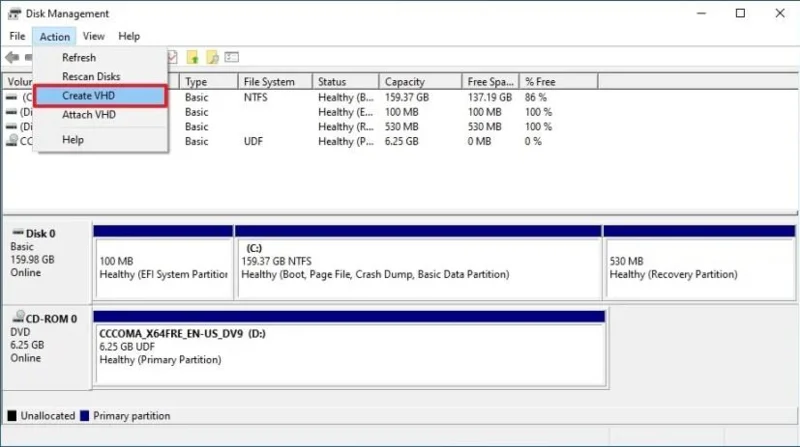
Choose the VHDX option under the “Virtual hard disk format” section.
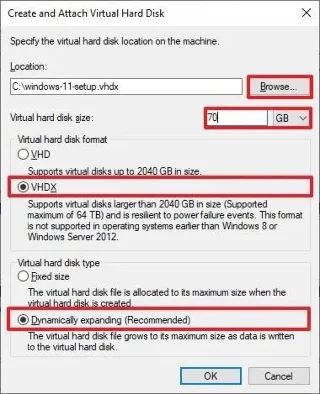
Choose the Dynamically expanding option under the “Virtual hard disk type” section.
Click the Browse button.
Select a location to store the virtual drive, such as the root of the “C:” drive.
Confirm a name for the VHDX, such as “windows-11-setup.”
Click the Save button.
Confirm at least 64GB of storage for the VHDX.
Click the OK button.
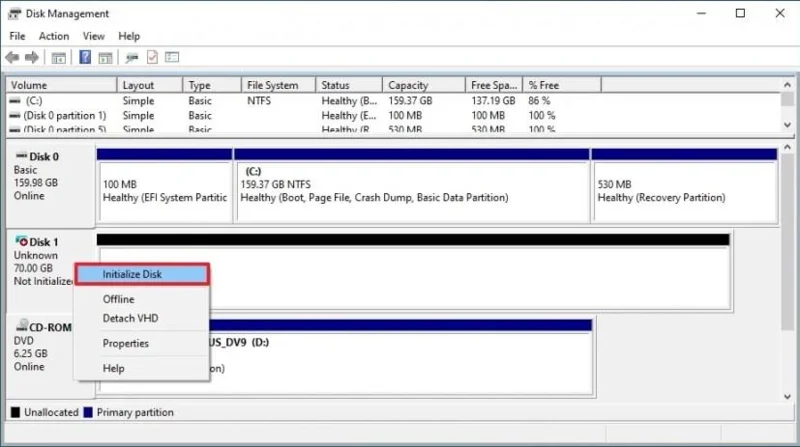
Right-click the newly created drive and choose the “Initialize Disk” option.
Choose the GPT option.
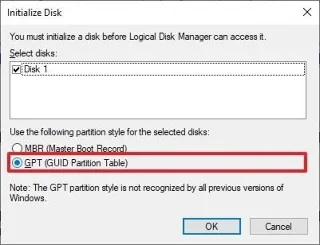
Click the OK button.
Right-click the unallocated space and choose the “New Simple Volume” option.
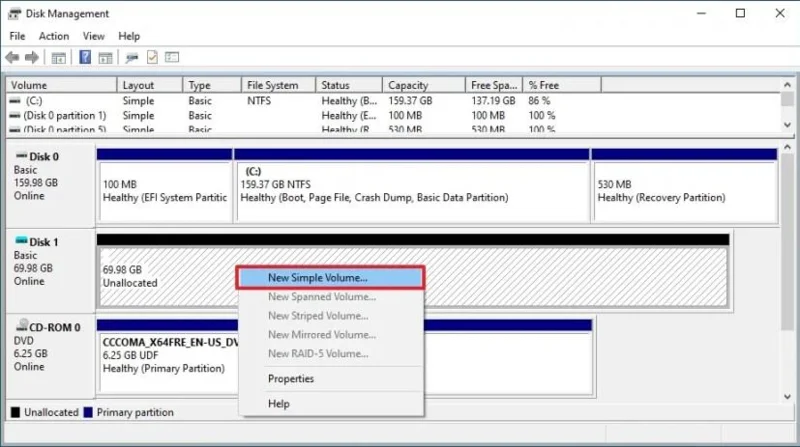
Click the Next button.
Click the Next button again.
Confirm the drive letter.
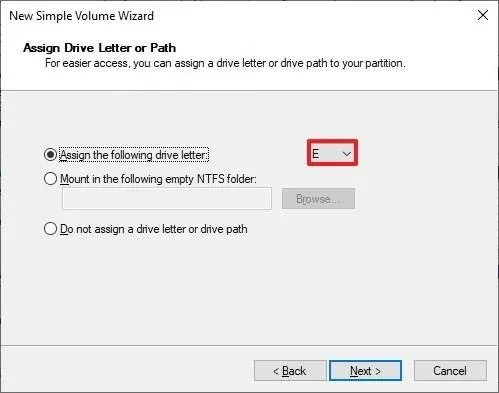
Click the Next button.
(Optional) Use the VHDX name for the “Volume label.”
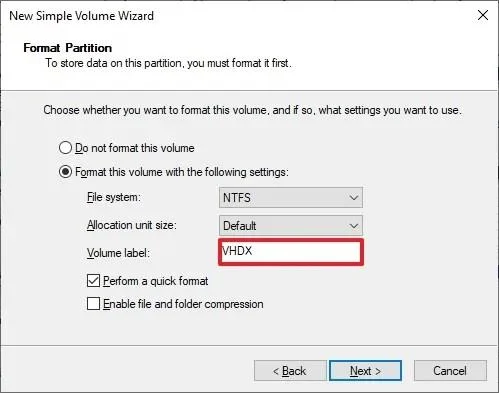
Click the Next button.
Click the Finish button.
After you complete the steps, you have to copy the installation files to the virtual drive using the Deployment Image Servicing and Management (DISM) command-line tool.
3. Install Windows 11 on virtual drive
To install Windows 11 on a dual-boot system with Windows 10 without USB, use these steps:
Open File Explorer.
Open the folder containing the Windows 11 ISO file.
Right-click the file and choose the Mount option.
Open Start.
Search for Command Prompt, right-click the top result, and select the Run as administrator option.
Type the following command to open the virtual drive and press Enter:
F:
In the command, change “F” for the letter of the virtual drive with the installation files.
Type the following command to open the Sources folder and press Enter:
cd Sources
Type the following command to apply the “install.wim” image to the VHDX and press Enter:
dism /apply-image /imagefile:install.wim /index:1 /ApplyDir:E:\
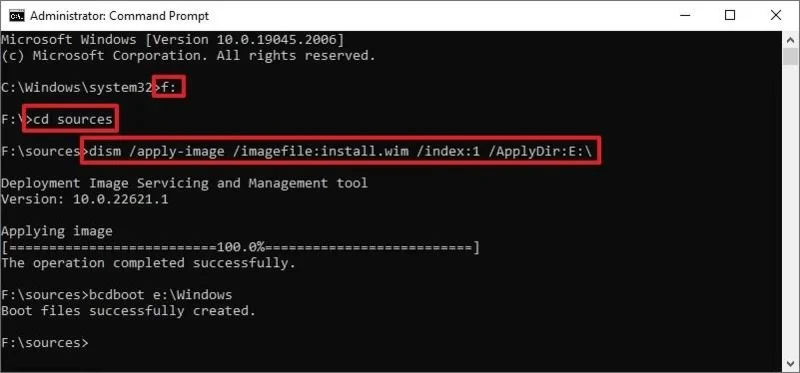
In the command, change “E” for the drive letter of your VHDX. Also, the “index:1” will install the Windows 11 Home image. Usually, if you want to install Windows 11 Pro, you will have to use the “index:6”. However, you can always query this information using the dism /Get-ImageInfo /ImageFile:F:\sources\install.wim command.
Type the following command to make the Windows 11 setup in the VHDX available to the bootloader and press Enter:
bcdboot E:\Windows
In the command, change “E” for the drive letter of your VHDX.
Restart the computer to continue with the Windows 11 setup to create the dual-boot system.
Choose the “Windows 11” option in the boot menu (if applicable).
Select your region setting and continue with the out-of-the-box experience (OOBE).
After you complete the steps, Windows 11 will be installed on the VHDX on the same partition as Windows 10.
(Optional) Remove an operating system
To delete the Windows 11 installation from the dual-boot system, use these steps:
Open File Explorer on Windows 10.
Open the location with the VHDX file that contains the Windows 11 installation.
Select the file and click the Delete button from the “Home” tab.
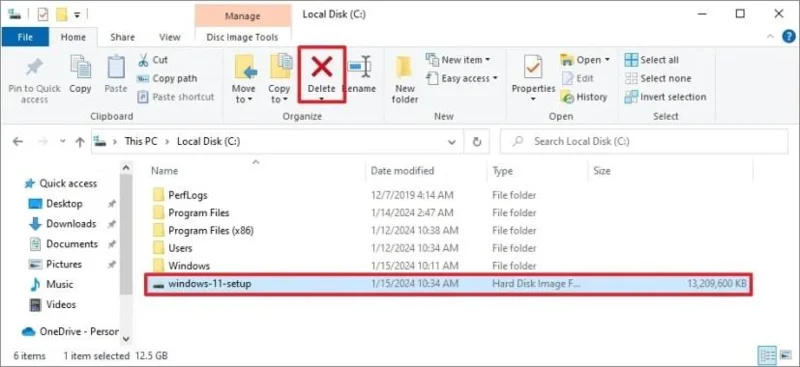
Confirm the deletion.
Open Start.
Search for Run and click the top result to open the app.
Type the following command and click the OK button: msconfig
Click the Boot tab.
Select the Windows 11 entry (or the installation installed in the virtual drive).
Click the Delete button.
Click the Apply button.
Click the OK button.
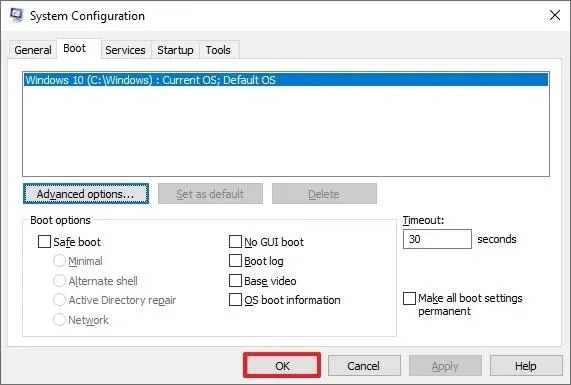
Click the Restart button.
Once you complete the steps, the computer will start with the original operating system installation.
Troubleshoot dual-boot problems
When setting up a dual-boot system, the bootloader (or boot manager) might not appear during startup. If this happens, you may need to enable the bootloader manually or disable the Fast Startup feature.
By default, the system assigns the most recently installed operating system as the default. However, you can reconfigure the bootloader to use a different operating system as the default, which will load automatically after the timeout period. You can also adjust the timeout duration to your preferred number of seconds.
If the boot menu continues to appear during startup after you’ve removed an operating system, you’ll need to manually reconfigure the bootloader to remove the unnecessary entry.
此外,BitLocker 加密可能會導致雙啟動設定出現問題。為避免出現問題,建議在進行設定之前停用 BitLocker 。
啟用引導程式
若要手動啟用雙啟動選單,請依下列步驟操作:
打開開始。
搜尋「命令提示字元」(或「PowerShell」),右鍵點選第一個搜尋結果,然後選擇「以管理員身分執行」選項。
在 Windows 11 上輸入以下命令以停用快速啟動,然後按Enter 鍵:
bcdedit /set {default} bootmenupolicy standard
完成這些步驟後,下次重新啟動電腦時,應該會出現啟動選單,讓您選擇作業系統。
停用快速啟動
若要停用快速啟動,請依照下列步驟操作:
打開開始。
搜尋「命令提示字元」(或「PowerShell」),右鍵點選第一個搜尋結果,然後選擇「以管理員身分執行」選項。
在 Windows 11 上輸入以下命令以停用快速啟動,然後按Enter 鍵:
powercfg /h 關閉
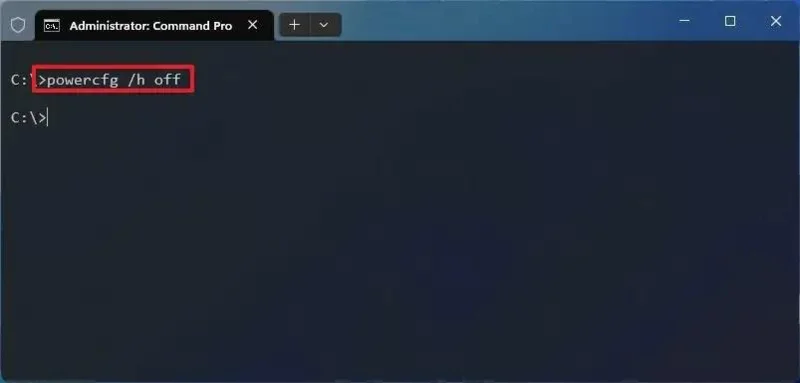
完成這些步驟後,系統將停用快速啟動,啟動過程中應該會出現引導程式。
您可以按照這些說明了解更多關於在 Windows 11 和 10 上管理快速啟動的資訊。
更改雙啟動順序
若要變更雙系統啟動順序,請依照下列步驟操作:
啟動電腦。
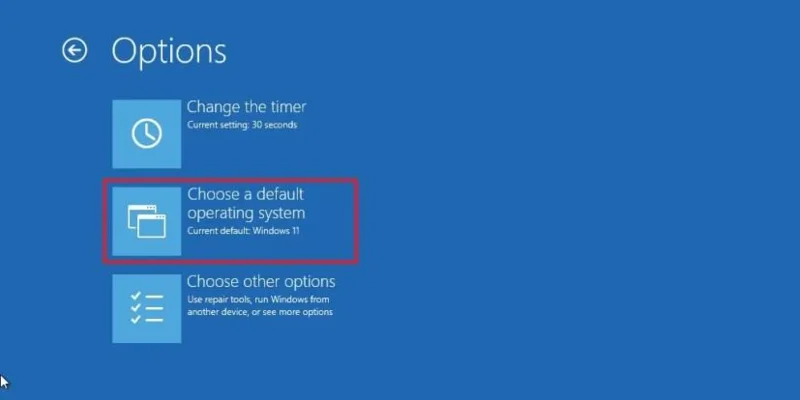
在啟動管理員中點選“更改預設設定或選擇其他選項” 。
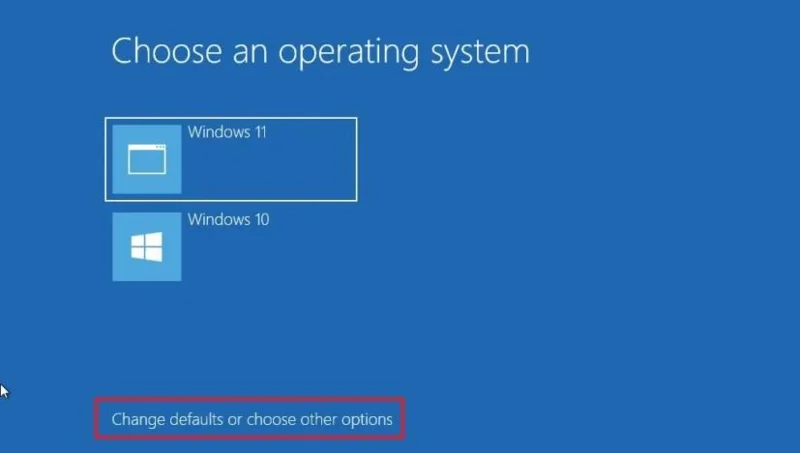
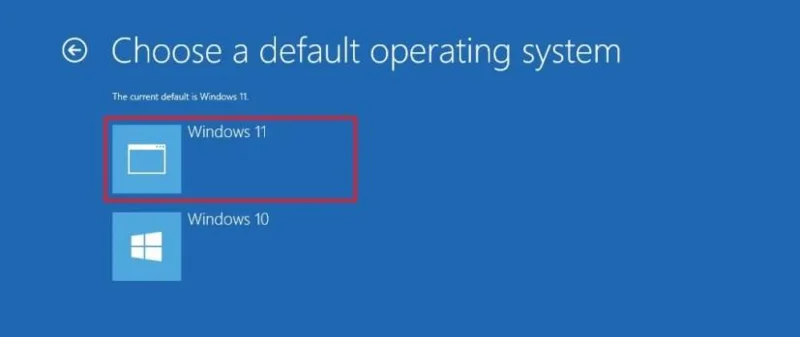
點選“選擇預設作業系統”選項。
選擇您希望預設啟動的安裝程式。
(選用)點選「變更計時器」選項,為啟動管理員設定不同的逾時時間。
點擊左上角的返回按鈕。
選擇系統以啟動電腦。
完成這些步驟後,新設定將套用於啟動管理員。
更改引導程式逾時
若要變更啟動管理員選單逾時時間,請依照下列步驟操作:
打開開始。
搜尋「執行」,然後點選第一個搜尋結果開啟該應用程式。
輸入以下命令並按一下「確定」按鈕:msconfig
點選“啟動”標籤。
在「逾時」設定中選擇啟動 Windows 預設實例之前的秒數。
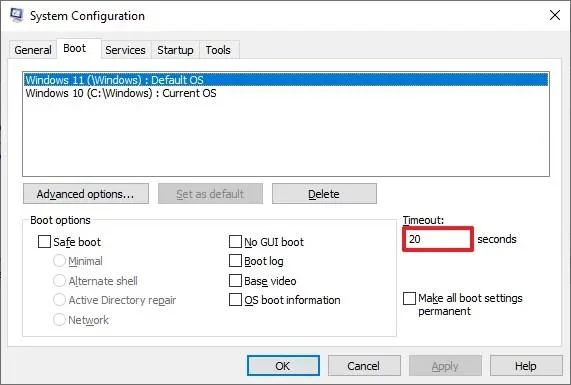
點擊“應用”按鈕。
點選“確定”按鈕。
點擊“重新啟動”按鈕。
完成這些步驟後,新的逾時時間將反映在啟動選單中。
您可以透過多種方式變更逾時設置,您可以按照這些說明了解更多資訊。
移除啟動選單項
若要從啟動功能表中刪除作業系統項目,請依下列步驟操作:
打開開始。
搜尋「執行」,然後點選第一個搜尋結果開啟該應用程式。
輸入以下命令並按一下「確定」按鈕:msconfig
點選“啟動”標籤。
選擇已不再提供的作業系統條目。
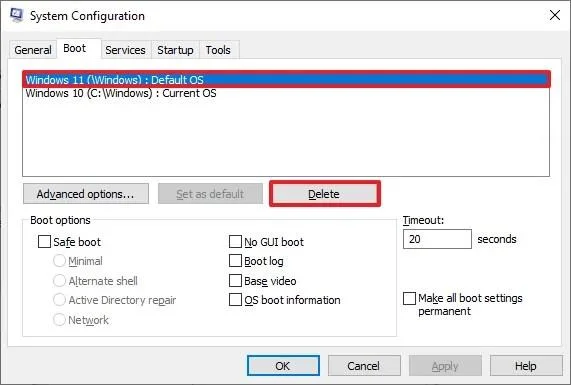
點擊刪除按鈕。
點擊“應用”按鈕。
點選“確定”按鈕。
點擊“重新啟動”按鈕。
完成這些步驟後,系統將刪除該條目,啟動管理器在啟動過程中應該不會再出現。
關於雙啟動 Windows 10 和 Windows 11 的常見問題解答
雙重啟動 Windows 10 和 11 可讓您在一台電腦上執行兩個作業系統,為各種任務提供更大的靈活性。以下是一些常見問題及解答,可引導您完成操作:
Windows 10 和 Windows 11 需要單獨的授權嗎?
是的,您電腦上安裝的每個作業系統都需要單獨的授權。為了遵守微軟的授權條款,您必須分別取得 Windows 10 和 Windows 11 的產品金鑰。
雙系統啟動會影響系統效能嗎?
雙系統啟動本身不會影響效能,因為一次只能運行一個作業系統。但是,對硬碟進行分割會減少每個系統可用的儲存空間,如果空間不足,則可能會間接影響效能。
在雙啟動系統中,我可以在 Windows 10 和 Windows 11 之間共用檔案嗎?
是的,您可以使用任一作業系統存取儲存在不同分割區上的檔案。為了確保無縫訪問,建議您建立一個單獨的資料分割區用於檔案共用。
雙系統啟動是否有風險?
雖然雙系統啟動通常是安全的,但潛在風險包括意外刪除或格式化分割區,這可能導致資料遺失。配置不當可能會導致啟動問題,使用戶無法存取任何一個作業系統。此外,某些應用程式可能無法在兩個作業系統上正常運作。
如果其中一個系統使用 BitLocker,我可以設定雙啟動嗎?
是的,但不建議這樣做。雖然可以在 Windows 10 和 11 雙系統上啟用 BitLocker,但需要特別注意,因為這兩個系統可能會爭用可信任平台模組 (TPM) 進行 BitLocker 管理。這種爭用可能會導致衝突,因為每個作業系統都可能嘗試使用 TPM 進行自身的 BitLocker 加密,從而引發問題。
如果您打算使用 Windows 11 和 10 設定雙啟動系統,最好在繼續操作之前停用 BitLocker。
在雙啟動設定中,我應該如何配置 BitLocker 以避免衝突?
為防止不同 Windows 安裝之間發生衝突,您可以將其中一個或兩個安裝配置為使用 BitLocker 而不依賴 TPM。這需要將 BitLocker 設定為在啟動時需要密碼或 USB 金鑰,而不是自動使用基於 TPM 的解鎖方式。這樣可以確保每個作業系統獨立管理其加密,從而降低相互幹擾的風險。
2026 年 1 月 2 日更新:本指南已更新,以確保準確性並反映流程的變更。
要建立 Windows 11 25H2 可啟動 USB 安裝程序,您可以使用 Rufus、Ventoy、命令提示字元和媒體建立工具,以下是具體操作方法。
KB5074157(版本 26220.7653)適用於 Windows 11,改進了深色模式,增加了 WebP 壁紙支持,並修復了任務欄、開始功能表、藍牙等問題。
KB5074109 是 Windows 11 的 2026 年 1 月更新,它導致了崩潰、啟動失敗、Outlook 問題和卸載錯誤,迫使用戶將其刪除。
要防止您的 ChatGPT 對話出現在 Google 搜尋中,請檢查並刪除公開共享的 ChatGPT 鏈接,方法如下。
您可以透過 Microsoft Store 或 PowerShell 安裝適用於 Android 的 Windows 子系統 (WSA),從而在 Windows 11 上執行 Android 應用程式。方法如下。
OpenAI 預設會收集您的 ChatGPT 對話內容用於 AI 訓練,以下是如何停用此功能以更好地保護隱私的方法。
Windows 11 版本 27913(Canary)帶來了重新設計的設定介面,恢復了 Vista 啟動聲音,修復了黑屏桌布問題等等。
Windows 11 版本 26120.4733 (KB5062651) 在 Beta 頻道中引入了新的 AI 圖像描述、應用程式權限重新設計以及管理員保護功能。
Windows 11 25H2 版本 26200.5702 (KB5062653) 帶來了 AI 映像描述、新的管理員安全功能、重新設計的權限對話方塊等。
現在您可以使用 winget 命令在 Windows 10 上安裝應用程序,以下是使用 Windows 軟體套件管理器執行此操作的步驟。