如何建立可啟動的 Windows 11 25H2 USB 安裝介質
要建立 Windows 11 25H2 可啟動 USB 安裝程序,您可以使用 Rufus、Ventoy、命令提示字元和媒體建立工具,以下是具體操作方法。
如果您的 Windows 11 運作緩慢、不穩定,或者您只是想重新開始,那麼執行全新安裝是重置所有資料的最可靠方法。這也是在新裝置上設定空硬碟的唯一方法。在本指南中,我將逐步引導您完成 Windows 11 的全新安裝,包括使用 U 碟、ISO 檔案、「重設此電腦」和雲端下載,同時保留您的啟動資訊。
在 Windows 11 中,全新安裝 意味著擦除硬碟並安裝一個全新的作業系統副本,無論是25H2 版本、24H2 版本還是即將推出的26H2 版本。此過程會刪除所有內容,包括自訂設定、驅動程式、應用程式和個人文件,讓您的筆記型電腦或桌上型電腦煥然一新。
在相容的硬體上,全新安裝通常是升級到最新作業系統版本的最佳方式。它有助於避免安裝錯誤並修復現有的系統問題。如果您的電腦長期運行相同的系統,這種安裝方式可以解決效能下降、啟動和關機問題、記憶體問題以及應用程式崩潰等問題。從舊版(例如 Windows 10、8.1 或 7)升級時,全新安裝也是首選方法。此外,此過程還可讓您 刪除製造商預設設定中可能預先安裝的無用軟體。
相較之下,此過程並不能完全精簡作業系統,因為它不會刪除 Microsoft Edge、Microsoft Store 和其他內建應用程式。如果您想精簡作業系統,則需要手動進行自訂設定。
我會遺失你的文件嗎?
是的,由於全新安裝會清除所有內容,除非您事先備份,否則您將丟失所有個人檔案、應用程式和設定。為避免遺失重要資料:
Windows 11 會保持啟動狀態嗎?
是的。如果您的 Windows 10 電腦之前已啟動,Windows 11 安裝後會自動重新激活,無需輸入產品金鑰。
執行全新安裝的方法
微軟支援多種安裝Windows 11的方法:
在本指南中,我將介紹在您的電腦上安裝 Windows 11 25H2 和 24H2 版本的每一個步驟。
重要提示:此過程將刪除裝置上的所有內容。建議您在繼續操作前對電腦進行完整備份。特此警告。如果在安裝過程中遇到問題,請嘗試下列故障排除步驟。
使用USB磁碟是全新安裝Windows 11最簡單、最可靠的方法。您可以使用媒體建立工具、命令提示字元、Rufus或其他第三方工具建立可啟動的磁碟機。
如果您選擇此方法,您還需要確保您的電腦可以 從 USB 隨身碟啟動。這需要更改UEFI(也稱為 BIOS)設定。由於每台電腦的設定都不同,請造訪製造商的支援網站,以了解存取和調整這些設定的具體步驟。
從Windows 11 24H2版本開始,微軟更新了Windows 安裝程序,採用了全新的設計。雖然大部分流程保持不變,但某些步驟會根據您安裝的版本而有所不同。不過,這僅適用於從 USB 啟動進行安裝程式的情況。
我強烈推薦這種安裝方法。雖然設定起來稍微費時一些,但它有助於最大限度地減少潛在問題,並確保系統在安裝後流暢運作。
若要從USB隨身碟全新安裝Windows 11,請依照下列步驟操作:
使用Windows 11 25H2 USB 隨身碟啟動電腦。
按任意鍵繼續。
選擇安裝語言和格式。
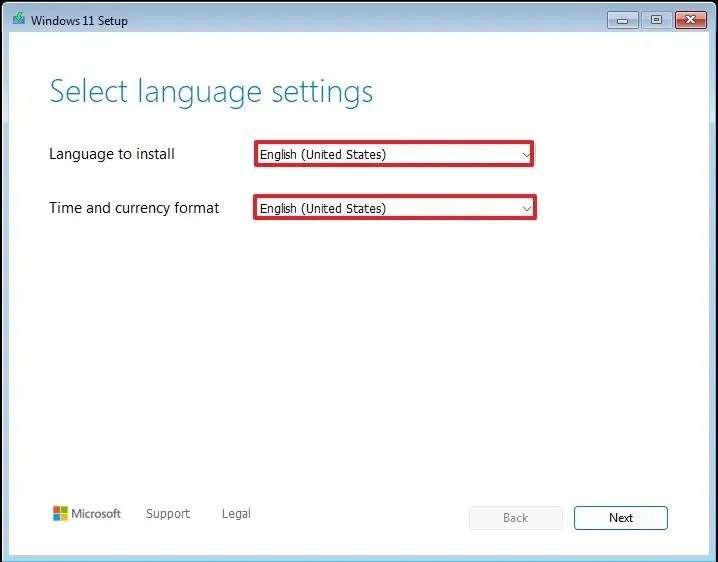
點擊“下一步” 按鈕。
選擇鍵盤和輸入法。
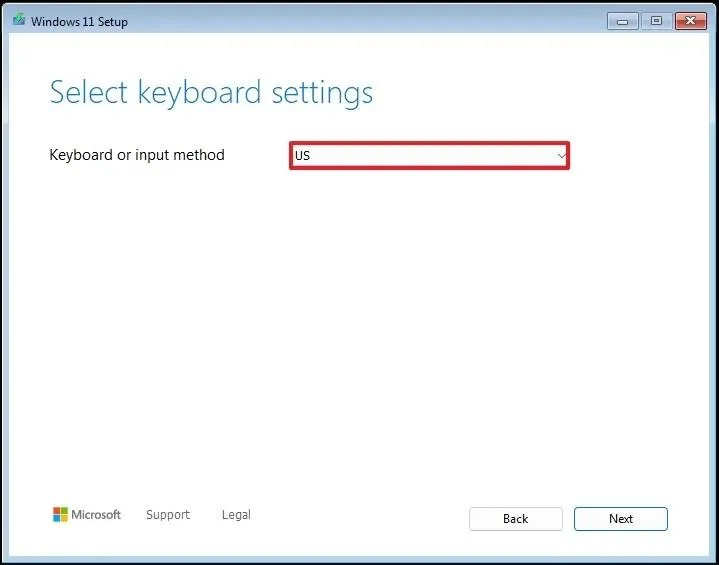
點擊“下一步”按鈕。
選擇“安裝 Windows 11”選項。
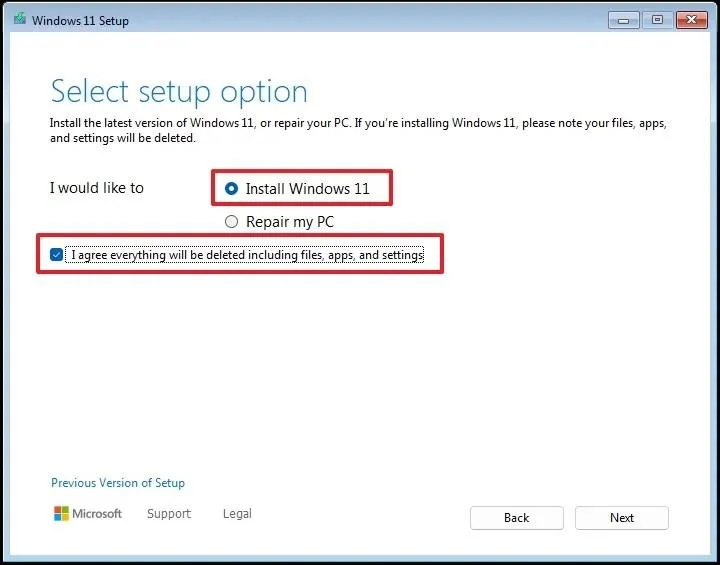
選取 「我同意刪除所有內容,包括檔案、應用程式和設定」選項,以確認此過程將刪除電腦上的所有內容。
點擊“下一步”按鈕。
點擊“我沒有產品金鑰”選項。
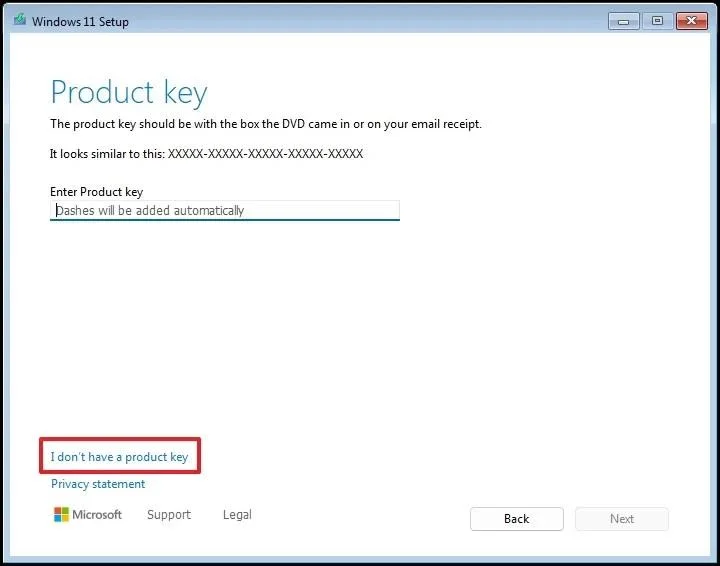
簡要說明:重新安裝系統後,電腦將自動啟動。如果是新計算機,則需要提供產品金鑰。您也可以稍後在「設定」應用程式中輸入產品金鑰進行啟動。
選擇您的許可證金鑰可啟動的「Windows 11」版本(如果適用)。
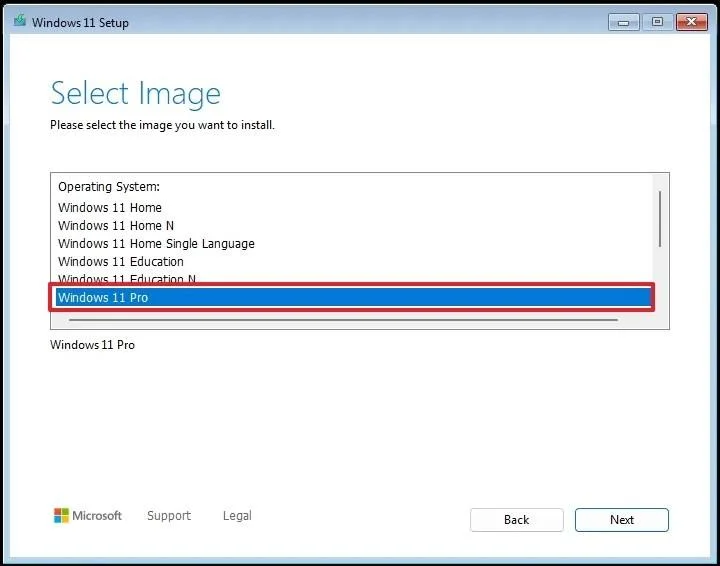
點擊“下一步”按鈕。
點擊“接受”按鈕
選擇硬碟上要安裝 Windows 11 的每個分割區,然後按一下「刪除」按鈕。 (通常,「磁碟機 0」是包含所有安裝檔案的磁碟機。)
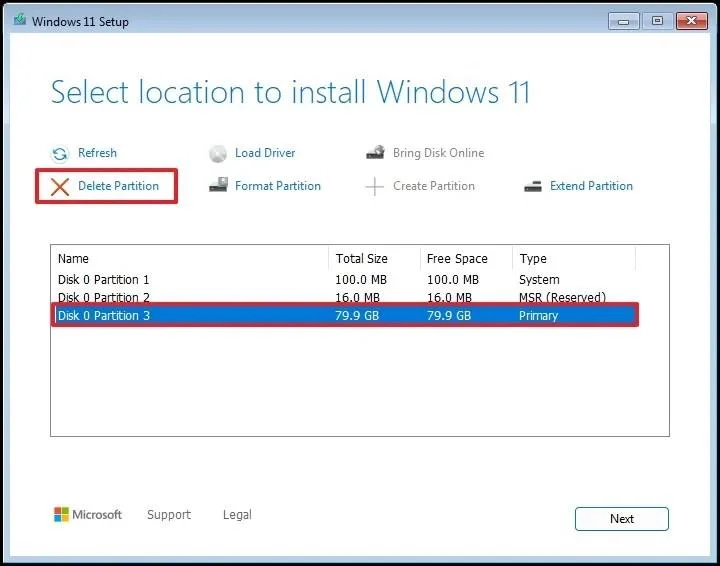
選擇硬碟(磁碟機 0 未分配空間)安裝作業系統。
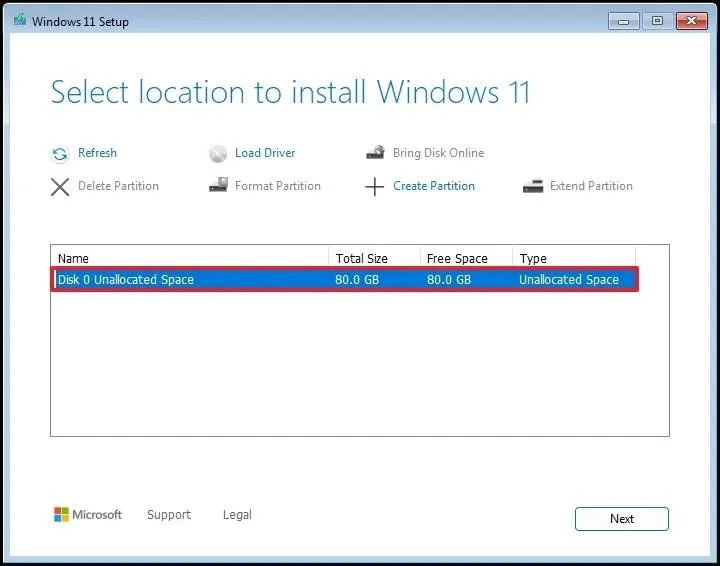
點擊“下一步”按鈕。
點擊“安裝”按鈕。
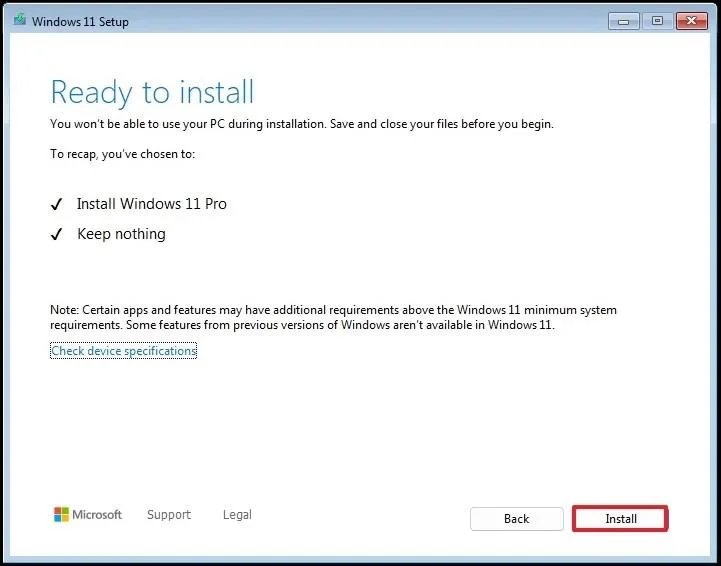
安裝完成後,在初始體驗 (OOBE)的第一頁上選擇您的區域設定。
簡要說明:微軟一直在不斷改進和測試完成初始設定的新方法。因此,以下某些步驟的順序可能會有所不同,並且您可能會看到其他畫面。
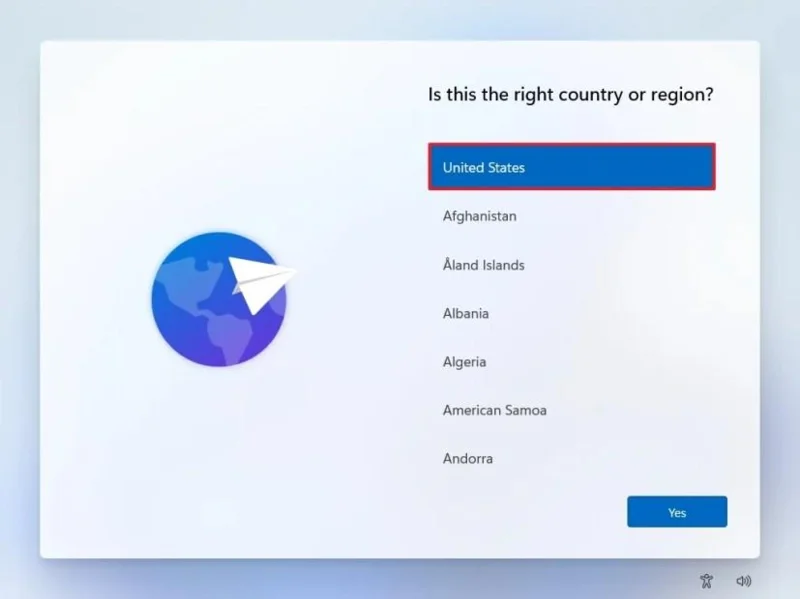
點擊“是”按鈕。
選擇您的鍵盤佈局設定。
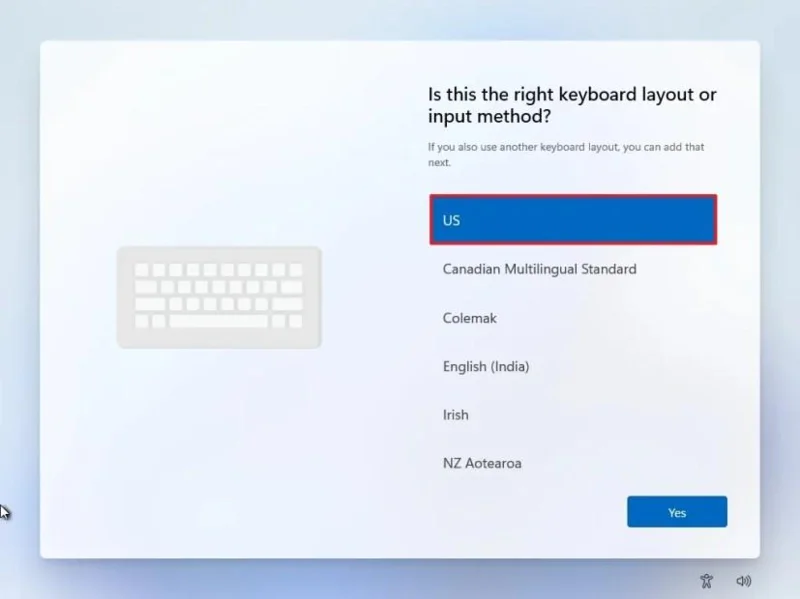
點擊“是”按鈕。
如果您不需要配置第二個佈局,請點選「跳過」按鈕。
電腦將自動使用乙太網路連線連接到網路。如果使用無線連接,則必須手動設定連接(可能需要安全金鑰)。
(可選)確認電腦名稱。
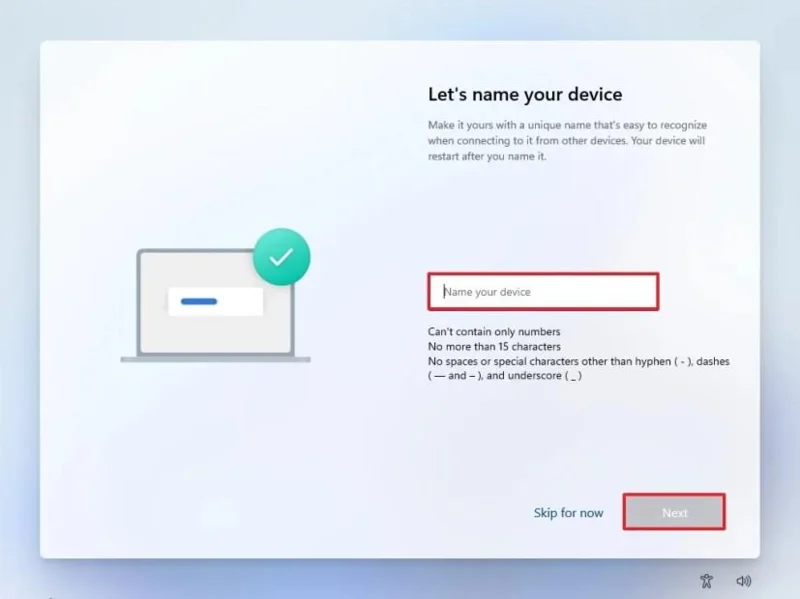
簡要說明:此步驟為選用步驟,但強烈建議您設定裝置名稱,以便在網路、Microsoft 帳戶以及從備份還原電腦時更輕鬆地識別裝置。此外,完成此步驟後,安裝程式將重新啟動以套用新名稱,但會從您上次中斷的地方繼續設定。
點擊“下一步”按鈕。 (設備將自動重新啟動。)
對於 Windows 11 專業版,請選擇「設定為個人使用」選項。此選項不適用於「家庭版」。
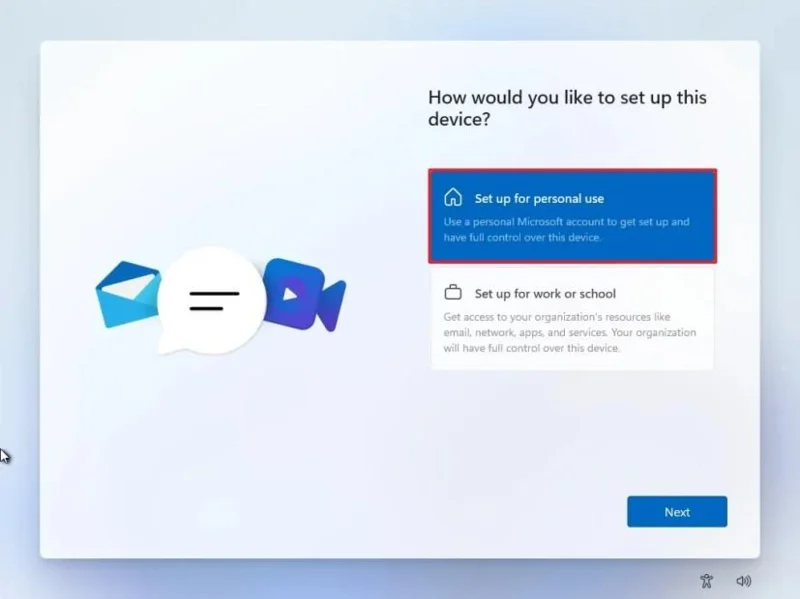
小提示:使用「設定工作或學校帳戶」選項可以跳過 Microsoft 帳戶並建立本機帳戶。
點擊“下一步”按鈕。
點擊“登入”按鈕。
請確認您的微軟帳戶信箱以建立 Windows 11 帳戶。
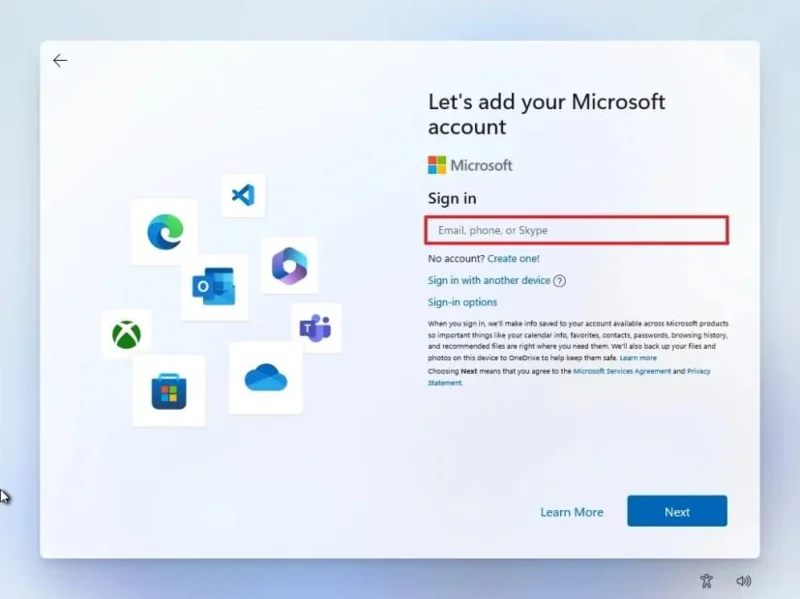
點擊“下一步”按鈕。
請確認您的微軟帳戶密碼。
點擊“下一步”按鈕。
點選「建立PIN碼」按鈕。
建立一個新的四位數 Windows Hello PIN 碼。
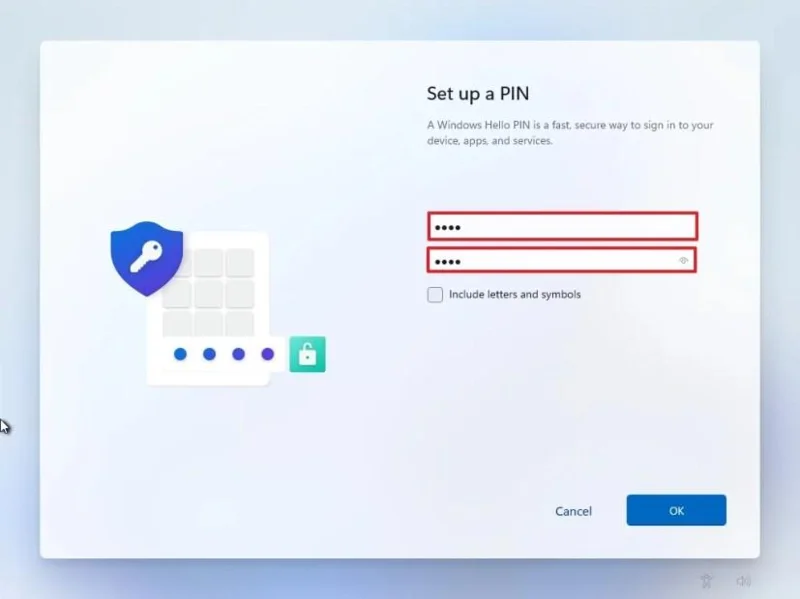
點選“確定”按鈕。
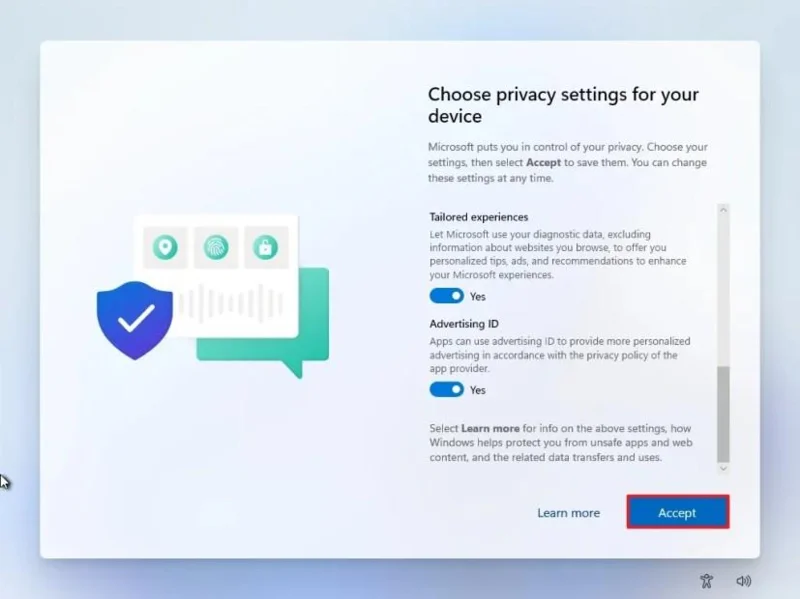
打開或關閉每個隱私設定的撥動開關,以確認最適合您情況的設定。
點擊“下一步”按鈕。
再次點選“下一步”按鈕。
點擊 “接受”按鈕。
點選“更多選項”設定。
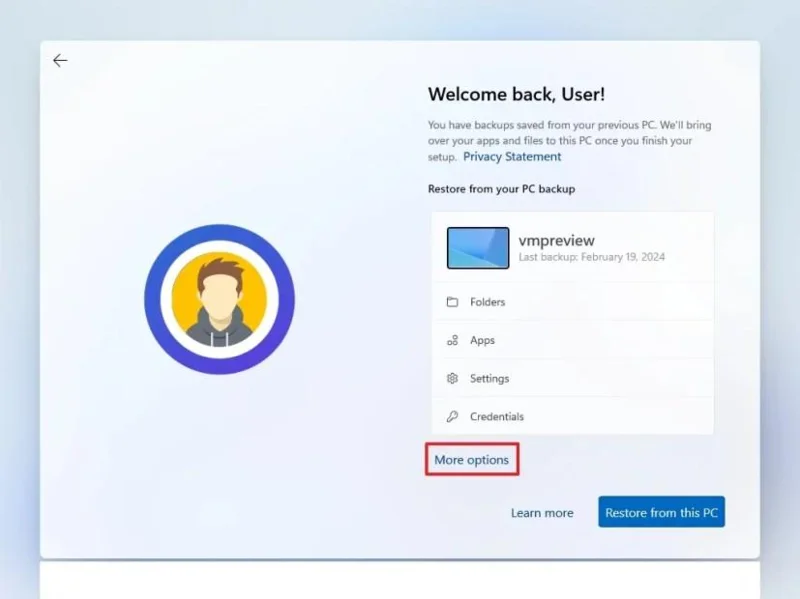
小提示:您也可以點選「從此電腦還原」按鈕,從 OneDrive 帳戶中的系統備份還原檔案、套用、設定和憑證。您可以在此指南中了解有關 Windows 備份應用程式的更多資訊。
點選“設定為新電腦”選項。
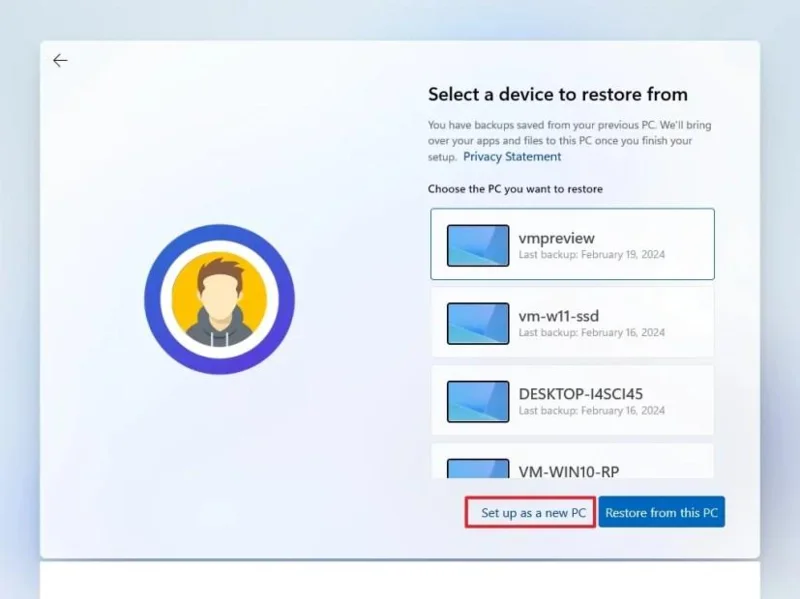
再次點選「設定為新電腦」選項。
(可選)在「讓我們自訂您的體驗」頁面上,選擇一種或多種您計劃使用裝置的方式,以便作業系統在此體驗期間建議工具和服務自訂。
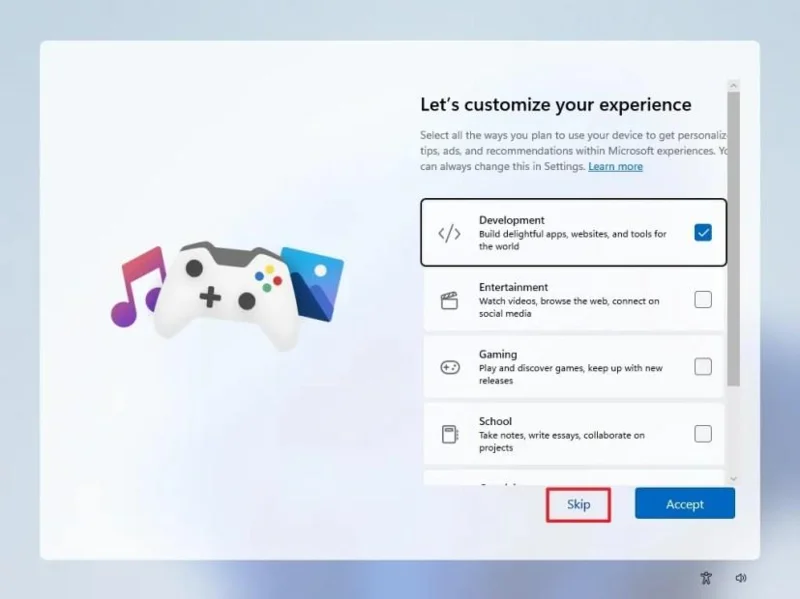
點擊“接受”按鈕繼續。或點選「跳過」按鈕跳過此設定步驟。
(可選)使用此代碼關聯您的安卓手機,或點擊「跳過」選項。
(可選)使用此代碼在您的手機上下載 OneDrive 應用,或點擊「跳過」選項。
如果您將使用 Microsoft Edge 以外的瀏覽器,請點選「暫不」按鈕。
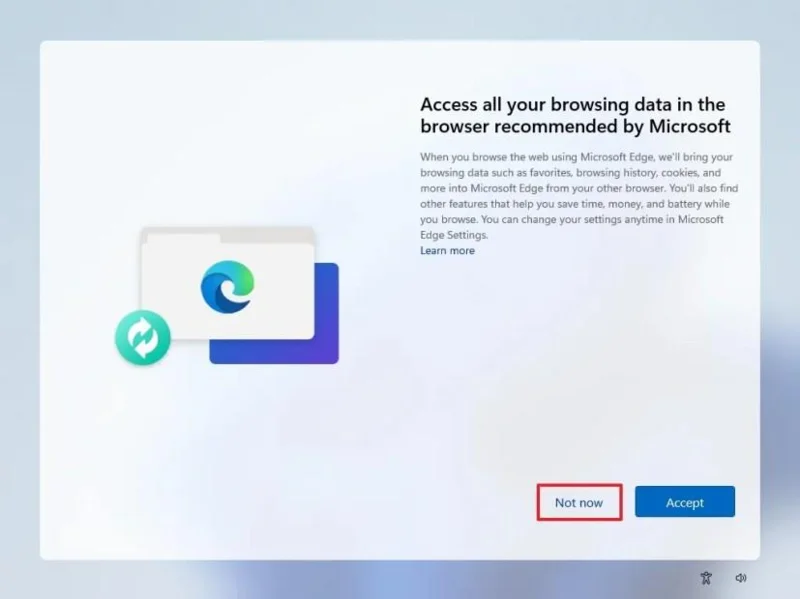
完成這些步驟後,Windows 11 25H2 將完成在電腦上的全新安裝。
或者,您可以將 ISO 檔案掛載到檔案總管中,以便在已安裝作業系統的裝置上啟動全新安裝或就地升級。
若要使用 ISO 檔案全新安裝 Windows 11,請依照下列步驟操作:
在「下載 Windows 11 磁碟映像 (ISO)」部分下選擇Windows 11選項。
點擊下載按鈕。
選擇安裝語言。
點擊“確認”按鈕。
點選下載按鈕,將 Windows 11 ISO 檔案儲存到裝置上。
右鍵單擊 ISO 文件,然後選擇“掛載”選項。
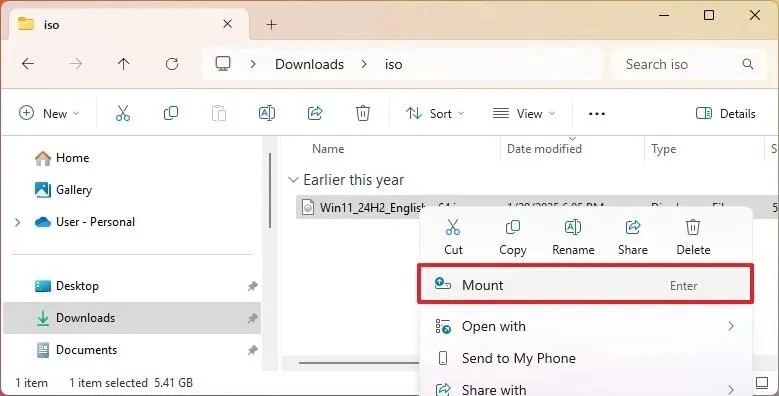
小提示:如果該選項不可用,請選擇「開啟方式」選單,然後選擇「Windows 資源管理器」選項。
從左側導覽窗格中選擇虛擬磁碟機。
雙擊Setup.exe檔開始安裝 Windows 11。
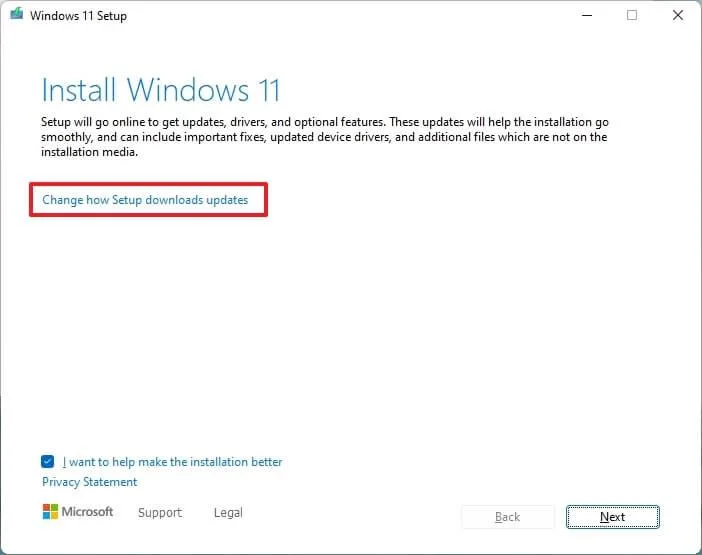
(可選)按一下「更改 Windows 安裝程式下載更新的方式」選項。
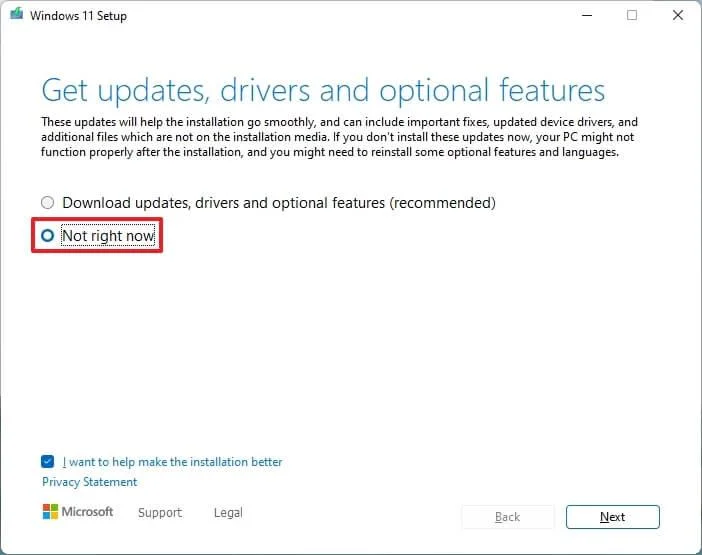
選擇“暫不”選項。
點擊“下一步”按鈕。
點擊「接受」按鈕即表示您同意這些條款。
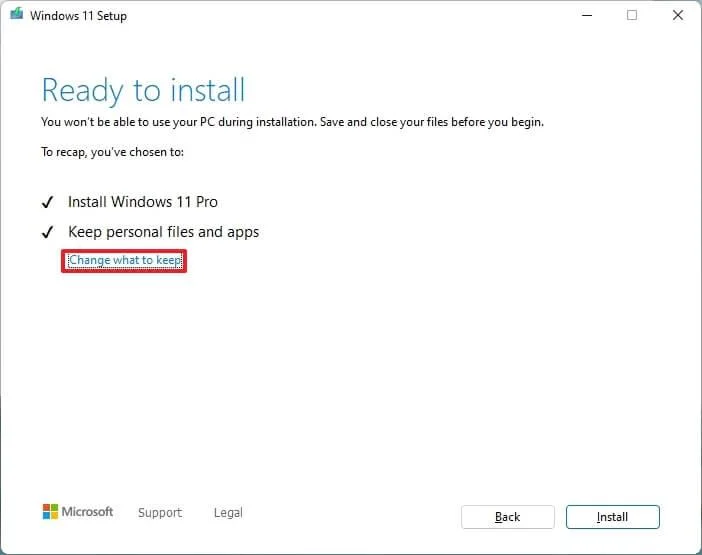
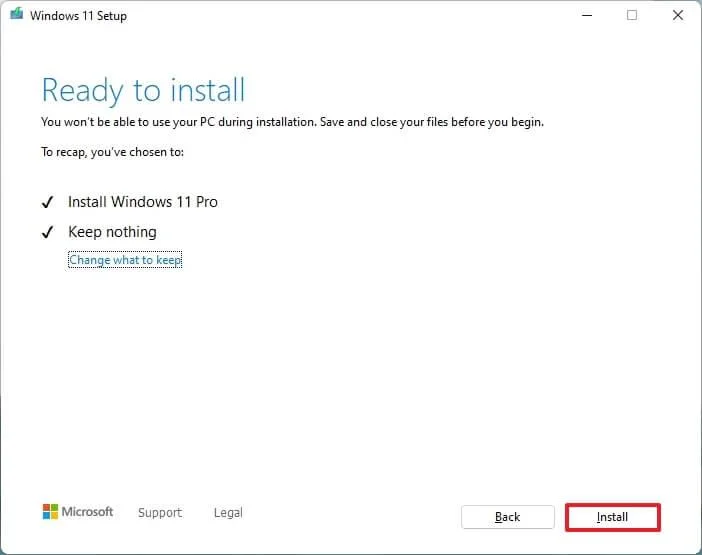
點擊“更改要保留的內容”選項。
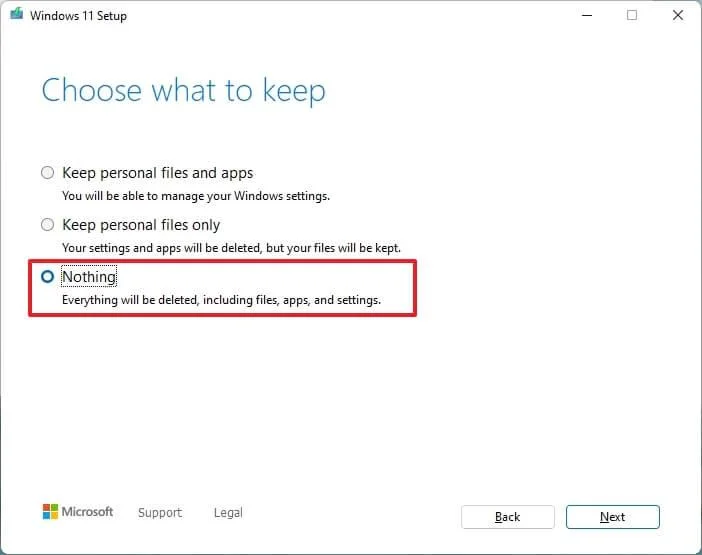
選擇“無”選項。
點擊“下一步”按鈕。
點擊“安裝”按鈕。
點擊“下一步”按鈕。
安裝完成後,在初始體驗 (OOBE)的第一頁上選擇您的區域設定。
點擊“是”按鈕。
選擇您的鍵盤佈局設定。
點擊“是”按鈕。
如果您不需要配置第二個佈局,請點選「跳過」按鈕。
電腦將自動使用乙太網路連線連接到網路。如果使用無線連接,則必須手動設定連接(可能需要安全金鑰)。
(可選)確認電腦名稱。
簡要說明:此步驟為選用步驟,但強烈建議您設定裝置名稱,以便在網路、Microsoft 帳戶以及從備份還原電腦時更輕鬆地識別裝置。此外,完成此步驟後,安裝程式將重新啟動以套用新名稱,並從您上次中斷的地方繼續設定。
點擊“下一步”按鈕。 (設備將自動重新啟動。)
對於 Windows 11 專業版,請選擇「設定為個人使用」選項。此選項不適用於「家庭版」。
小提示:使用「設定工作或學校帳戶」選項可以跳過 Microsoft 帳戶並建立本機帳戶。
點擊“下一步”按鈕。
點擊“登入”按鈕。
請確認您的微軟帳戶信箱以建立 Windows 11 帳戶。
點擊“下一步”按鈕。
請確認您的微軟帳戶密碼。
點擊“下一步”按鈕。
點選「建立PIN碼」按鈕。
建立一個新的四位數 Windows Hello PIN 碼。
點選“確定”按鈕。
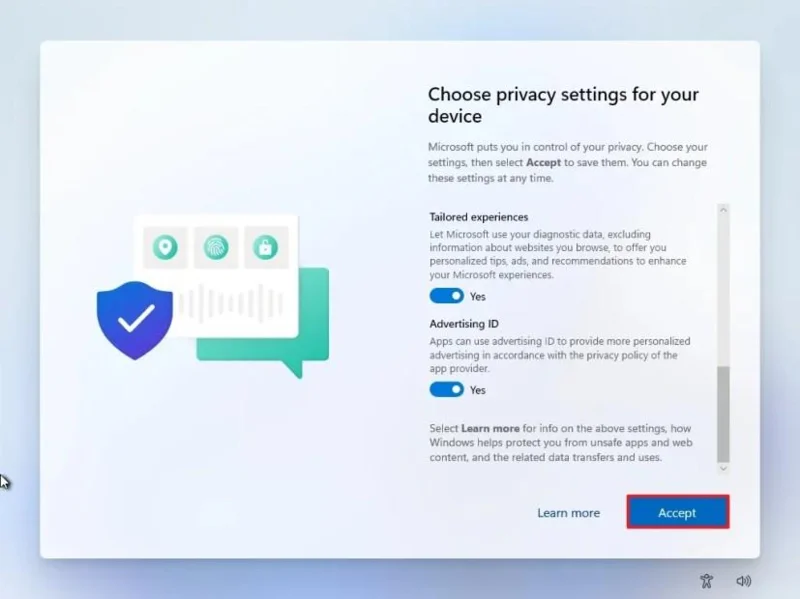
打開或關閉每個隱私設定的撥動開關,以確認最適合您情況的設定。
點擊“下一步”按鈕。
再次點選“下一步”按鈕。
點擊 “接受”按鈕。
點選“更多選項”設定。
小提示:您也可以點選「從此電腦還原」按鈕,從 OneDrive 帳戶中的系統備份還原檔案、套用、設定和憑證。您可以在此指南中了解有關 Windows 備份應用程式的更多資訊。
點選“設定為新電腦”選項。
再次點選「設定為新電腦」選項。
(可選)在「讓我們自訂您的體驗」頁面上,選擇一種或多種您計劃使用裝置的方式,以便作業系統在此體驗期間建議工具和服務自訂。
點擊“接受”按鈕繼續。或點選「跳過」按鈕跳過此設定步驟。
(可選)使用此代碼關聯您的安卓手機,或點擊「跳過」 選項。
(可選)使用該代碼在手機上下載 OneDrive 應用,或點擊「跳過」選項。
如果您將使用 Microsoft Edge 以外的瀏覽器,請點選「暫不」按鈕。
完成這些步驟後,將開始全新安裝過程,類似於使用媒體建立工具或 USB 隨身碟升級系統。
復原設定提供了一種重新安裝全新 Windows 11 的替代方法。與使用媒體建立工具、可啟動 USB 或 ISO 檔案不同,此方法僅適用於已執行 Windows 11 的電腦。
如果您是從 Windows 10、8.1 或 7 升級,則需要使用 USB 安裝程式或 ISO 檔案。這些版本不支援恢復選項。
若要使用本機映像透過「重設此電腦」功能全新安裝 Windows 11,請依照下列步驟操作:
打開設定。
點選系統。
點選右側的「恢復」 。
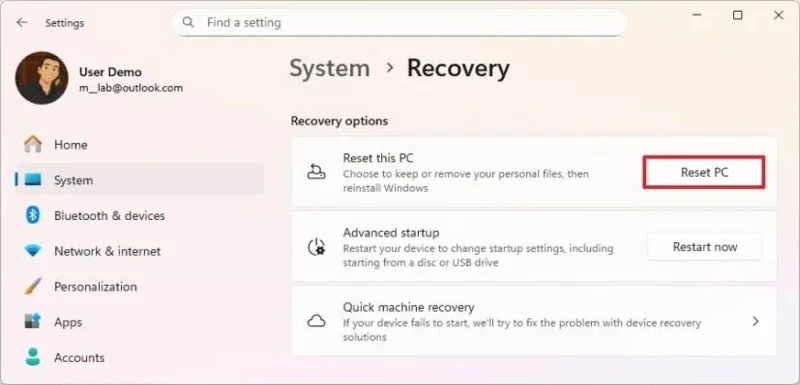
Click the Reset PC button in the “Reset this PC” setting under the “Recovery options” section.
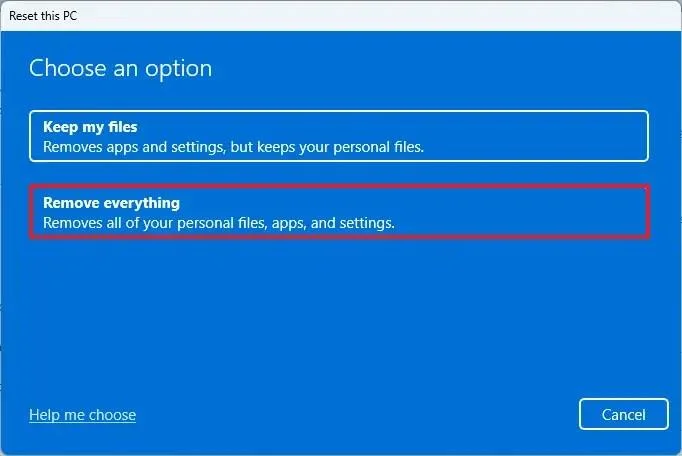
Click the Remove everything option to perform a fresh install of Windows 11.
Click the Local reinstall option.
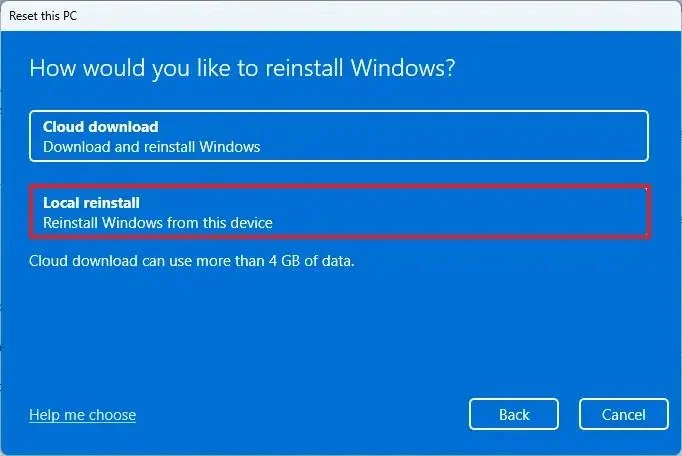
(Optional) Click the Change settings option.
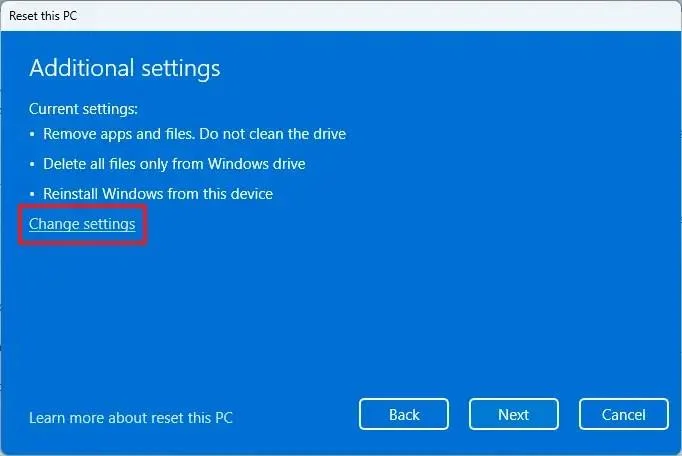
Configure the reinstallation options:
Clean data: If set to No (recommended), the setup will quickly delete files, apps, and settings without securely wiping the drive. If set to Yes, Windows will thoroughly erase the drive before reinstalling the operating system, which takes longer but ensures that all data is completely removed.
Delete files from all drives: If set to No (recommended), only the installation drive (usually the C: drive) will be erased. If set to Yes, all drives on the device will be wiped, so be sure to back up any important data before choosing this option.
Download Windows: If set to No (recommended), Windows will use the local installation files already on your device. If set to Yes, the setup will download the latest version of Windows 11 from the cloud, ensuring you get the most up-to-date installation.
Click the Confirm button.
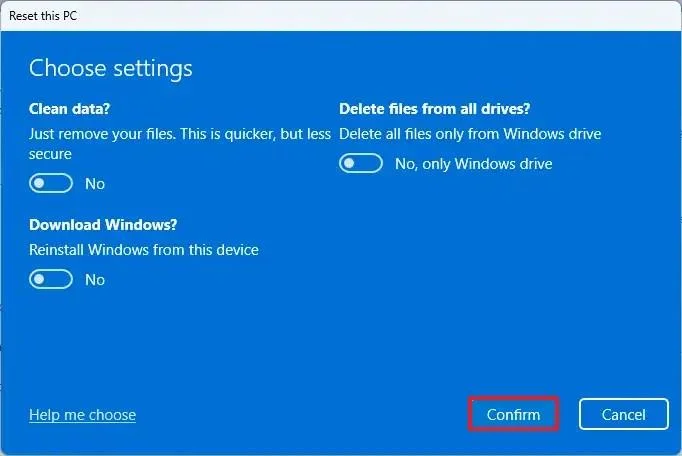
Click the Next button.
Click the Reset button.
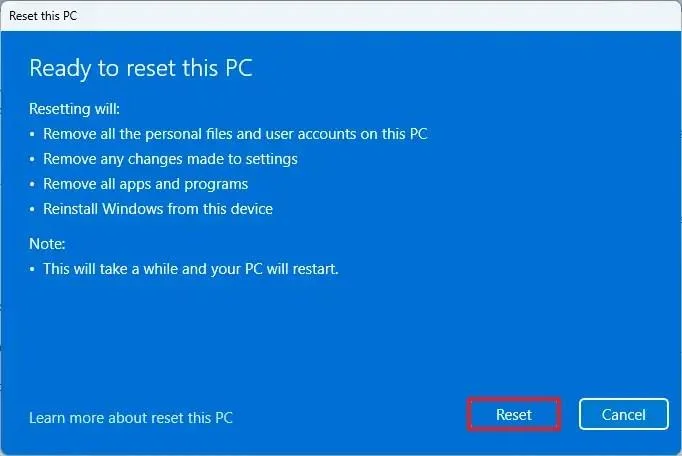
Click the Next button.
Choose your region setting on the first page of the out-of-the-box experience (OOBE) after the installation.
Click the Yes button.
Select your keyboard layout setting.
Click the Yes button.
Click the Skip button if you do not need to configure a second layout.
The computer will automatically connect to the network using an Ethernet connection. You must set up the connection manually on a wireless connection (a security key may be required).
(Optional) Confirm a name for the computer.
Quick note: This is an optional step, but it’s highly recommended to set a name to make it easier to identify the device in the network, on your Microsoft account, and when restoring your computer from backup. Additionally, after completing this step, the setup will restart to apply the new name, and it’ll resume where you left off to continue with the settings.
Click the Next button. (The device will restart automatically.)
Select the “Set up for personal use” option for Windows 11 Pro. This option is not available for the “Home” edition.
Quick tip: Use the “Set up for work or school” option to skip the Microsoft account and create a local account.
Click the Next button.
Click the Sign in button.
Confirm your Microsoft account email to create a Windows 11 account.
Click the Next button.
Confirm your Microsoft account password.
Click the Next button.
Click the Create PIN button.
Create a new four-digit Windows Hello PIN.
Click the OK button.
Turn on or off the toggle switch for each privacy setting to confirm the one that best suits your situation.
Click the Next button.
Click the Next button again.
Click the Accept button.
Click the More options setting.
Quick tip: You can also click the “Restore from this PC” button to restore your files, apps, settings, and credentials from the system backup available in your OneDrive account. You can learn more about the Windows Backup app in this guide.
Click the “Set up as a new PC” option.
Click the “Set up as a new PC” option again.
(Optional) On the “Let’s customize your experience” page, select one or more ways you plan to use the device to allow the operating system to suggest tools and service customization during this experience.
Click the Accept button to continue. Or click the Skip button to skip this part of the setup.
(Optional) Use the code to link your Android phone, or click the “Skip” option.
(Optional) Use the code to download the OneDrive app on your phone or click the Skip option.
Click the “Not now” button if you will be using a browser other than Microsoft Edge.
Once you complete the steps, the recovery feature will automatically start and reinstall Windows 11 from a local copy of the setup image stored on your computer.
If you have a computer from a major brand such as HP, Dell, or Acer, this process will restore it to factory settings. That means it will reinstall all the software, drivers, and tools that came with it when you first bought it.
However, if you don’t want to restore the factory setup and prefer a clean Windows 11 install, you have another option. Instead of using the local image, select the “Cloud Download” option. I’ll show you how to do that in the steps below.
The Reset this PC feature includes the “Cloud Download” option, which lets you reinstall Windows 11 with a clean installation, removing apps, files, and settings, just like the local reinstall option. The key difference is that this option downloads fresh installation files directly from Microsoft’s servers, rather than using existing files.
This option is useful when the local installation files are corrupted or if you want a cleaner setup without the manufacturer’s preinstalled software and settings. However, keep in mind that:
To perform a clean installation of Windows 11 with the “Cloud Download” option, use these steps:
Open Settings.
Click on System.
Click on Recovery on the right side.
Click the Reset PC button in the “Reset this PC” setting under the “Recovery options” section.
Click the Remove everything option to perform a fresh install of Windows 11.
Click the Cloud reinstall option.
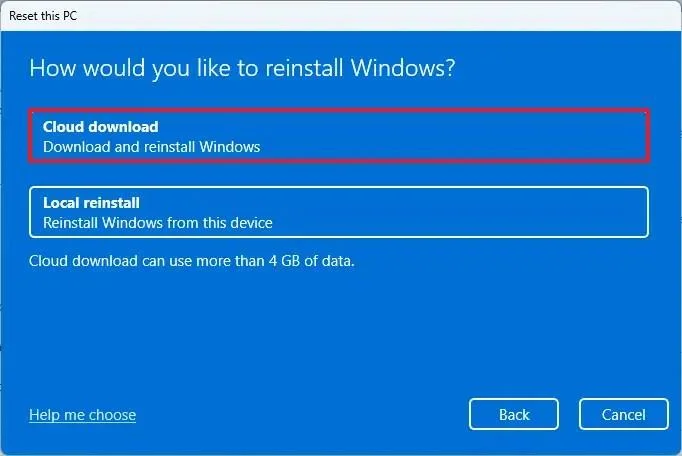
(Optional) Click the Change settings option.
Configure the reinstallation options:
Clean data: If set to No (recommended), the setup will quickly delete files, apps, and settings without securely wiping the drive. If set to Yes, Windows will thoroughly erase the drive before reinstalling the operating system, which takes longer but ensures that all data is completely removed.
Delete files from all drives: If set to No (recommended), only the installation drive (usually the C: drive) will be erased. If set to Yes, all drives on the device will be wiped, so be sure to back up any important data before choosing this option.
Download Windows: If set to No (recommended), Windows will use the local installation files already on your device. If set to Yes, the setup will download the latest version of Windows 11 from the cloud, ensuring you get the most up-to-date installation.
Click the Confirm button.
Click the Next button.
Click the Reset button.
Click the Next button.
Choose your region setting on the first page of the out-of-the-box experience (OOBE) after the installation.
Click the Yes button.
Select your keyboard layout setting.
Click the Yes button.
Click the Skip button if you do not need to configure a second layout.
The computer will automatically connect to the network using an Ethernet connection. You must set up the connection manually on a wireless connection (a security key may be required).
(Optional) Confirm a name for the computer.
Quick note: This is an optional step, but it’s highly recommended to set a name to make it easier to identify the device in the network, on your Microsoft account, and when restoring your computer from backup. Also, after completing this step, the setup will restart to apply the new name, but it’ll start where you left off to continue with the settings.
Click the Next button. (The device will restart automatically.)
Select the “Set up for personal use” option for Windows 11 Pro. This option is not available for the “Home” edition.
Quick tip: Use the “Set up for work or school” option to skip the Microsoft account and create a local account.
Click the Next button.
Click the Sign in button.
Confirm your Microsoft account email to create a Windows 11 account.
Click the Next button.
Confirm your Microsoft account password.
Click the Next button.
Click the Create PIN button.
Create a new four-digit Windows Hello PIN.
Click the OK button.
Turn the toggle switch for each privacy setting to confirm the option that best suits your situation.
Click the Next button.
Click the Next button again.
Click the Accept button.
Click the More options setting.
Quick tip: You can also click the “Restore from this PC” button to restore your files, apps, settings, and credentials from the system backup available in your OneDrive account. You can learn more about the Windows Backup app in this guide.
Click the “Set up as a new PC” option.
Click the “Set up as a new PC” option again.
(Optional) On the “Let’s customize your experience” page, select one or more ways you plan to use the device to allow the operating system to suggest tools and service customization during this experience.
Click the Accept button to continue. Or click the Skip button to skip this part of the setup.
(Optional) Use the code to link your Android phone, or click the “Skip” option.
(Optional) Use the code to download the OneDrive app on your phone or click the “Skip” option.
Click the “Not now” button if you will be using a browser other than Microsoft Edge.
After you complete the steps, the feature will reset the computer by erasing and reinstalling a fresh copy of Windows 11 downloaded from the cloud.
If your computer doesn’t boot, you can use the Windows Recovery Environment (WinRE) to access the same Reset this PC option. This allows you to reinstall Windows 11 even when the system won’t start normally.
However, WinRE can only reinstall the same version of Windows on your device. To upgrade to the latest version, you’ll need to use a USB flash drive, the Media Creation Tool, or an ISO file.
To clean install Windows 11 from WinRE, use these steps:
Power on the device.
Immediately after the Power-On Self-Test (POST), press the Power button again to shut down.
Repeat steps 1 and 2 twice, and in the third restart, the operating system should enter the Windows Recovery Environment (Windows RE).
Quick note: Windows 11 has multiple ways to open the Advanced startup settings. You can use these alternative options if you are unable to access the recovery environment.
Click the Advanced options button.
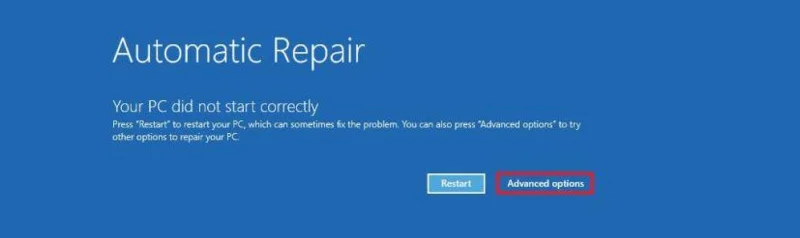
Click on Troubleshoot.
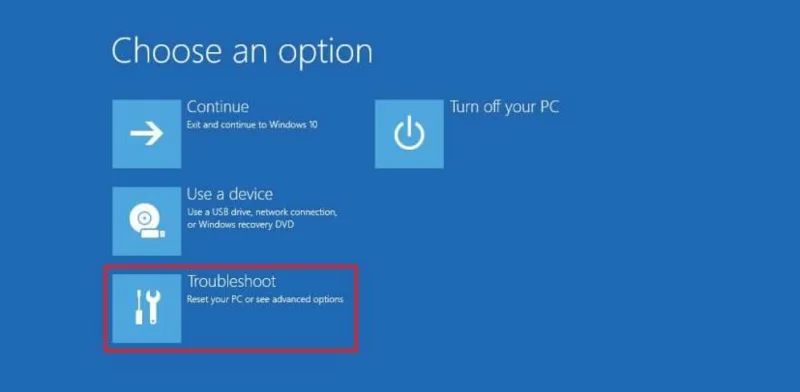
Click the Reset this PC option.
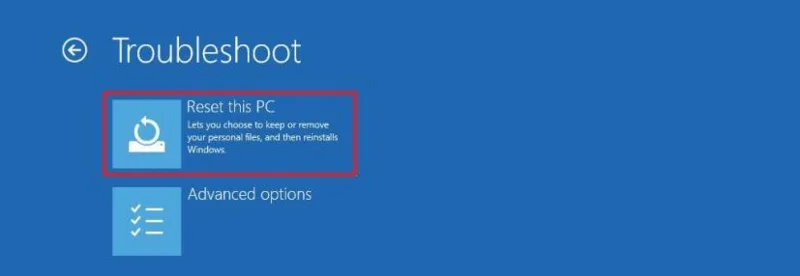
Select the Remove everything option.
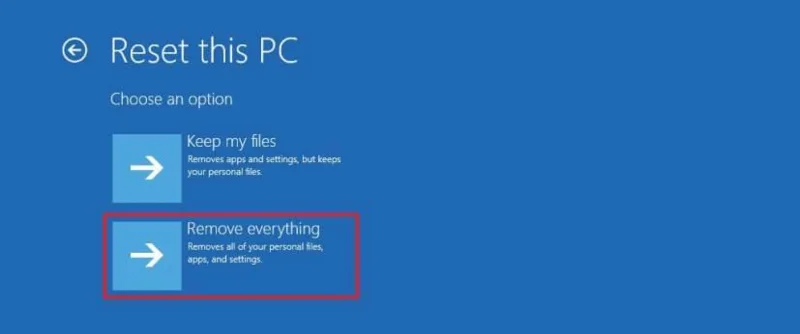
Click Cloud Download or Local Reinstall to continue:
Cloud Download – Downloads a fresh copy of Windows 11 from Microsoft’s servers and performs a clean installation. This option ensures you receive the latest files, but it requires an internet connection.
Local Reinstall – Uses the existing installation files on your computer to reinstall Windows 11. This option is faster and doesn’t require an internet connection, but it may not work if the local files are corrupted.
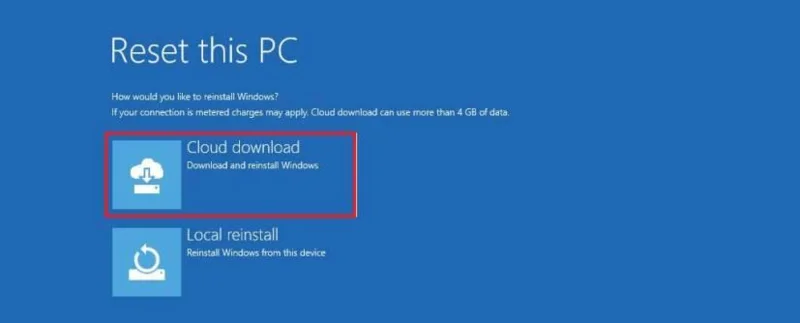
Select the “Only the drive where Windows is installed” option. (The All drives option will delete the data on all drives. This option is usually recommended only when you have to decommission the device.)
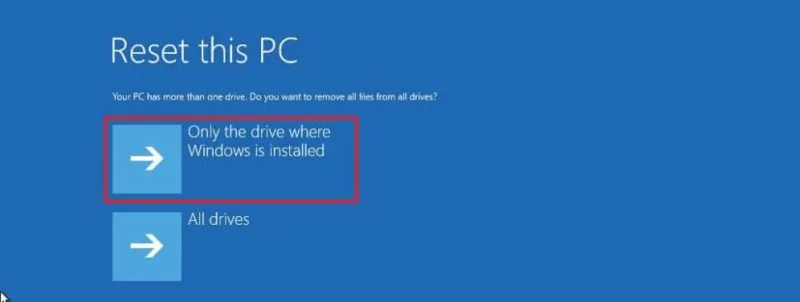
Select the “Just remove my files” or “Full clean the drive” option.
Just remove my files – Quickly deletes all files from the drive, but doesn’t securely erase them. This is faster but less secure.
Fully clean the drive – Erases everything and securely wipes the drive, which can take several hours. This option is best if you’re giving away or selling your device to ensure no data can be recovered.
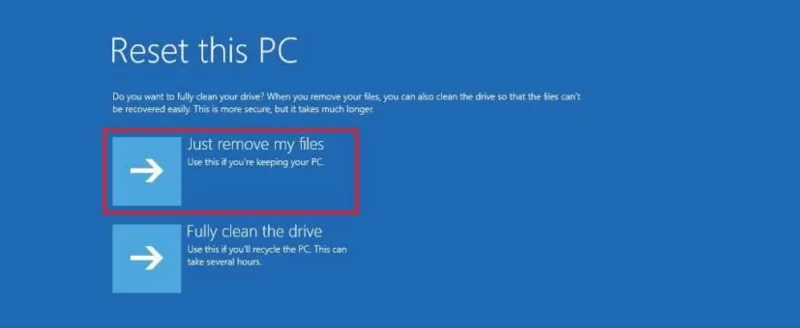
Click the Reset button.
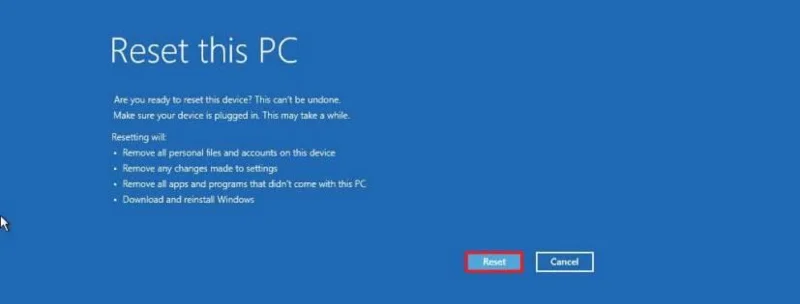
Click the Next button.
Choose your region setting on the first page of the out-of-the-box experience (OOBE) after the installation.
Click the Yes button.
Select your keyboard layout setting.
Click the Yes button.
Click the Skip button if you do not need to configure a second layout.
The computer will automatically connect to the network using an Ethernet connection. You must set up the connection manually on a wireless connection (a security key may be required).
(Optional) Confirm a name for the computer.
Quick note: This is an optional step, but it’s highly recommended to set a name to make it easier to identify the device in the network, on your Microsoft account, and when restoring your computer from backup. Additionally, after completing this step, the setup will restart to apply the new name and resume where you left off to continue configuring the settings.
Click the Next button. (The device will restart automatically.)
Select the “Set up for personal use” option for Windows 11 Pro. This option is not available for the “Home” edition.
Quick tip: Use the “Set up for work or school” option to skip the Microsoft account and create a local account.
Click the Next button.
Click the Sign in button.
Confirm your Microsoft account email to create a Windows 11 account.
Click the Next button.
Confirm your Microsoft account password.
Click the Next button.
Click the Create PIN button.
Create a new four-digit Windows Hello PIN.
Click the OK button.
Turn the toggle switch for each privacy setting to confirm the option that best suits your situation.
Click the Next button.
Click the Next button again.
Click the Accept button.
Click the More options setting.
Quick tip: You can also click the “Restore from this PC” button to restore your files, apps, settings, and credentials from the system backup available in your OneDrive account. You can learn more about the Windows Backup app in this guide.
Click the “Set up as a new PC” option.
Click the “Set up as a new PC” option again.
(Optional) On the “Let’s customize your experience” page, select one or more ways you plan to use the device to allow the operating system to suggest tools and service customization during this experience.
Click the Accept button to continue. Or click the Skip button to skip this part of the setup.
(Optional) Use the code to link your Android phone, or click the “Skip” option.
(Optional) Use the code to download the OneDrive app on your phone, or click the “Skip” option.
Click the “Not now” button if you will be using a browser other than Microsoft Edge.
Once you complete the steps, Windows 11 will reinstall, resolving the existing problems. The completion time will depend on your computer hardware configuration and the selected reset configuration.
The Media Creation Tool no longer includes an option to perform a clean installation or in-place upgrade. You can only use the tool to create bootable media for installation using a USB flash drive or ISO file.
If you want to proceed with the Media Creation Tool, you can create an installation media and launch the setup from the USB flash drive.
To use the Media Creation Tool to create a bootable USB install media and proceed with the Windows 11 setup, use these steps:
Click the Download Now button under the “Create Windows 11 installation media” section.
Double-click the MediaCrationToolW11.exe file to launch the tool.
Click the Accept button.
Click the Next button.
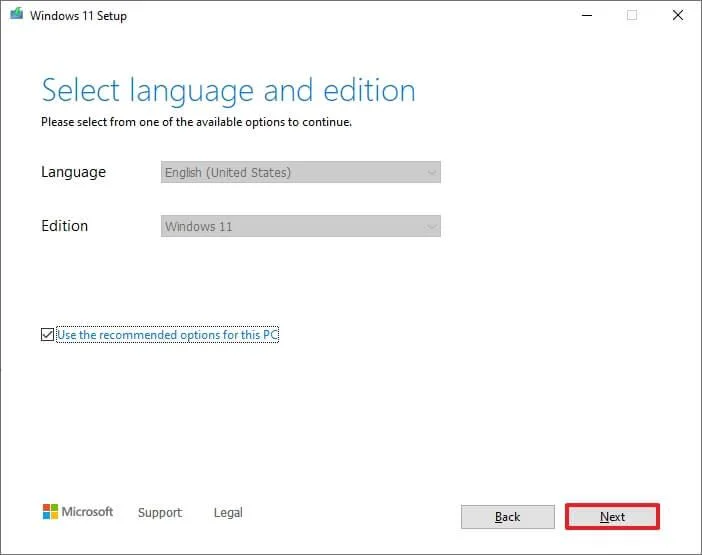
Quick note: If you create a Windows 11 USB for another device, you can also clear the “Use the recommended options for this PC” option to select the correct language, architecture, and edition.
Select the USB flash drive option.
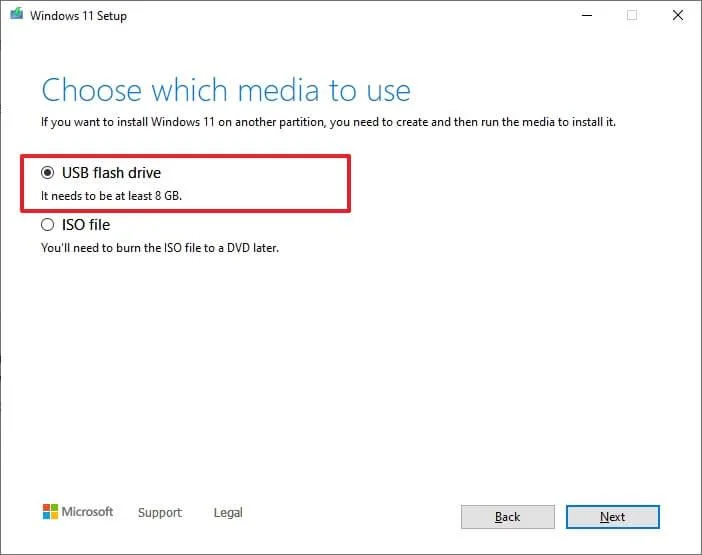
Click the Next button.
Select the USB flash drive from the list, but ensure it has no important files, as this process will erase everything on it.
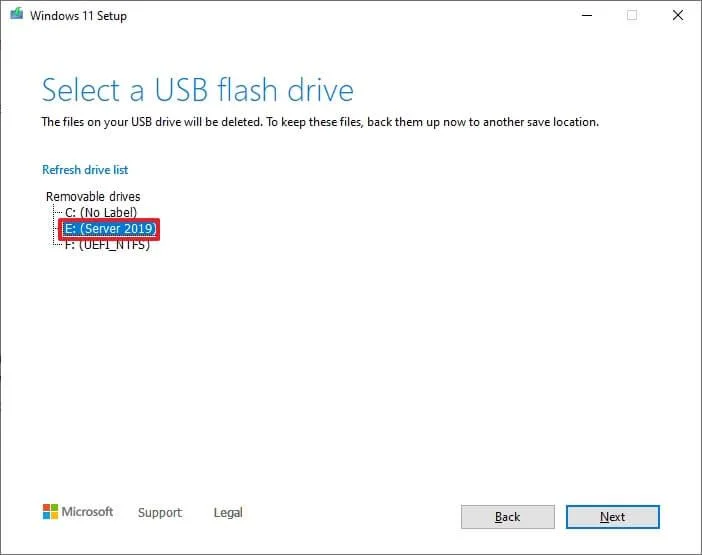
Click the Next button.
Click the Finish button.
Open the installation media with File Explorer.
Double-click the Setup.exe file to begin the Windows 11 installation.
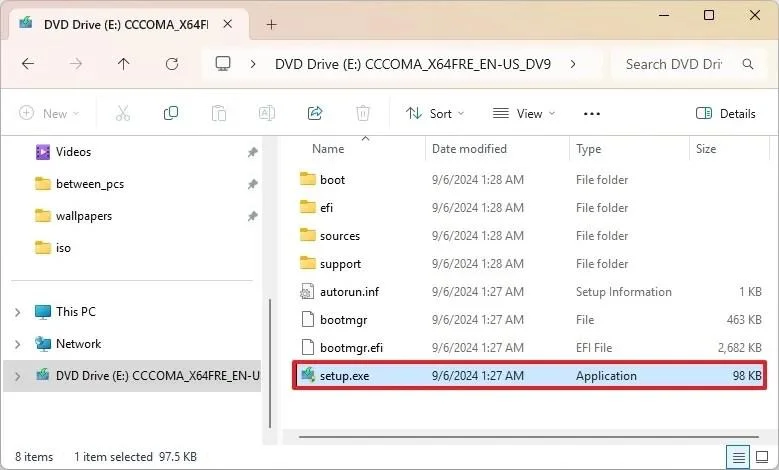
(Optional) Click the “Change how Windows Setup downloads updates” option.
Select the “Not right now” option.
Click the Next button.
Click the Accept button to agree to the terms.
Click the “Change what to keep” option.
Select the Nothing option.
Click the Next button.
點擊“安裝”按鈕。
點擊“下一步”按鈕。
安裝完成後,在初始體驗 (OOBE)的第一頁上選擇您的區域設定。
點擊“是”按鈕。
選擇您的鍵盤佈局設定。
點擊“是”按鈕。
如果您不需要配置第二個佈局,請點選「跳過」按鈕。
電腦將自動使用乙太網路連線連接到網路。如果使用無線連接,則必須手動設定連接(可能需要安全金鑰)。
(可選)確認電腦名稱。
簡要說明:此步驟為選用步驟,但強烈建議您設定裝置名稱,以便在網路、Microsoft 帳戶以及從備份還原電腦時更輕鬆地識別裝置。此外,完成此步驟後,安裝程式將重新啟動以套用新名稱,並從您上次中斷的地方繼續設定。
點擊“下一步”按鈕。 (設備將自動重新啟動。)
對於 Windows 11 專業版,請選擇「設定為個人使用」選項。此選項不適用於「家庭版」。
小提示:使用「設定工作或學校帳戶」選項可以跳過 Microsoft 帳戶並建立本機帳戶。
點擊“下一步”按鈕。
點擊“登入”按鈕。
請確認您的微軟帳戶信箱以建立 Windows 11 帳戶。
點擊“下一步”按鈕。
請確認您的微軟帳戶密碼。
點擊“下一步”按鈕。
點選「建立PIN碼」按鈕。
建立一個新的四位數 Windows Hello PIN 碼。
點選“確定”按鈕。
撥動每個隱私設定的撥動開關,以確認最適合您情況的選項。
點擊“下一步”按鈕。
再次點選“下一步”按鈕。
點擊 “接受”按鈕。
點選“更多選項”設定。
小提示:您也可以點選「從此電腦還原」按鈕,從 OneDrive 帳戶中的系統備份還原檔案、套用、設定和憑證。您可以在此指南中了解有關 Windows 備份應用程式的更多資訊。
點選“設定為新電腦”選項。
再次點選「設定為新電腦」選項。
(可選)在「讓我們自訂您的體驗」頁面上,選擇一種或多種您計劃使用裝置的方式,以便作業系統在此體驗期間建議工具和服務自訂。
點擊“接受”按鈕繼續。或點選「跳過」按鈕跳過此設定步驟。
(可選)使用此代碼關聯您的安卓手機,或點擊「跳過」 選項。
(可選)使用該代碼在手機上下載 OneDrive 應用,或點擊「跳過」選項。
如果您將使用 Microsoft Edge 以外的瀏覽器,請點選「暫不」按鈕。
全新安裝後,您的 Windows 11 電腦運作速度更快,錯誤更少,系統也更簡潔。請記得備份檔案、重新安裝必要的應用程式並自訂隱私設定。
哪種安裝方式(U盤、ISO鏡像還是雲端下載)對您來說效果最好?請在評論區告訴我。
以下是關於全新安裝作業系統流程的一些常見問題及解答。
如果我的電腦無法從USB啟動,我該怎麼辦?
如果裝置無法從 USB 啟動磁碟啟動,您必須設定 UEFI(BIOS),並將啟動順序變更為從 USB 啟動。某些裝置還具有啟動選單,您可以在啟動過程中使用功能鍵或 ESC 鍵開啟該選單,從而從 USB 啟動磁碟啟動裝置。
如果電腦已設定為從 USB 啟動,但您無法存取安裝程序,則可能是安裝媒體或 USB 已損壞。在這種情況下,您可以使用另一個 USB 重新建立啟動媒體。
如何確保在安裝 Windows 11 之前所有資料都已徹底清除?
為確保資料徹底清除,您必須重新格式化磁碟機。您無需任何特殊工具。最簡單的方法是使用任意「重設此電腦」選項,然後選擇「清除資料」選項。如果您使用的是 USB 啟動磁碟,請在刪除分割區後,使用全部空間建立新分割區,然後使用「格式化分割區」選項。
全新安裝 Windows 11 是否有任何風險?
是的,全新安裝系統後,硬碟上的所有內容都會被刪除。這意味著,如果您沒有備份文件,除非使用雲端儲存服務,否則將無法還原這些文件。
此過程無法撤銷。安裝一旦開始,安裝程式將刪除所有現有檔案。唯一的復原方法是使用您在執行這些步驟之前建立的完整備份。
全新安裝 Windows 11 後如何重置 TPM?
通常情況下,您無需重置電腦韌體中的可信任平台模組 (TPM) 晶片。實際上,在安裝過程中,系統會自動啟用加密, Windows Hello 資訊會自動儲存到 TPM 中。
全新安裝和升級有什麼差別?
全新安裝會在重新安裝 Windows 11 之前,徹底清除硬碟上的所有內容(應用程式、檔案、設定和驅動程式),從而為您提供一個全新的系統。升級則會在安裝新版本 Windows 的同時保留您的檔案和應用程式。如果您需要最高的系統穩定性或修復深層的系統問題,建議選擇全新安裝。
我可以在不遺失啟動資訊的情況下全新安裝 Windows 11 嗎?
是的。如果您的裝置之前已啟動 Windows 11(或 Windows 10),那麼在重新安裝後連接到網際網路時,它將自動重新啟動。您無需重新輸入產品金鑰。
全新安裝需要產品金鑰嗎?
只有當裝置之前從未啟動過 Windows 10 或 11 時才會出現這種情況。否則,儲存在微軟伺服器上的數位許可證將自動重新啟動系統。
我可以不用U盤進行全新安裝嗎?
是的。您可以使用「重設此電腦」功能或在檔案總管中掛載 ISO 檔案來重新安裝 Windows 11。但是,使用可啟動的 USB 隨身碟仍然是最可靠、最通用的方法。
使用「重置此電腦」和全新安裝系統是一樣的嗎?
不,根據使用者體驗,它通常會從現有映像恢復,並且可能會保留製造商預先安裝的臃腫軟體或未解決的問題,因此透過 USB 或 ISO 進行全新安裝更為可取。
本機重裝和雲端下載有什麼不同?
本機重裝使用電腦上已有的安裝檔案來重新安裝 Windows 11。速度較快,但可能會重複使用已損壞的檔案。而雲端下載選項則直接從微軟伺服器取得最新鏡像。速度較慢,但能確保安裝更乾淨、更及時。
安裝過程中需要刪除所有分割區嗎?
您只需刪除作業系統安裝所在磁碟機(通常是 0 號磁碟機)上的分割區即可。刪除所有分割區可確保完全全新安裝,但請務必先備份檔案。
如果我跳過輸入產品金鑰會怎樣?
安裝過程中您可以跳過輸入產品金鑰的步驟。 Windows 11 將安裝並運行,但您稍後需要啟動它才能解鎖完整的個人化選項(例如桌布和主題變更)。如果您已經擁有數位許可證,則安裝完成後會自動啟動。
全新安裝 Windows 11 需要多長時間?
安裝過程通常需要 20 到 45 分鐘,具體時間取決於您的儲存速度和系統效能。完成開箱即用設定 (OOBE) 還需要額外 5 到 10 分鐘。
我可以使用 Windows 10 產品金鑰來啟動 Windows 11 嗎?
是的。 Windows 10 和 Windows 11 使用相同的啟動機制。您可以在安裝過程中或安裝後輸入 Windows 10 金鑰來啟動 Windows 11。
全新安裝系統能否解決效能問題或惡意軟體感染?
是的。全新安裝可以清除損壞的系統檔案、登錄問題、惡意軟體和不需要的程式。這通常是恢復系統效能和穩定性的最佳方法。
全新安裝系統後需要重新安裝驅動程式嗎?
Windows 11 會自動偵測並安裝大多數驅動程式。但是,為了獲得最佳效能,建議在安裝後從製造商的支援網站下載特定的硬體驅動程式(顯示卡、晶片組、Wi-Fi、藍牙)。
我可以全新安裝舊版本,例如 23H2 或 24H2 嗎?
是的,只要您有該特定版本的 ISO 檔案即可。不過,為了確保更好的安全性和相容性,建議安裝最新的可用版本(例如 25H2 版本)。
我可以透過全新安裝的方式從 Windows 10 升級到 Windows 11 嗎?
當然。從 Windows 10 全新安裝到 Windows 11 通常是最佳升級方法,尤其是在您目前的系統有穩定性問題或隨著時間的推移累積了大量垃圾檔案的情況下。
安裝Windows 11後,我該使用第三方精簡工具嗎?
你可以這麼做,但你不該這麼做。雖然很誘人,但使用精簡工具或大型腳本可能會導致未來的更新或穩定性問題。
全新安裝後,我的 Microsoft 365(Office)和 OneDrive 資料會發生什麼變化?
通常情況下,全新安裝 Office 或 OneDrive 前無需停用。您的訂閱將保持不變,OneDrive 資料也將保留在雲端—只需重新安裝並登入即可。
升級到 Windows 11 時必須全新安裝嗎?還是可以直接升級?
您不必這樣做。就地升級對許多用戶來說都可行。但是,為了獲得最佳性能、減少遺留問題並最大限度地減少“歷史包袱”,通常建議進行全新安裝。
你用的是什麼方法?有什麼問題嗎?請在評論區留言。
要建立 Windows 11 25H2 可啟動 USB 安裝程序,您可以使用 Rufus、Ventoy、命令提示字元和媒體建立工具,以下是具體操作方法。
KB5074157(版本 26220.7653)適用於 Windows 11,改進了深色模式,增加了 WebP 壁紙支持,並修復了任務欄、開始功能表、藍牙等問題。
KB5074109 是 Windows 11 的 2026 年 1 月更新,它導致了崩潰、啟動失敗、Outlook 問題和卸載錯誤,迫使用戶將其刪除。
要防止您的 ChatGPT 對話出現在 Google 搜尋中,請檢查並刪除公開共享的 ChatGPT 鏈接,方法如下。
您可以透過 Microsoft Store 或 PowerShell 安裝適用於 Android 的 Windows 子系統 (WSA),從而在 Windows 11 上執行 Android 應用程式。方法如下。
OpenAI 預設會收集您的 ChatGPT 對話內容用於 AI 訓練,以下是如何停用此功能以更好地保護隱私的方法。
Windows 11 版本 27913(Canary)帶來了重新設計的設定介面,恢復了 Vista 啟動聲音,修復了黑屏桌布問題等等。
Windows 11 版本 26120.4733 (KB5062651) 在 Beta 頻道中引入了新的 AI 圖像描述、應用程式權限重新設計以及管理員保護功能。
Windows 11 25H2 版本 26200.5702 (KB5062653) 帶來了 AI 映像描述、新的管理員安全功能、重新設計的權限對話方塊等。
現在您可以使用 winget 命令在 Windows 10 上安裝應用程序,以下是使用 Windows 軟體套件管理器執行此操作的步驟。