如何建立可啟動的 Windows 11 25H2 USB 安裝介質
要建立 Windows 11 25H2 可啟動 USB 安裝程序,您可以使用 Rufus、Ventoy、命令提示字元和媒體建立工具,以下是具體操作方法。
Windows 11 的預設設定對大多數使用者來說都足夠好用,但並非完美無缺。幸運的是,您可以調整大多數設置,從而獲得更好的使用體驗,減少干擾,並充分利用那些原本可能被忽略的新舊功能。
例如,為了減少雜亂,您可以將工作列圖示恢復到原來的左側,並移除小工具圖示。您也可以重新命名計算機,以便在網路中更輕鬆地進行整理和查找。此外,啟用夜間模式有助於減少夜間工作時的眼睛疲勞。
雖然預設的 Windows 更新設定已經很完善,但您仍然可以自訂設置,使其包含其他產品的更新,並設定活動時間以防止更新後意外重新啟動。我喜歡的另一個功能是休眠,它可以在系統完全關機的同時保存您當前的會話。然而,出於某種奇怪的原因,它默認情況下並未啟用。
在檔案總管中,您可以顯示檔案副檔名,以便簡化重命名操作並了解檔案格式。為了進一步優化您的工作流程,您可以停用煩人的廣告和通知、管理啟動項目以及釋放磁碟空間,從而提升效能。
在本指南中,我將向您展示在 2026 年您應該考慮在 Windows 11 上變更的功能和配置。
2026 年需要更改的 Windows 11 設定
以下是所有使用者在 2026 年(及以後)都應該在電腦上更改的 Windows 11 設置,以便最大限度地發揮作業系統的效能。 (此列表不按任何特定順序排列。)
1. 將工作列對齊方式變更為左側
Windows 11 重新設計了工作列,並將圖示置中顯示。不過,您可以輕鬆地將其調整為左對齊,恢復到先前 Windows 版本的熟悉佈局,以便更方便地存取「開始」功能表和應用程式。
若要將工作列對齊到左側,請依照下列步驟操作:
開啟Windows 11 中的「設定」 。
點選個性化設定。
點擊工作列。
點選「工作列行為」選項。
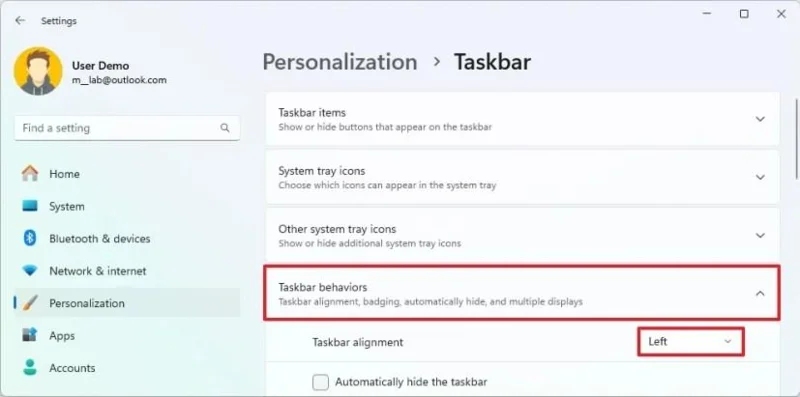
使用「工作列對齊方式」設置,選擇「左對齊 」選項,使圖示左對齊。
完成這些步驟後,「開始」按鈕和其他圖示將像在 Windows 10 中一樣,排列在工作列的左側。
2. 從工作列中移除小部件圖標
工作列現在新增了一個小部件圖標,可以顯示天氣、體育、財經和突發新聞等動態內容。雖然有些用戶可能會覺得這個功能分散注意力,但可以輕鬆地在「工作列」設定頁面中將其停用。
若要從 Windows 11 的工作列中移除 Widgets 天氣圖標,請按照以下步驟操作:
打開設定。
點選個性化設定。
點選右側的工作列頁面。
關閉「工作列項目」部分下的「小工具」切換開關,即可停用此功能。
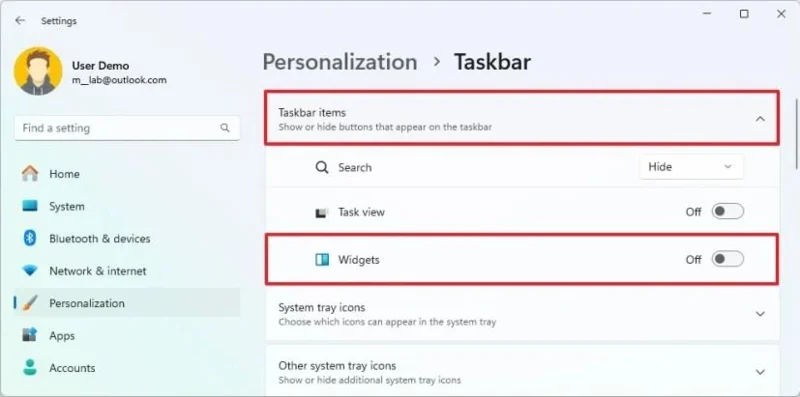
完成上述步驟後,任務欄左側包含天氣、體育、財經和新聞資訊的「小部件」圖示將會消失。不過,您仍然可以使用「Windows 鍵 + W」快捷鍵存取「小工具」控制面板。
3. 將資料夾圖示新增至「開始」功能表
除了可以快速存取應用程式外,「開始」功能表還允許您在電源按鈕旁邊新增捷徑,以便快速存取不同的常用資料夾,包括「文件」、「下載」、「圖片」以及「設定」和「檔案總管」等應用程式。
若要在「開始」功能表中新增或刪除電源按鈕旁的資料夾,請依下列步驟操作:
打開設定。
點選個性化設定。
點選右側的「開始」頁面。
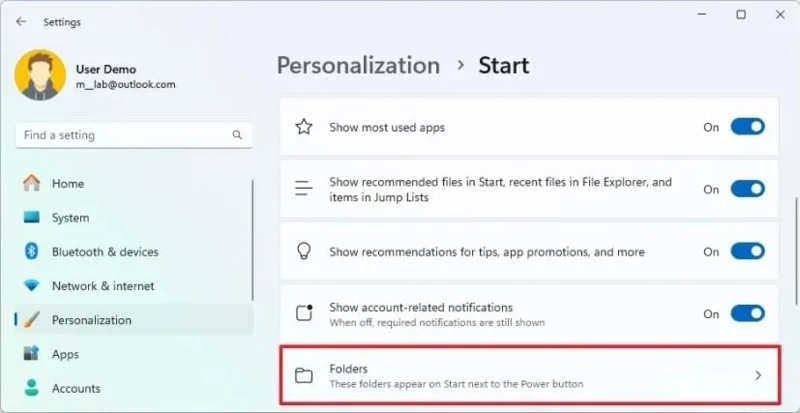
點擊資料夾。
開啟切換開關,即可在 Windows 11 系統電源按鈕旁顯示您想要顯示的資料夾,包括:
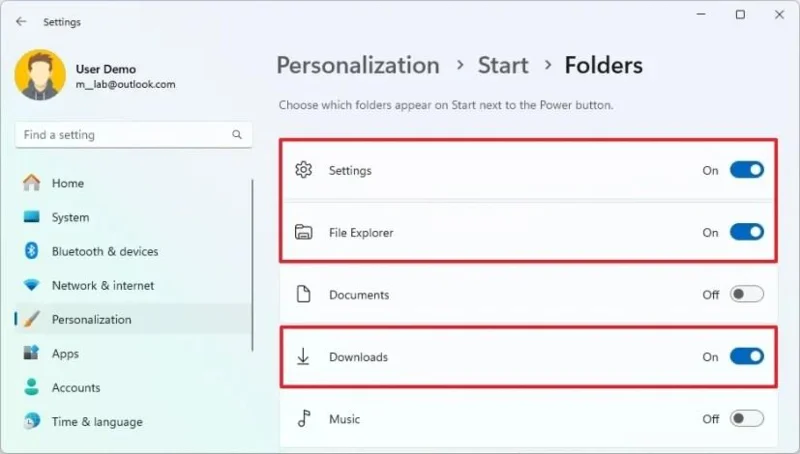
完成這些步驟後,打開「開始」功能表,您選擇的位置的按鈕將出現在電源按鈕旁邊。
4. 在 Windows 11 上變更電腦名稱
如果您有多台設備,為電腦選擇自訂名稱的功能就非常實用,可以幫助您更好地管理它們。否則,在網路(以及您的 Microsoft 帳戶)中尋找它們並配置某些功能將會更加困難。
若要在 Windows 11 上變更電腦名稱,請依照下列步驟操作:
打開設定。
點選系統。
小提示: Windows 11 也在「系統」頁面左上角提供了一個快速「重新命名」按鈕。
點選右側的「關於」 。
點擊“設備規格”部分下的“重新命名此電腦”按鈕。
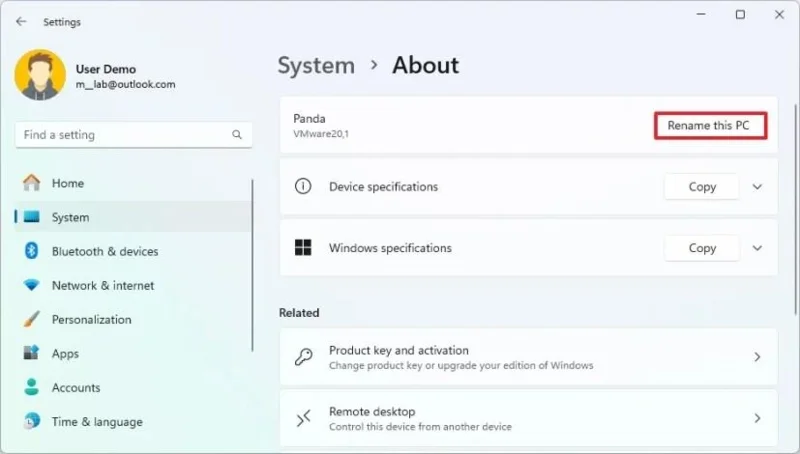
請輸入計算機的新名稱。
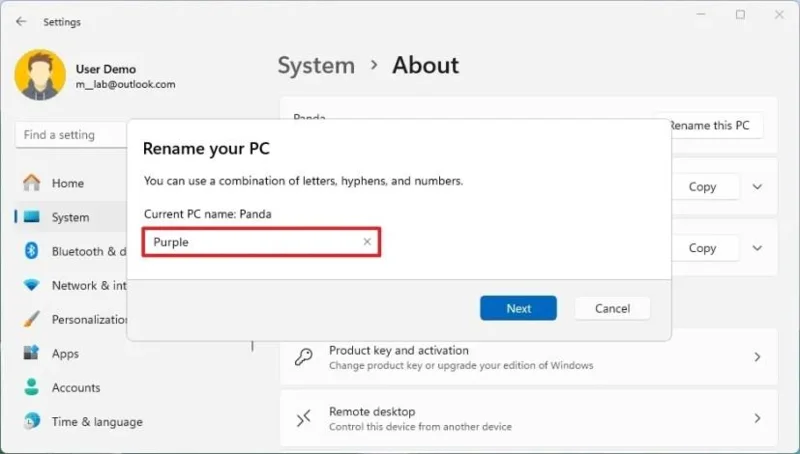
小貼士:避免使用特殊字符,盡量簡短(建議少於 15 個字符),並且在使用多個單字時不要留空格。
點擊“下一步”按鈕。
點選“立即重新啟動”按鈕。
完成這些步驟後,電腦將重新啟動以在 Windows 11 中套用新名稱。
5. 更改音訊設備名稱
如果您有多個輸出設備(例如揚聲器、耳機、耳麥等),您可以更改它們的名稱,以便更容易識別它們。
重新命名發言人
若要在 Windows 11 上重新命名聲音裝置(例如揚聲器和耳機),請依照下列步驟操作:
打開設定。
點選系統。
點選“聲音”標籤。
在“輸出”部分下選擇要重新命名的揚聲器(或耳機)。
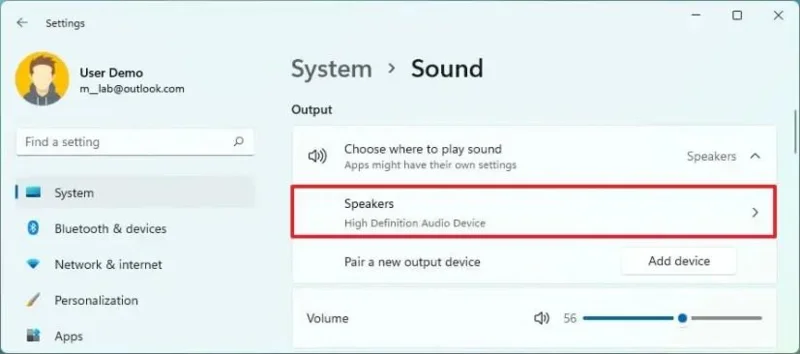
點擊“重新命名”按鈕。
請確定音訊設備的簡短且具有描述性的名稱。
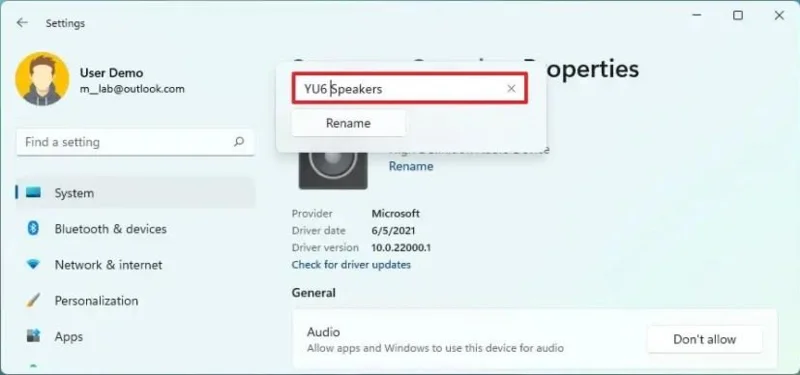
點擊“重新命名”按鈕。
完成這些步驟後,新名稱將生效,並且在從工作列切換輸出時更容易識別。
若要在 Windows 11 上重新命名麥克風,請依照下列步驟操作:
打開設定。
點選系統。
點選“聲音”標籤。
在“輸入”部分下選擇要重新命名的麥克風。
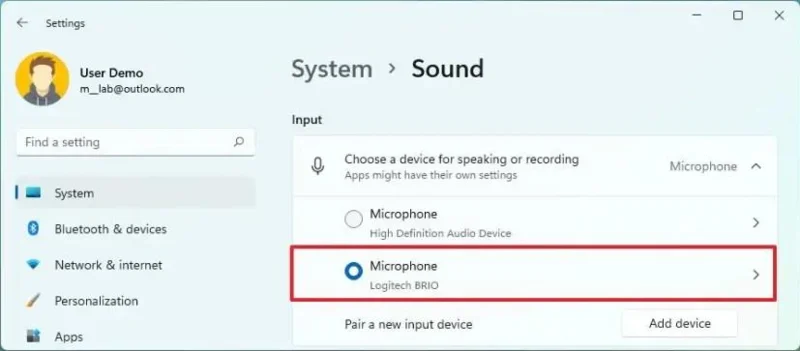
點擊“重新命名”按鈕。
請確定一個簡短且具有描述性的名稱來命名麥克風。
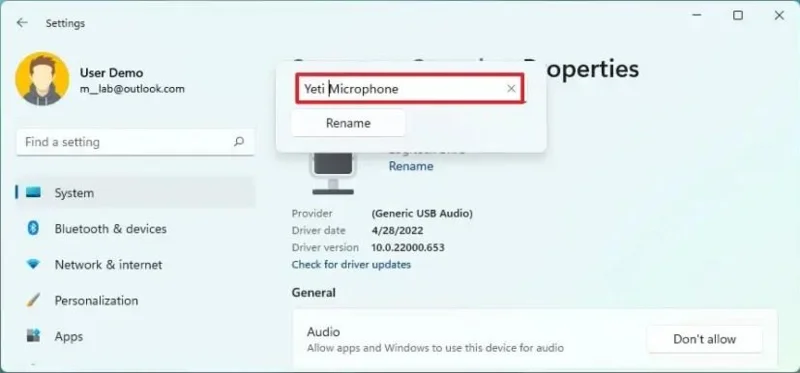
點擊“重新命名”按鈕。
完成這些步驟後,新名稱將顯示在麥克風上。
6. 開啟夜燈功能以減輕眼睛疲勞
在 Windows 11 系統中,建議您使用「夜間模式」功能。此設定可減少顯示器發出的藍光,並將螢幕色調調整為更暖的色溫。這有助於您更快入睡,並最大限度地減少夜間使用電腦造成的眼部疲勞。
若要在 Windows 11 上啟用“夜間模式”,請依照下列步驟操作:
打開設定。
點選系統。
點選右側的「顯示頁面」。
開啟「亮度與色彩」區段下的「夜燈」開關,即可啟用此功能。
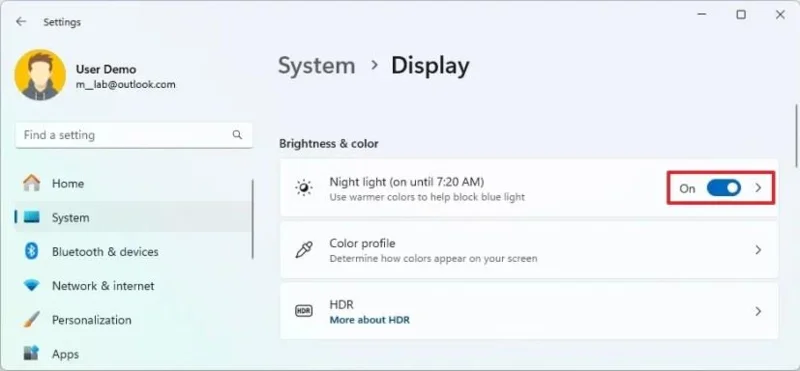
或者,點擊工作列右下角的「網路和音量」按鈕,開啟「快速設定」彈出式選單(Windows 鍵 + A),然後點擊「夜間模式」按鈕。
7. 更改 Windows 更新進階設定
雖然 Windows 更新的預設設定對大多數人來說都是最佳的,但您也可以啟用一些附加功能來自訂體驗。
若要變更 Windows 更新進階設置,請依照下列步驟操作:
打開設定。
點選「Windows 更新」。
點選“進階選項”標籤。
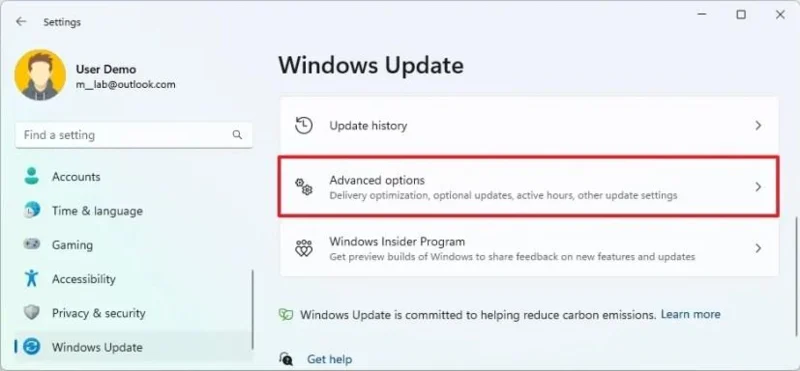
開啟「接收其他 Microsoft 產品的更新」開關,即可啟用 Office 應用程式和其他 Microsoft 產品的自動更新。
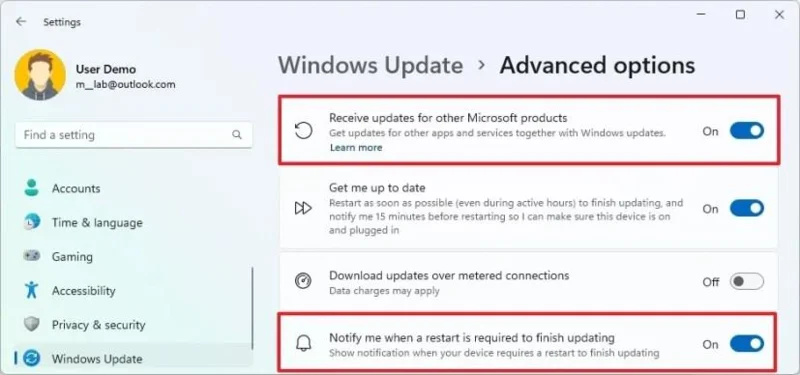
開啟「更新完成後需要重新啟動時通知我」開關,即可在需要重新啟動以完成更新時收到通知。
完成這些步驟後,裝置將接收您可能已安裝在系統上的 Microsoft 產品的更新,並且 Windows 11 會在每次需要重新啟動以完成更新時通知您。
8. 設定 Windows 更新活動時間
Windows 11 包含一項「活動時間」功能,可控制電腦何時重新啟動以完成更新,從而防止在使用過程中意外重新啟動。此功能會自動運行,但您也可以手動自訂其設定。
若要在 Windows 11 上設定活動時間,請依照下列步驟操作:
打開設定。
點選「Windows 更新」。
點選“進階選項”標籤。
點選“活動時間”設定。
在“調整活動時間”設定中選擇“手動”選項。
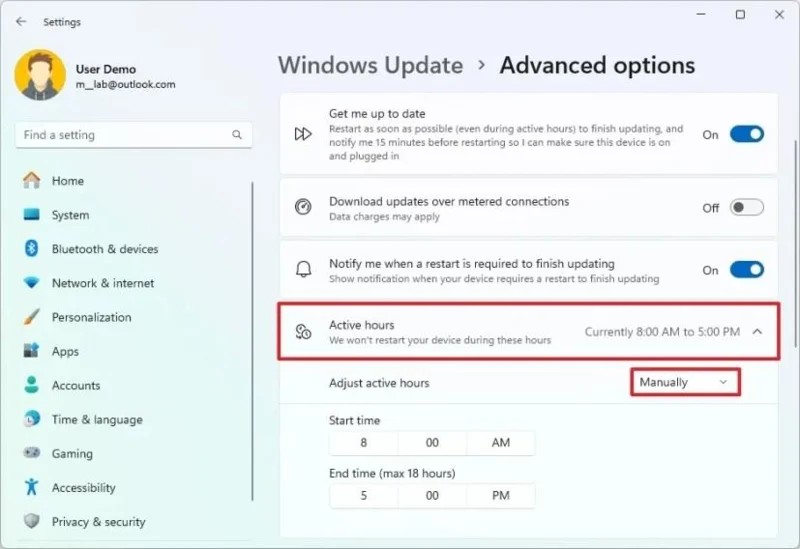
請具體說明您需要使用電腦的時間段。
完成這些步驟後,系統將不會在「活動時間」設定中指定的時間內嘗試重新啟動裝置。
9. 在 Windows 11 上啟用休眠
在 Windows 11 系統中,要啟用休眠功能,首先需要透過命令提示字元啟用該功能。然後,您可以將「休眠」選項新增至「開始」功能表,或在控制面板中變更電源按鈕或筆記型電腦螢幕蓋的行為。
啟用休眠
若要在 Windows 11 上啟用 Hibernate,請依照下列步驟操作:
打開開始。
搜尋「命令提示字元」或「PowerShell」,以滑鼠右鍵按一下第一個搜尋結果,然後選擇「以管理員身分執行」選項。
輸入以下指令檢查休眠狀態,然後按下Enter 鍵:
powercfg /availablesleepstates
在 Windows 11 上輸入以下指令啟用休眠功能,然後按下Enter 鍵:
powercfg /hibernate on
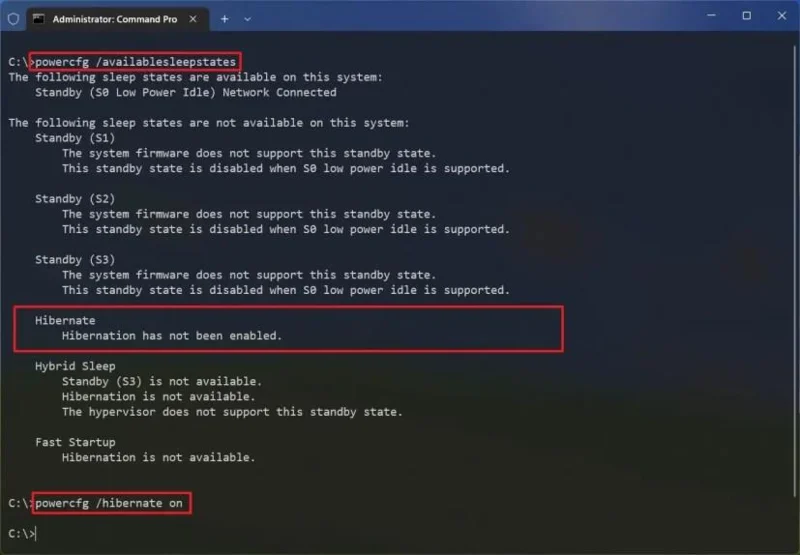
(可選)輸入以下命令關閉休眠功能,然後按Enter 鍵:
powercfg /hibernate 關閉
完成這些步驟後,該功能將啟用,您現在可以按照以下說明將此選項新增至「電源」功能表。
將 Hibernate 加入到開始功能表
若要將「休眠」選項新增至「開始」功能表的「電源」功能表中,請依照下列步驟操作:
打開控制面板。
點選“硬體和聲音”。
點選電源選項。
點選“選擇電源按鈕的功能”選項。
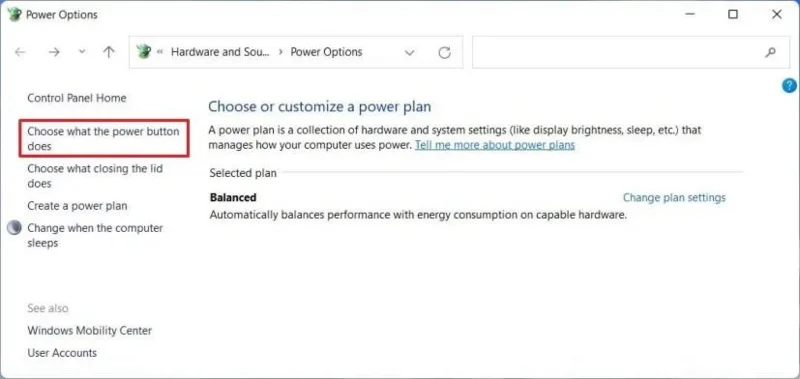
點擊“更改目前不可用的設定”選項。
在“關機設定”部分,選取“休眠”選項。
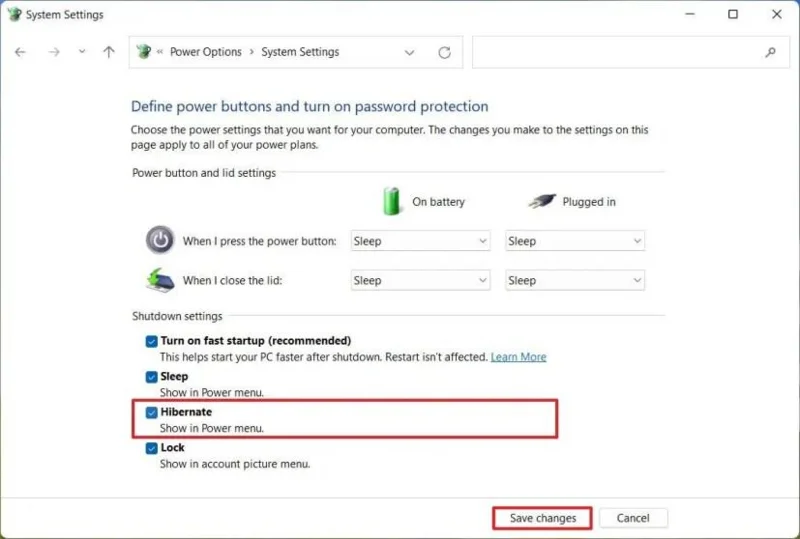
點選“儲存”按鈕。
完成這些步驟後,在「開始」功能表的「電源」功能表中將出現「休眠」選項。
10. 變更電源模式,以提高效能或延長電池續航力
Windows 11 使用預設電源模式,該模式會自動平衡效能和功耗。但是,根據您的電腦硬體或使用情況,您可以變更電源模式以節省電池電量或以增加能耗為代價來提高效能。
若要在 Windows 11 中透過「設定」套用選擇不同的電源模式,請依照下列步驟操作:
打開設定。
點選系統。
點選“電源”(或“電源和電池”)標籤。
在「電源模式」設定中,選擇 Windows 11 上要使用的模式,包括:
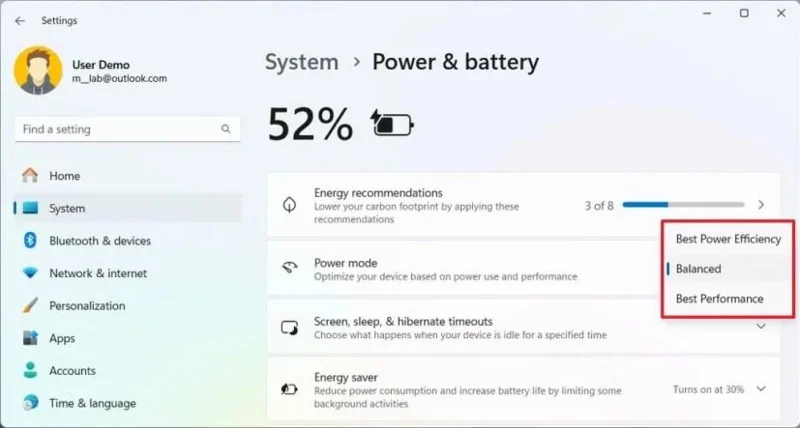
完成這些步驟後,Windows 11 將根據所選模式控制功耗,從而提供更高的效能、更長的電池續航時間,或在效能和能耗之間取得平衡。
11. 在檔案總管中顯示檔案副檔名
預設情況下,檔案總管會隱藏已知檔案類型的副檔名。雖然檔案副檔名通常並非必要,但它們可以提供視覺提示,幫助快速識別檔案格式。此外,顯示副檔名可以簡化建立腳本或批次檔時變更相容副檔名的過程。
若要在 Windows 11 的檔案總管中顯示檔案副檔名,請依照下列步驟操作:
開啟檔案總管。
點擊命令列中的“查看”按鈕。
選擇“顯示”子選單,然後選擇“檔案副檔名”選項。
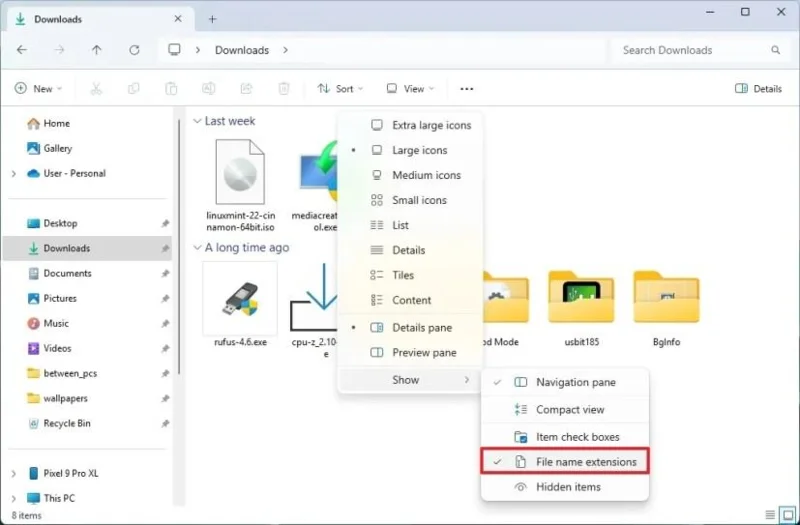
完成這些步驟後,檔案總管將在 Windows 11 上顯示已知檔案格式的副檔名。
12. 變更檔案總管的預設啟動頁
預設情況下,檔案總管在啟動時會開啟主頁,但您可以變更此行為,例如變更為「此電腦」頁面,以便更快存取您的磁碟機和其他網路位置。
若要將檔案總管中的預設起始頁變更為“此電腦”,請按下列步驟操作:
開啟檔案總管。
點選「查看更多」(三個點)下拉選單,然後選擇「選項」。
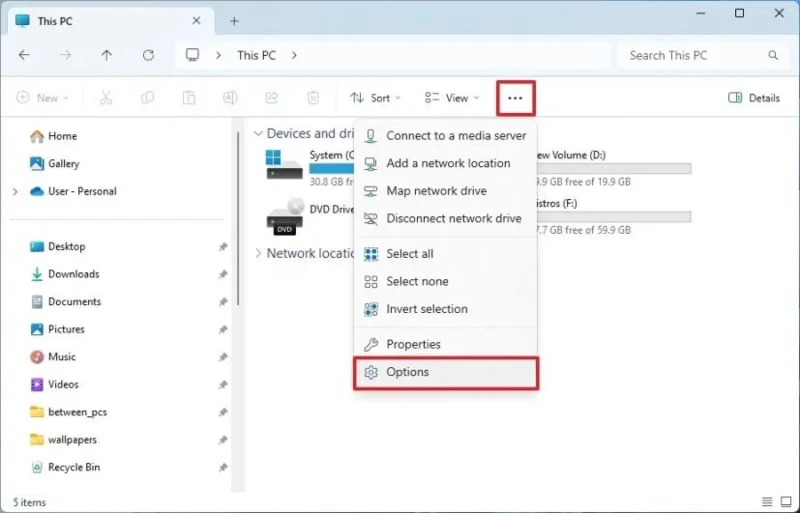
點選“常規”選項卡。
從「開啟檔案總管」功能表中選擇「此電腦」選項。
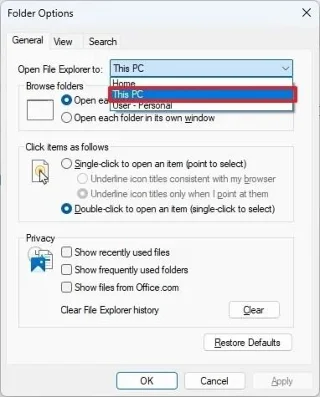
點擊“應用”按鈕。
點選“確定”按鈕。
完成這些步驟後,檔案總管預設會開啟「此電腦」頁面,而不是首頁。需要注意的是,您也可以選擇第三個選項,該選項預設為開啟 OneDrive 資料夾。
13. 停用 Windows 11 上的煩人廣告
Windows 11 有時會顯示一些看似與系統正常功能相似的廣告。例如,您可能會看到使用某些微軟應用程式的建議、彈出式推薦訊息,或在瀏覽檔案時看到 OneDrive 等產品的廣告。如果您不喜歡這些廣告,通常可以在設定中找到關閉它們的選項。
若要在 Windows 11 上停用廣告,請依照下列步驟操作:
打開設定。
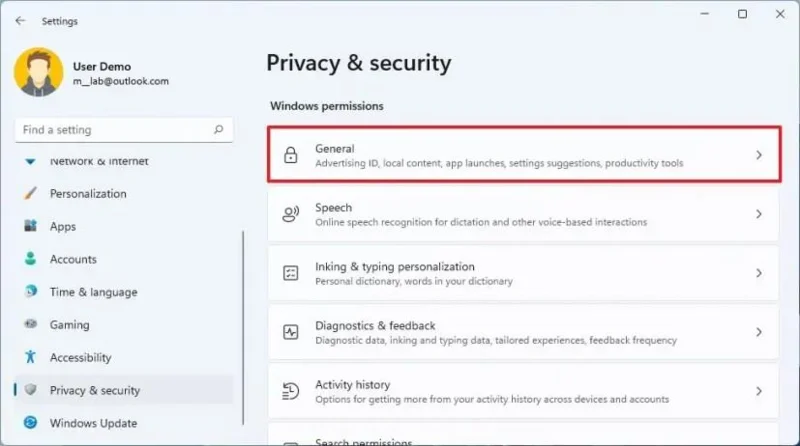
點選「隱私與安全」。
點擊“Windows 權限”部分下的“常規”設定。
關閉「允許應用程式使用我的廣告 ID 向我展示個人化廣告」開關。
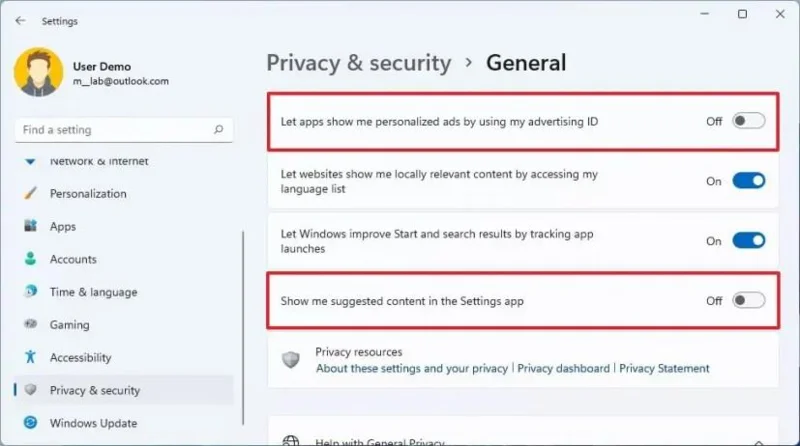
關閉「在設定應用程式中向我顯示建議內容」開關。
點選系統。
點選“通知”標籤。
取消勾選「建議充分利用 Windows 的方法並完成此裝置的設定」選項。
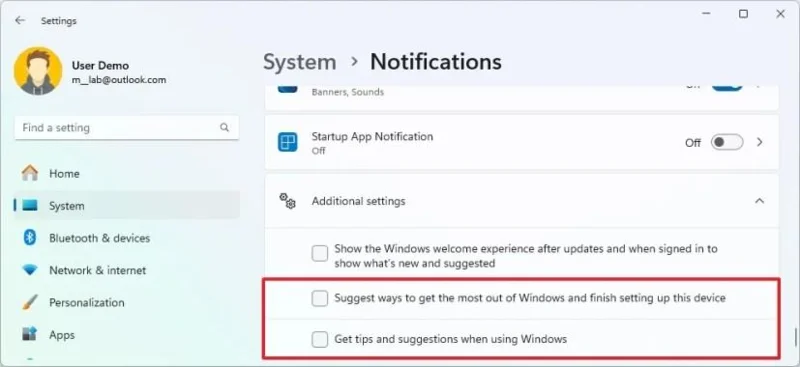
Clear the “Get tips and suggestions when using Windows” option.
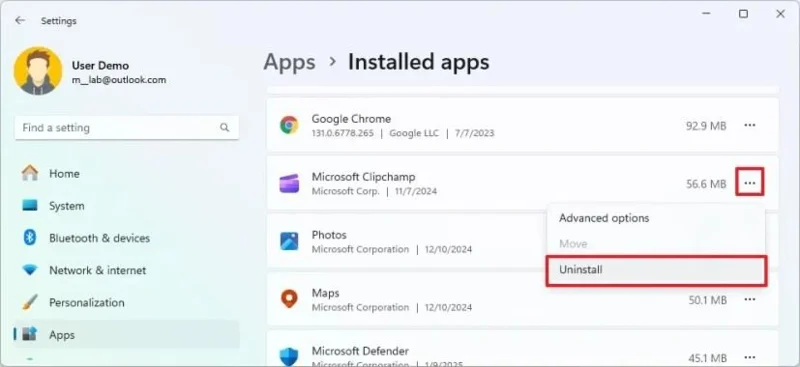
Click on Apps.
Click the Installed apps tab.
Click the three-dotted button from the left side and choose the Uninstall button for the promotional app to remove.
Click the Uninstall button again.
Click on Personalization.
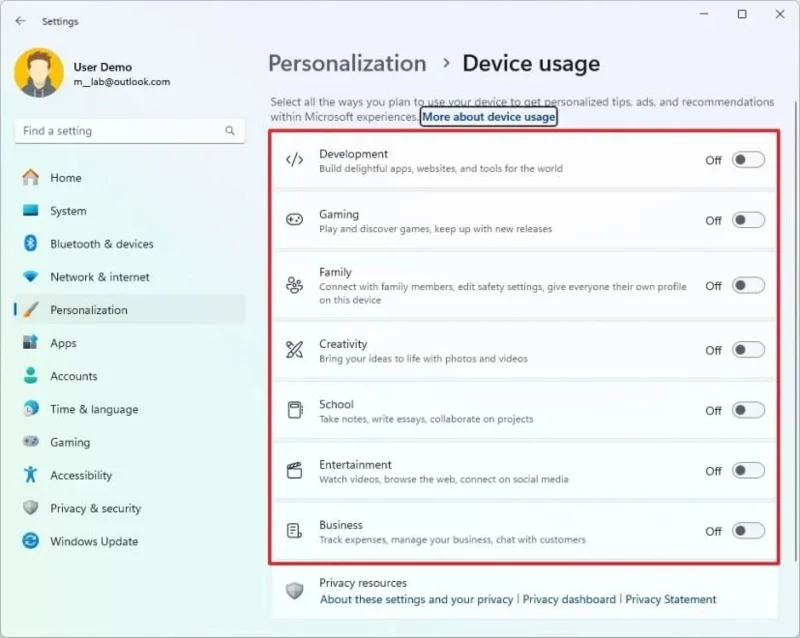
Click the Device usage tab.
Turn off all the options to prevent personalized tips, ads, and recommendations.
After you complete the steps, you should no longer see as many advertisements across the experience.
Turn off File Explorer ads
To disable ads on File Explorer, use these steps:
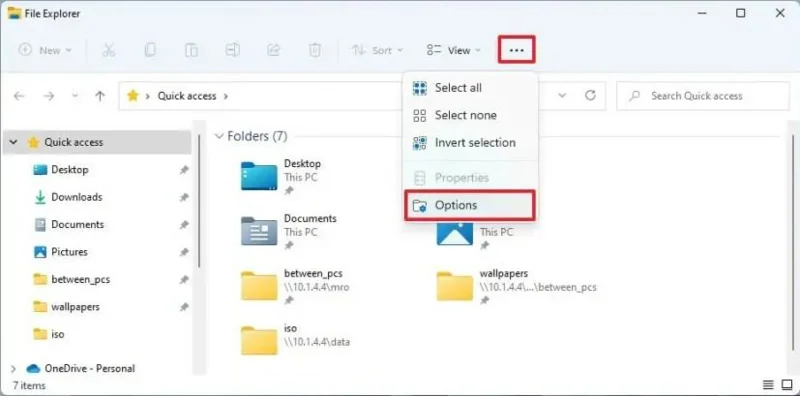
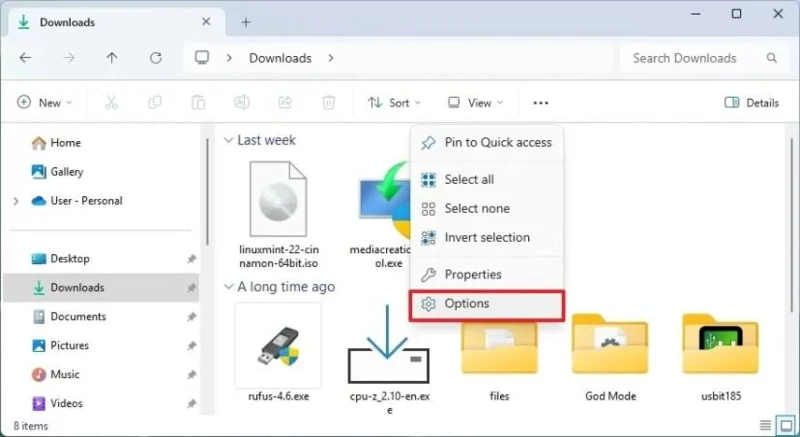
Open File Explorer.
Click the See more (three-dotted) button and click on Options.
Click the View tab.
Clear the “Show sync provider notifications” option.
Click the Apply button.
Click the OK button.
Once you complete the steps, File Explorer will no longer show promotional notifications for OneDrive or other products.
14. Disable annoying notifications
Windows 11 and the apps you use often show you notifications. These messages let you know about things like new messages or problems that need fixing. However, they can sometimes be distracting. If you don’t want to see these pop-up notifications, you can turn them off completely or just for certain apps. This helps you stay focused on your work without constant interruptions.
To disable all system and app notifications on Windows 11, use these steps:
Open Settings on Windows 11.
Click on System.
Click the Notifications tab.
Turn off the Notifications toggle switch.
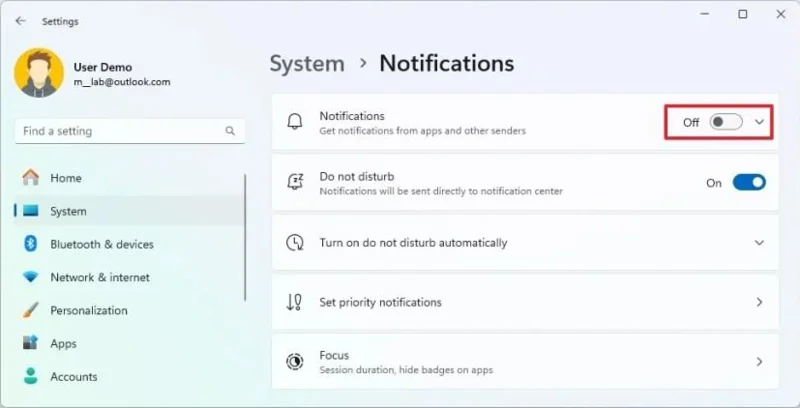
Once you complete the steps, apps and the system will stop showing notifications on the desktop.
Although this option disables notifications for the entire system, some applications have their own notifications system. You will have to change the app’s settings if this is the case.
To turn off notifications for a specific app, use these steps:
Open Settings.
Click on System.
Click the Notifications tab.
Turn off the app notification toggle switch under the “Notifications from apps and other senders” section.
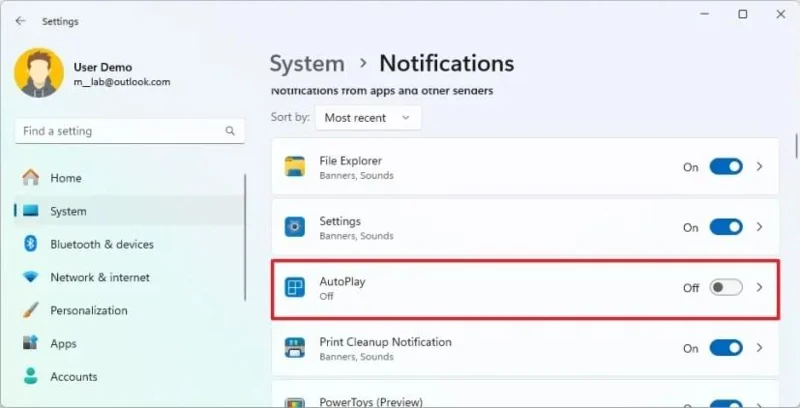
After you complete the steps, the app will stop showing notifications, but notifications will remain available for system alerts and other apps.
Alternatively, you can disable notifications for a specific app using the “Windows key + N” keyboard shortcut, click the menu (three-dotted) button on the top-right, and select the “Turn off all notifications for” option.
If you like to see your notifications in the Notification Center but find those pop-up messages in the corner distracting, you can use a feature called “Do Not Disturb.” This setting lets you still see your notifications, but it hides those annoying pop-ups.
To enable Do Not Disturb through the Settings app on Windows 11, use these steps:
Open Settings.
Click on System.
Click the Notifications tab.
Turn on the “Do not disturb” toggle switch to stop distractions on Windows 11.
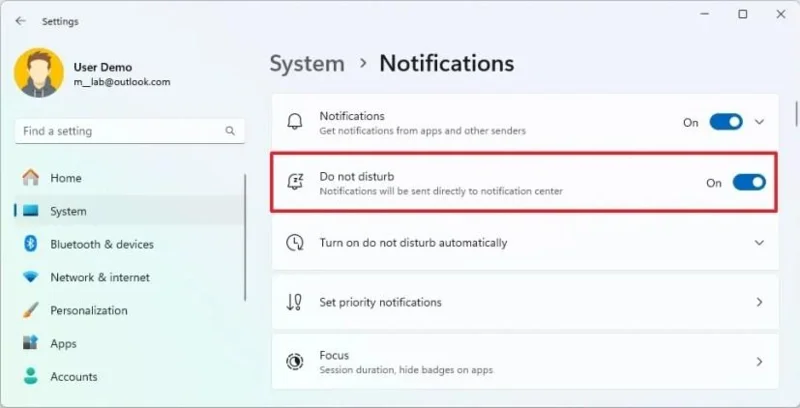
Once you complete the steps, the system will silence all notification banners. However, all the alerts will continue to appear in the Notification Center.
To turn on or off Do Not Disturb automatically, use these steps:
Open Settings.
Click on System.
Click the Notifications tab.
Turn on the “Do not disturb” toggle switch.
Click the “Turn on do not disturb automatically” setting.
Check the During these times option.
Set the on and off time to silence notifications.
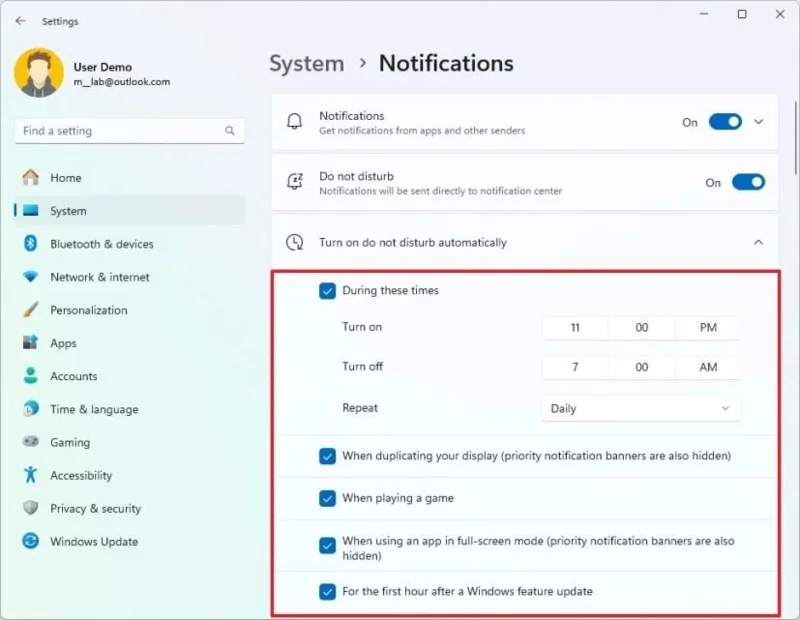
Choose the repeat setting.
After you complete the steps, the Do Not Disturb feature will enable and disable automatically, depending on your configuration.
In addition to setting up a schedule, you can also decide whether to stop notifications banners at certain times, such as when duplicating the display, playing games or apps in full-screen mode, and for the first hours after a feature update installation.
15. Disable startup apps to improve boot time
If you have many apps set to start automatically when you turn on your computer, you might notice a few things. Your computer will take longer to start, it might feel slow, and your battery will last less. To make your computer start faster and save battery, it’s usually a good idea to limit the number of apps that start automatically.
To disable apps from launching automatically at startup on Windows 11, use these steps:
Open Settings.
Click on Apps.
Click the Startup tab.
Turn off the toggle switch to disable apps on the startup.
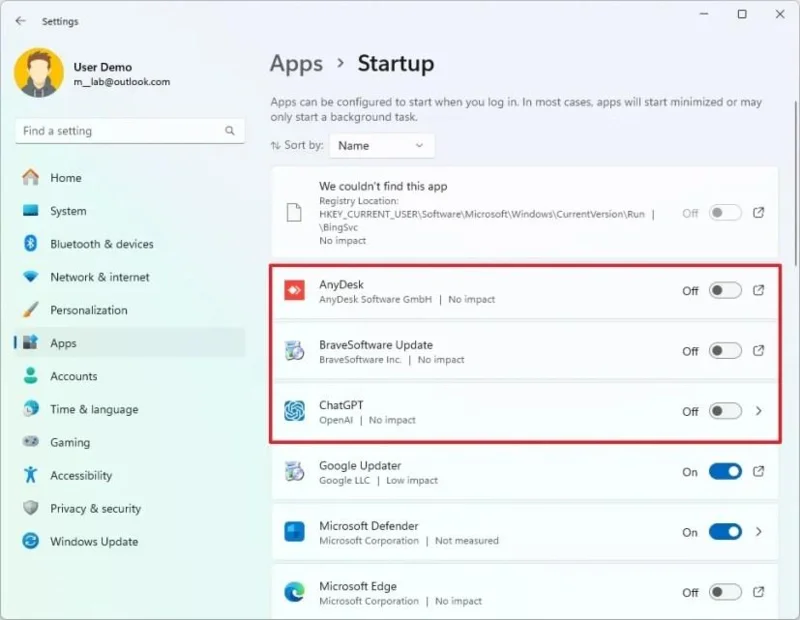
Once you complete the steps, the apps will no longer start automatically every time you turn on your computer.
Turn on restartable apps
Windows 11 also can restart certain apps when you sign back into the account after a restart. However, usually, this is not the preferred behavior.
To disable restartable apps on Windows 11, use these steps:
Open Settings.
Click on Accounts.
Click the Sign-in options page.
Turn off the “Automatically save my restartable apps and restart them when I sign back in” toggle switch under the “Additional settings” section.
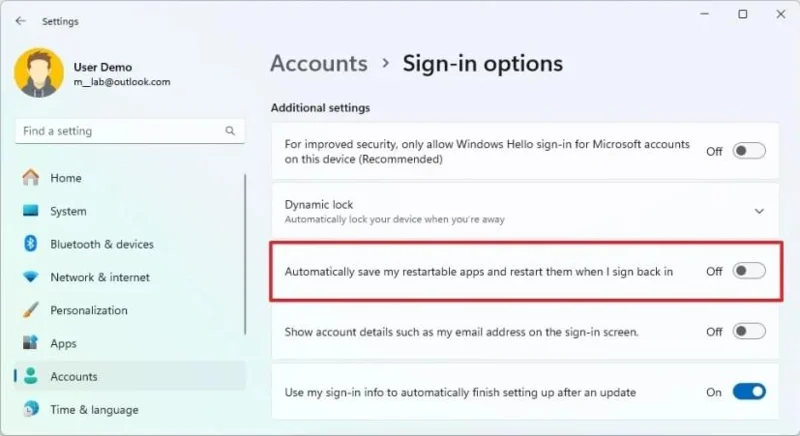
After you complete the steps, Windows 11 won’t remember the running in the last session to restart them when you sign back into the account.
16. Configure Storage Sense to free up space
Another setting that every user must configure is Storage Sense. When a device runs low on space, it’s critical to free up space to make storage available for other files and improve system performance. Usually, you should never use more than 70 percent of the total capacity to prevent performance issues.
On Windows 11, you have multiple ways to free up hard drive space, but Storage Sence is perhaps the best feature since it helps to manage storage space automatically.
To free up space with Storage Sense on Windows 11, use these steps:
Open Settings.
Click on System.
Click the Storage tab.
Click the Storage Sense setting.
Check the “Keep Windows running smoothly” option.
Turn on the “Automatic User content cleanup” toggle switch.
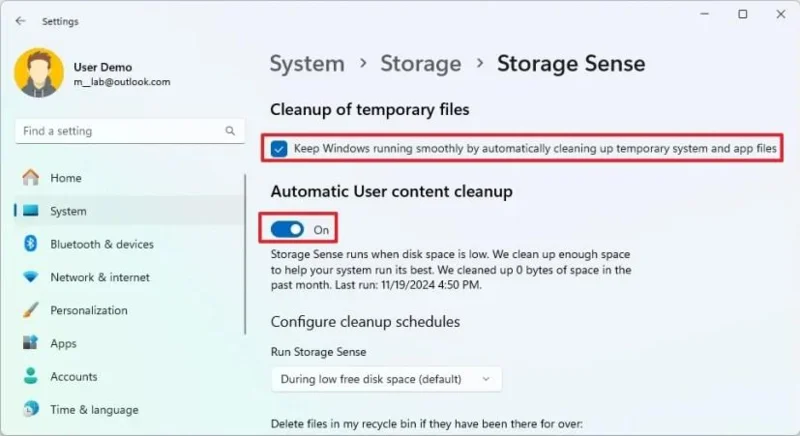
Under the ” Configure cleanup schedules ” section, use the “Run Storage Sense” setting and select the “During low free disk space” option.
Use the “Delete files in my recycle bin” setting to choose the files to delete from the Recycle Bin. (Then the 1-day option clears the most files.)
Use the “Delete files in my Downloads folder” setting to clean up the files from the Downloads folder. (You want to make a copy of any important file before selecting this option.)
Under the “Locally available cloud content” section, use the OneDrive setting and select when synced files should become online-only to free up space.
Click the “Run Storage Sense now” button.
Once you complete the steps, Windows 11 will free up space making more room to store other files. Also, since you are enabling the feature, Storage Sense will run automatically during low available drive space.
17. Change default web browser on Windows 11
If you prefer another web browser (such as Google Chrome or Mozilla Firefox) other than Microsoft Edge to browse the web, you can change the system settings to any browser with the new default so that links will open automatically with the application of your choice.
To change the default browser on Windows 11, use these steps:
Open Settings.
Click on Apps.
Click the Default apps page from the left side.
Select the web browser (Google Chrome or Mozilla Firefox) to make the new default on Windows 11.
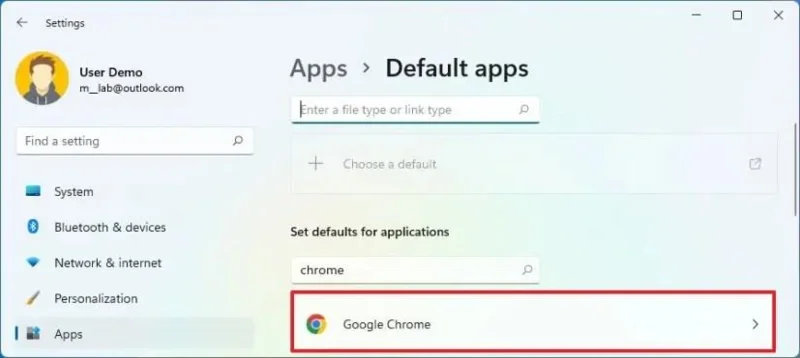
Click the Set default button.
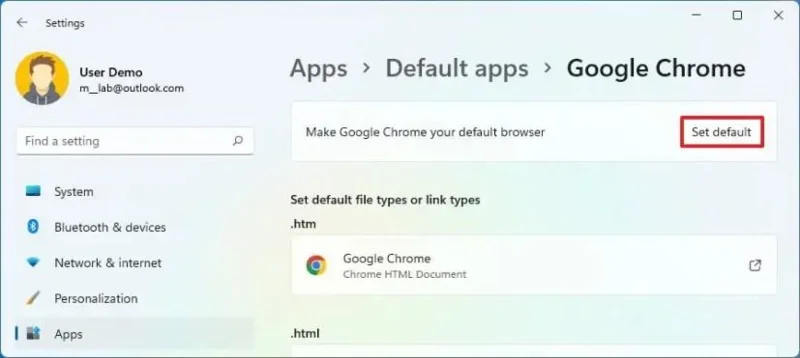
(Optional) Click the “.pdf” protocol and select the Switch anyway option to make your preferred browser the new default.
Click the OK button.
Once you complete the steps, the application will become the new default browser. However, it won’t be the default for everything. Microsoft Edge and Bing will still be the default for web results when using Windows Search and clicking links from the Widgets dashboard.
18. Enable Dynamic Refresh Rate (DRR)
Dynamic Refresh Rate is a feature that helps your laptop or computer save battery power. It basically adjusts how quickly the screen refreshes. This might make the picture look slightly different, but it saves energy.
To use this feature, you need a special type of screen known as “Variable Refresh Rate” (VRR) that can refresh at least 120 times per second (120Hz). You also need the right kind of graphics driver installed on your computer.
To enable Dynamic Refresh Rate on Windows 11, use these steps:
Open Settings.
Click on System.
Select the Display tab on the right side.
Click the Advanced display setting under the “Related settings” section.
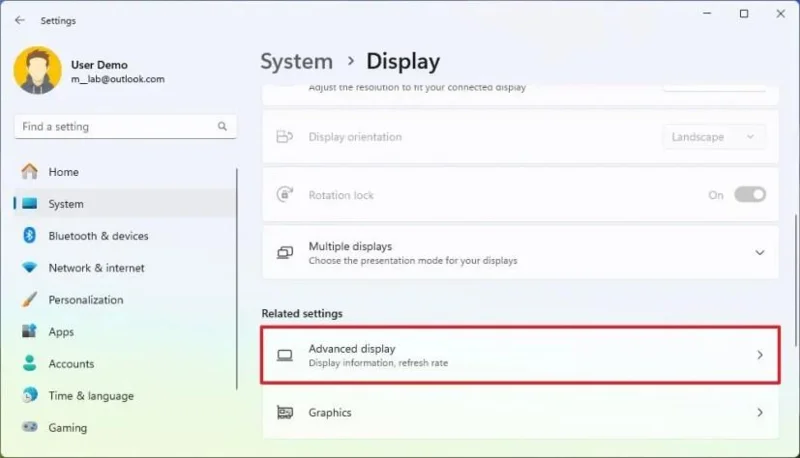
Choose the monitor from the “Select a display to view or change settings” section if you have a multi-monitor setup.
Turn on the “Dynamic refresh rate” toggle switch to enable the DRR feature.
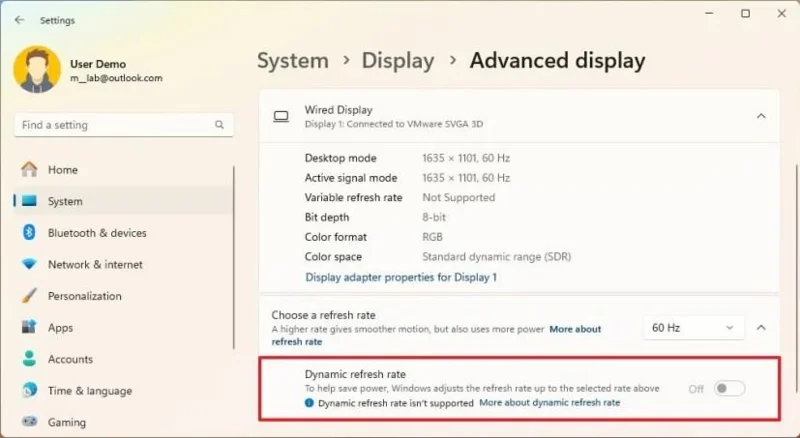
Once you complete the steps, the device will apply the refresh rate. If the computer has the “Dynamic” option, the system will automatically lower the refresh rate to save power, reducing the quality of your overall experience.
19. Enable auto brightness feature
Although you can adjust the screen brightness manually, Windows 11 can automatically control the brightness and contrast to improve content visibility in different environments while saving battery life.
To disable content adaptive brightness control, use these steps:
Open Settings.
Click on System.
Click the Display tab.
Click the Brightness setting under the “Brightness & color” section.
Turn off the “Change brightness automatically when lighting changes” toggle switch on devices that have an ambient sensor.
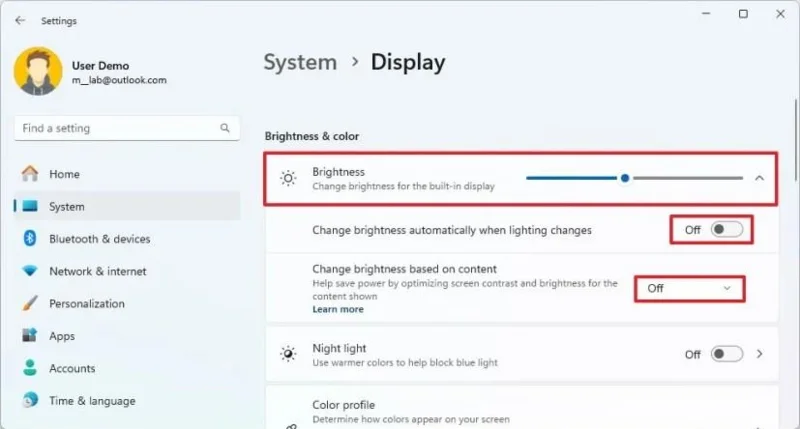
Choose the “Off” option in the “Change brightness based on content” setting to disable the “Content Adaptive Brightness Control” (CABC) feature.
完成上述步驟後,Windows 11 將使用環境光感應器根據室內光線自動調整螢幕亮度。如果您啟用了「內容自適應亮度控制」(CABC)功能,系統會根據螢幕上顯示的內容自動調整亮度和對比度設置,從而提升電池續航力。
需要注意的是,「內容自適應亮度控制」功能可能會降低影像品質。如果色彩準確度很重要,最好將其停用。
如果螢幕亮度持續自動變化,您可能需要在 Windows 11 上更改一些額外的電源設置,特別是如果您使用的是 Copilot+ PC。
20. 更改主題以個性化桌面
主題是刷新桌面外觀最簡單的方法。在 Windows 11 中,主題是包含不同桌布、強調色、滑鼠指標自訂設定和聲音的軟體套件。
Windows 11 預設包含六個主題,分別是 Windows(淺色)、Windows(深色)、Glow、Sunrise、Capture 提示和 Flow。此外,您也可以從 Microsoft Store 下載更多主題。
若要在 Windows 11 上變更主題,請依照下列步驟操作:
打開設定。
點選個性化設定。
點選“主題”標籤。
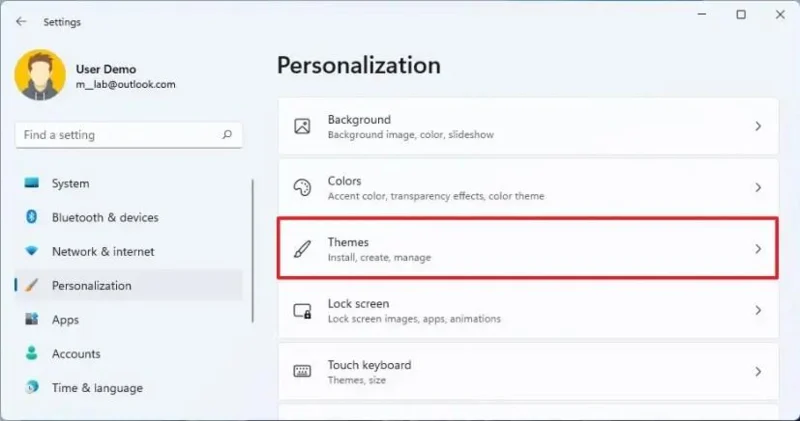
選擇一個可用的預設主題進行應用。
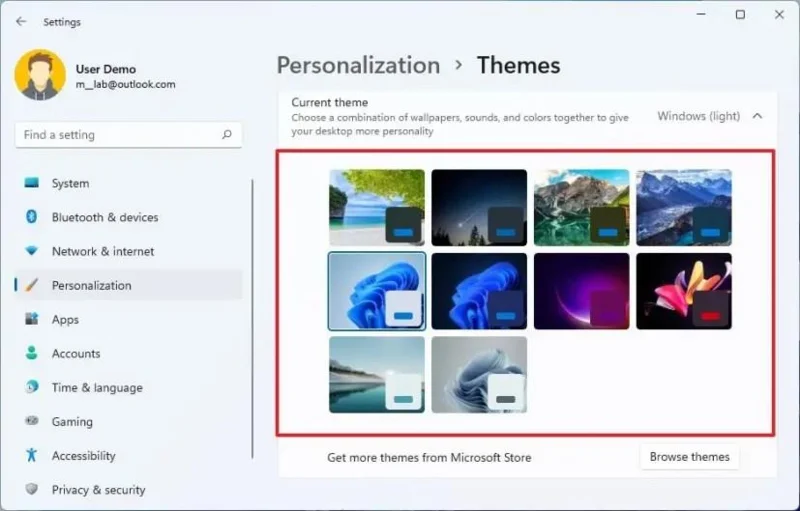
(可選)點選「瀏覽主題」按鈕。
從微軟商店選擇一個主題。
點擊“獲取”按鈕。
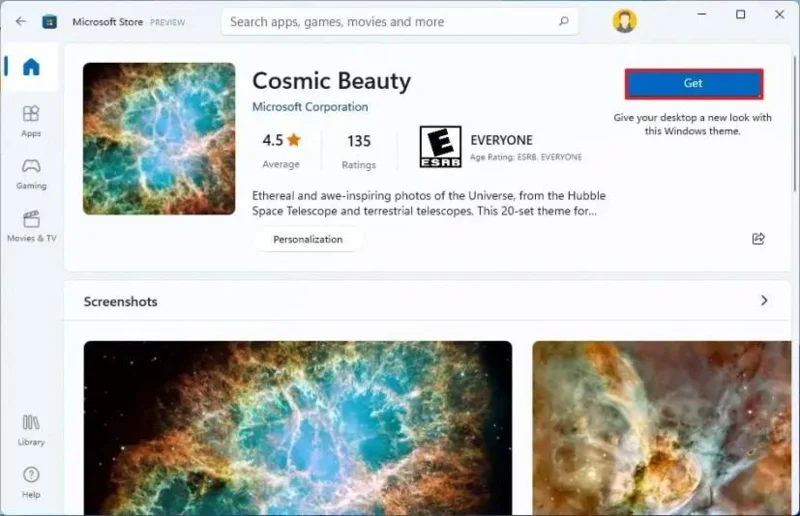
點擊“開啟”按鈕。
在「目前主題」部分選擇要套用的新主題。
完成這些步驟後,主題將套用於設定桌面背景圖像、自訂強調色和系統色彩模式。
21. 變更滑鼠遊標和指標顏色
在 Windows 11 中,您可以變更滑鼠指標的外觀。除了預設的白色之外,您還可以選擇不同的顏色和大小。您可能會驚訝地發現,這些設定位於「輔助功能」部分,而不是您通常認為的「個人化」部分。
若要在 Windows 11 上變更滑鼠指標顏色,請依照下列步驟操作:
打開設定。
點選“輔助功能”。
點擊“滑鼠指標和觸控”選項卡。
在“滑鼠指標”部分下選擇“自訂”選項。
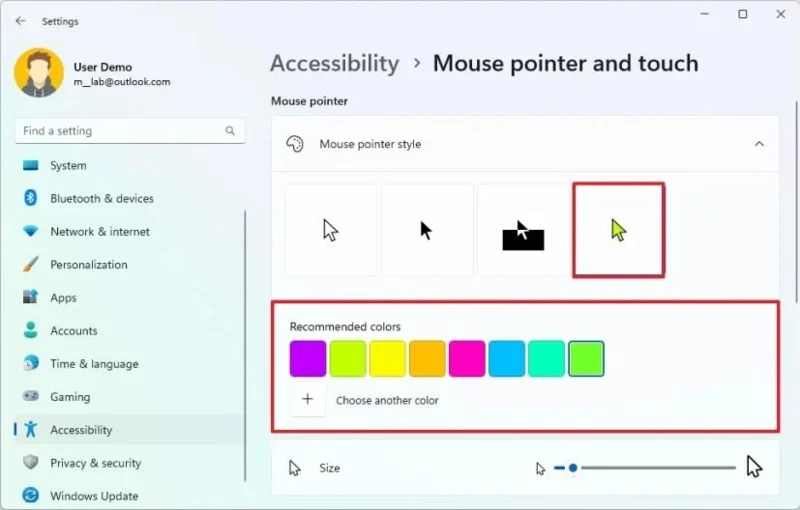
小提醒:您也可以選擇其他三種樣式,包括白色、黑色和反色。
選擇一種推薦顏色。
(可選)點選「選擇其他顏色」選項,為滑鼠指標建立自訂顏色。
完成這些步驟後,滑鼠指標將會套用新的顏色。
在 Windows 11 上變更滑鼠大小
若要在 Windows 11 上變更滑鼠指標大小,請依照下列步驟操作:
打開設定。
點選“輔助功能”。
點擊“滑鼠指標和觸控”選項卡。
在“滑鼠指標”部分,使用“大小”滑桿變更滑鼠指標大小。
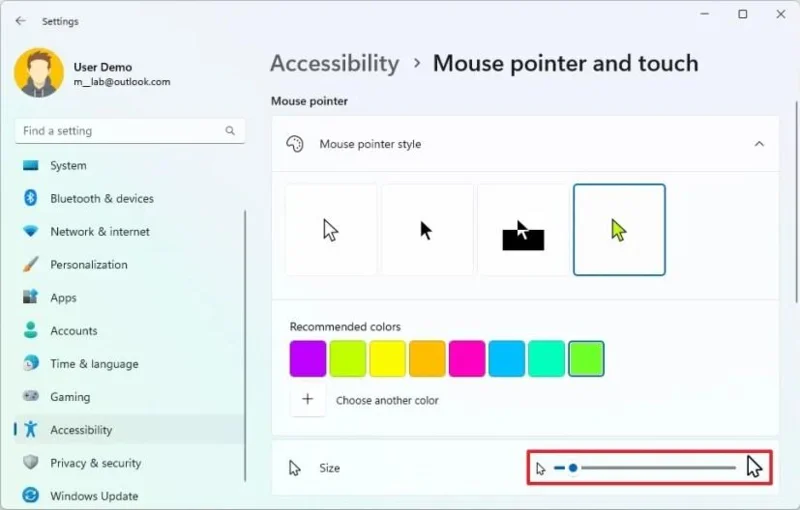
完成這些步驟後,滑鼠指標的大小將會變更為新的尺寸。
22. 優化 Windows 11 上的遊戲效能
如果您在電腦上玩遊戲,微軟建議停用記憶體完整性和虛擬機器平台功能以提高遊戲效能。
禁用記憶體完整性
若要在 Windows 11 上停用記憶體完整性保護,請依照下列步驟操作:
打開開始。
搜尋「Windows 安全中心」,然後點擊第一個搜尋結果以開啟該應用程式。
點選“設備安全”。
在「核心隔離」部分下,點選「核心隔離詳情」選項。
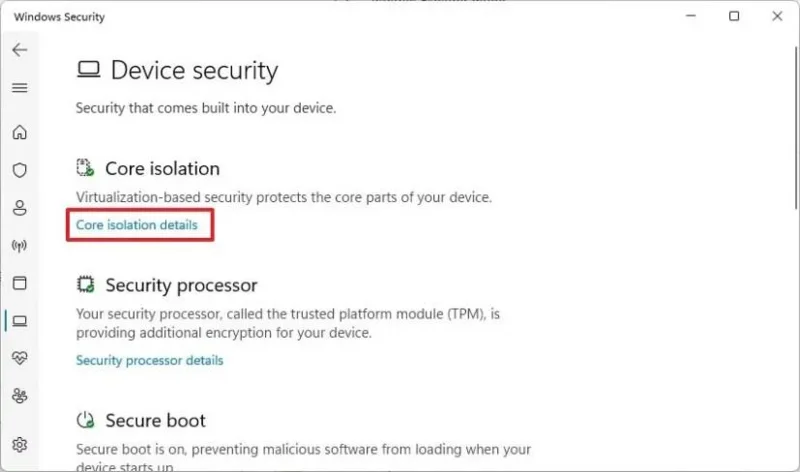
關閉“記憶體完整性”開關以優化遊戲體驗。
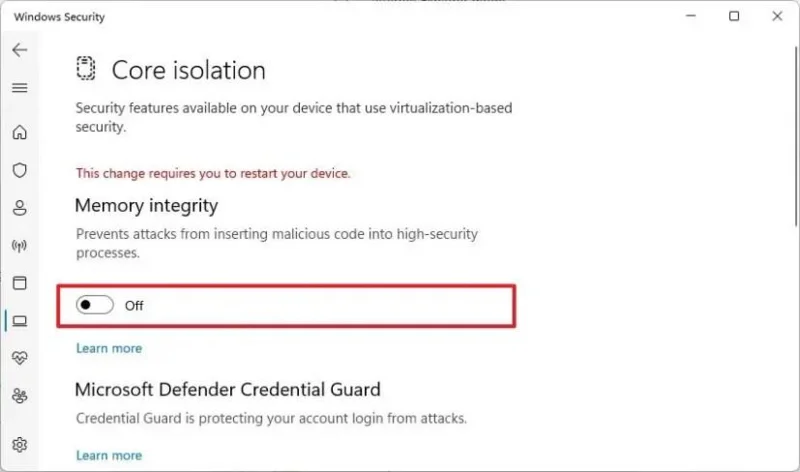
重啟電腦。
完成這些步驟後,電腦上的安全功能將被停用,以提高遊戲效能。
禁用虛擬化
若要在 Windows 11 上停用虛擬化,請依照下列步驟操作:
打開設定。
點選“應用”。
點選“可選功能”標籤。
在「相關設定」部分下,按一下「更多 Windows 功能」設定。
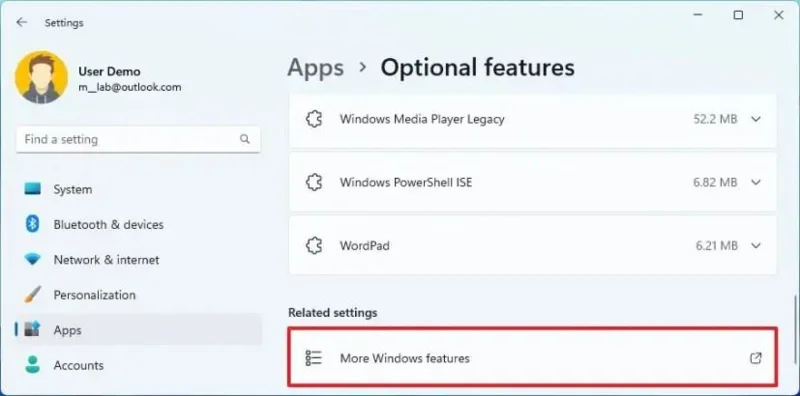
清除「虛擬機器平台」選項即可停用該功能並優化遊戲體驗。
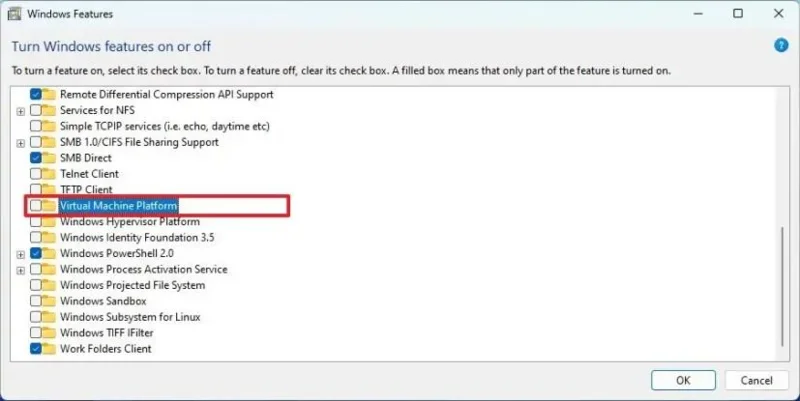
點選“確定”按鈕。
點選“立即重新啟動”按鈕。
完成這些步驟後,虛擬化功能將會停用,以提高 Windows 11 上的遊戲效能。
遊戲結束後,建議您重新啟用這些功能。您可以按照上述步驟操作,但在步驟 5(第一組步驟)中,打開切換開關以重新啟用記憶體完整性,但暫時不要重新啟動電腦。然後,在步驟 4(第二組步驟)中,選取重新啟用虛擬化的選項並重新啟動電腦。
23. 啟用系統還原以還原 Windows 11
系統還原是 Windows 11 中非常實用的功能,您也應該考慮使用它。當系統偵測到重大變更(例如安裝更新)時,它會建立一個目前系統狀態的快照(包括登錄備份)作為還原點。如果您的電腦發生故障,您可以使用此快照將其還原到先前的狀態,而不會遺失任何檔案。
唯一的問題是,此功能預設是關閉的,因此您需要先手動開啟才能使用。
若要在 Windows 11 上啟用並建立還原點,請依照下列步驟操作:
打開開始。
搜尋「建立還原點」,然後點選第一個搜尋結果開啟該應用程式。
選擇系統磁碟機(C),然後按一下「保護設定」部分下的「配置」按鈕。
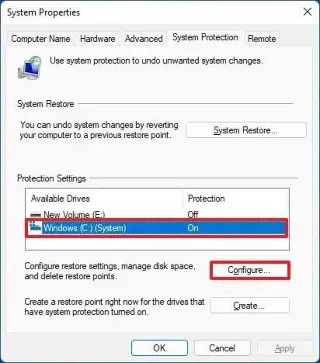
選擇“開啟系統保護”選項。
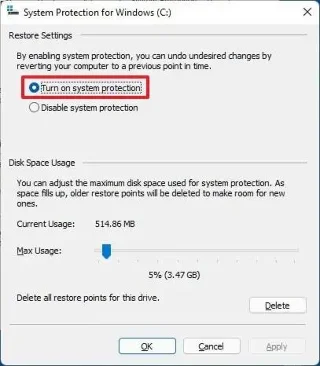
點擊“應用”按鈕。
點選“確定”按鈕。
點擊“創建”按鈕。
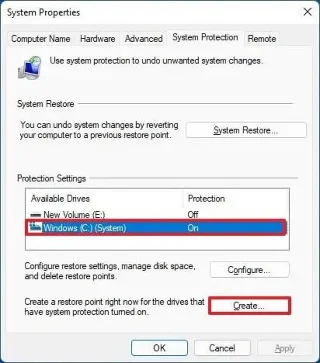
確認 Windows 11 還原點的名稱。
點擊“創建”按鈕。
點擊“關閉”按鈕。
完成這些步驟後,系統將建立一個還原點,其中包含系統檔案、已安裝的應用程式、系統設定和登錄備份。您可以使用此還原點將 系統還原 到正常工作狀態。
雖然此功能可以在發生特定係統變更時偵測並建立還原點,但如果系統還原無法偵測到會導致電腦出現問題的更改,也可以每天建立還原點。
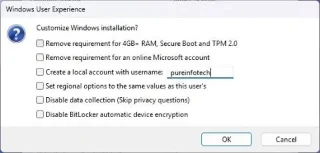
要建立 Windows 11 25H2 可啟動 USB 安裝程序,您可以使用 Rufus、Ventoy、命令提示字元和媒體建立工具,以下是具體操作方法。
KB5074157(版本 26220.7653)適用於 Windows 11,改進了深色模式,增加了 WebP 壁紙支持,並修復了任務欄、開始功能表、藍牙等問題。
KB5074109 是 Windows 11 的 2026 年 1 月更新,它導致了崩潰、啟動失敗、Outlook 問題和卸載錯誤,迫使用戶將其刪除。
要防止您的 ChatGPT 對話出現在 Google 搜尋中,請檢查並刪除公開共享的 ChatGPT 鏈接,方法如下。
您可以透過 Microsoft Store 或 PowerShell 安裝適用於 Android 的 Windows 子系統 (WSA),從而在 Windows 11 上執行 Android 應用程式。方法如下。
OpenAI 預設會收集您的 ChatGPT 對話內容用於 AI 訓練,以下是如何停用此功能以更好地保護隱私的方法。
Windows 11 版本 27913(Canary)帶來了重新設計的設定介面,恢復了 Vista 啟動聲音,修復了黑屏桌布問題等等。
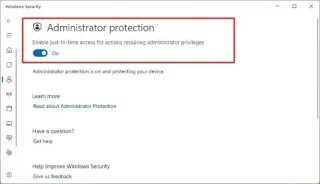
Windows 11 版本 26120.4733 (KB5062651) 在 Beta 頻道中引入了新的 AI 圖像描述、應用程式權限重新設計以及管理員保護功能。
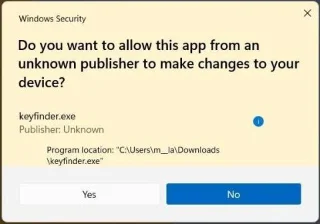
Windows 11 25H2 版本 26200.5702 (KB5062653) 帶來了 AI 映像描述、新的管理員安全功能、重新設計的權限對話方塊等。
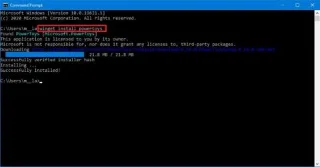
現在您可以使用 winget 命令在 Windows 10 上安裝應用程序,以下是使用 Windows 軟體套件管理器執行此操作的步驟。