如何建立可啟動的 Windows 11 25H2 USB 安裝介質
要建立 Windows 11 25H2 可啟動 USB 安裝程序,您可以使用 Rufus、Ventoy、命令提示字元和媒體建立工具,以下是具體操作方法。
更新於 2026 年 1 月 2 日:雖然Windows 11是作業系統中最安全的版本,但您仍然可以添加一些自訂配置並遵循最佳實踐來提高裝置的安全性。
作為最佳安全實務的一部分,您可以檢查系統更新並掃描電腦是否存在病毒。您還可以設定安全功能,例如勒索軟體和網路釣魚防護、防火牆、生物辨識身分驗證、加密以及其他熱門功能,例如智慧型應用程式控制和核心隔離。
如果您需要從不受信任的來源安裝應用程序,可以使用 Windows 沙盒創建一個輕量級虛擬機來測試應用程序,而不會危及主安裝。
在本指南中,我將概述 2026 年 Windows 11 的最佳安全設定。
2026 年 Windows 11 最佳安全性設定變更指南
以下是一些在 Windows 11 上啟用、設定或停用的最佳安全性設定。 (您不必配置所有設置,只需使用您認為最適合您情況的設置即可。)
1. 安裝系統更新
在 Windows 11 系統中,安裝最新更新是保護裝置和檔案安全的最佳方法之一,因為更新可以修復漏洞、增強安全性並提高系統效能。
若要手動安裝 Windows 11 更新,請依照下列步驟操作:
開啟Windows 11 中的「設定」 。
點選「Windows 更新」。
點選“檢查更新”按鈕。
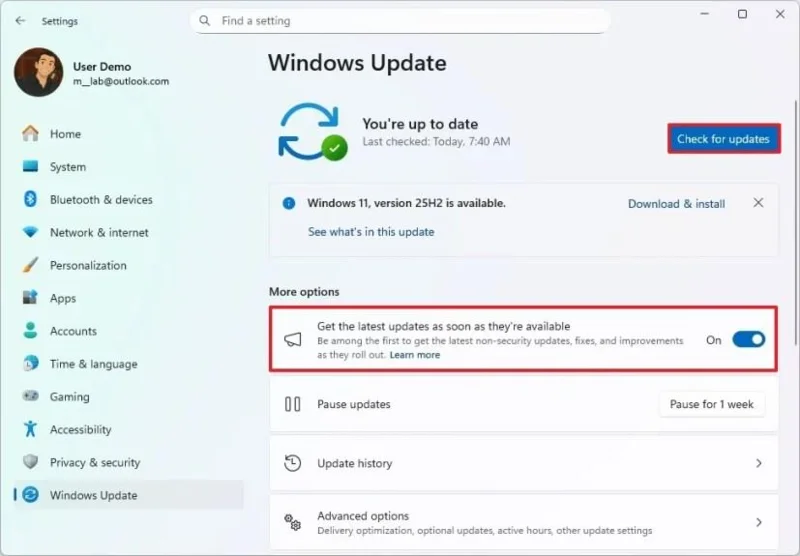
(可選)開啟「取得最新更新」開關。
點擊「下載並安裝」按鈕,即可預覽即將推出的更新(如有)。
簡要說明:可選更新通常包含微軟計劃在下一個「補丁星期二」發布中推出的非安全性變更。
點選“立即重新啟動”按鈕。
完成這些步驟後,如果有可用更新,它將在 Windows 11 上自動下載並安裝。
除了使用 Windows 更新設定外,您還可以透過不同的方法更新系統,例如命令提示字元、PowerShell 和 Microsoft 更新目錄網站。
1. 掃描電腦病毒
Windows 11 內建了 Microsoft Defender 防毒軟體,可以偵測並清除幾乎所有惡意軟體,包括病毒、勒索軟體、間諜軟體和 rootkit。如果您懷疑電腦已被入侵,請執行完整掃描或離線掃描(尤其是在感染嚴重的情況下),以確保您的裝置免受惡意軟體的侵害。即使安裝了第三方防毒軟體,定期掃描仍然是良好的安全習慣。
全面病毒掃描
若要在 Windows 11 上執行全面病毒掃描,請依照下列步驟操作:
打開開始。
搜尋「Windows 安全中心」,然後點擊第一個搜尋結果以開啟該應用程式。
點選「病毒和威脅防護」。
點擊“目前威脅”部分下的“掃描選項”。
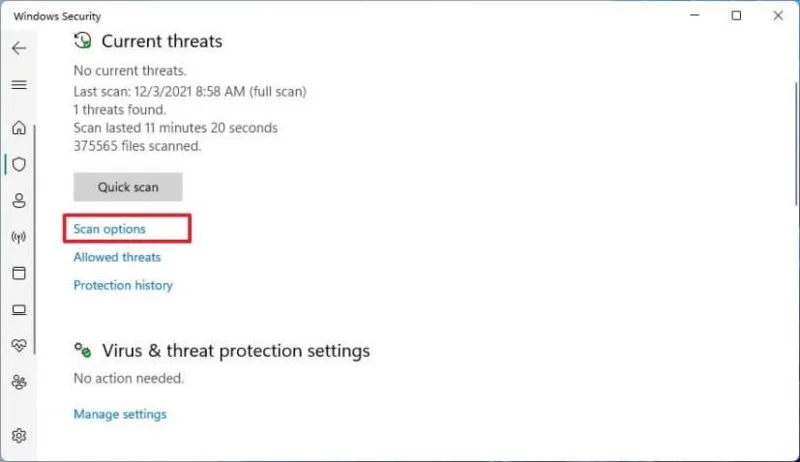
選擇「完整掃描」選項,檢查整個系統是否有病毒和其他類型的惡意軟體。
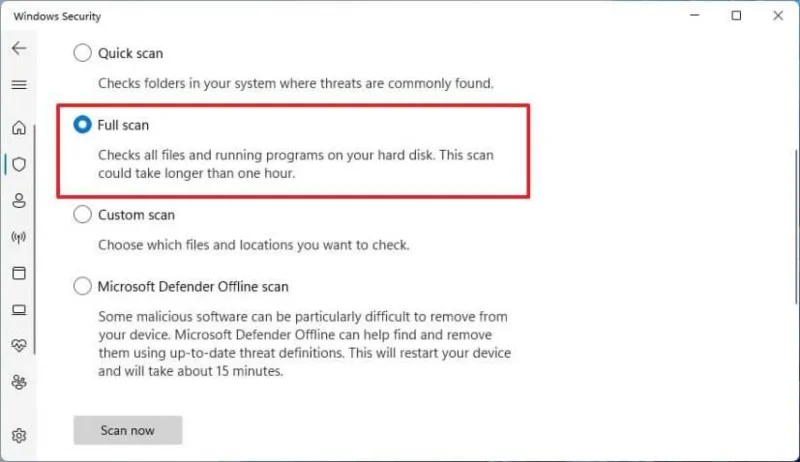
點選“立即掃描”按鈕。
完成上述步驟後,Microsoft Defender 防毒軟體將掃描電腦是否有惡意軟體。如果偵測到任何惡意軟體,該防毒軟體會自動刪除(或隔離)這些威脅。
您也可以透過命令提示字元和 PowerShell使用防毒軟體。
離線病毒掃描
若要在 Windows 11 上執行離線病毒掃描,請依照下列步驟操作:
開啟Windows 安全中心。
點選「病毒和威脅防護」。
點擊“目前威脅”部分下的掃描選項。
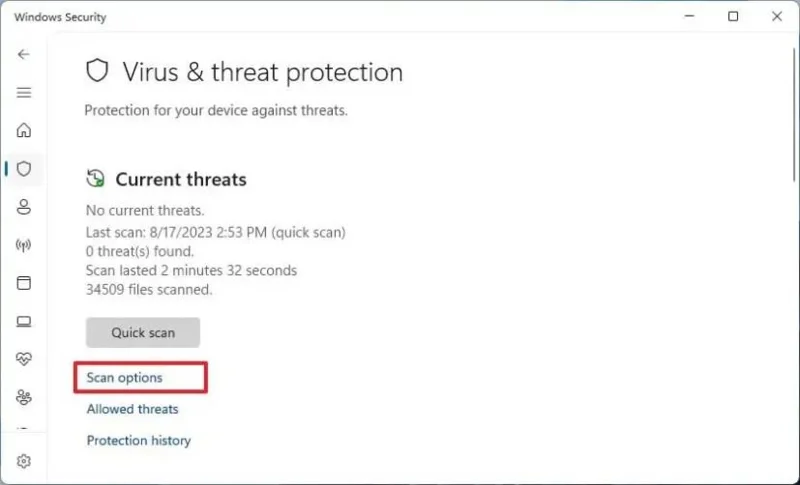
勾選“Microsoft Defender 離線掃描”選項。
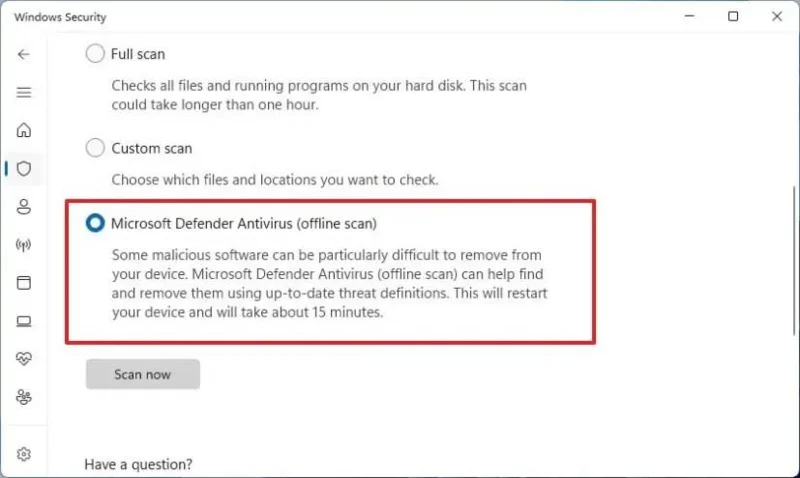
點選“立即掃描”按鈕。
點擊掃描按鈕。
完成上述步驟後,電腦將自動重新啟動進入復原環境,Microsoft Defender 將開始全面病毒掃描。如果 Windows 11 防毒軟體偵測到任何病毒、rootkit 或其他類型的惡意軟體,它會自動將其清除。
如果您有其他防毒解決方案,另一個最佳安全實務是在 Windows 11 上啟用「定期掃描」,該功能會定期掃描並刪除其他防毒軟體可能遺漏的威脅。
若要在 Windows 11 版 Microsoft Defender 防毒軟體中啟用“定期掃描”,請按以下步驟操作:
開啟Windows 安全中心。
點選「病毒和威脅防護」。
點選“Microsoft Defender 防毒選項”設定。
打開週期性掃描切換開關。
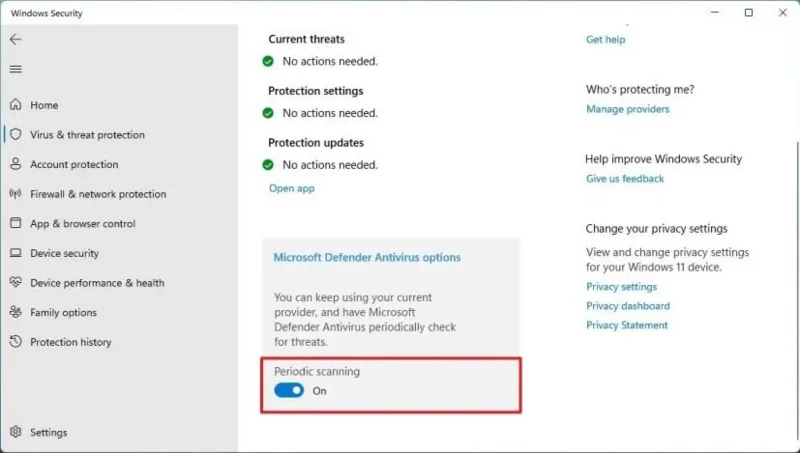
完成這些步驟後,Windows 11 防毒軟體將使用「自動維護」功能在最佳時間執行掃描,以最大限度地減少對效能和電池續航時間的影響。
Windows 11 的「受控資料夾存取」是另一個出色的內建安全功能,旨在保護您的電腦免受勒索軟體攻擊。它會監控應用程式的檔案變更。如果被列入黑名單的應用程式試圖修改受保護資料夾中的文件,系統會通知您有可疑活動。
若要在 Windows 11 上啟用受控資料夾存取反勒索軟體保護,請依照下列步驟操作:
開啟Windows 安全中心。
點選「病毒和威脅防護」。
在「勒索軟體防護」部分下,點選「管理勒索軟體防護」設定。
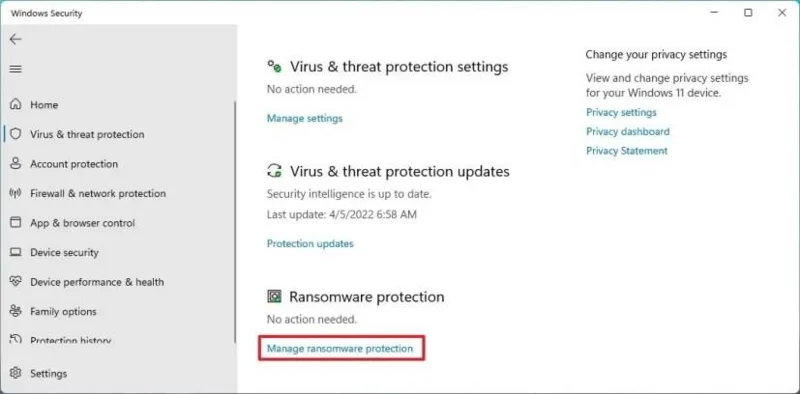
開啟“受控資料夾存取”開關。
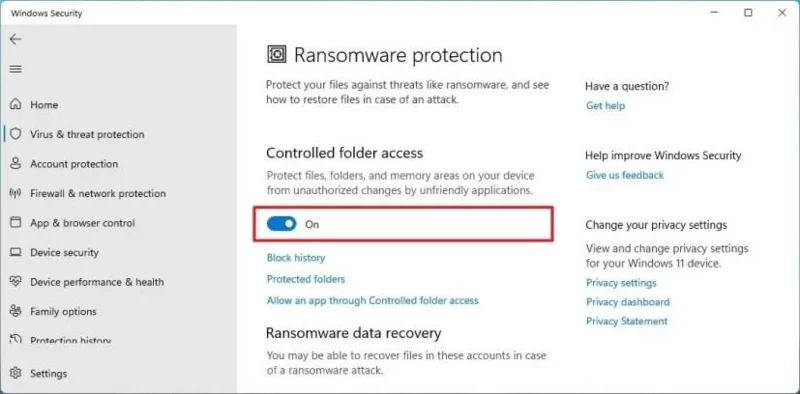
完成這些步驟後,Microsoft Defender 防毒軟體將監控受保護的資料夾,防止應用程式嘗試修改您的檔案。如果出現可疑活動,您將收到有關威脅的通知。
除了啟用該功能之外,這只是成功的一半。您還可以按照以下說明操作,以防止該功能阻止受信任的應用程序,並保護預設資料夾位置以外的其他資料夾位置。
4. 啟用網路釣魚防護
Windows 11 透過 Microsoft Defender SmartScreen 提供增強網路釣魚防護,保護您的密碼免受惡意網站和應用程式的侵害。此功能主要透過以下三種方式運作:
此保護適用於 Microsoft 帳戶、本機帳戶、Active Directory 和 Azure Active Directory。但是,它僅在使用密碼時有效。因此,必須停用 Windows Hello 才能啟用網路釣魚保護。
我建議僅在必要時或您尚未使用 Windows Hello 的情況下才啟用此功能。否則,使用密碼金鑰可能更為合適(請參閱以下說明)。
若要在 Windows 11 上啟用網路釣魚防護,請依照下列步驟操作:
打開設定。
點選“帳戶”。
點選「登入選項」標籤。
在「其他設定」部分下,關閉「為了提高安全性,僅允許此裝置上的 Microsoft 帳戶使用 Windows Hello 登入」開關。
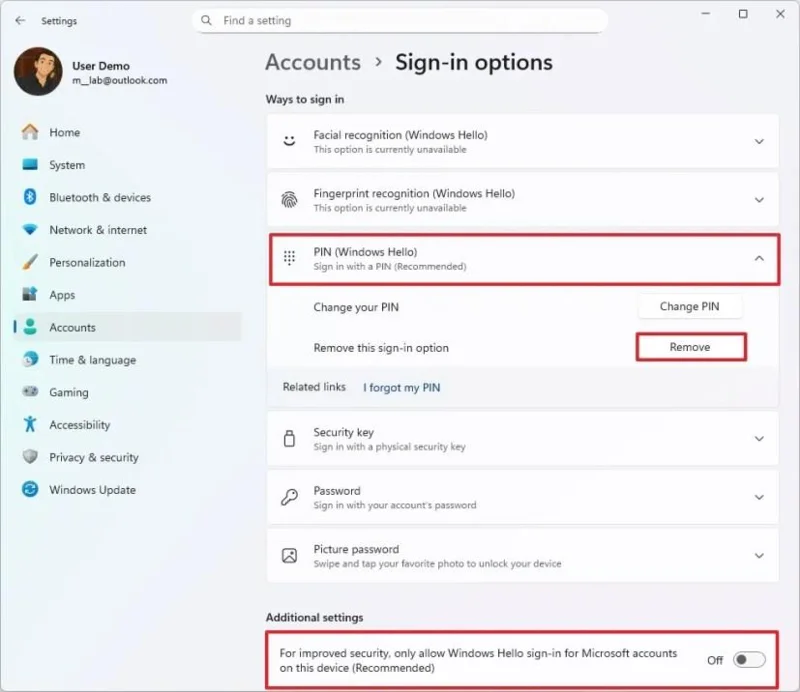
在「登入方式」部分下,選擇目前啟用的 Windows Hello 選項(臉部辨識、指紋辨識或 PIN 碼)。
點擊“刪除”按鈕。
再次點選“刪除”按鈕。
請確認您的微軟帳戶密碼。
點選“確定”按鈕。
開啟Windows 安全中心。
點選應用和瀏覽器控制。
點擊“基於信譽的保護設定”選項。
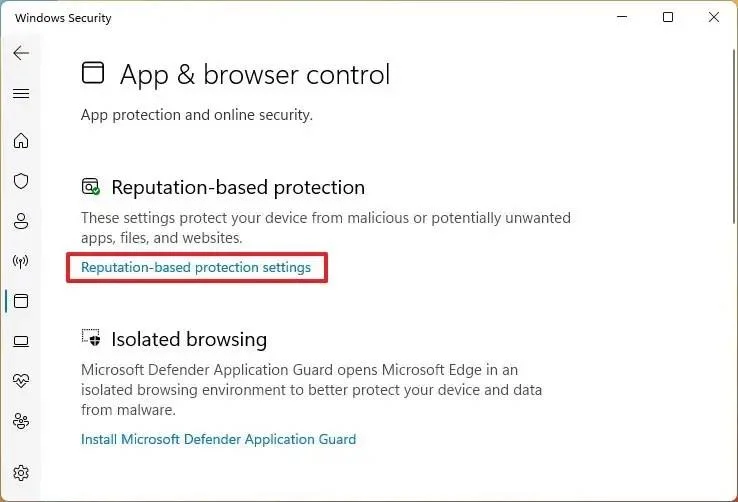
開啟「網路釣魚防護」開關以啟用安全功能。
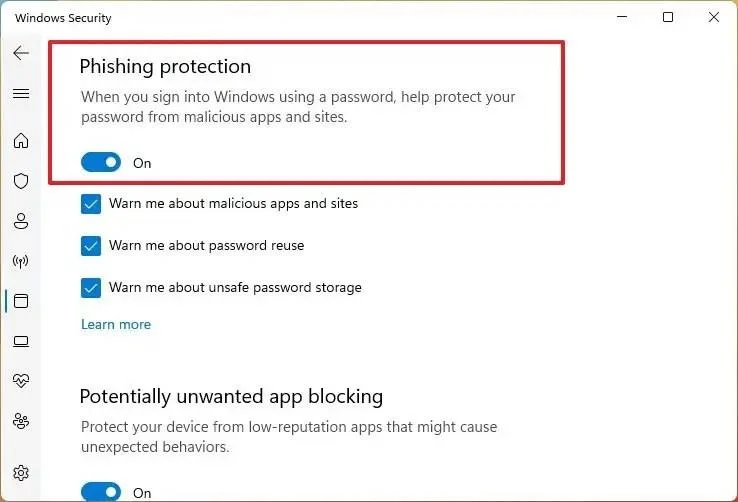
勾選「有關惡意應用程式和網站時發出警告」選項,以便在造訪不受信任的網站或程式時顯示警告。
勾選「密碼重複使用提醒」選項,可避免在建立新帳戶或更新網站或程式上的資訊時使用相同的密碼。
勾選「有關不安全密碼儲存的警告」選項,即可警告您不要將密碼以明文形式儲存在文字編輯器中。
完成這些步驟後,「增強型網路釣魚保護」功能會在您在不受信任的應用程式或網站上輸入密碼時發出警告,並提供更改密碼的選項,以降低他人未經授權存取您帳戶的可能性。
由於文字編輯器或 Office 應用程式並非設計用於保護您的憑證,因此當您嘗試在這些應用程式中重複使用密碼或儲存密碼時,也會收到警告。
5. 為網站和應用程式建立密碼
對於支援此身份驗證方法的網站和應用程序,Passkey 提供了一種安全且方便的替代傳統密碼的方案。 Passkey 不使用密碼,而是利用公鑰加密技術,產生與您的帳戶關聯的唯一加密金鑰對。此金鑰對安全地儲存在您的 Windows 11 裝置上。下次造訪服務時,您可以使用 Windows Hello(採用臉部辨識、指紋或 PIN 碼等生物辨識技術)進行身份驗證,無需輸入密碼。
這種方法透過移除登入過程中的密碼來提高安全性,從而顯著增加駭客入侵您帳戶的難度。 Passkey 是包括微軟、谷歌、蘋果、亞馬遜和 PayPal 在內的多家大型公司所採用的更廣泛安全標準的一部分,旨在跨平台提供統一且安全的身份驗證體驗。
若要建立密碼金鑰,請導覽至受支援服務或應用程式的帳戶安全性設置,然後依照指示設定密碼金鑰驗證。配置完成後,您的密碼金鑰可以使用您的 Microsoft 帳戶在不同裝置間同步,從而在任何 Windows 11 裝置上實現無縫存取。某些線上服務甚至可能在登入過程中提供設定密碼金鑰的選項。
以下範例為您的 Google 帳戶建立密碼:
開啟Microsoft Edge(或Google Chrome)。
開啟您的Google帳號。
登入並開啟網路服務帳戶設定。
啟用“密碼登入”選項。
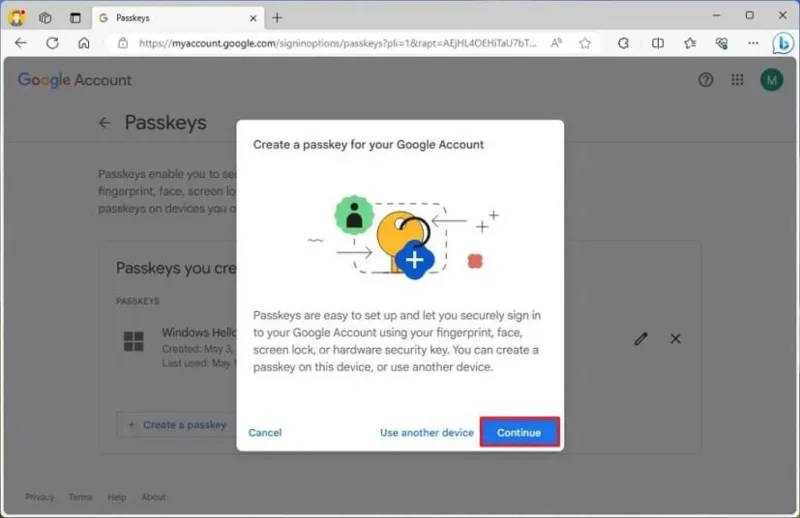
點選「建立通行密鑰」選項。
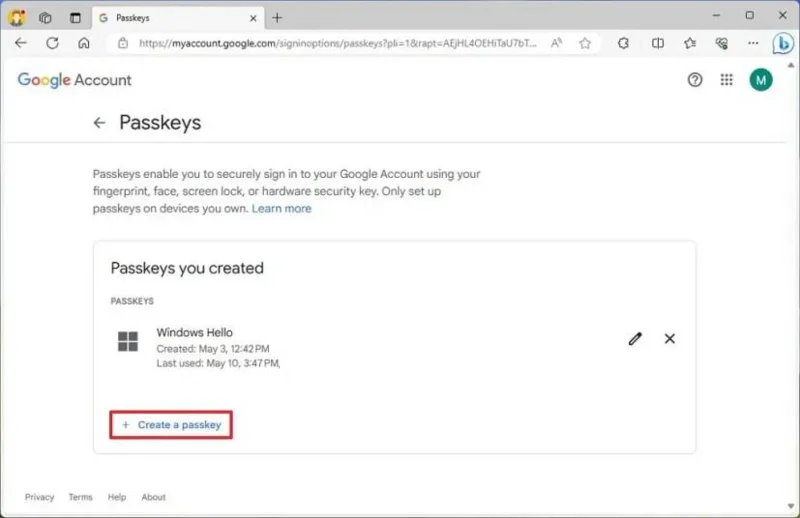
點擊“繼續”按鈕。
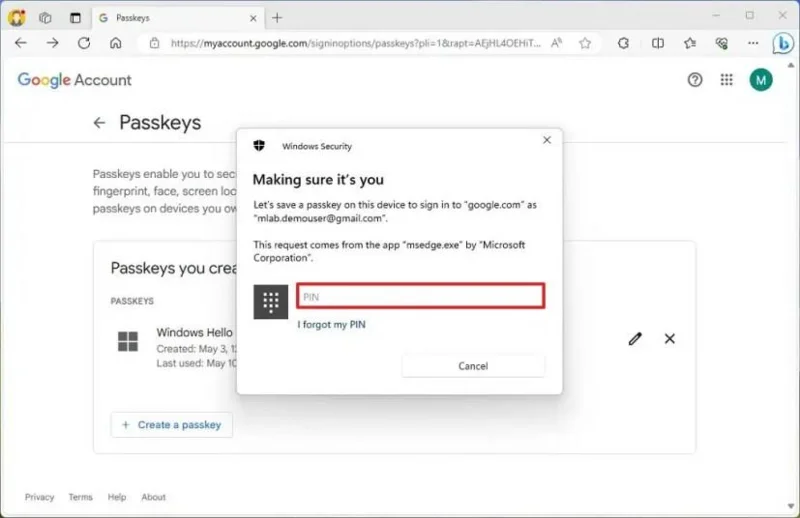
在 Windows Hello 上確認您的帳戶憑證。
點選“確定”按鈕。
點擊“完成”按鈕。
完成這些步驟後,通行密鑰將以令牌的形式下載到您的電腦上。下次您想要存取服務(或套用)時,可以使用 Windows Hello 驗證來完成登入過程,而無需使用服務密碼。
令牌僅在單一裝置上有效,這表示您必須在要存取該服務的每個裝置上建立通行金鑰。您可以在「設定」 > 「帳戶」 > 「通行金鑰」中檢視和刪除通行金鑰。
6. 檢查防火牆設置
微軟 Defender 防火牆可以監控傳入和傳出的網路流量,並根據預先定義的規則允許或阻止連接,從而保護您的電腦和資訊免受未經授權的存取。此功能預設應已啟用,但如果未啟用,最好檢查並啟用它。
若要透過 Windows 安全中心啟用防火牆,請依照下列步驟操作:
開啟Windows 安全中心。
點選「防火牆和網路保護」。
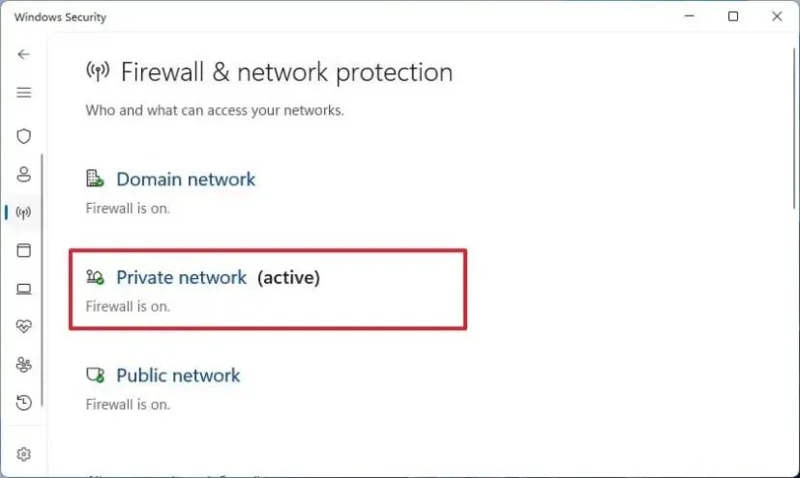
點選“啟用網路”選項。
開啟「Microsoft Defender 防火牆」開關即可關閉防火牆。
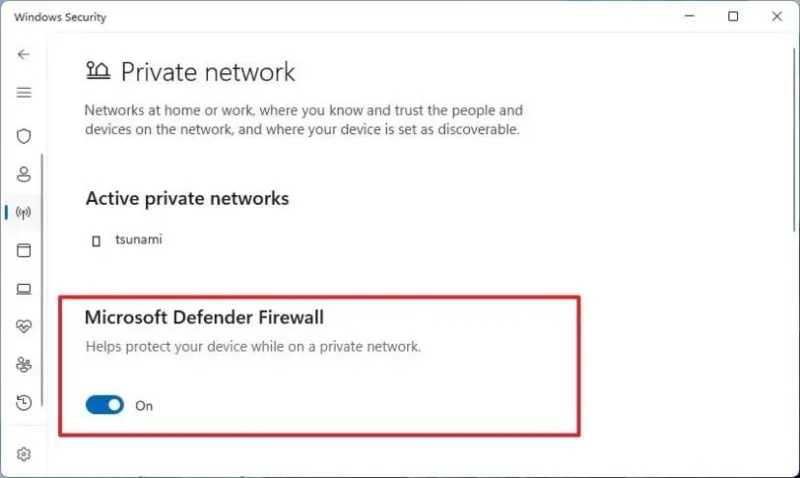
完成這些步驟後,防火牆將為目前活動網路設定檔啟用。
7. 啟用基於 HTTPS 的 DNS (DoH)
如果您希望在上網時獲得額外的安全性和隱私保護,則必須啟用 DNS over HTTPS (DoH)。
DNS over HTTPS 是網路協議,旨在利用超文本傳輸安全協議 (HTTPS) 加密網域名稱系統 (DNS) 查詢,從而增強隱私並最大限度地減少駭客查看和操縱 DNS 流量的攻擊。
部分應用程式(例如 Google Chrome 和 Mozilla Firefox)已經支援此功能,但您也可以在 Windows 11 上進行設定。方法如下:
打開設定。
點選「網路和網際網路」。
點擊乙太網路或Wi-Fi選項卡(取決於目前連接的裝置)。
小提醒:如果您使用的是 Wi-Fi 連接,請點選連接屬性存取設定。
在「DNS伺服器分配」設定中,點選「編輯」按鈕。
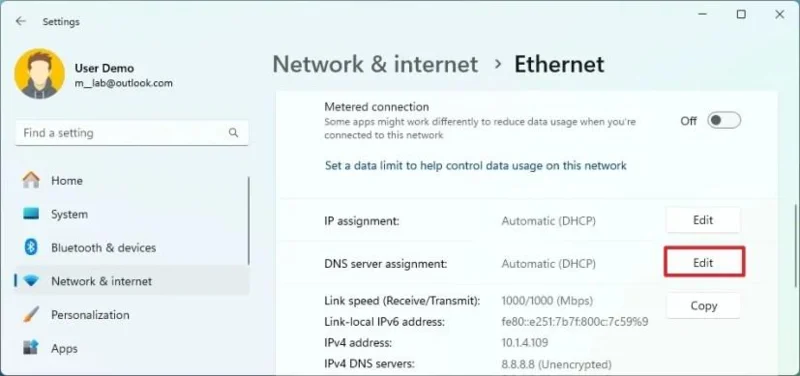
從下拉式選單中選擇“手動”選項。
打開IPv4開關。
在「首選 DNS」和「備用 DNS」部分,指定來自支援服務之一的主 DoH IP 位址和備用 DoH IP 位址。例如,您可以使用 Cloudflare(1.1.1.1 和 1.0.0.1)或 Google(8.8.8.8 和 8.8.4.4)。
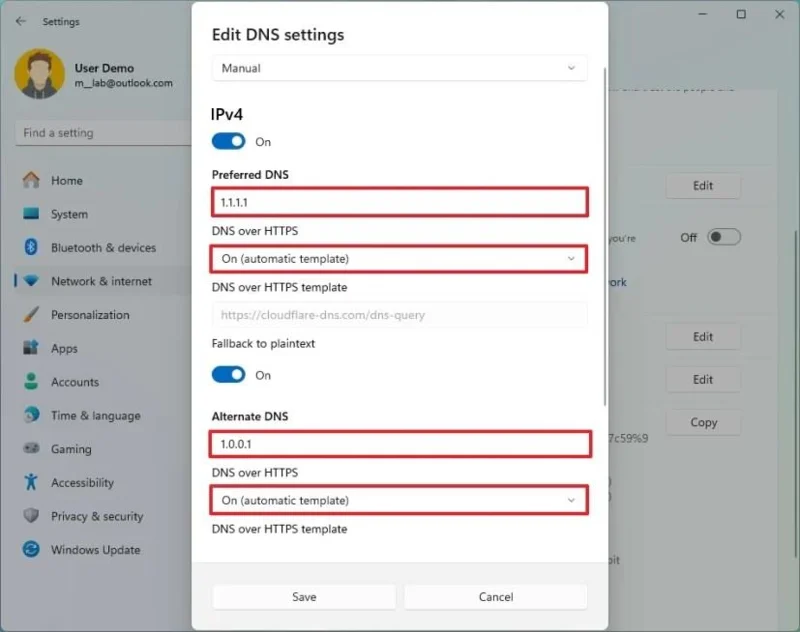
使用「DNS over HTTPS」下拉式選單,選擇「開啟(自動範本)」 選項,因為它會對所有 DNS 流量進行加密,但您也可以選擇其他加密首選項。
關閉“回退到純文字”開關。
小提示:啟用此功能後,系統將加密 DNS 流量,但允許以不加密的方式傳送查詢。
點選“儲存”按鈕。
完成這些步驟後,電腦將透過 HTTPS 協定加密 DNS 流量,從而提供更安全、更私密的體驗。
您可以按照這些說明了解更多詳情以及如何確認 DoH 設定是否正常運作。
8. 啟用 Windows Hello 臉部或指紋識別
作為 Windows 11 最佳安全性設定的一部分,您還可以使用 Windows Hello,它允許您透過新增生物辨識元素(例如臉部或指紋)來登入您的帳戶,從而增強電腦的安全性。如果您沒有整合生物辨識硬體的設備,則必須購買相容的臉部辨識攝影機或指紋辨識器才能進行設定。
啟用人臉辨識認證
若要在 Windows 11 上設定 Windows Hello 臉部辨識以解鎖計算機,請依照下列步驟操作:
打開設定。
點選“帳戶”。
點選右側的「登入選項」頁面。
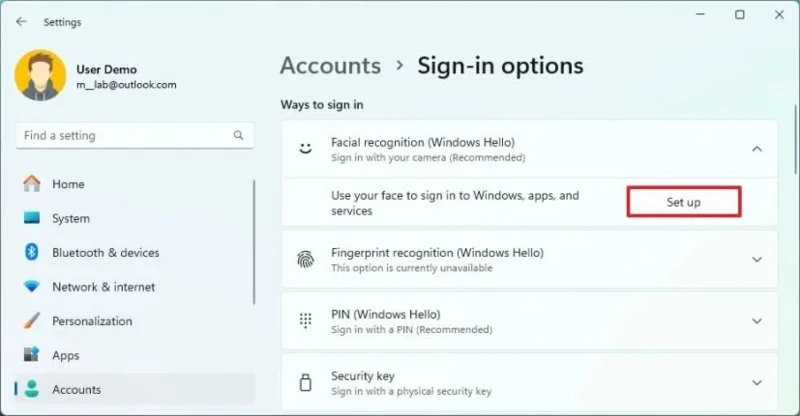
在「登入方式」部分下,選擇「臉部辨識(Windows Hello)」設定。
點擊“設定”按鈕。
點選“開始使用”按鈕。
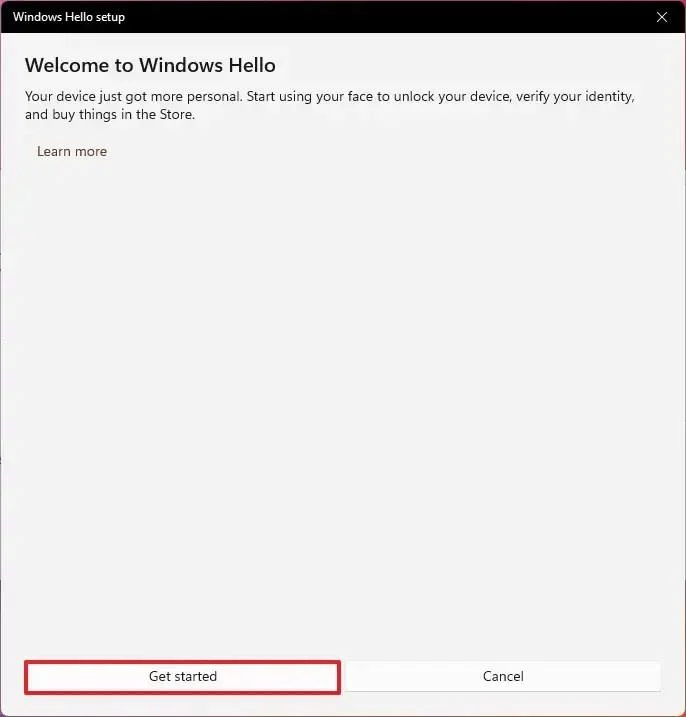
請確認您目前的密碼(或PIN碼)。
直視鏡頭,Windows 11 將建立您的臉部辨識設定檔。
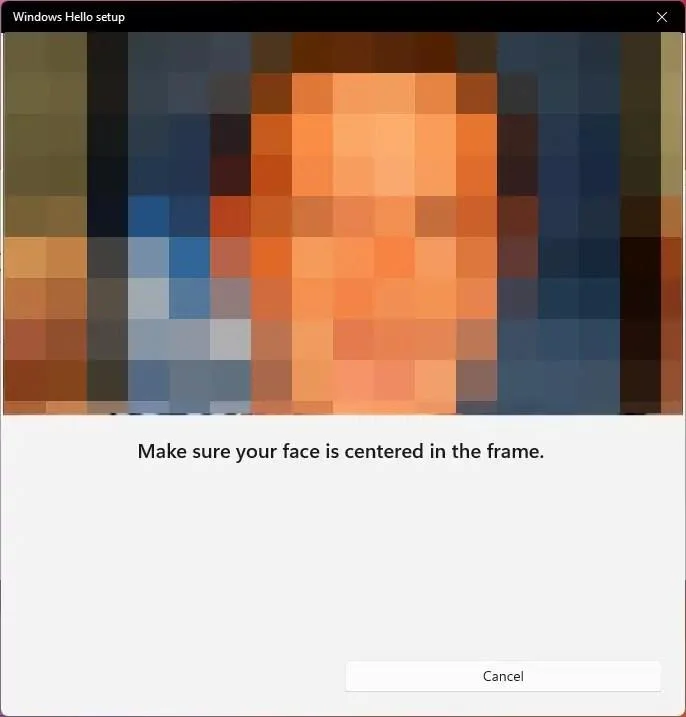
點擊“關閉”按鈕。
完成這些步驟後,您可以鎖定電腦(Windows 鍵 + L),然後看向相機登入。
啟用指紋認證
若要設定帶有指紋辨識器的 Windows Hello,請依照下列步驟操作:
打開設定。
點選“帳戶”。
點選登入選項。
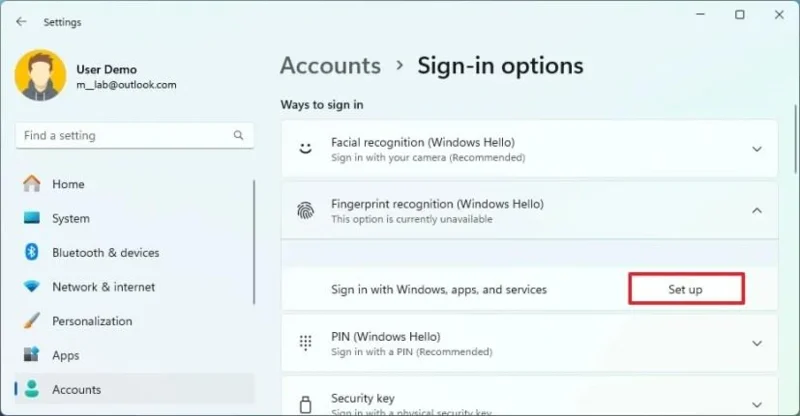
在「登入方式」部分下選擇「指紋辨識」設定。
點選「設定」按鈕啟用 Windows Hello 指紋選項。
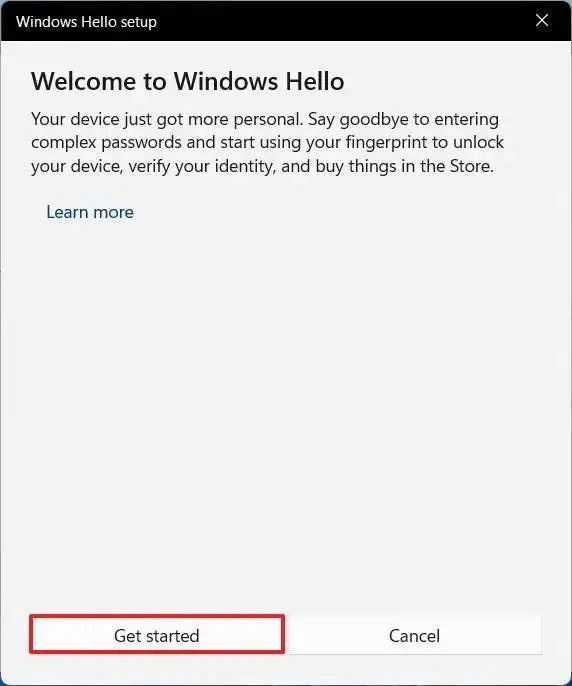
點選“開始使用”按鈕。
請確認您的帳戶密碼。
依照嚮導指示觸摸指紋感應器。
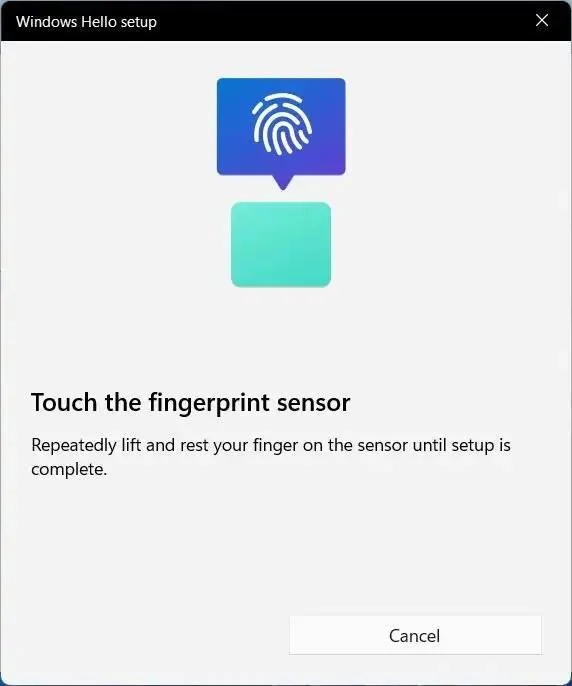
按照螢幕上的指示,從各個角度採集您的指紋。
完成這些步驟後,您可以鎖定裝置並使用指紋辨識器透過手指登入。
9. 啟用動態鎖定
動態鎖定是 Windows 11 內建的安全功能,它會在您離開電腦時,根據藍牙配對裝置(例如您的手機或穿戴裝置)的接近程度鎖定您的電腦,從而增加一層額外的安全性。
若要在 Windows 11 上啟用動態鎖定,請依照下列步驟操作:
打開外設。
開啟裝置的藍牙配對功能,使其可被其他裝置發現。
開啟Windows 11 中的「設定」 。
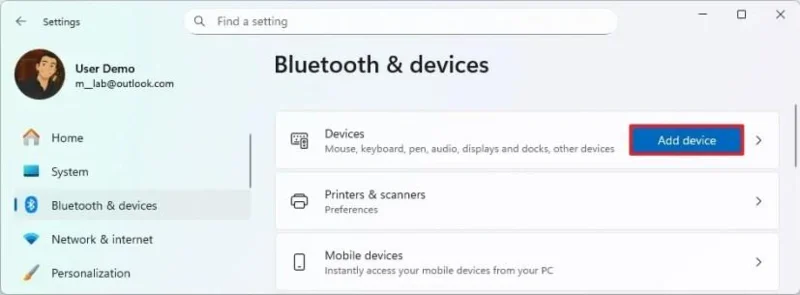
點選藍牙和裝置。
開啟藍牙開關以啟用無線電(如果適用)。
點選“新增設備”按鈕。
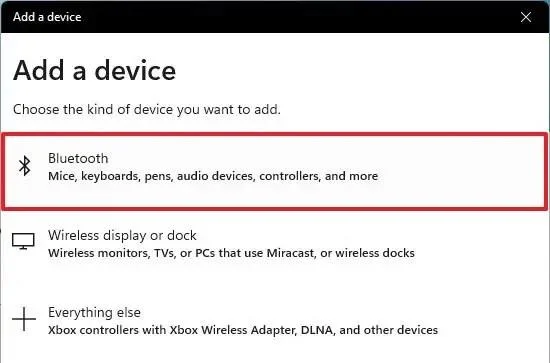
選擇藍牙選項。
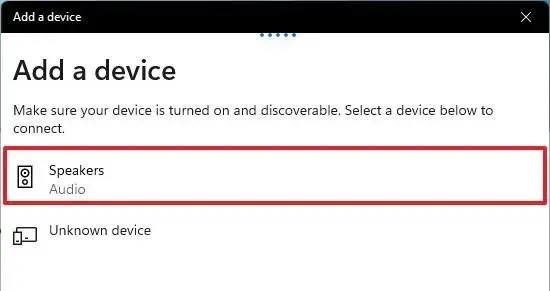
從清單中選擇藍牙設備。
請依照螢幕上的指示操作(如有)。
點選“帳戶”。
點選「登入選項」標籤。
選擇動態鎖定設定。
勾選「允許 Windows 在您離開時自動鎖定您的裝置」選項。
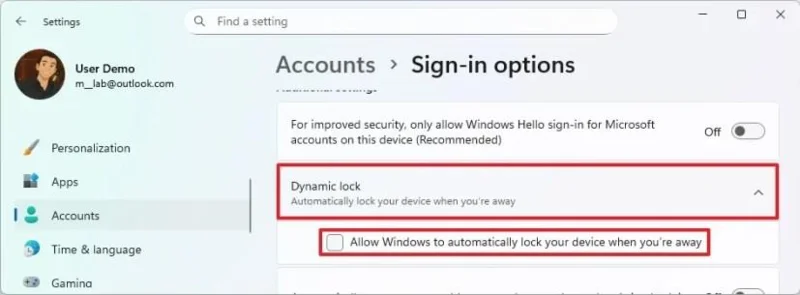
完成這些步驟後,當藍牙裝置不在電腦附近時,Windows 11 將在 30 秒無活動後關閉螢幕並鎖定您的帳戶。
10. 屏蔽不需要的應用
Windows 安全中心提供了一項功能,可保護您的系統免受惡意應用程式的侵害。這項功能稱為“基於信譽的保護”,它可以檢測並阻止信譽度低的應用程序,這些應用程式可能會導致 Windows 11 出現意外行為,例如設計不良或有害的應用程式。
若要啟用基於信譽的保護功能,以保護 Windows 11 免受惡意應用程式的侵害,請按下列步驟操作:
開啟Windows 安全中心。
點擊應用並瀏覽控制。
在「基於信譽的 保護」部分下,點擊「基於信譽的保護設定」選項。
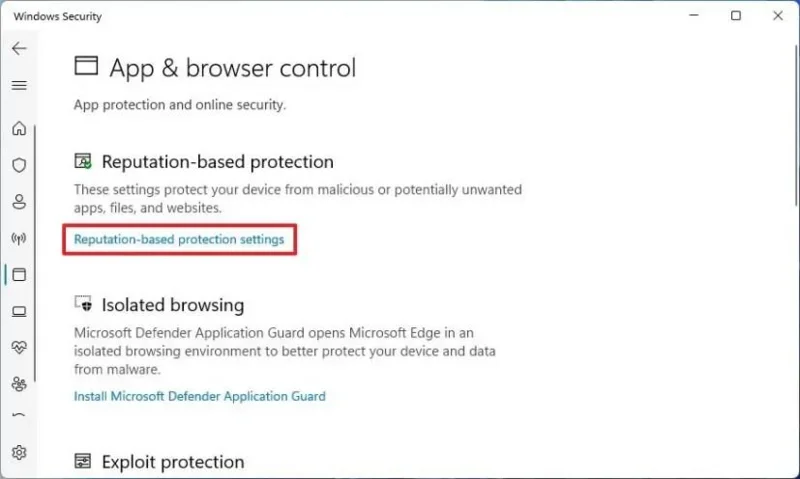
開啟“阻止潛在有害應用”開關。
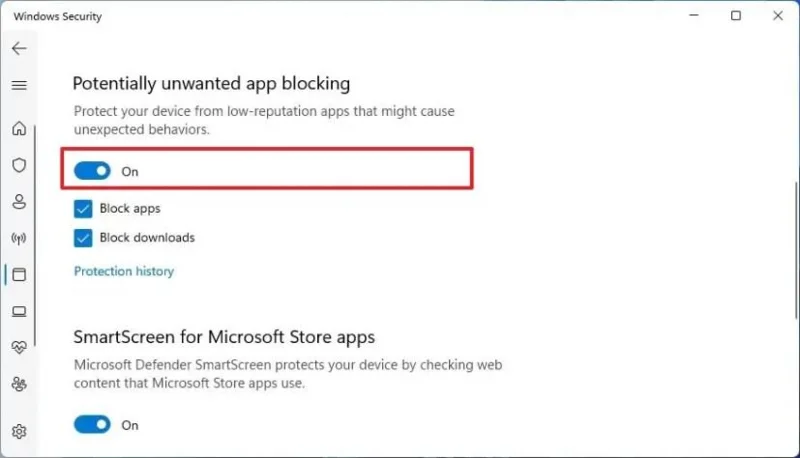
勾選“阻止應用”選項。
勾選“阻止下載”選項。
完成這些步驟後,Windows 11 可以偵測並阻止信譽度低、可能導致問題的應用。
11. 啟用加密
BitLocker 是清單中另一個可以被認為是最佳安全功能之一的功能,因為它允許您對磁碟機進行加密,以保護您的資料免受未經授權的訪問,包括您的文件、圖片和電腦上儲存的任何其他資料。
此功能僅在 Windows 11 專業版、企業版和教育版中可用。不過,在 Windows 11 家用版中,您可以在某些裝置上使用「裝置加密」。
It’s important to note that starting with the release of Windows 11 24H2 and subsequent releases, the system will automatically enable device encryption on new installations.
Enable device encryption on Windows 11 Pro
To configure BitLocker on a Windows 11 drive, use these steps:
Open Settings.
Click on Storage.
Click on Advanced storage settings under the “Storage management” section.
Click on Disks & volumes.
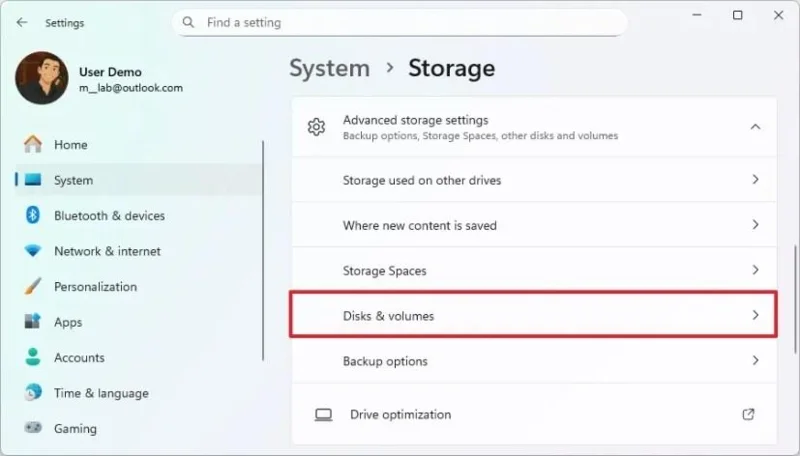
Select the drive with the volume to encrypt.
Choose the volume to enable BitLocker encryption and click the Properties button.
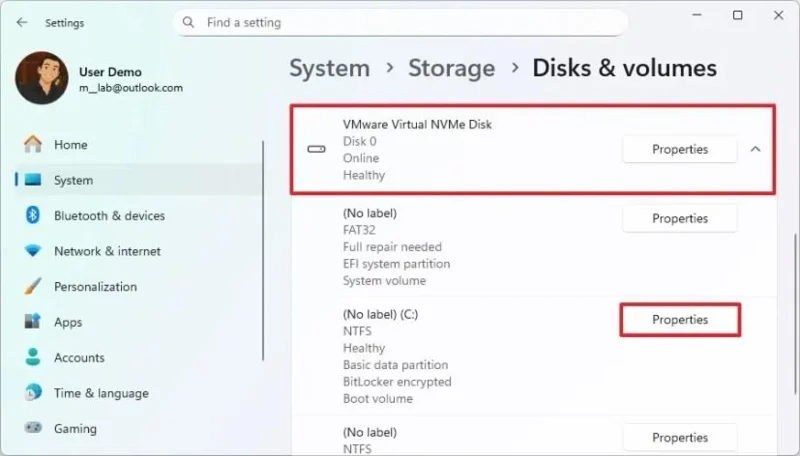
Click the “Turn on BitLocker” option.
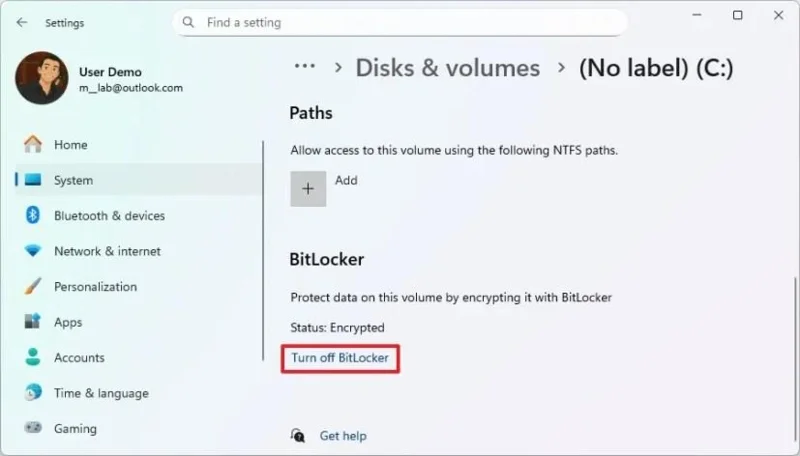
Click the “Turn on BitLocker” option under the “Operating system drive” section.
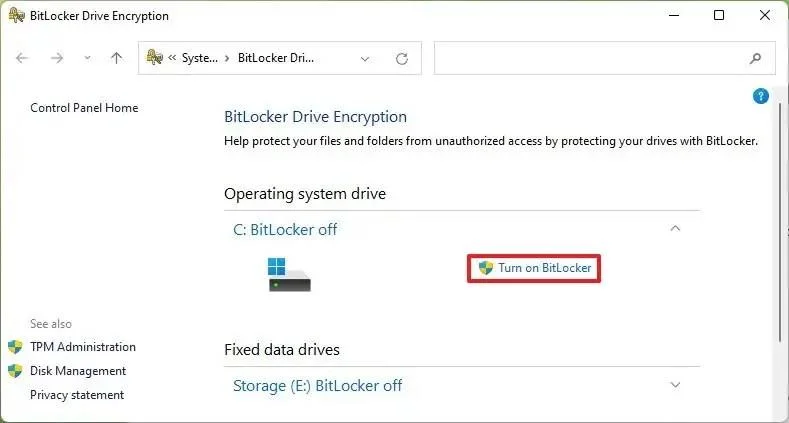
Select the “Save to your Microsoft account” option (recommended).
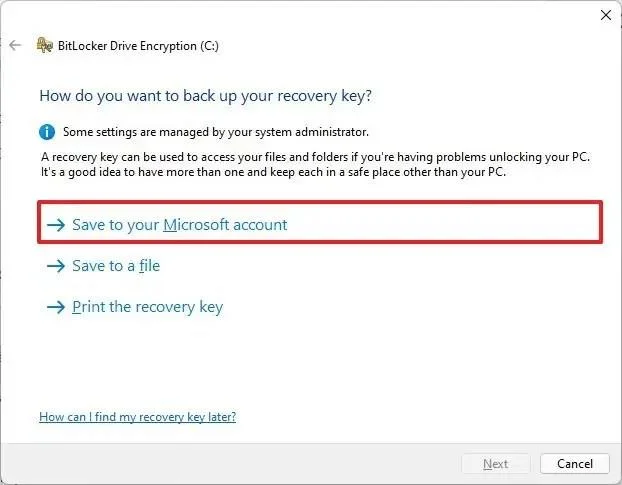
Click the Next button.
Select the “Encrypt used disk space only” option.
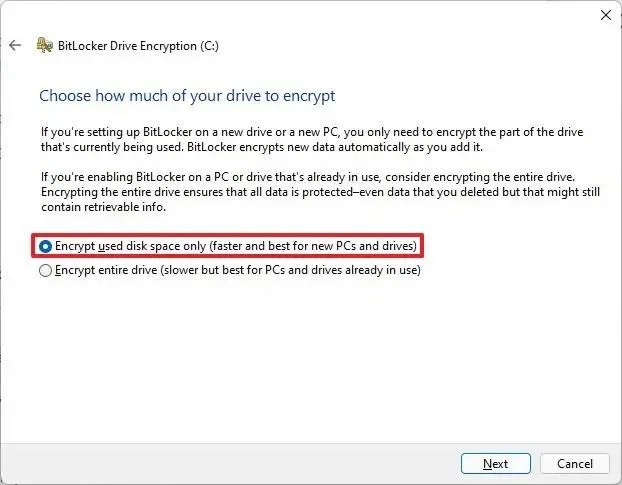
Click the Next button.
Select the “New encryption mode” option.
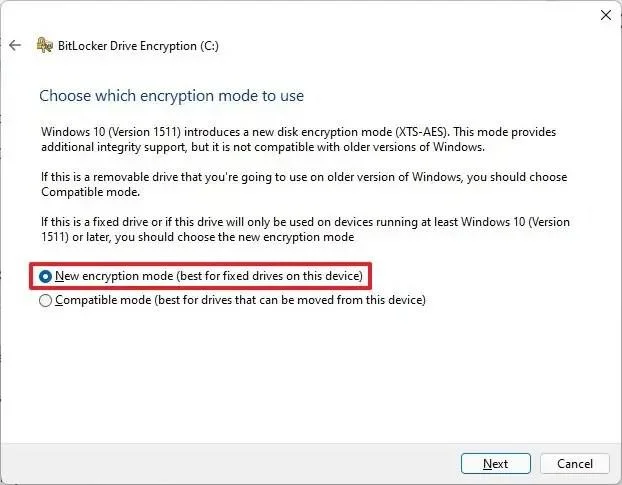
Click the Next button.
Check the “Run BitLocker system check” option.
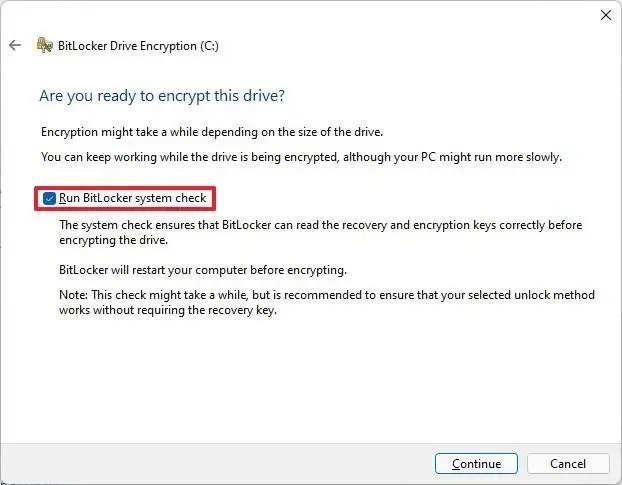
Click the Restart now button.
After you complete the steps, the computer will restart to apply the encryption settings and enable BitLocker.
You can also enable encryption for secondary and external drives. And using BitLocker To Go, you can protect your data on USB flash drives.
Enable device encryption on Windows 11 Home
To configure BitLocker encryption on Windows 11 Home, use these steps:
Open Settings.
Click on Privacy & Security.
Click the Device encryption page under the “Security” section.
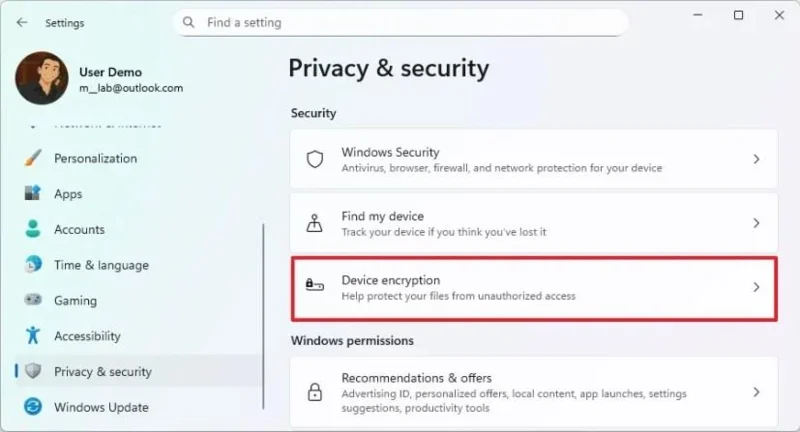
Turn on Device encryption to enable BitLocker on Windows 11 Home.
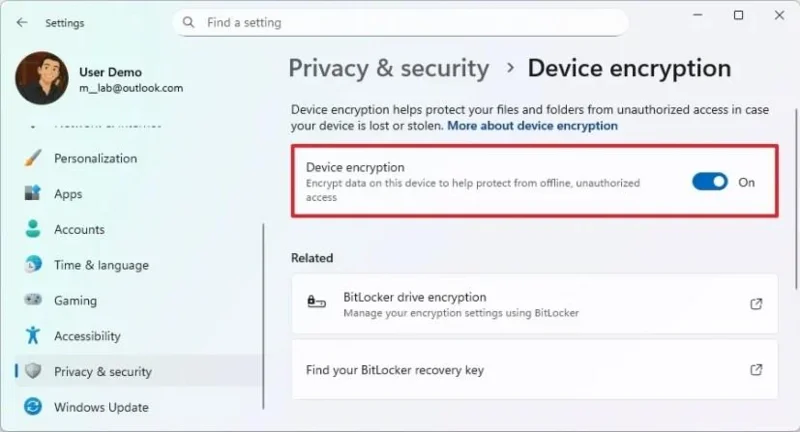
Once you complete the steps, the feature will encrypt the entire system drive.
If you no longer need encryption, it’s possible to decrypt the drive using the same instructions.
12. Enable Smart App Control
On Windows 11, Smart App Control (SAC) is a security feature that locks the system down, allowing it to run only trusted apps or apps with valid certificates to prevent unwanted behaviors from untrusted applications.
To enable Smart App Control on Windows 11, use these steps:
Open Windows Security.
Click on App & browse control.
Click on Smart App Control settings.
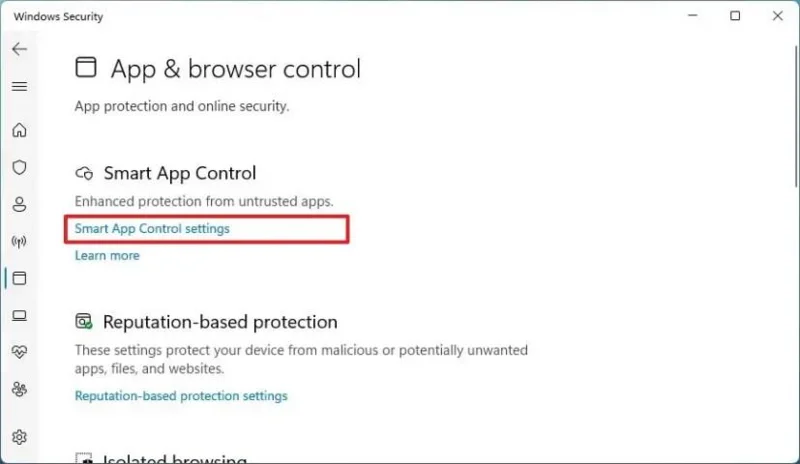
Select the Evaluation option.
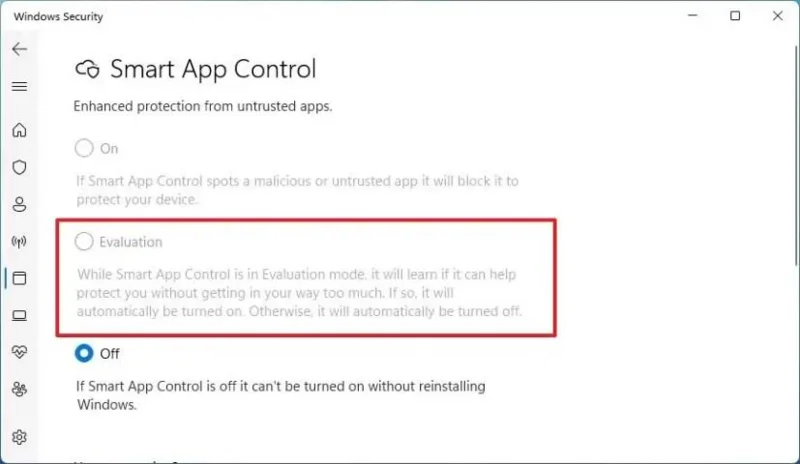
After you complete the steps, the feature will run quietly in the background but not block anything. However, in this stage, the system will learn from your applications to determine whether the feature can run without affecting the experience.
If Smart App Control can run as expected, the system will turn it on automatically. If the feature gets in the way, the system will automatically turn it off.
Once the evaluation is complete, the feature will enable automatically, but you won’t be able to turn it off. Additionally, if the system blocks an app, you won’t be able to unblock it unless you disable the feature, which will require a complete reinstallation of the operating system.
13. Enable Core Isolation
Core Isolation is a collection of security features that protect your computer from malicious code and hackers. One of the features available is memory integrity, which blocks different types of malware from compromising high-security processes in memory.
The feature should be enabled by default on Windows 11, but if it’s not, you can use these steps:
Open Start.
Search for Windows Security and click the top result to open the app.
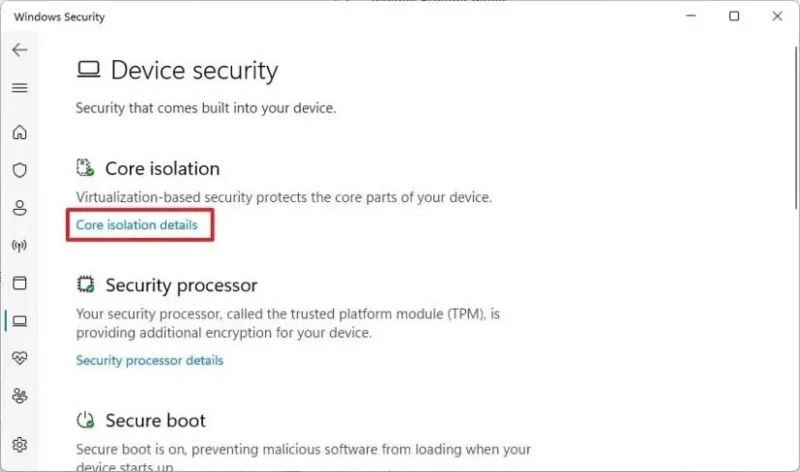
Click on Device Security.
Click the “Core isolation details” option under the “Core isolation” section.
Turn on the “Memory integrity” toggle switch to enable the Core isolation.
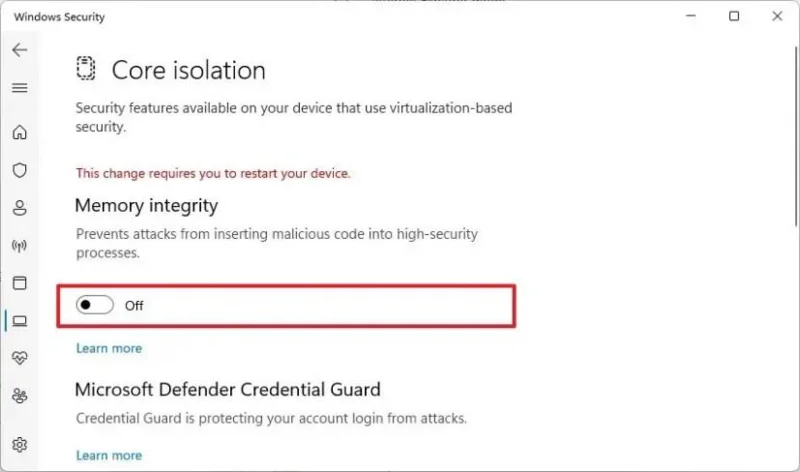
Restart the computer.
Once you complete the steps, the security feature will be enabled on Windows 11.
14. Windows Sandbox
The Windows Sandbox feature provides a full desktop virtualization experience for installing and testing untrusted applications, isolated from the main installation.
To enable Windows Sandbox on Windows 11, use these steps:
Open Settings.
Click on System.
Click the Optional features page.
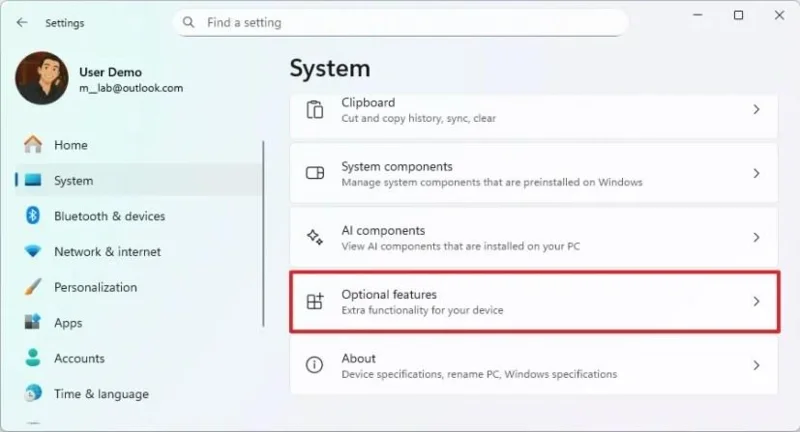
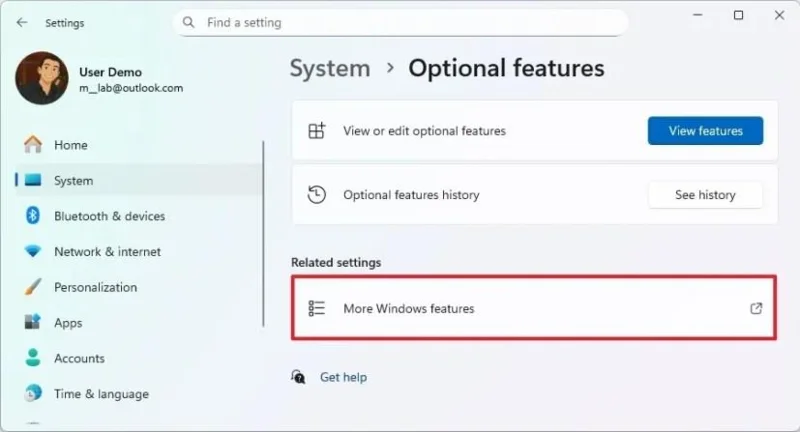
Click the “More Windows features” setting under the “Related settings” section.
Check the Windows Sandbox option.
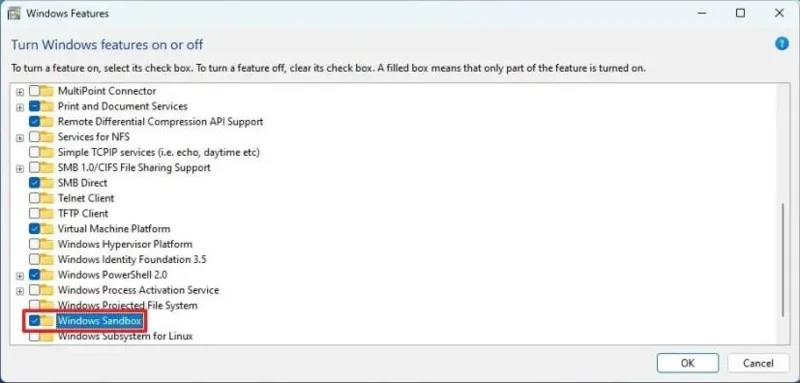
Click the OK button.
Click the Restart now button.
Once you complete the steps, you can run Windows Sandbox from the Start menu.
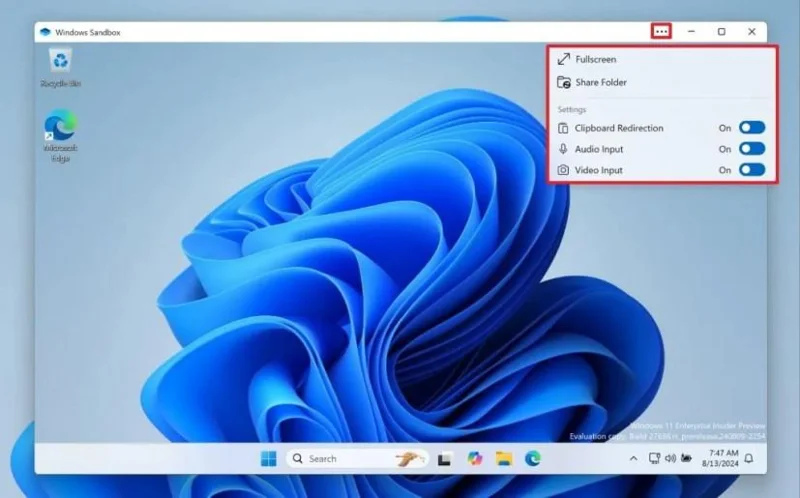
Windows 11 Sandbox with clipboard redirection / Image: Microsoft
If you need to install an application, you can download the installer from the internet using the browser available on the virtual machine or from the main installation. Then, copy and paste the file onto the Windows Sandbox desktop and install it in the isolated environment.
15. Full backup
On Windows 11, a full backup is one of the best security practices to create a copy of the entire system. This allows you to recover in case of critical system problems, malware attacks like ransomware, hardware failure, or upgrading the primary drive. In addition, a backup can help you roll back to a previous installation after upgrading to a new feature update or hard drive.
You can always choose a third-party solution, but you can still use the (deprecated) legacy “System Image Backup” tool to save a full backup to a USB hard drive.
To create a full backup on Windows 11, use these steps:
Open Start.
Search for Control Panel and click the top result to open the app.
Click on System and Security.
Click on File History.
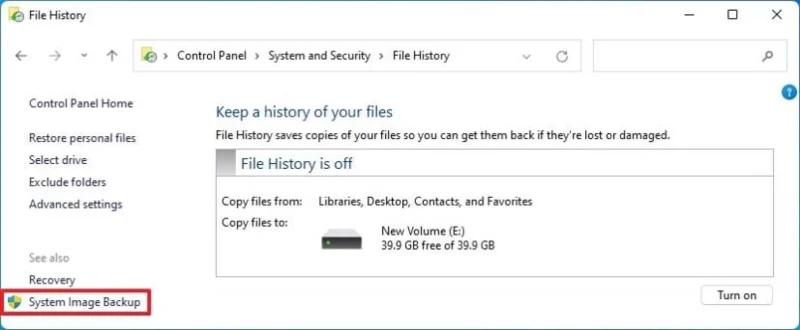
Click the “System Image Backup” option from the left pane.
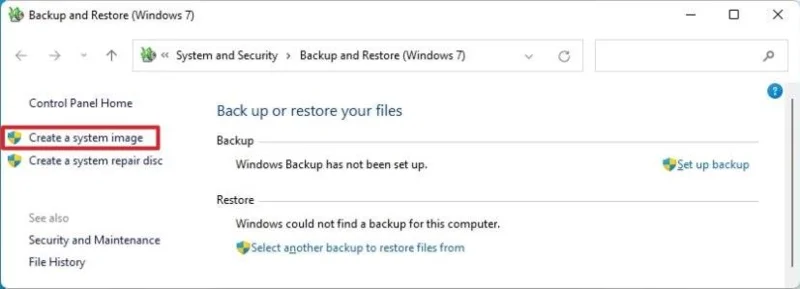
Click the “Create a system image” option from the left pane.
Select the external drive to save the Windows 11 backup.
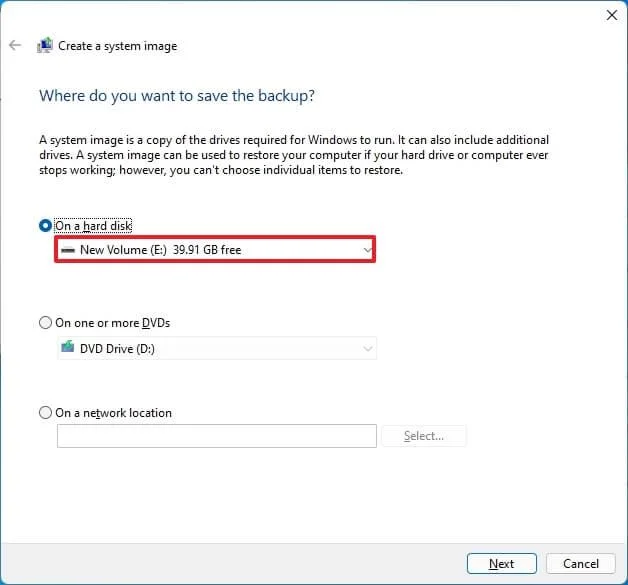
Click the Next button.
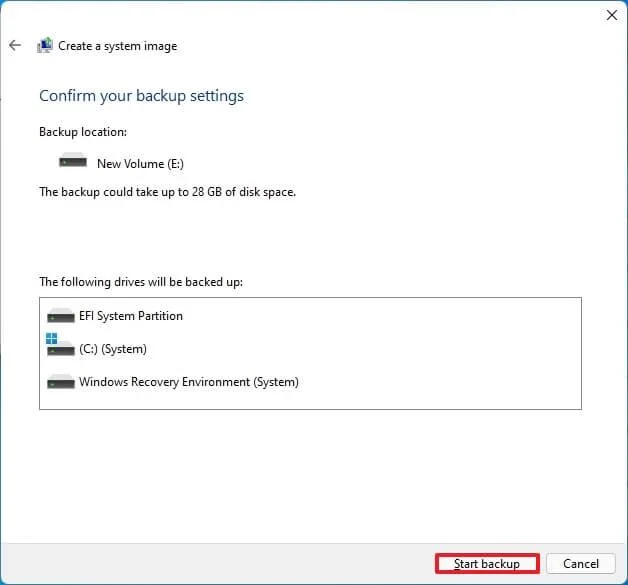
Click the Start backup button.
Click the No button.
Click the Close button.
Once you complete the steps, Windows 11 will create a full computer backup.
You will also receive the option to create a repair disk, but you can ignore it since you can use the Windows 11 bootable media to access the recovery settings to restore the backup.
In addition to periodically backing up your device, it’s recommended that you store your files in the cloud using third-party services like OneDrive. This approach will protect the files from hardware failure, ransomware, or theft.
Alternatively, copying your files to an external drive with a simple copy and paste (as long as you don’t have a lot of data) is another way to protect your documents, pictures, videos, and other files.
16. Switch from Administrator to Standard User account
Windows 11 offers two account types, including Administrator and Standard User, each with different permission levels. The Administrator type has full system access, enabling them to change settings, run elevated tasks, and perform any action. The Standard User type operates in a more restricted environment, able to use existing applications but unable to install new ones or modify system-wide settings.
Since using an account without restrictions can be a security risk, switching to a standard account is one of the best practices to improve security. You can create a new “Administrator” account only for management and change your account type to “Standard User.”
Create local administrator account
To create an administrator local account through the Settings app, use these steps:
Open Start.
Search for Settings and click the top result to open the app.
Click on Accounts.
Click the Other users page.
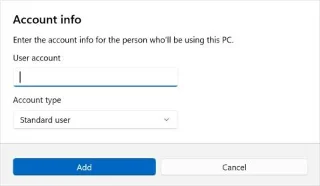
Click the Add account button under the “Other users” section.
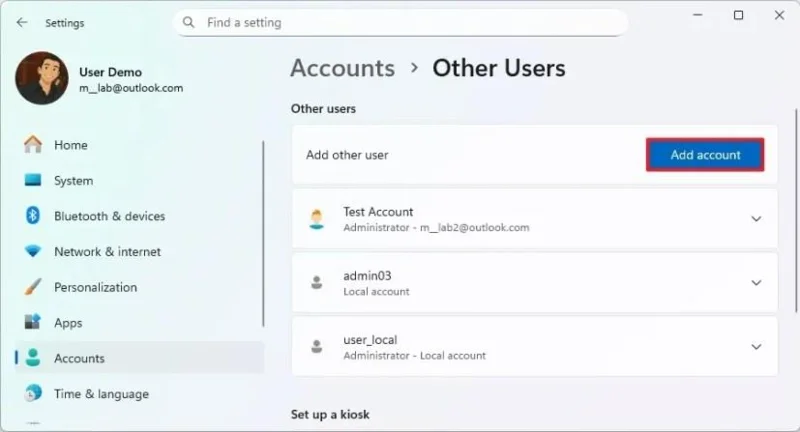
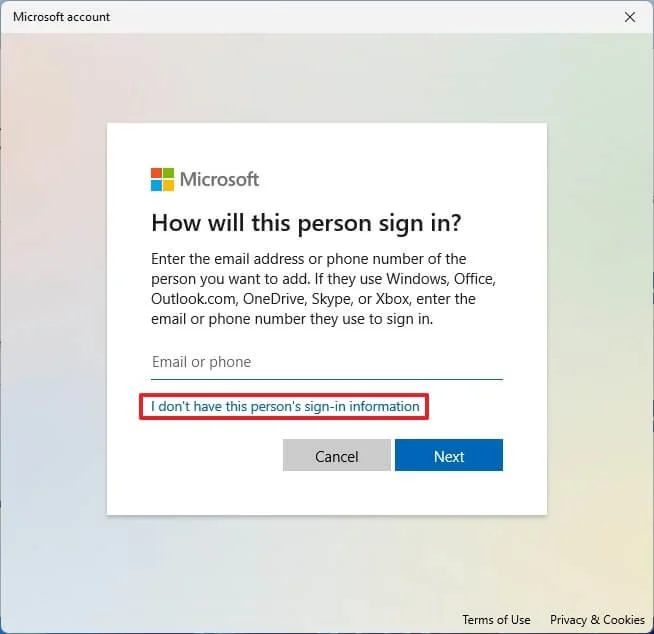
Click the “I don’t have this person’s sign-in information” option.
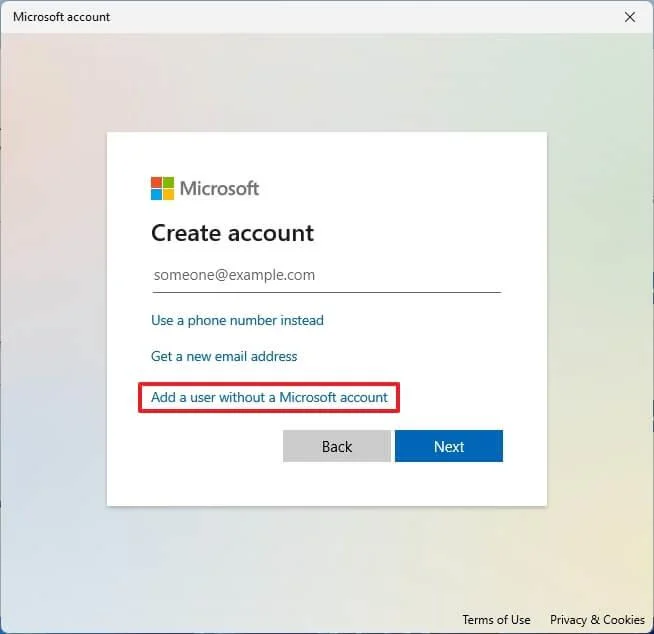
Click the “Add a user without a Microsoft account” option.
Create an administrator account by confirming a name and password.
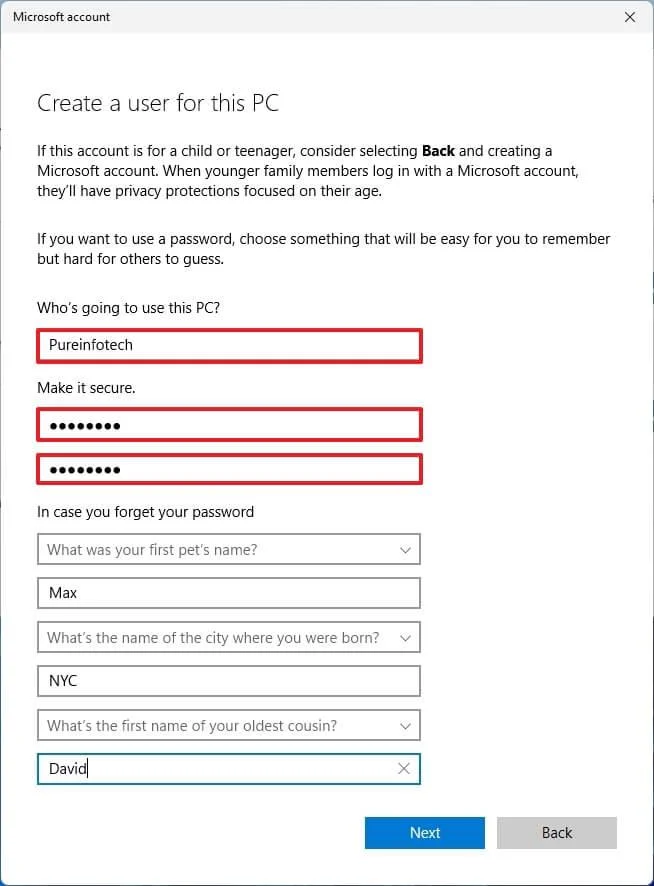
Create security questions and answers to recover your account if you lose your password.
Click the Next button.
Select the newly created account and click the “Change account type” button.
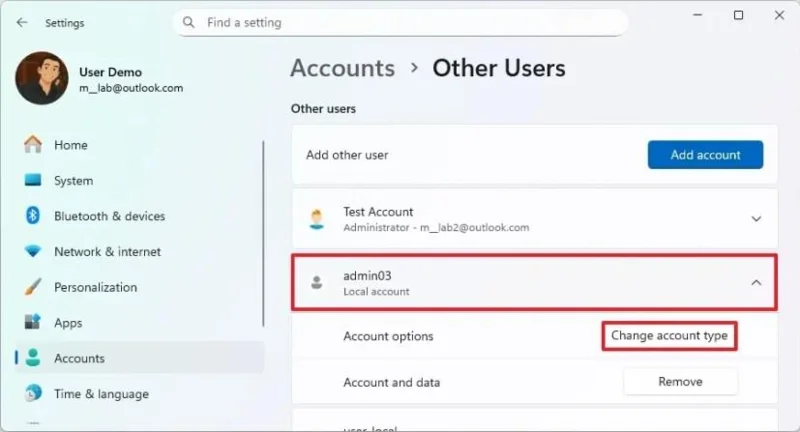
Select the Administrator option from the “Account type” setting.
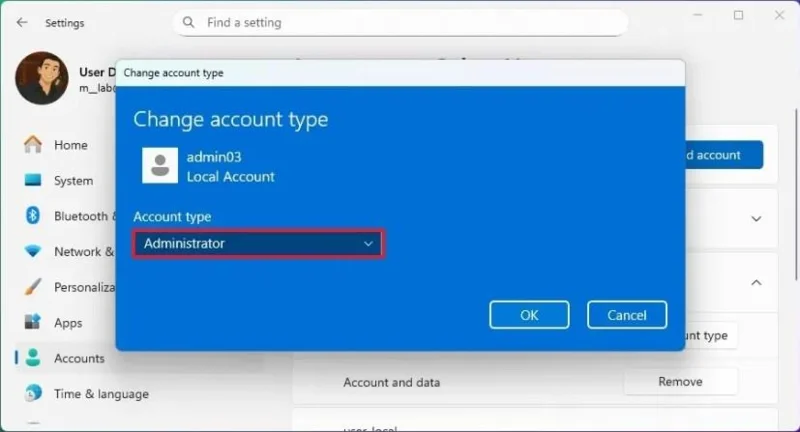
Click the OK button.
Once you complete the steps, the new account will appear on your Windows 11 device.
Switch to standard account
To change an “Administrator” account to a “Standard Users” account on Windows 11, use these steps:
Sign out of your current account.
Sign in to the newly created administrator account.
Open Settings.
Click on Accounts.
Click the Other users page.
Select the primary account.
Click the “Change account type” button.
Select the Standard User option from the “Account type” setting.
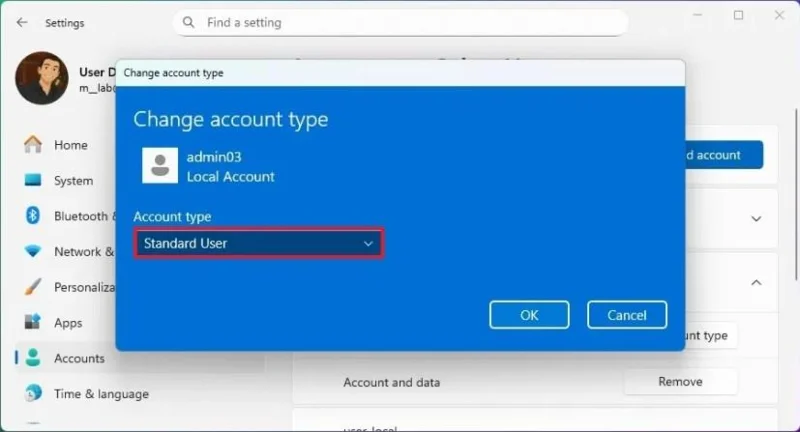
Click the OK button.
After completing the steps, the original account will switch from “Administrator” to “Standard User” account type. You will be prompted to confirm the administrator credentials to make system changes or install new apps. You can still sign in to the administrator account to perform system changes.
17. Disable Remote Desktop
Although the Remote Desktop feature allows you to access files and apps from another location or offer assistance without being present at the site, it also presents a security risk. It may help a malicious individual gain unauthorized access to the computer. As a best security practice, turn off the feature if you don’t use it.
To disable Remote Desktop on Windows 11, use these steps:
Open Settings.
Click on System.
Click on Remote Desktop.
Turn off the Remote Desktop toggle switch.
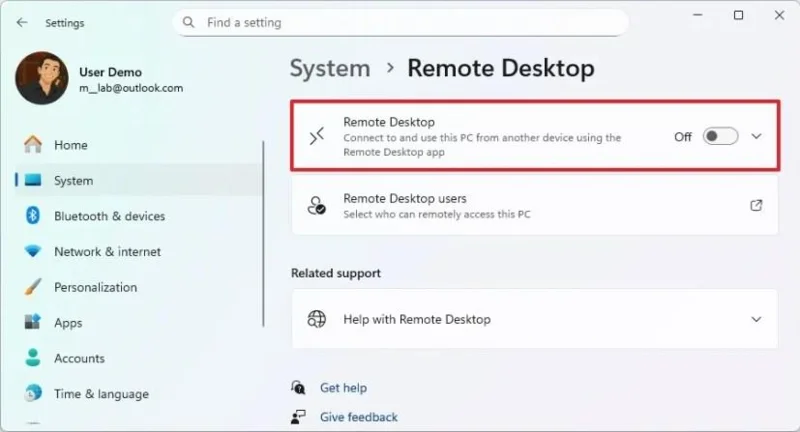
Click the Confirm button.
Once you complete the steps, malicious individuals should no longer be able to exploit the RDP protocol to gain unauthorized access to your computer.
18. Sync time and date
On Windows 11, it’s also important to keep the system time and date correct. Otherwise, it could cause security problems, such as trying to sign in to a service or application on the network or the internet.
To update the time and date on Windows 11, use these steps:
Open Settings.
Click on Time & language.
Click the Date & time page.
開啟“自動設定時間”開關。
點擊“其他設定”部分下的“立即同步”按鈕。
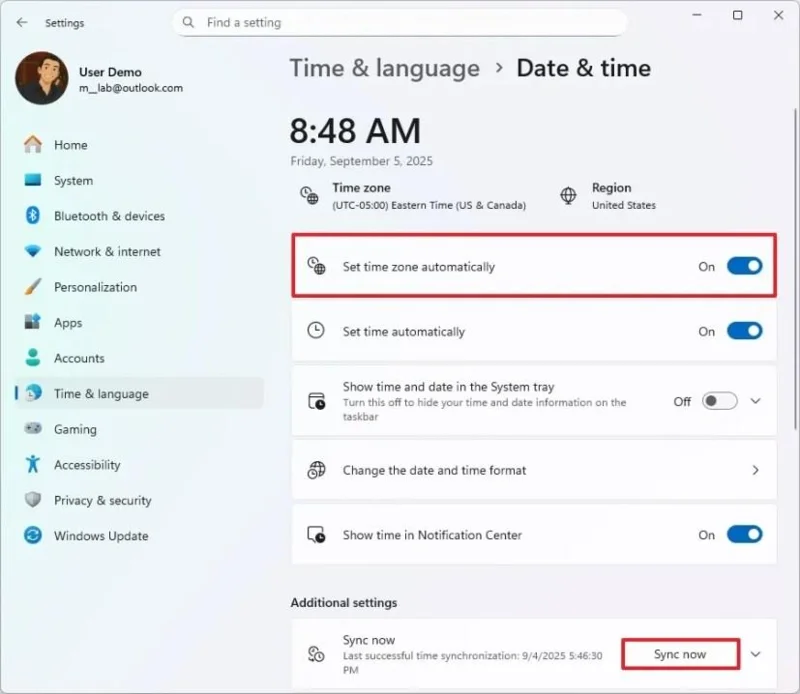
完成這些步驟後,Windows 11 將更新並在您的電腦上顯示正確的時間。
系統還原功能可讓您建立系統狀態的副本作為“還原點”,以便在更新、安裝應用程式或進行系統變更後出現問題時保護硬碟上的資料。此功能會在偵測到系統變更(例如安裝新更新或驅動程式)時自動建立還原點,但您隨時可以手動建立還原點。
若要在 Windows 11 上建立還原點,請依照下列步驟操作:
在 Windows 11 中開啟「開始」功能表。
搜尋「建立還原點」,然後點選第一個搜尋結果開啟該應用程式。
選擇系統磁碟機(C),然後按一下「保護設定」部分下的「配置」按鈕。
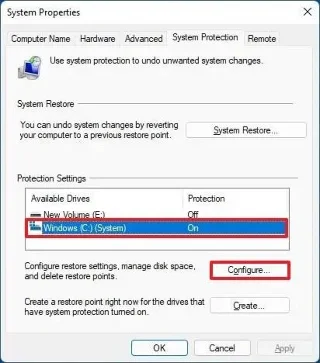
選擇“開啟系統保護”選項。
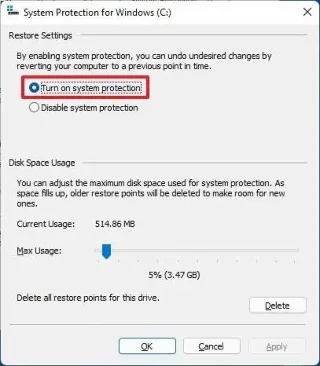
點擊“應用”按鈕。
點選“確定”按鈕。
按一下「建立」按鈕,在 Windows 11 上建立還原點。
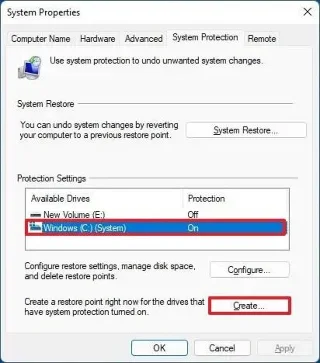
確認還原點的名稱。
點擊“創建”按鈕。
點擊“關閉”按鈕。
完成這些步驟後,系統將建立一個還原點,其中包括系統檔案、已安裝的應用程式、系統設定和登錄備份。
您也可以按照這些說明使用還原點還原設備。如果恢復失敗,您可能需要 重置系統。
20. 停用 Windows 召回
Windows Recall 是一項新的 AI 功能,旨在透過每隔幾秒鐘拍攝螢幕快照,然後使用 AI 使這些資料可搜索,從而賦予電腦「照片記憶」的能力。
雖然這項功能可以方便地追溯你的行動軌跡,找到你過去看過或做過的幾乎所有事情,但它也引發了嚴重的隱私問題,因為它實際上會記錄你在電腦上所做的一切。
儲存所有這些資料可能會使你的電腦更容易成為駭客的目標,而拍攝和分析快照可能會影響系統效能。
如果您擁有 Copilot+ PC,您可以按照幾個簡單的步驟在 Windows 11 上重設和停用「召回」功能。
若要徹底停用 Windows 11 上的「召回」功能,請依照下列步驟操作:
打開設定。
點選「隱私與安全」。
點選「召回與快照」頁面。
點選高級設定。
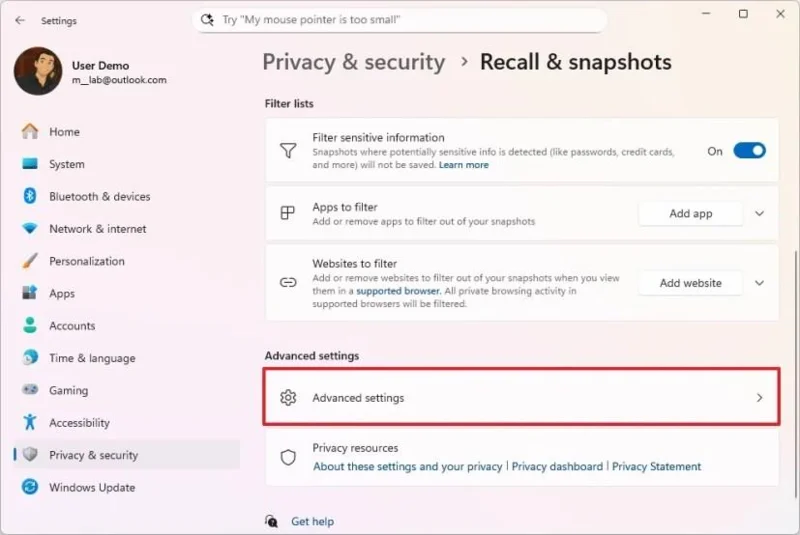
點擊“重置召回”按鈕。
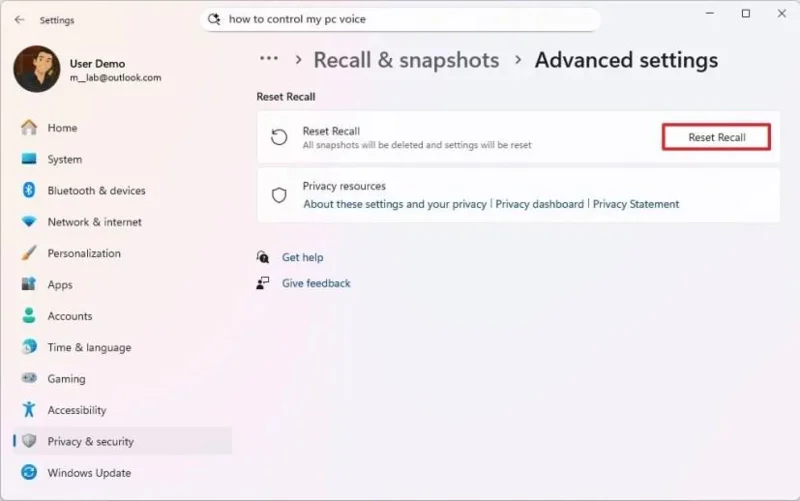
點擊重置按鈕。
完成這些步驟後,Windows 11 將刪除所有收集的快照、應用程式和網站的篩選器,將「回憶」的所有設定還原為原始預設值,並停用該功能。
如果您仍然擔心裝置和資料的安全性和隱私性,您也可以從作業系統中卸載「召回」功能。
21. 啟用隨機 MAC 位址
配備 Wi-Fi 適配器的筆記型電腦和其他電腦不斷掃描網絡,並廣播其 MAC 位址,這些位址可用於追蹤其位置。 MAC 位址隨機化(使用隨機硬體位址)透過定期更改此位址來增強隱私,從而增加追蹤難度。
若要為所有無線網路啟用隨機硬體位址,請依照下列步驟操作:
打開設定。
點選「網路和網際網路」。
點選Wi-Fi頁面。
開啟“隨機硬體位址”開關以啟用此功能。
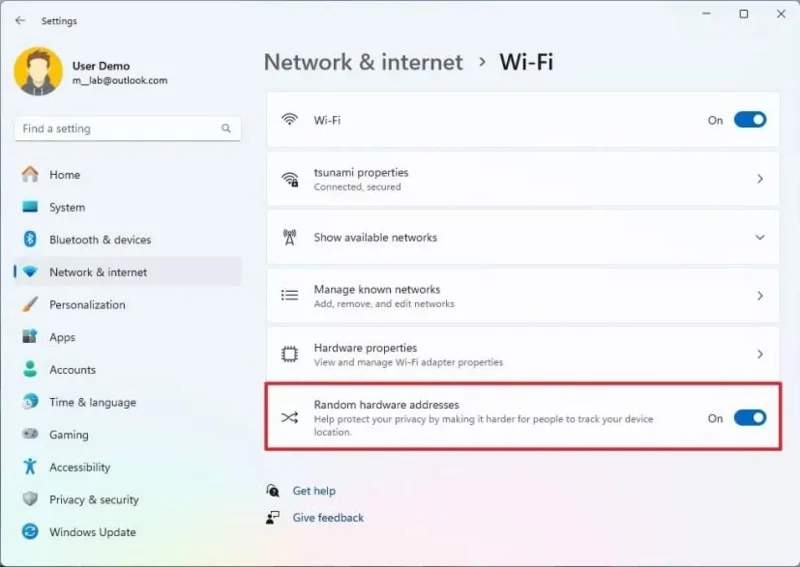
(可選)關閉“隨機硬體位址”開關以停用該功能。
完成這些步驟後,電腦將使用隨機硬體位址掃描網路並連接到任何存取點。
也可以在特定網路上啟用隨機硬體位址。
22. 在 Microsoft Edge 上啟用惡意軟體攔截器
在 Microsoft Edge 瀏覽器中,「恐嚇軟體攔截器」是一項安全功能,它利用人工智慧來保護您免受網路詐騙,特別是那些被稱為「恐嚇軟體」的詐騙。
此功能經過訓練,能夠識別恐嚇軟體詐騙的典型特徵,例如:
與依賴已知威脅的傳統方法不同,恐嚇軟體攔截器利用人工智慧即時發現新的和不斷演變的詐騙手段。
值得注意的是,Windows 11 和 Microsoft Edge 也採用了 Defender SmartScreen 功能,這項類似的技術可以保護您免受網路釣魚、線上威脅和各種惡意軟體的侵害。然而,此功能依賴雲端資料庫來偵測威脅,而資料庫更新可能需要一些時間。 Scareware Blocker 則是利用人工智慧分析螢幕,無需資料庫即可判斷頁面是否合法或構成威脅。
換句話說,防恐嚇軟體攔截器是 Defender SmartScreen 功能的額外保護層。
若要在 Microsoft Edge 上啟用惡意軟體攔截器,請依照下列步驟操作:
開啟 Microsoft Edge 瀏覽器。
點擊 右上角的「設定及更多」按鈕。
點選 “設定” 選項。
從左側窗格中點選 「隱私權、搜尋和服務」 。
點選“安全”頁面。
在「安全」部分下,打開「 防恐嚇軟體攔截器」 開關。
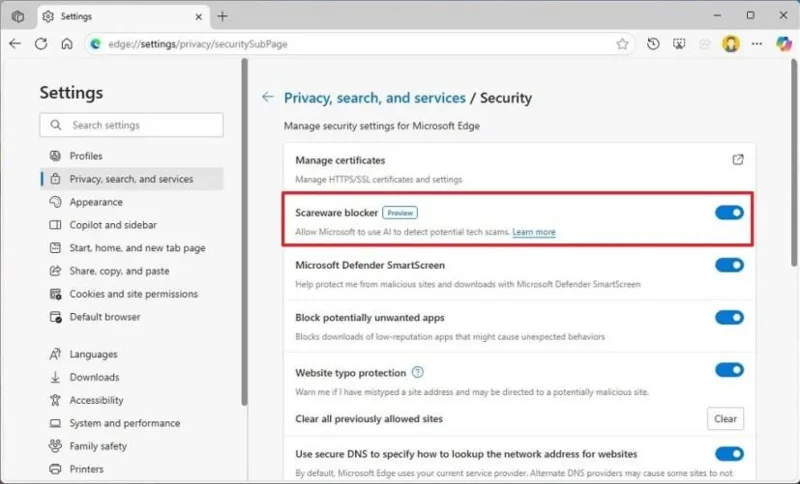
開啟“Microsoft Defender SmartScreen” 開關(如果適用)。
完成這些步驟後,防恐嚇軟體攔截器安全功能將啟用,如果系統偵測到螢幕上有防恐嚇軟體,您將收到警告,您可以選擇封鎖或繼續(如果是誤報)。
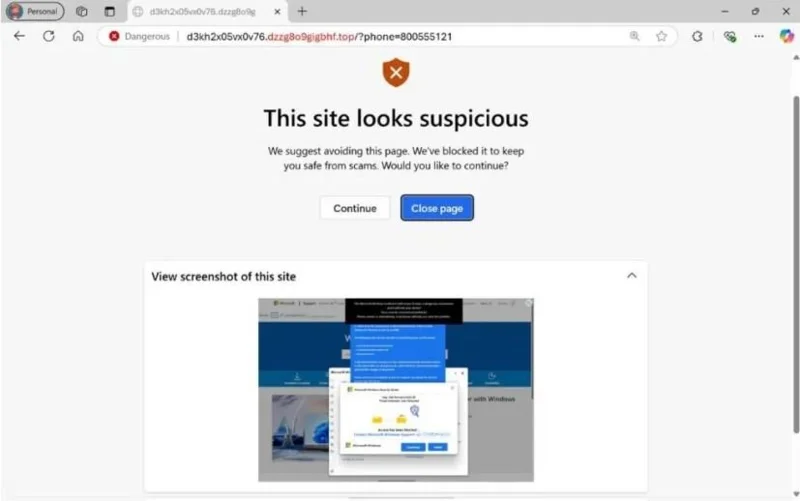
微軟 Edge 防恐嚇軟體攔截器運作範例 / 圖片:微軟
23. 啟用存在感應
在 Windows 11 中,「存在感應」是一系列功能,可提高電腦的裝置安全性和能源效率。
此功能需要專門的硬件,例如紅外線攝影機或基於雷達的傳感器,來檢測人與設備之間的距離。
此功能通常僅在高階電腦和 Copilot+ PC 上提供。如果您的裝置沒有相容的存在感測器,則在「設定」應用程式中將找不到任何相關選項。
在支援的硬體上,電腦可以在您離開時自動關閉顯示器,並在您返回時自動開啟。它還可以在您視線移開時調暗螢幕,並在您重新看向螢幕時調亮螢幕。此功能可增強安全性、節省電力並提高工作效率。
若要在 Windows 11 上配置存在感應設置,請依照下列步驟操作:
打開設定。
點選系統。
點選“電源和電池”標籤。
點選「螢幕、睡眠和休眠逾時」設定。
開啟 「離開時關閉螢幕」開關,即可讓系統在您離開時關閉顯示器。
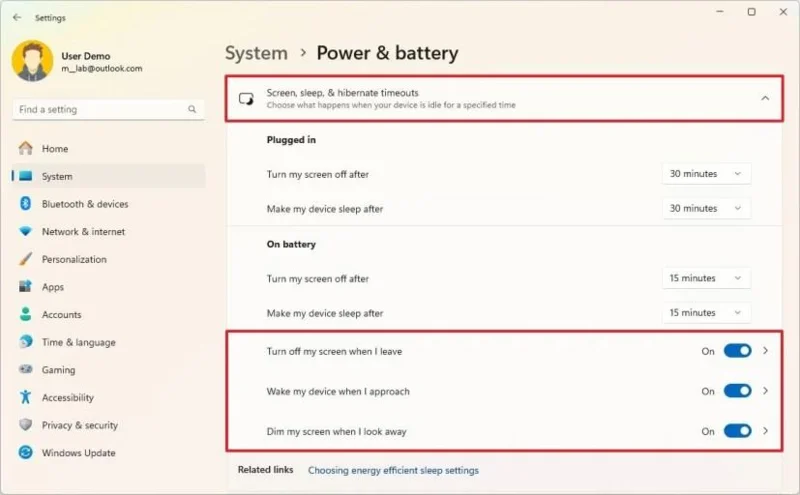
開啟「靠近時喚醒我的裝置」開關,即可讓系統在偵測到您的存在時立即開啟顯示器。
開啟「當我視線離開螢幕時調暗螢幕」開關,即可允許作業系統在您不看螢幕時降低螢幕亮度。
按一下任何設定(步驟 5、6或7)以開啟「存在感應」設定頁面。
點選 「離開時關閉螢幕」設定。
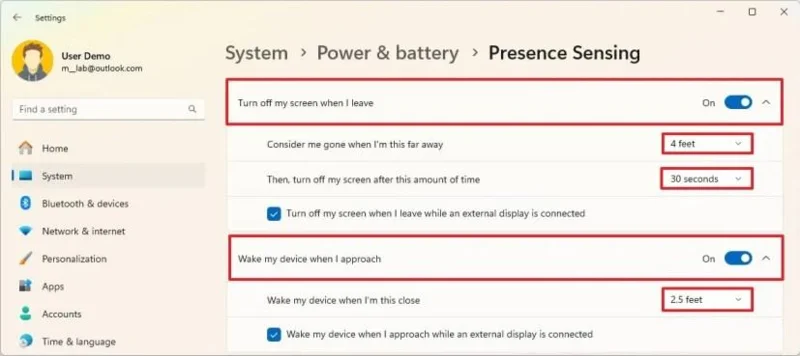
在「當我離開電腦這麼遠時,就認為我離開了」設定中,選擇該功能應使用的英尺數,以確定您離開電腦時的距離。
在「離開電腦後關閉螢幕」設定中,選擇螢幕關閉前等待的時間。
溫馨提示:螢幕關閉時,系統也會鎖定設備,這表示您需要重新登入才能恢復會話。
勾選“連接外部顯示器時離開時關閉我的螢幕”選項(如果適用)。
點擊 “靠近時喚醒我的裝置”設定。
在「當我靠近到這個距離時喚醒我的裝置」設定中,選擇該功能應使用的英尺數,以確定您需要靠近電腦多近才能喚醒電腦。
勾選「連接外部顯示器時靠近裝置喚醒裝置」選項(如果適用)。
點選「當我視線離開螢幕時調暗螢幕」設定。
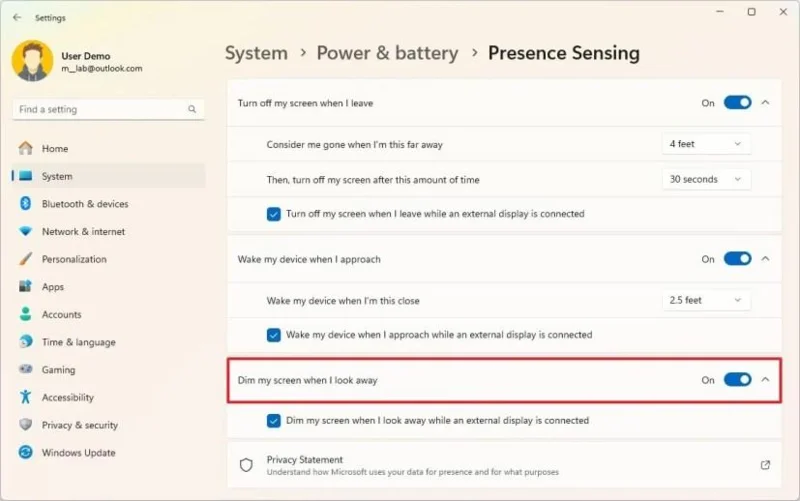
選取「連接外部顯示器時,當我視線離開螢幕時調暗螢幕」選項(如果適用)。
完成這些步驟後,系統將根據您的配置控制桌面存取、螢幕和睡眠計時器。
您也可以從「隱私和安全性」設定控制存在感應隱私設定。
你在Windows 11上更改了哪些安全性設定?請在評論區告訴我。
2026 年 1 月 2 日更新:本指南已更新,以確保準確性並反映流程的變更。
要建立 Windows 11 25H2 可啟動 USB 安裝程序,您可以使用 Rufus、Ventoy、命令提示字元和媒體建立工具,以下是具體操作方法。
KB5074157(版本 26220.7653)適用於 Windows 11,改進了深色模式,增加了 WebP 壁紙支持,並修復了任務欄、開始功能表、藍牙等問題。
KB5074109 是 Windows 11 的 2026 年 1 月更新,它導致了崩潰、啟動失敗、Outlook 問題和卸載錯誤,迫使用戶將其刪除。
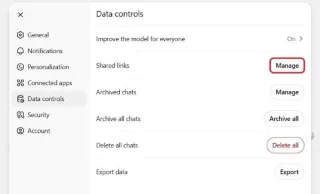
要防止您的 ChatGPT 對話出現在 Google 搜尋中,請檢查並刪除公開共享的 ChatGPT 鏈接,方法如下。
您可以透過 Microsoft Store 或 PowerShell 安裝適用於 Android 的 Windows 子系統 (WSA),從而在 Windows 11 上執行 Android 應用程式。方法如下。
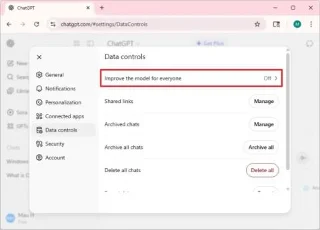
OpenAI 預設會收集您的 ChatGPT 對話內容用於 AI 訓練,以下是如何停用此功能以更好地保護隱私的方法。
Windows 11 版本 27913(Canary)帶來了重新設計的設定介面,恢復了 Vista 啟動聲音,修復了黑屏桌布問題等等。
Windows 11 版本 26120.4733 (KB5062651) 在 Beta 頻道中引入了新的 AI 圖像描述、應用程式權限重新設計以及管理員保護功能。
Windows 11 25H2 版本 26200.5702 (KB5062653) 帶來了 AI 映像描述、新的管理員安全功能、重新設計的權限對話方塊等。
現在您可以使用 winget 命令在 Windows 10 上安裝應用程序,以下是使用 Windows 軟體套件管理器執行此操作的步驟。