How to Set Up a Matrix Server on Raspberry Pi 4 with Conduit
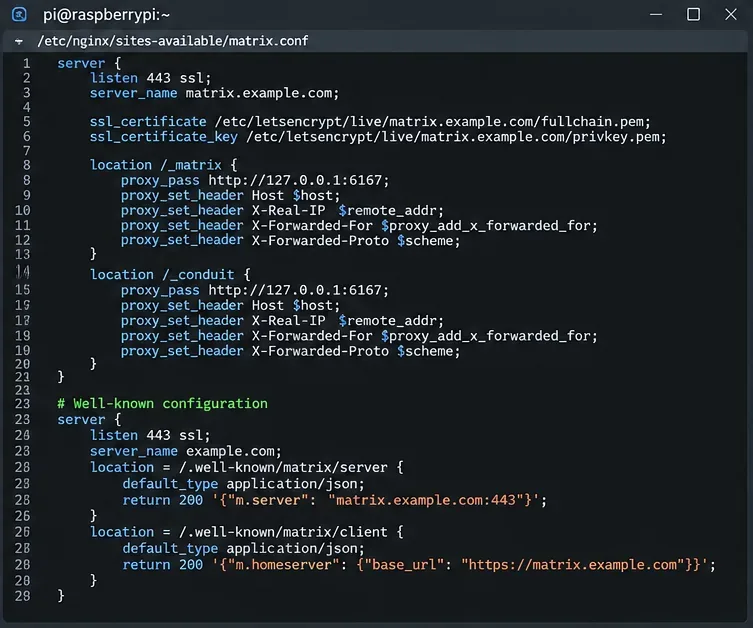
Set up a lightweight Matrix homeserver on Raspberry Pi 4 with Conduit, Docker, NGINX, HTTPS, registration controls, federation, and checks.
IIS , abreviatura de Internet Information Services , y anteriormente conocido como Internet Information Server, es un servidor web de Microsoft que fue diseñado para usarse con productos de Windows, comenzando con la familia NT.
Este servidor web se utiliza para ayudar a los usuarios de Windows a alojar varios tipos de contenido en la web, como archivos multimedia, documentos o incluso sitios web completos. En este momento, Apache es el servidor web de Windows más popular, seguido de cerca por IIS, que es bastante impresionante.

¿Qué es IIS?
IIS es un servidor web con el que es fácil familiarizarse, gracias a su interfaz gráfica de usuario intuitiva (GUI) que le permite administrar sitios web asociados con el servicio y sus usuarios relacionados . La GUI de IIS facilita el diseño, la personalización, la configuración y la publicación de sitios web desde una única ubicación.
Tiene una herramienta de administración de sitios web incorporada llamada IIS Manager que puede usar para ajustar opciones como configuraciones de seguridad, parámetros de rendimiento, preferencias de registro, así como páginas de error o valores predeterminados para los sitios web que administra.
Desde un punto de vista técnico, IIS es bastante versátil, ya que puede servir páginas web estándar y dinámicas por igual, sin un esfuerzo significativo. Por lo tanto, puede usarlo para crear y publicar páginas web HTML, pero es bueno saber que también puede administrar páginas PHP y aplicaciones ASP.NET.
Gracias a su flexibilidad, IIS puede ejecutar scripts y aplicaciones contenidas en páginas web dinámicas y mostrar los resultados en la pantalla del navegador web del visitante. Con los sitios web estáticos, el proceso es aún más fácil: IIS simplemente envía el contenido HTML y las imágenes (si corresponde) al navegador web del visitante.
¿Cuál es el propósito de IIS?
Dado que se beneficia del soporte completo de Microsoft y el hecho de que comprende numerosas funciones avanzadas, IIS es una excelente opción para crear y administrar sitios web comerciales, como tiendas electrónicas o sitios web de portafolios promocionales.
La desventaja es que usar IIS con fines comerciales también significa que necesitará una licencia comercial. Además, el precio de este tipo de licencia varía en función de la cantidad de usuarios que desee incluir.
Así que ya hemos establecido que IIS se puede utilizar para crear y alojar un sitio web, así como el hecho de que admite contenido web estático y dinámico. Sin embargo, IIS es mucho más que eso. Por ejemplo, puede utilizar su soporte de módulo integrado para mejorar la funcionalidad de su servidor.
Es posible instalar módulos de transmisión en su servidor para que los visitantes de su sitio web puedan beneficiarse de la transmisión de contenido multimedia. También puede utilizar un módulo de reescritura de URL que le permite crear poderosas reglas de implementación de URL para que los visitantes puedan recordarlas fácilmente y los motores de búsqueda puedan encontrarlas más rápido.
Por lo tanto, no hace falta decir que si necesita una forma rápida de crear y publicar un sitio web, IIS es una de las mejores formas de hacerlo. La mejor manera sigue siendo Apache HTTP gracias a que es de código abierto y le permite usarlo de forma gratuita, independientemente del número de usuarios.
Historial de versiones de IIS
Vale la pena mencionar que inicialmente, IIS se pensó como una alternativa a un servidor web que se desarrolló como un proyecto de investigación. El primer proyecto de servidor web firmado por Microsoft se distribuyó como software gratuito y fue diseñado para EMWAC (European Microsoft Windows NT Academic Center).
Sin embargo, al ver que el servidor EMWAC no podía manejar todo el volumen de tráfico que iba al sitio web microsoft.com, el proyecto se abandonó y Microsoft desarrolló su propio servidor web en forma de IIS.
Un aspecto notable es que la mayoría de las versiones de IIS se lanzaron con o junto con una versión del sistema operativo Windows. Seguramente, en ese entonces IIS era simplemente una sombra de cómo lo conocemos hoy; de hecho, cada versión de Windows podría servir como un punto de control para la evolución de IIS.
Si planea usar IIS, intente seguir con la última versión estable, ya que generalmente es la que tiene la seguridad más estricta y produce los mejores resultados orientados al rendimiento, especialmente si está ejecutando la última versión de Windows o Windows Server.
¿Cómo instalar IIS?
Como dijimos anteriormente, no necesita instalar IIS, ya que en realidad debería venir incluido con su versión de Windows. Si está utilizando Windows 10, ya debería tener alguna versión de IIS 10.0 disponible en su PC.
Sin embargo, Microsoft decidió no activar IIS de forma predeterminada, por lo que deberá habilitarlo manualmente. Pero no se preocupe, no es exactamente ciencia espacial hacer esto. Simplemente siga estos pasos para activar IIS en su PC:
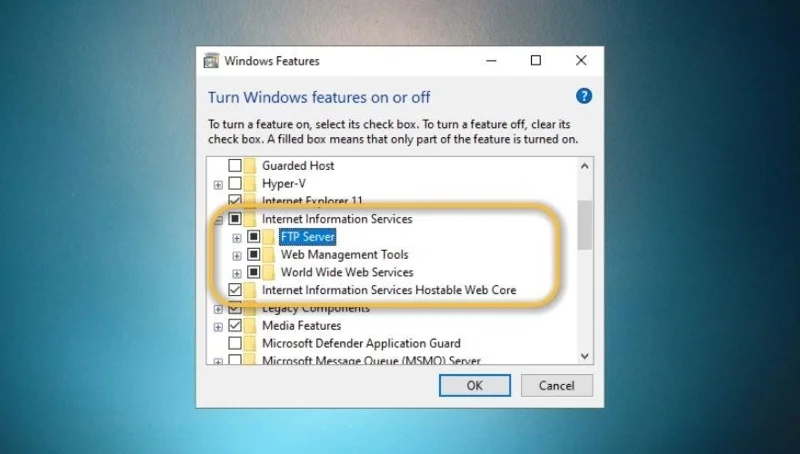
Ahora es posible que desee reiniciar su PC para que su sistema pueda cargar todos los archivos de configuración necesarios y le permita usar IIS en toda su extensión. También puede funcionar sin reiniciar su PC, pero reiniciar su sistema después de habilitar una nueva función nunca es una mala idea.
También puede habilitar IIS en su computadora mediante PowerShell. Si nunca ha oído hablar de él, PowerShell es una herramienta compleja que muchos confunden con CMD. PowerShell es mucho más complejo que eso, pero no entraremos en demasiados detalles. Sin más preámbulos, así es como puede habilitar IIS en su PC con Windows usando PowerShell:
Enable-WindowsOptionalFeature –online –featurename IIS-WebServerRoleComo puede ver, PowerShell sugiere que no es necesario reiniciar después de habilitar IIS en su PC con Windows 10. Si desea revertir el proceso, puede usar el siguiente comando para deshabilitar IIS usando PowerShell:
Disable-WindowsOptionalFeature –online –featurename IIS-WebServerRoleSin embargo, tenga en cuenta que para deshabilitar esta función, incluso PowerShell recomienda que reinicie su PC. También es posible reiniciarlo más tarde, pero no inicie ningún proyecto nuevo mientras tanto.
How does the IIS server work?
First and foremost, it’s worth noting that IIS has its own process engine that can take care of all client-server requests. Therefore, whenever a client sends a request to your web server, IIS processes that request, generates a reply, and sends it to the client.
From an architectural standpoint, this process unfolds on two different layers:
As we’ve mentioned above, you can find HTTP.SYS in the Kernel Mode. HTTP.SYS is used to forward client requests to an application pool. This request forwarding process is initiated whenever the client interacts with the web site’s URL, attempting to access the page. Whenever this happens, HTTP.SYS retrieves the client’s requests and queues them for specific application pools.
After the forwarding of the request, w3wp.exe (the Worker Process) loads the ISAPI filter and either loads HttpRuntime.ProcessRequest by itself, or in conjunction with aspnet_isapi.dll if it’s an ASPX page. The launch of HttpRuntime.ProcessRequest marks the beginning of the processing, after which the HttpRuntime process uses HttpApplication objects to build a pool, the contents of which will be passed through HTTP.
The HTTP modules are then activated, and this process goes on until the request gets to the ASP.NET page’s HTTP handler. After the request gets through the HTTP route, the page starts to be displayed.
What is the Worker Process?
First of all, it’s worth noting that there’s not only one Worker Process. In fact, there are several such entities that ensure the well-functioning of your web server and the content you host on it, whether it’s websites or applications we’re talking about.
So, IIS’s worker processes are in charge of providing us with the execution environment for all applications and websites you’ve previously configured in the IIS. These processes contain several pieces of information that are crucial to the well-functioning of the aforementioned services.
It’s possible that you can make use of the API to retrieve information regarding memory footprint or CPU utilization. These details can help you keep a close eye on the overall health of your web server and its related worker processes.
Last, but not least, you can use the API to terminate worker processes by simply sending a DELETE request to the worker processes endpoint.
What is the Application Pool?
Although the name is somewhat self-explanatory, the purpose of IIS’s Application Pool is far more complex. First and foremost, the Application Pool contains the worker processes, so it’s safe to say that it plays the role of a container. Furthermore, it isolates applications from each other whether they run on the same server or on separate ones, which is contrary to how a pool usually works.
It’s quite important to know that a single application pool can hold several websites. So, in other words, you can say that an application pool is but a set of URLs that have been handled by worker processes. The separation of applications in these pools is justified by the fact that it could significantly simplify management. More so, it is because of this isolation that, in the event of one application pool failing, the other ones can keep going on as usual.
How to configure an IIS server?
You’ve enabled IIS on your computer and you’ve learned a bit about its components, now let’s see how you can properly configure it so you can run your own web server without significant efforts.
As we mentioned a while back, one of the main reasons why people use IIS is for easy web application deployment. IIS and its Advanced Installer feature allow you to configure and deploy web apps on several servers without skipping a beat. You also don’t need to create new configurations for each machine, as IIS can easily take care of that.
If you want to configure a new website, the first thing you’ll want to do is head to the Files and Folders view, where you can manage existing application files or add new ones if you want. Note that you’ll need to place your application files in their individual directory, considering that your website’s admin panel will make use of them later on.
Once you took care of the files, you can move to the IIS Server view, where you can use the New Web Site toolbar to type your new website’s name. What you’ll need to do next is adjust your website’s HTTP/HTTPS settings and consider using SSL for added security. Here’s how you can configure HTTP and SSL for your website or folder:
How can I secure an IIS web server with SSL?
SSL, which is short for Secure Sockets Layer, is still one of the best ways to encrypt communications between you and any target website. Remember a while back that many websites made the leap from HTTP to HTTPS? Well, SSL certificates were and still are an essential part of this process.
the good news is that you can deploy SSL to your website quite easily using IIS. On the other hand, you’ll definitely have to purchase a certificate, since they’re the only way your website can be acknowledged as trustworthy from a data encryption standpoint.
Therefore, the first step would be finding an SSL certificate provider and purchase such an item. After the purchase, you’ll receive either a code or a certificate file. In order to configure SSL with IIS we’ll need the certificate file, so make sure you retrieve it before moving on.
Secure IIS web server with SSL
Now you’ve successfully installed a certificate for your IIS server. However, that’s not nearly enough, as you’ll still have to bind the certificate for your website. By the end of it, you’ll have a secure website with a certificate that’s associated with your website, port, and IP address.
Bind security certificate to the website
So we’ve managed to install SSL on your IIS web server and associate it with your website. You can use the steps above to associate certificates with more than just one website if the need arises. However, there’s still one thing we need to do: redirect incoming HTTP traffic to HTTPS, to ensure encryption of our visitors’ traffic.
Redirect HTTP to HTTPS
(.*) in the Pattern field{HTTPS} in the Condition input field^OFF$ in the Pattern fieldhttps://{HTTP_HOST}/{REQUEST_URI} in the Rewrite URL fieldThat’s it, you’ve now completely implemented SSL on your web server, bound it to your website, and configured the site to redirect incoming HTTP traffic to HTTPS. If done correctly, visitors who try to access your website using HTTP will be automatically redirected to its secure HTTPS counterpart.
What are Virtual Directories?
As we’ve established before, creating and managing a website isn’t the only thing that IIS is capable of doing. You can also create applications, which we already mentioned, but most importantly, you can create virtual directories by simply giving them a name that maps them to a physical directory.
The way this feature works is by letting users access various types of content that are hosted on a server quickly through a direct name. Surely enough, this content could be a website, but it could also be photos, videos, or other types of smaller media files.
Back in the day when IIS 6.0 was all the fuss, virtual applications, and directories were treated as separate objects by IIS. As such, applications consisted of the following elements:
Starting with IIS 7.0, virtual applications and directories are organized within a hierarchy, but they’re still considered to be separate objects. Thus, a website, which is higher in the hierarchy, can contain several applications, or virtual directories that are mapped to a physical location on your PC.
What are log files in IIS?
In IIS log files serve the same purpose they do wherever else you may encounter them. You can use these files to check how things unfolded on your web server, see important events, and, most importantly, understand where things went wrong if any malfunction occurs.
In other words, an IIS log file keeps tabs on everything that happens to your web server, in case you ever need it. A few examples of recorded data include the precise date and time of the events, how much data was transmitted, and the IP addresses related to the events.
Find log files on IIS 7.0 and later
Find log files on IIS 6.0 and earlier
Can I change ports in IIS?
IIS uses port 80 for all HTTP traffic by default, but that doesn’t mean you can’t change it to another value if you want or need to. Changing to a different port can help you avoid certain firewall-related connectivity issues or dodge attacks that target certain service-port vulnerability combos.
Change default port in IIS
Since IIS usually uses port 80 by default, there’s no need to specify it whenever you want to test your website’s functionality, for instance, from inside a browser. You just type your domain name and you should be able to access your website without a hiccup.
However, if you insist on changing the default port, you’ll need to specify it each time you’re trying to access your website from a web browser. You can do that by adding :port number (where port number is the actual port you’re using) at the end of your domain name.
If, for instance, we would change the port of our website to, let’s say 2609, accessing it would look like this: Tips.WebTech360.com:2609. Pretty simple, right?
Now if you’re using an older version of Windows, and implicitly an older version of IIS, there are a few things you’ll need to do in a different manner to change the default port.
Change IIS port on Windows 8.1
How can I monitor IIS?
If you’re not exactly a fan of keeping things in order through manual testing and checking log files frequently (we get you), you may want to consider leaning on third-party software solutions that could keep an eye on your IIS web server for you.
SolarWinds Server & Application Monitor
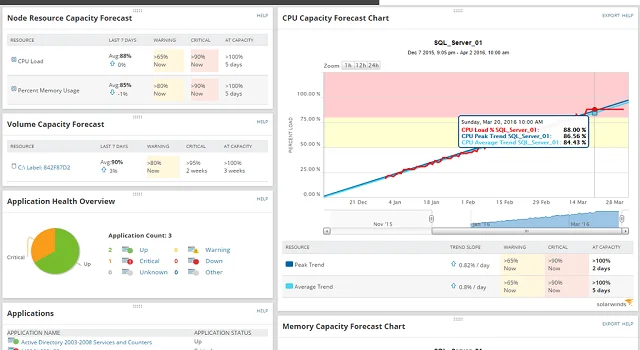
SolarWinds Server & Application Monitor is currently one of the best third-party utilities that can help you monitor your IIS website, server, application, or virtual directory without significant efforts. You just point it to the things you want to keep track of and let it work its magic.
Not only does this tool let you know if your websites and web servers are up and running, but it also provides you with an impressive range of key metrics, including but not limited to CPU, memory & disk usage, and response times.
Furthermore, if there’s something wrong with one of the websites you’re monitoring, SolarWinds Server & Application Monitor can automatically restart it for you in an attempt to fix the issue in a simple manner.
SolarWinds Server & Application Monitor’s screen is split into multiple sections, where you can monitor and analyze your applications and websites, access an overview of your applications’ health status displayed in graph form, and even manage applications at the press of a button.
You can also use this tool to keep track of your SSL certificates‘ expiration dates so that you can always be on top of things when it’s time to renew a soon-to-expire certificate. More so, you can use SolarWinds Server & Application Monitor to manage SSL certificates for several websites or servers for added convenience.
If you’re curious and want to give SolarWinds Server & Application Monitor a try, you’ll be glad to know that there’s a 30-day free trial available, so that you can test run its capabilities before committing to purchasing a license.
What is IIS – Conclusion
To wrap it up, IIS is a handy Microsoft webserver service you can use to create your own server, as well as manage websites, applications, and virtual directories in it without breaking a sweat. It’s currently the second most popular Windows web server in the world, losing first place to Apache HTTP, which is a completely free alternative.
IIS is mainly used to manage commercial websites, which requires you to purchase a commercial license. The price of such a license varies depending on the number of users you plan on having on the website.
Configuring IIS is somewhat intuitive, but you’ll need to be a bit tech-savvy to be able to make out all of its features, understand what each of them does and configure them to get the most out of your web server and associated websites or applications.
Set up a lightweight Matrix homeserver on Raspberry Pi 4 with Conduit, Docker, NGINX, HTTPS, registration controls, federation, and checks.
Agregue servidores Jitsi Videobridge a una implementación compartida de Jitsi Meet, configure el registro y el acceso al firewall, verifique la selección del puente y aprenda cuándo se necesita Octo.
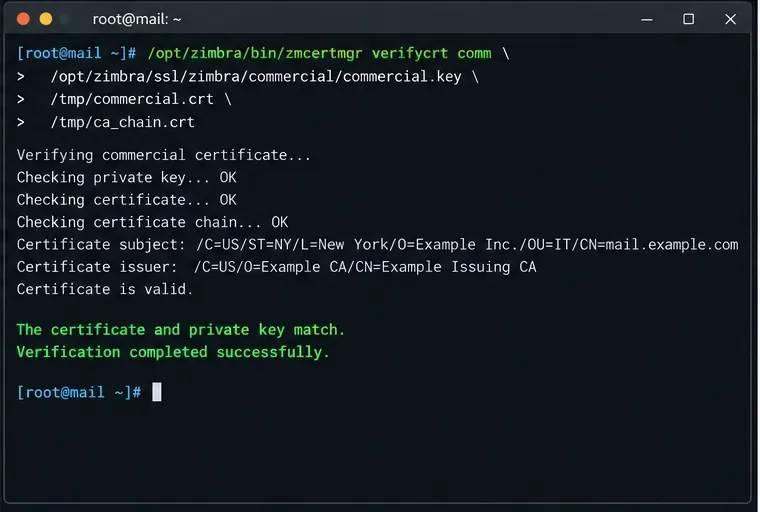
Instale un certificado SSL comercial en Zimbra de forma segura: cree la solicitud de firma de certificado (CSR), construya la cadena de certificados de la autoridad de certificación (CA), verifique la clave y el certificado, impleméntelo, reinicie los servicios y confirme HTTPS.
Cambie el logotipo predeterminado de BigBlueButton, agregue un logotipo a las reuniones individuales y comprenda cuándo la personalización de la interfaz requiere una compilación personalizada del cliente.
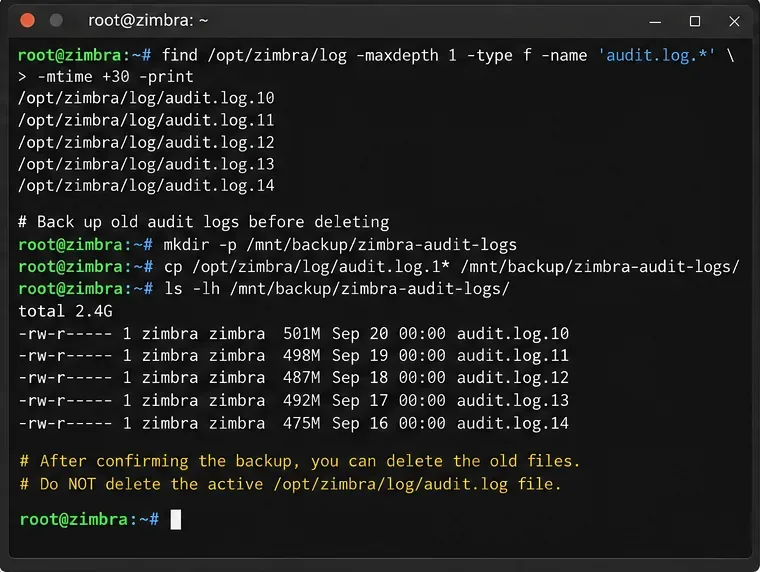
Aprenda cómo identificar, archivar, comprimir y eliminar los registros de auditoría antiguos de Zimbra, cuándo evitar truncar audit.log y cómo verificar que el espacio en disco y los registros se recuperen correctamente.
Solucione los problemas de conexión del servidor de almacenamiento Kopano dagent comprobando el estado del servidor, server_socket, los permisos del socket Unix, los oyentes remotos y las pruebas de entrega controlada.
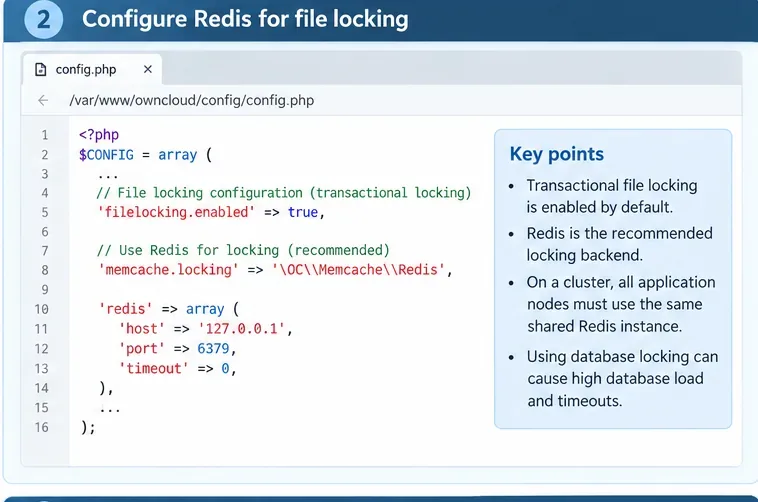
Solucione los errores de tiempo de espera de bloqueo de archivos de ownCloud identificando los bloqueos transaccionales, trasladando el almacenamiento de bloqueos a Redis, comprobando los clústeres y volviendo a realizar pruebas de forma segura.
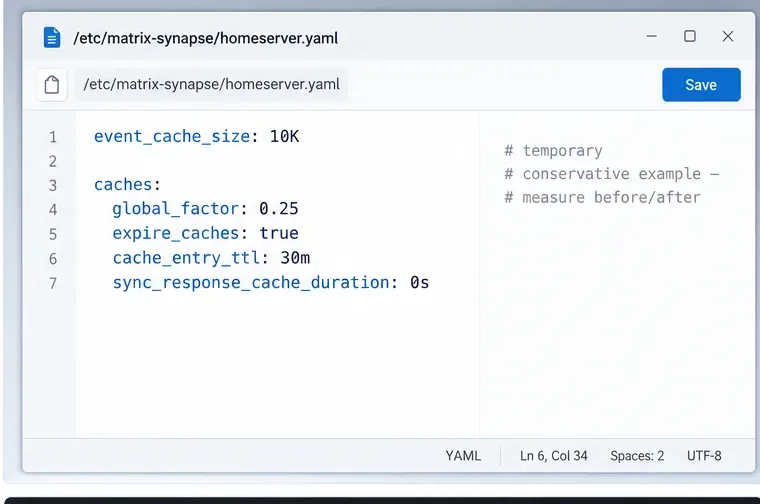
Solucione los problemas de OOM de Matrix Synapse durante /sync comprobando la presión de la memoria, ajustando cuidadosamente las cachés, aislando la sincronización inicial y supervisando los procesos de trabajo.
Habilite el cifrado del lado del servidor de Nextcloud de forma segura con el modo de clave maestra, el bloqueo APCu, Redis o Valkey, y un despliegue gradual que minimice el impacto en el rendimiento.
Solucione los errores de administrador de sala Matrix M_FORBIDDEN comprobando la membresía, los niveles de poder, el rango del usuario objetivo y las opciones de recuperación del administrador del servidor Synapse, como make_room_admin.