Home
» LINUX
»
Fix "Temporary Failure Resolving DNS" in Debian 12 with systemd-resolved
Fix "Temporary Failure Resolving DNS" in Debian 12 with systemd-resolved
The error Temporary failure in name resolution means an application could not turn a hostname such as deb.debian.org into an IP address. On Debian 12 (Bookworm), that does not automatically mean systemd-resolved is broken. Debian 12 does not install systemd-resolved by default, and DNS may instead be managed directly by NetworkManager, ifupdown, DHCP tooling, or another resolver. If you have deliberately enabled systemd-resolved, the fastest fix is to identify which layer is failing before changing configuration.
This practical reference focuses on systems that use, or are intended to use, systemd-resolved. Debian's Bookworm package documentation says installing systemd-resolved switches /etc/resolv.conf to systemd-resolved management. The service itself provides a local DNS stub on 127.0.0.53 and accepts upstream DNS information from global configuration, per-link network configuration, DHCP, resolvectl, and network-management services. See the Debian systemd-resolved package page and Debian systemd-resolved manual.
Quick diagnosis checklist
Check
Command
What the result tells you
Basic network path
ping -c 3 1.1.1.1
If an IP works but a hostname does not, investigate DNS. ICMP can be blocked, so do not treat a failed ping as proof that the network is down.
Resolver service
systemctl is-active systemd-resolved
active confirms the daemon is running; it does not prove upstream DNS is usable.
Effective DNS
resolvectl status
Shows global and per-link DNS servers, scopes, routing domains, and the active resolver mode.
glibc lookup path
getent ahosts debian.org
Tests hostname resolution through the system's Name Service Switch path rather than only a DNS-specific tool.
Resolver logs
journalctl -u systemd-resolved -b
Useful for unavailable DNS servers, fallback behavior, and protocol problems.
1. Confirm that the problem is DNS, not general connectivity
Start by testing a hostname and then an IP address:
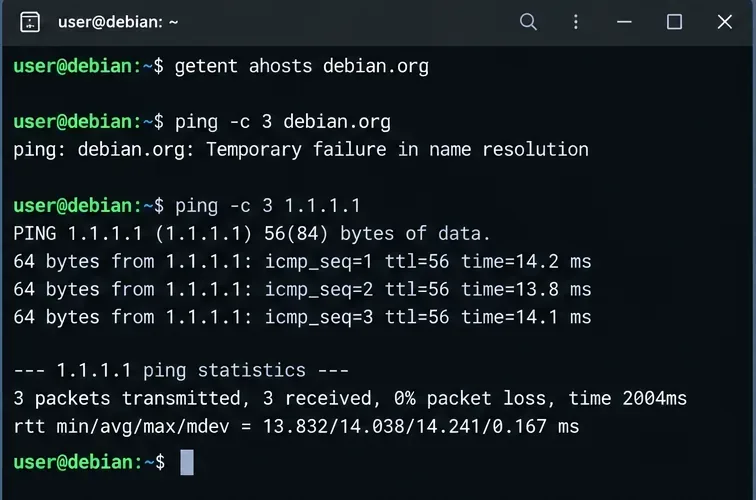
If the hostname lookup fails while the direct IP test succeeds, DNS is the likely fault domain. If both fail, first inspect the interface, route, gateway, VLAN, Wi-Fi association, firewall, or upstream network. A DNS change cannot repair a missing default route.
A direct IP ping succeeds while resolving debian.org fails, a useful sign that connectivity exists but DNS resolution is broken.
For a more deterministic routing check, also run:
ip address
ip route
You should normally have an address on the expected interface and a default route. The exact interface name may be enp1s0, ens160, eth0, or something else.
2. Check whether systemd-resolved is actually in use
Do not assume it is present just because the machine uses systemd. Check both the package and service:
dpkg -s systemd-resolved 2>/dev/null | grep '^Status'
systemctl status systemd-resolved --no-pager
resolvectl status
If the package is absent and your machine has another working DNS-management design, installing systemd-resolved is not automatically the correct fix. If the system is supposed to use it and the service is installed but stopped, enable and start it:
sudo systemctl enable --now systemd-resolved
If that command fails, inspect the logs before repeatedly restarting the service:
journalctl -u systemd-resolved -b --no-pager
3. Inspect /etc/resolv.conf before replacing it
The most common configuration mistake is treating /etc/resolv.conf as an isolated file. With systemd-resolved, it can operate in several supported modes. The upstream-recommended stub mode links /etc/resolv.conf to /run/systemd/resolve/stub-resolv.conf, which points traditional DNS clients at 127.0.0.53. Another valid mode links to /run/systemd/resolve/resolv.conf, which exposes known upstream servers directly but loses systemd-resolved's per-link DNS routing for applications that read that file directly.
ls -l /etc/resolv.conf
cat /etc/resolv.conf
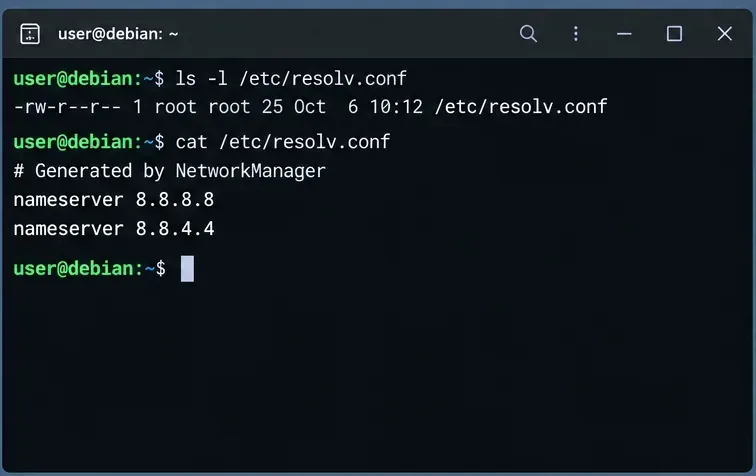
Inspect whether /etc/resolv.conf is a regular file or a symlink before changing it; different network managers use different ownership models.
A regular file is not automatically wrong. NetworkManager or another resolver manager may intentionally own it. However, if this host is designed to use systemd-resolved stub mode, a stale regular file, dangling symlink, or file pointing at unreachable nameservers can cause lookup failures.
Restore the recommended stub link when stub mode is intended
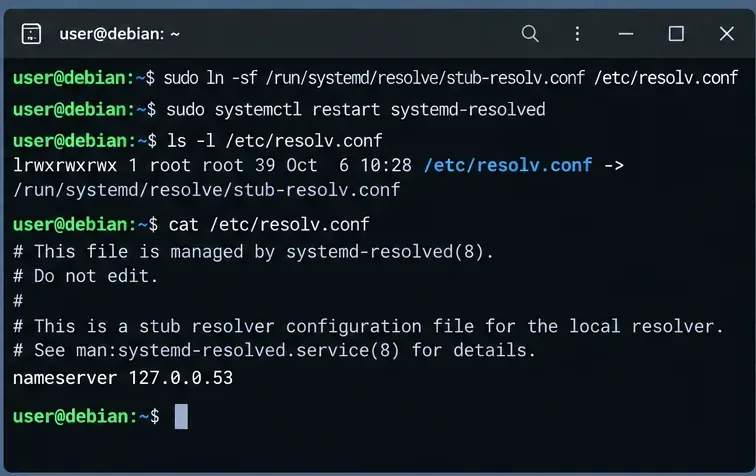
When this host is intentionally using systemd-resolved in stub mode, /etc/resolv.conf can point to the maintained stub file at /run/systemd/resolve/stub-resolv.conf.
Seeing nameserver 127.0.0.53 in the stub file is expected. It is the local listener, not the upstream DNS server. Use resolvectl status to see which upstream servers systemd-resolved will actually contact. This distinction is documented in the systemd-resolved Bookworm manual.
4. Check whether systemd-resolved has a usable upstream DNS server
Run:
resolvectl status
Focus on the link that carries the default route. A healthy configuration should normally show one or more DNS servers for that link or suitable global DNS servers. If no usable DNS server is present, fixing the symlink alone will not help: the local stub has nowhere useful to send queries.
You can test the resolver directly:
resolvectl query debian.org
The Debian resolvectl manual documents status, query, flush-caches, and the per-link DNS commands used for inspection and troubleshooting.
5. If NetworkManager owns the interface, fix DNS in the connection profile
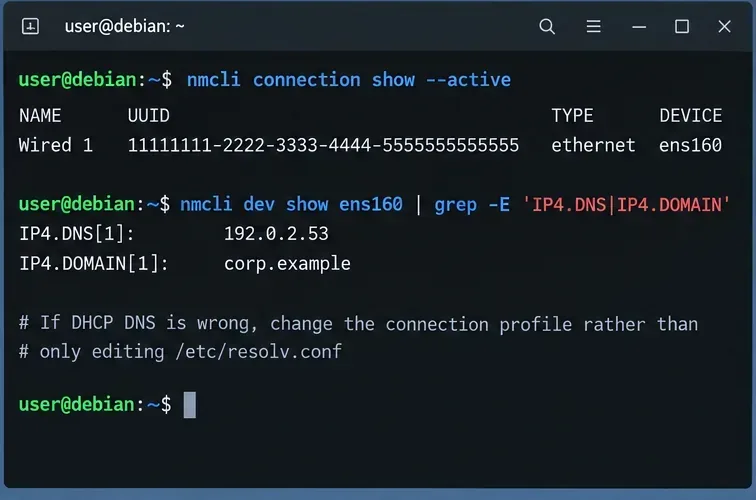
On desktop installations and many general-purpose Debian systems, NetworkManager may provide per-link DNS information to systemd-resolved. First identify the active profile and current DNS values:
nmcli connection show --active
nmcli device show
On NetworkManager systems, inspect and change DNS on the connection profile instead of repeatedly hand-editing /etc/resolv.conf.
If DHCP is supplying a bad DNS server, change the NetworkManager profile rather than editing /etc/resolv.conf after every reboot. For example, if your network policy permits public resolvers:
Sostituisci il nome del profilo e i server DNS con valori appropriati per la tua rete. Le reti aziendali, le VPN, gli ambienti Active Directory e le configurazioni split-DNS spesso richiedono resolver interni; il DNS pubblico potrebbe compromettere i nomi host privati. La documentazione ufficiale di configurazione di NetworkManager descrive la sua integrazione con systemd-resolved.
6. Se systemd-networkd è il proprietario dell'interfaccia, configura il DNS per ogni collegamento.
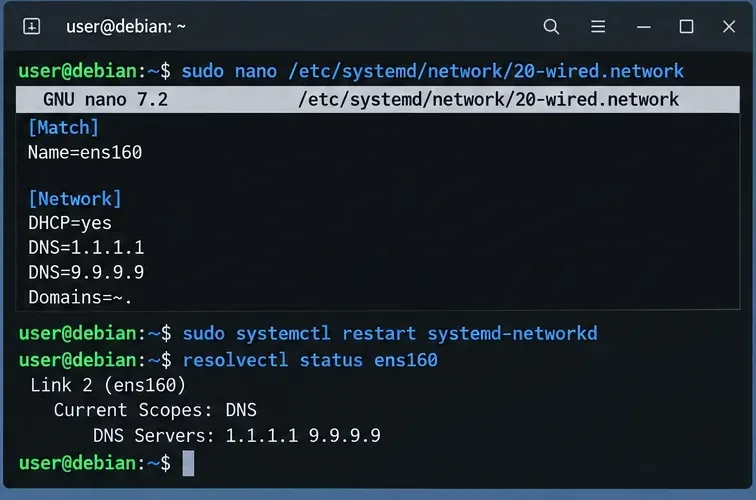
Per i server che utilizzano systemd-networkd, posizionare le impostazioni DNS nel .networkfile corrispondente in /etc/systemd/network/. Un semplice esempio basato su DHCP è:
UseDNS=noÈ importante specificarlo quando si desidera ignorare i server DNS forniti da DHCP. Senza di esso, viene utilizzato il DNS DHCP per impostazione predefinita. Domains=~.è un dominio di solo routing per la radice DNS, rendendo tale collegamento adatto per query che non corrispondono a un dominio di routing più specifico. Non aggiungerlo indiscriminatamente su sistemi multi-homed o VPN in cui la suddivisione del DNS è intenzionale.
sudo systemctl restart systemd-networkd
resolvectl status ens160
Con systemd-networkd, il DNS può essere definito per ogni collegamento in un file .network e quindi verificato con resolvectl.
7. Utilizza il file resolved.conf globale solo quando desideri effettivamente un DNS a livello di sistema.
/etc/systemd/resolved.confoppure un componente aggiuntivo /etc/systemd/resolved.conf.d/consente di definire i server DNS di sistema. Questo è utile per una policy a livello di host, ma è meno preciso della configurazione per singolo collegamento su macchine con VPN, interfacce multiple o zone DNS private.
Di solito, un'implementazione locale è più pulita rispetto alla modifica del file principale in stile fornitore:
sudo systemctl restart systemd-resolved
resolvectl status
Il manuale di Debian resolved.conf spiega che DNS=fornisce i server DNS di sistema e che le configurazioni aggiuntive dell'amministratore /etc/systemd/resolved.conf.d/hanno la precedenza sulle configurazioni a priorità inferiore.
8. Svuota la cache solo dopo aver corretto la configurazione sottostante.
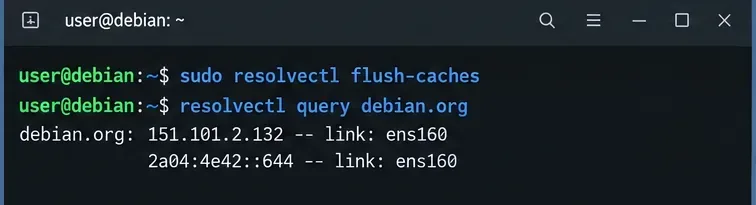
Una cache obsoleta può complicare la risoluzione dei problemi, ma lo svuotamento della cache non sostituisce la riparazione di un server upstream irraggiungibile o di una configurazione di collegamento interrotta. Dopo aver apportato una modifica effettiva alla configurazione, è possibile eseguire:
Dopo aver corretto la configurazione DNS, svuota la cache solo quando necessario per la risoluzione dei problemi e interroga un nome host direttamente tramite systemd-resolved.
La documentazione di Systemd stessa indica che le cache vengono normalmente svuotate automaticamente quando cambia la configurazione di rete, quindi lo svuotamento manuale ripetuto non dovrebbe essere la soluzione principale.
9. Leggere il registro del resolver se l'errore persiste
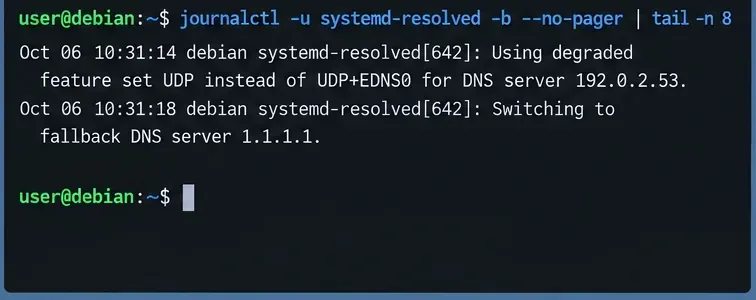
Se resolvectl statusl'aspetto è ragionevole ma le query continuano ad andare in timeout, esaminare il log del resolver di avvio locale:
Il registro di sistema risolto da systemd può rivelare errori del server a monte, gestione degradata del protocollo e comportamenti di fallback.
Presta attenzione a timeout ripetuti del server, modifiche al server di fallback, errori di convalida DNSSEC o messaggi che indicano una riduzione delle funzionalità del protocollo. Un resolver può funzionare normalmente mentre il server upstream configurato non è raggiungibile a causa di un firewall, una VPN, una policy di routing o un ACL di rete.
10. Verificare il percorso di ricerca completo
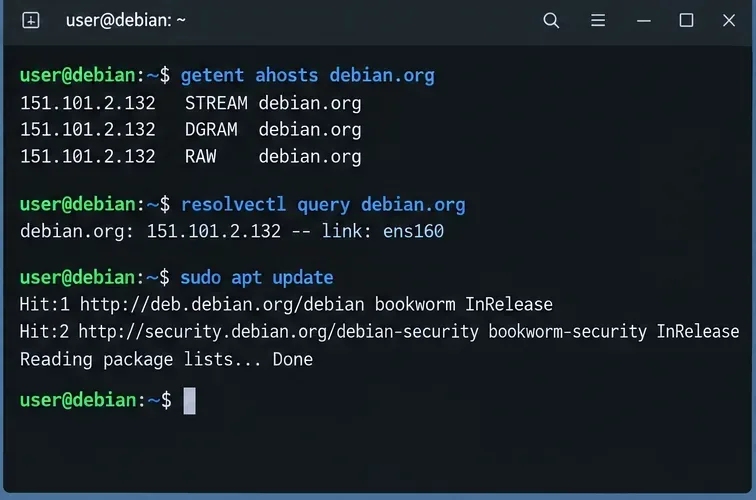
Non fermarti dopo una sola resolvectlquery andata a buon fine. Verifica il percorso utilizzato dalle normali applicazioni:
Termina testando sia il percorso del resolver di sistema che l'applicazione che inizialmente ha causato l'errore, come ad esempio apt.
getentè utile perché le ricerche del nome host glibc seguono la hosts:riga in /etc/nsswitch.conf. Se resolvectl queryha successo ma fallisce, ispeziona quella configurazione NSS. Il manuale di nss-resolvegetent di Debian descrive il modulo opzionale e un ordine consigliato che può instradare le ricerche del nome host glibc attraverso systemd-resolved mantenendo i fallback.libnss-resolve
Sintomi comuni e il punto più probabile in cui cercare
Sintomo
area probabile
Controllo successivo
La connettività IP funziona; tutti i nomi host non funzionano.
Server DNS, servizio di risoluzione o resolv.conf
resolvectl statusEls -l /etc/resolv.conf
resolvectl queryfunziona; le normali applicazioni falliscono
Percorso di risoluzione NSS o specifico dell'applicazione
getent ahostsE/etc/nsswitch.conf
Il DNS si interrompe dopo il riavvio o la riconnessione.
configurazione di proprietà del gestore di rete
NetworkManager o profilo systemd-networkd
I nomi pubblici funzionano; i nomi interni no.
DNS diviso, VPN, domini di routing
Server DNS per collegamento e Domains=inresolvectl status
Solo una richiesta fallisce
Applicazione, contenitore, proxy o resolver personalizzato
Confronta quell'app con getenteresolvectl query
Ordine di riparazione consigliato
Verificare che la connettività di rete di base e la rotta predefinita siano presenti.
Conferma se systemd-resolvedè effettivamente destinato a gestire il DNS su questo host.
Verifica systemd-resolvedlo stato del servizio e resolvectl status.
/etc/resolv.confPrima di modificarlo, verifica la proprietà e la modalità del collegamento simbolico.
Se si intende utilizzare la modalità stub, ripristinare il stub-resolv.confcollegamento.
Correggi il DNS upstream presso il proprietario effettivo: NetworkManager, systemd-networkd, DHCP, VPN o configurazione di risoluzione globale.
Svuota la cache solo dopo aver corretto la configurazione.
Verificare con resolvectl, getent, e l'applicazione che ha originariamente causato l'errore.
Il principio chiave è la proprietà: /etc/resolv.confsystemd-resolved e il gestore di rete fanno parte di un'unica catena di risoluzione DNS. Una soluzione duratura modifica il DNS al livello che ne è proprietario, invece di sostituire ripetutamente il file finale generato.