AIコンテンツと信頼性:ディープフェイク広告の時代において、なぜ人間の細部へのこだわりが重要なのか

開示されたAI支援広告と欺瞞的なディープフェイク広告を見分ける方法、主張や推薦を検証する方法、そして透明性のある人間中心の広告を通じて信頼を築く方法を学びましょう。
If Thunderbird says it is already running but no window is open, the profile may still be held by a background Thunderbird process or by a leftover lock file after an unclean shutdown. First make sure Thunderbird is fully closed. Only remove a lock file after you have confirmed that no Thunderbird process is using that profile. Your mail, account settings, passwords, and other data live in the profile folder, so do not delete the profile or its contents.
The safest repair is: close every Thunderbird process, back up the correct profile, remove only a confirmed stale lock file if one exists, and start Thunderbird again. If the error remains, check that you are opening the intended profile and that it is stored somewhere Thunderbird can access.
Thunderbird uses a profile to hold account settings and user data. A lock helps prevent two Thunderbird sessions from changing the same profile at once. The message can therefore mean that another Thunderbird process is actually open, including one that is hidden in the background. It can also appear when an earlier crash, forced shutdown, interrupted update, or copied profile leaves a stale lock behind.
A profile lock protects data from simultaneous access. Do not try to bypass it by launching a second copy against the same profile. Mozilla says simultaneous access to a profile through cloud storage, a file share, or another method is unsupported and can risk profile corruption or permanent data loss. See Mozilla’s profile storage and backup guidance.
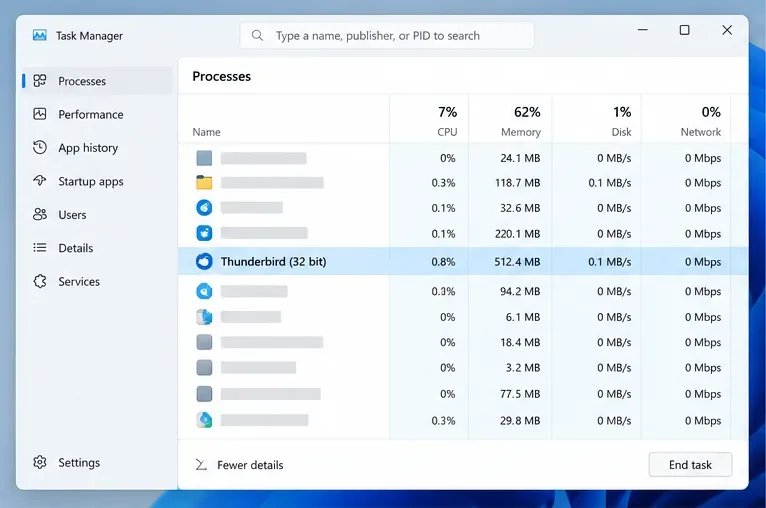
Try closing Thunderbird from its menu with File > Exit or the operating system’s normal quit command. Wait several seconds. If the warning continues, check whether Thunderbird is still running:
プロセスが停止しているかどうか不明な場合は、他のアプリケーションで作業内容を保存し、コンピュータを再起動してください。Mozillaのプロファイルマネージャーのヘルプでは、Thunderbirdがバックグラウンドで実行されている可能性があるため、マネージャーが開かない場合は、すべてのThunderbirdインスタンスを閉じるか、コンピュータを再起動することを推奨しています。その後、Thunderbirdを一度だけ起動してみてください。短時間に何度も起動しないでください。
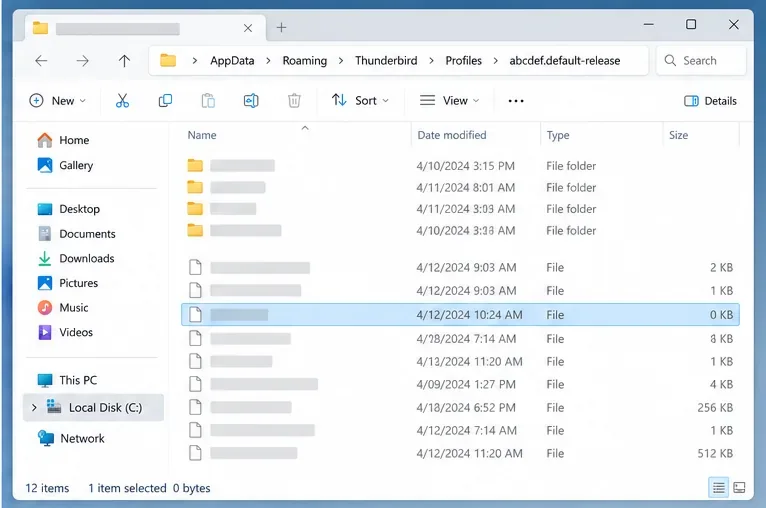
エラーが発生したプロファイルを使用してください。Thunderbirdフォルダ全体を削除したり、名前を変更したりしないでください。Thunderbirdが別のデバイスまたは別のプロファイルで開いた場合、トラブルシューティング情報ページにアクティブなプロファイルの場所が表示されます。Thunderbirdが開かない場合、Mozillaの現在のプロファイルに関する記事には、以下のデフォルトの場所が記載されています。
%APPDATA%\Thunderbird\Profiles\Enterキーを押してください。実際に使用するプロファイルフォルダを開きます。AppDataフォルダは通常非表示になっているため、このショートカットが便利です。Thunderbird/Profiles。~/.thunderbird。パッケージ形式によっては別の場所を使用する場合があるため、そこにない場合はインストール用に設定されたプロファイルパスを使用してください。Profiles ディレクトリに複数のフォルダが含まれている場合は、名前だけで判断しないでください。以前 Thunderbird で使用されていたプロファイル パス、またはprofiles.ini. にある対応するプロファイル エントリを確認してください。最初の解決策としてそのファイルを編集することは避けてください。別のコンピュータからプロファイルをコピーした場合は、新しく作成された空のプロファイルではなく、使用しようとしていたコピー済みのプロファイルを開いていることを確認してください。
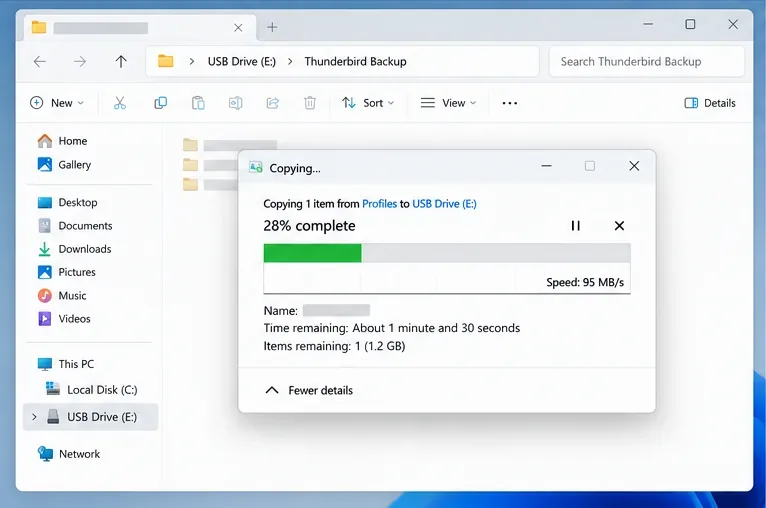
Thunderbirdを完全に閉じた状態で、プロファイルフォルダ全体を外付けドライブなどの別の場所にコピーしてください。元のファイルはそのまま残しておいてください。バックアップはあくまでも予備のコピーです。Mozillaは、プロファイルをコピーする前にThunderbirdを閉じることを特に推奨しており、同じコンピュータに保存されたプロファイル自体はバックアップではないと注意を促しています。
Thunderbirdのすべてのプロセスが閉じていることを確認したら、適切なプロファイルフォルダにロックファイルがあるかどうかを確認してください。Windowsでは、このファイルは通常parent.lock`/etc/thunderbird.parentlock
Thunderbird が実行されていないことが確実な場合のみ、ロック ファイルが存在する場合に限り、そのファイルを削除します。メール フォルダーやプロファイル全体を削除しないでください。prefs.jsロックファイルを確実に特定できない場合は、他のファイルを削除するのではなく、作業を中止してサポートに問い合わせてください。このメッセージに対する Mozilla サポート フォーラムの回答でも、まず Thunderbird を閉じてからプロファイルに残っているファイルを削除するようにアドバイスされています。詳しくは、 Mozilla サポートのトラブルシューティングに関するディスカッションを参照してください。logins.jsonkey4.dbparent.lock
Thunderbirdを通常どおり起動してください。プロファイルが開いたら、想定どおりのアカウント、フォルダー、メッセージ、設定が存在することを確認してください。別のコンピューターからコピーしたプロファイルは、メールサーバーへの再接続に時間がかかる場合がありますが、プロファイルロックの警告自体は起動を妨げるものではなくなっているはずです。
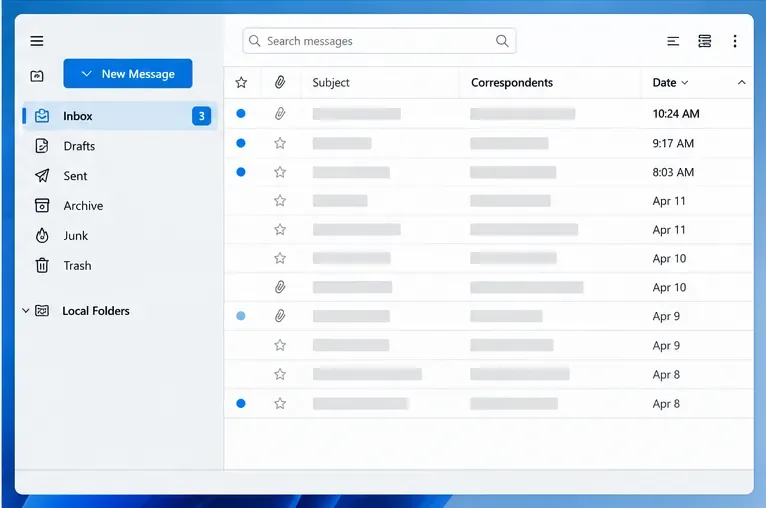
2台のコンピューターで同じプロファイルを開いたままにしたり、2台のローカルThunderbirdインスタンスで同時に同じプロファイルを使用させたりしないでください。クラウド同期されたフォルダーを使用しても、同時使用は安全ではありません。Mozillaのプロファイルに関するガイドラインには、同時アクセスはサポートされていないと明記されています。そのプロファイルを使用する可能性のあるすべてのデバイスでThunderbirdを閉じ、ファイルの同期が完了するまで待ってから、別の場所で起動してください。
ロックファイルが存在しない場合、メッセージは古いロックの問題ではない可能性があります。プロファイルフォルダが存在し、ドライブが接続されており、オペレーティングシステムのアカウントがそのフォルダへの読み書き権限を持っていることを確認してください。リムーバブルドライブ、ネットワークドライブ、または同期ドライブ上のプロファイルは、利用できない、読み取り専用、またはまだコピー中である可能性があります。Thunderbird が開いている間は、権限を再帰的に変更したり、プロファイルを移動したりしないでください。プロファイルが共有場所または同期場所にある場合は、ローカルフォルダにコピーし、Thunderbird が複数の場所から同じプロファイルを開くのではなく、そのローカルコピーを使用するように設定してください。
プロファイルロックを解除してもThunderbirdが間違ったプロファイルを開いたり、プロファイルを読み込めないというエラーが表示されたりする場合は、プロファイルマネージャを使用して利用可能なプロファイルを確認してください。Windowsでは、Windowsキー+Rを押してEnterキーを押しますthunderbird.exe -P。macOSまたはLinuxでは、Mozillaが-ProfileManager起動スイッチについてドキュメントで説明しています。Thunderbirdのインストール方法によっては、アプリケーションの完全なパスが必要になる場合があります。Thunderbirdプロファイルマネージャガイドでは、プロファイルの選択方法とマネージャのオプションの使い方について説明しています。
古いプロファイルが破損していないか確認する必要がある場合は、一時的な新しいプロファイルを作成し、元のプロファイルはそのままにしておいてください。プロファイルはアカウントとデータを別々に保持するため、新しいプロファイルは空に見えるかもしれませんが、古いメールが削除されたわけではありません。古いプロファイルに対して「ファイルの削除」を選択しないでください。Mozillaは、このオプションを選択するとプロファイルの設定、パスワード、その他のファイルが完全に削除されると警告しています。Thunderbirdが一時的なプロファイルで起動した場合は、トラブルシューティング後にマネージャーに戻り、元のプロファイルを選択してください。
通常、再インストールは最初の適切な手順ではありません。Thunderbird はプロファイルをアプリケーションファイルとは別に管理しているため、プログラムをアンインストールして再インストールしても、古いロックやアクセスできないプロファイルは解決しません。また、バックアップも復元されません。まずは手順とプロファイルチェックを行い、プロファイルにアクセスでき、Thunderbird 自体に問題がある場合にのみ、アプリケーションの修復または再インストールを検討してください。
2026年10月7日現在、Mozillaのサポートドキュメントでは、プロファイルの分離、プロファイル操作の前にThunderbirdを閉じること、同時アクセスを避けることなどが引き続き強調されています。推奨される修復方法は、まず本当に停止しているプロセスを終了させ、Thunderbirdインスタンスが使用していない場合にのみ、古いプロファイルロックを削除することです。ロックファイル名はプラットフォームによって異なる場合があるため、ロックファイルが見つからないからといって、parent.lock他のプロファイルファイルを削除する理由にしないでください。
開示されたAI支援広告と欺瞞的なディープフェイク広告を見分ける方法、主張や推薦を検証する方法、そして透明性のある人間中心の広告を通じて信頼を築く方法を学びましょう。
AIバブルが崩壊しても、AIの終焉ではなく、価格の大幅な見直しにつながるだろう。2026年のデータに基づき、評価額、支出、プロジェクト収益、リスクシナリオについて見てみよう。
Windows 10にMyIPTV Playerをインストールする方法、M3UプレイリストとEPGを追加する方法、チャンネルを更新する方法、一般的な設定や再生の問題を解決する方法を学びましょう。
HP Print and Scan Doctorは、2025年5月27日にHPによって提供終了となりました。後継製品、診断と修復の実行方法、および古いコピーを安全に削除する方法について説明します。
Segurazoはウイルスですか?SegurazoまたはSAntivirusを安全に削除する方法、残存ファイルをスキャンする方法、危険なレジストリクリーンアップのアドバイスを避ける方法を学びましょう。
Glarysoft Registry Repairの機能、スキャンツールとバックアップツールの使い方、そしてMicrosoftがレジストリクリーナーの使用に注意を促している理由について学びましょう。
Wise Registry Cleanerを公式サイトから安全にダウンロードし、最も安全なスキャン設定、バックアップオプション、そしてこの無料のWindowsツールを使う価値があるかどうかを学びましょう。
Acronis True Image 2021を安全にダウンロードし、従来のWindowsおよびMacのサポート状況を確認し、2021年の最終ビルドをインストールして、最初のバックアップを作成してください。
Windows 10 用の 7-Zip をダウンロードしてインストールし、アーカイブを安全に圧縮、解凍、テスト、パスワード保護する方法を学びましょう。
Bandicam 2027のダウンロードとインストール方法、画面録画の方法、保存した動画の検索方法、主要設定の調整方法、無料版の制限事項について学びましょう。