ネットワーク上のデバイスを見つけるためのベスト10ピングスキャンツール
迅速なLAN検出、クロスプラットフォームスキャン、IPアドレス管理のための10種類のpingスイープツールを比較します。スイープで何がわかるのか、何がわからないのかを理解しましょう。
ownCloudの「ホワイトスクリーン・オブ・デス」は症状であって、診断ではありません。最適な解決策は、ブラウザがサーバーエラーを受信したのか、有効なHTMLを受信したがJavaScriptやCSSの読み込みに失敗したのか、あるいはownCloudに全くアクセスできないリバースプロキシに到達したのかによって異なります。
その区別は重要です。なぜなら、トレードオフが大きく異なるからです。PHP例外でサードパーティ製アプリの名前が特定された場合、そのアプリを無効にするリスクは比較的低いと言えます。一方、インストール全体にわたってファイルの所有権を変更することは、はるかに大きな影響を伴うため、JavaScriptエラーへの最初の対応策として用いるべきではありません。同様に、すべてのサービスを再起動すると、問題がPHP、プロキシ、アップグレード、またはアプリのいずれに起因するものかを特定できないまま、一時的に問題が隠蔽される可能性があります。
このガイドでは、ownCloud Classicについて説明します。現在のownCloud Classic 11のドキュメントによると、バージョン11はDockerベースのデプロイメントとしてサポートされており、オペレーティングシステム、PHPランタイム、データベース、ApacheはownCloudが提供するコンテナ内に含まれています。古い10.xのインストールでは、従来型のWebサーバーとPHP-FPM構成が引き続き使用される場合があります。ご使用のデプロイメントに合ったコマンドブランチを使用してください。ownCloud Classic 11のシステム要件を参照してください。
ブラウザの開発者ツールを開き、「ネットワーク」タブと「コンソール」タブの両方を確認してください。また、ターミナルからエンドポイントをテストしてください。
curl -I https://cloud.example.com/
curl -sS -o /dev/null -w '%{http_code}\n' https://cloud.example.com/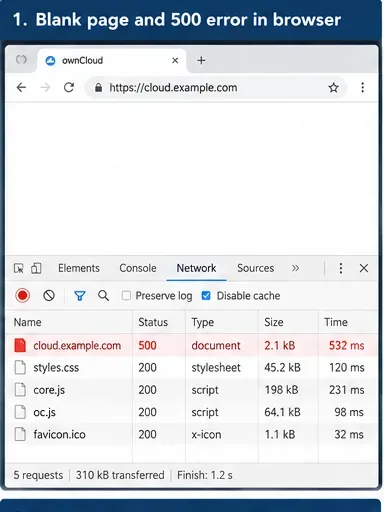
キャプション:サーバー側の500エラー応答は、単純なブラウザのレンダリングの問題ではなく、ownCloud、PHP、データベース、またはWebスタックに問題があることを示しています。
メインドキュメントが500または502/503を返す場合は、サーバーとプロキシのログを優先的に確認してください。メインドキュメントが200を返すものの、JavaScriptバンドルが404、403、またはスクリプト例外で失敗する場合は、アセットパス、リバースプロキシの書き換え、テーマ、キャッシュ、またはアプリの互換性を優先的に確認してください。影響を受けるブラウザが1つだけの場合は、サーバーを変更する前に、プライベートウィンドウと別のサポートされているブラウザでテストしてください。
これは、障害領域を即座に絞り込むことができるため、最も重要な質問の1つです。ownCloudの最新リリースノートによると、ownCloud Classic 11ではPHPの最小バージョンがPHP 8.3に引き上げられ、ownCloud Classic 11はDocker専用となっています。従来のownCloud 10.xのインストールではPHPの互換性ルールが異なるため、他のメジャーリリースのPHPに関するアドバイスをコピーしないでください。
従来のownCloud 10.xインストールの場合、ownCloudディレクトリから以下のコマンドを実行してください。
sudo -u www-data ./occ status
php -v
ownCloud Classic 11 の場合、Compose デプロイメントを通じて OCC を実行します。
docker compose exec owncloud occ status
docker compose exec owncloud php -v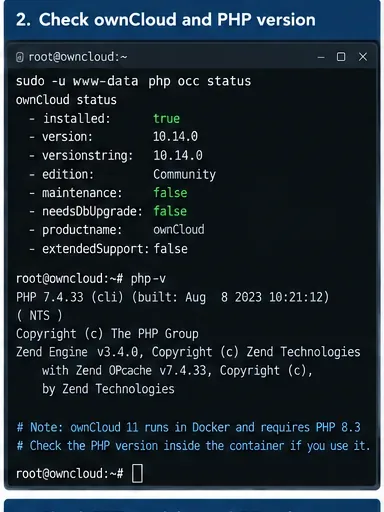
キャプション:アップグレード直後に白い画面が表示されるようになった場合は、インストールされているownCloudとPHPのバージョンを確認することが特に重要です。
結果を、実際に使用しているバージョンのリリースノートと比較してください。ownCloudの公式リリースノートは、最新の最小バージョンと互換性のない変更点に関する正しい情報源です。ダウングレードは安全な一般的な解決策ではありません。ownCloudのドキュメントには、ダウングレードはデータ破損の可能性があるためサポートされていないと警告されています。
ログは通常、試行錯誤による設定変更よりも役立ちます。ownCloudの管理マニュアルでは、問題の診断にownCloudログを使用することを推奨しています。デフォルトでは、ログは設定済みのデータディレクトリに保存されますが、別の場所logfileが設定されている場合は除きます。
従来型の設置例としては、以下のようなものがあります。
tail -n 100 /path/to/owncloud/data/owncloud.log
journalctl -u php-fpm --since "15 minutes ago"
journalctl -u apache2 --since "15 minutes ago"
journalctl -u nginx --since "15 minutes ago"
ownCloud Classic 11では、代わりにComposeサービスを調べてください。
docker compose logs --tail=200 owncloud
docker compose ps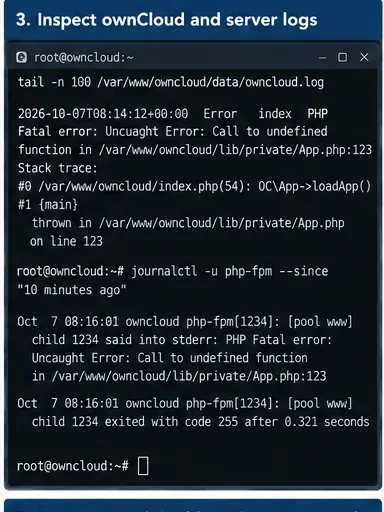
キャプション:アプリケーションやクラス名を示すPHPの致命的なエラーやスタックトレースは、無関係なサーバー設定を変更するよりもはるかに安全なトラブルシューティング対象となります。
失敗したリクエストの周辺で発生した最初の致命的な例外を探してください。一連のエラーの最終結果だけでなく、最初の例外も確認しましょう。よくある原因としては、PHPクラスの欠落、互換性のないアプリケーション、データベース接続の失敗、読み取れない設定ファイル、コードファイルの欠落、アップグレードの未完了中の例外などが挙げられます。
ownCloudのログ記録に関するドキュメントによると、DEBUGログは診断に役立ちますが、大量の出力が生成され、パフォーマンスに影響を与える可能性があります。一時的にログレベルを上げた場合は、証拠収集後に、より簡潔な値に戻してください。ownCloudのログ設定を参照してください。
エラーメッセージにコアアプリ以外のアプリの名前が表示された場合、アプリのインストールまたはアップデート後に空白ページが表示された場合、あるいはownCloudのアップグレード中にエラーが発生した場合は、この手順を選択してください。ownCloudのトラブルシューティングガイドでは、トラブルシューティング時およびアップグレード前にサードパーティ製アプリを無効にすることを明示的に推奨しています。
アプリを最初に一覧表示します。ownCloud 10.x の場合:
sudo -u www-data ./occ app:list
sudo -u www-data ./occ app:disable APP_ID
ownCloud 11の場合:
docker compose exec owncloud occ app:list
docker compose exec owncloud occ app:disable APP_ID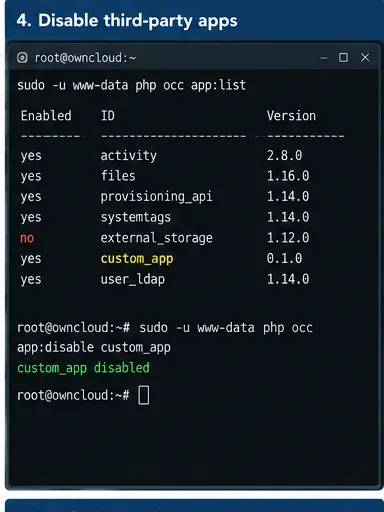
キャプション:ログに原因が示されたアプリのみを無効にする方が、多くのコンポーネントを無効にしたり、ウェブスタック全体を変更したりするよりも影響が少ない。
トレードオフとなるのは機能性です。アプリがアップデートまたは再有効化されるまで、ユーザーはそのアプリを使用できなくなります。これは通常、ownCloudのコアサービスを無効にするよりも好ましい方法です。OCCのドキュメントには、DAV、FederatedFileSharing、Files、Files_Externalなど、いくつかのコアアプリは無効にできないことも記載されています。公式の一般的なトラブルシューティングガイドとOCCコマンドリファレンスを確認してください。
ログに「Permission denied最近のデプロイメントでapp/configファイルが誤ったユーザーでコピーされた」または「アップグレードで所有権が間違っているファイルが置き換えられた」という記述が含まれている場合、権限の問題が有力な原因として考えられます。一方、ブラウザ側のJavaScriptエラーしか証拠がない場合は、権限の問題は疑わしいと考えられます。
大規模な修理作業を行う前に、システムをメンテナンスモードにしてください。ownCloud 11の場合:
docker compose exec owncloud occ maintenance:mode --on従来の10.x展開の場合:
sudo -u www-data ./occ maintenance:mode --on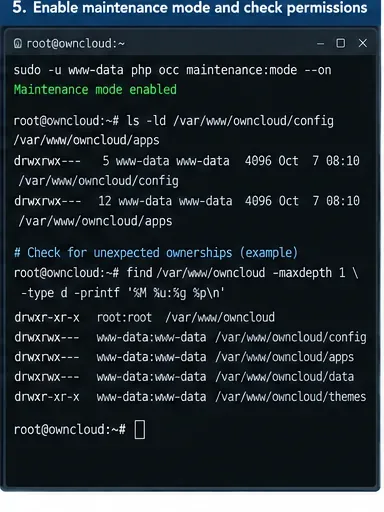
キャプション:メンテナンスモードでは、ログの証拠によって既に裏付けられている所有権またはファイル権限のエラーを調査する際に、ユーザーの操作が制限されます。
包括的な再帰処理を実行したり、無関係なリリースから権限レシピをコピーしたりしないでくださいchmod 777。現在のownCloud 11マニュアルには、Dockerマウントされたディレクトリに手動で追加されたファイルの所有権とモード(apps所有config権www-data:root、アプリファイル0644、アプリディレクトリ0751、追加された設定ファイル)が具体的に記載されています0644。また、0640手動で変更されたファイルとについて.htaccessも記載されています。リリース固有のリファレンスとしては、ownCloud 11の手動アップグレードに関するドキュメントを.user.ini参照してください。
ログや互換性チェックで指摘された場合のみ対処してください。この方法は、問題のあるアプリケーションを1つ無効化するよりも影響範囲が広くなります。必要なPHP拡張機能が不足しているとコードの実行が妨げられる可能性があり、PHPの設定が不正だとホスト上のすべてのPHPアプリケーションに影響を与える可能性があります。
従来のホスト管理型PHPスタックの場合、Webランタイムが実際に何をロードしているかを確認してください。
php -m
php --ini
php -r 'phpinfo();' | grep opcache.enable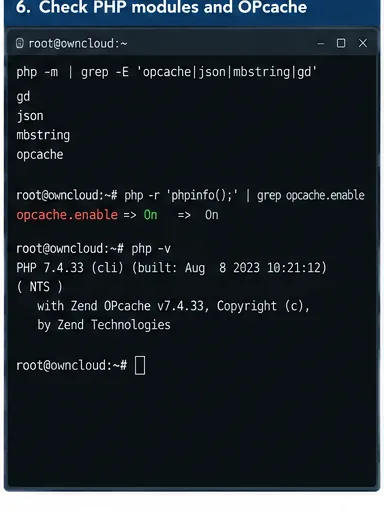
キャプション:PHPモジュールとOPcacheのチェックは、サーバーログに不足している拡張機能や実行時の非互換性が報告された場合に役立ちますが、証拠なしに最初に変更するべきではありません。
ownCloud 11では、公式イメージがPHPランタイムを管理しているため、ホストPHPパッケージを変更するのは一般的に適切な方法ではありません。ownCloudのドキュメントでは、OPcacheはDockerイメージでデフォルトで有効になっていると記載されています。ownCloudのメモリキャッシュに関するドキュメントを参照してください。
レガシーインストール環境でPHPファイルを手動で置き換えた後、OPcacheが古いと疑われる場合は、PHP-FPMまたは関連するWeb/PHPサービスを再起動することで、プロセスローカルのオペコードキャッシュをクリアできます。ただし、再起動後には処理が一時的に中断され、キャッシュがコールド状態になるため、パフォーマンスが低下します。この操作は、根本的なファイルを修正した後に行うべきであり、エラーの原因を特定する代わりに行うべきではありません。
アップグレード中またはアップグレード直後に白いページが表示された場合は、まずアップグレードの状態を確認してください。ownCloudの公式アップグレードドキュメントでは、データベースを手動で操作するのではなく、OCCを使用してアップグレードおよび修復を行うことを推奨しています。
ownCloud 11の場合:
docker compose exec owncloud occ status
docker compose exec owncloud occ upgrade
docker compose exec owncloud occ maintenance:repair
docker compose exec owncloud occ integrity:check-core
ownCloud 10.x の場合は、ウェブサーバーユーザーで同等の OCC コマンドを使用してください。
sudo -u www-data ./occ status
sudo -u www-data ./occ maintenance:repair
sudo -u www-data ./occ integrity:check-core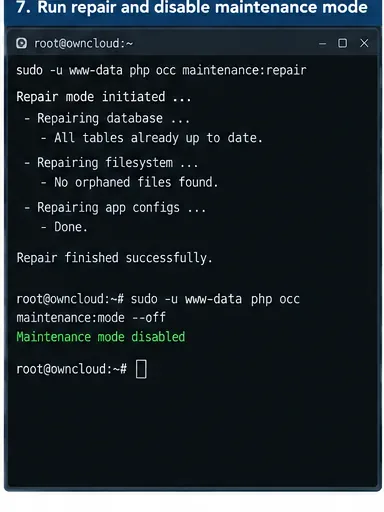
キャプション:OCC修復は、中断されたり一貫性のないアップグレードに適していますが、整合性チェックは、変更された、または欠落している署名付きコアファイルを特定できます。
コード整合性の結果には解釈が必要です。ownCloud のドキュメントではINVALID_HASH、、、FILE_MISSINGおよびをEXTRA_FILE個別の条件として扱っています。警告を消すために編集しないでくださいsignature.json。現在の ownCloud 11 のドキュメントでは、インストール、更新、および有効化の際にサードパーティ アプリの署名が必須となっています。ownCloudのコード署名に関するドキュメントを参照してください。
良好な復旧とは、単に「ページが白くなくなった」という状態ではありません。リクエストパス全体を検証してください。
occ statusインストール済みのインスタンスが報告され、予期せぬアップグレードの必要性は発生していません。ownCloud 11の場合:
docker compose exec owncloud occ maintenance:mode --off
docker compose exec owncloud occ status
curl -I https://cloud.example.com/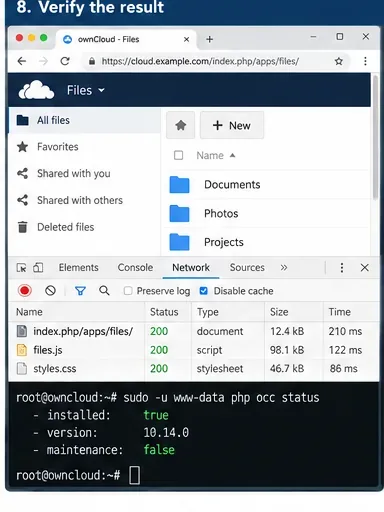
キャプション:復旧は両方のレイヤーで確認する必要があります。ownCloudインターフェースがロードされ、サーバー側のステータスとHTTPチェックが正常な状態を維持していることが条件です。
| あなたが持っている証拠 | 最良の第一選択 | トレードオフ |
|---|---|---|
| 1つのブラウザだけが空白ページを表示する | プライベートウィンドウ、サポートされているセカンドブラウザ、ブラウザコンソール | リスクは最も低い。ただし、すべてのユーザーに影響が出る場合は、実際のサーバー障害には対処しない。 |
| メインドキュメントはHTTP 500です | ownCloud、PHP/コンテナ、ウェブサーバー、およびデータベースのログ | 根本原因への最短経路。シェルまたはプラットフォームのログへのアクセスが必要。 |
| エラーでサードパーティ製アプリの名前が挙げられています | OCCでそのアプリだけを無効にする | 通常は運用リスクは低いが、そのアプリの機能は一時的に利用できない。 |
| アップグレード直後から問題が発生しました。 | サポート対象バージョンのマトリックス、アップグレード状況、アプリの互換性、OCC修復を確認してください。 | ロールバックよりも制御が厳密。メンテナンス期間が必要になる場合がある。 |
| ログには、ファイルのコピー後に「アクセスが拒否されました」と表示されます。 | 影響を受けるリリースについて、文書化された所有権/モードのみを修正してください。 | 証拠が存在する場合に限り正確に行う。包括的な再帰的権限変更はセキュリティやアップグレードの問題を引き起こす可能性がある。 |
| コア整合性チェックレポートで変更または欠落したファイルが報告されます | 正しいリリースファイルを復元するか、サポートされているアップグレード/復元手順に従ってください。 | 整合性を維持し、多くのコアファイルを手動でパッチ適用することを回避する。 |
| HTTP 200は返されるが、JS/CSSが失敗する | ブラウザネットワーク/コンソール、プロキシパス、テーマ/アプリアセット、キャッシュ | 不要なデータベース/PHPの変更を回避します。プロキシ設定へのアクセスが必要になる場合があります。 |
display_errors公開されている本番環境でPHPを有効にして、ブラウザにスタックトレースを表示させるのは避けてください。代わりにサーバーログを使用してください。signature.json単に整合性エラーを抑制するためだけに編集したりしないでください。ログにデータベースの破損、暗号化キーの問題、クリーンな復元後のコア整合性障害の繰り返し、またはドキュメント化されたOCCワークフローでは完了できないアップグレード状態が示された場合は、変更を停止してください。また、空白ページが本番クラスタに影響を与え、データの一貫性を損なうことなく単一ノードを隔離できない場合は、エスカレーションしてください。
サポートケースを開く前に、ownCloudでは構成レポートと関連ログを収集することを推奨しています。ownCloud 10.xの場合、ドキュメントに記載されているコマンドは次のとおりです。
sudo -u www-data ./occ configreport:generate > config_report.txtデプロイメントに適した OCC 実行方法を使用し、出力結果を組織外に共有する前に機密情報が含まれていないか確認してください。ownCloudのログおよび構成収集ガイドには、サポートエンジニアが通常必要とする情報が説明されています。
迅速なLAN検出、クロスプラットフォームスキャン、IPアドレス管理のための10種類のpingスイープツールを比較します。スイープで何がわかるのか、何がわからないのかを理解しましょう。
SNMP対応範囲、マッピング、アラート、導入モデル、コストのトレードオフなど、パフォーマンス監視のための6つのネットワーク管理ツールを比較します。
フルネットワークスイートからレイテンシに特化したプローブまで、7つの無料オープンソースpingモニターを比較し、可用性、パケット損失、履歴など、ニーズに最適なものを選びましょう。
Windows、iPhone、Android向けのWi-Fiアナライザーのおすすめを比較検討しましょう。チャネルの混雑状況、信号カバレッジ、ヒートマップ、ネットワークのトラブルシューティングツールなどが含まれています。
WindowsおよびLinux向けの信頼性の高いSFTPサーバーソフトウェア(OpenSSH、Bitvise、SolarWinds、SFTPGoなど)を比較検討しましょう。セキュリティとファイル転送のニーズに最適なソフトウェアを見つけてください。
迅速なデバイス検出、クロスプラットフォームIPスキャン、エンタープライズIPAMを実現するネットワークスキャナーツールを比較し、それぞれのオプションをネットワークに合わせて選択するためのガイダンスを提供します。
サブネット検出、DNSとDHCPの連携、ネットワークインベントリ、オープンソースIPAMに対応した7つのIPアドレス管理ツールを比較します。
明確なデバイスカバレッジ、有用なパフォーマンス指標、実用的なアラート、そしてSolarWinds NPM、PRTG、OpManagerの比較機能を備えた、実用的なネットワーク監視システムを構築します。
SNMPデバイス検出、インターフェースグラフ、ホストメトリック、サービスチェック、トラフィックフローに関する6つのLinuxネットワーク監視ツールを比較します。
Nmapの--tracerouteオプションを使用すると、ホップを認証済みホストにマッピングし、ホップとRTTの出力を理解し、過剰なスキャンを行わずに応答の欠落をトラブルシューティングできます。