홈
» 리눅스
»
Fix "Temporary Failure Resolving DNS" in Debian 12 with systemd-resolved
Fix "Temporary Failure Resolving DNS" in Debian 12 with systemd-resolved
The error Temporary failure in name resolution means an application could not turn a hostname such as deb.debian.org into an IP address. On Debian 12 (Bookworm), that does not automatically mean systemd-resolved is broken. Debian 12 does not install systemd-resolved by default, and DNS may instead be managed directly by NetworkManager, ifupdown, DHCP tooling, or another resolver. If you have deliberately enabled systemd-resolved, the fastest fix is to identify which layer is failing before changing configuration.
This practical reference focuses on systems that use, or are intended to use, systemd-resolved. Debian's Bookworm package documentation says installing systemd-resolved switches /etc/resolv.conf to systemd-resolved management. The service itself provides a local DNS stub on 127.0.0.53 and accepts upstream DNS information from global configuration, per-link network configuration, DHCP, resolvectl, and network-management services. See the Debian systemd-resolved package page and Debian systemd-resolved manual.
Quick diagnosis checklist
Check
Command
What the result tells you
Basic network path
ping -c 3 1.1.1.1
If an IP works but a hostname does not, investigate DNS. ICMP can be blocked, so do not treat a failed ping as proof that the network is down.
Resolver service
systemctl is-active systemd-resolved
active confirms the daemon is running; it does not prove upstream DNS is usable.
Effective DNS
resolvectl status
Shows global and per-link DNS servers, scopes, routing domains, and the active resolver mode.
glibc lookup path
getent ahosts debian.org
Tests hostname resolution through the system's Name Service Switch path rather than only a DNS-specific tool.
Resolver logs
journalctl -u systemd-resolved -b
Useful for unavailable DNS servers, fallback behavior, and protocol problems.
1. Confirm that the problem is DNS, not general connectivity
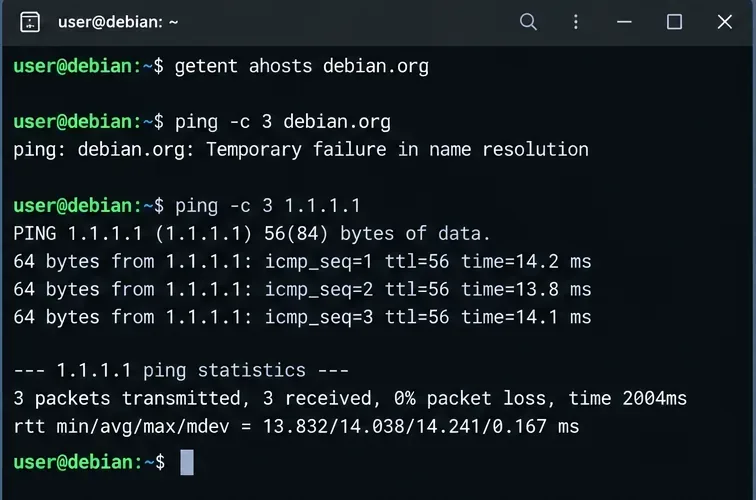
Start by testing a hostname and then an IP address:
If the hostname lookup fails while the direct IP test succeeds, DNS is the likely fault domain. If both fail, first inspect the interface, route, gateway, VLAN, Wi-Fi association, firewall, or upstream network. A DNS change cannot repair a missing default route.
A direct IP ping succeeds while resolving debian.org fails, a useful sign that connectivity exists but DNS resolution is broken.
For a more deterministic routing check, also run:
ip address
ip route
You should normally have an address on the expected interface and a default route. The exact interface name may be enp1s0, ens160, eth0, or something else.
2. Check whether systemd-resolved is actually in use
Do not assume it is present just because the machine uses systemd. Check both the package and service:
dpkg -s systemd-resolved 2>/dev/null | grep '^Status'
systemctl status systemd-resolved --no-pager
resolvectl status
If the package is absent and your machine has another working DNS-management design, installing systemd-resolved is not automatically the correct fix. If the system is supposed to use it and the service is installed but stopped, enable and start it:
sudo systemctl enable --now systemd-resolved
If that command fails, inspect the logs before repeatedly restarting the service:
journalctl -u systemd-resolved -b --no-pager
3. Inspect /etc/resolv.conf before replacing it
The most common configuration mistake is treating /etc/resolv.conf as an isolated file. With systemd-resolved, it can operate in several supported modes. The upstream-recommended stub mode links /etc/resolv.conf to /run/systemd/resolve/stub-resolv.conf, which points traditional DNS clients at 127.0.0.53. Another valid mode links to /run/systemd/resolve/resolv.conf, which exposes known upstream servers directly but loses systemd-resolved's per-link DNS routing for applications that read that file directly.
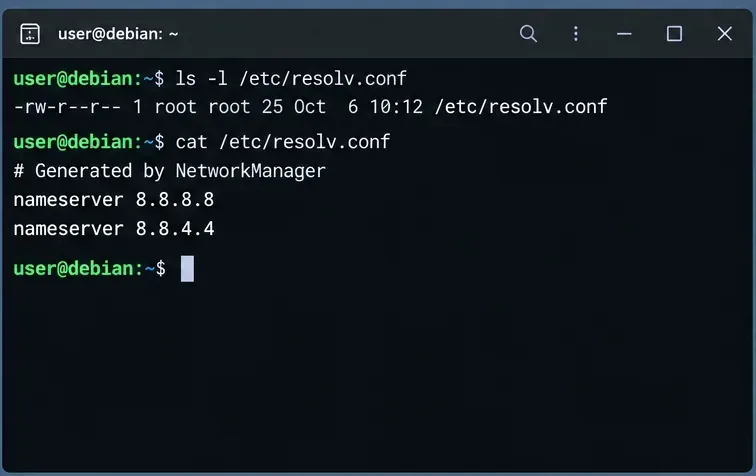
ls -l /etc/resolv.conf
cat /etc/resolv.conf
Inspect whether /etc/resolv.conf is a regular file or a symlink before changing it; different network managers use different ownership models.
A regular file is not automatically wrong. NetworkManager or another resolver manager may intentionally own it. However, if this host is designed to use systemd-resolved stub mode, a stale regular file, dangling symlink, or file pointing at unreachable nameservers can cause lookup failures.
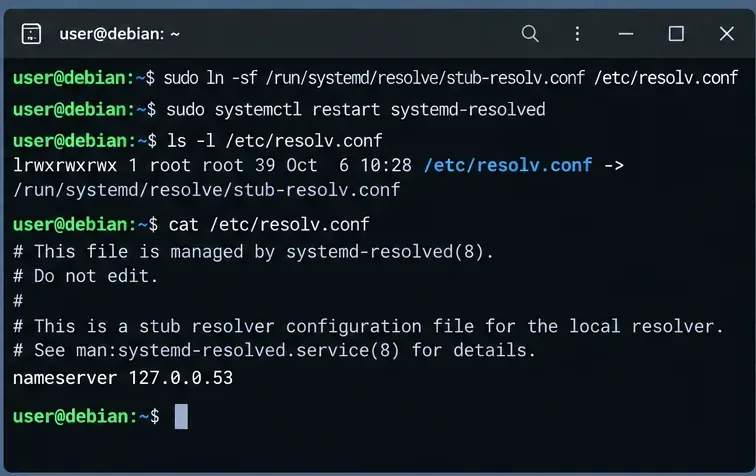
Restore the recommended stub link when stub mode is intended
When this host is intentionally using systemd-resolved in stub mode, /etc/resolv.conf can point to the maintained stub file at /run/systemd/resolve/stub-resolv.conf.
Seeing nameserver 127.0.0.53 in the stub file is expected. It is the local listener, not the upstream DNS server. Use resolvectl status to see which upstream servers systemd-resolved will actually contact. This distinction is documented in the systemd-resolved Bookworm manual.
4. Check whether systemd-resolved has a usable upstream DNS server
Run:
resolvectl status
Focus on the link that carries the default route. A healthy configuration should normally show one or more DNS servers for that link or suitable global DNS servers. If no usable DNS server is present, fixing the symlink alone will not help: the local stub has nowhere useful to send queries.
You can test the resolver directly:
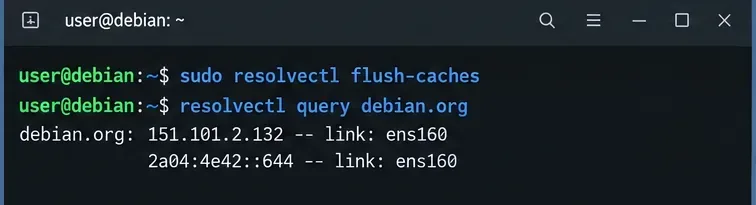
resolvectl query debian.org
The Debian resolvectl manual documents status, query, flush-caches, and the per-link DNS commands used for inspection and troubleshooting.
5. If NetworkManager owns the interface, fix DNS in the connection profile
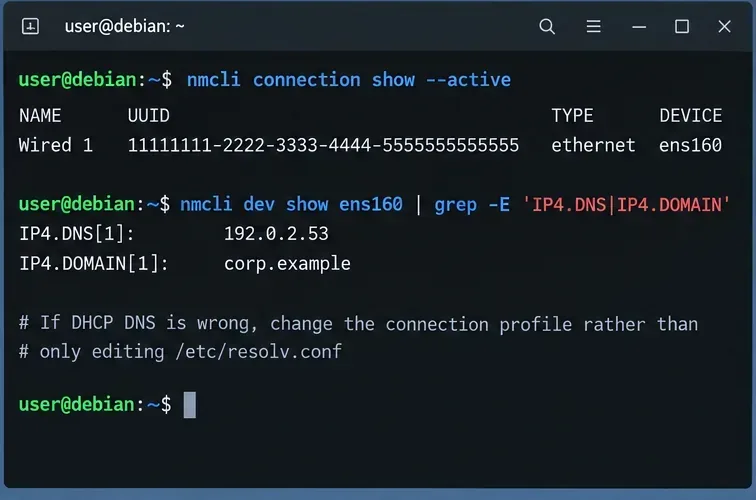
On desktop installations and many general-purpose Debian systems, NetworkManager may provide per-link DNS information to systemd-resolved. First identify the active profile and current DNS values:
nmcli connection show --active
nmcli device show
On NetworkManager systems, inspect and change DNS on the connection profile instead of repeatedly hand-editing /etc/resolv.conf.
If DHCP is supplying a bad DNS server, change the NetworkManager profile rather than editing /etc/resolv.conf after every reboot. For example, if your network policy permits public resolvers:
프로필 이름과 DNS 서버 값을 네트워크에 적합한 값으로 바꾸십시오. 기업 네트워크, VPN, Active Directory 환경 및 분할 DNS 설정에서는 내부 리졸버가 필요한 경우가 많습니다. 공용 DNS를 사용하면 개인 호스트 이름이 제대로 표시되지 않을 수 있습니다. NetworkManager의 공식 구성 참조systemd-resolved 문서에서 . 와의 통합에 대한 내용을 확인할 수 있습니다 .
6. systemd-networkd가 인터페이스를 소유하는 경우 링크별로 DNS를 구성하십시오.
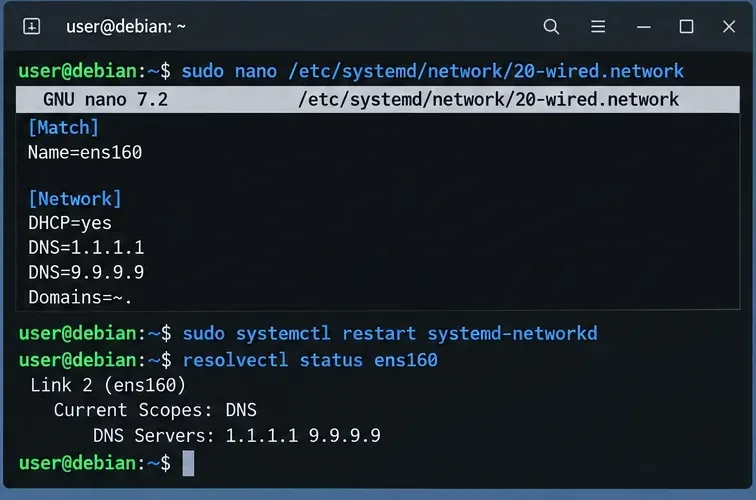
DHCP를 사용하는 서버의 경우 systemd-networkd, DNS 설정을 해당 .network파일 에 배치하십시오 /etc/systemd/network/. 간단한 DHCP 기반 예는 다음과 같습니다.
UseDNS=noDHCP에서 제공하는 DNS 서버를 무시하려는 경우에 중요합니다. 이 옵션을 사용하지 않으면 DHCP DNS가 기본적으로 사용됩니다. Domains=~.이 옵션은 DNS 루트에 대한 라우팅 전용 도메인으로, 더 구체적인 라우팅 도메인과 일치하지 않는 쿼리에 적합합니다. DNS 분할이 의도적인 멀티홈 또는 VPN 시스템에서는 이 옵션을 무턱대고 추가하지 마십시오.
sudo systemctl restart systemd-networkd
resolvectl status ens160
systemd-networkd를 사용하면 .network 파일에서 링크별로 DNS를 정의한 다음 resolvectl로 확인할 수 있습니다.
7. 시스템 전체 DNS 설정이 정말 필요한 경우에만 global resolved.conf 파일을 사용하십시오.
/etc/systemd/resolved.conf또는 드롭인 옵션을 사용하여 /etc/systemd/resolved.conf.d/시스템 DNS 서버를 정의할 수 있습니다. 이는 호스트 전체 정책에 유용하지만 VPN, 여러 인터페이스 또는 개인 DNS 영역이 있는 시스템에서는 링크별 구성보다 정확도가 떨어집니다.
일반적으로 로컬에서 파일을 가져와 사용하는 방식이 공급업체에서 제공하는 방식의 메인 파일을 수정하는 것보다 깔끔합니다.
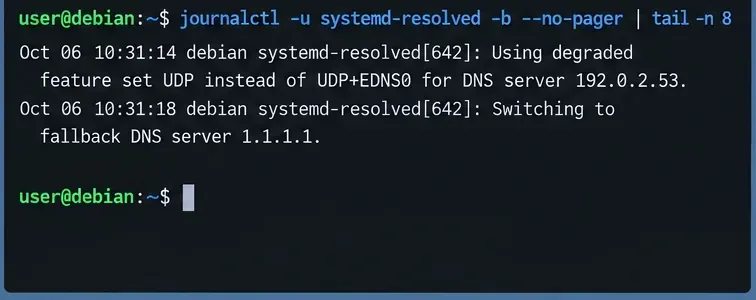
systemd-resolved 저널은 상위 서버 오류, 저하된 프로토콜 처리 및 대체 동작을 드러낼 수 있습니다.
서버 시간 초과, 대체 서버 변경, DNSSEC 유효성 검사 실패 또는 프로토콜 기능 제한을 나타내는 메시지가 반복되는지 확인하십시오. 리졸버는 방화벽, VPN, 라우팅 정책 또는 네트워크 ACL로 인해 구성된 업스트림 서버에 연결할 수 없는 경우에도 정상적으로 실행될 수 있습니다.
10. 전체 조회 경로를 확인합니다.
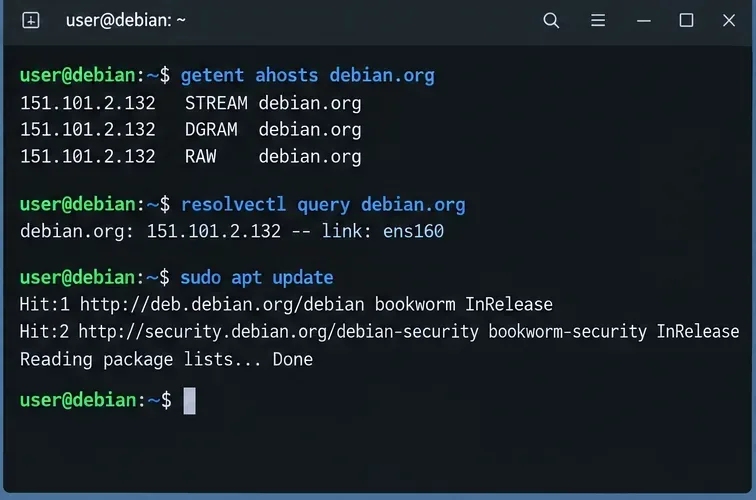
한 번의 쿼리 성공에 만족하지 마십시오 resolvectl. 일반 애플리케이션에서 사용하는 경로를 확인하십시오.
마지막으로 시스템 확인 경로와 처음에 오류가 발생했던 애플리케이션(예: apt)을 모두 테스트하십시오.
getenthosts:glibc 호스트 이름 조회는 . 의 해당 줄을 따르기 때문에 유용합니다 /etc/nsswitch.conf. 만약 resolvectl query성공했지만 getent실패했다면 NSS 구성을 점검하십시오. Debian의 nss-resolve 설명서에는 선택적 libnss-resolve모듈과 glibc 호스트 이름 조회를 systemd-resolved를 통해 처리하면서도 대체 방법을 유지하는 권장 순서가 설명되어 있습니다.
흔한 증상과 가장 먼저 살펴볼 곳
징후
가능성 있는 지역
다음 확인
IP 연결은 작동하지만 모든 호스트 이름에 대한 연결이 실패합니다.
DNS 서버, 리졸버 서비스 또는 resolv.conf
resolvectl status그리고ls -l /etc/resolv.conf
resolvectl query작동은 하지만 일반 애플리케이션은 작동하지 않습니다.
NSS 또는 애플리케이션별 리졸버 경로
getent ahosts그리고/etc/nsswitch.conf
재부팅 또는 재연결 후 DNS 오류가 발생합니다.
네트워크 관리자가 소유한 구성
NetworkManager 또는 systemd-networkd 프로필
공용 이름은 작동하지만 내부 이름은 작동하지 않습니다.
분할 DNS, VPN, 라우팅 도메인
링크별 DNS 서버 Domains=및resolvectl status
단 하나의 애플리케이션만 실패합니다.
애플리케이션, 컨테이너, 프록시 또는 사용자 지정 리졸버
해당 앱을 다음 앱과 비교해 보세요 getent.resolvectl query
권장 수리 순서
기본 네트워크 연결 및 기본 경로가 존재하는지 확인하십시오.
systemd-resolved이 호스트에서 DNS를 관리하도록 의도된 것인지 확인하십시오 .
systemd-resolved서비스 상태를 확인하고 resolvectl status.
/etc/resolv.conf변경하기 전에 소유권과 심볼릭 링크 모드를 확인하세요 .
스텁 모드를 사용하려는 경우 stub-resolv.conf링크를 복원하십시오.
상위 DNS 설정을 실제 소유자(NetworkManager, systemd-networkd, DHCP, VPN 또는 전역 DNS 확인 구성)에서 수정하십시오.
설정이 수정된 후에만 캐시를 비우십시오.
resolvectl, getent, 그리고 원래 오류가 발생했던 애플리케이션을 사용하여 확인하십시오 .
핵심 원칙은 소유권입니다. /etc/resolv.confsystemd-resolved와 네트워크 관리자는 하나의 리졸버 체인의 일부입니다. 영구적인 수정은 최종 생성된 파일을 반복적으로 교체하는 대신, 해당 파일을 소유하는 계층에서 DNS를 변경합니다.