- Een schone installatie wist alles en zorgt voor een frisse installatie van Windows 11 (25H2, 24H2 of 26H2).
- Ideaal voor het oplossen van vertragingen, crashes, opstartproblemen, het verwijderen van vooraf geïnstalleerde OEM-bloatware en het instellen van een nieuwe pc.
- Ondersteunt meerdere methoden, waaronder USB, ISO, Deze pc opnieuw instellen (lokaal en in de cloud), WinRE en Media Creation Tool.
- Bij dit proces worden bestanden, apps en instellingen gewist, dus een back-up is essentieel.
- De apparaten worden automatisch opnieuw geactiveerd als ze eerder via Windows 11 of Windows 10 waren geactiveerd.
- Ik heb dit installatieproces voor Windows 11 25H2 opnieuw getest. De stappen blijven correct, hoewel Microsoft de 'Out of the Box Experience' (OOBE)-schermen zo nu en dan bijwerkt (maar niet significant).
Als Windows 11 traag of instabiel is, of als je gewoon helemaal opnieuw wilt beginnen, is een schone installatie de meest betrouwbare manier om alles te resetten. Het is ook de enige manier om een nieuw apparaat met een lege harde schijf in te stellen. In deze handleiding neem ik je stap voor stap mee door alle methoden om Windows 11 schoon te installeren, inclusief het gebruik van een USB-stick, een ISO-bestand, 'Deze pc opnieuw instellen' en downloaden via de cloud, terwijl je activering behouden blijft.
Bij Windows 11 betekent een schone installatie dat uw harde schijf wordt gewist en een nieuwe kopie van het besturingssysteem wordt geïnstalleerd, of het nu versie 25H2 of 24H2 is (of de aankomende versie 26H2 ). Dit proces verwijdert alles , inclusief aangepaste instellingen, stuurprogramma's, apps en persoonlijke bestanden, waardoor uw laptop of desktop een frisse start krijgt.
Een schone installatie is vaak de beste manier om te upgraden naar de nieuwste versie van het besturingssysteem op compatibele hardware . Het helpt installatiefouten te voorkomen en lost bestaande systeemproblemen op. Als uw computer al lange tijd dezelfde configuratie gebruikt, kan dit type installatie prestatieproblemen, opstart- en afsluitproblemen, geheugenproblemen en app-crashes verhelpen . Het is ook de aanbevolen methode bij het upgraden vanaf een oudere versie, zoals Windows 10, 8.1 of 7. Bovendien kunt u met dit proces ongewenste bloatware verwijderen die mogelijk vooraf is geïnstalleerd in de standaardinstallatie van uw computer.
Dit proces verwijdert daarentegen niet alle onnodige apps van het besturingssysteem, omdat apps zoals Microsoft Edge, de Microsoft Store en andere standaardapps niet worden verwijderd. Als u het besturingssysteem volledig wilt ontdoen van onnodige apps , moet u de gebruikerservaring handmatig aanpassen.
Raak ik uw bestanden kwijt?
Ja, aangezien een schone installatie alles wist, verliest u al uw persoonlijke bestanden, apps en instellingen, tenzij u er eerst een back-up van maakt. Om te voorkomen dat u belangrijke gegevens verliest:
- Maak een back-up van uw bestanden : sla persoonlijke documenten, foto's en andere belangrijke gegevens op een externe schijf of in de cloud (zoals OneDrive of Google Drive). U kunt ook een volledige back-up van uw huidige configuratie maken naar een externe opslag.
- Noteer de apps die je hebt geïnstalleerd – maak een lijst van de essentiële programma's zodat je ze later opnieuw kunt installeren.
- Bewaar uw productcodes en wachtwoorden – Zorg ervoor dat u toegang hebt tot softwarelicenties, e-mailaccounts en andere belangrijke inloggegevens.
Blijft Windows 11 geactiveerd?
Ja. Als uw Windows 10-computer eerder geactiveerd was, wordt Windows 11 na de installatie automatisch opnieuw geactiveerd . U hoeft geen productcode in te voeren.
Manieren om een nette installatie uit te voeren
Microsoft biedt meerdere manieren om Windows 11 te installeren :
- Opstartbare USB-stick – Ideaal voor het installeren van Windows 11 op een SSD (Solid-State Drive).
- Deze pc opnieuw instellen – Een ingebouwde functie waarmee het besturingssysteem opnieuw wordt geïnstalleerd zonder extra hulpprogramma's.
- Windows Herstelomgeving (WinRE) – Handig als uw apparaat niet correct opstart vanwege installatieproblemen.
- ISO-bestand – Je kunt het in Verkenner koppelen en de installatie direct starten.
In deze handleiding beschrijf ik elke stap voor het installeren van Windows 11 versie 25H2 en 24H2 op uw computer.
Belangrijk: Dit proces verwijdert alles van uw apparaat. Het is raadzaam om een volledige back-up van uw computer te maken voordat u verdergaat. U bent gewaarschuwd. Als u problemen ondervindt tijdens de installatie, probeer dan deze stappen voor probleemoplossing .
Schone installatie van Windows 11 vanaf USB-stick
Een USB-flashstation gebruiken is de eenvoudigste en meest betrouwbare manier om een schone installatie van Windows 11 uit te voeren. Je kunt een opstartbare USB-stick maken met de Media Creation Tool, de opdrachtprompt, Rufus of andere tools van derden .
Als u voor deze methode kiest, moet u er ook voor zorgen dat uw computer kan opstarten vanaf een USB-flashstation . Hiervoor moet u de UEFI-instellingen (ook wel BIOS genoemd) wijzigen . Omdat elke computer anders is, raadpleegt u de ondersteuningswebsite van uw fabrikant voor specifieke instructies over het openen en aanpassen van deze instellingen.
Vanaf Windows 11 24H2 heeft Microsoft de installatieprocedure van Windows vernieuwd met een nieuw ontwerp . Hoewel het grootste deel van het proces hetzelfde blijft, zien sommige stappen er anders uit, afhankelijk van de versie die u installeert. Dit geldt echter alleen als u opstart vanaf een USB-stick om de installatie te starten.
Ik raad deze installatiemethode ten zeerste aan. Hoewel de installatie iets meer tijd in beslag neemt, minimaliseert het potentiële problemen en zorgt het ervoor dat uw systeem na de installatie probleemloos werkt.
Volg deze stappen om Windows 11 schoon te installeren vanaf een USB-stick:
-
Start de pc op met de Windows 11 25H2 USB-flashdrive .
-
Druk op een willekeurige toets om verder te gaan.
-
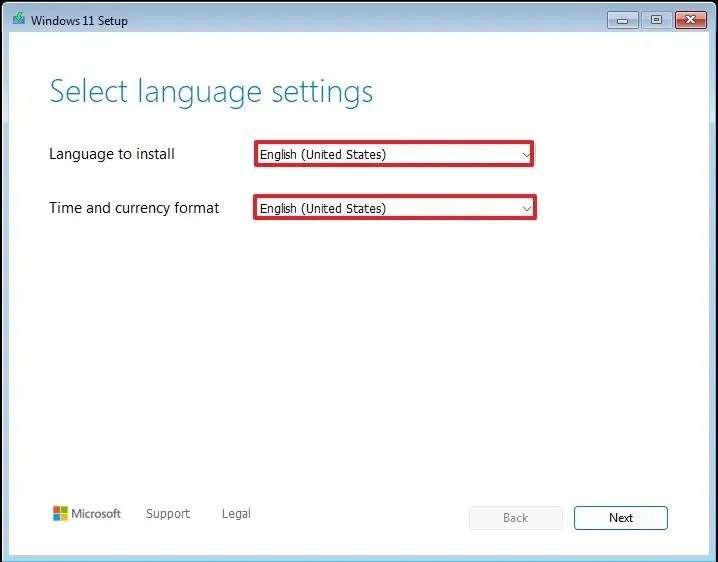
Kies de installatietaal en het installatieformaat.
-
Klik op de knop Volgende .
-
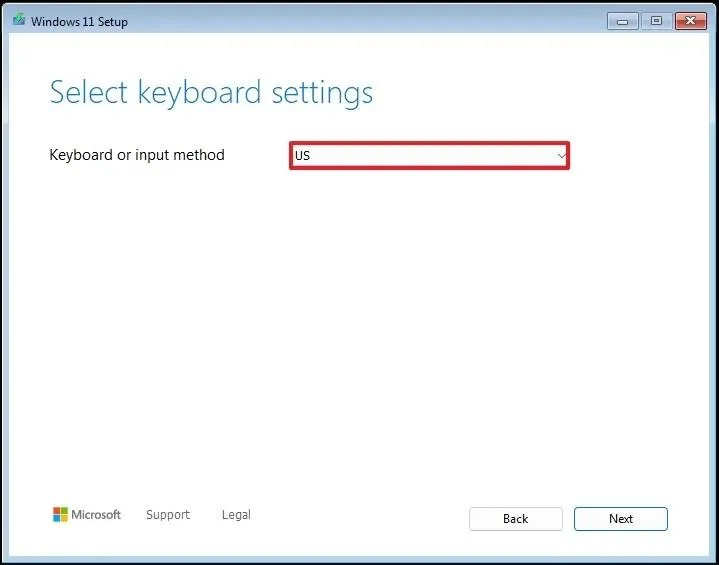
Kies het toetsenbord en de invoermethode.
-
Klik op de knop Volgende .
-
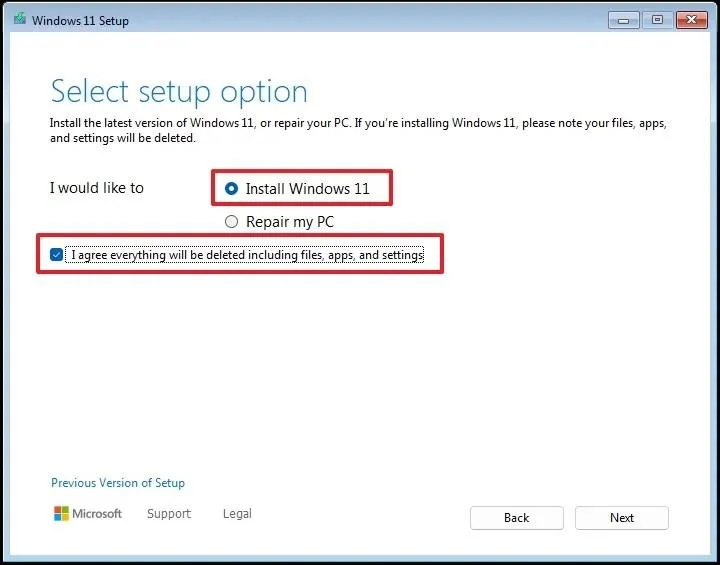
Selecteer de optie "Windows 11 installeren" .
-
Vink de optie "Ik ga ermee akkoord dat alles wordt verwijderd, inclusief bestanden, apps en instellingen" aan om te bevestigen dat dit proces alles op de computer zal verwijderen.
-
Klik op de knop Volgende .
-
Klik op de optie 'Ik heb geen productcode' .
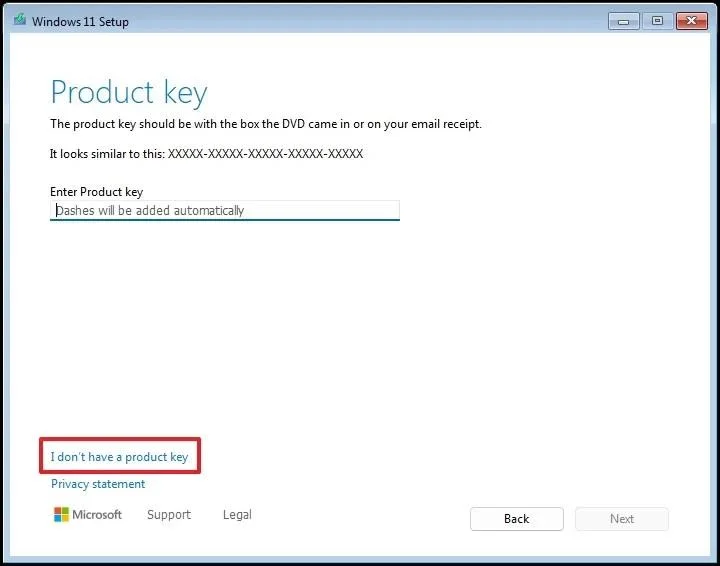
Belangrijke opmerking: De computer wordt automatisch geactiveerd na een herinstallatie. Als het een nieuwe computer betreft, moet u een productcode opgeven. U kunt de productcode later altijd nog invoeren in de app Instellingen voor activering .
-
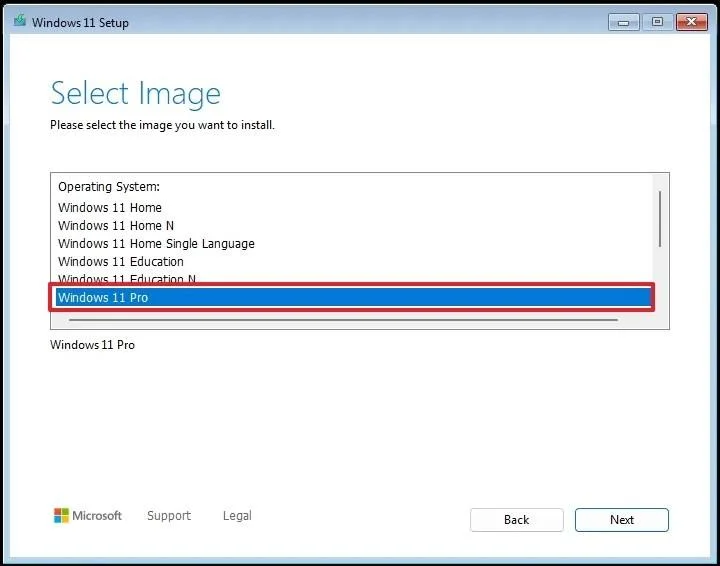
Selecteer de editie van "Windows 11" die met uw licentiesleutel wordt geactiveerd (indien van toepassing).
-
Klik op de knop Volgende .
-
Klik op de knop 'Accepteren '.
-
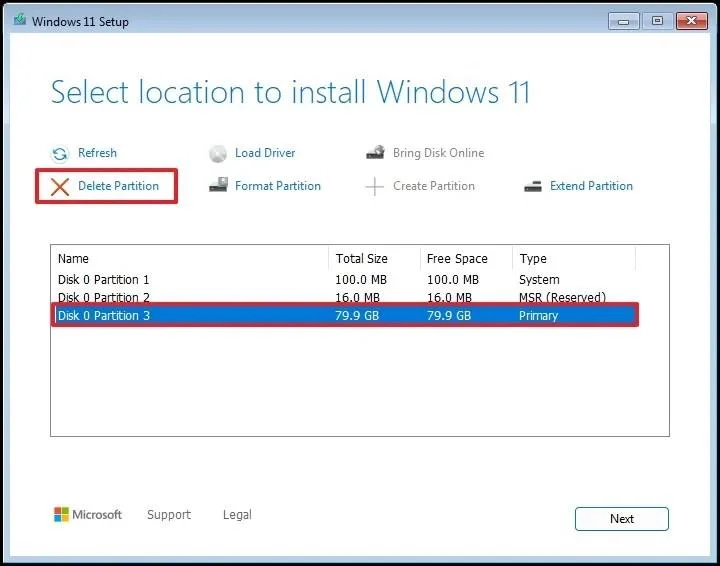
Selecteer elke partitie op de harde schijf waar u Windows 11 wilt installeren en klik op de knop Verwijderen . (Meestal is "Schijf 0" de schijf die alle installatiebestanden bevat.)
-
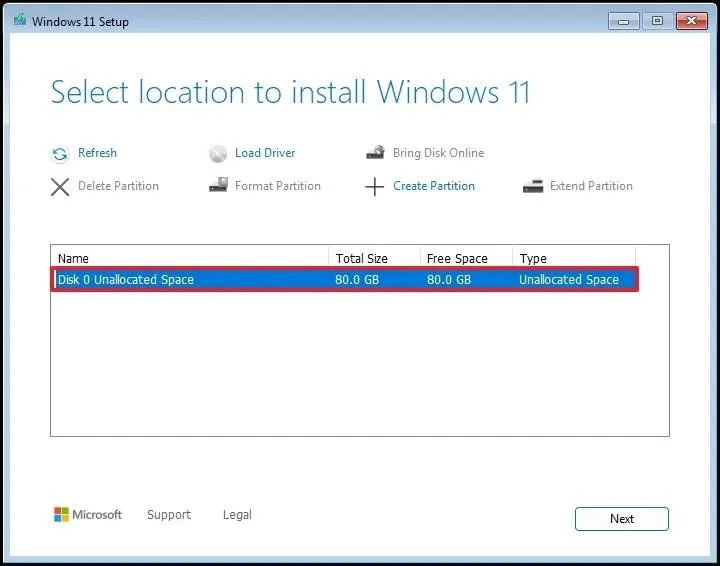
Selecteer de harde schijf (Schijf 0, niet-toegewezen ruimte) waarop u het besturingssysteem wilt installeren.
-
Klik op de knop Volgende .
-
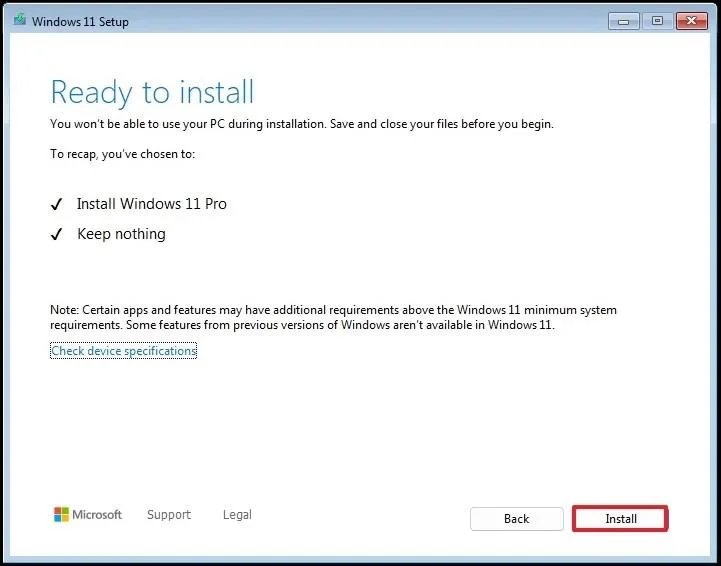
Klik op de knop Installeren .
-
Kies je regio-instelling op de eerste pagina van de installatie-interface (OOBE) na de installatie.
Korte opmerking: Microsoft brengt voortdurend wijzigingen aan en test nieuwe manieren om de eerste installatie te voltooien. Om die reden kunnen sommige van de volgende stappen in een andere volgorde verschijnen en kunt u extra schermen tegenkomen.
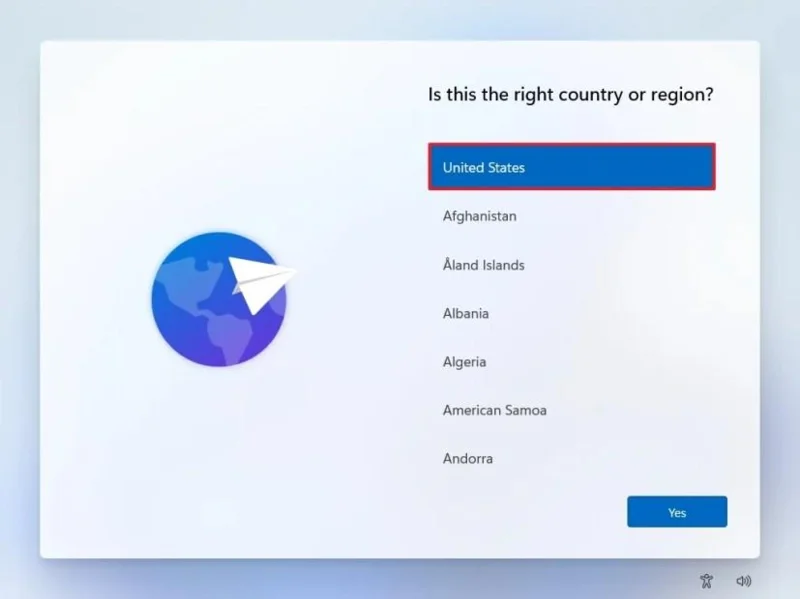
-
Klik op de knop 'Ja' .
-
Selecteer uw gewenste toetsenbordindeling.
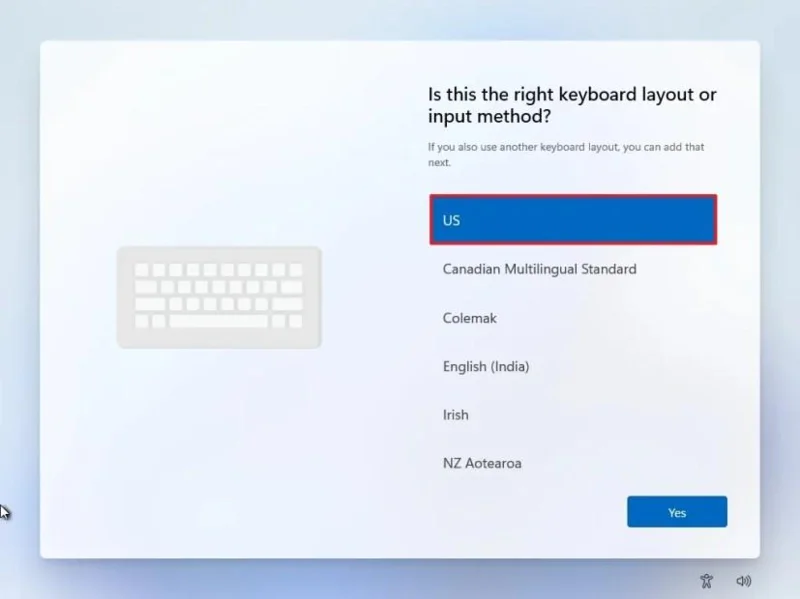
-
Klik op de knop 'Ja' .
-
Klik op de knop ' Overslaan ' als u geen tweede lay-out hoeft te configureren.
-
De computer maakt automatisch verbinding met het netwerk via een Ethernet- verbinding. Bij een draadloze verbinding moet u de verbinding handmatig instellen (mogelijk is een beveiligingssleutel vereist).
-
(Optioneel) Geef een naam op voor de computer.
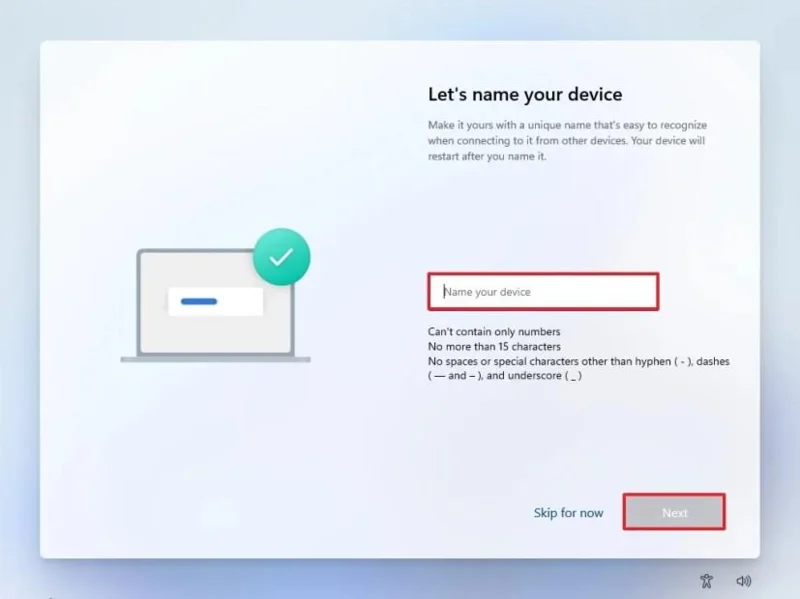
Korte opmerking: Deze stap is optioneel, maar het is sterk aan te raden een naam in te stellen. Dit maakt het gemakkelijker om het apparaat te identificeren in het netwerk, in uw Microsoft-account en bij het herstellen van uw computer vanuit een back-up. Na deze stap wordt de installatie opnieuw gestart om de nieuwe naam toe te passen, maar u kunt verdergaan waar u gebleven was met de instellingen.
-
Klik op de knop Volgende . (Het apparaat wordt automatisch opnieuw opgestart.)
-
Selecteer de optie 'Instellen voor persoonlijk gebruik' voor Windows 11 Pro. Deze optie is niet beschikbaar voor de 'Home'- editie.
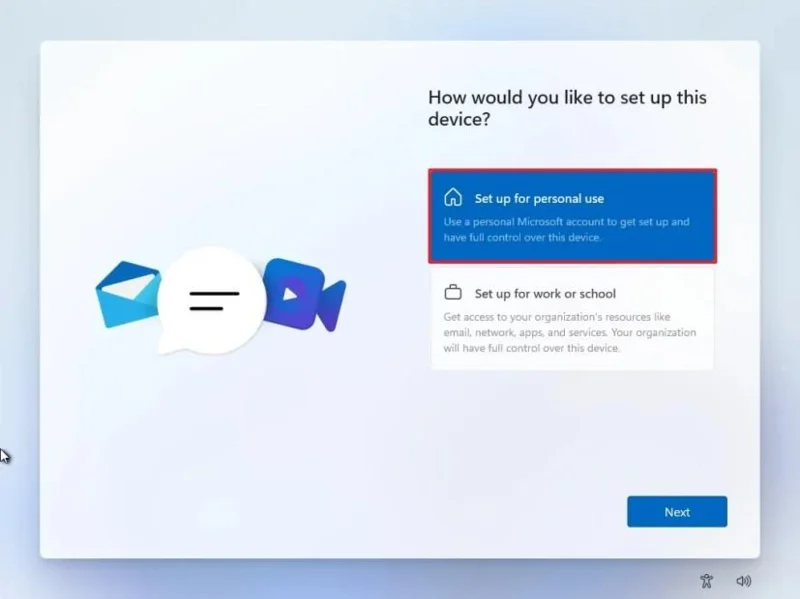
Tip: Gebruik de optie 'Instellen voor werk of school' om het Microsoft-account over te slaan en een lokaal account aan te maken.
-
Klik op de knop Volgende .
-
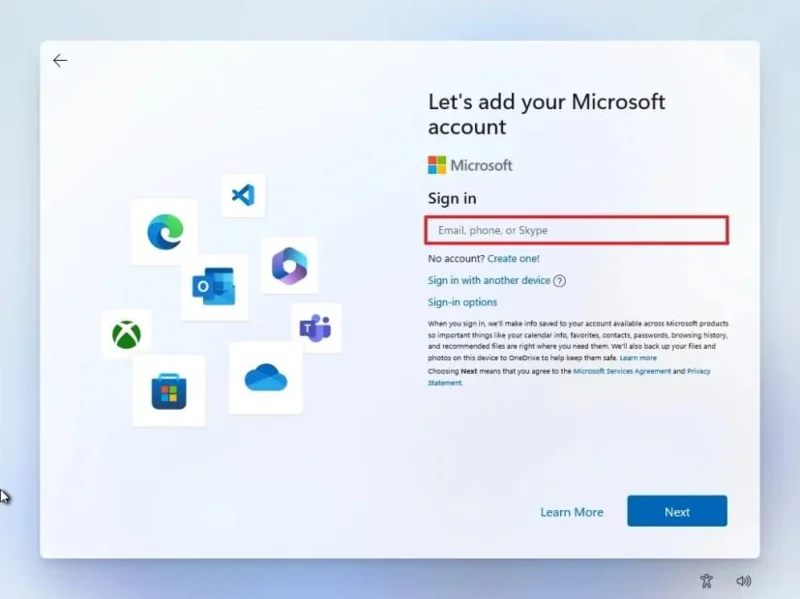
Klik op de knop 'Inloggen' .
-
Bevestig het e-mailadres van uw Microsoft-account om een Windows 11-account aan te maken.
-
Klik op de knop Volgende .
-
Bevestig het wachtwoord van uw Microsoft-account.
-
Klik op de knop Volgende .
-
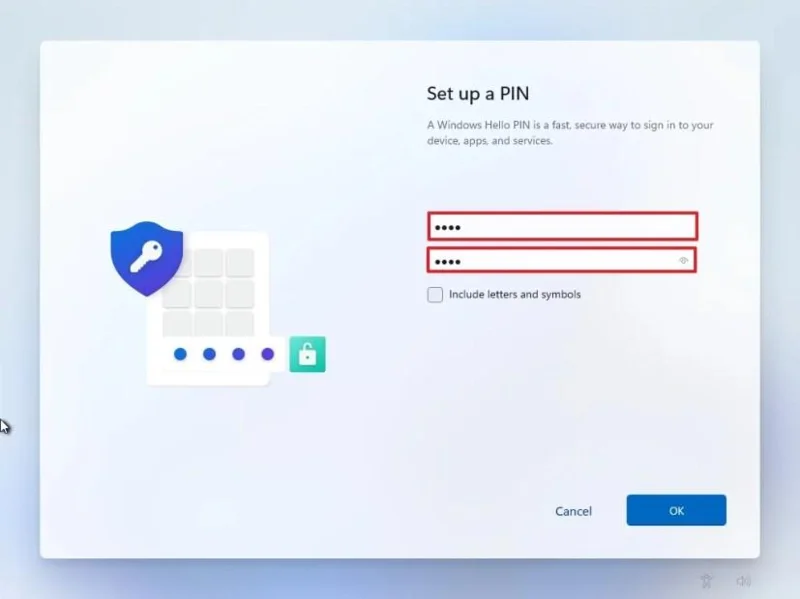
Klik op de knop 'PIN aanmaken' .
-
Maak een nieuwe viercijferige Windows Hello-pincode aan.
-
Klik op de OK- knop.
-
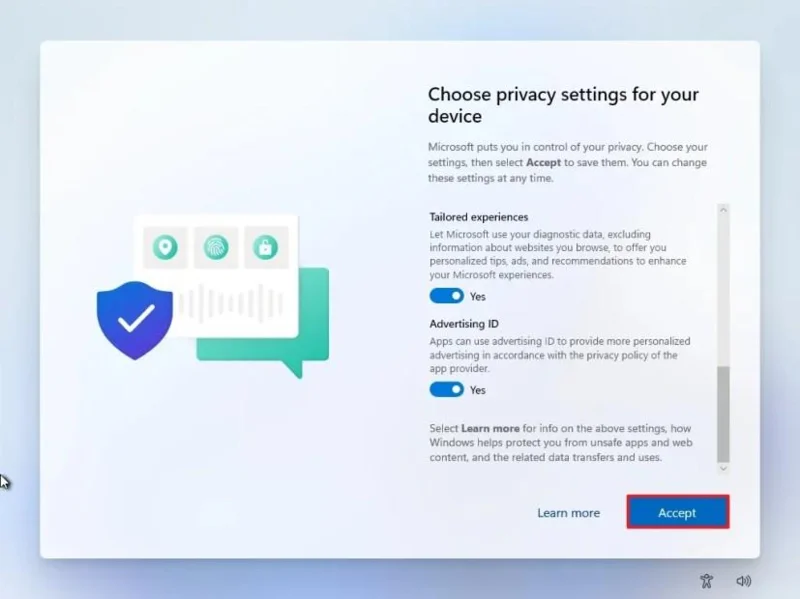
Schakel de schakelaar voor elke privacy-instelling in of uit om te bevestigen welke instelling het beste bij uw situatie past.
-
Klik op de knop Volgende .
-
Klik nogmaals op de knop Volgende .
-
Klik op de knop 'Accepteren '.
-
Klik op de instelling ' Meer opties '.
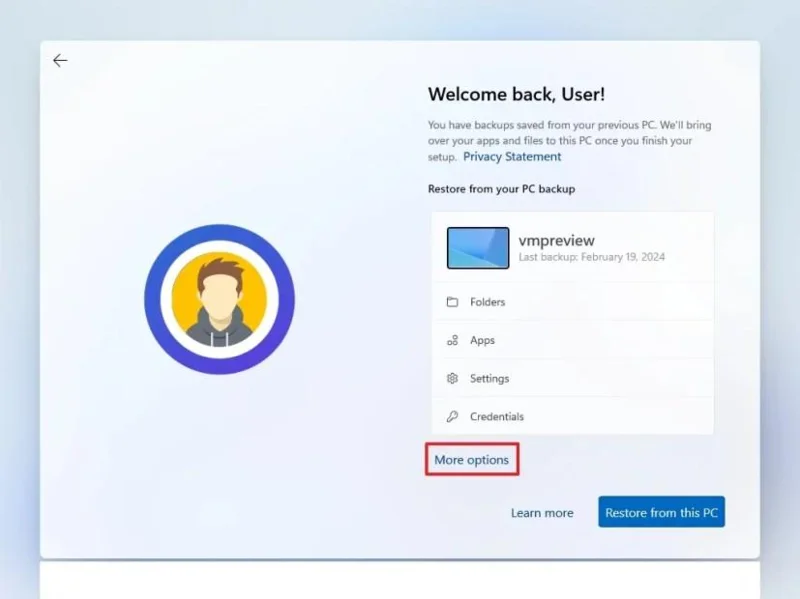
Tip: U kunt ook op de knop 'Herstellen vanaf deze pc' klikken om uw bestanden, apps, instellingen en aanmeldingsgegevens te herstellen vanuit de systeemback-up in uw OneDrive-account. Meer informatie over de Windows Back-up-app vindt u in deze handleiding .
-
Klik op de optie 'Instellen als een nieuwe pc' .
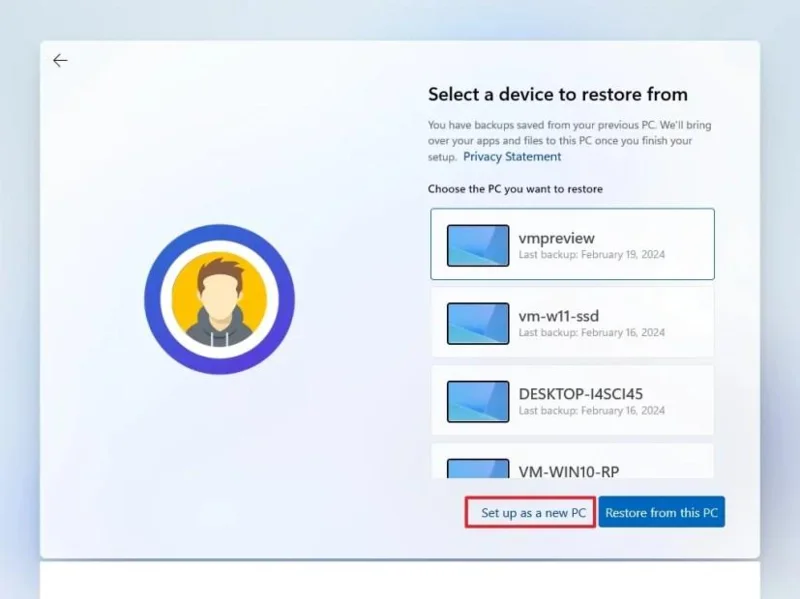
-
Klik nogmaals op de optie 'Instellen als een nieuwe pc' .
-
(Optioneel) Selecteer op de pagina 'Pas uw ervaring aan' een of meer manieren waarop u het apparaat wilt gebruiken, zodat het besturingssysteem suggesties kan doen voor het aanpassen van tools en services tijdens deze ervaring.
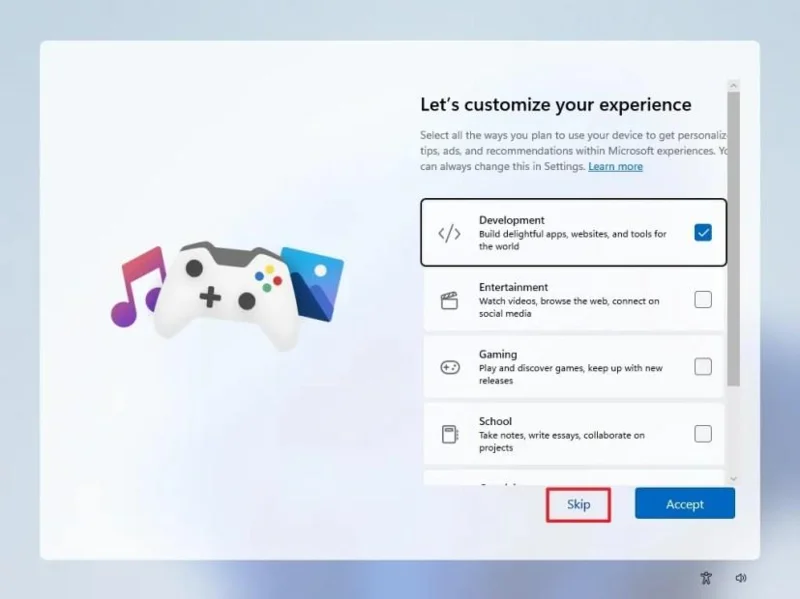
-
Klik op de knop 'Accepteren ' om verder te gaan. Of klik op de knop 'Overslaan ' om dit deel van de installatie over te slaan.
-
(Optioneel) Gebruik de code om je Android-telefoon te koppelen of klik op de optie ' Overslaan' .
-
(Optioneel) Gebruik de code om de OneDrive-app op je telefoon te downloaden of klik op de optie ' Overslaan' .
-
Klik op de knop ' Niet nu' als u een andere browser dan Microsoft Edge gebruikt.
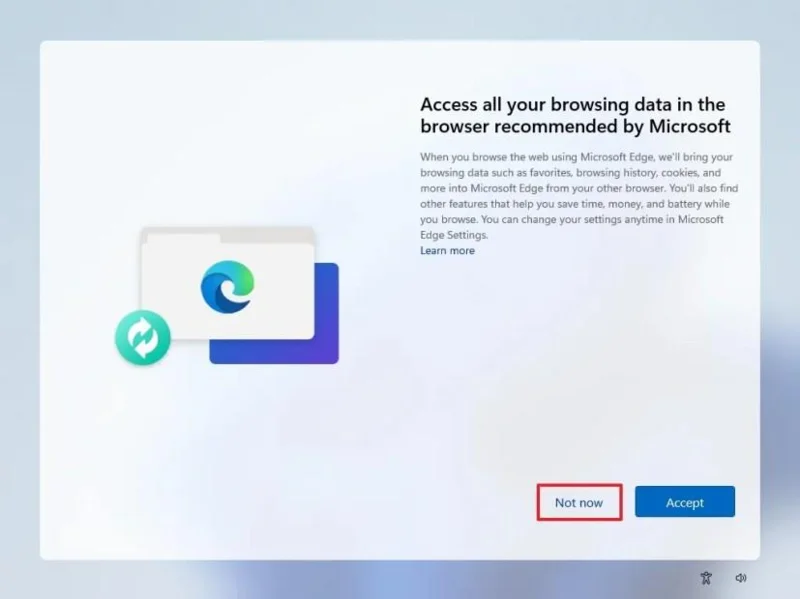
Zodra u de stappen hebt voltooid, zal Windows 11 25H2 de schone installatie op de computer afronden.
Schone installatie van Windows 11 vanaf een ISO-bestand
Als alternatief kunt u de ISO-image in Verkenner koppelen om een schone installatie of een in-place upgrade uit te voeren op een apparaat waarop het besturingssysteem al is geïnstalleerd.
Volg deze stappen om Windows 11 schoon te installeren met een ISO-bestand:
-
Open de Microsoft Support- website .
-
Selecteer de optie Windows 11 onder het gedeelte 'Windows 11-schijfkopie (ISO) downloaden'.
-
Klik op de downloadknop .
-
Selecteer de installatietaal.
-
Klik op de knop ' Bevestigen '.
-
Klik op de knop Downloaden om het Windows 11 ISO-bestand op uw apparaat op te slaan.
-
Klik met de rechtermuisknop op het ISO-bestand en selecteer de optie 'Koppelen' .
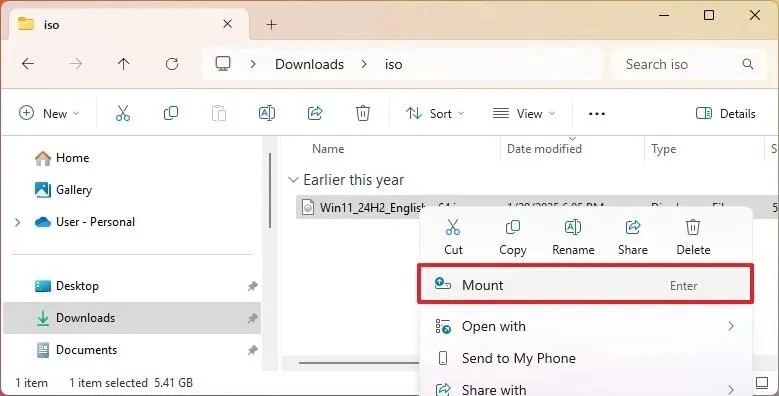
Snelle tip: als de optie niet beschikbaar is, selecteer dan het menu 'Openen met ' en kies de optie 'Windows Verkenner' .
-
Selecteer het virtuele station in het navigatievenster aan de linkerkant.
-
Dubbelklik op het bestand Setup.exe om de installatie van Windows 11 te starten.
-
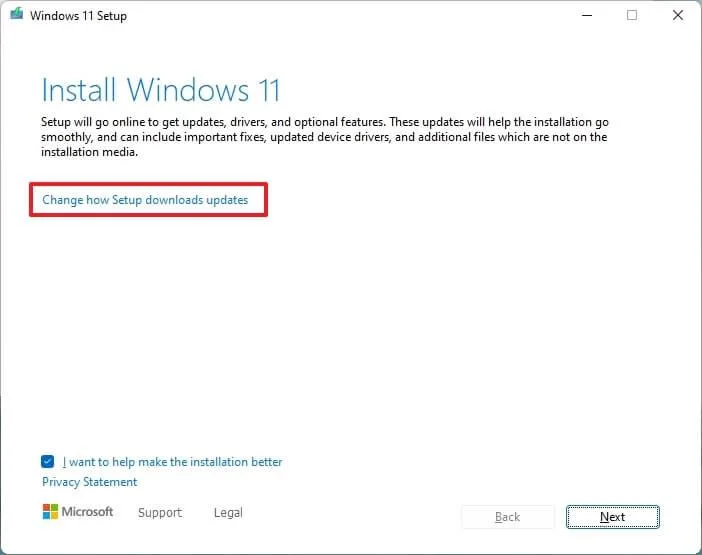
(Optioneel) Klik op de optie 'Wijzigen hoe Windows Setup updates downloadt' .
-
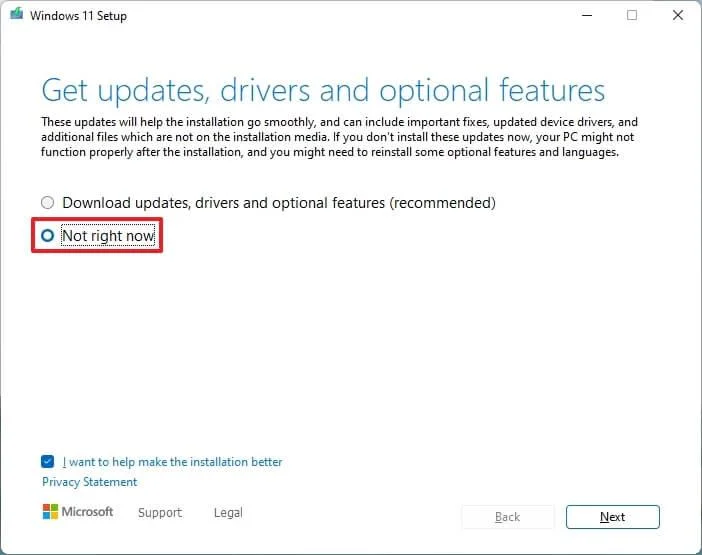
Selecteer de optie 'Niet nu' .
-
Klik op de knop Volgende .
-
Klik op de knop 'Accepteren ' om akkoord te gaan met de voorwaarden.
-
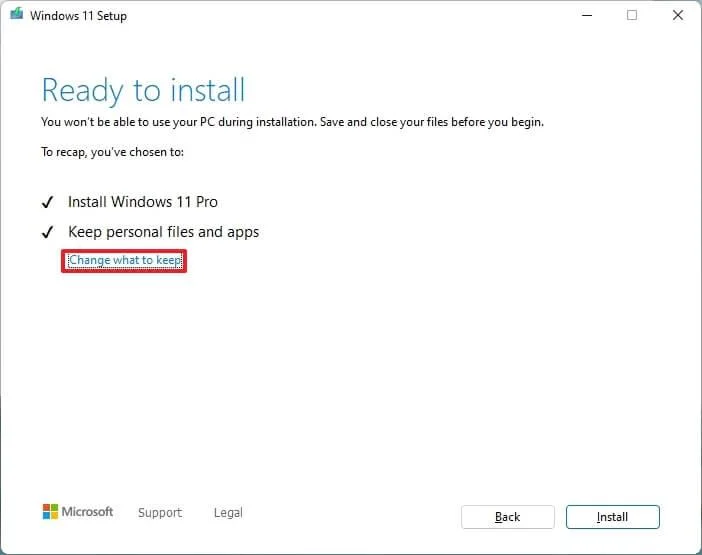
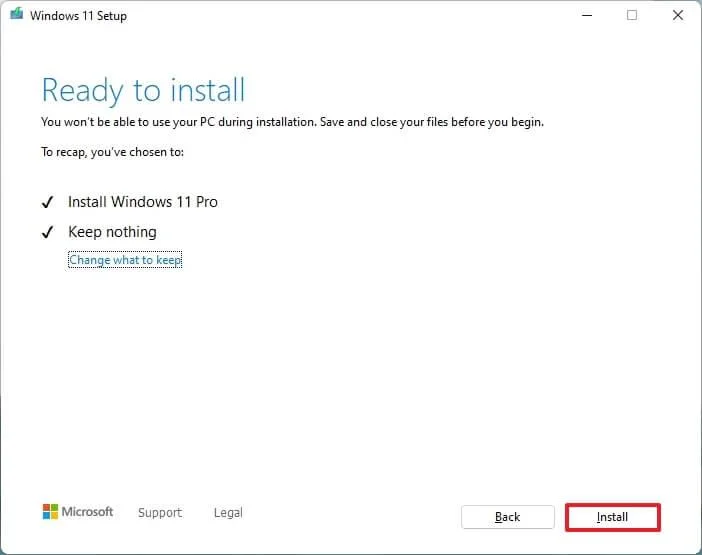
Klik op de optie 'Wijzigen wat u wilt behouden' .
-
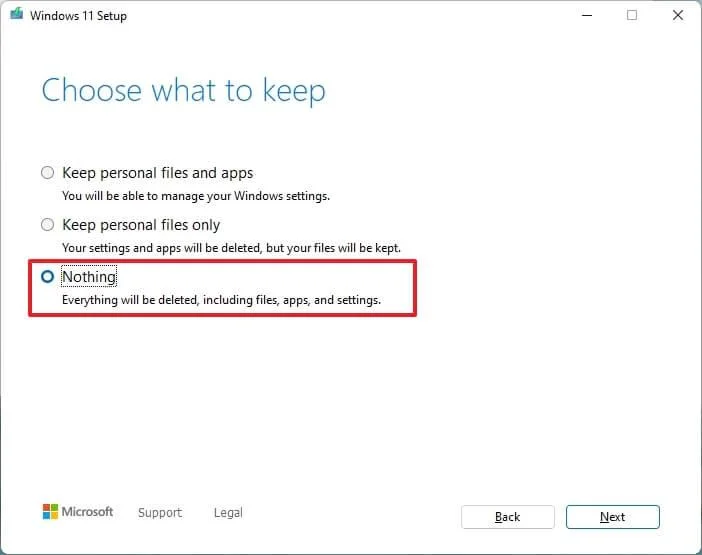
Selecteer de optie 'Niets' .
-
Klik op de knop Volgende .
-
Klik op de knop Installeren .
-
Klik op de knop Volgende .
-
Kies je regio-instelling op de eerste pagina van de installatie-interface (OOBE) na de installatie.
-
Klik op de knop 'Ja' .
-
Selecteer uw gewenste toetsenbordindeling.
-
Klik op de knop 'Ja' .
-
Klik op de knop ' Overslaan ' als u geen tweede lay-out hoeft te configureren.
-
De computer maakt automatisch verbinding met het netwerk via een Ethernet- verbinding. Bij een draadloze verbinding moet u de verbinding handmatig instellen (mogelijk is een beveiligingssleutel vereist).
-
(Optioneel) Geef een naam op voor de computer.
Korte opmerking: Deze stap is optioneel, maar het is sterk aan te raden een naam in te stellen. Dit maakt het gemakkelijker om het apparaat te identificeren in het netwerk, in uw Microsoft-account en bij het herstellen van uw computer vanuit een back-up. Na deze stap wordt de installatie opnieuw gestart om de nieuwe naam toe te passen en wordt u verdergegaan waar u gebleven was met de instellingen.
-
Klik op de knop Volgende . (Het apparaat wordt automatisch opnieuw opgestart.)
-
Selecteer de optie 'Instellen voor persoonlijk gebruik' voor Windows 11 Pro. Deze optie is niet beschikbaar voor de 'Home'- editie.
Tip: Gebruik de optie 'Instellen voor werk of school' om het Microsoft-account over te slaan en een lokaal account aan te maken.
-
Klik op de knop Volgende .
-
Klik op de knop 'Inloggen' .
-
Bevestig het e-mailadres van uw Microsoft-account om een Windows 11-account aan te maken.
-
Klik op de knop Volgende .
-
Bevestig het wachtwoord van uw Microsoft-account.
-
Klik op de knop Volgende .
-
Klik op de knop 'PIN aanmaken' .
-
Maak een nieuwe viercijferige Windows Hello-pincode aan.
-
Klik op de OK- knop.
-
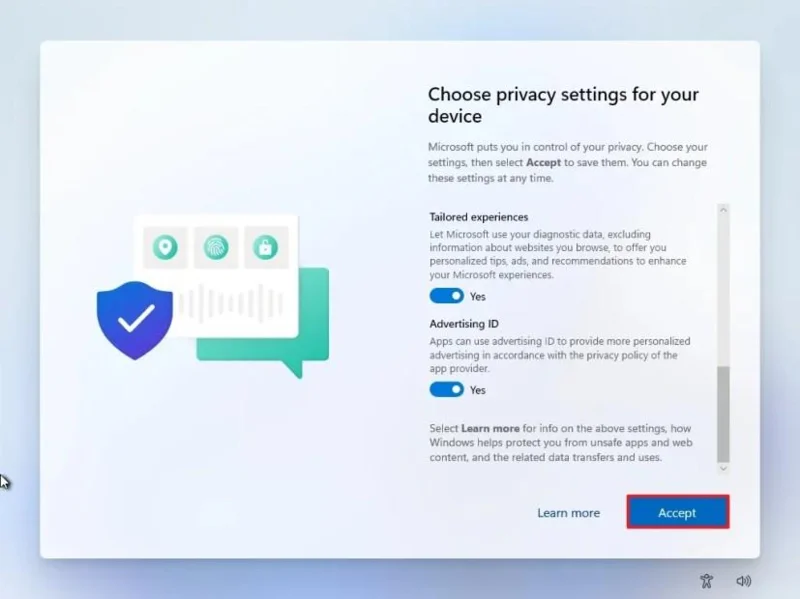
Schakel de schakelaar voor elke privacy-instelling in of uit om te bevestigen welke instelling het beste bij uw situatie past.
-
Klik op de knop Volgende .
-
Klik nogmaals op de knop Volgende .
-
Klik op de knop 'Accepteren '.
-
Klik op de instelling ' Meer opties '.
Tip: U kunt ook op de knop 'Herstellen vanaf deze pc' klikken om uw bestanden, apps, instellingen en aanmeldingsgegevens te herstellen vanuit de systeemback-up in uw OneDrive-account. Meer informatie over de Windows Back-up-app vindt u in deze handleiding .
-
Klik op de optie 'Instellen als een nieuwe pc' .
-
Klik nogmaals op de optie 'Instellen als een nieuwe pc' .
-
(Optioneel) Selecteer op de pagina 'Pas uw ervaring aan' een of meer manieren waarop u het apparaat wilt gebruiken, zodat het besturingssysteem suggesties kan doen voor het aanpassen van tools en services tijdens deze ervaring.
-
Klik op de knop 'Accepteren ' om verder te gaan. Of klik op de knop 'Overslaan ' om dit deel van de installatie over te slaan.
-
(Optioneel) Gebruik de code om je Android-telefoon te koppelen, of klik op de optie 'Overslaan' .
-
(Optioneel) Gebruik de code om de OneDrive-app op je telefoon te downloaden of klik op de optie 'Overslaan' .
-
Klik op de knop ' Niet nu' als u een andere browser dan Microsoft Edge gebruikt.
Zodra u de stappen hebt voltooid, begint het schone installatieproces, vergelijkbaar met het upgraden van het systeem met behulp van de Media Creation Tools of een USB-flashstation.
Schone installatie van Windows 11 met behulp van de lokale image 'Deze pc opnieuw instellen'.
De herstelinstellingen bieden een alternatieve manier om Windows 11 opnieuw te installeren. In tegenstelling tot het gebruik van de Media Creation Tool, een opstartbare USB-stick of een ISO-bestand, is deze methode alleen beschikbaar als Windows 11 al op uw computer is geïnstalleerd.
Als u een upgrade uitvoert vanaf Windows 10, 8.1 of 7, moet u een USB-installatieprogramma of ISO-bestand gebruiken. De hersteloptie is niet beschikbaar voor deze versies.
Volg deze stappen om Windows 11 opnieuw te installeren met de functie "Deze pc opnieuw instellen" en een lokale installatiekopie:
-
Open Instellingen .
-
Klik op Systeem .
-
Klik op Herstellen aan de rechterkant.
-
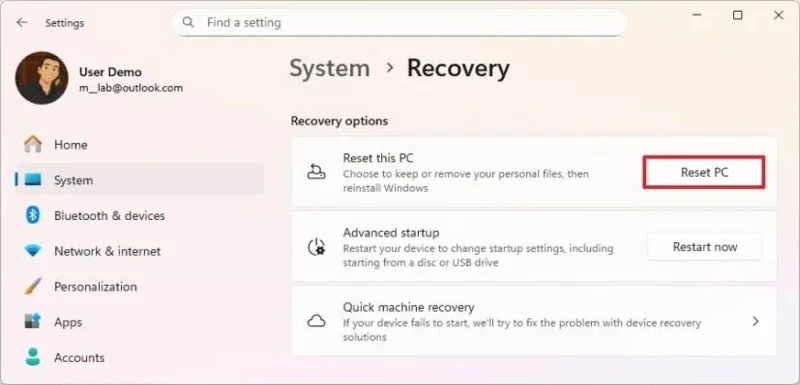
Click the Reset PC button in the “Reset this PC” setting under the “Recovery options” section.
-
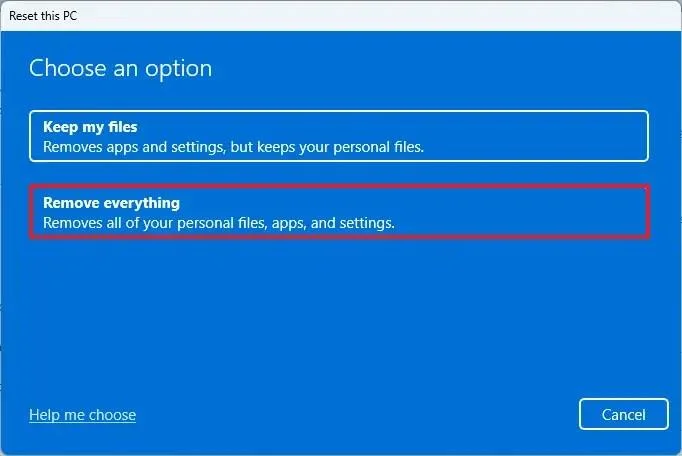
Click the Remove everything option to perform a fresh install of Windows 11.
-
Click the Local reinstall option.
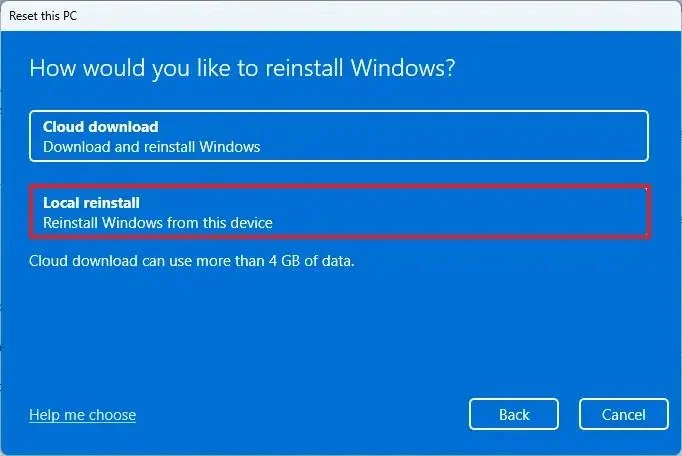
-
(Optional) Click the Change settings option.
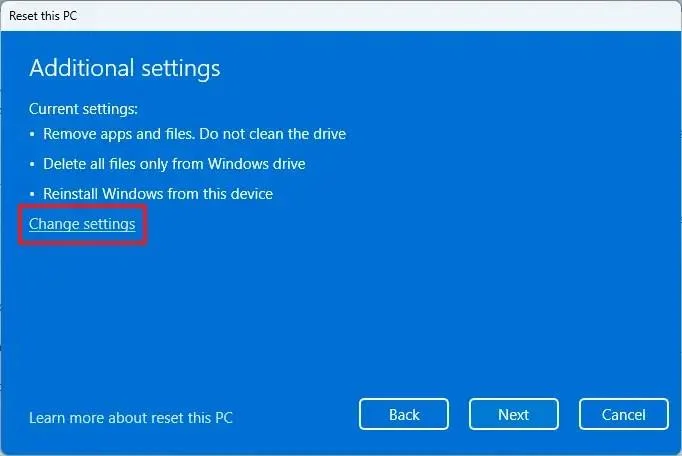
-
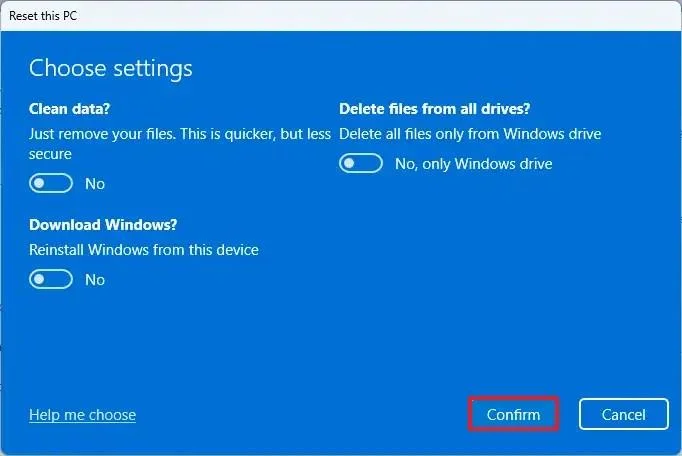
Configure the reinstallation options:
-
Clean data: If set to No (recommended), the setup will quickly delete files, apps, and settings without securely wiping the drive. If set to Yes, Windows will thoroughly erase the drive before reinstalling the operating system, which takes longer but ensures that all data is completely removed.
-
Delete files from all drives: If set to No (recommended), only the installation drive (usually the C: drive) will be erased. If set to Yes, all drives on the device will be wiped, so be sure to back up any important data before choosing this option.
-
Download Windows: If set to No (recommended), Windows will use the local installation files already on your device. If set to Yes, the setup will download the latest version of Windows 11 from the cloud, ensuring you get the most up-to-date installation.
-
Click the Confirm button.
-
Click the Next button.
-
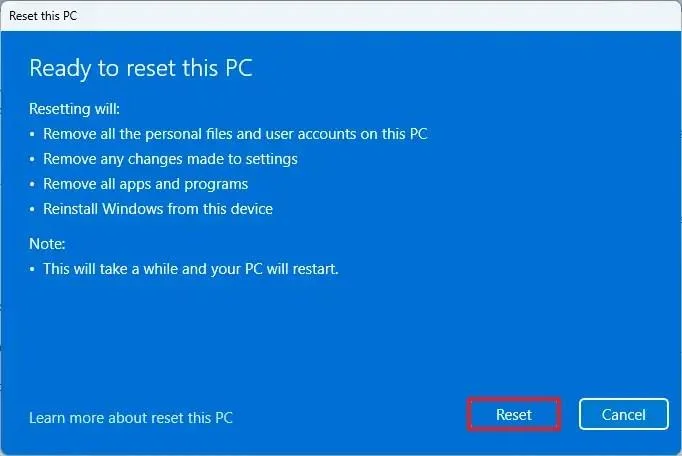
Click the Reset button.
-
Click the Next button.
-
Choose your region setting on the first page of the out-of-the-box experience (OOBE) after the installation.
-
Click the Yes button.
-
Select your keyboard layout setting.
-
Click the Yes button.
-
Click the Skip button if you do not need to configure a second layout.
-
The computer will automatically connect to the network using an Ethernet connection. You must set up the connection manually on a wireless connection (a security key may be required).
-
(Optional) Confirm a name for the computer.
Quick note: This is an optional step, but it’s highly recommended to set a name to make it easier to identify the device in the network, on your Microsoft account, and when restoring your computer from backup. Additionally, after completing this step, the setup will restart to apply the new name, and it’ll resume where you left off to continue with the settings.
-
Click the Next button. (The device will restart automatically.)
-
Select the “Set up for personal use” option for Windows 11 Pro. This option is not available for the “Home” edition.
Quick tip: Use the “Set up for work or school” option to skip the Microsoft account and create a local account.
-
Click the Next button.
-
Click the Sign in button.
-
Confirm your Microsoft account email to create a Windows 11 account.
-
Click the Next button.
-
Confirm your Microsoft account password.
-
Click the Next button.
-
Click the Create PIN button.
-
Create a new four-digit Windows Hello PIN.
-
Click the OK button.
-
Turn on or off the toggle switch for each privacy setting to confirm the one that best suits your situation.
-
Click the Next button.
-
Click the Next button again.
-
Click the Accept button.
-
Click the More options setting.
Quick tip: You can also click the “Restore from this PC” button to restore your files, apps, settings, and credentials from the system backup available in your OneDrive account. You can learn more about the Windows Backup app in this guide.
-
Click the “Set up as a new PC” option.
-
Click the “Set up as a new PC” option again.
-
(Optional) On the “Let’s customize your experience” page, select one or more ways you plan to use the device to allow the operating system to suggest tools and service customization during this experience.
-
Click the Accept button to continue. Or click the Skip button to skip this part of the setup.
-
(Optional) Use the code to link your Android phone, or click the “Skip” option.
-
(Optional) Use the code to download the OneDrive app on your phone or click the Skip option.
-
Click the “Not now” button if you will be using a browser other than Microsoft Edge.
Once you complete the steps, the recovery feature will automatically start and reinstall Windows 11 from a local copy of the setup image stored on your computer.
If you have a computer from a major brand such as HP, Dell, or Acer, this process will restore it to factory settings. That means it will reinstall all the software, drivers, and tools that came with it when you first bought it.
However, if you don’t want to restore the factory setup and prefer a clean Windows 11 install, you have another option. Instead of using the local image, select the “Cloud Download” option. I’ll show you how to do that in the steps below.
Clean install Windows 11 using Reset this PC Cloud download
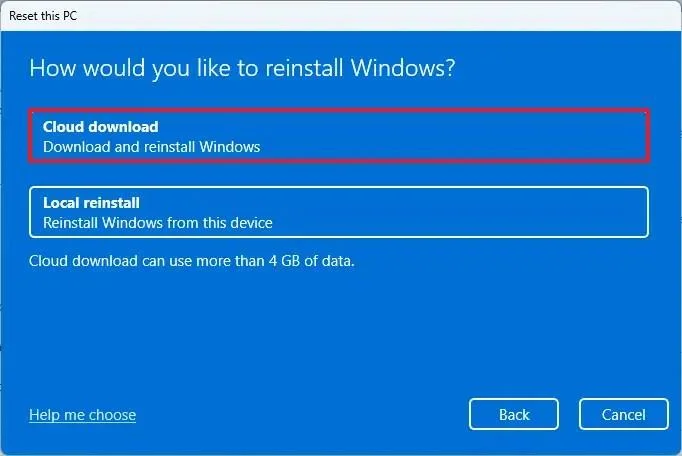
The Reset this PC feature includes the “Cloud Download” option, which lets you reinstall Windows 11 with a clean installation, removing apps, files, and settings, just like the local reinstall option. The key difference is that this option downloads fresh installation files directly from Microsoft’s servers, rather than using existing files.
This option is useful when the local installation files are corrupted or if you want a cleaner setup without the manufacturer’s preinstalled software and settings. However, keep in mind that:
- Cloud Download reinstalls the same version of Windows 11 that is currently on your device. It does not upgrade you to a newer release.
- If your computer originally came with a custom manufacturer image, this process won’t restore the preloaded drivers, apps, or settings.
To perform a clean installation of Windows 11 with the “Cloud Download” option, use these steps:
-
Open Settings.
-
Click on System.
-
Click on Recovery on the right side.
-
Click the Reset PC button in the “Reset this PC” setting under the “Recovery options” section.
-
Click the Remove everything option to perform a fresh install of Windows 11.
-
Click the Cloud reinstall option.
-
(Optional) Click the Change settings option.
-
Configure the reinstallation options:
-
Clean data: If set to No (recommended), the setup will quickly delete files, apps, and settings without securely wiping the drive. If set to Yes, Windows will thoroughly erase the drive before reinstalling the operating system, which takes longer but ensures that all data is completely removed.
-
Delete files from all drives: If set to No (recommended), only the installation drive (usually the C: drive) will be erased. If set to Yes, all drives on the device will be wiped, so be sure to back up any important data before choosing this option.
-
Download Windows: If set to No (recommended), Windows will use the local installation files already on your device. If set to Yes, the setup will download the latest version of Windows 11 from the cloud, ensuring you get the most up-to-date installation.
-
Click the Confirm button.
-
Click the Next button.
-
Click the Reset button.
-
Click the Next button.
-
Choose your region setting on the first page of the out-of-the-box experience (OOBE) after the installation.
-
Click the Yes button.
-
Select your keyboard layout setting.
-
Click the Yes button.
-
Click the Skip button if you do not need to configure a second layout.
-
The computer will automatically connect to the network using an Ethernet connection. You must set up the connection manually on a wireless connection (a security key may be required).
-
(Optional) Confirm a name for the computer.
Quick note: This is an optional step, but it’s highly recommended to set a name to make it easier to identify the device in the network, on your Microsoft account, and when restoring your computer from backup. Also, after completing this step, the setup will restart to apply the new name, but it’ll start where you left off to continue with the settings.
-
Click the Next button. (The device will restart automatically.)
-
Select the “Set up for personal use” option for Windows 11 Pro. This option is not available for the “Home” edition.
Quick tip: Use the “Set up for work or school” option to skip the Microsoft account and create a local account.
-
Click the Next button.
-
Click the Sign in button.
-
Confirm your Microsoft account email to create a Windows 11 account.
-
Click the Next button.
-
Confirm your Microsoft account password.
-
Click the Next button.
-
Click the Create PIN button.
-
Create a new four-digit Windows Hello PIN.
-
Click the OK button.
-
Turn the toggle switch for each privacy setting to confirm the option that best suits your situation.
-
Click the Next button.
-
Click the Next button again.
-
Click the Accept button.
-
Click the More options setting.
Quick tip: You can also click the “Restore from this PC” button to restore your files, apps, settings, and credentials from the system backup available in your OneDrive account. You can learn more about the Windows Backup app in this guide.
-
Click the “Set up as a new PC” option.
-
Click the “Set up as a new PC” option again.
-
(Optional) On the “Let’s customize your experience” page, select one or more ways you plan to use the device to allow the operating system to suggest tools and service customization during this experience.
-
Click the Accept button to continue. Or click the Skip button to skip this part of the setup.
-
(Optional) Use the code to link your Android phone, or click the “Skip” option.
-
(Optional) Use the code to download the OneDrive app on your phone or click the “Skip” option.
-
Click the “Not now” button if you will be using a browser other than Microsoft Edge.
After you complete the steps, the feature will reset the computer by erasing and reinstalling a fresh copy of Windows 11 downloaded from the cloud.
Clean install Windows 11 from WinRE
If your computer doesn’t boot, you can use the Windows Recovery Environment (WinRE) to access the same Reset this PC option. This allows you to reinstall Windows 11 even when the system won’t start normally.
However, WinRE can only reinstall the same version of Windows on your device. To upgrade to the latest version, you’ll need to use a USB flash drive, the Media Creation Tool, or an ISO file.
To clean install Windows 11 from WinRE, use these steps:
-
Power on the device.
-
Immediately after the Power-On Self-Test (POST), press the Power button again to shut down.
-
Repeat steps 1 and 2 twice, and in the third restart, the operating system should enter the Windows Recovery Environment (Windows RE).
Quick note: Windows 11 has multiple ways to open the Advanced startup settings. You can use these alternative options if you are unable to access the recovery environment.
-
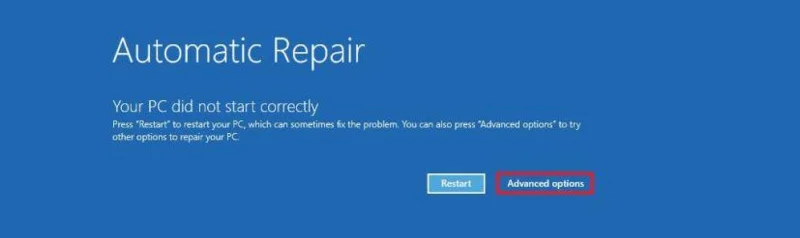
Click the Advanced options button.
-
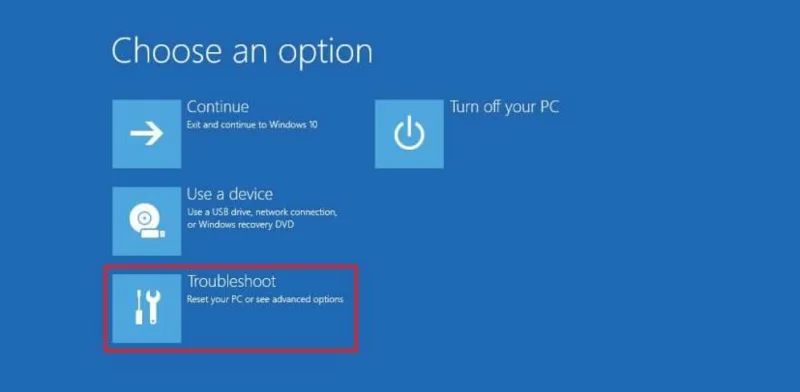
Click on Troubleshoot.
-
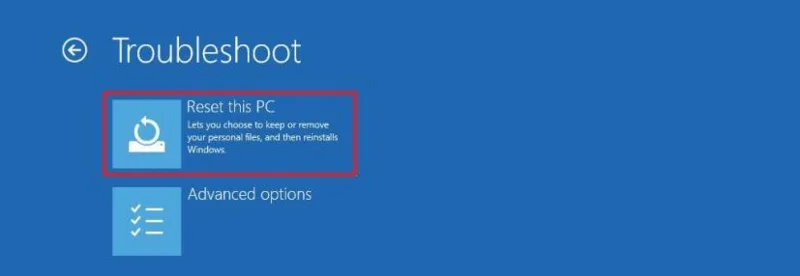
Click the Reset this PC option.
-
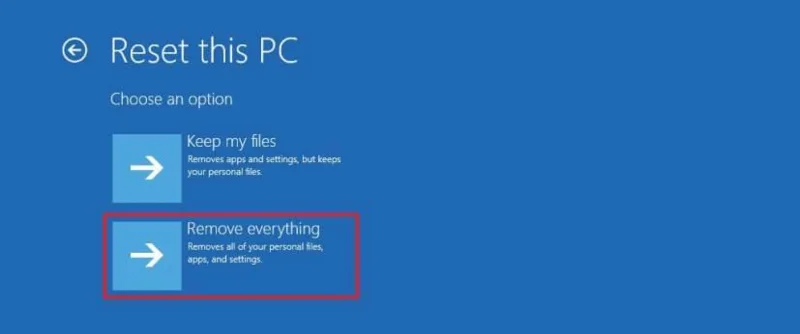
Select the Remove everything option.
-
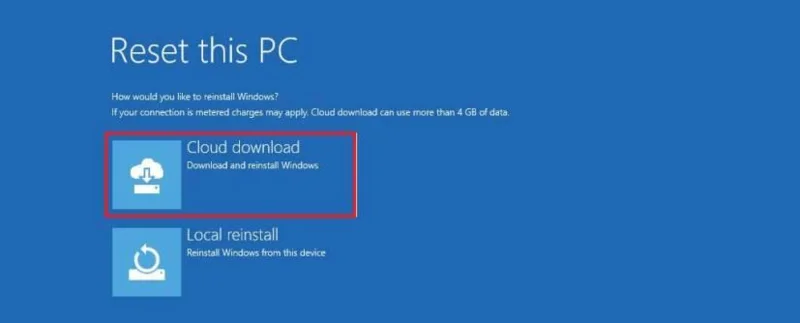
Click Cloud Download or Local Reinstall to continue:
-
Cloud Download – Downloads a fresh copy of Windows 11 from Microsoft’s servers and performs a clean installation. This option ensures you receive the latest files, but it requires an internet connection.
-
Local Reinstall – Uses the existing installation files on your computer to reinstall Windows 11. This option is faster and doesn’t require an internet connection, but it may not work if the local files are corrupted.
-
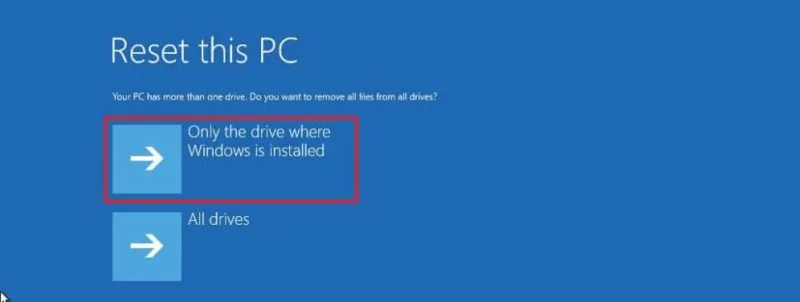
Select the “Only the drive where Windows is installed” option. (The All drives option will delete the data on all drives. This option is usually recommended only when you have to decommission the device.)
-
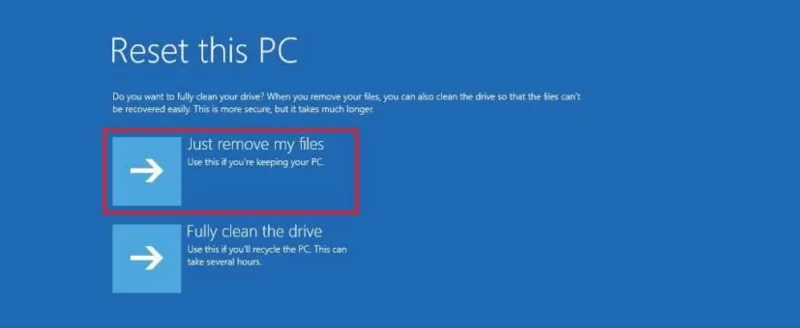
Select the “Just remove my files” or “Full clean the drive” option.
-
Just remove my files – Quickly deletes all files from the drive, but doesn’t securely erase them. This is faster but less secure.
-
Fully clean the drive – Erases everything and securely wipes the drive, which can take several hours. This option is best if you’re giving away or selling your device to ensure no data can be recovered.
-
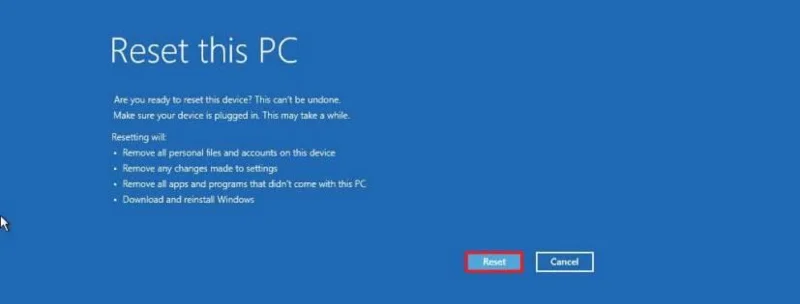
Click the Reset button.
-
Click the Next button.
-
Choose your region setting on the first page of the out-of-the-box experience (OOBE) after the installation.
-
Click the Yes button.
-
Select your keyboard layout setting.
-
Click the Yes button.
-
Click the Skip button if you do not need to configure a second layout.
-
The computer will automatically connect to the network using an Ethernet connection. You must set up the connection manually on a wireless connection (a security key may be required).
-
(Optional) Confirm a name for the computer.
Quick note: This is an optional step, but it’s highly recommended to set a name to make it easier to identify the device in the network, on your Microsoft account, and when restoring your computer from backup. Additionally, after completing this step, the setup will restart to apply the new name and resume where you left off to continue configuring the settings.
-
Click the Next button. (The device will restart automatically.)
-
Select the “Set up for personal use” option for Windows 11 Pro. This option is not available for the “Home” edition.
Quick tip: Use the “Set up for work or school” option to skip the Microsoft account and create a local account.
-
Click the Next button.
-
Click the Sign in button.
-
Confirm your Microsoft account email to create a Windows 11 account.
-
Click the Next button.
-
Confirm your Microsoft account password.
-
Click the Next button.
-
Click the Create PIN button.
-
Create a new four-digit Windows Hello PIN.
-
Click the OK button.
-
Turn the toggle switch for each privacy setting to confirm the option that best suits your situation.
-
Click the Next button.
-
Click the Next button again.
-
Click the Accept button.
-
Click the More options setting.
Quick tip: You can also click the “Restore from this PC” button to restore your files, apps, settings, and credentials from the system backup available in your OneDrive account. You can learn more about the Windows Backup app in this guide.
-
Click the “Set up as a new PC” option.
-
Click the “Set up as a new PC” option again.
-
(Optional) On the “Let’s customize your experience” page, select one or more ways you plan to use the device to allow the operating system to suggest tools and service customization during this experience.
-
Click the Accept button to continue. Or click the Skip button to skip this part of the setup.
-
(Optional) Use the code to link your Android phone, or click the “Skip” option.
-
(Optional) Use the code to download the OneDrive app on your phone, or click the “Skip” option.
-
Click the “Not now” button if you will be using a browser other than Microsoft Edge.
Once you complete the steps, Windows 11 will reinstall, resolving the existing problems. The completion time will depend on your computer hardware configuration and the selected reset configuration.
Clean install Windows 11 using Media Creation Tool
The Media Creation Tool no longer includes an option to perform a clean installation or in-place upgrade. You can only use the tool to create bootable media for installation using a USB flash drive or ISO file.
If you want to proceed with the Media Creation Tool, you can create an installation media and launch the setup from the USB flash drive.
To use the Media Creation Tool to create a bootable USB install media and proceed with the Windows 11 setup, use these steps:
-
Open the Microsoft support website.
-
Click the Download Now button under the “Create Windows 11 installation media” section.
-
Double-click the MediaCrationToolW11.exe file to launch the tool.
-
Click the Accept button.
-
Click the Next button.
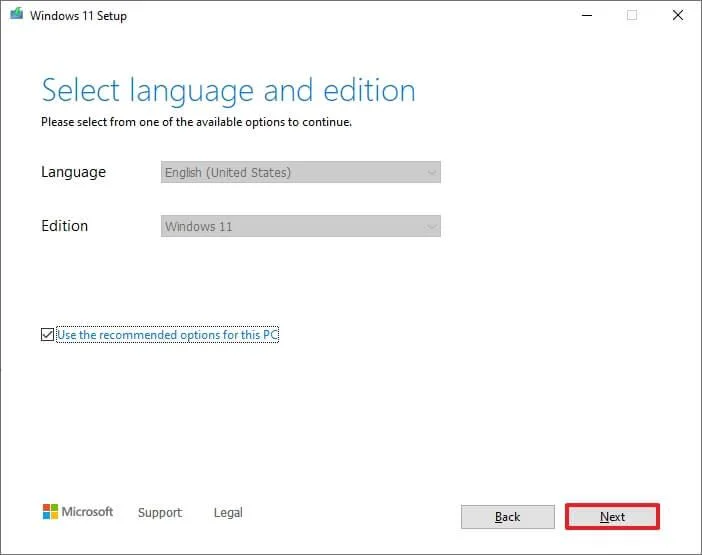
Quick note: If you create a Windows 11 USB for another device, you can also clear the “Use the recommended options for this PC” option to select the correct language, architecture, and edition.
-
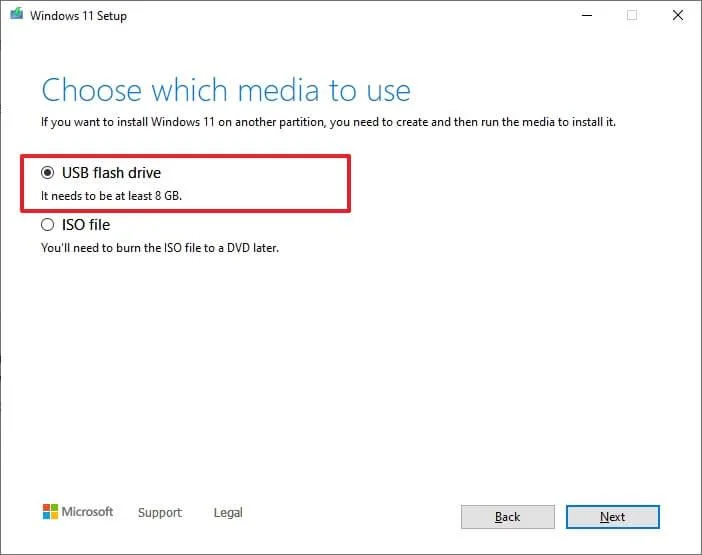
Select the USB flash drive option.
-
Click the Next button.
-
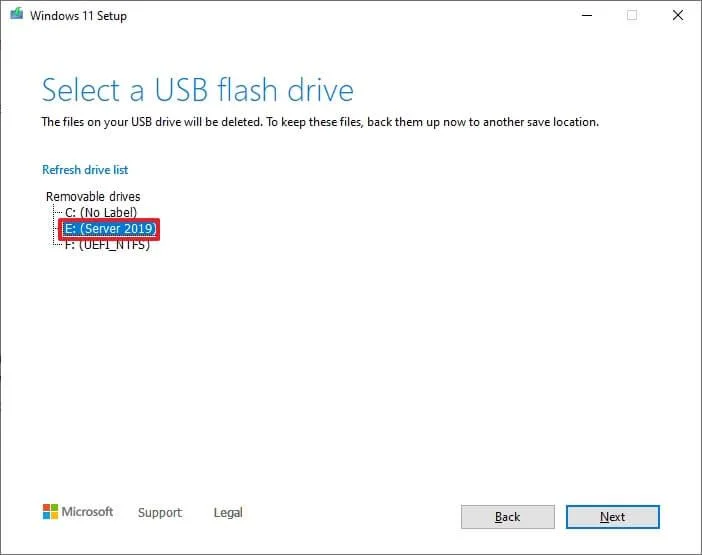
Select the USB flash drive from the list, but ensure it has no important files, as this process will erase everything on it.
-
Click the Next button.
-
Click the Finish button.
-
Open the installation media with File Explorer.
-
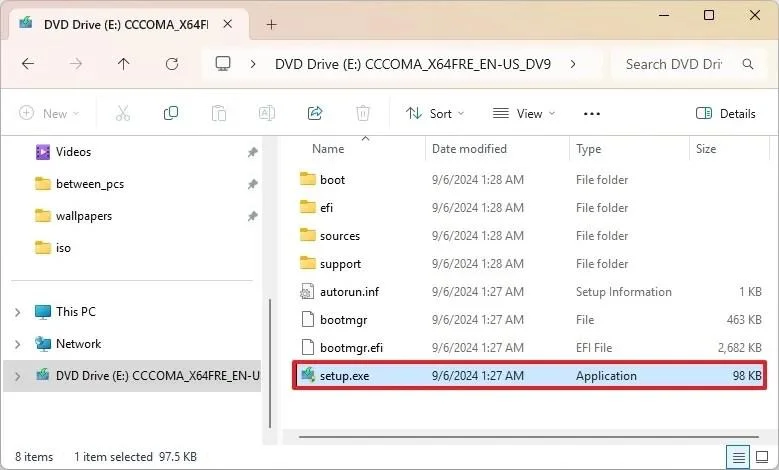
Double-click the Setup.exe file to begin the Windows 11 installation.
-
(Optional) Click the “Change how Windows Setup downloads updates” option.
-
Select the “Not right now” option.
-
Click the Next button.
-
Click the Accept button to agree to the terms.
-
Click the “Change what to keep” option.
-
Select the Nothing option.
-
Click the Next button.
-
Klik op de knop Installeren .
-
Klik op de knop Volgende .
-
Kies je regio-instelling op de eerste pagina van de installatie-interface (OOBE) na de installatie.
-
Klik op de knop 'Ja' .
-
Selecteer uw gewenste toetsenbordindeling.
-
Klik op de knop 'Ja' .
-
Klik op de knop ' Overslaan ' als u geen tweede lay-out hoeft te configureren.
-
De computer maakt automatisch verbinding met het netwerk via een Ethernet- verbinding. Bij een draadloze verbinding moet u de verbinding handmatig instellen (mogelijk is een beveiligingssleutel vereist).
-
(Optioneel) Geef een naam op voor de computer.
Korte opmerking: Deze stap is optioneel, maar het is sterk aan te raden een naam in te stellen. Dit maakt het gemakkelijker om het apparaat te identificeren in het netwerk, in uw Microsoft-account en bij het herstellen van uw computer vanuit een back-up. Na deze stap wordt de installatie opnieuw gestart om de nieuwe naam toe te passen en wordt u verdergegaan waar u gebleven was met de instellingen.
-
Klik op de knop Volgende . (Het apparaat wordt automatisch opnieuw opgestart.)
-
Selecteer de optie 'Instellen voor persoonlijk gebruik' voor Windows 11 Pro. Deze optie is niet beschikbaar voor de 'Home'- editie.
Tip: Gebruik de optie 'Instellen voor werk of school' om het Microsoft-account over te slaan en een lokaal account aan te maken.
-
Klik op de knop Volgende .
-
Klik op de knop 'Inloggen' .
-
Bevestig het e-mailadres van uw Microsoft-account om een Windows 11-account aan te maken.
-
Klik op de knop Volgende .
-
Bevestig het wachtwoord van uw Microsoft-account.
-
Klik op de knop Volgende .
-
Klik op de knop 'PIN aanmaken' .
-
Maak een nieuwe viercijferige Windows Hello-pincode aan.
-
Klik op de OK- knop.
-
Draai de schakelaar voor elke privacy-instelling om de optie te bevestigen die het beste bij uw situatie past.
-
Klik op de knop Volgende .
-
Klik nogmaals op de knop Volgende .
-
Klik op de knop 'Accepteren '.
-
Klik op de instelling ' Meer opties '.
Tip: U kunt ook op de knop 'Herstellen vanaf deze pc' klikken om uw bestanden, apps, instellingen en aanmeldingsgegevens te herstellen vanuit de systeemback-up in uw OneDrive-account. Meer informatie over de Windows Back-up-app vindt u in deze handleiding .
-
Klik op de optie 'Instellen als een nieuwe pc' .
-
Klik nogmaals op de optie 'Instellen als een nieuwe pc' .
-
(Optioneel) Selecteer op de pagina 'Pas uw ervaring aan' een of meer manieren waarop u het apparaat wilt gebruiken, zodat het besturingssysteem suggesties kan doen voor het aanpassen van tools en services tijdens deze ervaring.
-
Klik op de knop 'Accepteren ' om verder te gaan. Of klik op de knop 'Overslaan ' om dit deel van de installatie over te slaan.
-
(Optioneel) Gebruik de code om je Android-telefoon te koppelen, of klik op de optie 'Overslaan' .
-
(Optioneel) Gebruik de code om de OneDrive-app op je telefoon te downloaden of klik op de optie 'Overslaan' .
-
Klik op de knop ' Niet nu' als u een andere browser dan Microsoft Edge gebruikt.
Na een schone installatie werkt uw Windows 11-pc sneller, met minder fouten en minder onnodige programma's. Vergeet niet een back-up van uw bestanden te maken, essentiële apps opnieuw te installeren en uw privacyinstellingen aan te passen.
Welke installatiemethode werkte voor jou het beste (USB, ISO of clouddownload)? Laat het me weten in de reacties.
Veelgestelde vragen over het schone installatieproces van Windows 11
Hieronder vindt u een lijst met veelgestelde vragen en antwoorden over het uitvoeren van een schone installatie van het besturingssysteem.
Wat moet ik doen als mijn computer niet opstart vanaf de USB-stick?
Als het apparaat niet opstart vanaf de opstartbare USB-schijf, moet u de UEFI (BIOS) configureren en de opstartvolgorde wijzigen zodat het apparaat vanaf USB opstart. Sommige apparaten hebben ook een opstartmenu dat u tijdens het opstarten kunt openen met een functietoets of de ESC-toets, waarmee u het apparaat vanaf een opstartbare USB-schijf kunt opstarten.
Als de computer is geconfigureerd om op te starten vanaf USB, maar u geen toegang hebt tot de Setup, is het installatiemedium of de USB-stick waarschijnlijk beschadigd. In dat geval kunt u het opstartbare medium opnieuw aanmaken met een andere USB-stick.
Hoe kan ik ervoor zorgen dat alle gegevens volledig worden gewist voordat ik Windows 11 installeer?
Om ervoor te zorgen dat de gegevens volledig worden gewist, moet u de schijf formatteren. U hebt hiervoor geen speciale hulpmiddelen nodig. De eenvoudigste manier is door een van de opties 'Deze pc opnieuw instellen' te gebruiken en de optie 'Gegevens wissen' te selecteren . Als u een opstartbare USB-stick gebruikt, maakt u na het verwijderen van de partitie een nieuwe partitie aan met de volledige beschikbare ruimte en gebruikt u vervolgens de optie 'Partitie formatteren' .
Zijn er risico's verbonden aan een schone installatie van Windows 11?
Ja, bij een schone installatie wordt alles op de harde schijf verwijderd. Dit betekent dat als u geen back-up van uw bestanden maakt , u ze niet kunt herstellen, tenzij u een cloudopslagservice gebruikt.
Je kunt dit proces niet ongedaan maken. Zodra je de installatie start, worden alle bestaande bestanden verwijderd. De enige manier om je bestanden te herstellen is door een volledige back-up te gebruiken die je mogelijk hebt gemaakt voordat je met deze stappen verderging.
Hoe reset ik de TPM na een schone installatie van Windows 11?
Normaal gesproken hoeft u de Trusted Platform Module (TPM)-chip in de firmware van de computer niet te resetten. Tijdens de installatie schakelt het systeem namelijk automatisch encryptie in en worden de Windows Hello-gegevens automatisch in de TPM opgeslagen.
Wat is het verschil tussen een schone installatie en een upgrade?
Een schone installatie verwijdert alles van uw harde schijf (apps, bestanden, instellingen en stuurprogramma's) voordat Windows 11 opnieuw wordt geïnstalleerd, waardoor u een volledig nieuw systeem krijgt. Bij een upgrade blijven uw bestanden en apps behouden, terwijl een nieuwere versie van Windows wordt geïnstalleerd. Een schone installatie heeft de voorkeur als u maximale stabiliteit wilt of als u diepgaande systeemproblemen wilt oplossen.
Kan ik een schone installatie van Windows 11 uitvoeren zonder mijn licentie te verliezen?
Ja. Als Windows 11 (of Windows 10) eerder op uw apparaat was geactiveerd, wordt het automatisch opnieuw geactiveerd zodra u na de herinstallatie verbinding maakt met internet. U hoeft uw productcode niet opnieuw in te voeren.
Heb ik een productcode nodig voor een schone installatie?
Dit geldt alleen als het apparaat nog nooit eerder met Windows 10 of 11 is geactiveerd. Anders zal uw digitale licentie, die op de servers van Microsoft is opgeslagen, het systeem automatisch opnieuw activeren.
Kan ik een schone installatie uitvoeren zonder USB-stick?
Ja. Je kunt Windows 11 opnieuw installeren met de functie "Deze pc opnieuw instellen" of door het ISO-bestand te koppelen in Verkenner. Het gebruik van een opstartbare USB-stick blijft echter de meest betrouwbare en universele methode.
Is "Deze pc opnieuw instellen" hetzelfde als een schone installatie?
Nee, op basis van gebruikerservaringen herstelt het systeem vaak vanuit de bestaande image en kan het ongewenste software van de fabrikant of onopgeloste problemen behouden. Daarom is een schone installatie via USB of ISO-bestand de voorkeur.
Wat is het verschil tussen een lokale herinstallatie en een clouddownload?
Bij een lokale herinstallatie worden de installatiebestanden die al op uw computer staan gebruikt om Windows 11 opnieuw te installeren. Dit is sneller, maar kan beschadigde bestanden hergebruiken. De optie voor downloaden vanuit de cloud daarentegen haalt de nieuwste image rechtstreeks van de servers van Microsoft. Dit is trager, maar garandeert een schonere en actuele installatie.
Moet ik tijdens de installatie alle partities verwijderen?
Je hoeft alleen de partities te verwijderen van de schijf waarop het besturingssysteem wordt geïnstalleerd (meestal schijf 0). Het verwijderen van alle partities zorgt voor een volledig schone installatie, maar zorg er wel voor dat je eerst een back-up van je bestanden hebt gemaakt.
Wat gebeurt er als ik het invoeren van een productcode oversla?
Je kunt het invoeren van de productcode tijdens de installatie overslaan. Windows 11 wordt geïnstalleerd en uitgevoerd, maar je moet het later activeren om alle personalisatieopties (zoals achtergrond en thema) te kunnen gebruiken. Als je al een digitale licentie hebt, wordt de activering na de installatie automatisch uitgevoerd.
Hoe lang duurt een schone installatie van Windows 11?
De installatie zelf duurt meestal tussen de 20 en 45 minuten, afhankelijk van de snelheid van uw opslag en de prestaties van uw systeem. Het voltooien van de eerste configuratie (OOBE) voegt daar nog eens 5 tot 10 minuten aan toe.
Kan ik een Windows 10-productcode gebruiken om Windows 11 te activeren?
Ja. Windows 10 en Windows 11 delen dezelfde activeringsinfrastructuur. U kunt tijdens of na de installatie een Windows 10-productcode invoeren om Windows 11 te activeren.
Lost een schone installatie prestatieproblemen of malware-infecties op?
Ja. Een schone installatie verwijdert beschadigde systeembestanden, registerproblemen, malware en ongewenste programma's. Het is vaak de beste manier om de volledige systeemprestaties en -stabiliteit te herstellen.
Moet ik de stuurprogramma's opnieuw installeren na een schone installatie?
Windows 11 detecteert en installeert de meeste stuurprogramma's automatisch. Voor optimale prestaties is het echter aan te raden om na de installatie specifieke hardwarestuurprogramma's (voor de grafische kaart, chipset, wifi en Bluetooth) te downloaden van de ondersteuningswebsite van de fabrikant.
Kan ik een oudere versie zoals 23H2 of 24H2 opnieuw installeren?
Ja, mits je het ISO-bestand voor die specifieke versie hebt. Het is echter aan te raden de nieuwste beschikbare versie (zoals versie 25H2) te installeren voor betere beveiliging en compatibiliteit.
Kan ik via een schone installatie overstappen van Windows 10 naar Windows 11?
Absoluut. Een schone installatie van Windows 10 naar Windows 11 is vaak de beste upgrademethode, vooral als uw huidige installatie stabiliteitsproblemen heeft of in de loop der tijd veel onnodige programma's bevat.
Moet ik na de installatie van Windows 11 tools van derden gebruiken om onnodige programma's te verwijderen?
Je kunt het doen, maar je moet het niet. Hoewel het verleidelijk is, kan het gebruik van opschoonprogramma's of zware scripts in de toekomst problemen met updates of de stabiliteit veroorzaken.
Wat gebeurt er met mijn Microsoft 365 (Office) en OneDrive-gegevens na een schone installatie?
Je hoeft Office of OneDrive meestal niet te deactiveren voor een schone installatie. Je abonnement blijft intact en je OneDrive-gegevens blijven in de cloud staan; je hoeft alleen maar opnieuw te installeren en in te loggen.
Moet ik een schone installatie uitvoeren bij het upgraden naar Windows 11, of kan ik gewoon mijn huidige systeem upgraden?
Dat hoeft niet. Een in-place upgrade werkt voor veel gebruikers. Een schone installatie wordt echter vaak aanbevolen voor optimale prestaties, minder achtergebleven problemen en minimale "oude ballast".
Welke methode gebruik je? Heb je nog vragen? Laat het me weten in de reacties.