Nextcloud’s Elasticsearch integration is still active in 2026, but there is one compatibility detail worth checking before you begin: the current Full text search - Elasticsearch Platform app supports Elasticsearch 8, not Elasticsearch 9. The project’s official repository states that versions 26.0.0 and later are compatible only with Elasticsearch 8. In addition, Nextcloud 35 now has a matching 35.0.0 Elasticsearch platform release, published September 18, 2026. If you are upgrading an existing server, verify the app version that matches your Nextcloud major release before touching the search index.
This guide shows a practical setup for indexing file content in Nextcloud with Elasticsearch 8. It focuses on the standard three-app stack: the Full text search framework, the Elasticsearch platform connector, and the Files provider. The commands use the Nextcloud occ CLI because it is easier to validate and automate than relying only on the web interface.
Official references: Nextcloud Full text search - Elasticsearch Platform app, Nextcloud Elasticsearch platform repository, Nextcloud Full text search framework, Nextcloud Files full text search provider, and Elastic's single-node Docker installation guide.
What the Nextcloud full-text search stack actually contains
Nextcloud full-text search is not a single app. The core Full text search app provides the framework. A platform app connects that framework to a search engine, and one or more provider apps extract searchable content. For file content, the provider is Full text search - Files. Elasticsearch stores the resulting index and answers queries.
- Full text search: the core framework and search orchestration layer.
- Full text search - Elasticsearch Platform: the connector that sends documents and queries to Elasticsearch.
- Full text search - Files: the provider that exposes users' files to the framework for indexing.
- Elasticsearch 8: the external search engine that stores the index.
The separation matters when troubleshooting. A working Elasticsearch HTTP endpoint does not prove that Nextcloud can extract file content, and an enabled Files provider does not prove that the platform connector can reach Elasticsearch. The built-in fulltextsearch:test command is useful because it checks the configured chain rather than only one component.
Before you start
You need administrator access to Nextcloud, shell access to the server or container that runs Nextcloud, and an Elasticsearch 8 instance reachable from that environment. The examples below assume a Linux server and use Docker for Elasticsearch because it keeps the search service isolated. If you already run a managed or dedicated Elasticsearch 8 cluster, use its existing HTTPS endpoint instead.
For production, do not expose port 9200 directly to the public Internet. Elastic's current Docker documentation recommends binding the HTTP port to a controlled interface and retaining security features. Elastic also documents host requirements such as vm.max_map_count for production Docker deployments. Treat any security-disabled single-node command as a local lab shortcut, not a production template.
Step 1: Install the three required Nextcloud apps
From the Nextcloud Apps page, install and enable Full text search, Full text search - Elasticsearch Platform, and Full text search - Files. You can also install them with occ, which is often simpler on headless servers:
sudo -u www-data php /var/www/nextcloud/occ app:install fulltextsearch
sudo -u www-data php /var/www/nextcloud/occ app:install fulltextsearch_elasticsearch
sudo -u www-data php /var/www/nextcloud/occ app:install files_fulltextsearch
If your Nextcloud files live somewhere else, adjust the path to occ. In the official Nextcloud Docker image, the path is commonly /var/www/html/occ. After installation, use occ app:list to confirm that all three apps appear under Enabled.
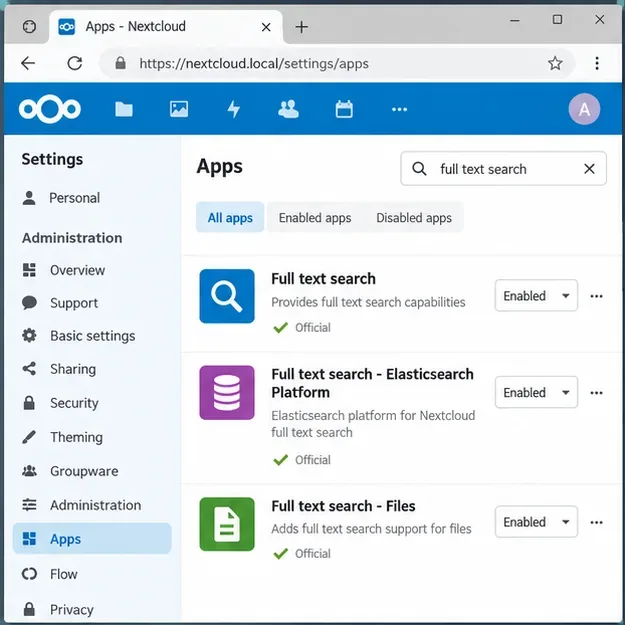
Caption: The Nextcloud Apps page with the core full-text framework, Elasticsearch platform connector, and Files provider enabled.
Step 2: Start Elasticsearch 8 and verify that Nextcloud can reach it
The Elasticsearch connector has required Elasticsearch 8 since the Nextcloud app's 26.0.0 generation. Do not substitute Elasticsearch 9 unless the official compatibility statement changes for the app version you are using.
For a local lab, Elastic documents a single-node Docker approach. A minimal test instance can be started on a private interface. In a production deployment, keep authentication and TLS enabled and follow Elastic's current installation guidance instead of disabling security.
docker run --name es01 --net elastic -p 127.0.0.1:9200:9200 -it -m 6GB docker.elastic.co/elasticsearch/elasticsearch:<ELASTICSEARCH_8_VERSION>
Elastic's secure default startup prints the password for the built-in elastic user and creates HTTP TLS certificates. You can then verify the node using the CA certificate and credentials as described in the official guide. If Nextcloud is in another Docker container, remember that 127.0.0.1 points to the Nextcloud container itself, not the Elasticsearch container. Put both services on a shared Docker network and use the Elasticsearch service name, such as https://elasticsearch:9200, or route through a private address.
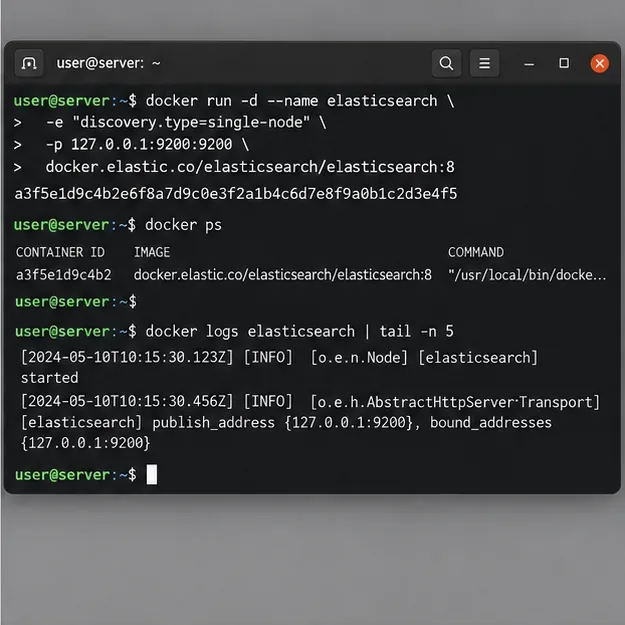
Caption: A terminal view of a single-node Elasticsearch service being started and checked; for production, keep authentication and TLS enabled rather than using an unsecured lab configuration.
Step 3: Configure Nextcloud to use Elasticsearch
คุณสามารถกำหนดค่าแพลตฟอร์มได้ในส่วนติดต่อผู้ดูแลระบบ แต่แบบฟอร์ม CLI นั้นแม่นยำและสามารถทำซ้ำได้ การผสานรวมแบบ All-in-One ของ Nextcloud เองจะกำหนดค่าเฟรมเวิร์กโดยการเลือกคลาสแพลตฟอร์ม Elasticsearch จากนั้นส่งชื่อโฮสต์และชื่อดัชนีของ Elasticsearch ไปยังตัวเชื่อมต่อ
sudo -u www-data php /var/www/nextcloud/occ fulltextsearch:configure '{"search_platform":"OCA\\FullTextSearch_Elasticsearch\\Platform\\ElasticSearchPlatform"}'

sudo -u www-data php /var/www/nextcloud/occ fulltextsearch_elasticsearch:configure '{"elastic_host":"https://elastic:YOUR_PASSWORD@elasticsearch:9200","elastic_index":"nextcloud_index"}'
ใช้ URL โฮสต์ที่สามารถเข้าถึงได้จากกระบวนการ PHP ของ Nextcloud หากปลายทาง Elasticsearch ของคุณใช้ CA ส่วนตัว โปรดตรวจสอบให้แน่ใจว่าสภาพแวดล้อม Nextcloud เชื่อถือ CA นั้นแทนที่จะปิดการตรวจสอบใบรับรอง หลีกเลี่ยงการบันทึกข้อมูลประจำตัวไว้ในประวัติคำสั่งเชลล์บนระบบที่ใช้งานร่วมกัน ให้ใช้วิธีการกำหนดค่าที่ได้รับการป้องกันซึ่งเหมาะสมกับการใช้งานของคุณ
ชื่อดัชนีควรเป็นตัวพิมพ์เล็กและกำหนดเฉพาะให้กับอินสแตนซ์ Nextcloud นี้ ชื่อเช่นนี้nextcloud_indexจะช่วยให้ระบุได้ง่าย หากอินสแตนซ์ Nextcloud หลายตัวใช้คลัสเตอร์ Elasticsearch เดียวกัน ให้ตั้งชื่อดัชนีที่ไม่ซ้ำกันให้กับแต่ละอินสแตนซ์
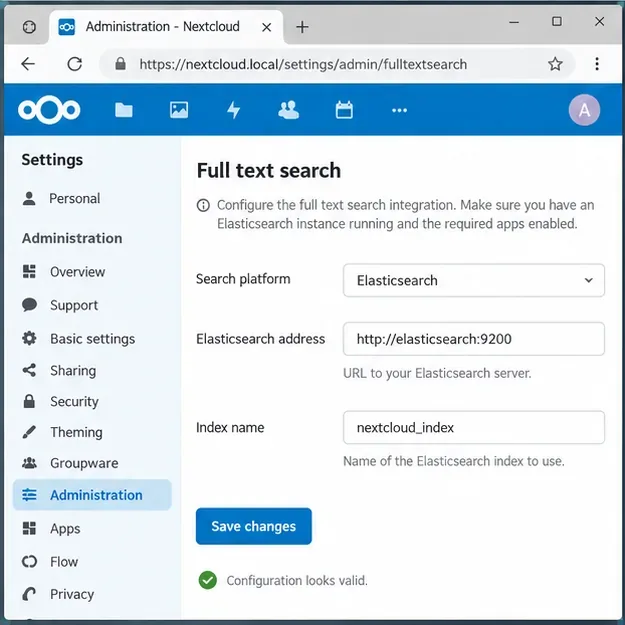
คำบรรยายภาพ: หน้าจอการจัดการการค้นหาข้อความเต็ม โดยเลือก Elasticsearch เป็นแพลตฟอร์มการค้นหา และกำหนดชื่อดัชนีเฉพาะไว้แล้ว
ขั้นตอนที่ 4: เลือกเนื้อหาไฟล์ที่ต้องการจัดทำดัชนี
ผู้ให้บริการไฟล์จะควบคุมว่าเนื้อหาไฟล์ประเภทใดจะถูกส่งไปทำการจัดทำดัชนี ปัจจุบัน การเริ่มต้นใช้งานแบบ All-in-One ของ Nextcloud ช่วยให้สามารถแยกไฟล์ PDF และเอกสาร Office ได้ด้วยคำสั่งนี้:
sudo -u www-data php /var/www/nextcloud/occ files_fulltextsearch:configure '{"files_pdf":true,"files_office":true}'
ตัวเลือกผู้ให้บริการที่คุณสามารถใช้ได้อาจแตกต่างกันไปตามเวอร์ชันของแอป ดังนั้นโปรดตรวจสอบการกำหนดค่าปัจจุบันก่อนที่จะคัดลอกการตั้งค่าจากบทช่วยสอนเก่าๆ นอกจากนี้ โปรดจำไว้ว่าคุณภาพการดึงข้อความขึ้นอยู่กับไฟล์ต้นฉบับ ไฟล์ PDF ปกติที่มีข้อความฝังอยู่จะง่ายต่อการจัดทำดัชนีมากกว่าไฟล์ PDF ที่สแกนมาซึ่งมีแต่รูปภาพ การค้นหาข้อความแบบเต็มไม่ได้ทำให้ OCR ที่มีคุณภาพต่ำมีความแม่นยำโดยอัตโนมัติ
ขั้นตอนที่ 5: ทดสอบการตั้งค่าการค้นหาทั้งหมด
ก่อนที่จะทำการจัดทำดัชนีไลบรารีขนาดใหญ่ ให้ทำการทดสอบเฟรมเวิร์กก่อน:
sudo -u www-data php /var/www/nextcloud/occ fulltextsearch:test
การทดสอบที่ประสบความสำเร็จควรแสดงให้เห็นว่าสามารถเข้าถึงแพลตฟอร์มได้ และการกำหนดค่าผู้ให้บริการ/แพลตฟอร์มสามารถทำงานได้ หากล้มเหลว ให้แก้ไขการเชื่อมต่อก่อนเริ่มการสร้างดัชนีครั้งแรก สาเหตุทั่วไป ได้แก่ การใช้งานlocalhostจากคอนเทนเนอร์ที่ไม่ถูกต้อง ปัญหาความเชื่อถือของใบรับรอง ความล้มเหลวในการตรวจสอบสิทธิ์ เวอร์ชันหลักของ Elasticsearch ที่ไม่เข้ากัน หรือการกำหนดค่าดัชนีที่ Elasticsearch ปฏิเสธ
ขั้นตอนที่ 6: สร้างดัชนีเริ่มต้น
เมื่อการทดสอบผ่านแล้ว ให้สร้างดัชนีเริ่มต้น:
sudo -u www-data php /var/www/nextcloud/occ fulltextsearch:index
บนเซิร์ฟเวอร์ขนาดใหญ่ กระบวนการนี้อาจใช้เวลานานและใช้ทรัพยากร CPU, หน่วยความจำ, การอ่าน/เขียนข้อมูลของพื้นที่จัดเก็บข้อมูล และฮีปของ Elasticsearch มาก ควรทำการรวบรวมข้อมูลครั้งแรกในช่วงเวลาที่มีปริมาณการใช้งานต่ำ และตรวจสอบบันทึกของทั้ง Nextcloud และ Elasticsearch นอกจากนี้ เฟรมเวิร์กยังรองรับแบบฟอร์มการรีเซ็ตข้อผิดพลาดที่ Nextcloud All-in-One ใช้ระหว่างการตั้งค่าเริ่มต้นด้วย:
sudo -u www-data php /var/www/nextcloud/occ fulltextsearch:index '{"errors":"reset"}' --no-readline
อย่ารีเซ็ตและสร้างดัชนีใหม่ซ้ำๆ ในระบบที่ใช้งานได้ดีอยู่แล้วโดยไม่มีเหตุผล สำหรับการอัปเกรด โปรดอ่านบันทึกการเปลี่ยนแปลงของแอปค้นหาทั้งสามแอปก่อน และตรวจสอบว่าจำเป็นต้องสร้างดัชนีใหม่หรือไม่
ขั้นตอนที่ 7: อัปเดตดัชนีให้เป็นปัจจุบันอยู่เสมอ
ดัชนีเริ่มต้นเป็นเพียงภาพรวม ณ ขณะนั้น การอัปโหลดและการแก้ไขใหม่ๆ จำเป็นต้องมีการจัดทำดัชนีอย่างต่อเนื่อง เฟรมเวิร์กการค้นหาข้อความเต็มรูปแบบมีfulltextsearch:liveคำสั่งสำหรับการประมวลผลอย่างต่อเนื่อง หากคุณใช้งาน โปรดเรียกใช้คำสั่งนี้ภายใต้ตัวควบคุมกระบวนการหรือตัวจัดการบริการอื่นๆ เพื่อให้ระบบเริ่มต้นใหม่หลังจากเกิดความล้มเหลวหรือการรีบูตโฮสต์
sudo -u www-data php /var/www/nextcloud/occ fulltextsearch:live
อย่าเรียกใช้กระบวนการเบื้องหน้าที่ไม่ได้รับการจัดการในเซสชัน SSH และคิดว่าการจัดทำดัชนีจะดำเนินต่อไปหลังจากออกจากระบบ การใช้งานคอนเทนเนอร์สามารถเรียกใช้เวิร์กเกอร์แบบเรียลไทม์เป็นกระบวนการที่ได้รับการดูแลโดยเฉพาะ เซิร์ฟเวอร์แบบดั้งเดิมสามารถใช้ systemd หรือตัวควบคุมได้ ตรวจสอบการทำงานเหมือนกับบริการพื้นหลังอื่นๆ
ขั้นตอนที่ 8: ตรวจสอบการค้นหาจากทั้ง CLI และอินเทอร์เฟซ Nextcloud
หลังจากทำการรวบรวมข้อมูลเบื้องต้นเสร็จสิ้นแล้ว ให้ค้นหาวลีที่ปรากฏอยู่ภายในเอกสารที่รู้จัก แทนที่จะค้นหาเฉพาะในชื่อไฟล์เท่านั้น วิธีนี้จะช่วยยืนยันว่าการดึงข้อมูลและการจัดทำดัชนีเนื้อหาทำงานได้อย่างถูกต้อง เวอร์ชันล่าสุดของการค้นหาข้อความเต็มรูปแบบยังรองรับการค้นหาผ่านoccซึ่งมีประโยชน์เมื่อต้องการแยกปัญหาการจัดทำดัชนีในส่วนแบ็กเอนด์ออกจากปัญหาในเบราว์เซอร์หรือการค้นหาแบบรวม
ในเว็บอินเทอร์เฟซ ให้ใช้ช่องค้นหาของ Nextcloud และค้นหาวลีที่โดดเด่นจากไฟล์ PDF, DOCX หรือไฟล์ข้อความที่คุณทราบว่าได้รับการจัดทำดัชนีแล้ว หากการค้นหาด้วยชื่อไฟล์ใช้งานได้ แต่การค้นหาด้วยเนื้อหาเอกสารใช้งานไม่ได้ ให้ตรวจสอบการตั้งค่าผู้ให้บริการไฟล์และประเภทของเอกสารต้นฉบับ
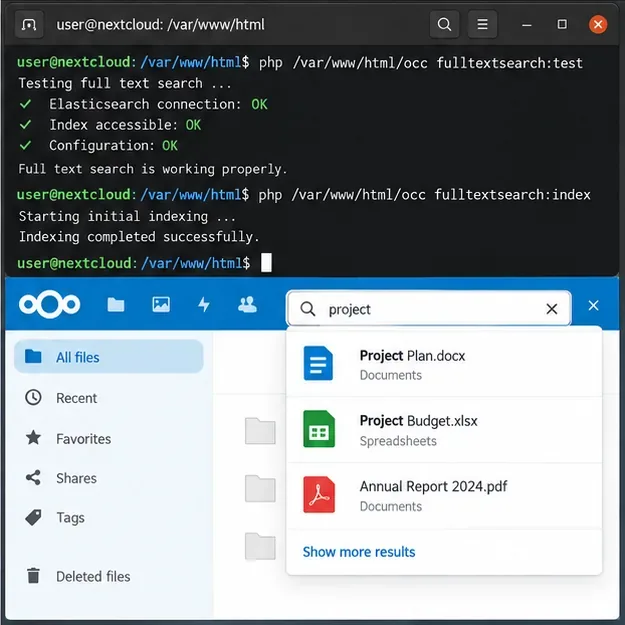
คำบรรยายภาพ: การทดสอบเฟรมเวิร์กที่ประสบความสำเร็จและการจัดทำดัชนีเบื้องต้น ตามด้วยการค้นหาใน Nextcloud ที่ส่งคืนเอกสารที่จัดทำดัชนีแล้ว
การแก้ไขปัญหาข้อผิดพลาดทั่วไป
Elasticsearch สามารถใช้งานร่วมกับ curl ได้ แต่ Nextcloud ไม่สามารถเชื่อมต่อได้
ทดสอบจากเน็ตเวิร์กเนมสเปซเดียวกันกับกระบวนการ PHP ของ Nextcloud ใน Docker การร้องขอที่สำเร็จจากโฮสต์ไม่ได้หมายความว่าคอนเทนเนอร์ Nextcloud สามารถแก้ไขหรือเข้าถึงบริการ Elasticsearch ได้ ตรวจสอบ DNS เครือข่ายคอนเทนเนอร์ กฎไฟร์วอลล์ ความเชื่อถือ TLS และรูปแบบที่แน่นอนใน URL ที่กำหนดค่าไว้
ตัวเชื่อมต่อรายงานปัญหาเกี่ยวกับเวอร์ชันของ Elasticsearch
ตรวจสอบเวอร์ชันหลักของ Elasticsearch จริงๆ ไม่ใช่แค่แท็กรูปภาพที่คุณตั้งใจจะใช้งาน ปัจจุบันคลังเก็บโค้ดตัวเชื่อมต่ออย่างเป็นทางการยังคงระบุว่ารองรับ Elasticsearch 8 สำหรับแอปเวอร์ชัน 26.0.0 ขึ้นไป ณ เวลาที่เขียนบทความนี้ มีคำขอสนับสนุน Elasticsearch 9 อยู่ ดังนั้นจึงไม่ควรคิดว่า Elasticsearch 9 จะใช้งานร่วมกันได้เสมอไป
การสร้างดัชนีใช้หน่วยความจำมากเกินไป
ตรวจสอบหน่วยความจำฮีปของ Elasticsearch, ขีดจำกัดหน่วยความจำของคอนเทนเนอร์ และหน่วยความจำของโฮสต์ไปพร้อมกัน เอกสารประกอบการใช้งาน Docker ของ Elastic ยังกล่าวถึงการตั้งค่าระดับโฮสต์ด้วยvm.max_map_countหาก JVM ถูกปิด การเพิ่มขีดจำกัดหน่วยความจำ PHP ของ Nextcloud เพียงอย่างเดียวจะไม่สามารถแก้ปัญหาฝั่ง Elasticsearch ได้
ไฟล์ที่แชร์หรือไฟล์ภายนอกบางไฟล์หายไป
ลักษณะการค้นหาอาจขึ้นอยู่กับการรองรับของผู้ให้บริการและเวอร์ชันของแอป โครงการผู้ให้บริการไฟล์ยังคงติดตามปัญหาที่เกี่ยวข้องกับโฟลเดอร์ที่ใช้ร่วมกัน โฟลเดอร์กลุ่ม และพื้นที่จัดเก็บข้อมูลภายนอก หากประเภทพื้นที่จัดเก็บข้อมูลใดมีพฤติกรรมแตกต่างจากไฟล์ในเครื่องทั่วไป ให้ลองจำลองปัญหาด้วยตัวอย่างขนาดเล็กที่ควบคุมได้ และตรวจสอบตัวติดตามปัญหาอย่างเป็นทางการของผู้ให้บริการก่อนที่จะสร้างดัชนีใหม่ทั้งหมด
วิธีตรวจสอบว่าการตั้งค่าเสร็จสมบูรณ์แล้ว
การใช้งานระบบอย่างมีประสิทธิภาพนั้นมีสัญญาณที่สังเกตได้สี่ประการ ได้แก่ สามารถเข้าถึง Elasticsearch 8 จาก Nextcloud ได้fulltextsearch:testการทำงานราบรื่น การทดสอบเริ่มต้นfulltextsearch:indexเสร็จสมบูรณ์โดยไม่มีข้อผิดพลาดที่แก้ไขไม่ได้ และการค้นหาข้อความภายในเอกสารที่รู้จักจะส่งคืนไฟล์นั้นให้กับผู้ใช้ที่ได้รับอนุญาต รักษาความเป็นส่วนตัวของปลายทางดัชนี รักษาความปลอดภัยของ Elasticsearch ในสภาพแวดล้อมการใช้งานจริง และอัปเกรดแอปค้นหา Nextcloud ทั้งสามแอปให้สอดคล้องกับการเปิดตัวเวอร์ชันหลักของ Nextcloud
สำหรับรายละเอียดที่เกี่ยวข้องกับเวอร์ชัน โปรดใช้รายการรุ่นอย่างเป็นทางการของแพลตฟอร์ม Nextcloud Elasticsearchและคำแนะนำอย่างเป็นทางการของ Elastic สำหรับการใช้งาน Docker ในสภาพแวดล้อมการผลิตแหล่งข้อมูลเหล่านั้นเป็นสถานที่ที่ปลอดภัยที่สุดในการตรวจสอบความเข้ากันได้และข้อกำหนดของโฮสต์ก่อนการอัปเกรดครั้งใหญ่