Fix Thunderbird Profile Locked: ‘Thunderbird Is Already Running’ Error

If Thunderbird says it is already running but no window is open, the profile may still be held by a background Thunderbird process or by a leftover lock file after an unclean shutdown. First make sure Thunderbird is fully closed. Only remove a lock file after you have confirmed that no Thunderbird process is using that profile. Your mail, account settings, passwords, and other data live in the profile folder, so do not delete the profile or its contents.

The safest repair is: close every Thunderbird process, back up the correct profile, remove only a confirmed stale lock file if one exists, and start Thunderbird again. If the error remains, check that you are opening the intended profile and that it is stored somewhere Thunderbird can access.

What does “Thunderbird is already running” mean?

Thunderbird uses a profile to hold account settings and user data. A lock helps prevent two Thunderbird sessions from changing the same profile at once. The message can therefore mean that another Thunderbird process is actually open, including one that is hidden in the background. It can also appear when an earlier crash, forced shutdown, interrupted update, or copied profile leaves a stale lock behind.

A profile lock protects data from simultaneous access. Do not try to bypass it by launching a second copy against the same profile. Mozilla says simultaneous access to a profile through cloud storage, a file share, or another method is unsupported and can risk profile corruption or permanent data loss. See Mozilla’s profile storage and backup guidance.

How do you fix the error safely?

1. Close Thunderbird and check for a hidden process

Try closing Thunderbird from its menu with File > Exit or the operating system’s normal quit command. Wait several seconds. If the warning continues, check whether Thunderbird is still running:

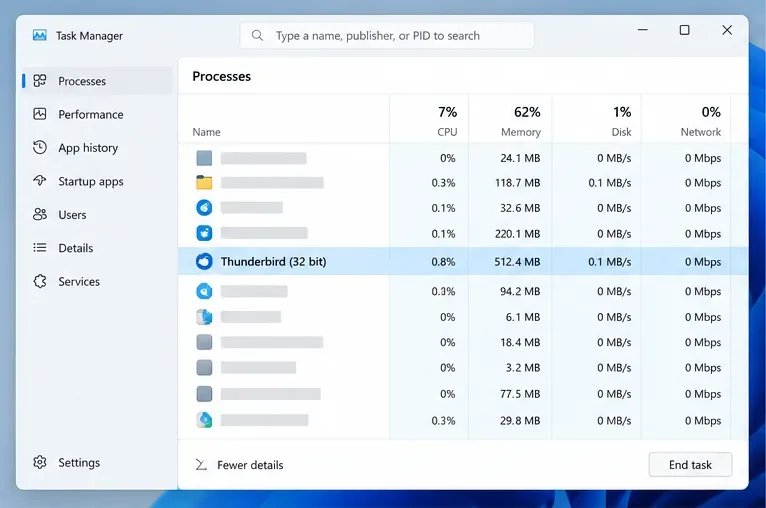
  • Windows: Press Ctrl+Shift+Esc to open Task Manager. Look for Thunderbird in the Processes list. Select it and choose End task only if you have confirmed it is the stuck instance and you are not in the middle of sending, downloading, or saving mail.
  • macOS: Open Activity Monitor, search for Thunderbird, and choose Quit. Use Force Quit only if the process will not close normally.
  • Linux: Use the system monitor to find and close the Thunderbird process. If you use a package-managed or sandboxed build, close it through its desktop launcher or package’s normal controls where possible.

如果您不確定某個進程是否卡住,請先在其他應用程式中儲存工作,然後重新啟動電腦。 Mozilla 的設定檔管理器說明也建議,如果管理器無法打開,請關閉所有 Thunderbird 實例或重新啟動計算機,因為 Thunderbird 可能仍在後台運行。然後嘗試打開一次 Thunderbird,不要連續快速多次打開。

在 Windows 工作管理員中選取 Thunderbird 進程,並顯示「結束任務」按鈕。
在更改 Thunderbird 設定檔資料夾中的任何內容之前,請確認 Thunderbird 已停止運作。

2. 找到正確的 Thunderbird 設定檔資料夾

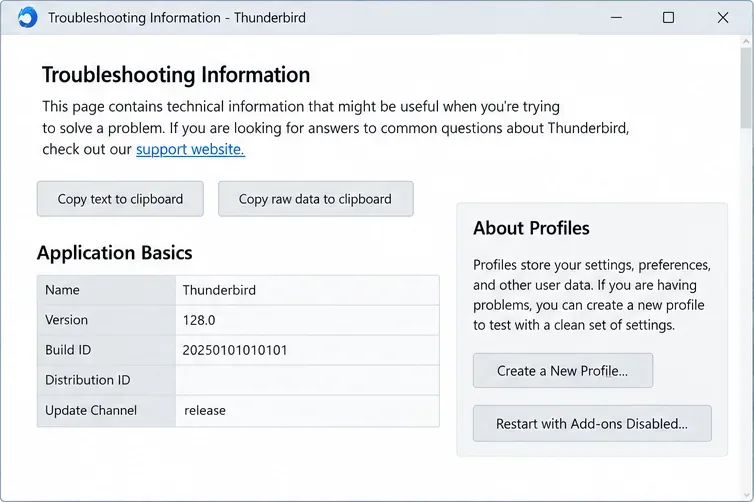
請使用導致錯誤的設定檔。請勿刪除或重新命名整個 Thunderbird 資料夾。如果 Thunderbird 在其他裝置或其他設定檔中可以打開,則其「故障排除資訊」頁面會顯示目前使用的設定檔位置。如果 Thunderbird 無法打開,Mozilla 的最新設定檔文章提供了以下預設位置:

  • Windows 系統:按 Windows+R 鍵,輸入%APPDATA%\Thunderbird\Profiles\,然後按 Enter 鍵。打開您實際使用的使用者設定檔資料夾。 AppData 資料夾通常是隱藏的,因此這個捷徑很有用。
  • macOS:在 Finder 中,開啟「前往」,按住 Option 鍵顯示「資源庫」,然後開啟Thunderbird/Profiles。
  • Linux:在您的使用者主資料夾中,顯示隱藏檔案並開啟~/.thunderbird。某些軟體包格式可能使用不同的位置,因此如果該檔案不存在,請使用為您的安裝配置的設定檔路徑。

如果「設定檔」目錄包含多個資料夾,請不要僅憑名稱猜測。請檢查 Thunderbird 之前使用的設定檔路徑,或 `/etc profiles.ini...

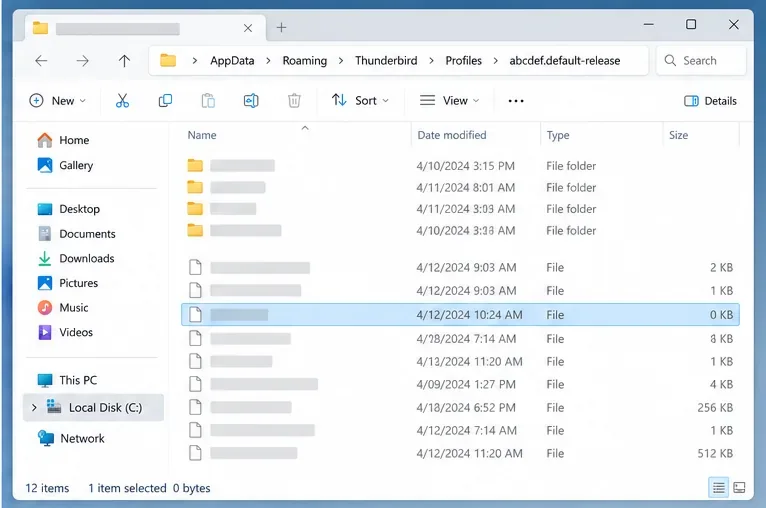
檔案總管顯示 Thunderbird 設定檔目錄,其中選取了一個小檔案。
在修改鎖定檔案之前,請先開啟設定檔目錄並確認其內容。

3. 刪除鎖定檔案前請先備份

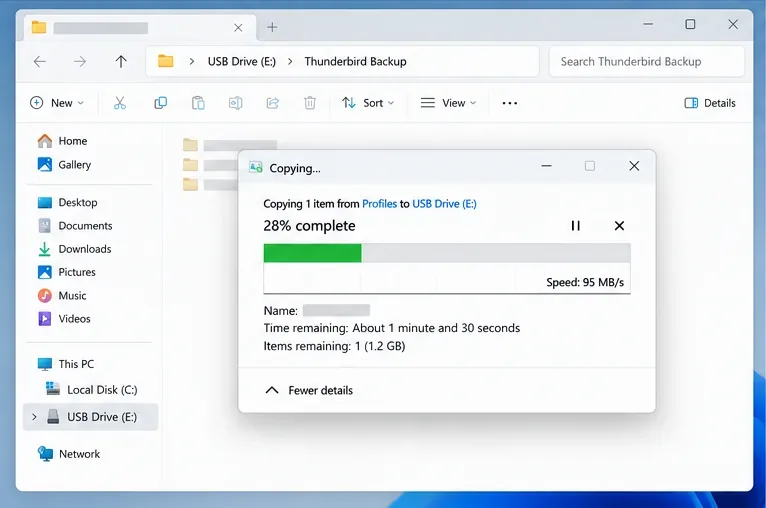
在 Thunderbird 完全關閉後,將整個設定檔資料夾複製到單獨的位置,例如外部磁碟機。保留原始文件;備份文件只是額外的副本。 Mozilla 特別建議在複製設定檔之前關閉 Thunderbird,並指出儲存在同一台電腦上的設定檔本身並不是備份。

檔案總管正在將 Thunderbird 設定檔資料夾複製到單獨的 USB 備份磁碟機
修復前,請將完整的設定檔資料夾複製到單獨的磁碟機。

4. 僅刪除過期的鎖定文件

確認所有 Thunderbird 進程都已關閉後,檢查正確的設定檔資料夾是否有鎖定檔。在 Windows 系統中,該檔案通常名為 `.ts` parent.lock;在 macOS 或 Linux 系統中,它可能顯示為.parentlock`.ts` 或其他平台特定的鎖定條目。檔案名稱開頭的點號可以隱藏該檔案。不同作業系統和安裝方式下,鎖定檔案的名稱和行為可能有所不同。

如果鎖定檔案存在且您確定 Thunderbird 未執行,請僅刪除該檔案。請勿刪除prefs.js郵件logins.json資料key4.db夾或整個設定檔。如果您無法確定鎖定檔案的位置,請停止操作並尋求協助,而不是刪除其他檔案。 Mozilla 支援論壇上針對此問題的解答也建議先關閉 Thunderbird,然後再刪除設定parent.lock檔中的殘留檔案;請參閱 Mozilla 支援論壇的故障排除討論。

5. 啟動 Thunderbird 並檢查結果

正常啟動 Thunderbird。如果設定檔打開,請確認您所需的帳戶、資料夾、郵件和設定都已存在。從其他電腦重置的設定檔可能需要一些時間重新連接到郵件伺服器,但設定檔鎖定警告本身應該不再阻止啟動。

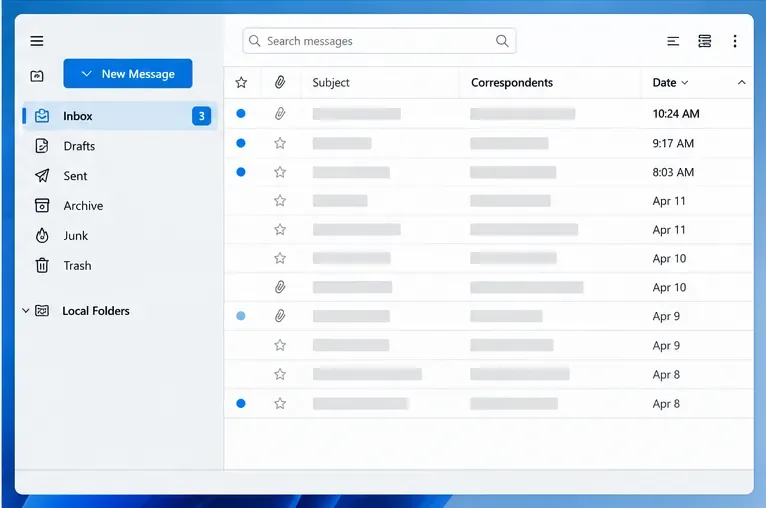
解決設定檔鎖定問題後,Thunderbird 將對中立收件匣開放。
恢復後,確認 Thunderbird 能夠正常開啟並顯示預期的設定檔和收件匣。

如果警告再次出現怎麼辦?

檢查是否有其他設備或應用程式使用相同的配置文件

請勿在兩台電腦上同時開啟同一個設定文件,也不要允許兩個本地 Thunderbird 實例同時使用同一個設定檔。即使資料夾已雲端同步,也無法保證同時使用的安全性:Mozilla 的設定檔指南明確指出不支援同時存取。請在所有可能使用該設定檔的裝置上關閉 Thunderbird,並等待檔案同步完成後再在其他裝置上啟動它。

檢查個人資料存取權限和儲存空間

如果沒有鎖定文件,則此訊息可能並非由過期鎖定問題引起。請確認設定檔資料夾仍然存在,磁碟機已連接,並且您的作業系統帳戶可以對該資料夾進行讀寫操作。位於可移動磁碟機、網路磁碟機或同步磁碟機上的設定檔可能無法使用、為唯讀或仍在複製中。請勿遞歸更改權限或在 Thunderbird 開啟時移動設定檔。如果設定檔位於共用或同步位置,請將其複製到本機資料夾,並將 Thunderbird 設定為使用該本機副本,而不是從多個位置開啟相同設定檔。

開啟設定檔管理器,無需刪除數據

如果已清除設定檔鎖定,但 Thunderbird 仍開啟錯誤的設定檔或報告無法載入設定文件,請使用設定檔管理員檢查可用設定檔。在 Windows 系統中,按 Windows+R 鍵並輸入thunderbird.exe -P。在 macOS 或 Linux 系統中,Mozilla 文件中提供了-ProfileManager啟動開關的說明;根據 Thunderbird 的安裝方式,您可能需要完整的應用程式路徑。 Thunderbird設定檔管理員指南說明如何選擇設定檔以及管理員選項的工作原理。

如果您需要測試舊設定檔是否損壞,請建立一個臨時新設定文件,並保持原始設定檔不變。新設定檔可能看起來是空的,因為設定檔會保存不同的帳戶和資料;但這並不意味著舊郵件已被刪除。請勿對舊設定檔選擇「刪除檔案」。 Mozilla 警告稱,此選項會永久刪除設定檔的設定、密碼和其他檔案。如果 Thunderbird 啟動時使用的是臨時設定文件,請在故障排除後返回管理器並選擇原始設定檔。
重新安裝 Thunderbird 能否修復被鎖定的設定檔?

通常情況下,重新安裝並非解決問題的首選方法。 Thunderbird 將使用者設定檔與應用程式檔案分開保存,因此卸載並重新安裝程式通常無法解決過期鎖定或無法存取的設定檔問題,也不會覆蓋備份。請先依照步驟檢查設定檔;僅當設定檔可以存取且 Thunderbird 本身出現損壞時,才考慮修復應用程式或重新安裝。

快速查核清單

  • Thunderbird 已正常關閉,工作管理員、活動監視器或 Linux 系統監視器均未顯示任何仍在使用該設定檔的進程。
  • 您已找到帳戶實際使用的設定檔資料夾。
  • 在進行變更之前,您已將完整設定檔複製到單獨的備份位置。
  • 您僅刪除了已確認的過期鎖定檔案(如果存在)。
  • Thunderbird 開啟了預期的設定文件,您的帳戶和本機資料夾都存在。
  • 沒有其他電腦或 Thunderbird 實例同時開啟相同的設定檔。

截至 2026 年 10 月 7 日,Mozilla 的支援文件仍然強調設定檔分離、在進行設定檔操作之前關閉 Thunderbird 以及避免同時存取。建議的修復方法是先結束真正卡住的進程,然後在沒有 Thunderbird 實例使用該設定檔時,僅移除過時的設定檔鎖定。具體的鎖定檔案名稱可能因平台而異,因此不要parent.lock因為缺少某個鎖定檔案就刪除其他設定檔。

官方參考資料

留下評論

Fix Thunderbird Profile Locked: ‘Thunderbird Is Already Running’ Error

Fix Thunderbird Profile Locked: ‘Thunderbird Is Already Running’ Error

Fix Thunderbird’s “already running” profile lock error safely. Close stuck processes, back up the correct profile, remove only a stale lock file, and verify the repair.

如何將 MBOX 檔案匯入 Thunderbird 115 Supernova

如何將 MBOX 檔案匯入 Thunderbird 115 Supernova

學習兩種將 MBOX 檔案匯入 Thunderbird 115 Supernova 的可靠方法:使用相容的 ImportExportTools NG 版本或安全地將郵箱複製到本機資料夾。

如何在 Thunderbird 中為 Gmail 設定 OAuth2 身份驗證

如何在 Thunderbird 中為 Gmail 設定 OAuth2 身份驗證

使用 OAuth2 將 Gmail 連接到 Thunderbird,完成 Google 的登入流程,確認 IMAP 和 SMTP 驗證,並解決常見的登入問題。

如何在 Thunderbird 115 Supernova 中設定 OpenPGP 電子郵件加密

如何在 Thunderbird 115 Supernova 中設定 OpenPGP 電子郵件加密

設定 Thunderbird 115 OpenPGP 加密:建立並備份個人金鑰、驗證收件者金鑰、加密郵件並測試設定。包含 115 版本停止支援的注意事項。

如何安全地將 Thunderbird 設定檔移至另一個磁碟機或計算機

如何安全地將 Thunderbird 設定檔移至另一個磁碟機或計算機

將您的 Thunderbird 設定檔遷移到新硬碟或電腦,無需遺失郵件、密碼或設定。請依照安全備份、複製和設定檔選擇步驟操作。

如何將 Thunderbird 聯絡人匯出為 CSV 或 VCF 文件

如何將 Thunderbird 聯絡人匯出為 CSV 或 VCF 文件

將 Thunderbird 通訊錄匯出為 CSV(用於電子表格)或 VCF(用於聯絡人應用程式)。了解選擇哪種格式、匯出按鈕的位置以及如何驗證文件。

修復 Thunderbird 主密碼提示多次出現的問題

修復 Thunderbird 主密碼提示多次出現的問題

了解 Thunderbird 為何會重複顯示主密碼提示,以及如何使用更新、已儲存的登入檢查、故障排除模式和設定檔測試安全地修復這些問題。

修復 Thunderbird “郵件發送失敗” SMTP 錯誤

修復 Thunderbird “郵件發送失敗” SMTP 錯誤

檢查指派的 SMTP 伺服器、供應商設定、驗證、網路封鎖和郵件大小,以修復 Thunderbird 的「郵件傳送失敗」SMTP 錯誤。

自訂 Thunderbird 115 Supernova 的密度、版面配置和郵件列表

自訂 Thunderbird 115 Supernova 的密度、版面配置和郵件列表

調整 Thunderbird 115 Supernova 的緊湊、預設或寬鬆密度,選擇視窗佈局,在卡片視圖和表格視圖之間切換,並自訂資料夾窗格和工具列。

如何解決 Thunderbird 記憶體佔用過高和效能緩慢的問題

如何解決 Thunderbird 記憶體佔用過高和效能緩慢的問題

透過安全、循序漸進的檢查,診斷 Thunderbird 的記憶體使用情況和運行緩慢問題,檢查附加元件、索引、設定檔和系統瓶頸。