ONLYOFFICE 데스크톱 편집기와 LibreOffice 비교: 성능 벤치마크 및 실제 장단점 분석
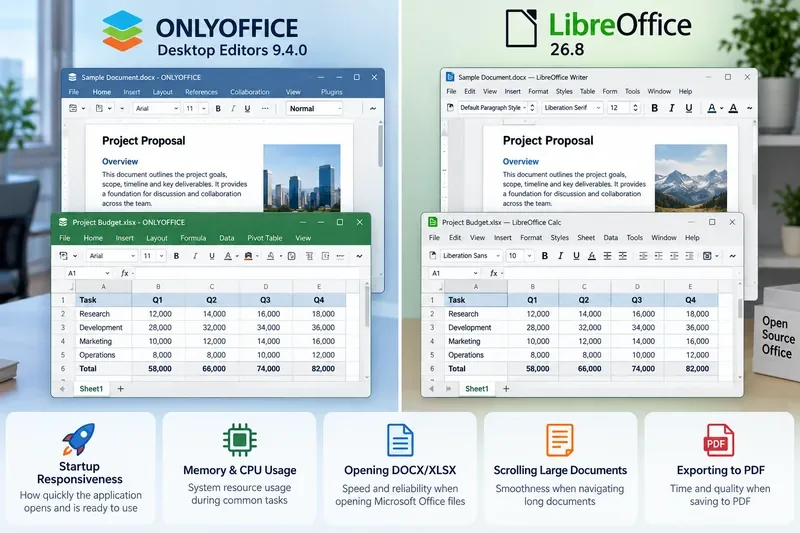
ONLYOFFICE 데스크톱 편집기와 LibreOffice를 시작 속도, 메모리 요구량, 파일 처리, 호환성 및 작업 부하 적합성 측면에서 인위적인 벤치마크 점수 없이 비교합니다.
If you have dozens of Word documents, opening each one in LibreOffice and exporting it separately is slow and easy to interrupt. A command such as soffice --convert-to pdf can convert a batch, but common snags include sending PDFs to the wrong folder, losing filenames with spaces, having LibreOffice attach the job to an already-open window, or producing PDFs whose layout differs from Word. The workflow below starts with one test file, moves to a safe batch command, and ends with checks for missing or malformed output.
These examples use the current LibreOffice command-line syntax documented in LibreOffice 26.8 Help, checked October 6, 2026. They use writer_pdf_Export, the PDF export filter for Writer documents. Conversion is suitable for ordinary DOCX files, but complex layouts still need review because LibreOffice and Microsoft Word may render some fonts and page layouts differently.
Install LibreOffice on the computer that will run the conversion. On a server, use the package manager or installer for that system and confirm that soffice is available in the command shell. On Windows, the executable is commonly under C:\Program Files\LibreOffice\program\soffice.exe; the installation path can differ.
Prepare two separate folders: one for the source DOCX files and one for the resulting PDFs. Start with a new or empty output folder. If you convert into a folder that already contains PDFs with the same base names, LibreOffice may ask about overwriting or fail to replace them, depending on the process and environment. Keeping source and output separate also prevents an accidental conversion loop when scripts scan a directory.
For documents with uncommon typefaces, install the same fonts used by the original author before conversion. Missing fonts can change line breaks, page count, table widths, and pagination even when the DOCX opens without an error.
Convert a representative document before running a large batch. In the examples below, replace the sample paths with your own:
mkdir -p "/srv/docs/converted"
soffice --headless --convert-to pdf:writer_pdf_Export --outdir "/srv/docs/converted" "/srv/docs/incoming/Annual Report.docx"
--headless runs LibreOffice without opening its graphical interface. --convert-to selects the output format and optional filter, while --outdir names the destination. LibreOffice’s filter table lists writer_pdf_Export for PDF output from Writer. Review the test PDF before converting everything: check page breaks, headers and footers, tables, images, hyperlinks, and special characters.
If the test produces no PDF, confirm that the source path is correct, the file is readable, and the output folder is writable. Also check that LibreOffice is installed for the same account that runs the command. Official references: LibreOffice file conversion filters and LibreOffice command-line parameters.
Linux 또는 macOS에서 터미널을 열고 파일 이름 패턴을 사용하세요. 해당 파일이 soffice시스템에 있는지 확인하세요 PATH. macOS에서는 LibreOffice 애플리케이션 번들 내의 실행 파일을 호출해야 할 수도 있습니다. 이 예제는 하나의 입력 폴더 안에 있는 DOCX 파일을 직접 처리합니다.
src="/srv/docs/incoming"
out="/srv/docs/converted"

mkdir -p "$out"
soffice --headless --convert-to pdf:writer_pdf_Export --outdir "$out" "$src"/*.docx
Bash는 *.docxLibreOffice를 시작하기 전에 각 파일 경로를 개별 인수로 확장합니다. 각 경로명이 하나의 인수로 전달되므로 디렉터리 이름과 파일 이름의 공백이 유지됩니다. 출력 PDF는 원본 파일 이름의 어간을 유지하므로 최종 파일 이름은 '.' Annual Report.docx이 됩니다 Annual Report.pdf. 이 명령은 해당 폴더의 파일만 처리하며 하위 폴더는 검색하지 않습니다.
첫 실행 시에는 대상 폴더를 비워 두십시오. 와일드카드 명령을 실행하기 전에 입력 폴더에 의도한 파일이 있는지, PDF 파일을 저장할 디스크 공간이 충분한지 확인하십시오. Bash에서는 셸 옵션을 설정하지 않으면 일치하지 않는 와일드카드가 그대로 유지될 수 있습니다. 폴더가 비어 있을 가능성이 있는 경우, 먼저 DOCX 파일이 하나 이상 있는지 확인하거나 다음 섹션의 파일별 반복문을 사용하십시오.
폴더에 수천 개의 문서가 있는 경우 셸은 매우 긴 인자 목록을 거부할 수 있습니다. 루프를 사용하면 모든 파일 이름을 하나의 명령으로 운영 체제에 전송하는 것을 방지하고 경로를 따옴표로 묶으면 공백도 안전하게 처리할 수 있습니다.
src="/srv/docs/incoming"
out="/srv/docs/converted"
mkdir -p "$out"

found=false
for file in "$src"/*.docx; do
  [ -f "$file" ] || continue
  found=true
  soffice --headless --convert-to pdf:writer_pdf_Export --outdir "$out" "$file" || {
    printf 'Conversion failed: %s\n' "$file" >&2
  }
done
[ "$found" = true ] || { echo 'No DOCX files found.' >&2; exit 1; }
따옴표로 묶인 for루프는 파일 이름에 공백이 있는 경우에도 처리하며, 전체 파일 목록을 하나의 큰 인수로 보내지 않습니다. 파일당 하나의 LibreOffice 변환을 실행하므로 단일 와일드카드 명령보다 시간이 더 오래 걸릴 수 있습니다. 입력 폴더 바로 안에 있는 파일만 검색합니다. 하위 폴더를 포함하려면 재귀적 파일 검색을 사용하고 출력 레이아웃에서 각 입력 폴더를 유지해야 합니다. 그렇지 않으면 기본 이름이 같은 두 파일로 인해 PDF 파일 이름이 충돌할 수 있습니다.
PowerShell에서는 각 전체 경로를 단일 인수로 전달합니다. 다음 루프는 LibreOffice에서 0이 아닌 종료 코드를 반환하는 파일을 보고합니다.
$soffice = 'C:\Program Files\LibreOffice\program\soffice.exe'
$inputDir = 'C:\Documents\incoming'
$outputDir = 'C:\Documents\converted'

New-Item -ItemType Directory -Force -Path $outputDir | Out-Null
$files = Get-ChildItem -LiteralPath $inputDir -Filter '*.docx' -File
if ($files.Count -eq 0) {
    throw "No DOCX files found in $inputDir"
}

$failed = @()
foreach ($file in $files) {
    & $soffice --headless --convert-to pdf:writer_pdf_Export --outdir $outputDir $file.FullName
    if ($LASTEXITCODE -ne 0) {
        $failed += $file.FullName
    }
}
if ($failed.Count -gt 0) {
    Write-Warning "Review failed conversions: $($failed -join '; ')"
}
LibreOffice가 다른 위치에 설치되어 있는 경우 이 부분을 수정하십시오 $soffice. PowerShell Get-ChildItem예제는 재귀 호출을 지원하지 않으므로 -Recurse, 중첩된 폴더에서 출력 파일 이름이 중복되는 것을 방지하는 방법을 미리 계획해 둔 경우에만 추가하십시오. 0이 아닌 종료 상태 코드는 유용한 경고이지만, 예상되는 각 PDF 파일이 존재하고 올바르게 열리는지 확인하는 작업을 대체하지는 않습니다.
LibreOffice는 사용자 프로필에 대한 쓰기 권한이 필요합니다. 이미 대화형 LibreOffice 창이 실행 중인 경우 명령줄 변환은 해당 인스턴스를 재사용하거나 잠긴 프로필을 기다릴 수 있습니다. 일회성 작업을 시작하기 전에 다른 LibreOffice 창을 닫으십시오. 자동화 또는 별도로 실행해야 하는 작업의 경우 -env:UserInstallation부트스트랩 옵션을 사용하여 변환에 전용 사용자 프로필을 제공하십시오. LibreOffice 설명서에는 기본값이 아닌 프로필을 선택하는 옵션이 나와 있습니다.
soffice -env:UserInstallation=file:///tmp/lo-bulk-profile \
  --headless --convert-to pdf:writer_pdf_Export \
  --outdir "/srv/docs/converted" "/srv/docs/incoming/Annual Report.docx"
변환을 실행하는 계정에서 쓰기 권한이 있는 프로필 디렉터리를 사용하십시오. 동일한 프로필에 대해 두 개의 LibreOffice 프로세스를 동시에 실행하지 마십시오. 각 동시 작업자마다 다른 프로필을 사용하십시오. 설치된 버전과 저장소 설정을 테스트할 때까지 자동화를 순차적으로 진행하십시오.
기존 PDF 파일을 어떻게 처리할지 결정하지 않고 프로덕션 폴더로 변환 작업을 실행하지 마십시오. 이전 결과를 백업하거나 다른 곳으로 이동하거나, 타임스탬프가 포함된 새 디렉터리에 저장하십시오. 일괄 내보내기 시 서명, 승인 또는 이전에 검토된 PDF 파일을 자동으로 덮어쓰지 않도록 하십시오.
-env:UserInstallation프로필을 사용하여 다시 시도하십시오. LibreOffice에서 프로필을 사용 중인 동안에는 프로필 디렉터리를 삭제하지 마십시오.LibreOffice는 필터 이름 뒤에 페이지 범위나 접근성 관련 설정과 같은 PDF 내보내기 옵션을 추가할 수 있습니다. 이러한 옵션은 모든 파일이 동일한 내보내기 동작을 가져야 할 때 유용하지만, 일괄 처리에 적용하기 전에 샘플 파일에서 테스트하는 것이 좋습니다. 공식 PDF 내보내기 명령줄 매개변수를 참조하십시오 .
명령이 프롬프트로 돌아왔는지 여부만으로 성공 여부를 판단하지 마십시오. 원본 DOCX 파일의 개수와 출력 폴더에 있는 PDF 파일의 개수를 비교한 다음, 배치 작업의 여러 부분에서 몇 개의 PDF 파일을 직접 확인하십시오. 각 파일이 제대로 열리는지, 예상 페이지 수를 포함하는지, 마지막 페이지, 표, 이미지, 머리글, 바닥글, 그리고 악센트가 있는 문자나 기호와 같은 문자가 모두 포함되어 있는지 확인하십시오.
Linux에서는 다음 명령어를 사용하여 비재귀적 입력 및 출력 파일의 개수를 셀 수 있습니다.
find "/srv/docs/incoming" -maxdepth 1 -type f -iname '*.docx' | wc -l
find "/srv/docs/converted" -maxdepth 1 -type f -iname '*.pdf' | wc -l
파일 개수 일치 여부는 유용한 초기 점검 사항이지만, 모든 파일이 정확하다는 것을 보장하는 것은 아닙니다. 개수가 다르면 파일 이름을 비교하여 변환이 누락된 파일을 식별하십시오. 대량 처리 또는 규제된 워크플로의 경우, 각 소스 경로, 반환 코드, 출력 경로 및 유효성 검사 결과를 기록하고 PDF 검토가 완료될 때까지 소스 파일을 보관하십시오. LibreOffice의 명령줄 워크플로는 반복적인 수동 내보내기 작업을 없애주고, 별도의 유효성 검사 과정을 통해 자동화 시스템에서 자체적으로 정확하게 판단할 수 없는 레이아웃 및 파일 수준 문제를 잡아냅니다.
ONLYOFFICE 데스크톱 편집기와 LibreOffice를 시작 속도, 메모리 요구량, 파일 처리, 호환성 및 작업 부하 적합성 측면에서 인위적인 벤치마크 점수 없이 비교합니다.
Convert batches of DOCX files to PDF with LibreOffice from Bash or PowerShell. Learn safe folder setup, commands, profile fixes, and output checks.
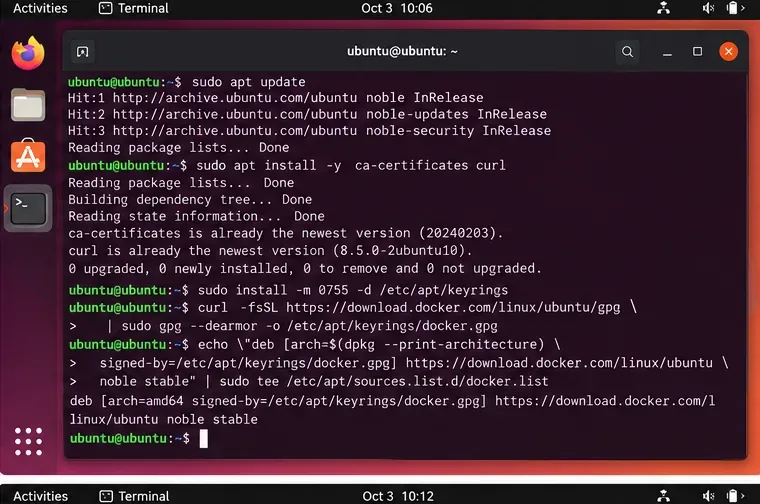
Docker를 사용하여 Ubuntu 24.04 LTS에 ONLYOFFICE Workspace Community를 설치하고, 서버를 검증하고, 포털 설정을 완료하고, HTTPS를 활성화하고, 일반적인 설정 오류를 방지하는 방법을 알아보세요.
ONLYOFFICE 스프레드시트와 Excel에서 수식 결과가 다르게 나오는 경우, 재계산, 로캘, 날짜, 배열, 링크, 반복 및 정밀도를 확인하여 문제를 해결하십시오.
macOS Sonoma에서 LibreOffice가 SMB 또는 다른 네트워크 드라이브에 저장할 때 충돌하는 문제를 해결하세요. 문서를 보호하고, 원인을 파악하고, 안전한 해결 방법을 테스트해 보세요.
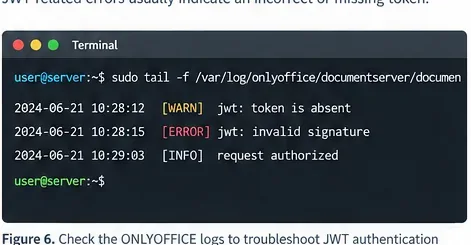
Configure ONLYOFFICE JWT authentication correctly with Docker, a persistent JWT secret, HS256 signing, connector settings, testing, troubleshooting, and safe key rotation.
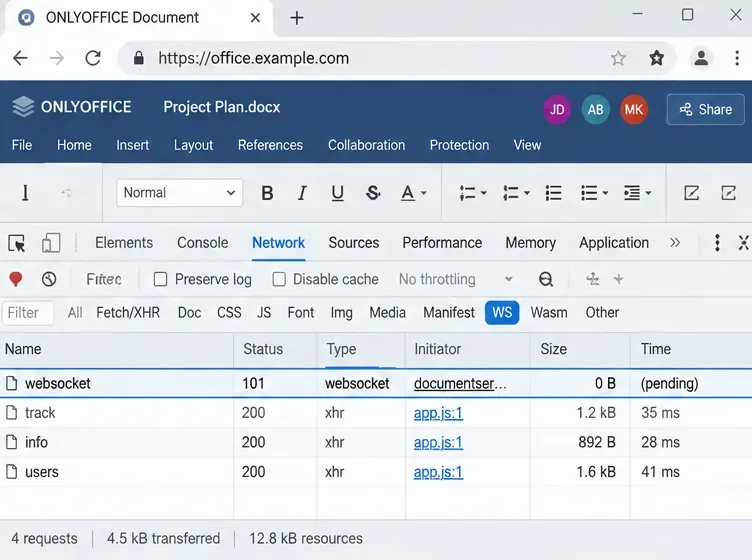
CPU, RAM, 스토리지, WebSockets, 리버스 프록시, 로그 및 버전별 아키텍처를 점검하여 자체 호스팅 Docker 서버에서 ONLYOFFICE 공동 편집 지연 현상을 진단하고 해결합니다.
Collabora CODE가 생성하는 외부 연결을 확인하고, 주기적인 업데이트 확인 및 선택적 통합을 비활성화하고, 문서 데이터 가져오기를 제한하고, WOPI 트래픽 편집 요구 사항을 유지하세요.
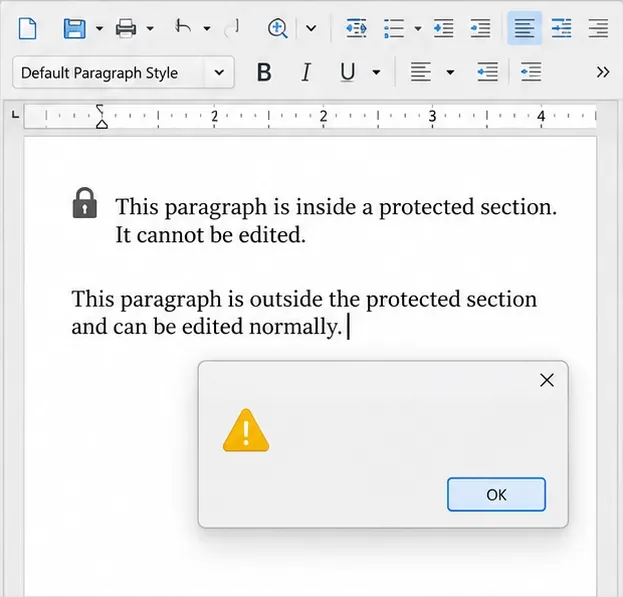
선택한 Writer 섹션을 암호로 보호하고, 읽기 전용 결과를 확인하고, 파일 암호화가 필요한 경우를 알아보세요.
ONLYOFFICE Docs와 웹용 Word를 DOCX 레이아웃, 페이지 컨트롤, 지원되는 형식, 그리고 공유 또는 인쇄 전에 서식이 제대로 적용되었는지 확인하는 실용적인 방법 측면에서 비교해 보세요.