Home
» MS-KANTOOR
»
Fix Collabora CODE Container Failing to Start on ARM64 Architecture
Fix Collabora CODE Container Failing to Start on ARM64 Architecture
If a Collabora Online Development Edition (CODE) container exits immediately on an ARM64 machine, start with architecture compatibility before changing networking, certificates, or WOPI settings. As of October 7, 2026, the official collabora/code repository lists native linux/arm64 variants for current releases, including the current latest tag and version 26.04.4.2.1. That means a modern ARM64 host normally does not need x86 emulation just to run CODE. The most useful beginner workflow is to confirm the host architecture, inspect the exact image tag, remove any forced AMD64 setting, pull an ARM64-capable image, and only then troubleshoot application-level configuration.
This guide focuses on the startup failure itself. It does not assume that every ARM64 problem has the same cause. If the container starts successfully but Nextcloud, ownCloud, or another WOPI host cannot connect to it, that is a different layer of troubleshooting.
What you need to know before changing anything
ARM64 is a 64-bit ARM CPU architecture. Linux commonly reports it as aarch64, while Docker usually labels the same target as linux/arm64. AMD64, also called x86-64, is a different CPU architecture. A container image contains binaries built for one or more architectures; Docker can automatically select the correct variant only when the image tag provides a compatible manifest.
A multi-platform image is a single image tag whose registry manifest points to separate image builds for architectures such as AMD64 and ARM64. Docker documents that, when a multi-platform image is pulled, it selects the matching variant for the host automatically. See Docker's multi-platform image documentation for the underlying behavior.
For Collabora CODE specifically, check the official collabora/code tag list on Docker Hub rather than relying on an old tutorial. When this article was checked on October 7, 2026, latest and 26.04.4.2.1 included linux/arm64, and a dedicated latest-arm64 tag was also listed. Older pinned releases may differ, so the tag you actually deploy matters more than a general claim that “Collabora supports ARM.”
Prepare a safe troubleshooting session
Keep a copy of your current docker-compose.yml or deployment command.
Record the exact Collabora image tag you are using.
Do not delete application data or reverse-proxy configuration just to diagnose an architecture mismatch.
If this is a production deployment, test a replacement tag in a maintenance window or on a staging host first.
The target result is simple: Docker should pull an ARM64 image, the container should remain running instead of exiting immediately, and its logs should progress into normal Collabora startup rather than fail with an architecture error.
Step 1: Confirm the host and Docker architecture
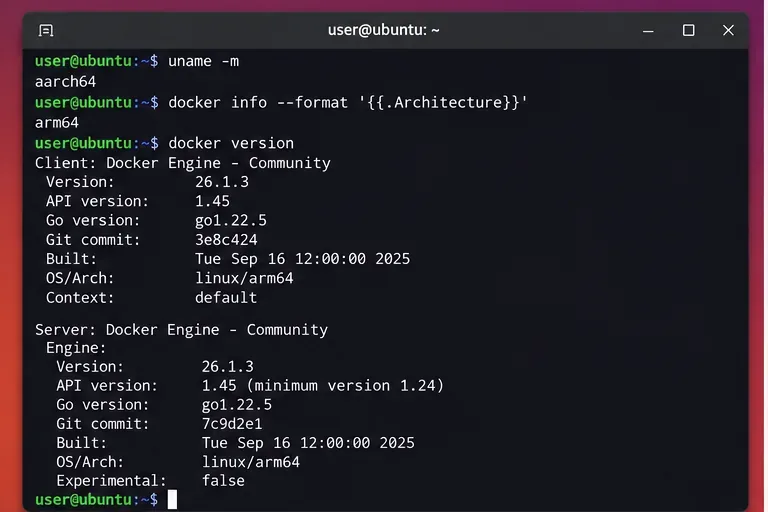
Run these checks on the machine that actually runs the Collabora container:
uname -m
docker info --format '{{.Architecture}}'
docker version
On a native 64-bit ARM Linux host, uname -m commonly returns aarch64, while Docker should report arm64. These names refer to the same architecture family in this context.
Check both the operating system and Docker daemon architecture first. A native ARM64 host typically appears as aarch64 in Linux and arm64 in Docker.
If Docker reports AMD64 even though the physical machine is ARM64, determine whether you are using a remote Docker context, a virtual machine, or Docker Desktop with a different backend. Fix that ambiguity before continuing. Otherwise you may inspect one system while deploying to another.
What error points to an architecture mismatch?
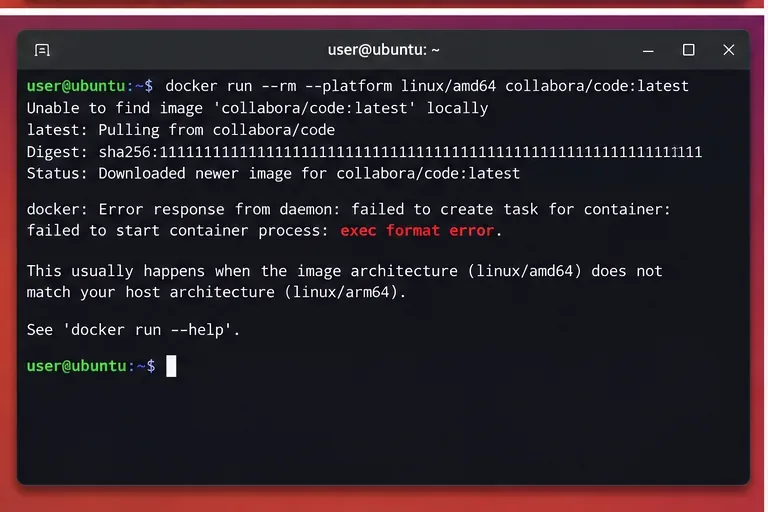
Typical signals include exec format error, a registry message that there is no matching manifest for linux/arm64, or a Compose service explicitly configured with platform: linux/amd64. These messages are stronger evidence of a platform mismatch than generic “container exited” output.
Step 2: Inspect the exact Collabora image tag before pulling it
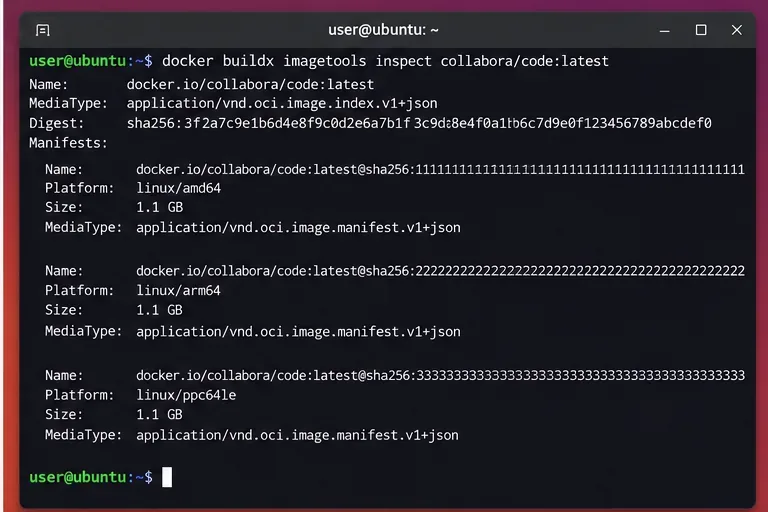
Do not assume that every historical tag has the same platform support as today's latest. Inspect the registry metadata for the tag in your deployment:
Inspect the image manifest and look specifically for linux/arm64. Current official CODE tags can be multi-platform, but an older pinned tag may not be.
If linux/arm64 appears, you can use the multi-platform tag and let Docker select the correct image. For an explicit troubleshooting test, the official repository also lists latest-arm64. For long-lived production deployments, an exact versioned tag that you have tested is usually easier to reproduce than latest, because latest moves as new releases are published.
If your pinned tag does not include ARM64, you have three choices:
Choice
Best fit
Tradeoff
Move to a current native ARM64 CODE tag
Most ARM64 servers and home labs
You must validate release compatibility and your integration settings
Stay on the old release using AMD64 emulation
Short-term compatibility testing
Extra complexity and possible performance overhead; not the preferred fix when a native image exists
Keep the old release on an AMD64 host
Strict version pinning where upgrade risk is unacceptable
Requires different hardware or VM capacity
Step 3: Remove an accidental AMD64 override and pull cleanly
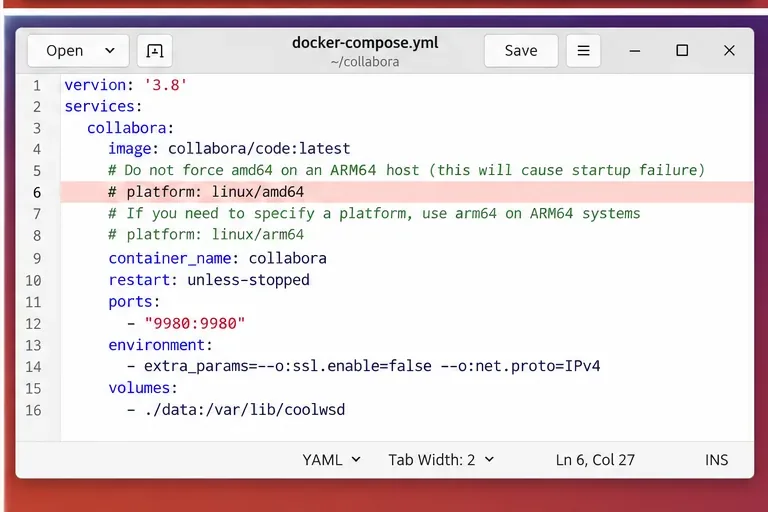
Een veelvoorkomende fout is niet de Collabora-image zelf, maar een implementatiebestand dat het verkeerde platform afdwingt. Docker Compose definieert platformhet doelbesturingssysteem en de architectuur die worden gebruikt om de imagevariant te selecteren. De servicehandleiding van Docker Compose toont waarden zoals linux/arm64/v8.
Als emulatie niet nodig is, verwijder dan die regel en laat Docker de host-native variant kiezen. Je kunt platform: linux/arm64de architectuur ook expliciet specificeren als je dat wel wilt.
Een 'exec format error' is een sterke aanwijzing dat een AMD64-binair bestand is geselecteerd op een ARM64-systeem zonder een geschikt emulatiepad.
Verwijder vervolgens alleen de defecte container en download de image opnieuw. Verwijder geen permanente gegevens, tenzij u daar een aparte reden voor hebt.
docker compose down
docker image rm collabora/code:latest 2>/dev/null || true
docker pull --platform linux/arm64 collabora/code:latest
docker compose up -d
Als u de specifieke architectuurtag gebruikt voor een diagnostische test, vervang deze dan door collabora/code:latest-arm64. Zodra u bevestigt dat de implementatie werkt, kunt u overwegen een exacte release vast te zetten, zoals een geteste 26.04.x-tag, in plaats van een productiesysteem op een wisselende tag te laten staan.
Stap 4: Controleer of CODE start voordat u problemen met de integratie oplost.
Controleer na het opnieuw aanmaken van de container de status en de logboeken:
Voor een implementatie met één container zijn de equivalente commando's docker ps -aen docker logs --tail=100 <container-name>.
Een gecorrigeerde Compose-service mag linux/amd64 niet afdwingen op een ARM64-host. Laat een multi-platform tag automatisch oplossen, of kies expliciet voor linux/arm64 wanneer nodig.
Je eerste succescriterium is dat de container actief blijft en niet langer vastloopt met een manifest- of uitvoerbaar-formaatfout. Pas daarna kun je verdergaan met de bereikbaarheid van poort 9980, de instellingen voor de reverse proxy, TLS, toegestane WOPI-hosts of applicatie-integratie. De officiële CODE Docker-documentatie van Collabora is de juiste plek om de huidige implementatieparameters te controleren.
Veelgemaakte beginnersfouten die je moet vermijden
QEMU installeren voordat de officiële image wordt gecontroleerd
Emulatie kan nuttig zijn wanneer software alleen beschikbaar is voor een andere CPU-architectuur, maar de huidige Collabora CODE-images bevatten ARM64-varianten. Het eerst toevoegen van emulatie kan het werkelijke probleem verbergen en voegt een extra component toe. Geef de voorkeur aan native ARM64 wanneer de vereiste CODE-versie dit ondersteunt.
Ervan uitgaande dat "laatste" en een oude vastgezette tag gelijkwaardig zijn.
De beschikbaarheid van een platform is gekoppeld aan een specifieke imagetag en manifest. Een recente tag kan ARM64 ondersteunen, terwijl een oudere versie dat niet doet. Controleer de exacte verwijzing in uw Compose-bestand.
Platform forceren: linux/amd64 omdat een oude handleiding dat gebruikte.
Dat kan ertoe leiden dat een ARM64-host de x86-64-variant gebruikt, zelfs als er een native ARM64-image beschikbaar is. Verwijder de override, tenzij je een bewuste, geteste reden hebt voor emulatie.
Het wijzigen van WOPI-, SSL- of proxy-instellingen voordat het proces kan worden uitgevoerd.
Er treedt een exec format errorfout op voordat Collabora de meeste configuratie-instellingen op applicatieniveau goed kan verwerken. Selecteer eerst de juiste architectuur. Netwerkproblemen en WOPI-probleemoplossing komen later aan de orde.
Volumes verwijderen tijdens de diagnose
Architectuurverschillen vereisen normaal gesproken geen verwijdering van permanente gegevens. Houd de reikwijdte van de oplossing beperkt, zodat terugdraaien eenvoudig blijft.
Wat als de ARM64-image nog steeds bestaat?
Als het manifest duidelijk de linux/arm64betreffende variant bevat en Docker deze ophaalt, is de architectuur niet langer de belangrijkste verklaring. In dat geval kunt u het volgende vastleggen:
docker compose psofdocker ps -a
de laatste 100-200 logregels
de exacte CODE-tag
uw Docker Engine- en Compose-versies
de niet-geheime onderdelen van uw Compose-servicedefinitie
Onderzoek vervolgens de machtigingen, gekoppelde paden, beveiligingsprofielen, geheugenbelasting, poortconflicten, certificaten of WOPI-configuratie aan de hand van het logbericht. Vermijd het herhaaldelijk wisselen van architectuur zodra u hebt gecontroleerd of de actieve image ARM64 is.
Een praktisch beslissingspad
Als de host geen ARM64 is, stop dan met het gebruik van een ARM64-specifieke oplossing en onderzoek het werkelijke platform.
Als de host ARM64 is, maar de gekozen CODE-tag geen ARM64-manifest heeft, ga dan over op een ondersteunde native tag of kies bewust een andere hostingstrategie.
Als de tag ARM64 ondersteunt, maar Compose AMD64 afdwingt, verwijder of corrigeer dan de platforminstelling.
Als de correcte ARM64-image nog steeds bestaat, beschouw dit dan als een normaal opstartprobleem van Collabora en raadpleeg de logbestanden in plaats van de CPU-architectuur de schuld te blijven geven.
Kortom
Op een modern ARM64-systeem is emulatie meestal niet de beste oplossing. Zoals bevestigd op 7 oktober 2026, bevatten de huidige officiële Collabora CODE-tags native ARM64-images. Controleer aarch64/ arm64op de host, inspecteer het exacte imagemanifest, verwijder verouderde of geforceerde AMD64-referenties, download de ARM64-compatibele image opnieuw en controleer of de container blijft draaien. Deze stappen maken het oplossen van problemen gebruiksvriendelijk voor beginners en voorkomen dat ongerelateerde SSL-, proxy- of WOPI-wijzigingen een fundamentele platformmismatch maskeren.