修正 ONLYOFFICE 文件伺服器在 VPS 上記憶體不足的問題
診斷 VPS 上的 ONLYOFFICE Docs 記憶體錯誤,檢查主機和 Docker 限制,查看日誌和遺忘的文檔,安全地添加交換空間,並在不影響正在進行的編輯的情況下重新啟動。
A good ONLYOFFICE LDAP or Active Directory integration is not finished when the connection saves successfully. The result you want is more specific: the intended users are imported, their names and email addresses map correctly, group membership produces the expected access model, domain users can sign in with their directory credentials, and later directory changes reach ONLYOFFICE without unexpectedly disabling unrelated accounts.
This guide uses the current ONLYOFFICE Workspace Server workflow as the main path. ONLYOFFICE DocSpace also supports LDAP, but its navigation and some available fields differ; LDAP in DocSpace is currently documented as a Business-plan feature. If you are using DocSpace rather than Workspace, use the corresponding ONLYOFFICE DocSpace LDAP documentation instead of assuming every Workspace screen is identical.
For Workspace Server, the source reference is the current ONLYOFFICE Workspace LDAP configuration guide. The screenshots below are configuration-oriented views of the documented settings; exact spacing and navigation can vary with the ONLYOFFICE release and product edition.
Define the expected result first. For example, suppose Active Directory contains 420 employees, but only the 180 users under OU=Staff,DC=example,DC=com should enter ONLYOFFICE. You also want the ONLYOFFICE-Admins group to receive administrative access, while ordinary employees remain standard portal users.
A successful configuration should satisfy all of these checks:
If you cannot state the expected user count, group count, and two or three test identities before the import, pause and obtain those values from the directory administrator. They make validation much easier than judging success from a green status message alone.
In ONLYOFFICE Workspace Server, open the Control Panel, then the LDAP page under Portal Settings, and enable LDAP authentication. The documented connection options are regular LDAP, StartTLS, or SSL/LDAPS. StartTLS normally uses port 389, while SSL/LDAPS uses port 636.
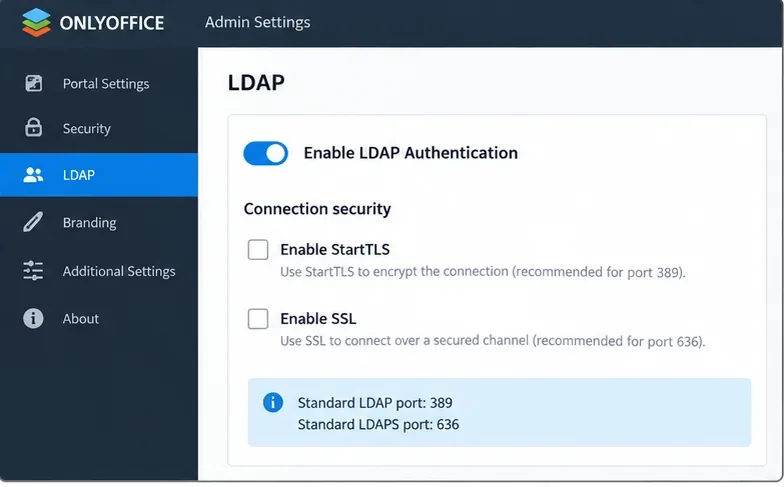
Use encrypted transport whenever your directory policy supports it. A working plaintext LDAP connection is not equivalent to a production-ready result if credentials or directory data traverse an untrusted network.
Quality check: confirm with the directory administrator whether the server expects StartTLS on 389 or LDAPS on 636, and whether the ONLYOFFICE host trusts the directory server’s certificate chain.
The core user-import fields determine both who is visible to ONLYOFFICE and how those users sign in. For Active Directory, ONLYOFFICE documents these defaults:
(userPrincipalName=*)sAMAccountNameThe User DN is the starting point for the directory search. A broad DN such as DC=example,DC=com searches a larger tree; a narrower DN such as OU=Staff,DC=example,DC=com limits the scope before the filter is applied.
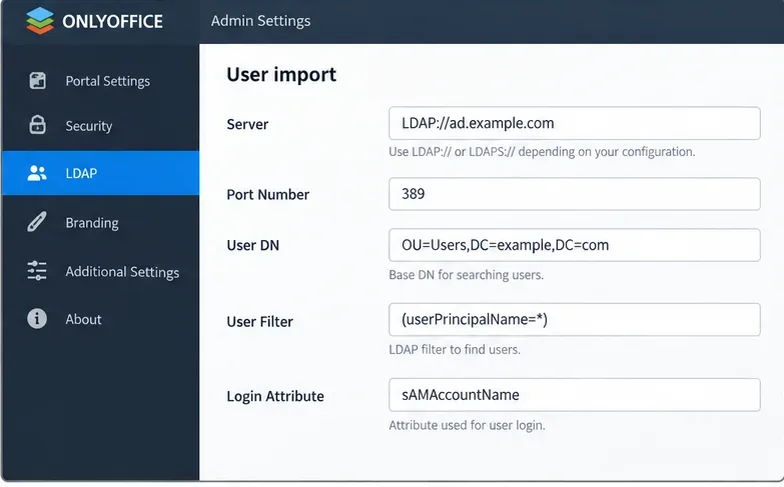
(userPrincipalName=*) filter with sAMAccountName as the login attribute unless your directory design requires something different.A common quality problem is starting with the entire directory because it is convenient, then trying to exclude service accounts and test identities later with a complicated filter. If organizational units already separate the intended population, use the narrowest stable User DN that represents the business scope.
Quality check: compare the expected population from that DN and filter with the people you actually intend to provision. If the scope is wrong, correct it before importing.
ONLYOFFICE allows directory attributes to populate portal fields such as First Name, Second Name, Mail, Title, Primary Mobile Phone, and Location. The exact attribute names depend on your LDAP schema. In Active Directory, common examples include givenName, sn, mail, title, and mobile.
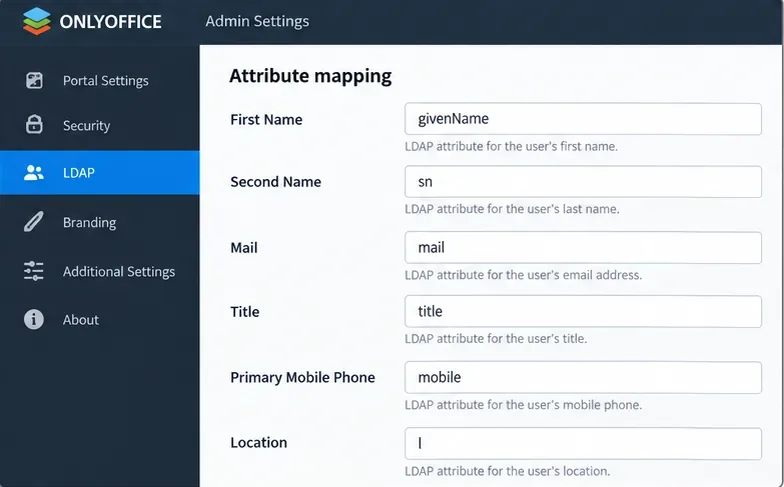
Email deserves special attention. ONLYOFFICE states that the portal email is taken from the Mail Attribute; if it is missing, an address can be formed from the Login Attribute and LDAP Domain. It also notes that an existing portal user with the same email can be synchronized with the LDAP user.
品質檢查:導入前至少檢查五個代表性的目錄記錄,包括管理員、普通員工和來自不同組織部門的使用者。驗證映射屬性是否一致。
僅當 ONLYOFFICE 需要匯入 LDAP 群組並將其用於入口網站組織或權限時才啟用群組成員資格。對於 Active Directory,ONLYOFFICE 文件如下:
(objectClass=group)distinguishedNamemember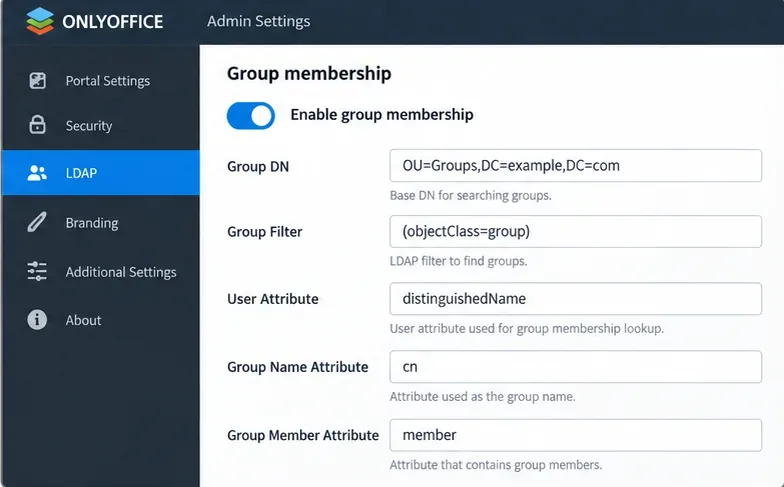
cn這是一個常見範例,但並非普遍要求。ONLYOFFICE 記錄了一個重要的行為:啟用群組匯入後,只有屬於至少一個選定群組的使用者才會被新增。這對於控制存取權限非常有用,但對於期望僅憑使用者 DN 即可控制匯入的管理員來說,這可能會讓他們感到驚訝。
品質檢查:選擇三個使用者:一個屬於已匯入的群組,一個屬於多個群組,一個不屬於任何已匯入的群組。在同步之前預測結果,然後比較實際結果。
Workspace Server 可以將管理存取權限對應到 LDAP 群組。這便於集中管理,但也意味著目錄群組的變更可能會影響入口網站權限。
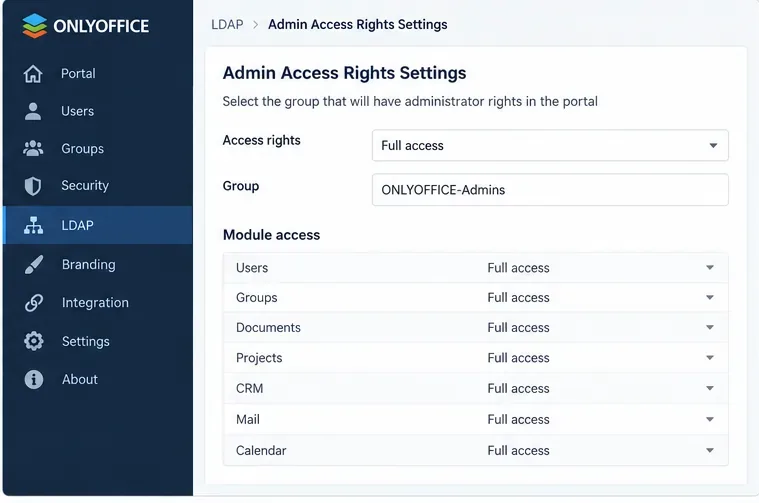
首先從符合您營運模式的最小管理群組開始。在將其用於特權存取之前,請先在您自己的目錄中驗證其成員資格和嵌套群組的行為。
品質檢查:確認指定的管理員已獲得預期權限,而普通導入使用者未獲得相應權限。如果權限超出預期,請在部署前停止操作並修正目錄群組或對應關係。
ONLYOFFICE Workspace 為具有讀取目錄資料權限的憑證提供了一種驗證選項。請使用具有搜尋範圍所需最低讀取權限的專用目錄帳戶,而不是網域管理員帳戶。
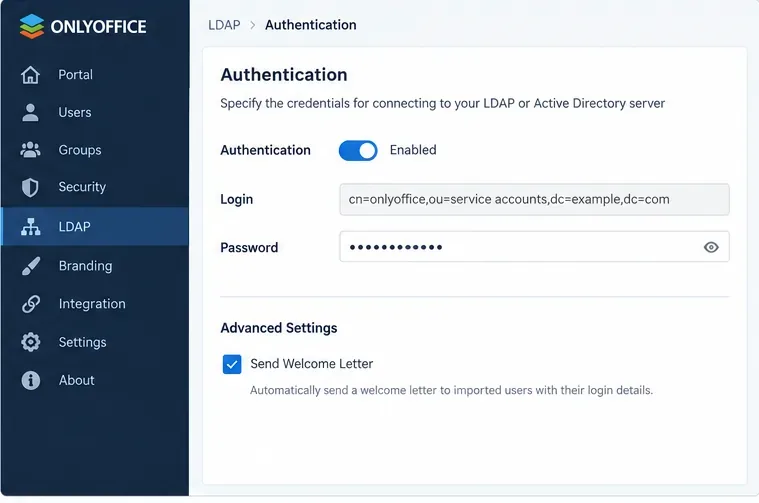
請根據貴組織的服務帳戶策略儲存並輪換該憑證。如果密碼靜默過期,即使 LDAP 設定本身未更改,同步也可能失敗。
品質檢查:驗證綁定帳戶是否可以搜尋配置的使用者 DN 和群組 DN,但沒有不必要的目錄寫入或管理權限。
儲存 LDAP 設定時,ONLYOFFICE 會在匯入使用者之前顯示確認資訊。請勿將此視為例行操作。在使用者匯入後更改伺服器、使用者篩選器、使用者 DN、群組篩選器或群組 DN 可能會產生重大影響:官方 Workspace 文件警告稱,已匯入但不再與新設定相符的使用者及其資料可能會被停用。
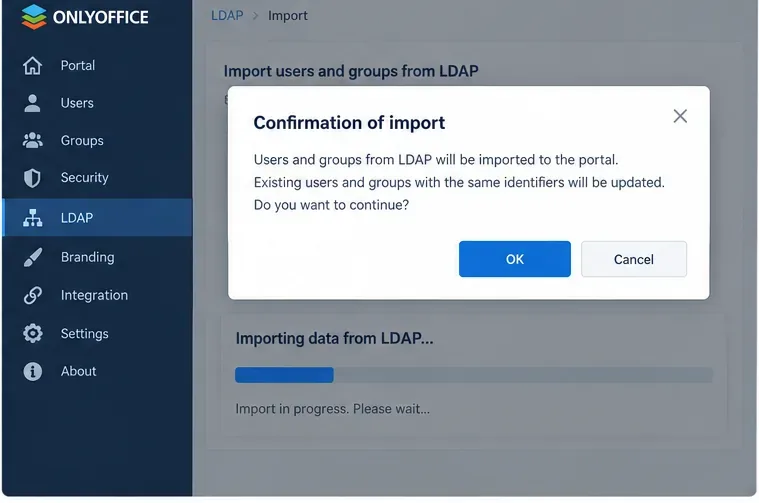
請依照 ONLYOFFICE 的明確建議,在變更已建立的 LDAP 作用域之前,請務必備份入口網站。對於首次部署,建議先在一個較小的測試組織單元或測試組中進行測試,驗證結果後再擴大範圍。
品質檢查:導入後,將實際使用者和群組與預期清單進行比較。檢查樣本用戶資料,而不僅僅是總數。
ONLYOFFICE 可依指定時間(每小時、每天、每週或每月)自動同步 LDAP 資料。它還提供手動同步功能。文件指出,單一 LDAP 使用者的資訊也會在其登入後自動同步。
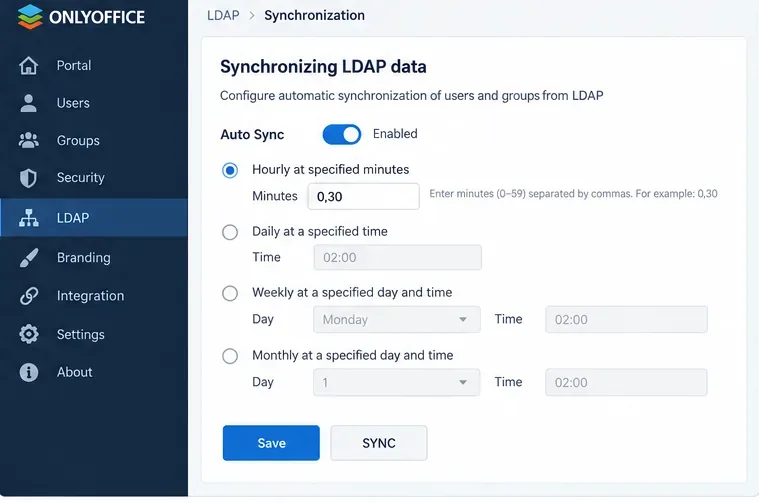
對於大多數組織而言,首先應制定一個可預測的同步計劃,以便管理員有時間在目錄錯誤反覆傳播之前發現它們。更頻繁的同步並非一定更好;應根據身分變更必須多快到達 ONLYOFFICE 以及目錄流程的控制可靠性來選擇同步間隔。
品質檢查:在目錄中進行一次安全的測試更改,例如更改測試使用者的標題,執行手動同步,並驗證更新。然後單獨測試計畫同步。
ONLYOFFICE Workspace 文件中提供了三種匯入 LDAP 使用者的登入表單:
LoginAttribute, 例如Andrew.StoneLoginAttribute@LDAPDomain, 例如Andrew.Stone@example.comLDAPDomain\LoginAttribute, 例如example\Andrew.Stone使用非管理員使用者和管理員使用者進行測試。僅憑目錄綁定成功並不能證明匯入的使用者能夠透過入口網站使用預期的登入表單進行身份驗證。
| 觀察到的結果 | 它暗示了什麼 | 下一步行動 |
|---|---|---|
| 連線正常,但出現的用戶太多。 | 用戶 DN 或用戶過濾器範圍過廣。 | 生產導入前縮小搜尋範圍。 |
| 使用者數量正確,但姓名或電子郵件地址為空。 | 屬性映射與您的目錄資料不匹配 | 檢查實際目錄記錄並修正映射關係。 |
| 啟用群組同步會從匯入過程中移除預期使用者。 | 這些用戶不屬於匯入的群組 | 審查群組 DN、群組篩選器和成員資格設計。 |
| 使用者匯入但無法登入 | 登入屬性、LDAP 網域、綁定/驗證或目錄原則可能有錯誤 | 測試文件中記錄的登入格式,並驗證目錄帳戶和 TLS 路徑。 |
| 手動同步有效,但計劃的變更不會顯示。 | 自動同步計劃或作業執行需要檢查 | 確認計劃,運行手動同步,並比較時間戳記和受控測試變更。 |
| 範圍變更將排除現有的 LDAP 用戶 | 此變更可能會停用新範圍之外的帳戶。 | 先退一步,用一小群受控人群測試新的瞄準鏡。 |
LDAP 同步是一種身分和目錄集成,並不能取代精心設計的授權機制。它可以導入使用者、群組、屬性和基於目錄的身份驗證,但結果的品質很大程度上取決於來源目錄的結構和完整性。
此外,ONLYOFFICE 產品之間也存在差異。 Workspace Server 透過其控制台公開 LDAP,並支援上述設定。 DocSpace 則擁有自己的 LDAP 頁面和文件化的字段,包括 DocSpace 特有的映射,例如用戶類型和初始用戶配額;目前 ONLYOFFICE 已將此功能列為付費商業計劃的可用功能。請勿假定 Workspace 的螢幕截圖或選項在 DocSpace 中會保持不變。
這些檢查通過後,整合就不僅僅是「連接到 LDAP」那麼簡單了。它會產生您預期的使用者群體、身分資料、群組結構、身分驗證行為和同步結果。如果任何結果出現偏差,請在提高同步頻率或擴大部署範圍之前,修正目錄範圍或對應關係。
診斷 VPS 上的 ONLYOFFICE Docs 記憶體錯誤,檢查主機和 Docker 限制,查看日誌和遺忘的文檔,安全地添加交換空間,並在不影響正在進行的編輯的情況下重新啟動。
透過測試鍵盤快速鍵、瀏覽器剪貼簿權限、HTTPS、iframe 策略和內容格式,檢視 Collabora Online 與本機應用程式之間的複製和貼上問題。
透過以安全順序檢查顯示縮放、應用程式介面縮放、字體可用性和渲染範圍,修復 Linux 上 ONLYOFFICE 桌面編輯器中的模糊文字。
學習如何新增 Writer 表單控制項、設定標籤和製表符順序、啟用「建立 PDF 表單」功能匯出,以及在共用之前測試互動式 PDF。
了解如何在 ONLYOFFICE Workspace、DocSpace 或 Docs 整合中封鎖列印和下載,並驗證哪些控制適用於每種共用方法。
排查 Nginx 後端 ONLYOFFICE 文件伺服器的 502 錯誤。檢查服務運作狀況、日誌、上游連接埠、轉送的標頭、WebSocket 和 Docker 網路。
透過檢查正確的入口網站或 WebDAV URL、網路存取、HTTPS、憑證和伺服器路由,排查 ONLYOFFICE Documents 逾時到自架伺服器的問題。
將自訂的 LibreOffice Writer 模板設為預設模板,更新或重設該模板,並驗證新文件是否使用您喜歡的樣式和頁面佈局。
透過區分轉換、瀏覽器下載和伺服器問題來排查 ONLYOFFICE PDF 匯出失敗問題,然後驗證已儲存的 PDF 是否可以開啟並保留其佈局。
安全地從 Linux 系統中移除 ONLYOFFICE 文件伺服器。請按照軟體包、Docker、Snap 和 Kubernetes 的卸載步驟進行操作,保留數據,並驗證殘留服務。