How to Connect ONLYOFFICE Desktop Editors to an ownCloud Server
Connect ONLYOFFICE Desktop Editors to your ownCloud server, sign in, open cloud files, manage the connection, and troubleshoot common setup issues.
When Collabora Online suddenly uses most of a server's CPU, the most important first step is not to restart it repeatedly or immediately impose a very low CPU limit. First determine whether the load comes from normal document work, one pathological document session, too much parallel work, an idle session that is not being cleaned up, or a version-specific regression. The process name may be coolwsd on current releases and loolwsd on older installations.
Illustrative scenario: imagine an 8-vCPU server running Collabora Online behind Nextcloud. Only a few people appear to be editing documents, but the Collabora container sits around 250% to 350% CPU for several minutes. This is a hypothetical example used throughout this guide, not a measured benchmark or a report from a real deployment.
As of October 2026, Collabora's current stable branch is 26.04, and the official release notes list Collabora Online 26.04.3.3 as released on September 14, 2026. Current configuration templates use the coolwsd name. Collabora's migration tooling still documents the older /etc/loolwsd/loolwsd.xml path for installations from the 6.4 era or earlier, which is why administrators may still encounter both names.
Start at the operating-system or container level. A high number beside coolwsd does not automatically mean the coordinating daemon itself is doing all of the expensive document work. Collabora also runs kit/forkit processes for document sessions, so you want the process tree and per-process CPU usage before changing configuration.
ps -eo pid,ppid,pcpu,pmem,etime,cmd --sort=-pcpu | head -n 25
top -H -p $(pgrep -d, -f 'coolwsd|loolwsd|coolkit|loolkit|forkit')
For Docker, also check the container as a whole:
docker stats --no-stream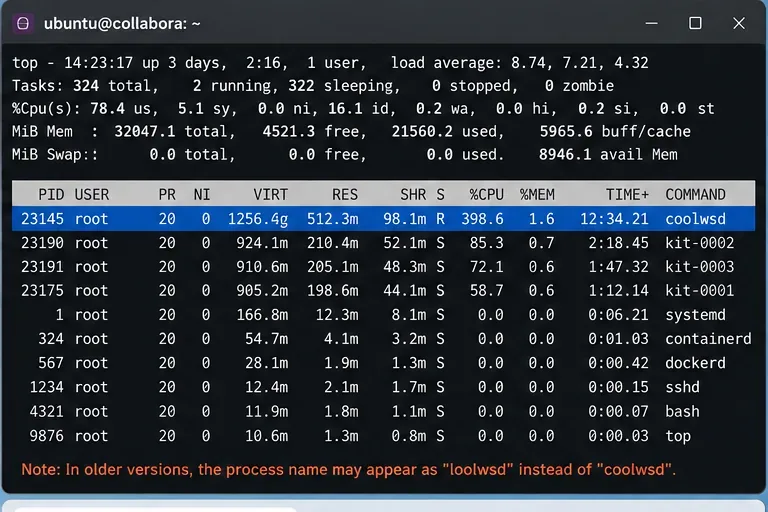
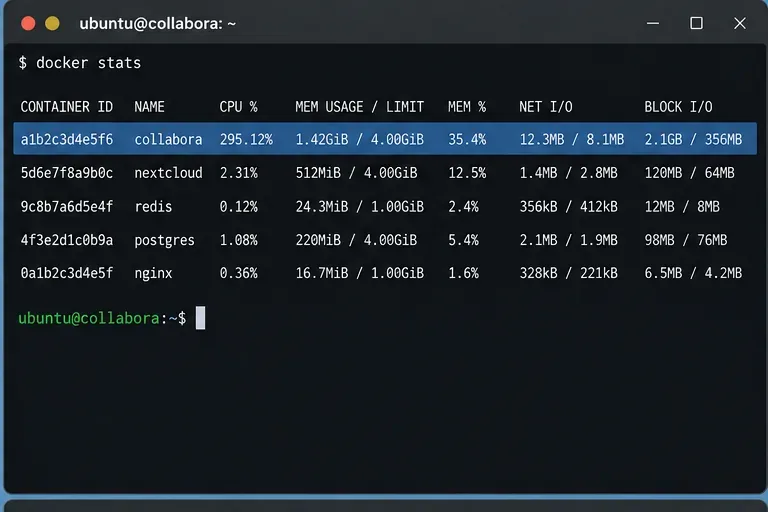
In the illustrative scenario, suppose the container is near 300% CPU and one kit process is consistently at the top of the process list. That points you toward a specific active document session rather than a generic assumption that the entire server is overloaded.
Collabora Online exposes Prometheus-compatible metrics at /cool/getMetrics. The current SDK manual says this endpoint can report CPU and memory use, running kit processes, views, and other server-usage data. It uses the same authentication as the admin console unless metrics are explicitly configured for unauthenticated access.
不要為了簡化故障排除而公開指標端點。官方 Helm 設定甚至包含了/cool/getMetrics入口處的阻塞和管理 URL 範例。盡可能使用經過身份驗證的內部路徑。
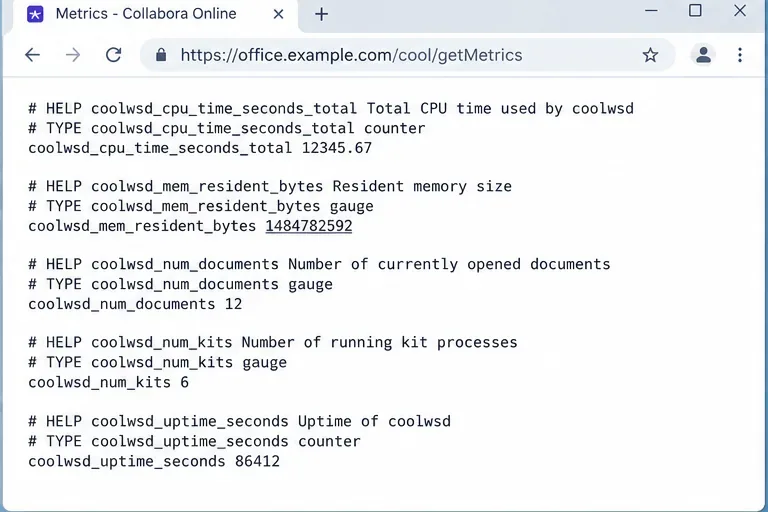
查看 CPU 使用率與活動文件或視圖之間的關係。如果 CPU 使用率隨著正常的編輯活動而波動,則可能存在容量或併發問題。如果 CPU 使用率在沒有相應互動操作的情況下持續高位運行,則應檢查是否有過期會話、問題文件、重複的後台任務或軟體問題。
對於由 systemd 管理的軟體包安裝:
journalctl -u coolwsd --since "15 minutes ago" --no-pager
journalctl -u coolwsd -f
對於 Docker:
docker logs collabora --since 15m
docker logs -f collabora
如果您的服務或容器名稱不同,請替換為正確的名稱。檢查是否有重複的文件載入、重複的工具包建立、儲存失敗、當機、重連迴圈或相同的文件鍵反覆出現等情況。文件開啟、重新計算、渲染、轉換或匯出期間短暫的 CPU 使用率升高可能是正常的。更嚴重的警訊是 CPU 使用率持續升高但沒有任何實際進展或重複出現相同的故障。
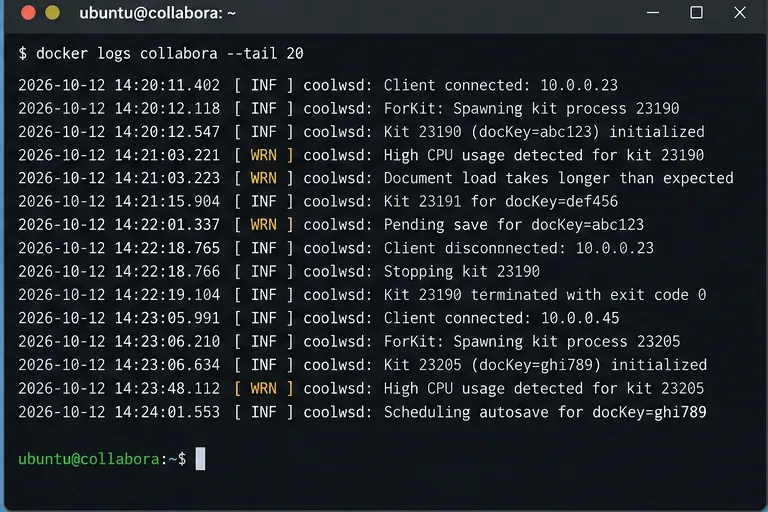
返回假設的伺服器。如果某個工具包進程佔用大量資源,請關閉或隔離可疑文檔,並觀察 CPU 使用率是否下降。然後在伺服器空閒時開啟同一個文件,同時監控進程清單和相關指標。使用一個簡單的測試文件重複上述步驟。
這種比較方法比立即重啟整個服務更有意義:
目前的 Collabora 配置範本規定了per_document.max_concurrency處理文件時使用的最大線程數。模板預設值為 4。在配置較低的主機上,或單一複雜文件佔用大量資源時,降低此值可以使 CPU 使用率更可預測。
例如,您可以測試值 2:
<per_document>
    <max_concurrency>2</max_concurrency>
</per_document>
不要盲目地將數值設為 2。如果使用者經常處理大型電子表格或簡報,且伺服器擁有充足的 CPU 核心,那麼較低的數值反而可能導致運作速度變慢。請先更改一項設置,然後重複相同的工作負載,並比較 CPU 使用率、反應速度和完成時間。
目前coolwsd.xml範本包含針對佔用資源的空閒文件的清理邏輯。截至撰寫本文時,此範本的清理檢查間隔為 10,000 毫秒,異常行為持續時間為 60 秒,空閒閾值為 300 秒,CPU 使用率閾值為 85%(文件達到該閾值後將被標記為需要清理)。此外,此範本還為每個文件設定了 3,600 秒的空閒逾時時間。
此範本包含針對每個視圖的逾時設定。目前值顯示,失去焦點的瀏覽器視圖在 300 秒後會變暗並停止更新,而不活動的視圖在 900 秒後會採取類似處理。這些視圖逾時設定與立即卸載整個文件會話不同。
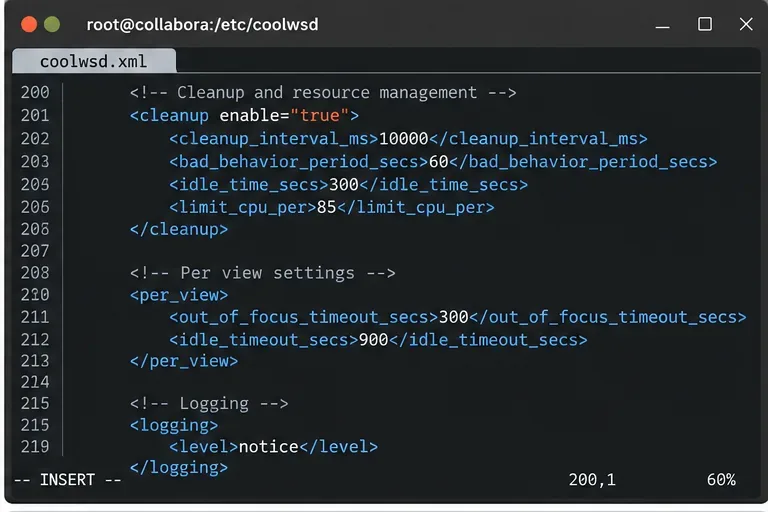
避免為了讓圖表看起來更好而將 CPU 閾值設定得太低。清理的目的是捕獲消耗資源的無效或閒置文檔,而不是在計算量過大時終止正常的編輯操作。
請先備份當前配置。軟體包安裝通常使用/etc/coolwsd/coolwsd.xmlDocker。 Docker 部署可能會將選項作為環境變數或命令列參數傳遞,或將設定檔掛載到容器中。在編輯任何內容之前,請確認目前使用的來源是什麼。
軟體包安裝:
sudo cp /etc/coolwsd/coolwsd.xml /etc/coolwsd/coolwsd.xml.before-cpu-tuning
sudo systemctl restart coolwsd
systemctl status coolwsd --no-pager
對於 Docker 容器:
docker restart collabora
docker ps --filter name=collabora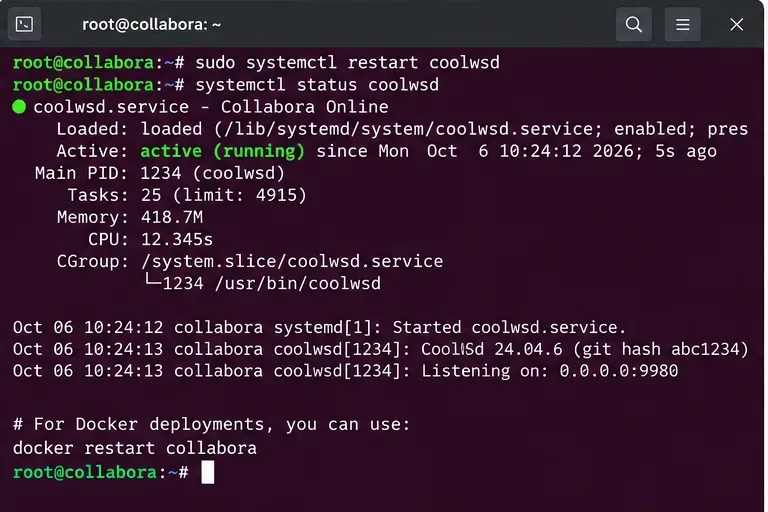
如果重新啟動電腦後CPU問題暫時解決,但問題反覆出現,這只能提供診斷訊息,並非永久解決方案。請繼續排查,直到能夠解釋是什麼工作負載或狀態導致了問題再次出現。
使用相同的文件、大致相同的使用者數量和相同的操作順序。測量時間應持續幾分鐘,而不是僅比較某一瞬間的表現。在範例場景中,成功意味著在重現的工作負載期間,伺服器不再處於飽和狀態,同時文件的開啟、編輯、儲存和協作功能仍然能夠正常運作。

| 觀察 | 可能的下一步行動 |
|---|---|
| 一份文件或工具包保持熱度 | 使用該文件重現問題,保留日誌,並在當前穩定的微版本上進行測試。 |
| CPU追蹤活躍用戶數量 | 應該審查容量、並發性和部署規模,而不是將負載視為洩漏。 |
| 用戶離開後,CPU 使用率仍然很高。 | 檢查空閒文件、清理行為、重複的後台作業以及孤立的或重新啟動的工具包。 |
| 升級後立即開始出現 Spike 問題 | 在變更大量調優值之前,請記錄確切的版本號,並查看目前的發行說明和已知問題。 |
| 降低 max_concurrency 值可以減少 CPU 使用率,但編輯速度會變慢。 | 逐步增加或增加 CPU 容量;此設定是一種權衡,並非萬能的解決方案。 |
如果該問題始於某個特定的 Collabora 版本,而您可以使用特定檔案或操作重現該問題,則設定調整可能只是掩蓋了軟體缺陷。 Collabora 建議使用目前穩定分支中的最新版本。截至 2026 年 10 月 7 日,官方 26.04 版本說明頁面列出的最新 Collabora Online 版本為 26.04.3.3。
對於 CODE 用戶,請記住 Collabora 將開發版描述為適用於小型團隊、家庭使用、開發以及嘗試新功能,但並不適用於生產環境。因此,如果 CODE 出現生產環境問題,則應考慮遷移到受支援的 Collabora Online 產品,而不是無休止地調整開發版的行為。
coolwsd數值高就一定存在記憶體洩漏或無限循環。coolwsd舊版本loolwsd進程還是子套件/forkit 進程。per_document.max_concurrency僅當某個文件佔用過多並行 CPU 資源時才進行測試。本指南中的設定詳情是基於目前的 Collabora Online 來源範本:Collabora Online coolwsd.xml 設定範本。官方 SDK 手冊詳細介紹了日誌記錄、效能控制以及與 Prometheus 相容的指標端點:Collabora Online SDK 手冊。版本檢查請參考廠商發布的Collabora Online 26.04 版本說明。開發版的預期用途請參閱官方CODE 26.04 版本公告。
實際目標並非強迫 Collabora Online 盡可能減少 CPU 使用率,而是讓 CPU 消耗量可解釋且與有效工作量成正比,同時維持可接受的編輯和協作效能。
Connect ONLYOFFICE Desktop Editors to your ownCloud server, sign in, open cloud files, manage the connection, and troubleshoot common setup issues.
Troubleshoot high Collabora Online CPU usage by identifying busy kit processes, checking metrics and logs, tuning concurrency and cleanup, and verifying fixes safely.
了解如何使用標題標誌和介面顏色自訂 ONLYOFFICE Docs 品牌,包括許可證限制、主題 JSON 設定、Docker 路徑和測試。
要修復 LibreOffice Calc 中難以閱讀的文本,請檢查應用程式主題、單元格字體和填充顏色、樣式和條件格式,然後驗證列印輸出。
安全地清除 LibreOffice 的未知用戶鎖定警告。檢查活動會話,保護副本,僅移除已驗證的過期鎖定,並測試文件。
修正 LibreOffice Writer 中阿拉伯語或希伯來文本的排版、對齊或與英語混合不正確的問題。啟用複雜文字佈局,設定段落方向,並檢查結果。
Learn VLOOKUP and XLOOKUP in LibreOffice Calc, including exact matches, left lookups, not-found results, reverse search, INDEX/MATCH alternatives, and common errors.
透過檢查發現金鑰、金鑰輪換、代理 URL、時間戳記和主機允許清單來排查 Collabora Online WOPI 證明驗證失敗問題。
在 ONLYOFFICE 文件中為所有人啟用「追蹤變更」功能,在重新開啟後保持其活動狀態,並了解全域預設設定的限制。
比較 Collabora Online 的每次檢視逾時、失焦逾時、文件空閒逾時、自動儲存逾時和代理程式逾時,然後選擇並驗證適合您部署的設定。