如何在 LibreOffice 中停用遙測和資料收集
了解如何停用 LibreOffice 崩潰報告、線上更新用戶代理程式資料和可選的自動更新檢查,以及如何驗證設定。
ONLYOFFICE Docs Enterprise can run as a Docker Compose deployment using the official Docker-DocumentServer repository. The key is to start with the Enterprise-specific Compose file, then set persistent storage, a stable JWT secret, and the license file before treating the server as production-ready. This installs Docs, the online editing service; it does not install the complete ONLYOFFICE Workspace portal.
The steps below were checked against ONLYOFFICE’s Enterprise Docker guide and the official repository on October 6, 2026. The repository’s default branch can change, so for a long-lived server, check out an approved release or tag and keep that version with your deployment notes.
| Item | What to prepare |
|---|---|
| Host | 64-bit amd64 Linux; ONLYOFFICE lists a dual-core 2 GHz CPU or better, 4 GB RAM or more, 40 GB free disk space, and at least 4 GB swap, depending on the host OS. |
| Container tools | Docker Engine and the Docker Compose CLI plugin. Confirm Compose with docker compose version. |
| Enterprise entitlement | A valid Enterprise license file, license.lic, from ONLYOFFICE for the full licensed version. |
| Network | A hostname for the Docs service, a plan for HTTPS, and inbound access limited to the ports your deployment needs. |
ONLYOFFICE’s current Enterprise guide lists those host requirements. Capacity needs rise with concurrent users, document complexity, and integrations, so treat the vendor’s baseline as a starting point rather than a sizing guarantee.
If Docker Engine is already installed on Debian or Ubuntu from Docker’s package repository, install the Compose plugin with:
sudo apt-get update
sudo apt-get install docker-compose-plugin
docker compose version
For another Linux distribution, follow Docker’s current installation instructions for that distribution. The current plugin uses the spaced command docker compose; the older standalone command docker-compose is maintained for backward compatibility and is not the path used by ONLYOFFICE’s Enterprise command shown here.
Clone ONLYOFFICE’s repository and enter its directory. If your change-management policy requires a fixed version, check out the approved release tag after cloning and before editing files:
git clone https://github.com/ONLYOFFICE/Docker-DocumentServer.git
cd Docker-DocumentServer
# Optional: select the approved release tag for your deployment
git checkout <release-tag>
Confirm that the checked-out revision contains docker-compose.enterprise.yml. Do not substitute docker-compose.yml, which is the Community Edition Compose file in this repository.
首次啟動前,請檢查設定檔docker-compose.enterprise.yml。在目前的官方文件中,應用程式和 PostgreSQL 服務使用範例資料庫密碼,並且 JWT 相關行已被註解掉。請在應用程式的DB_PWD設定和 PostgreSQL 的設定中,將範例資料庫密碼替換為強密碼POSTGRES_PASSWORD。兩者必須匹配。取消註解或新增JWT 相關行JWT_ENABLED=true,並設定一個長且唯一的JWT_SECRETJWT 金鑰。請將此 JWT 密鑰保留給將與 Docs 整合的應用程式或連接器。
產生密鑰而不是重複使用登入密碼。例如,執行命令openssl rand -hex 32並將輸出放在一個私有的環境文件中,然後在 Compose 文件中引用該文件,例如 `<environment_file>` 和 ` ${JWT_SECRET}<environment_file> ${DB_PASSWORD}`。保護該環境文件免受其他主機使用者的訪問,並且不要將其提交到 Git。關鍵設定的概念是:
# In a private .env file beside the Compose file
JWT_SECRET=replace_with_a_long_random_value
DB_PASSWORD=replace_with_a_different_long_random_value更新資料庫密碼條目,使其指向正確的路徑${DB_PASSWORD},並將伺服器環境變數設定為JWT_ENABLED=true對應的值JWT_SECRET=${JWT_SECRET}。上游 Compose 檔案已定義了其內部的 PostgreSQL、RabbitMQ 和 Redis 服務;如果您對其進行自訂,請保持相關的服務名稱和依賴項一致。
將重要的應用程式資料持久化到主機上。在onlyoffice-documentserver服務中,將匿名卷條目替換為/var/www/onlyoffice/Data綁定/var/log/onlyoffice掛載,例如:
volumes:
  - ./data:/var/www/onlyoffice/Data
  - ./logs:/var/log/onlyoffice
除非有經過驗證的理由,否則請保留官方文件中定義的其他卷條目和指定的 PostgreSQL 卷。建立主機目錄並將收到的許可證複製到已掛載的資料目錄中:
mkdir -p data logs
cp /secure/path/license.lic data/license.lic
確保容器可以讀取許可證並寫入其資料和日誌路徑。檔案所有權要求可能因鏡像和主機而異;如果遇到權限錯誤,請檢查執行容器的使用者和官方倉庫說明,而不是套用寬泛的權限。將許可證和密鑰放在公共 Web 根目錄和原始碼控制系統之外。
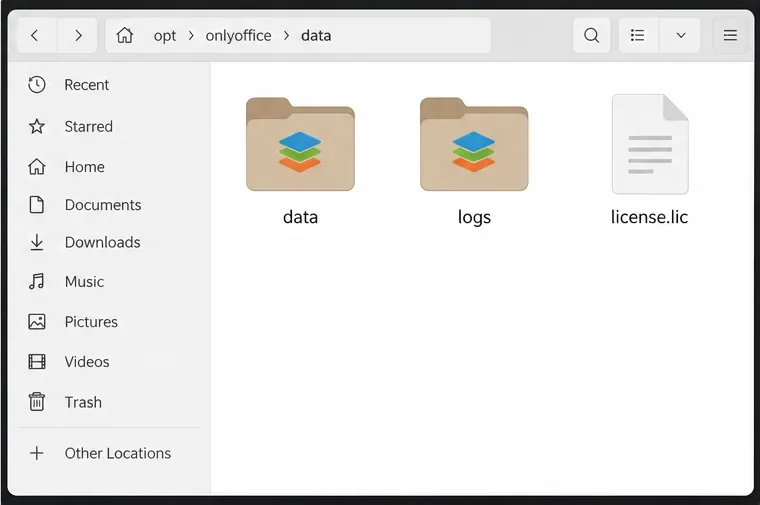
從倉庫目錄中,驗證 Compose 配置,然後啟動企業堆疊:
docker compose -f docker-compose.enterprise.yml config
docker compose -f docker-compose.enterprise.yml up -d
第一條指令檢查 Compose 是否可以解析該檔案並解析其中的變數。它會列印已解析的金鑰,因此請在私人終端中執行此命令,切勿將其輸出貼到公用日誌或支援論壇中。第二條指令建置或啟動 Enterprise 檔案中所述的服務。官方定義包括文件伺服器及其 PostgreSQL、RabbitMQ 和 Redis 依賴項。
查看服務狀態和最新消息:
docker compose -f docker-compose.enterprise.yml ps
docker compose -f docker-compose.enterprise.yml logs --tail=100 onlyoffice-documentserver
尋找處於重新啟動或不健康狀態的容器、資料庫身份驗證失敗、缺少許可證訊息或權限錯誤。標記為「運行中」的服務可以作為其容器進程正在運行的有用證據;但這本身並不能證明瀏覽器編輯或外部整合有效。
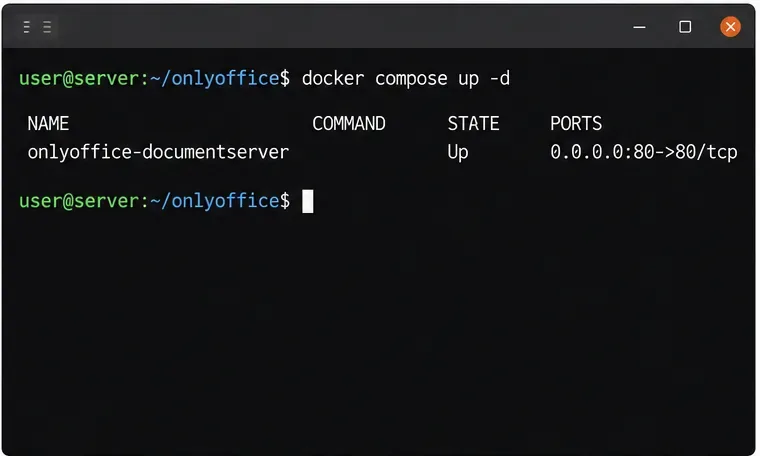
對於生產環境部署,請將 DNS 名稱(例如 ` docs.example.comhttp://example.com/ ...
官方的 Enterprise Compose 檔案為文件伺服器發布了 80 和 443 連接埠。其資料庫、Redis 和 RabbitMQ 服務是內部依賴項,不應暴露在公共網路中。請檢查防火牆和任何雲端安全群組,確保只有必要的入站流量才能到達主機。如果其他反向代理程式已經佔用了 80 和 443 端口,請將 Compose 端口映射更改為僅主機使用的端口或未使用的端口,並將代理配置為轉發到該本地端點;代理必須支援文件編輯使用的 WebSocket 流量。
HTTPS 和 JWT 保護的內容不同。 HTTPS 加密客戶端和伺服器之間的通訊。 JWT 驗證 Docs 和連接平台之間交換的請求。請保持 JWT 啟用狀態,並在連接器或平台中配置完全相同的密鑰。不要僅僅為了讓整合測試通過而關閉 JWT;而應該修復金鑰、標頭或 URL 不匹配的問題。
官方 Compose 文件定義了針對文件伺服器容器內部的健康檢查http://localhost:8000/info/info.json。請使用以下命令檢查服務是否處於健康狀態docker compose ... ps。您也可以使用瀏覽器開啟公用 HTTPS 主機名稱。如果文件歡迎頁面正常執行,則表示 Web 服務有回應,但這並不能測試來自儲存平台的文件回呼。
要完成檢查,請使用公開的 Docs URL 和相同的 JWT 金鑰連接到相容的平台。開啟一個測試 DOCX 文件,進行少量編輯,儲存,然後從平台上重新開啟它。這將驗證平台是否可以存取 Docs,以及 Docs 是否可以將已儲存的變更返回儲存服務。如果頁面載入但編輯器無法打開,請檢查瀏覽器控制台、代理 WebSocket 配置、JWT 協定和伺服器日誌。請將測試文檔儲存為一次性文檔,並且在初始設定期間不要使用敏感資訊。
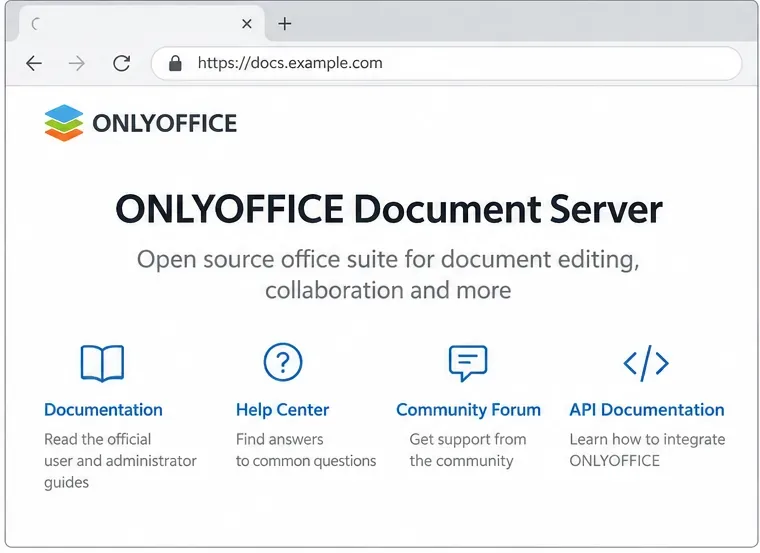
license.lic實際掛載在主機目錄中/var/www/onlyoffice/Data,然後檢查容器日誌。請使用企業版專用的更新路徑,並在變更鏡像版本前查看發行說明。docker compose down -v除非您打算移除 Compose 管理的捲,否則請避免執行此操作;該選項可能會刪除指定的 PostgreSQL 資料卷。升級前,請備份資料目錄、日誌(如有需要)和資料庫。
有關特定版本的詳細信息,請參閱 ONLYOFFICE 的企業版 Docker 安裝指南、許可證啟動說明以及官方的企業版 Compose 文件。倉庫的 README檔案記錄了 Compose 指令和容器參數。 Docker 的Compose 外掛程式安裝指南涵蓋了 Linux 安裝;如果未安裝 Docker,請按照適用於您發行版的 Docker Engine 說明進行操作。
了解如何停用 LibreOffice 崩潰報告、線上更新用戶代理程式資料和可選的自動更新檢查,以及如何驗證設定。
Install ONLYOFFICE Docs Enterprise with the official Docker Compose file, configure JWT and persistent storage, add your license, and verify the service.
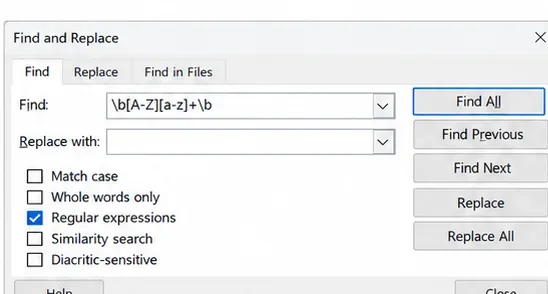
學習如何在 LibreOffice 尋找和替換中使用正規表示式來清理文字、擷取和重新排序資料、控制範圍以及選擇更安全的替代方案。
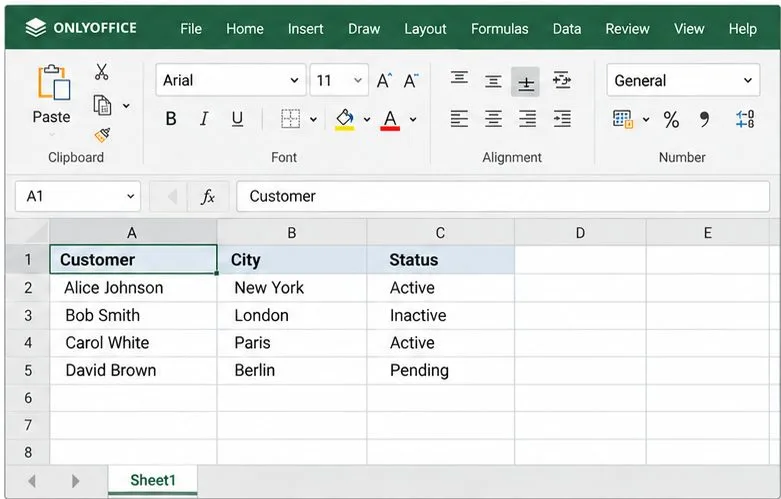
建立一個安全的 ONLYOFFICE JavaScript 巨集,用於清理電子表格文字、保留公式和數字,並在儲存工作簿之前驗證每次變更。
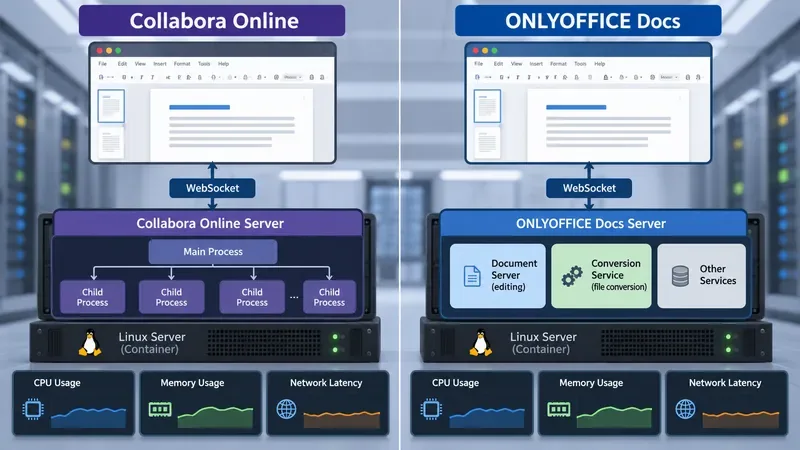
使用官方的配置指南和可重複的測試,比較 Collabora Online 和 ONLYOFFICE Docs 的 CPU、記憶體、開啟時間、協同編輯延遲和保存次數。
在 Docker 中為 Collabora Online CODE 新增自訂字體,比較綁定掛載、自訂映像檔和遠端字體配置,然後驗證文件中的字體。
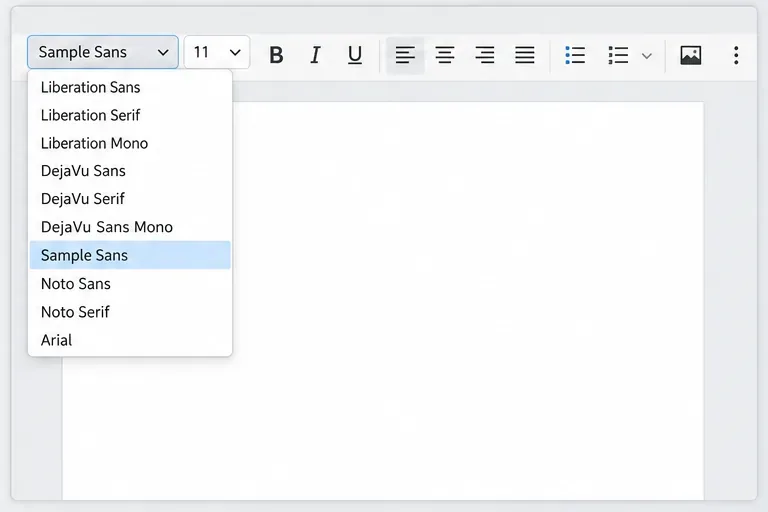
追蹤 Collabora Online 字體大小下拉選單顯示不完整、拉伸或無回應的問題。重置頁面縮放,手動輸入字體大小,並檢查程式碼版本修復程式。
要解決 LibreOffice JRE 警告,請確定是否需要 Java 功能,安裝相容的執行時間環境,並在進階選項中選擇它。
將 ONLYOFFICE Docs 連接到自訂 PHP 應用程序,並具有安全的文件 URL、已簽署的編輯器配置、JavaScript API 和保存回調。
為 Linux 軟體套件或 CODE Docker 部署設定 Collabora Online 管理控制台密碼,然後驗證登入並保護管理端點。