How to Run Python Scripts in LibreOffice Calc Macros

Learn when to use Python macros directly in Calc and how to call Python functions from LibreOffice Basic with practical UNO and ScriptForge examples.
Yes. LibreOffice Calc can run Python code as a macro inside the LibreOffice process, and a LibreOffice Basic macro can also call a Python function through LibreOffice's scripting framework. If your goal is to read or change cells in the open spreadsheet, an in-process Python macro is usually the simplest starting point. Use a Basic-to-Python call when an existing Basic macro should hand one task to a reusable Python function.
These approaches are different from launching an ordinary system Python script with a shell command. A normal external Python process does not automatically receive Calc's document object. For workbook access, run a Python macro through LibreOffice or deliberately connect an external process to a LibreOffice instance through UNO.
LibreOffice supports multiple scripting languages through its scripting framework. In a Python macro, LibreOffice supplies a UNO context object that lets the script reach the current document and its sheets. A Python macro is a function in a .py module; the module's g_exportedScripts tuple identifies functions that LibreOffice should show as runnable macros.
A Python macro can run on its own from Calc's macro menu. It does not have to be called by Basic. If you already have a Basic macro and want it to call Python, LibreOffice's script provider or the newer ScriptForge Session.ExecutePythonScript service can bridge the two languages.
For example, a small spreadsheet cleanup tool can be written entirely as a Python macro. If an existing Basic button already runs a report, keep the button's macro and let it call a Python function that computes the report total.
LibreOffice 將個人 Python 腳本儲存在使用者設定檔中,將應用程式範圍的腳本儲存在安裝目錄中,並將文件腳本儲存在文件中。對於首次測試,使用個人腳本很方便,因為同一用戶在任何開啟的 LibreOffice 文件中都可以存取它。但是,個人腳本不會隨 ODS 檔案一起傳輸,因此其他人不會自動收到它。
在 LibreOffice 說明的「Python 腳本組織和位置」部分,找到您系統對應的個人 Python 腳本資料夾。常見位置包括%APPDATA%\LibreOffice\4\user\Scripts\pythonWindows 和~/.config/libreoffice/4/user/Scripts/pythonLinux 系統。實際的設定檔位置可能有所不同;請使用您系統安裝文件中記錄的位置,而不是憑猜測建立第二個設定檔目錄。
calc_tools.py在個人 Python 腳本資料夾中建立一個名為 `.python` 的文件,然後新增以下簡單範例:
def double_a1(args=None):
    doc = XSCRIPTCONTEXT.getDocument()
    sheet = doc.getCurrentController().getActiveSheet()

    source = sheet.getCellRangeByName("A1")
    target = sheet.getCellRangeByName("B1")
    target.setValue(source.getValue() * 2)

g_exportedScripts = (double_a1,)
此函數讀取活動工作表儲存格 A1 中的數值,並將其兩倍的值寫入儲存格 B1。XSCRIPTCONTEXT函數在運行時傳遞給 LibreOffice Python 巨集;當在 LibreOffice 外部開啟相同檔案時,它不是常規的 Python 全域變數。此公用函數已列入g_exportedScripts巨集選擇器,因此會出現在巨集選擇器中。
儲存文件,然後開啟或返回 Calc,選擇「工具」>「巨集」>「執行巨集」。根據 LibreOffice 版本或平台翻譯的不同,選單標籤可能只有一個。選擇“我的巨集”>“calc_tools”>“double_a1”並執行它。首先在 A1 中輸入一個數字,然後檢查 B1 中是否包含該數字的兩倍值。如果模組未顯示,請確認檔案副檔名是否正確.py,檔案是否位於正確的設定檔 Python 資料夾中,以及是否已安裝 Python 腳本支援。新增模組後重新啟動 LibreOffice 有助於刷新腳本清單。
要進行 Basic 到 Python 的調用,請將 Python 模組放在個人腳本資料夾中,然後透過 ScriptForgeSession服務調用其函數。此範例使用 Python 將兩個值相加,並將結果寫入目前 Calc 工作表的 B1 儲存格。
在 中calc_tools.py,定義函數:
def add_values(first, second):
    return float(first) + float(second)

g_exportedScripts = (add_values,)
然後,在 Calc 中建立一個基本巨集並使用它:
Sub RunPythonHelper()
    Dim session As Object
    Dim result As Variant
    Dim sheet As Object

    session = CreateScriptService("Session")
    result = session.ExecutePythonScript( _
        session.SCRIPTISPERSONAL, _
        "calc_tools.py$add_values", _
        12, 30)

    sheet = ThisComponent.CurrentController.getActiveSheet()
    sheet.getCellRangeByName("B1").setValue(result)
End Sub從基本巨集選擇器運行RunPythonHelper。如果呼叫成功,B1 應顯示 42。腳本引用遵循以下格式module.py$function_name;對於子資料夾或其他儲存位置中的模組,請使用該 ScriptForge 版本文件中記錄的語法和位置常數。參數和傳回值應使用兩種語言都能清晰表示的資料類型,例如數字、字串和簡單序列。
CreateScriptServiceScriptForge 提供的會話助理在現代 LibreOffice 版本中可用,但選單名稱和捆綁元件在舊版本或發行版中可能有所不同。如果此服務不可用,請使用 LibreOffice 文件中提供的 UNO 腳本提供者方法,該方法XScript從腳本 URI 取得並呼叫它。避免在未更改巨集位置設定的情況下,將程式碼片段複製到其他巨集位置。
| 貯存 | 最佳匹配 | 權衡 |
|---|---|---|
| 我的巨集/用戶個人資料 | 您在文件中可重複使用的自訂工具 | 發送電子表格時不會自動包含在內 |
| 應用程式巨集 | 在一個安裝環境中為多個使用者管理腳本 | 通常需要管理員權限才能安裝或維護 |
| 文件巨集 | 旨在與單一文檔關聯的程式碼 | 收件者可能需要允許巨集;請在目標 LibreOffice 版本上測試可移植性和安全性 |
對於團隊工作流程,在圍繞個人巨集建立工作簿之前,請先確定接收者如何取得並信任程式碼。如果 Python 邏輯必須與電子表格一起提供,請在接收者使用的相同 LibreOffice 版本上測試文件的巨集儲存和安全性提示。對於託管部署,管理員可以為使用者打包腳本,或在組織正常的軟體控制下分發擴充功能。
Scripts/python設定檔目錄下。g_exportedScripts。請確保元組語法中包含尾隨逗號(適用於單元素元組)。XSCRIPTCONTEXT它只存在於 LibreOffice 啟動的巨集中,而非使用系統python指令啟動相同檔案時。請使用巨集運行器或設定已記錄的 UNO 連線。XSCRIPTCONTEXT不會將全域上下文傳遞給導入的模組。請將所需的文件或工作表物件傳遞給輔助函數,而不是期望匯入的模組讀取該全域上下文。使用電子表格副本和已知輸入進行測試。確認 Python 巨集出現在運行器中,運行一次,並將輸出單元格與手動計算的結果進行比較。對於 Basic 到 Python 的調用,測試一個簡單的輸入,並確認返回值已寫入目標工作表。避免使用會刪除工作表、覆蓋大範圍資料或執行作業系統指令的腳本。
測試成功後,確定腳本在其他電腦上的安裝方式,並記錄所需的 Python 庫或 LibreOffice 版本要求。 LibreOffice 自帶的 Python 環境用於進程內宏;為其他系統 Python 解釋器安裝的軟體包可能無法使用。如果需要其他解釋器的軟體包,請使用外部進程/UNO 方法,並進行相應的連接配置。
Learn when to use Python macros directly in Calc and how to call Python functions from LibreOffice Basic with practical UNO and ScriptForge examples.
透過符合 WOPI 主機名稱、配置 Docker 主機群組、檢查 Nextcloud 的單獨 IP 允許清單以及驗證連接性來修復 Collabora Online CODE 的「未授權 WOPI 主機」錯誤。
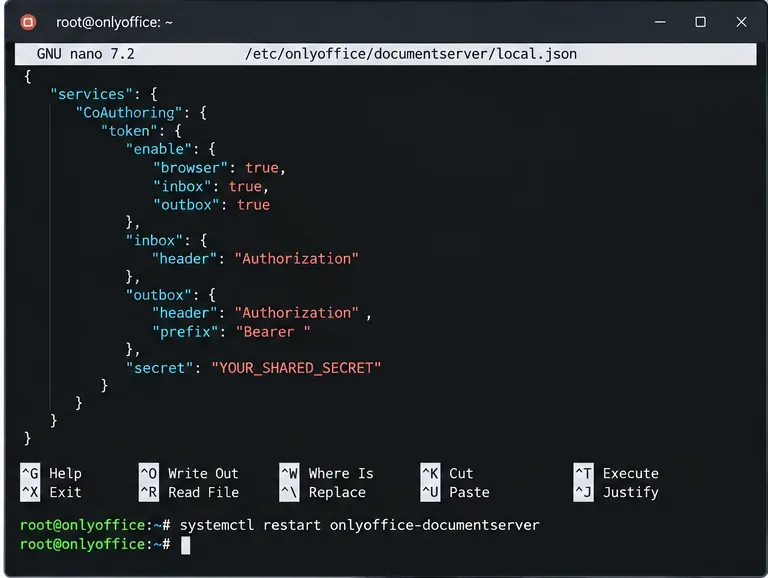
透過檢查 JWT 金鑰、授權標頭、Docker 設定、代理行為和連接器運作狀況,修復 Nextcloud 中 ONLYOFFICE 「令牌無效」錯誤。
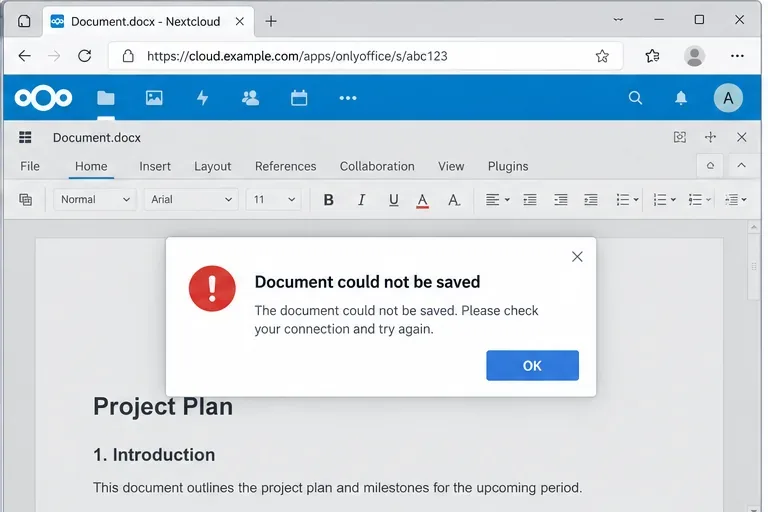
透過檢查回呼、內部 URL、JWT、TLS、代理路由、日誌和存儲,修復 Nextcloud 中 ONLYOFFICE 的「文件無法儲存」錯誤。
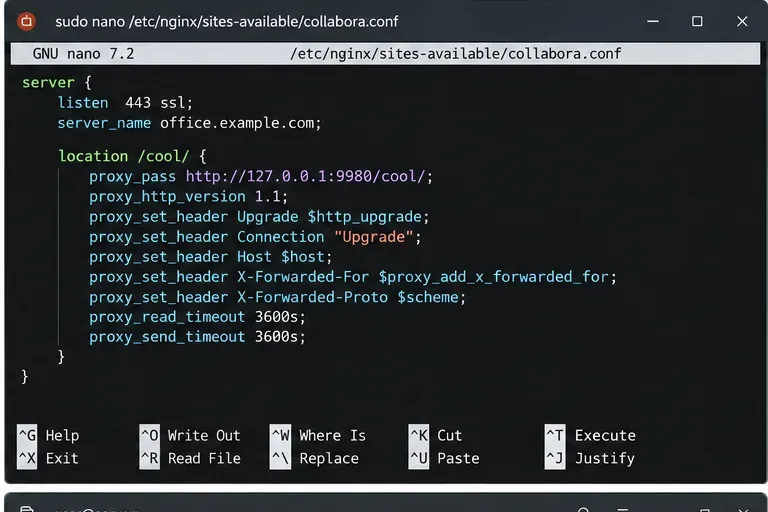
透過檢查 26.04 WebSocket 變更、代理程式路由、升級標頭、逾時、TLS 和日誌來修復 Collabora Online 套接字連線錯誤。
在 Collabora Online 中啟用多語言拼字檢查,方法是新增伺服器字典、允許語言程式碼、為文字指派語言以及測試混合語言文件。
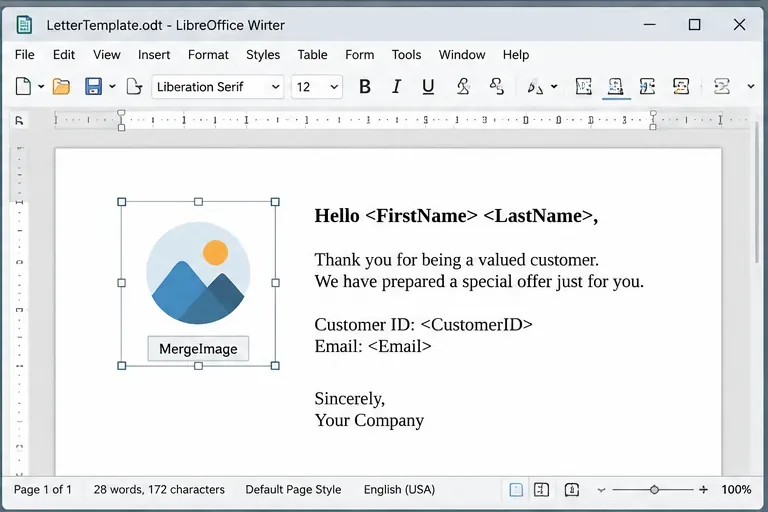
使用 Calc 資料、命名影像佔位符和基本宏,建立可靠的 LibreOffice Writer 郵件合併,支援每筆記錄新增影像,並提供故障排除和驗證步驟。
透過檢查 WOPI、反向代理、TLS、DNS、WebSocket 和伺服器到伺服器的可及性,診斷並修復 Collabora Online 文件連線故障。
在 ONLYOFFICE Desktop Editors 中離線將 PDF 檔案轉換為可編輯的 DOCX 檔案。依照「另存為」步驟操作,檢查 PDF 檔案是否為掃描件,並檢查格式。
使用 Docker 或獨立主機將 Seafile 連接到 Collabora Online。比較部署方案的優缺點,配置 HTTPS 和 WOPI 設置,並驗證編輯功能。