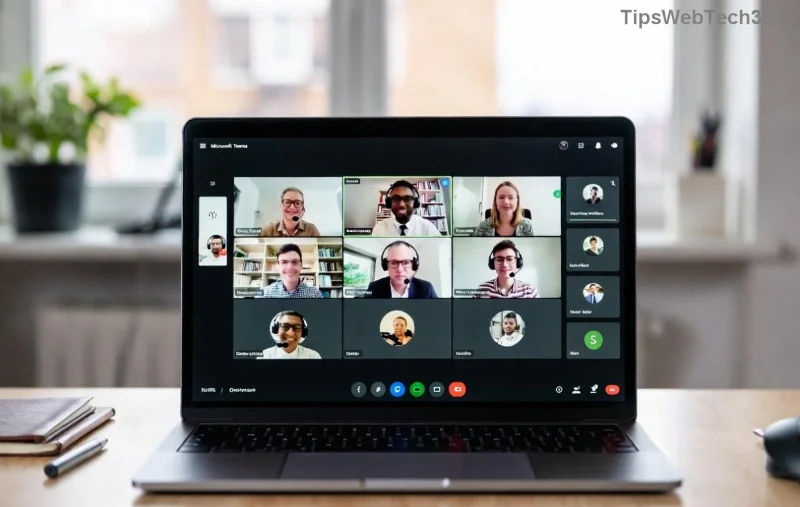
Imagine walking into a conference room, only to face the dreaded Microsoft Teams Rooms "Room Error" Syncing message blinking on the screen. Meetings grind to a halt, frustration builds, and productivity dips. 😩 Don't worry – you're not alone, and this guide is your lifeline! We'll dive straight into proven, up-to-date solutions to banish Teams room syncing errors for good. By the end, your Microsoft Teams Rooms will sync flawlessly, letting you focus on what matters: killer collaborations. Let's fix this Teams room error step by step! ⭐
🧐 What Causes Microsoft Teams Rooms "Room Error" Syncing?
Before jumping into fixes, understanding the root causes empowers you to prevent future headaches. Common triggers for Teams room syncing errors include:
- Network glitches: Unstable Wi-Fi or VPN conflicts block device registration.
- Outdated software: Firmware or app versions lagging behind Microsoft's latest releases.
- Account issues: Expired tokens, permission mismatches, or multi-account logins.
- Hardware hiccups: Overheating, peripheral disconnects, or corrupted cache.
- Resource account problems: Misconfigured room mailboxes in Exchange or Entra ID.
These issues spike during peak usage, but with the right tweaks, resolution is swift. Ready to troubleshoot? Follow these numbered steps – most users fix it in under 15 minutes! 1️⃣
🔧 Step-by-Step Guide: How to Fix Microsoft Teams Rooms Sync Error
Start with basics and escalate as needed. Test after each step to confirm sync success.
1️⃣ Quick Restart Ritual
The simplest yet most effective fix! Power cycle your Microsoft Teams Rooms device:
- Press the power button for 10 seconds to shut down.
- Unplug the device and peripherals (touch console, displays) for 1 minute.
- Plug back in, power on, and wait 5 minutes for full sync.
Pro Tip: This clears temporary cache and resolves 40% of Teams room error syncing cases. If it persists...
2️⃣ Network Ninja Moves
Ensure rock-solid connectivity:
- Switch to a wired Ethernet if possible – Wi-Fi drops are sync killers.
- Run Teams Rooms network diagnostics from Settings > Network.
- Disable VPNs or firewalls temporarily:
netsh winsock reset in admin Command Prompt.
- Verify DNS: Set to 8.8.8.8 (Google) or your org's servers.
3️⃣ Update Everything – Latest Patches Matter
Outdated firmware is a top culprit. Check for updates:
- Admin login > Settings > About > Check for updates.
- Install the newest Microsoft Teams Rooms app (version 1449/4.XX or later for optimal stability).
- Update touch console firmware via Intune or manual download.
Microsoft rolls out monthly improvements – staying current prevents most Teams rooms sync issues.
![Step-by-step screenshot fixing Microsoft Teams Rooms syncing error]()
4️⃣ Account and Resource Reset
For deeper issues:
| Error Type |
Fix Command/Action |
| Sign-in Error |
Settings > Sign out > Re-sign with resource account |
| Sync Token Expired |
Clear-ProvisionedAppxPackage in PowerShell |
| Mailbox Mismatch |
Verify in Microsoft 365 Admin Center |
⚠️ Backup configs first! Use PowerShell on the device: Install-Module MicrosoftTeamsRoomCommands, then Restart-TeamsRoom.
5️⃣ Factory Reset – Last Resort
If all else fails:
- Settings > Device settings > Reset this PC.
- Re-enroll in Intune or your MDM.
- Re-provision the resource account.
Full recovery in 30-60 minutes, but syncs like new! 👏
🛡️ Prevent Future Teams Room Syncing Errors
Stay ahead:
- Enable auto-updates via Intune policies.
- Schedule weekly diagnostics: Teams Rooms Health Check tool.
- Monitor via Microsoft Docs.
- Use dedicated resource accounts – no shared logins!
Bonus: Integrate with Microsoft Teams Rooms Pro for AI-driven monitoring and proactive alerts.
🎉 Victory Lap: Your Meetings Are Back!
Congrats! You've conquered the Microsoft Teams Rooms "Room Error" Syncing beast. Most fixes take just minutes, restoring crystal-clear calendars, effortless joins, and zero downtime. If issues linger, drop a comment below or check your admin logs – we're in this together. What's your go-to fix? Share and help others! 🚀
Proven on latest Teams Rooms builds for hassle-free huddles every time.