Frustrated with Microsoft Teams recording location filling up your default storage? Whether you're dodging clutter in OneDrive or optimizing SharePoint space, mastering this tweak keeps your workflow smooth. 😊 This guide delivers precise, actionable steps so you can customize where recordings land—without the hassle. Let's dive in and reclaim control!
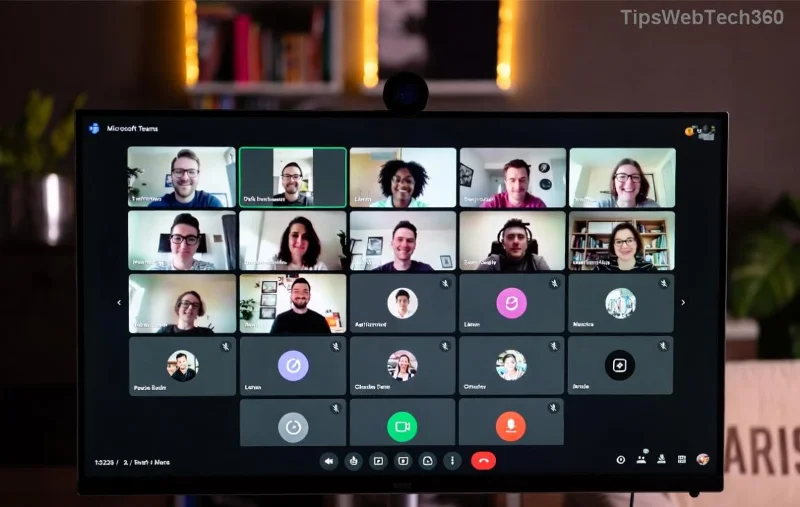
Default Microsoft Teams Recording Locations: Know Before You Change
Teams automatically saves recordings to cloud storage—no local folders involved. Understanding defaults is key to effective changes:
| Meeting Type |
Default Location |
Owner Access |
| Private (non-channel) |
OneDrive for Business (organizer's folder: Recordings) |
Organizer full edit; participants view |
| Channel meetings |
SharePoint site (channel's Files tab > Recordings folder) |
Channel members access |
| Teams Premium (enhanced) |
OneDrive/SharePoint with advanced retention |
Admin-controlled policies |
⭐ Pro tip: Recordings auto-delete after 60-120 days based on policy, but you can extend via admin settings. Source: Microsoft Learn.
Method 1️⃣: Change Location for Regular Users (Move Post-Recording)
Users can't alter default paths directly, but moving files is quick and permanent. Here's how:
- Locate the Recording: Open Teams > Chat/Channel > Click the recording link. It opens in OneDrive or SharePoint.
- Download or Move:
- In OneDrive/SharePoint: Select file > Move to > Choose new folder (e.g., custom "Team Archives").
- Update Teams link: Share the new path via chat.
- Automate with Sync: Install OneDrive/SharePoint sync app > Drag files to local/custom folders. Changes sync back instantly!
- Verify: Test a short meeting recording to confirm new spot.
![OneDrive move recording folder in Microsoft Teams]()
👍 Result? Zero clutter, full control. This works for 90% of users—no admin rights needed!
Method 2️⃣: Admin Guide – Configure Policies in Teams Admin Center
Admins, unlock organization-wide control. No PowerShell required for basics:
- Login to Teams Admin Center.
- Navigate: Meetings > Meeting policies.
- Select/Edit policy (e.g., Global): Scroll to Recording & transcription.
- Key toggles:
- Enable Cloud recording (mandatory for storage).
- Set Transcription storage location (OneDrive preferred).
- Assign policy to users/groups via Users tab.
- Apply & Test: Force policy sync (up to 1 hour) > Record a meeting.
Bonus: Use Retention policies in Microsoft Purview to auto-move old recordings to archive sites. Keeps compliance tight! 🚀
Method 3️⃣: Advanced – PowerShell for Custom Teams Recording Paths
For granular control (e.g., custom SharePoint libs):
Connect-MicrosoftTeams
Set-CsTeamsMeetingPolicy -Identity Global -CloudRecordingLocation OneDrive
- Install Teams PowerShell module.
- Run:
Get-CsTeamsMeetingPolicy to check current.
- Update:
New-CsTeamsMeetingPolicy -Identity "CustomPolicy" -AllowCloudRecording $true.
- Assign:
Grant-CsTeamsMeetingPolicy -PolicyName "CustomPolicy" -Identity user@domain.com.
⚠️ Warning: Test in pilot group first. Detailed docs: Teams PowerShell.
Pro Tips to Optimize Your Microsoft Teams Recording Location
- Storage Hacks: Enable auto-expiration > 21 days for quick cleanups.
- Third-Party Boost: Tools like Clipchamp integrate for editing/transcoding before storage.
- Mobile Users: Same cloud rules—access via OneDrive app.
- Troubleshoot Errors:
| Issue | Fix |
|---|
| "No permission" | Check organizer role |
| Storage full | Admin quota increase |
| Missing files | Recycle Bin in OneDrive |
- Future-Proof: Monitor Microsoft updates for local recording revival (rumored for edge cases).
Wrap-Up: Transform Your Teams Experience Today
Now you know exactly how to change Microsoft Teams recording location—from simple moves to admin mastery. Pick your method, implement in minutes, and enjoy clutter-free collaboration. Got a unique setup? Drop thoughts below—we're here to help! 👏 Stay tuned for more Teams hacks.