Imagine captivating thousands in a seamless virtual Microsoft Teams Town Hall – no glitches, just pure engagement! Whether you're rallying your team, hosting a company-wide update, or running a massive conference, Microsoft Teams Town Hall Events make it simple. This guide walks you through every step with precision, using the latest features for flawless execution. Ready to wow your audience? Let's dive in! ➡️
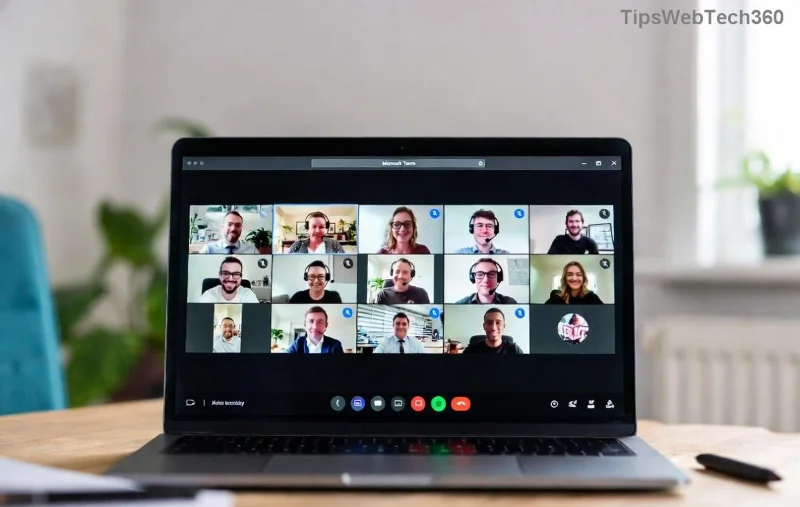
✅ Why Choose Microsoft Teams Town Hall Events?
Unlike regular meetings, Town Halls scale to 50,000 attendees with live streaming, Q&A, polls, and analytics. Perfect for hybrid work in 2026! Key perks:
- ✨ Immersive experiences: Closed captions, reactions, and multi-presenter support.
- 📊 Post-event insights: View attendance reports effortlessly.
- 🔒 Enterprise-grade security: Built-in compliance for global teams.
📋 Prerequisites for Setting Up Microsoft Teams Town Hall
Before starting, ensure you're set. No global admin? Delegate via Teams roles!
| Requirement | Details |
|---|---|
| License | Microsoft Teams Premium or E3/E5 with add-ons |
| Permissions | Teams Administrator or Town Halls Manager role |
| Browser/App | Latest Edge/Chrome or Teams desktop |
Pro Tip: Test your setup in a trial Town Hall first. Curious about costs? Check Microsoft's official docs.
Step 1: Access the Microsoft Teams Admin Center
- Sign in to admin.teams.microsoft.com with admin credentials. 🔑
- Navigate to Teams > Town halls in the left sidebar. Boom – you're in the hub!
Stuck? Ensure your org enables Town Halls in policies. This step unlocks all power.
Step 2: Create a New Town Hall Event
- Click New town hall. 🎉
- Enter essentials:
- Name: E.g., "Q1 Company All-Hands"
- Date & Time: Pick your slot (up to 24 hours long).
- Duration: Auto-calculates, but tweak as needed.
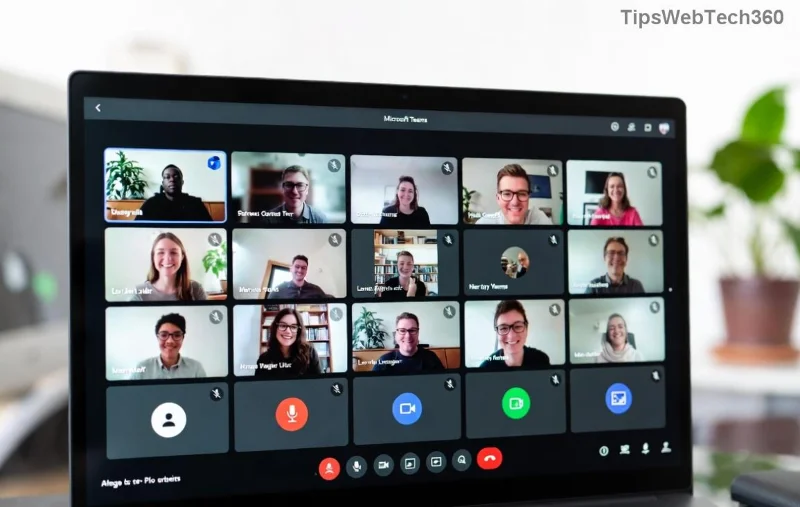
Why this rocks: Scheduling conflicts? Teams auto-checks calendars for presenters. Next up: Customization magic! ✨
Step 3: Add Presenters, Attendees, and Configure Features
- Add presenters: Search users – they get producer controls. Limit to 10 for smooth flow.
- Attendees: Open to org, specific groups, or external via link (up to 50K!).
- Enable goodies:
- ✅ Q&A: Moderated questions from audience.
- ⭐ Polls: Real-time feedback.
- 🎥 Live captions & translations: Inclusive for all.
- Customize branding: Upload logo, background – make it yours!
Step 4: Advanced Settings and Streaming
For epic scale:
- ➡️ Toggle live stream to Teams channels or Yammer.
- 📹 Set production settings: Layouts, speaker views.
- 🔧 Use PowerShell for bulk events (optional script below):
New-TeamTownHall -Name "Event Name" -StartDateTime "2026-01-01T10:00:00" -EndDateTime "2026-01-01T11:00:00"
Step 5: Publish, Share, and Go Live!
- Hit Save > Publish. Get instant shareable link! 📲
- Promote via email, calendar invites, or embed in SharePoint.
- Go live: Presenters join early; monitor via dashboard.
Event done? Download analytics reports: Attendance, engagement scores. Impress stakeholders! 👏
⚠️ Common Pitfalls and Quick Fixes
| Issue | Fix |
|---|---|
| No "New town hall" button | Check Teams policies in Admin Center > Meetings |
| Low attendance | Send reminders 24h before via Outlook integration |
| Streaming lag | Use wired connection; test bandwidth (10 Mbps up) |
🌟 Pro Tips to Make Your Town Hall Unforgettable
- Practice run: Simulate with test attendees.
- Engage early: Icebreaker poll in first 5 mins.
- Follow-up: Share recording + Q&A summary post-event.
- Scale up: Integrate with Microsoft Viva Engage for buzz.
Now you're equipped to host blockbuster Microsoft Teams Town Hall Events! What's your first event? Drop a comment below – let's connect. Share this guide and level up your virtual events game today! 🎊









