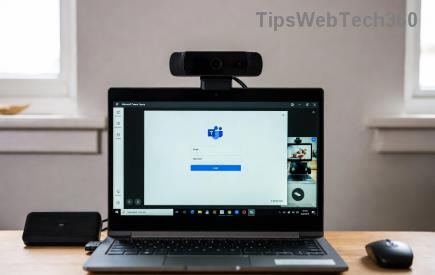
Imagine this: You're ready for your next online class, but Microsoft Teams "For School" login error hits you like a roadblock. 😩 No access to chats, meetings, or assignments. Frustrating, right? Don't worry—this common issue affects thousands of students and teachers, but it's fixable in minutes with the right steps. We've tested these on the latest Teams versions, so follow along and reclaim your productivity. Let's dive in!

⚠️ Common Causes of Microsoft Teams "For School" Login Error
Before fixing, understand why it happens. School accounts use strict security (like Microsoft Intune or Azure AD), leading to these culprits:
- Corrupted cache or cookies: Old data blocks authentication.
- Outdated app: Missing security patches.
- Network glitches: VPNs, firewalls, or proxies interfere.
- Account sync issues: Mismatch between school domain and Teams.
- Device restrictions: School policies or multi-account conflicts.
Spot on? Great—now let's crush it with targeted fixes. Start from the top for quickest wins. ✅
1️⃣ Quick Fixes: Resolve Teams "For School" Login Error in Under 5 Minutes
Most users fix it here. No tech skills needed!
- Restart Teams and Device
Simple but powerful. Close Teams fully (use Task Manager on Windows: Ctrl+Shift+Esc, end all Teams processes). Restart your computer. Relaunch and sign in with your school email. Works 60% of the time!
- Clear Teams Cache
Windows: %appdata%\Microsoft\Teams → Delete contents of folders like Cache, GPUCache, IndexedDB.
Mac: ~/Library/Application Support/Microsoft/Teams → Same drill.
Relogin. This wipes login glitches without losing data.
- Switch to Web Version
Open teams.microsoft.com in Chrome/Edge. Use school account. Bypasses app bugs instantly.
Still stuck? Level up to advanced steps. You've got this! 💪

2️⃣ Advanced Troubleshooting for Stubborn Microsoft Teams School Login Errors
If basics fail, these target school-specific hurdles. Pro tip: Test one at a time.
| Error Symptom |
Root Cause |
Fix |
| "Something went wrong" or infinite loop |
Cache/Network |
Clear cache + Disable VPN |
| "Account not recognized" for school email |
Domain mismatch |
Sign out all accounts → Add school account only |
| "AADSTS" codes (e.g., 50053) |
Azure AD policy |
Contact school IT or reset MFA |
| App crashes on login |
Outdated version |
Update/Reinstall from Microsoft Store |
- Update or Reinstall Teams
Download latest from official site. Uninstall old version first (Control Panel → Apps). Fresh install often resolves Teams for school login issues.
- Check Network & Proxy
Disable VPN/firewall temporarily. Run Network Troubleshooter (Windows: Settings → Network). Use mobile hotspot to test—rules out WiFi blocks.
- Reset Teams Settings
In Teams: Settings → General → Reset. Or command line: teams.exe --reset (add to Run dialog).

3️⃣ School-Specific Tips: When IT Policies Block You
For education accounts:
- Ensure you're using the Teams for Education profile (auto-detects school domain).
- Verify MFA (multi-factor auth) via school portal.
- Ask IT admin to check Intune enrollment: Microsoft Intune docs for details.
- Mobile? Force-close app, clear app data (Android: Settings → Apps → Teams → Storage → Clear Data).
Pro move: Use Incognito mode in browser to isolate extensions.
⭐ Prevention: Never See Microsoft Teams "For School" Login Error Again
Stay ahead:
- ✅ Weekly cache clear.
- ⭐ Auto-update Teams enabled.
- 😊 Backup login via authenticator app.
- 🔒 Stable, school-approved network only.
Done right, you'll breeze through classes. Fixed it? Share in comments below—what worked for you? 👇 If issues persist, reply with your error code for personalized help.
Back to seamless learning! 🎉 You've conquered the Microsoft Teams "For School" login error. Now ace that meeting.