How to Disable JavaScript in Chrome for One Tab or a Site
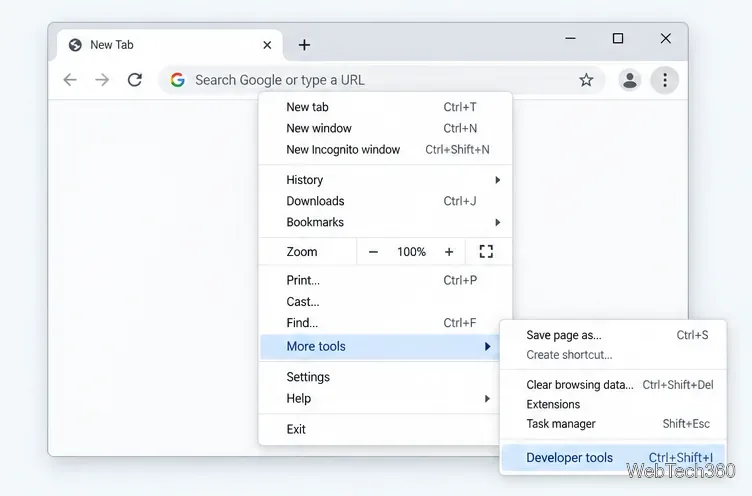
Learn how to disable JavaScript in Chrome temporarily with DevTools, block it for one site, or change the browser default, plus how to restore it.
A file arrives with an unfamiliar extension. You need to see what it contains, but installing unknown software or uploading sensitive material without checking the service can create a bigger problem than the file itself. This workflow helps you make the safer choice.
Modern files can contain much more than visible text or pixels. Office documents may include macros and external links. PDFs can contain forms, attachments and scripts. Archives can hide several layers of content. CAD packages may depend on reference files, while 3D formats can include textures and linked assets. Even an ordinary-looking name can be misleading when extensions are hidden by the operating system.
The safer goal is therefore not merely to find an app that recognizes the suffix. It is to identify what the file probably is, decide whether its contents may leave your device, and then choose the least-privileged method that answers your question. A broad online file viewer can be useful for quick inspection when the file is appropriate for that workflow, while the supported-format reference helps determine whether a browser preview is a realistic option.
invoice.pdf.exe. Treat executable and script formats—including EXE, MSI, BAT, CMD, JS and shortcut files—with particular caution.| File group | Typical examples | What to check before viewing |
|---|---|---|
| Documents | PDF, DOCX, XLSX, PPTX | Macros, embedded files, external links, fonts and whether layout accuracy matters. |
| Images | HEIC, SVG, PSD, TIFF, RAW | Metadata, unusually large dimensions, layered content and whether conversion discards detail. |
| Archives | ZIP, RAR, 7Z, TAR | Nested archives, passwords, unexpected executables, path traversal and the extracted destination. |
| CAD and 3D | DWG, DXF, STEP, STL, OBJ, GLB | Missing references, units, assemblies, textures, intellectual property and model complexity. |
| Data and text | CSV, JSON, XML, LOG, TXT | Encoding, delimiters, formulas, credentials, tokens and personal information in raw fields. |
For a document that only needs to be read, start in view-only mode and leave active content disabled. A practical browser-based PDF walkthrough shows the basic preview flow, while the longer guide to opening common files online compares the broader task. If exact pagination, tracked changes, formulas or animations are important, confirm the result in the original authoring application because previews can simplify unsupported features.
Image preview is generally straightforward, but privacy still matters: photos may contain location, device and timestamp metadata. Preserve the source file before compressing or converting it. For Apple image formats, follow the HEIC and image preview guide, and compare the visible result with the original dimensions and orientation.
An archive is a container, not proof that its contents are safe. Inspect the member list first, extract into a new dedicated folder and scan the extracted items before opening them. Be suspicious of nested archives, disguised executables and unexpected shortcuts. The illustrated viewer feature overview includes archive-related examples, while the concise seven browser preview tasks places extraction in a wider file-review workflow.
Engineering files require more than a recognizable thumbnail. Check units, layers, missing references, assemblies and version compatibility. Never assume that a simplified preview is manufacturing-ready. The DWG and DXF viewing guide focuses on drawings, while the CAD and 3D browser guide extends the workflow to STEP and STL. For proprietary client designs, use only a viewing environment authorized by the owner.
A long format list is helpful, but it is not the whole evaluation. Before using any browser tool, answer these questions:
For WebTech360 Viewer, the step-by-step usage page, the published viewer guide and the visual project overview offer different ways to inspect the documented workflow before using it.
.heic to .jpg or .dwg to .pdf does not convert the underlying data.The safest file-opening workflow starts with context, not software. Verify the source and complete filename, classify the data, scan the file, read the viewer's handling rules and use the minimum permissions needed. Browser-based preview can remove the friction of installing a specialist application, but it does not remove your responsibility to protect the file or validate the rendering.
For a compact refresher, save the privacy-first checklist. For a broader introduction to formats and workflows, the complete online file-opening guide and the WebTech360 Viewer field guide provide additional context.
Project documentation is available in several public formats so readers can verify the WebTech360 Viewer identity, review examples and choose the resource that is easiest to access. These are reference and discovery pages; always return to the official viewer for the current tool.
Editorial note: this article provides general safety guidance, not a guarantee that any file or third-party service is safe. Security and privacy requirements vary by organization, jurisdiction and data type. Links above are included as public documentation and project identity references.
Learn how to disable JavaScript in Chrome temporarily with DevTools, block it for one site, or change the browser default, plus how to restore it.
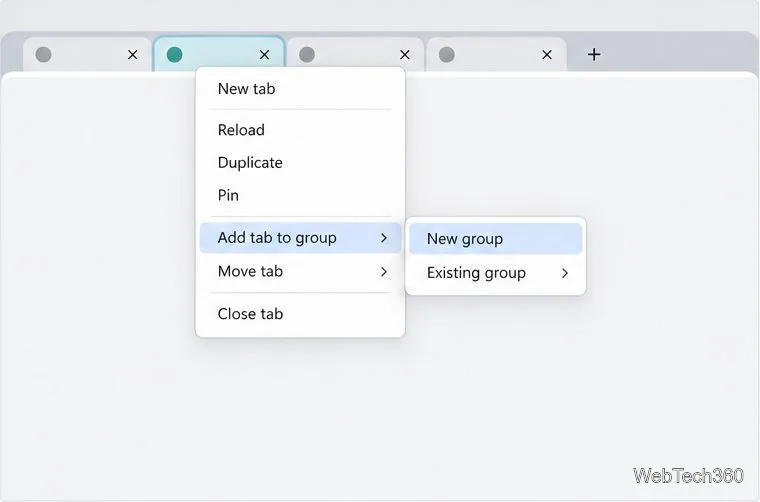
Organize related Chrome tabs into a group, then hide or reopen them with one click. See the current desktop steps, keyboard option, and what collapsing does.
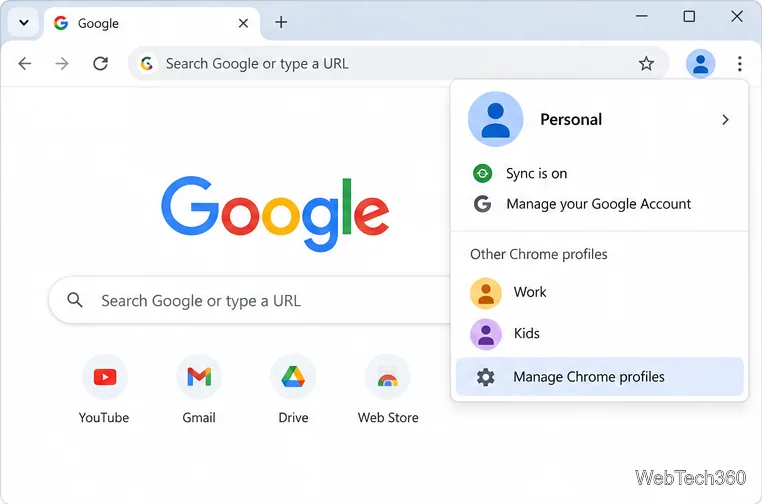
Rename a Chrome profile from its menu or profile manager, see what the label affects, and fix display delays without changing your Google Account name.
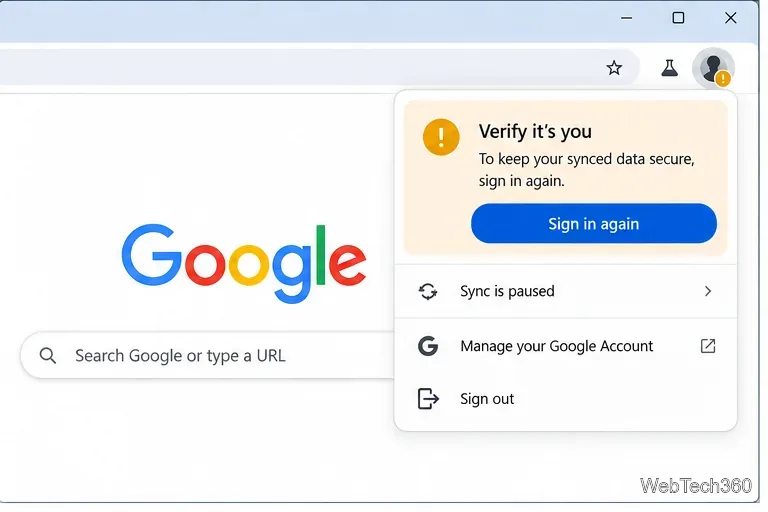
Fix Chrome sync pausing and repeated sign-in prompts by restoring account access, keeping site data, updating Chrome, and checking extensions or profiles.
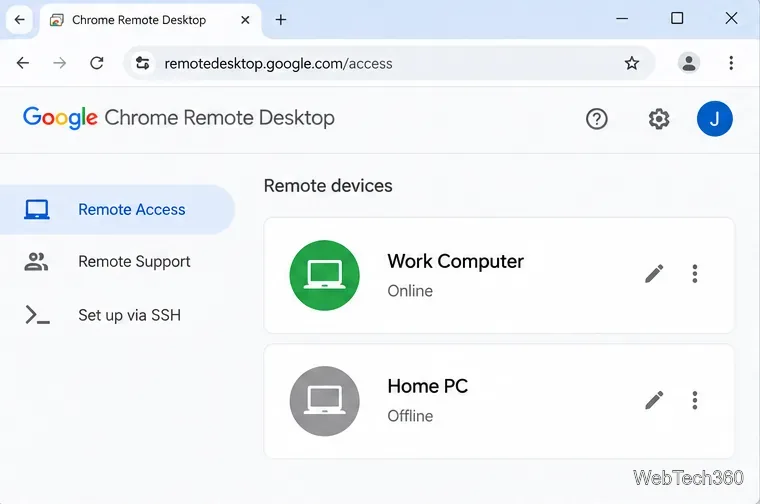
Chrome Remote Desktop not working? Fix offline hosts, update Chrome, reset remote access, check permissions, firewall rules, and managed-network restrictions.
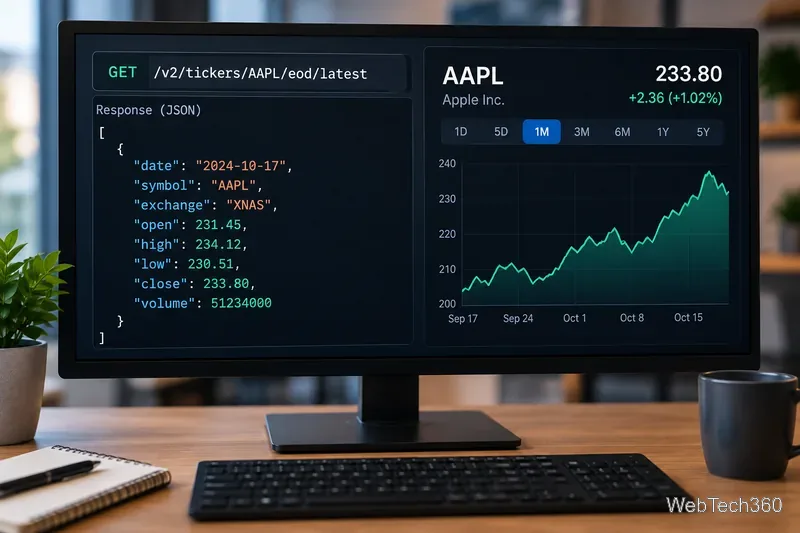
Marketstack review covering API v2, real-time and intraday data, historical coverage, pricing, limits, pros, cons, and who should use it.
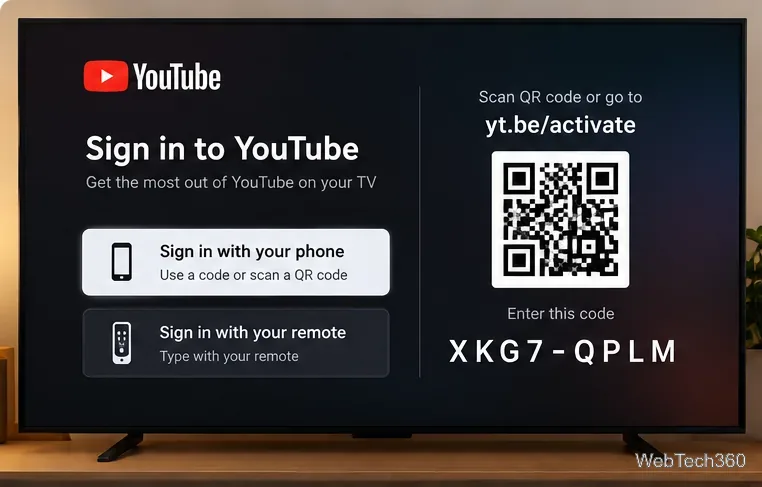
Learn how to activate YouTube at youtube.com/activate or yt.be/activate, enter your TV code, choose your Google Account, and fix sign-in problems.
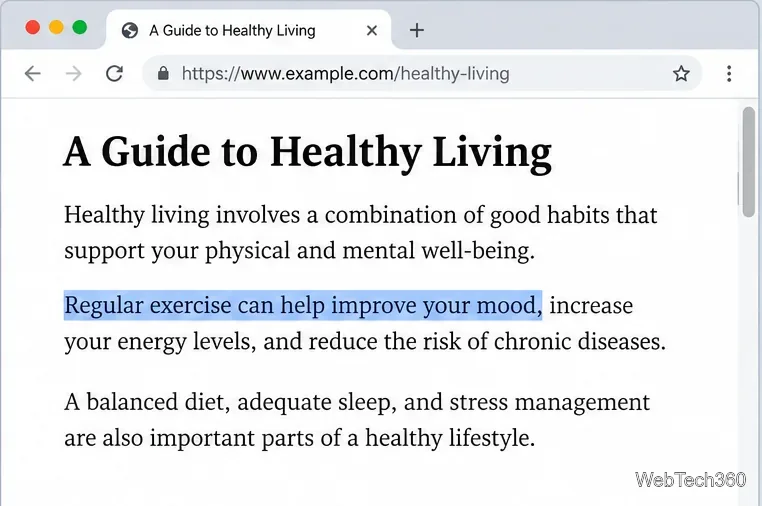
Learn how to link directly to selected text in Chrome with Copy link to highlight, how text-fragment URLs work, and what to do if a link fails.
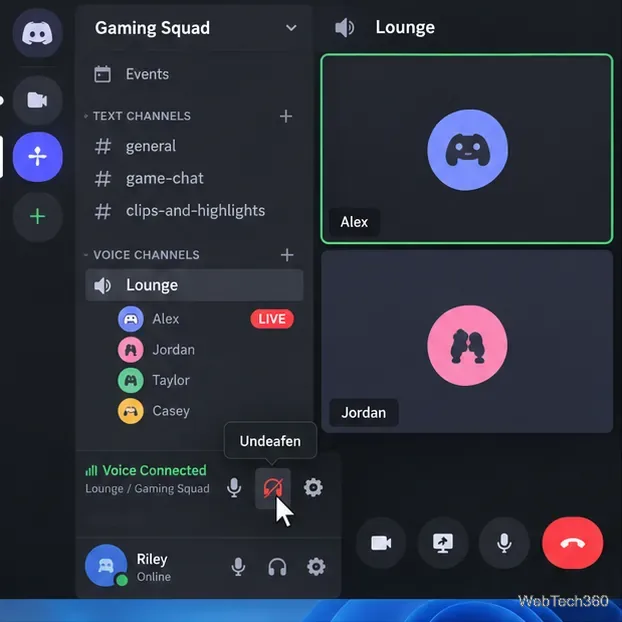
Can't hear anyone on Discord? Check Deafen and user volume, choose the right output device, reset Voice & Video, and fix Windows audio settings.
Learn how to add roles in Discord, change a role name, set permissions, assign or remove members, reorder roles, and delete roles safely.