Home
» INTERNET
»
How to Block Someone on TikTok (and Unblock Them)
How to Block Someone on TikTok (and Unblock Them)
To block someone on TikTok, open their profile, tap Share at the top, choose Block, and confirm. The steps work in the TikTok app on iPhone and Android, whether or not you follow that person. Blocking stops direct account-to-account interactions, and TikTok does not send the other person a block notification.
How to block someone on TikTok on iPhone or Android
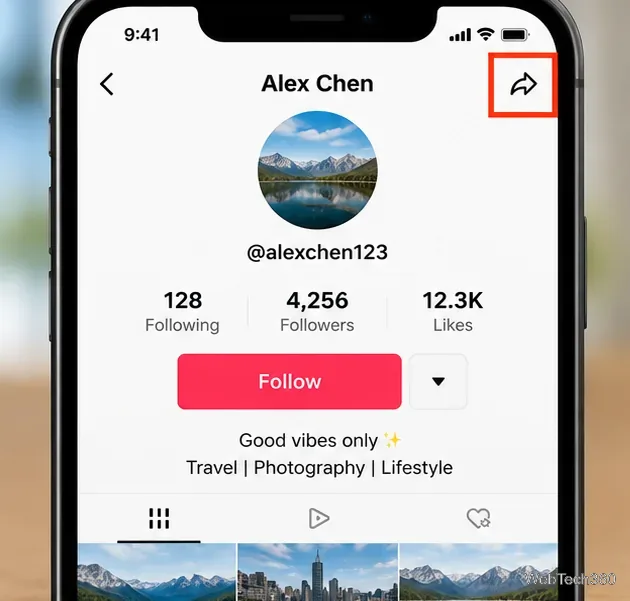
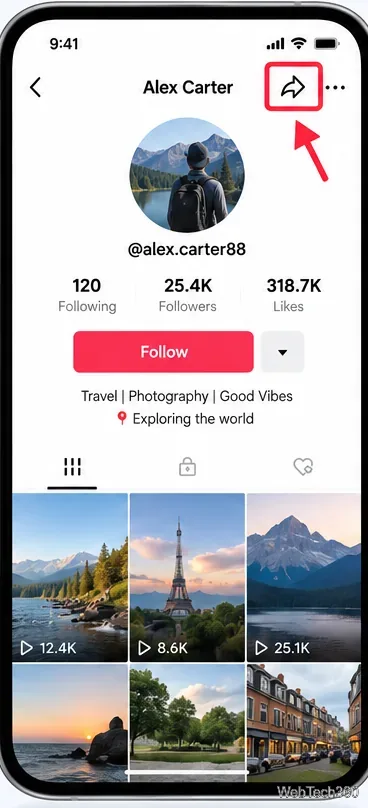
Open the person's profile. Use Search, tap their username on a video, or open their account from a comment. Check the username so you do not block the wrong person.Open the account profile and look for the Share arrow.
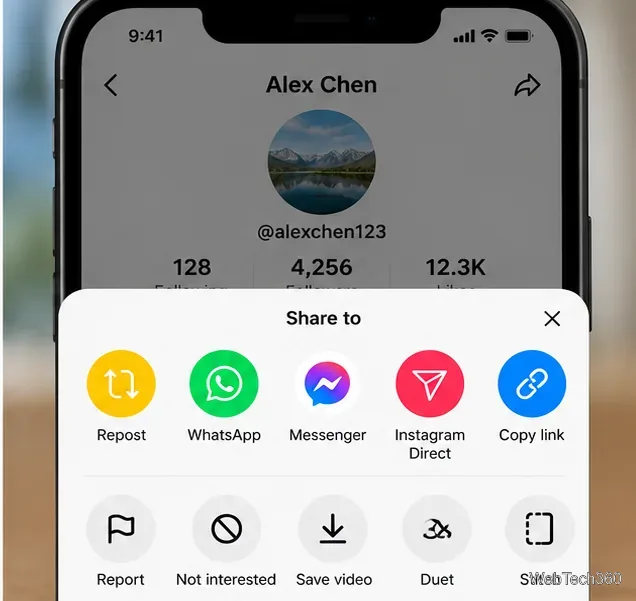
Tap Share. The arrow-shaped Share button is near the top of the profile. Do not look for an older three-dot blocking shortcut on the mobile app.The Share menu contains account actions as well as sharing choices.
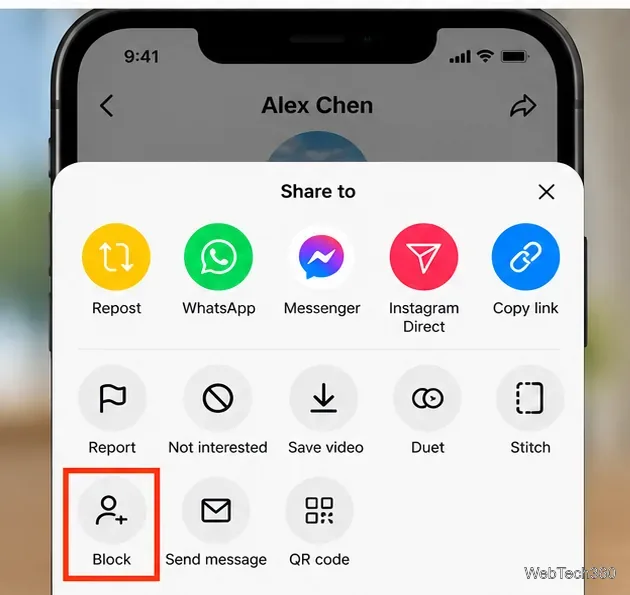
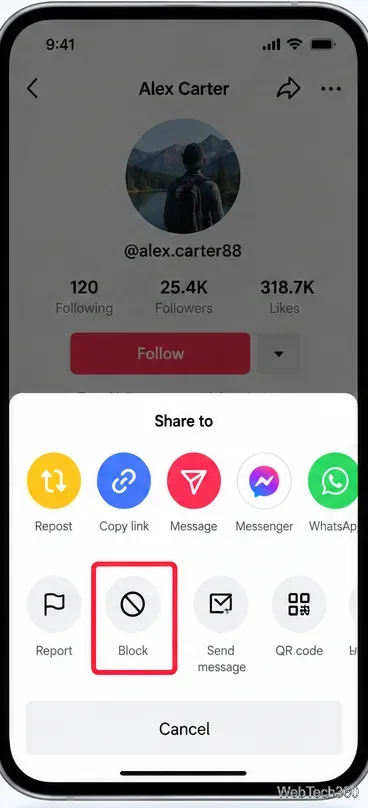
Select Block. Look through the account actions at the bottom of the Share menu; you may need to scroll within the menu to find it.Choose Block rather than reporting or sharing the profile.
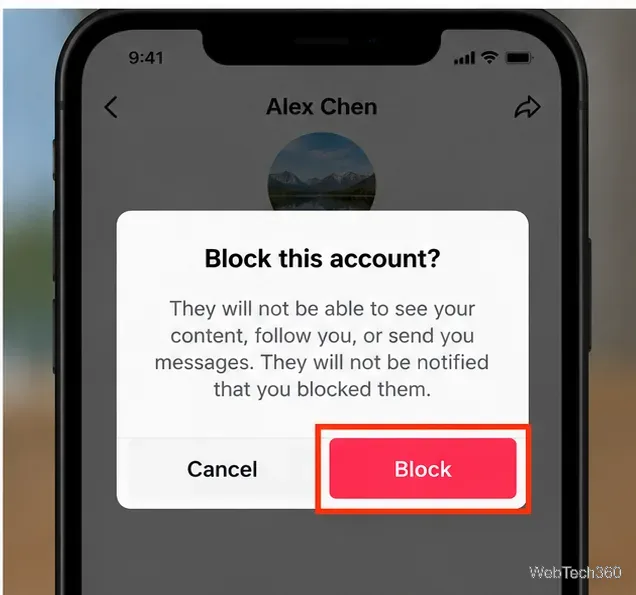
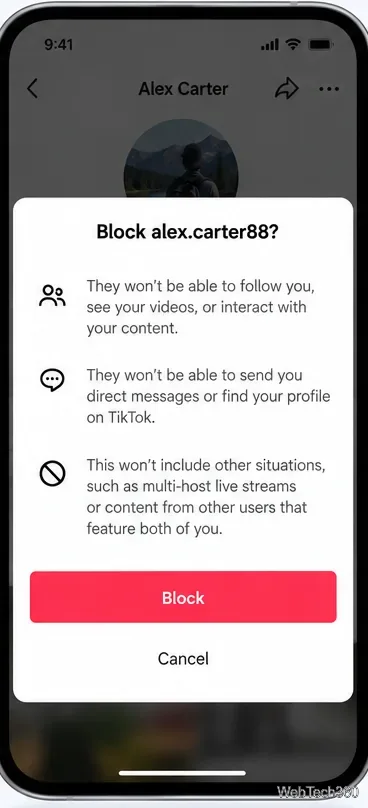
Confirm the block. Read the prompt and tap Block again. You can reverse the decision later.Review the confirmation before applying the block.
Sign in at TikTok.com and open the account's profile. Look for the profile's More options (three dots) menu, then choose Block and confirm if that option is available. Browser layouts can differ from the mobile app. If you cannot find a blocking control on the website, use the TikTok mobile app and follow the verified Share-button steps above.
How to block multiple accounts from comments
When several accounts leave unwanted comments on one of your posts, TikTok offers bulk comment-management tools. Its announcement of bulk moderation also describes blocking accounts in groups. In app versions that show the option:
Open your video and tap Comments.
Press and hold a comment, then choose Manage multiple comments, or open the comments' management/filter control.
Select comments from accounts you want to block.
Choose More, then Block accounts, and confirm if prompted.
TikTok documents selecting up to 100 comments for bulk comment management. Do not assume every app version exposes the same bulk-block option or that the comment limit is a universal account-block limit. If Block accounts is missing, block the relevant profiles individually. See TikTok's comment management help for the currently documented controls.
What happens when you block someone?
Blocking means the two accounts cannot normally view each other's posts, find each other's profiles through TikTok search, exchange direct messages, or interact through follows, likes, and comments. An existing follow relationship is removed. The person is not notified by TikTok.
There are important limits: you may still encounter each other in a multi-host LIVE, a Duet published by somebody else, or a shared group conversation. Blocking a particular account also does not make public posts private or prevent somebody from viewing public information through another account or outside TikTok.Blocking restricts direct contact; it is not a guarantee that public content disappears everywhere.
In the app, tap Profile, then the ☰ Menu at the top.
Choose Settings and privacy → Privacy.
Scroll to Blocked accounts to review the list.
Tap Unblock beside the account you want to restore.
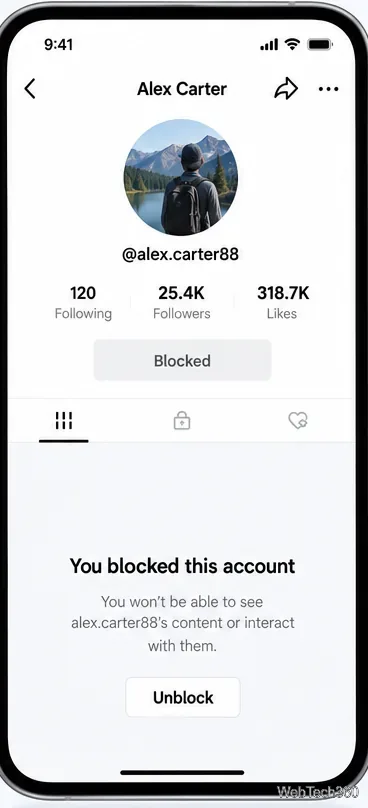
You can also open a blocked profile, tap Share, and choose Unblock. Unblocking does not automatically restore a previous follow. The official blocked-list help page covers where to find your list.A blocked account can be unblocked later.
Why can't I find the Block button?
The most common problem is checking an outdated menu. On phones, start from the person's profile and open Share, not the sharing control on an individual video.If you cannot find Block, look for it among the profile Share menu actions.
If it still does not appear, update TikTok, close and reopen the app, check your connection, and try the profile again. A changed or deleted account may also be difficult to locate. If the app keeps failing, go to Profile → ☰ → Settings and privacy → Report a problem and describe what happened.
Frequently asked questions
Can I block someone who does not follow me?
Yes. You only need to locate the account's profile and use its Share menu. Neither following nor previous messaging is required.You do not need to follow an account to access its profile controls.
Can I tell whether someone blocked me?
TikTok does not offer a list of people who blocked you. A missing profile or unavailable message thread is not proof: the user might have changed their username, deleted their account, or altered its privacy settings. Avoid third-party apps claiming to reveal a definitive block list.
Should I report an account as well as block it?
If an account threatens, harasses, impersonates, or scams you, consider reporting the conduct, not just blocking contact. Open the profile and use Share → Report, then select the relevant reason. For an abusive direct message, open Inbox, press and hold the message or use the chat's More options menu, tap Report, and choose whether to report or report and block. TikTok explains the direct-message reporting steps.
If messages include threats or stalking, preserve relevant evidence and seek help from trusted contacts or local authorities when appropriate. Blocking is useful, but it does not replace taking steps to protect your safety outside the app.