Before buying a computer, decide what you will use it for, set a total budget, and check the processor, memory, storage, operating system, and support options. A good laptop or desktop is one that runs your essential software comfortably without charging you for features you will never use. These 10 considerations will help you compare models with confidence.
1. What will you use the computer for?
Start with your most demanding regular task, not the longest specification sheet. Email, browsing, streaming, and documents need much less power than video editing, modern 3D games, engineering software, or large data projects. List the apps you must run and check their publishers' recommended hardware requirements. For a shared family computer, think about everyone's needs.
2. What is your total budget?
Compare the complete purchase cost, including tax, delivery, an external monitor, adapters, software subscriptions, and accessories. A low advertised price can stop being a bargain once you add missing essentials. Decide where an upgrade makes a practical difference: extra memory or a larger SSD may be more useful than a premium finish. Compare identical configurations, not just brand names.
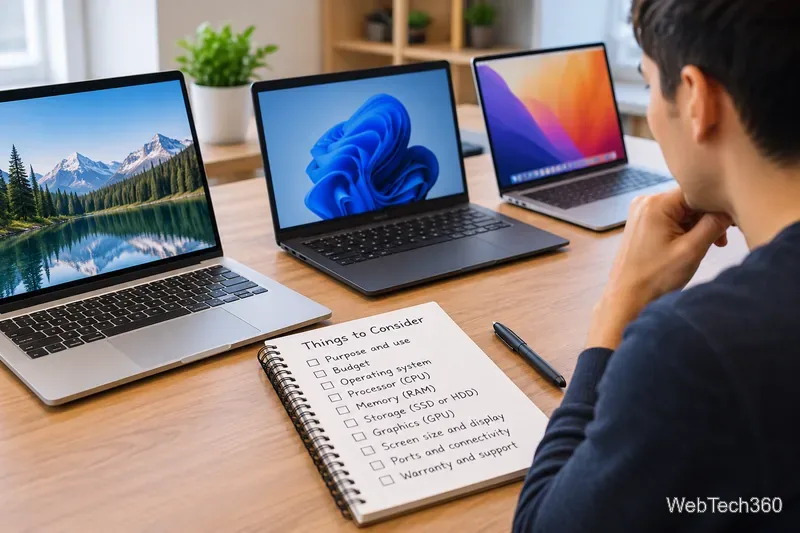
3. Which operating system and applications do you need?
Choose between Windows, macOS, ChromeOS, or Linux based on software compatibility, not appearance alone. Windows offers broad PC hardware and application support; macOS is designed for Apple's Mac computers; ChromeOS prioritizes browser-centered tasks. Check for any required Windows-only business app, specialist plug-in, or game before switching platforms.
If buying a Windows PC, choose a supported version. Standard support for Windows 10 ended on October 14, 2025; some devices may have Extended Security Updates coverage. Windows 11 Home suits many personal uses, while Pro adds business features such as domain joining and BitLocker Drive Encryption. See Microsoft's Home and Pro comparison.
4. Laptop or desktop—and what size?
A laptop makes sense for travel, school, or moving between rooms. Test the keyboard, touchpad, weight, screen brightness, and battery life; manufacturer battery claims may not match your workload. A 13- or 14-inch display favors portability, while a 15- or 16-inch screen gives more room for multitasking. Desktops are easier to equip with large monitors and often offer more options for upgrades and repairs. If possible, see the display in person.
5. How powerful should the processor be?
The CPU influences responsiveness in everyday apps and performance in demanding programs. Compare processors by their exact model and generation, not only labels like Core i5 or Ryzen 5: two chips in the same family can perform differently. Modern midrange processors are generally a sensible starting point for office work and study; more demanding editing, development, and simulation may justify a stronger CPU. Look at credible reviews for the actual laptop or desktop configuration, including cooling behavior.
6. How much RAM do you need?
16 GB of RAM is a practical starting target for many new computers used for everyday multitasking. Consider 32 GB or more for large creative projects, virtual machines, or memory-intensive professional applications. Lower-memory devices can still handle simpler tasks, but verify what your apps require. Microsoft's 4 GB Windows 11 minimum is a compatibility threshold, not a comfortable buying recommendation. Check whether RAM can be upgraded: some thin laptops have memory permanently attached to the motherboard.
7. What type and size of storage should you buy?
Prefer a solid-state drive (SSD) as the main system drive. It generally makes startup, application loading, and file access feel faster than a traditional hard disk drive (HDD). A 512 GB SSD is a useful starting point for many buyers; choose 1 TB or more if you keep large games, photos, or video projects locally. Check available storage after the operating system and installed apps, plus whether another drive can be added later.
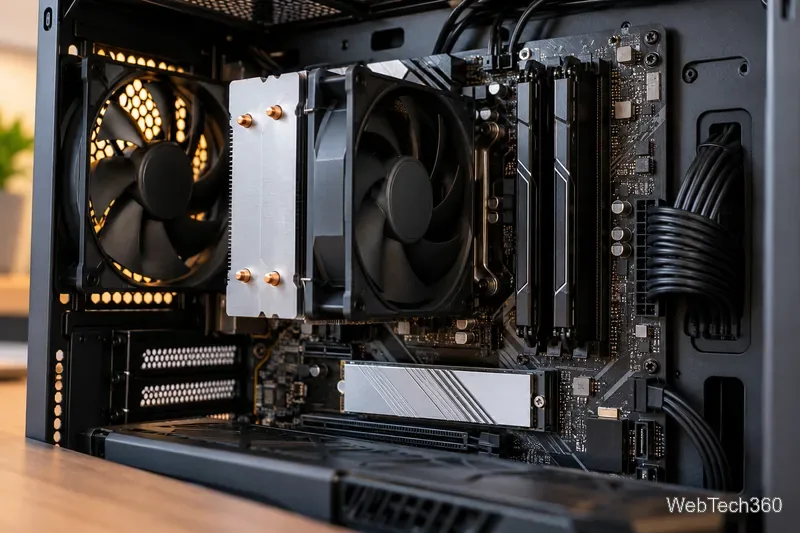
8. Do you need dedicated graphics?
Integrated graphics are adequate for many office tasks, video calls, and streaming. A dedicated graphics processor (GPU) can be worthwhile for demanding 3D games, rendering, and certain creative or technical applications. Check each application's GPU requirements and the amount of graphics memory it recommends. On a laptop, graphics performance also depends on power and cooling, so two systems with similarly named GPUs may behave differently.
9. Which ports and accessories matter?
Check the actual number and capabilities of USB-A, USB-C, HDMI, audio, Ethernet, and memory-card connections. A USB-C-shaped port does not automatically support charging, high-speed data, or external displays. Confirm monitor support, Wi-Fi compatibility, webcam quality, and whether a charger is included. If you need a printer, docking station, or older accessory, verify driver and connector compatibility before buying.
10. Is the brand's warranty and repair support reliable?
Judge the specific model and its service arrangements rather than assuming every computer from a brand is equally good. Check warranty length, battery coverage, turnaround options, return windows, parts availability, and whether common repairs are practical. A service contract is not the same as the included manufacturer warranty. The FTC's warranty guidance explains what to read before purchasing. Save the product listing, receipt, and warranty terms.
Quick checklist before checkout
- Will this exact model run my must-have applications?
- Does it have enough RAM and SSD space for the next few years?
- Have I checked the screen, keyboard, ports, battery, and upgrade limits?
- Is the full cost within budget, including accessories and software?
- Have I read the warranty and return policy for the actual seller?
For Windows PCs, verify the model against Microsoft's Windows 11 requirements. For a Mac, use Apple's model comparison to check configurations, ports, memory, and storage before ordering.