Home
» INTERNET
»
Bookmark YouTube Videos and Resume Playback in Firefox
Bookmark YouTube Videos and Resume Playback in Firefox
Want to bookmark a YouTube video in Firefox and resume it at the exact moment you stopped? The Firefox extension resumeLater is designed for that job: it saves a YouTube video together with its playback position so you can return to it later. You can also make a timestamped Firefox bookmark without installing an extension, or use YouTube's built-in watch progress when signed in.
The original resumeLater workflow was built around an old Firefox status bar. That instruction is outdated. The add-on's current Mozilla listing instead describes a control in the address bar for saving a video and a toolbar control for opening the saved list. Here is how to use the current approach, plus what to do if it does not work in your Firefox setup.
Bookmark a YouTube video with resumeLater in Firefox
1. Install resumeLater from Mozilla Add-ons
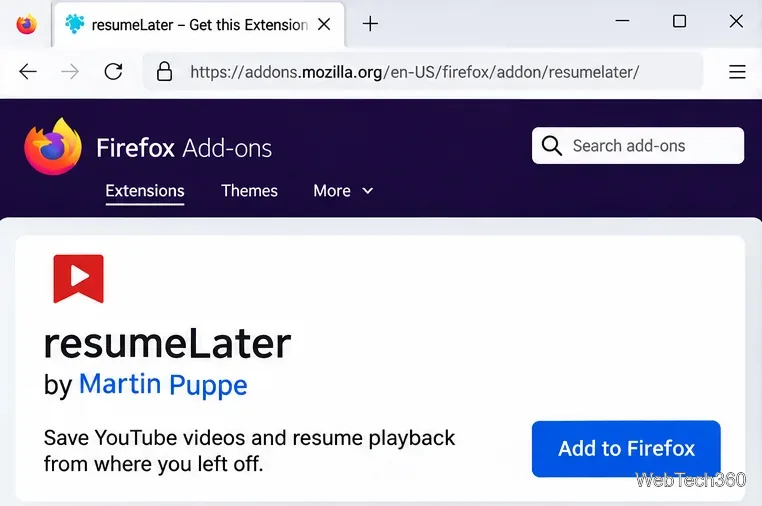
In Firefox on your computer, open the official resumeLater extension page. Choose Add to Firefox if the button is available, review Firefox's permission prompt, and approve the installation only if you are comfortable with it. The add-on requests access to browser tabs and data on YouTube's domain so it can work with the current video.
The Mozilla listing identifies Martin Puppe as the author and shows version 2.0.2resigned1, last updated April 25, 2024. A live listing does not guarantee compatibility with every newer Firefox release; the procedure below reflects its documented controls rather than a claim of independent hands-on testing.
Firefox Add-ons page for resumeLater, where the extension can be installed and its publisher checked.
2. Save the video at the point you want to remember
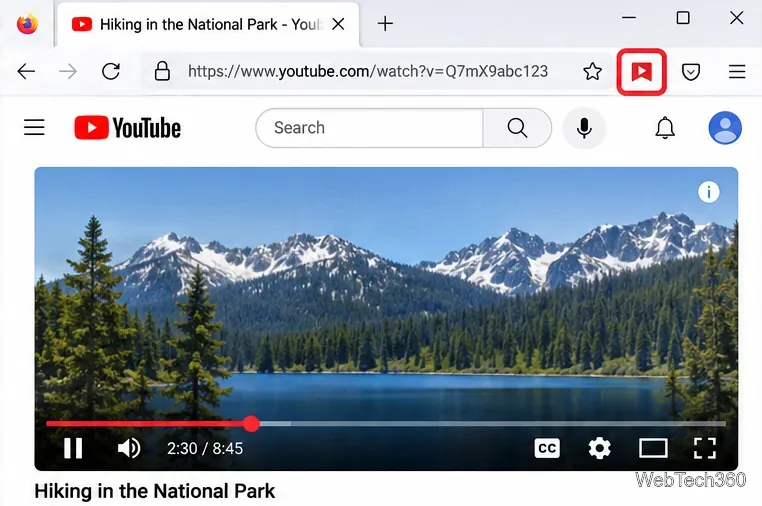
Open a regular YouTube watch page and play the video until you reach the point where you want to stop. Pause playback. Look for resumeLater's save control in the Firefox address bar and select it to bookmark the video along with the current position. If the control is hidden, check whether the add-on is enabled in Firefox's Extensions manager and reload the YouTube tab.
Unlike a standard bookmark of a video URL, a playback-position bookmark is intended to preserve where you were, not only which video you watched.
A paused YouTube video at 2:30, with the browser extension control highlighted near the address bar.
3. Open the list of saved videos
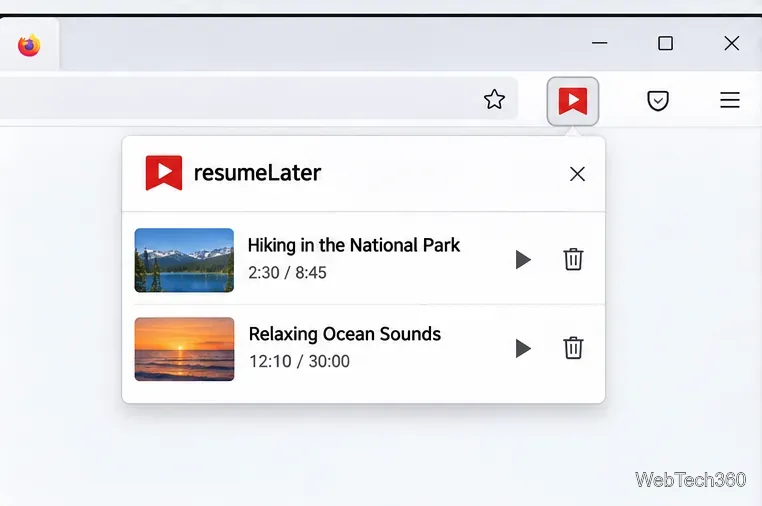
When you are ready to return, use the resumeLater icon in Firefox's toolbar to open your saved-video list. The extension's published screenshots show a Your Videos view with links to saved items and their positions. The exact presentation may vary by extension version; do not look for the old Firefox status-bar button described in historical guides.
For a longer list, use the video title to recognize the correct entry. These entries are separate from YouTube's Watch Later playlist and Firefox's ordinary bookmark folders.
Example saved-video view with two YouTube titles and remembered playback times.
4. Reopen the entry and check its start position
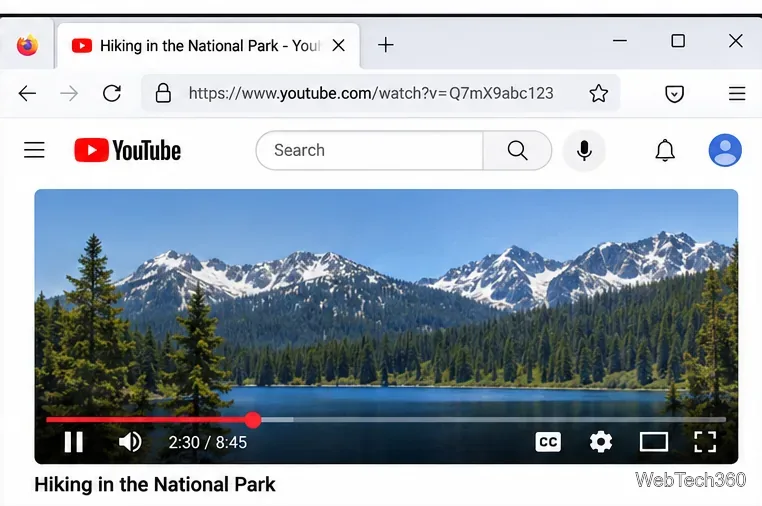
Select the saved video from resumeLater. It should open YouTube and seek to the saved point, allowing you to pick up without manually scrubbing through the timeline. Check the time displayed by the YouTube player, especially if the video was edited, became unavailable, or the add-on behaves differently from its documentation.
After finishing a video, remove its saved entry if you no longer need it. The original extension is specifically for YouTube, not a general bookmark manager for every streaming website.
The same example YouTube video opened at the previously saved 2:30 position.
Save an exact YouTube timestamp without an add-on
If you would rather avoid an extension, YouTube provides a built-in Start at option for its desktop sharing links. Pause the video at the desired moment, click Share below the player, select Start at, confirm the time, and copy the link. YouTube's official sharing instructions document this feature.
Paste that timestamped link into Firefox's address bar, visit it, and press Ctrl+D on Windows or Linux (or Command+D on macOS) to save it as a normal bookmark. Give it a useful name, such as “Lecture — resume at 18:40,” and place it in a dedicated YouTube folder. The time in the link is fixed: unlike an extension, a regular Firefox bookmark will not automatically update as you keep watching. Mozilla explains bookmark creation and management in its Firefox bookmarks guide.
This method is particularly convenient for sharing or preserving a reliable restart point. Firefox Sync can sync ordinary bookmarks between signed-in Firefox devices when bookmark syncing is enabled, as covered in Mozilla's Sync documentation. Do not assume resumeLater's own saved-video data has the same cross-device behavior.
Can YouTube resume videos automatically?
Often, yes. If you are signed in and YouTube watch history is enabled, the platform may show a progress bar beneath a partially watched video's thumbnail. Opening that video will usually resume near where you left off. However, YouTube says this does not always happen, especially for videos that were almost finished, and progress indicators can take time to update. See YouTube's explanation of video progress bars.
This option is helpful when you do not need a permanent bookmark, but it depends on your account and watch history. If history is turned off, new watches are not added to it; clearing watch history also removes saved progress bars. You can review those settings in YouTube's watch history help.
If a saved video does not resume correctly
Check the extension: Open Firefox's Add-ons and Themes page, confirm resumeLater is enabled, and refresh the YouTube page before trying to save again.
Check the saved position: A normal Firefox bookmark pointing to a video without a timestamp may start at the beginning. Use YouTube's Start at link if precision matters.
Check your browsing context: A different Firefox profile, deleted extension data, or a private window may not have access to the same locally stored entries. Do not rely on an extension list as your only backup.
Check the video: Removed, private, restricted, or changed videos may not play as expected even when their URLs are saved.
For add-on-specific bugs, consult the developer's resumeLater issue tracker. For most Firefox users, the choice is straightforward: use resumeLater for a dedicated queue of paused YouTube videos, a timestamped Firefox bookmark for a fixed position you want to keep, or YouTube watch progress for everyday viewing across signed-in devices.