Home
» INTERNET
»
Disable All Chrome Extensions With One Click (and Restore Them)
Disable All Chrome Extensions With One Click (and Restore Them)
Want to disable all Chrome extensions with one click? Chrome’s built-in manager lets you switch extensions off individually, but does not provide a single disable-everything button. For a convenient bulk switch, install an extension manager such as Extensity. It can temporarily turn off installed extensions, turn them back on, or toggle individual add-ons without repeatedly opening Chrome settings.
How to disable all Chrome extensions with Extensity
Extensity is listed in the Chrome Web Store and its developer describes bulk on/off controls, individual extension management, and optional profiles. The instructions below apply to desktop Chrome on Windows, macOS, and Linux; the exact popup appearance can change with updates.
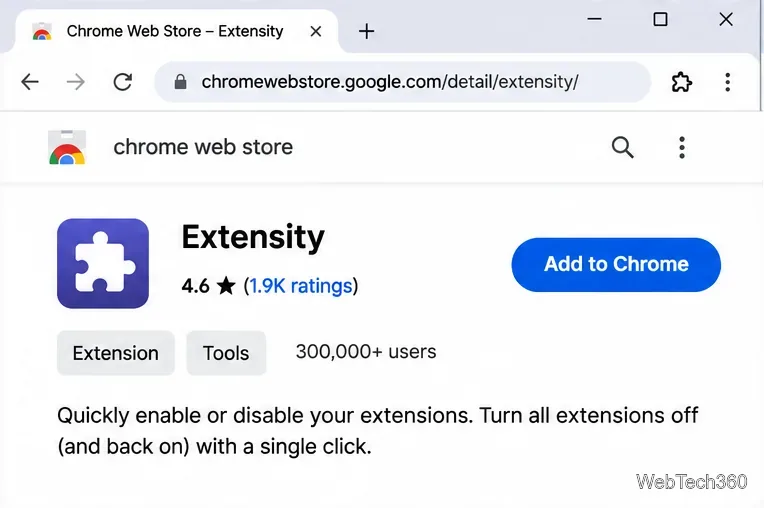
Open Extensity on the Chrome Web Store on your computer. Check the publisher and requested permissions before installing any extension.
Choose Add to Chrome, then select Add extension if Chrome asks for confirmation.
Install Extensity from its official Chrome Web Store listing.
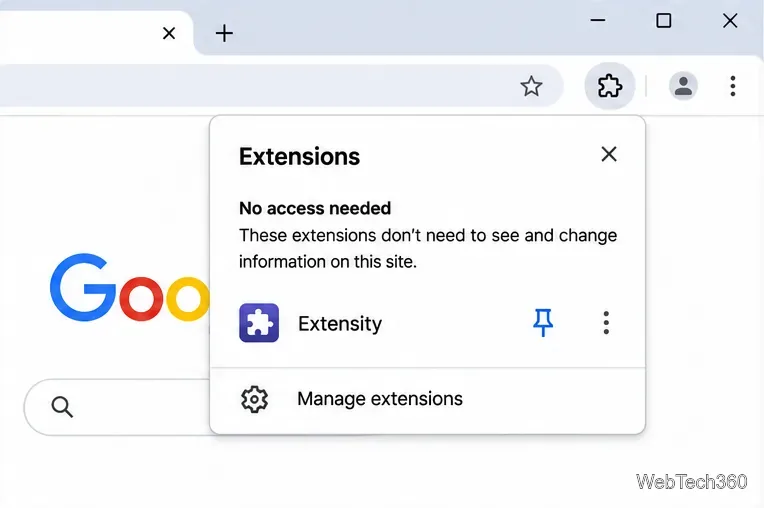
Click the puzzle-piece Extensions icon near the address bar. Find Extensity and choose the Pin control if you want its icon to remain visible.
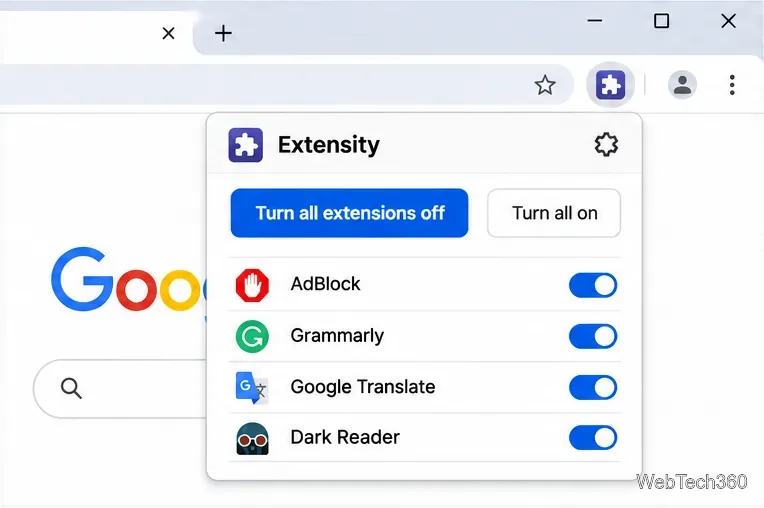
Open Extensity from its toolbar icon. Locate its bulk disable control and use it to switch off the extensions it manages.
Pin the manager so its controls are easy to reach.Use the bulk control for a temporary extension-free test; use individual entries for targeted changes.
Return to the same popup when you want to restore your extensions. Extensity also supports profiles, which are useful if you regularly switch between work, personal, and troubleshooting sets. The developer documents those features in Extensity’s developer repository.
Turn off one extension instead of all of them
If a single website is behaving oddly, disabling every extension might be unnecessary. Open Extensity and turn off a likely culprit, such as a content blocker, password helper, or page-customization tool. Reload the website and check whether the problem disappears. Re-enable the add-on if nothing changes, then try another.
Some extensions affect only particular websites. Before disabling one globally, review its site-access settings. Chrome lets you limit access to selected sites or allow access when you click the extension. That can solve a conflict while leaving the tool available elsewhere.
Disable Chrome extensions without another add-on
If you would rather not grant an extension manager access to your installed add-ons, use Chrome’s built-in controls. This method is reliable but requires a separate toggle for each extension:
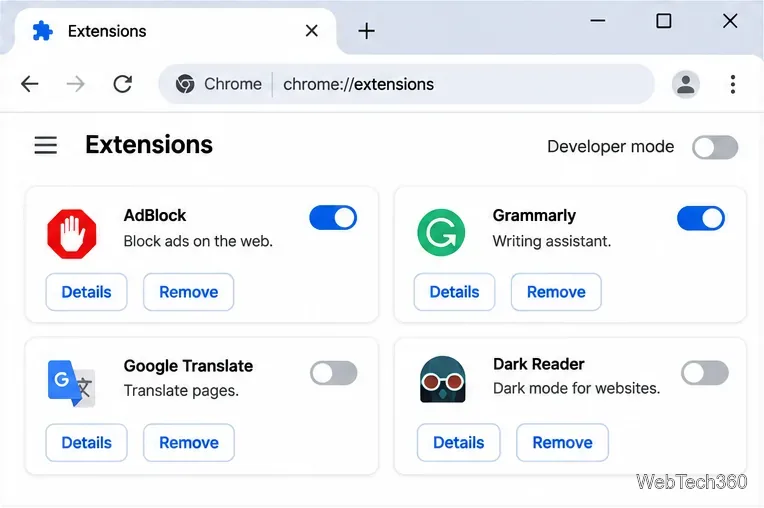
Type chrome://extensions in Chrome’s address bar and press Enter. Alternatively, open the three-dot menu, select Extensions, then Manage extensions.
On each extension card, turn the blue switch off. A gray switch indicates that extension is disabled.
To restore an extension, return to the same page and turn its switch back on.
The built-in extensions page lets you turn off add-ons individually or remove them.
Disable is not the same as Remove. Turning an extension off keeps it installed so you can re-enable it later. Selecting Remove uninstalls it. Chrome explains both actions in Google’s extension management guide.
Find out which extension is causing a problem
Bulk disabling is especially useful when Chrome freezes, a page will not load correctly, or buttons stop responding after you install a new add-on. Use this short isolation process:
Make a note of any extensions you intentionally keep enabled.
Turn off the extensions using Extensity, or use the individual switches on Chrome’s extensions page.
Reload the problem site. If the issue remains, an extension may not be the cause; also check the site itself, browser updates, and network connectivity.
If the issue disappears, restore extensions one at a time and reload the affected page after each change.
When the behavior returns, disable the last extension again to check whether the result is reproducible. Review its settings, site permissions, or available updates before uninstalling it.
This process identifies a likely conflict without deleting everything at once. It is also easier to reverse than removing add-ons and reinstalling them from scratch.
Important limits and safety notes
One-click means an added manager. Chrome does not currently include a native bulk-disable button in its extension manager.
Permissions matter. An extension manager may request permission to manage other extensions. Review the request carefully; Chrome documents that capability in Chrome’s extension-management API.
Not every add-on can be controlled. Enterprise-managed or policy-restricted extensions may resist changes, and extensions disabled by Chrome as unsupported may not be restorable normally.
Profiles are optional. Use Extensity’s profiles when you want repeatable groups instead of turning every extension off each time.
What about Disable All Extensions Plus?
Older tutorials described a Chrome add-on called Disable All Extensions Plus and used menu paths such as Settings > Tools > Extensions. Those instructions reflect an earlier Chrome interface. Its old Web Store listing could not be confirmed as a current installation option, so this guide uses the verifiable Extensity listing and Chrome’s supported controls instead. Avoid downloading an old extension package from an unverified mirror merely to reproduce the legacy method.
Frequently asked questions
Will disabling extensions delete their settings?
Normally, no. Disabling leaves the extension installed, unlike removing it. Individual extensions can still behave differently when re-enabled, so check their options if something changes.
Can I turn off all Chrome extensions on Android or iPhone?
This walkthrough is for desktop Chrome. Chrome’s desktop extension-management workflow does not carry over directly to its mobile apps.