Home
» INTERNET
»
How to Change DNS Settings on Your Router, Windows, Mac, or Phone
How to Change DNS Settings on Your Router, Windows, Mac, or Phone
To change DNS settings, enter your preferred DNS provider's addresses in your router's network settings or in the network settings on a single device. Changing DNS on the router is convenient for a home network; changing it on a device is better when you only want to affect that computer or phone. Save your current settings first so you can restore them if needed.
Choose a DNS provider before you start
The Domain Name System (DNS) translates names such as example.com into IP addresses. Your internet service provider usually supplies DNS automatically, but you can choose another resolver. Different providers may offer filtering or encrypted DNS options; a new resolver does not guarantee faster browsing.
Service
Preferred IPv4 DNS
Alternate IPv4 DNS
Cloudflare 1.1.1.1
1.1.1.1
1.0.0.1
Google Public DNS
8.8.8.8
8.8.4.4
Cloudflare Families (malware and adult-content filtering)
Use this method to set a default resolver for devices connected to your home network. Router menus vary by manufacturer.
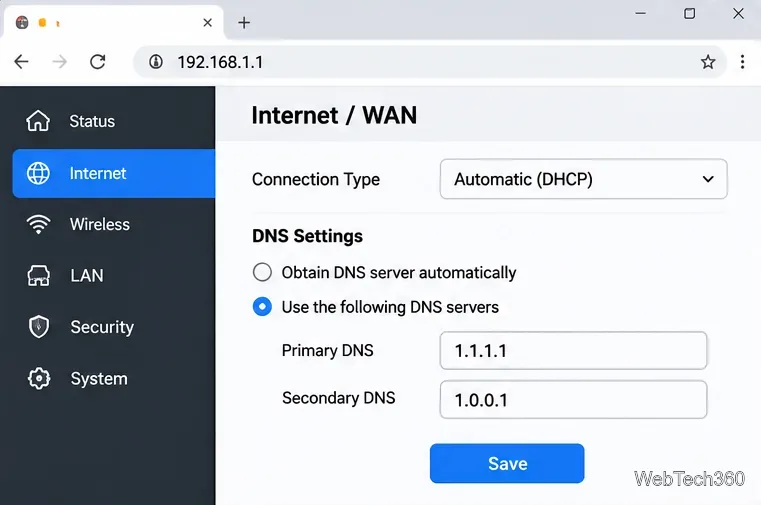
Connect to your router and open its admin address in a browser. Common examples are 192.168.1.1 and 192.168.0.1; the correct address is usually the default gateway shown in your device's network details.
Sign in with your router's administrator credentials.
Find Internet, WAN, or DNS settings. Record the current entries.
Select manual or custom DNS, enter the preferred and alternate addresses, then save. Reconnect devices if necessary.
Router WAN settings showing Cloudflare DNS addresses.
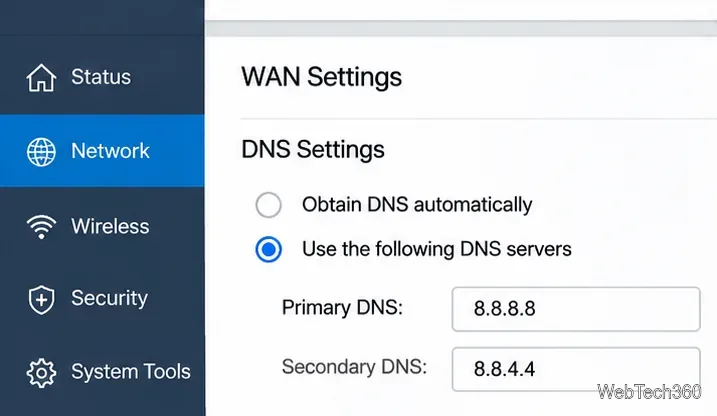
Some routers have separate DNS settings for the internet (WAN) connection and the DNS servers advertised to local devices by DHCP. Check the manufacturer's guide if your changes do not reach your devices. A device's own encrypted DNS or VPN settings can also override the router's choice. See Cloudflare's router instructions.
A second router configuration example using Google Public DNS.
Change DNS on Windows 11 or Windows 10
Windows 11
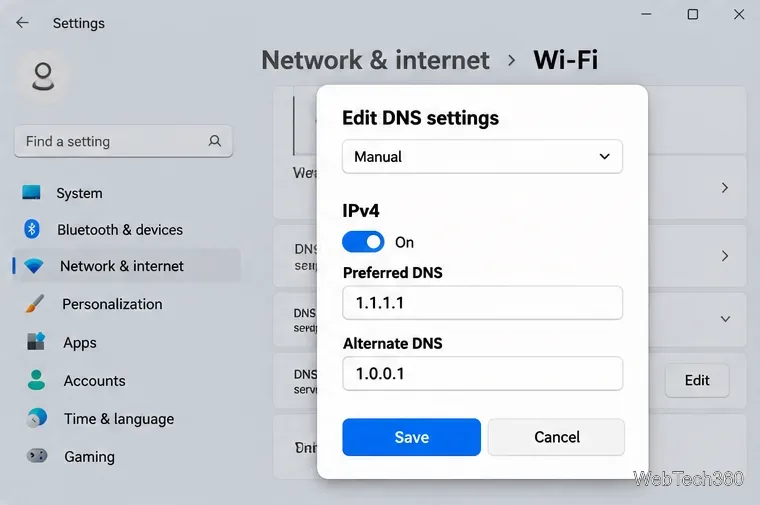
Open Settings > Network & internet, then choose Wi-Fi or Ethernet and the relevant connection or hardware properties.
Find DNS server assignment and select Edit.
Choose Manual, turn on IPv4, and enter the preferred and alternate DNS addresses.
Choose a supported DNS over HTTPS setting if you want encrypted DNS queries, then select Save.
Windows 11 DNS server assignment with preferred and alternate values.
Windows 10: open Control Panel > Network and Internet > Network Connections, right-click the active adapter, select Properties, then open Internet Protocol Version 4 (TCP/IPv4) > Properties. Choose Use the following DNS server addresses, enter the two addresses, and select OK. The built-in DNS-over-HTTPS setting described for Windows 11 is not available in Windows 10. See Microsoft's network settings guide.
Change DNS on macOS
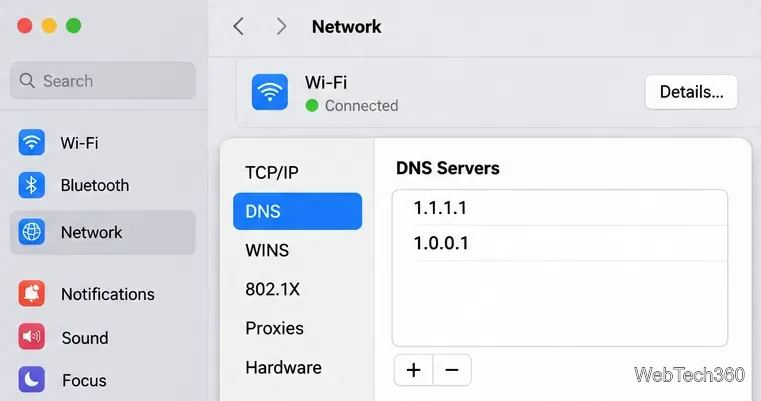
Open Apple menu > System Settings > Network.
Choose your active Wi-Fi or Ethernet connection and select Details > DNS.
Under DNS Servers, select the add (+) control and enter the provider's addresses. Remove older custom entries if they should no longer be used.
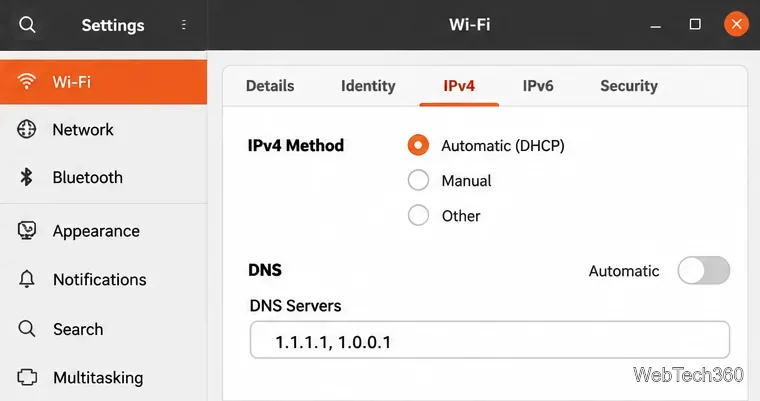
Open Settings > Wi-Fi (or Network for wired connections) and open the active connection's settings.
Under IPv4, keep the existing address-assignment method, turn off Automatic in the DNS section, and enter your DNS addresses.
Select Apply, then reconnect if the new setting is not picked up.
Ubuntu IPv4 settings with custom DNS servers.
On modern Ubuntu installations, NetworkManager or another network service may regenerate /etc/resolv.conf. Do not rely on editing that file directly for persistent changes. For context, see Ubuntu's network settings help.
Change DNS on Android
On Android 9 and newer, Private DNS is typically the easiest way to use an encrypted DNS service on Wi-Fi and cellular networks.
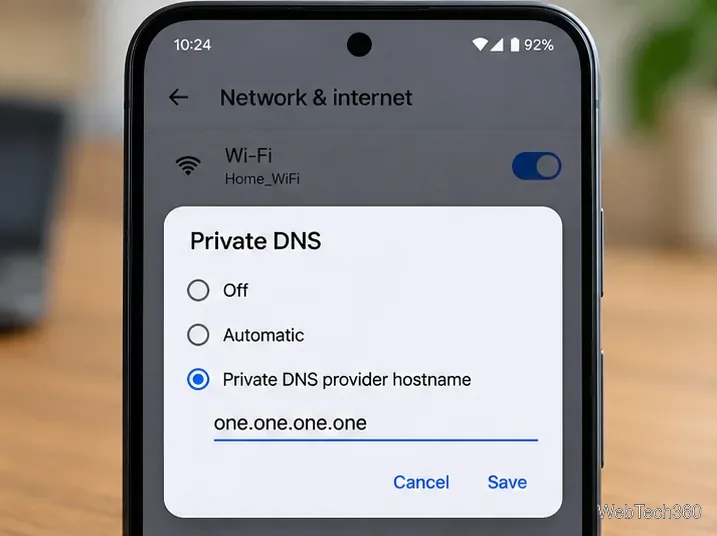
Open Settings > Network & internet > Private DNS, or search Settings for “Private DNS.”
Select Private DNS provider hostname.
For Cloudflare, type one.one.one.one (a hostname, not the IP address 1.1.1.1) and select Save.
Android Private DNS configured with Cloudflare’s provider hostname.
Menu names vary by phone maker. If your network blocks encrypted DNS, select Automatic to restore the default behavior. See Google's Android Private DNS guide.
Change DNS on iPhone or iPad
Open Settings > Wi-Fi and tap the information (i) button beside your connected network.
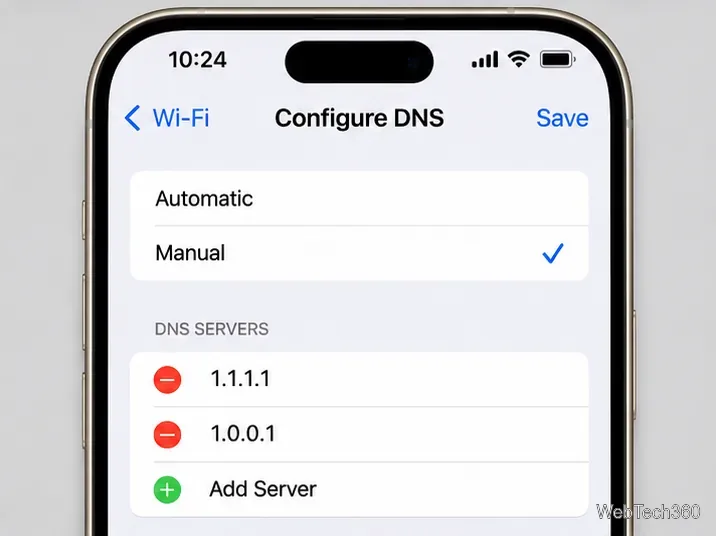
Tap Configure DNS > Manual.
Remove unwanted existing entries, choose Add Server, and add the two IP addresses from your chosen provider.
Tap Save.
Manual DNS entries for an individual iPhone Wi-Fi network.
This manual change applies only to that Wi-Fi network, not cellular data. Return to Automatic to restore the network's DNS settings. See Cloudflare's iPhone setup guide.
Check your DNS settings and fix problems
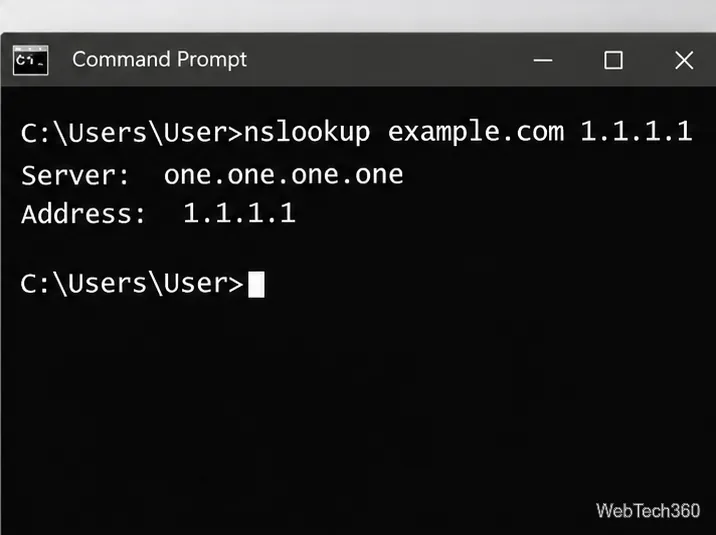
Open a website after saving. On Windows, macOS, or Linux, run nslookup example.com to inspect the DNS server used for that query. To test a particular resolver directly, run nslookup example.com 1.1.1.1; this checks Cloudflare's resolver, not necessarily your system default.
A direct DNS lookup command for checking a chosen resolver.
If websites stop loading, check for a mistyped address, reconnect your network, and restore automatic DNS temporarily. Corporate networks, VPNs, browser-level secure DNS, and public Wi-Fi sign-in pages can affect which resolver is actually used. DNS filtering can block some known harmful domains, but it is not complete parental control or antivirus protection.
DNS is not a VPN: changing resolvers does not change your public IP address, reliably unlock region-restricted services, or encrypt all your internet traffic. Standard DNS may be unencrypted; DNS over HTTPS (DoH) or DNS over TLS (DoT) encrypts DNS queries where supported. If a VPN is active, use its documented DNS options to avoid unintended DNS routing.