Home
» INTERNET
»
How to Deactivate Instagram on Your Mobile App (iPhone and Android)
How to Deactivate Instagram on Your Mobile App (iPhone and Android)
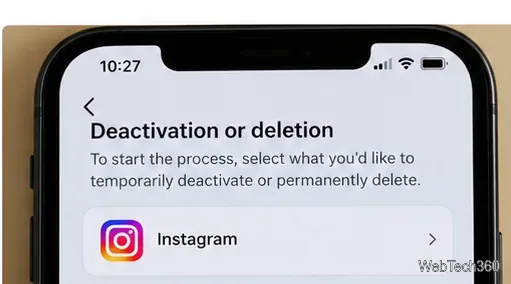
To temporarily deactivate Instagram on your iPhone or Android phone, open your profile menu and go to Accounts Center → Personal details → Account ownership and control → Deactivation or deletion. Select your Instagram profile, choose Deactivate account, and complete the confirmation prompts. Your account will be hidden until you log back in.
Deactivation is a reversible break, not permanent deletion. You can do it from the Instagram app without removing the app itself. Here is the current route, plus what to do if your menus look different.
How to deactivate Instagram in the mobile app
The overall process is similar on iPhone and Android. Make sure you can sign in and know your password before beginning. The screenshots below show the relevant controls; their exact placement can vary across app versions and accounts.
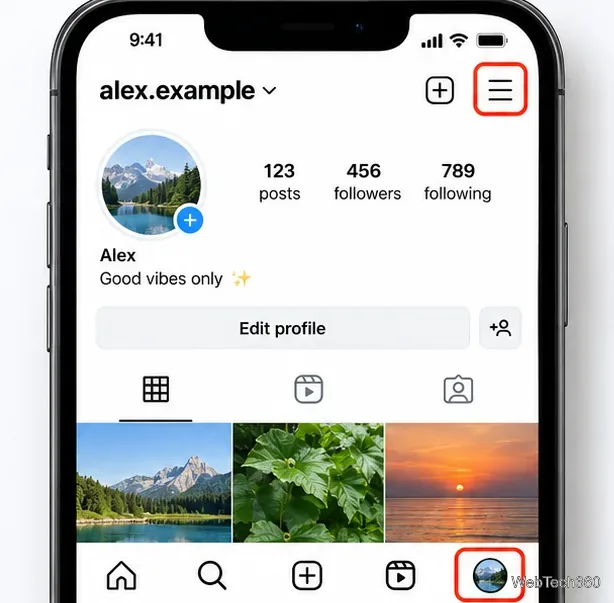
Open your Instagram profile and menu. Launch Instagram, tap your profile picture in the bottom-right corner, then tap the three horizontal lines in the top-right corner to open the settings area. Open your profile, then use the three-line menu at the upper right.
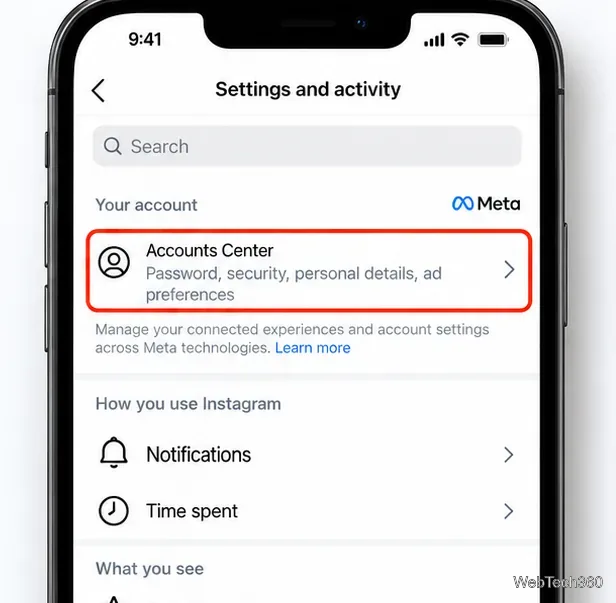
Open Accounts Center. In the settings area (sometimes called Settings and activity), tap Accounts Center. It is Meta’s hub for account-related settings. Accounts Center appears in the Instagram settings area.
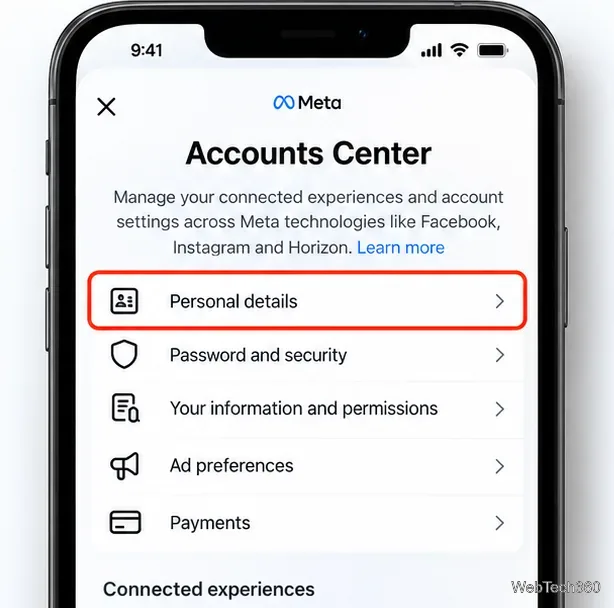
Select Personal details. In Accounts Center, open Personal details, which may appear under Account settings. Choose Personal details from Accounts Center.
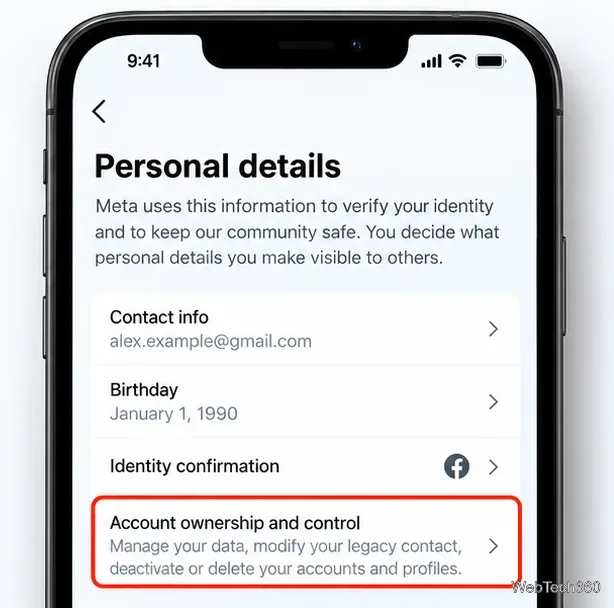
Open Account ownership and control. This section contains the options for managing what happens to an account. Account ownership and control contains the deactivation settings.
Deactivate the correct Instagram account. Tap Deactivation or deletion and select your Instagram account if more than one profile appears. Choose Deactivate account—not Delete account—then tap Continue. Follow the remaining prompts, which can include selecting a reason and re-entering your password, and confirm the temporary deactivation. Select the Instagram profile before choosing Deactivate account.
Another menu layout: Some versions of Accounts Center show Manage accounts or Profiles and personal details. In that case, look for Manage beside the Instagram profile, then open Deactivation or deletion. If you cannot find the control, check the latest Instagram Help Center deactivation instructions rather than choosing a different account-removal option.
Can you deactivate Instagram from a browser or computer?
Yes. Sign in at Instagram.com on a mobile browser or computer. On desktop, open More → Settings → Accounts Center; on mobile, open the profile menu and settings. From there, follow the same Personal details → Account ownership and control → Deactivation or deletion route, select the Instagram profile, and confirm Deactivate account. This is a useful fallback if the app does not display the option.
What happens after you deactivate Instagram?
Instagram says your profile, photos, comments, and likes are hidden until you reactivate your account. Your content is not intentionally erased by the temporary-deactivation process. However, do not assume it removes screenshots, old notifications, or copies that someone else has already saved. Deactivation is also different from simply logging out, uninstalling Instagram, or switching to a private account.
Important: Instagram generally permits temporary deactivation only once per week. If you reactivate and try to deactivate again immediately, the option may be unavailable until the restriction passes.
How to reactivate your Instagram account
Open the Instagram app or website and log in with the same account credentials. Logging back in reactivates a voluntarily deactivated account, so avoid signing in just to check it if you want the break to continue. If you forgot your password, use Instagram’s account-recovery process first.
Signing back in restores a temporarily deactivated account.
Deactivating vs. deleting your Instagram account
Both options can appear on the same screen, but they have very different consequences:
Option
What happens
Can you return?
Deactivate account
Temporarily hides your profile and associated activity
Yes—log back in
Delete account
Starts a permanent account-removal process
Only if you cancel within the applicable cancellation period
If you want to leave permanently, follow the same Accounts Center route but select Delete account and complete the confirmation. Instagram’s guidance describes permanent deletion after 30 days, while noting that the time available to cancel can vary by region. Completing removal may take longer, and some backup copies may be retained under its policies. Review the Instagram Help Center account-deletion guidance before committing.
How to save your Instagram information first
If you might later want copies of your photos, videos, or other account information, export them before requesting permanent deletion. In Instagram, open Accounts Center → Your information and permissions, then find Export your information (called Download your information in some versions). Select your Instagram profile, choose what to include and where to save it, and submit the export request. Wait until the archive is ready and confirm you have downloaded it. Meta has moved these tools into Accounts Center, as explained in Meta’s explanation of Accounts Center; see the Instagram information export instructions for the current export options.
If Instagram will not let you deactivate
The menu is missing: Update Instagram, reopen the app, or try the browser-based route. Look for an alternative Manage accounts layout.
The wrong account appears: Back out and choose the intended Instagram profile before confirming.
You cannot confirm your password: Recover access to your account before starting deactivation.
You recently reactivated: Instagram’s once-per-week limit may be preventing another deactivation.
For a temporary break, the key is choosing Deactivate account on the account-management screen. You can return by signing in whenever you are ready.