Home
» INTERNET
»
How to Type the Not Equal Sign (≠) on Windows, Mac, and in Excel
How to Type the Not Equal Sign (≠) on Windows, Mac, and in Excel
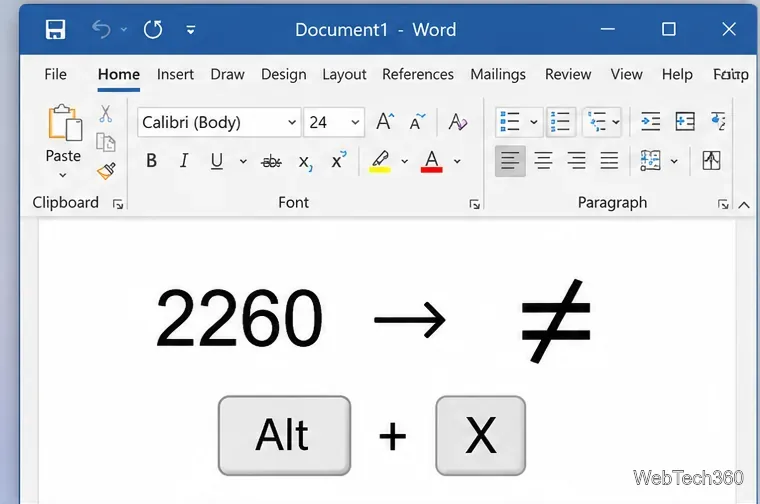
The not equal sign (≠) means that two values are different. To use it right away, copy this character: ≠. On a Mac with a U.S. keyboard layout, press Option + =. In Microsoft Word for Windows, type 2260 and press Alt + X. Other Windows apps can use Character Map to copy the symbol.
The symbol is pronounced “not equal to.” For example, 5 ≠ 8 states that five and eight are not equal. It is a different character from the ordinary equals sign (=), with the Unicode designation U+2260.
How to type the not equal sign in Microsoft Word
Word for Windows supports a Unicode shortcut that is more dependable than the often-repeated “Alt + 8800” instructions:
Click where the sign should appear in your Word document.
Type 2260 (without spaces or quotation marks).
Immediately press Alt + X. Word changes the code into ≠.
In Word for Windows, enter 2260 and use Alt + X to convert the Unicode code into ≠.
If the shortcut converts the wrong text, highlight just 2260 and press Alt + X again. You can also select Insert > Symbol > More Symbols, find the not equal character under mathematical symbols, and click Insert. The symbol dialog is a useful alternative in PowerPoint, where Unicode conversion shortcuts may behave differently. See Microsoft’s Unicode input instructions.
How to insert ≠ anywhere in Windows
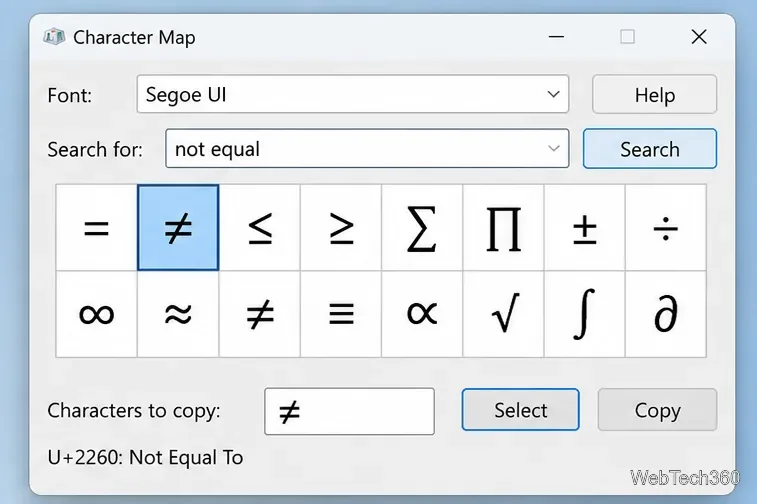
In Windows 10 and Windows 11, Character Map is a practical fallback when an app does not support Word’s shortcut.
Open Start, search for Character Map, and launch it.
Enable Advanced view if available.
Search for not equal. If no result appears, choose a font such as Segoe UI Symbol and browse its mathematical characters.
Select ≠, click Select and then Copy.
Paste the character into an email, text field, presentation, or document.
Use Character Map to find ≠, copy it, and paste it into an app that supports the character.
Microsoft documents Character Map as a built-in way to copy Unicode characters; see Microsoft’s Character Map guidance. An Alt + 8800 numeric-keypad sequence is not a universal Windows shortcut, so avoid relying on it across apps.
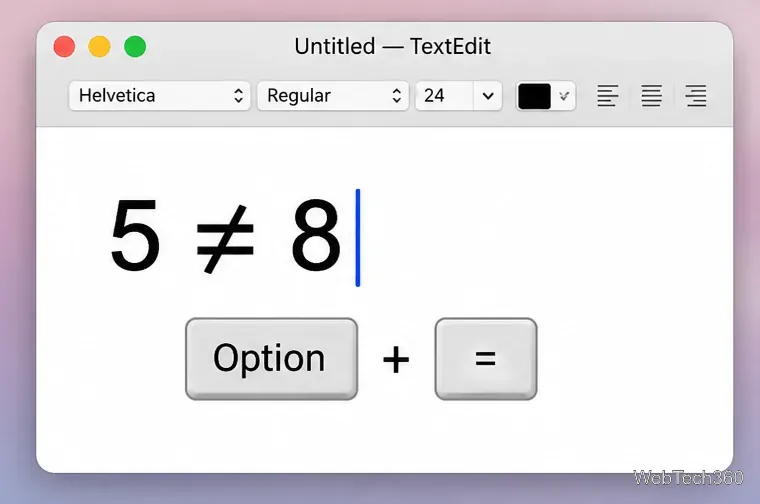
With the standard U.S. Mac keyboard layout, hold Option and press the = key. The not equal sign appears at the insertion point in most text-editing apps.
On a U.S. Mac keyboard, Option + = inserts the not equal symbol.
If your keyboard layout uses a different shortcut, open Edit > Emoji & Symbols, search for not equal, and insert the character from Character Viewer. You can also use Keyboard Viewer to inspect symbols available with Option held down. Apple explains both Character Viewer and Keyboard Viewer.
Not equal in Excel and Google Sheets: use <> in formulas
Important: When comparing values in a spreadsheet formula, type <>, not the printed symbol ≠. Both Excel and Google Sheets recognize <> as the “not equal to” comparison operator.
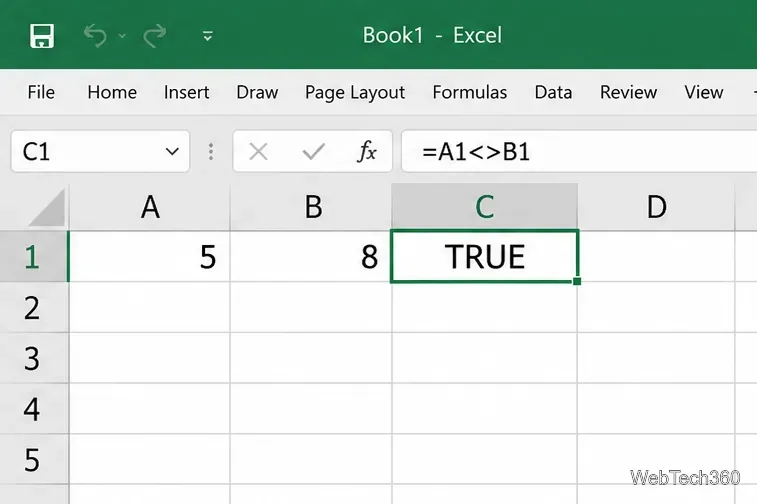
For example, =5<>8 returns TRUE, while =5<>5 returns FALSE. If cell A1 contains 5 and B1 contains 8, =A1<>B1 also evaluates to TRUE.
The Excel formula compares A1 and B1 and returns TRUE when they contain different values.
In Google Docs on a computer, open Insert > Symbols > Special characters. Search for the character or enter its Unicode value 2260, then select ≠. Google Slides also supports this special-character picker. Google Sheets does not offer the same direct picker; copy the character from Docs and paste it into a sheet when you need it as text. These steps follow Google’s special-character instructions.
Using the symbol in websites and code
For webpage text, the HTML entity ≠ or numeric reference ≠ displays ≠. In code and spreadsheet formulas, the operators are language-specific: many programming languages use !=, while Excel and Google Sheets use <>. Do not assume a visibly similar symbol will work as an operator.
If you only need the character once, the simplest method is to copy ≠ from this page and paste it wherever you need it. Unicode identifies this character as U+2260 NOT EQUAL TO, so it remains the same character across supported apps and devices.