Home
» INTERNET
»
How to Use Indoor Maps on Google Maps to Find Floors and Places
How to Use Indoor Maps on Google Maps to Find Floors and Places
To use indoor maps on Google Maps, search for a supported building, zoom in until its floor plan appears, and choose a floor from the level selector. You can then explore stores, gates, corridors, and other labeled places. Indoor floor plans are available only for selected buildings, so a missing floor selector does not necessarily mean anything is wrong with your phone.
You can use the feature in the Google Maps app on Android and iPhone, or on the Google Maps website. The controls are slightly different on mobile and desktop.
How to use indoor maps on Android or iPhone
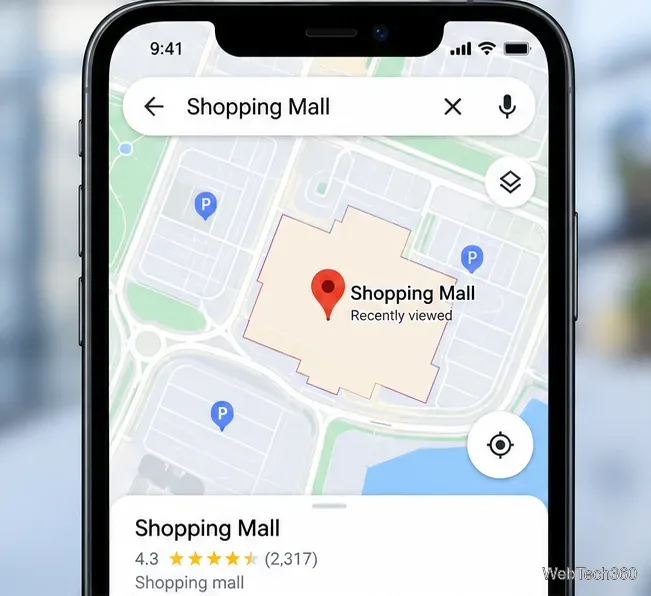
Find the building. Open Google Maps and search for an airport, shopping mall, or another large venue. Select the correct result so the building is centered on the map. Start with the venue name if searching for an individual store takes you straight to its listing.Start with the building itself, not an individual store inside it.
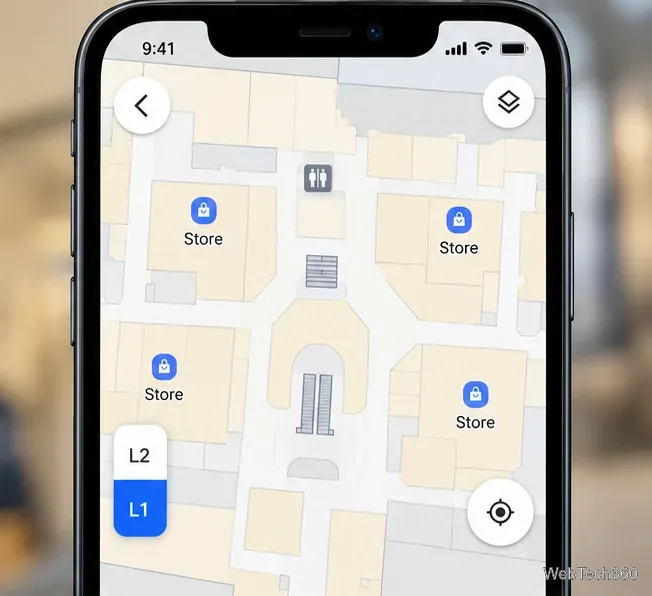
Zoom in to reveal the floor plan. Pinch outward on the map until the building interior becomes visible. If Google has indoor data for that location, the outdoor outline gives way to a more detailed layout. Look for a vertical floor selector near the bottom-left corner of the mobile map.At a supported building, a detailed floor plan and floor selector appear as you zoom in.
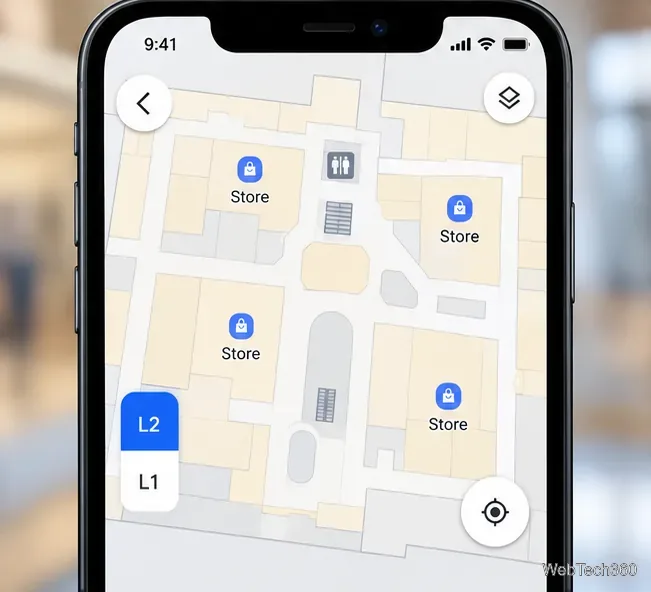
Choose the level you need. Tap a floor label such as L1, L2, or B1 to change the plan. The naming depends on the building, so compare it with the signs on-site. Pan around the selected floor to look for corridors, shops, facilities, or other marked locations.Selecting another level changes the visible floor plan without leaving the building.
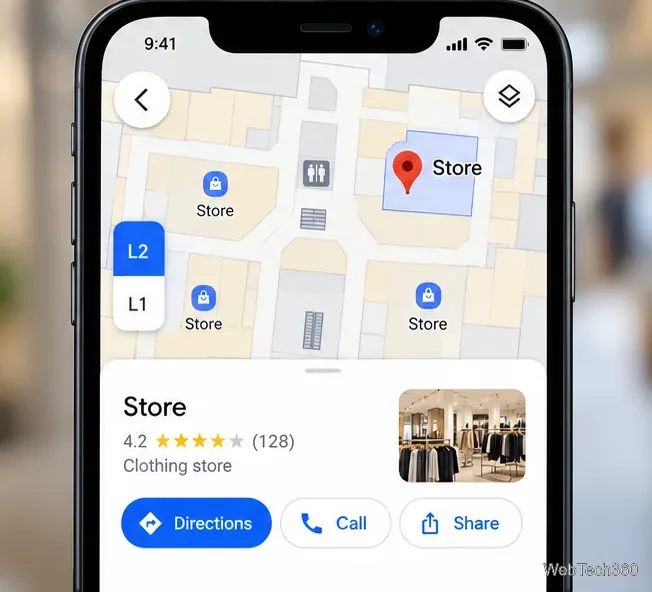
Open a place on that floor. Tap a labeled store, service, or point of interest to view the information Google Maps has for it. If a Directions option is offered, you can select it, but do not assume every mapped interior supports step-by-step indoor navigation.Tap a mapped business to open its place details and available actions.
The web version uses the same indoor map data, but the floor control is in a different place:
Open Google Maps in your browser and search for the venue.
Zoom in and click the building or mapped place to open its detailed floor plan.
Use the level and floor controls in the bottom-right corner to switch floors.
Click a labeled location for details, or search while zoomed in to explore a business or service inside the building.
These steps and the desktop control position are described in Google’s computer guide. If you are following an older tutorial that says the floor selector is always on the left, it may be describing the mobile interface rather than the current website.
What indoor maps can—and cannot—show
An indoor map is a 2D floor plan, not an augmented-reality camera view. It may show shops, airport gates, restrooms, stairs, and other labeled spaces, depending on the venue's available data. Tap an individual place to check its listing, but verify important details such as operating hours or gate assignments against the venue's official information.
Indoor maps also differ from Lens in Maps, which can provide camera-assisted walking guidance where supported. A visible floor plan does not by itself mean that indoor augmented-reality directions or an accurate live indoor position are available. See Google’s Lens in Maps help page for the separate camera-navigation feature.
Why can't I see an indoor map or floor selector?
The building may not be covered. Google offers indoor maps only at selected venues. Even in a supported country, many individual buildings have no published plan.
You may not be zoomed in far enough. Find the correct building, close or minimize any large place-information card if it obscures the map, and zoom in again.
You may be looking at the wrong part of a complex. A large airport or shopping center can have multiple buildings; move the map to the relevant terminal or wing and look for the floor control.
The information may be missing or outdated. Floor plans and business labels are not guaranteed to reflect every recent renovation, store move, or access restriction. Use posted building maps and signs when the digital map is unclear.
Where are Google Maps indoor maps available?
Google maintains a Google’s country and region availability list, including the United States, the United Kingdom, Canada, Japan, India, and many other markets. That list describes geographic availability, not a promise that every airport, mall, or museum in those places has an indoor map. The practical way to check a particular venue is to open it in Maps and zoom in until you either see a floor plan and level selector or reach the closest useful map view.
Can a building owner correct an indoor map?
Google provides regional contact information for updating existing floor plans in its Google’s computer guide. If you notice an incorrect room, shop, or level, notify the venue management as well: they are better positioned to confirm the current layout. As a visitor, you do not need to upload a floor plan or enable a special setting to view one that Google Maps already supports.