Home
» INTERNET
»
How to Zoom In Microsoft Teams: Text, Shared Screens, and Camera
How to Zoom In Microsoft Teams: Text, Shared Screens, and Camera
To zoom in Microsoft Teams, press Ctrl+= on Windows or Command+= on a Mac. That enlarges the app's text, chats, and controls. Press Ctrl+0 (Windows) or Command+0 (Mac) to return to the normal size. If you mean zooming into a presentation or making your webcam image closer, those require different controls.
Zoom in on Teams text, chats, and menus
The desktop app lets you adjust its interface without changing your computer's overall display scaling. Open Teams, click inside the app, and use the shortcuts below. On a US keyboard, the zoom-in shortcut uses the equals key; you don't have to hold Shift to type a plus sign.
Action
Windows
Mac
Zoom in
Ctrl+=
Command+=
Zoom out
Ctrl+-
Command+-
Reset to default
Ctrl+0
Command+0
Use the mouse wheel
Hold Ctrl and scroll
Hold Command and scroll
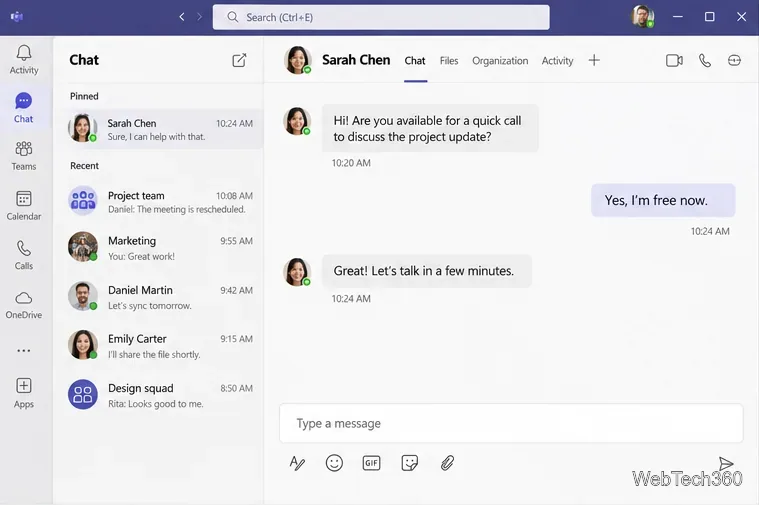
For example, the same chat can be viewed at its usual size or at a larger zoom level:
A standard Teams chat view, before enlarging the interface.The chat and its controls appear larger when the interface zoom increases.
These commands affect how Teams appears on your screen. They do not enlarge text for other meeting attendees. Microsoft lists the shortcuts in its official Teams zoom guide.
Zoom in on a shared screen during a meeting
If someone is showing a spreadsheet, document, or slide with tiny text, use the meeting's shared-content zoom instead of enlarging the whole Teams interface.
Join the meeting and wait until the shared content appears.
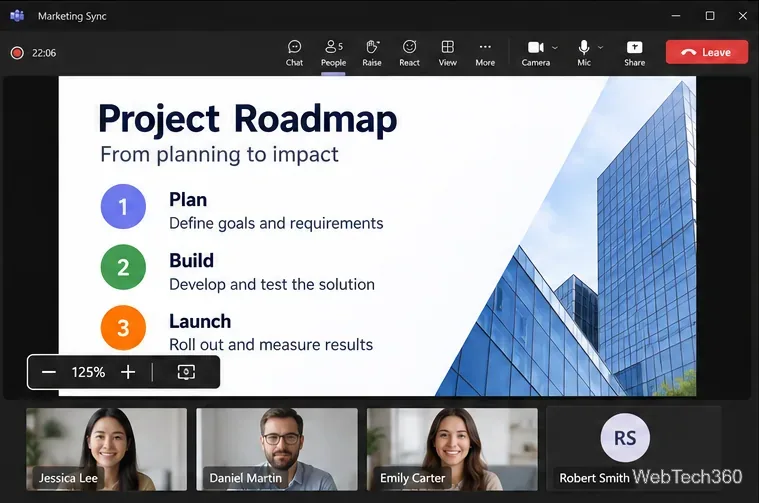
Find the + and - controls near the lower corner of the shared content, then select + to magnify it.
Drag the enlarged content to inspect an area that's offscreen. Use - or the reset control to return to a wider view.
The plus and minus buttons control the size of shared content in the meeting window.
On Windows, Teams also documents Alt+Shift++ to zoom in, Alt+Shift+- to zoom out, and Alt+Shift+0 to reset shared-content zoom. Keyboard layouts may require different key combinations to enter the plus sign. You can also hold Ctrl while scrolling the mouse wheel. See Microsoft's screen-sharing instructions for the available methods.
Zooming shared content changes your own view; it does not resize the presenter's document or make everyone else zoom in. Mobile users can pinch to enlarge supported shared content.
Make another participant's video look closer
Teams can crop a participant's video to fill its tile. Move your pointer over that person's video, select More options, and choose Fill frame for a closer, cropped view. To see the complete picture, choose Fit to frame. These options adjust how you view that video; they do not remotely control the person's camera or change the feed they transmit. Microsoft explains the distinction in Use video in Microsoft Teams.
Zoom in your own webcam image in Teams
If you want your face to fill more of the picture for other people, adjust the camera itself or use compatible webcam software. Unlike Teams' interface zoom, there is no universal Teams shortcut that zooms every webcam. The available controls depend on the camera, its driver, and any software your organization allows.
Try your camera's own controls first
In Teams for desktop, open Settings and more (the three-dot menu) and select Settings > Devices.
Under video settings, check the chosen Camera and open camera settings if that option is available.
Look for zoom, framing, or field-of-view controls supported by your webcam. Adjust them and inspect the preview before joining a meeting.
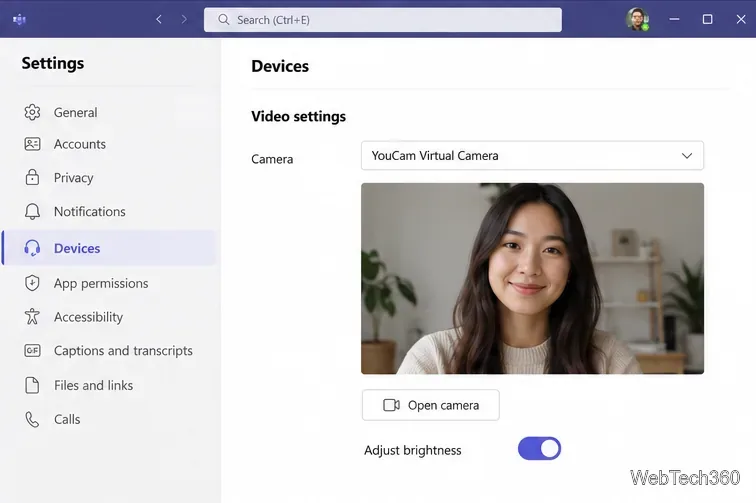
Teams' device-settings guide confirms the camera selector, preview, and access to camera settings. Brightness and soft focus are not substitutes for a true zoom control.
Use a compatible virtual camera when necessary
For a webcam without its own framing tools, a virtual-camera application may provide digital cropping or automatic face framing. One example is CyberLink YouCam, whose current product information describes auto-zoom face tracking. The exact controls and availability can vary by product version or subscription.
Install the webcam application from its official publisher and grant camera access only if you trust the application.
Configure the framing or zoom in that application, following its current instructions.
In Teams > Settings and more > Settings > Devices, select the application's virtual camera from the Camera list, if it appears.
Check your preview, then make a test call or join a meeting to confirm the image is framed correctly.
Select an installed virtual camera in Teams Devices settings when it is supported.
A software zoom usually crops the picture rather than adding detail. Excessive zoom may make the video look soft, especially with a low-resolution webcam. If the virtual camera is missing, restart Teams after installing it, check operating-system camera permissions, and ask your IT administrator whether virtual cameras are restricted.
What if Teams won't zoom?
The shortcut does nothing: click inside the Teams window first and retry. Check whether your keyboard layout uses a different key for the equals sign.
Only a shared presentation needs enlarging: use the meeting's content controls, not the interface shortcut.
Everything is suddenly too large: reset the interface with Ctrl+0 or Command+0.
The webcam looks unchanged: interface zoom does not alter camera output. Check the device preview and the camera application's settings.
For everyday reading, start with the built-in Teams zoom shortcuts. For small slides, use meeting-content zoom; for a closer face-on-camera view, adjust the camera or its trusted companion software.