Home
» INTERNET
»
Screenleap: One-Click Screen Sharing Without Signup
Screenleap: One-Click Screen Sharing Without Signup
Screenleap lets you share your screen directly from a desktop browser without creating an account or installing Java. Open its website, choose what to show, and send someone a viewing link or a nine-digit code. The other person can watch in a web browser without installing the desktop application. It is a practical option for a quick demonstration, remote explanation, or presentation when participants use different devices.
The important catch: no signup does not mean unlimited sharing. Screenleap currently limits guest sharing to 20 minutes per day with one viewer. Creating a free account increases those limits, so check the plan details before inviting a group.
How to share your screen with Screenleap
1. Open Screenleap in a desktop browser
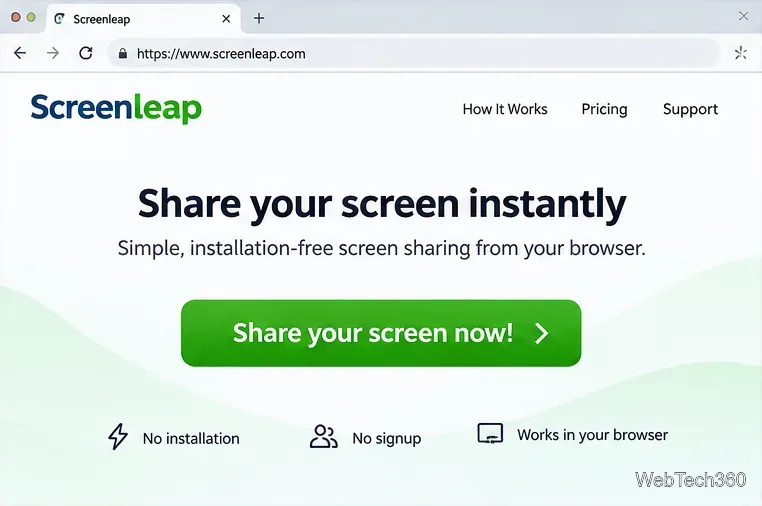
Go to the Screenleap website in Chrome, Microsoft Edge, Firefox, or Safari on your computer. Select Share your screen now! to start the browser-based sharing flow. You do not need a Java Runtime permission prompt: the Java-based instructions found in older tutorials are obsolete. Screenleap confirms that these modern desktop browsers support installation-free sharing.
Start on the Screenleap website and use the screen-sharing button.
2. Decide exactly what the viewer may see
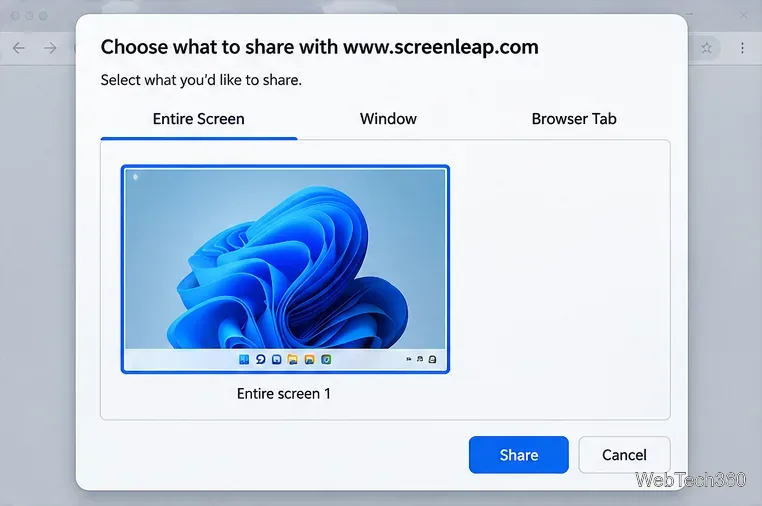
When the browser asks what you want to share, select an entire screen, a particular window, or a browser tab, then confirm the Share action. Select a tab for a browser demonstration or one window when you do not want notifications and unrelated applications to appear. An entire screen is more flexible for switching apps, but it can reveal anything visible on that display.
Screenleap also documents a movable rectangle for sharing part of a desktop screen, but this is not the default browser picker: rectangle mode requires its add-on on supported Windows or Mac setups and is not available when starting from Safari. For most quick sessions, choosing a window or tab avoids installing anything.
The browser permission dialog lets you narrow the content being shared.
3. Invite the viewer with a link or code
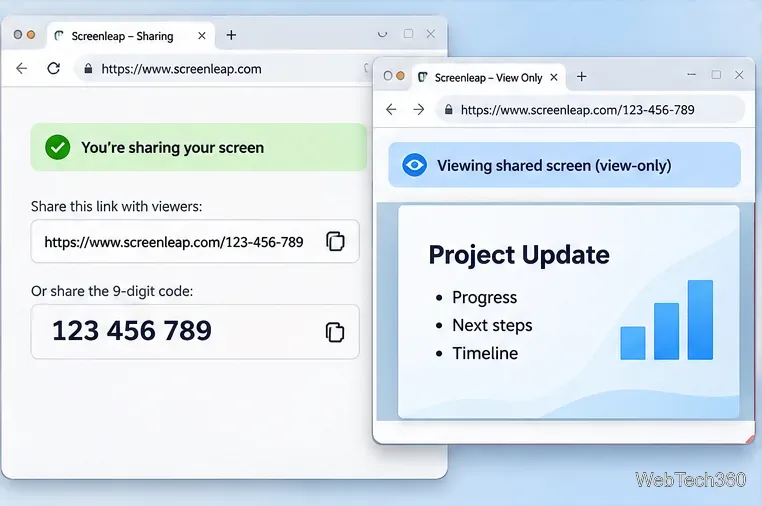
After sharing starts, copy the session link and send it privately to the intended viewer. Alternatively, share the unique nine-digit meeting code. The recipient can open the link directly, or visit Screenleap, enter the code, and select Join meeting. The viewer watches in a browser, including on supported phones and tablets; viewing does not require a separate Screenleap app.
Keep the link within your intended audience. A share link is a means of accessing the session, not proof of the viewer’s identity. You should also verify that the correct tab, window, or display is showing before discussing sensitive material.
An example meeting link and code are shown alongside a browser viewing window; actual session codes vary.
4. Pause or end your session
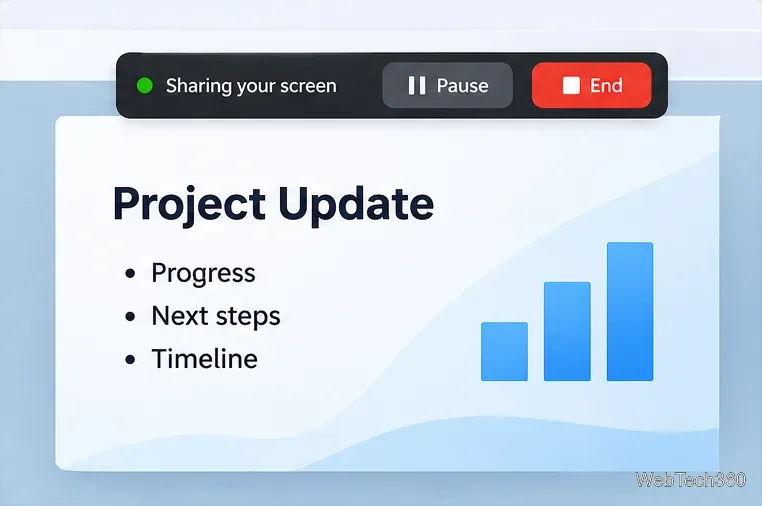
Use the presenter controls to pause sharing when that option is available, such as before opening a private file. When finished, select End to stop the meeting instead of leaving it running in another tab. Screenleap’s current FAQ identifies End as the meeting-ending action. The exact placement of controls can differ depending on browser and sharing mode.
Pause temporarily interrupts the view when enabled; End finishes the screen-sharing session.
Does Screenleap really work without signup?
Yes, for short one-to-one sessions. The official account and pricing documentation describes these main limits:
Option
Daily sharing allowance
Concurrent viewers
No account
20 minutes
1
Free account
40 minutes
Up to 8
Basic paid plan
Up to 8 hours
Up to 30
Pro paid plan
Unlimited daily sharing
Up to 150
These are provider-published limits, not guarantees of availability for every account or region. Visit the Screenleap plan comparison to confirm current allowances and prices before making a purchase. Free plans do not include remote control of the presenter’s computer; supported control-sharing features require a paid plan and an add-on.
What to know about privacy and device support
Screenleap says screen-share data is encrypted in transit; however, its Screenleap terms of service warns that anyone possessing the applicable link or code may access the screen share. Treat invitations as sensitive. Close confidential documents, silence notification previews, and share the narrowest browser tab or window that accomplishes your task. For additional technical details, consult its Screenleap security information.
Desktop presenters can share without installing software in supported browsers. On iPhone, iPad, and Android, Screenleap says presenting your device screen requires its mobile app; simply viewing someone else’s screen works through a browser. The Screenleap screen-sharing overview explains the distinction between desktop, mobile, and add-on workflows.
If Screenleap is not sharing
No screen appears: look for the browser’s permission dialog and make sure you selected a screen, window, or tab before confirming.
The wrong content is showing: stop the share and restart with the intended window or tab; do not assume switching windows automatically changes what viewers see.
A viewer cannot join: send the current session link again or have them enter the current nine-digit code on the website. Old codes should not be treated as permanent links.
A feature is missing: check whether it requires a Screenleap account, a paid plan, or the Windows/Mac add-on.
For a short, installation-free demonstration, Screenleap remains straightforward: choose what to share, send a link, and end the session when the discussion is done. For the latest steps and account requirements, refer to the Screenleap FAQ.