Home
» INTERNET
»
What Does the Green Dot Mean on Facebook and Messenger?
What Does the Green Dot Mean on Facebook and Messenger?
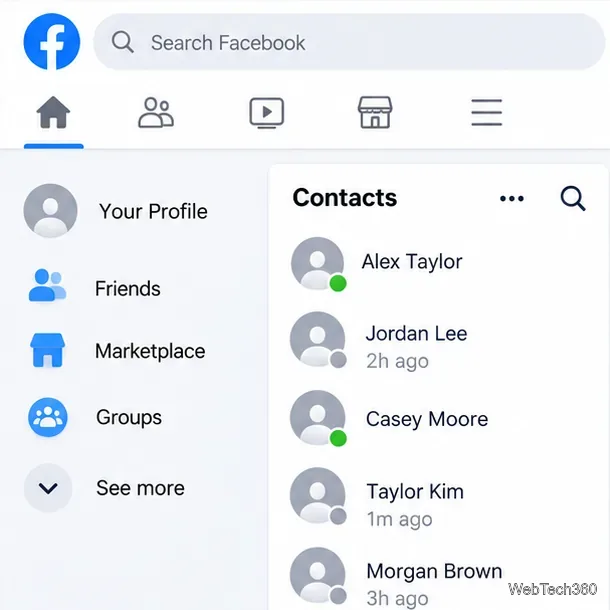
The green dot on Facebook means an account is shown as active. You may see it beside someone’s profile picture in Facebook’s contacts list or in Messenger. It is part of Meta’s Active Status feature, which can also show “Active now” or when a person was recently active.
It does not mean the person is reading your messages, chatting with someone, or ready to respond immediately. The activity signal is approximate, and it can reflect activity across Facebook and Messenger rather than a specific conversation.
What the green dot means in different places
Next to a profile picture on Facebook
A small green circle beside a person’s photo in a Facebook chat or contacts area generally means Facebook currently shows that account as active. The person might be checking their feed, browsing other parts of Facebook, or using Messenger. The dot does not reveal exactly what they are doing.
A green dot is an activity indicator in the contacts area; another person may instead show a recent-activity time.
Active Status is not a perfect live-presence tracker. The indicator can take time to update. Someone may also leave the app, switch devices, or step away without the status disappearing instantly.
Next to a contact in Messenger
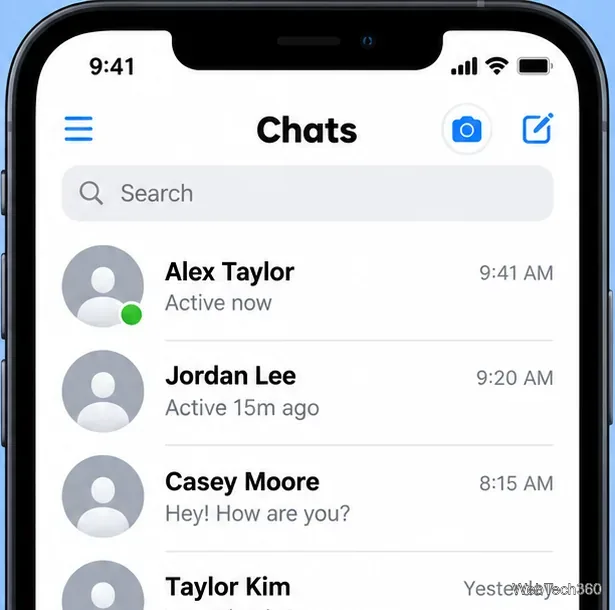
The dot serves a similar purpose in Meta’s Messenger app. An “Active now” label expresses the same general status in words, while “Active 15m ago,” for example, refers to recent activity rather than current activity. The exact wording and location depend on the screen and app version.
Messenger may display a green dot, an Active now label, or a relative last-active time.
If a person has the green dot but has not replied, that alone tells you nothing about whether they saw your message. Look at the message’s own delivery or read indicator for information about that conversation. Even a read receipt does not tell you why someone has not answered.
What about a green dot near the video-call icon?
Some older Messenger interfaces and guides describe a green marker near the camera or video-call button as a sign of video-call availability. Do not assume that interpretation applies to every current Messenger layout. Meta’s documented green-dot explanation concerns Active Status, not a guarantee that a video call will be answered or can connect. You can attempt a call using the call button when it is available, but the other person may be busy or unable to answer.
Why a green dot may appear—or disappear—unexpectedly
Activity can be delayed. A status indicator may not update the moment someone opens or closes an app.
Facebook and Messenger settings can differ. Turning off Active Status in only one app may leave your activity visible through the other.
Privacy settings affect visibility. Someone who disables Active Status may no longer show a dot to you.
Your own setting matters. When you turn off Active Status, you generally stop seeing other people’s active indicators too.
Therefore, no green dot does not prove someone is offline, just as a visible green dot is not proof that they are deliberately ignoring a message.
How to turn off the green dot on your own account
If you would rather not broadcast when you are active, turn off Active Status wherever you use Facebook and Messenger. Menu labels can change as Meta updates the apps.
In the Facebook app on iPhone or Android
Open Facebook and tap Menu.
Choose Settings & privacy, then Settings.
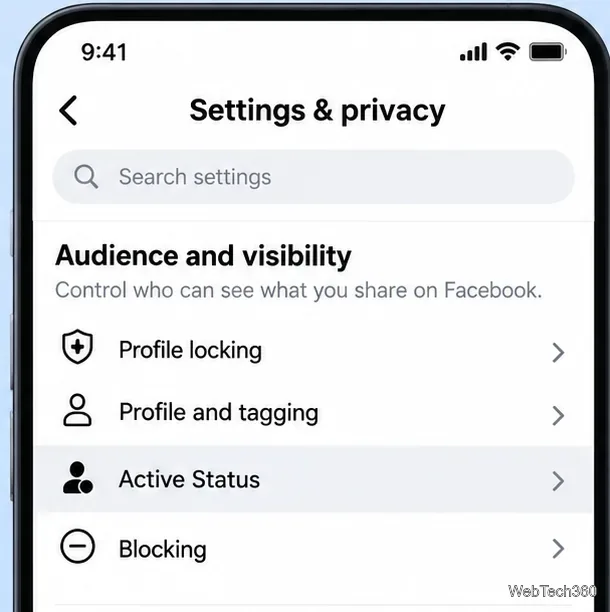
Find Active Status (often under Audience and visibility, or use the settings search field).
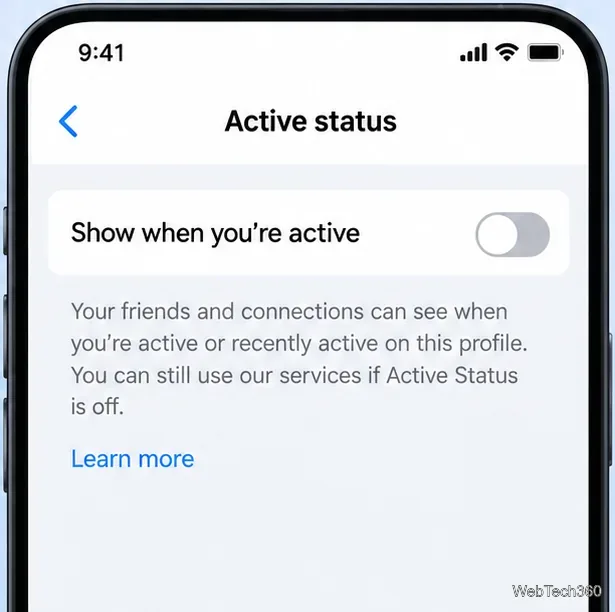
Switch off Show when you’re active and confirm if asked.
Look for Active Status in Facebook settings; its placement can vary by app version.
In the Messenger mobile app
Open Messenger and go to its Menu or profile/settings area.
Tap Settings, then Active status.
Turn off Show when you’re active and confirm if prompted.
Turning off Show when you’re active hides your activity indicator in that app.
On a computer using Facebook, open the Messenger or Chats panel, choose its options menu, find Active Status, turn it off, and save if required. Because the setting can differ between Facebook and Messenger, check both if you use both. Meta explains the feature in its Messenger Active Status Help Center article.
Questions about Facebook Active Status
Does the green dot mean someone is chatting?
No. It shows an activity signal, not a specific action. Facebook does not use the green dot to tell you whether someone is chatting, reading your conversation, or looking at your profile.
Are “Active now” and the green dot different?
They are two ways to communicate the same basic current-activity state. A label such as “Active 10m ago” is different: it describes an earlier activity estimate, not an active-now state.
Will turning off Active Status stop messages and calls?
No. It changes who can see your current or recent activity. You can still send and receive messages and calls, and other signals such as message read receipts are separate from Active Status. To make the green dot visible again, return to the same setting and switch it back on.