Home
» MEDIA STREAMING
»
How to Install MX Player on Firestick: What Works on Fire OS
How to Install MX Player on Firestick: What Works on Fire OS
To install MX Player on a Firestick, first check whether your device runs Android-based Fire OS. On a compatible model, look for MX Player in the Amazon Appstore. If it is unavailable, you may be able to install the Android APK from the developer's official download page using a permitted installation method. Fire TV Sticks running Vega OS cannot run Android APKs.
Older Downloader instructions may no longer work. MX Player supports hardware acceleration and subtitles, but its Android interface is not guaranteed to work with a Fire TV remote.
Before you begin: Check your Fire TV model
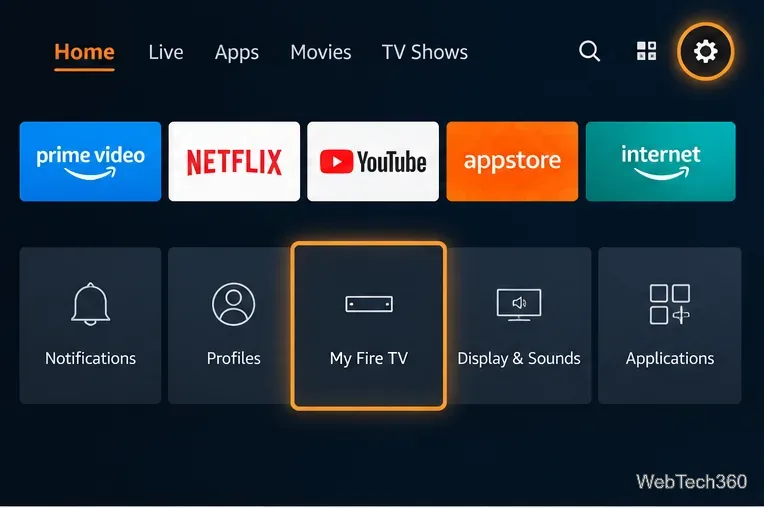
From the Fire TV settings area, open My Fire TV or Device & Software.
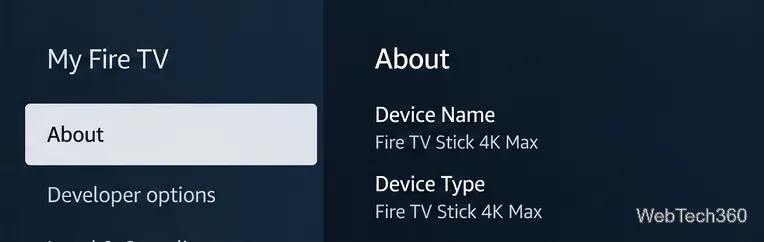
On the Fire TV home screen, open Settings > My Fire TV > About. Some interfaces call this section Device & Software. Identify the model and operating system.
The About screen helps identify which Fire TV model and operating system you have.
Fire OS models: Older Fire TV Sticks and the Fire TV Stick 4K Max use an Android-based platform. APK installation may be possible, subject to device restrictions and compatibility.
Vega OS models: Fire TV Stick 4K Select (2025), Fire TV Stick HD (2026), and Fire TV Stick 4K third generation (2026) use a different platform. Standard Android APKs, including MX Player's Android package, will not run.
How to install MX Player on a compatible Firestick
Step 1: Search the Amazon Appstore
Search for the app on your own device; search suggestions and actual availability may differ.
Open Find/Search, enter MX Player, and inspect any resulting app listing. Verify the developer and compatibility. If a genuine listing is available, select Get or Download and follow the on-screen prompts.
Availability varies by model and region. The MX Player Google Play listing establishes the Android app's identity, but Google Play is not the Amazon Appstore and does not by itself install the app on a Firestick.
Step 2: Obtain the Android APK from the official source
If the app is not in your Fire TV's store, visit the official MX Player download page on a computer or other suitable device. MX Player's support page confirms that this is its official alternative to Google Play.
Download a compatible Android APK if available. Avoid the obsolete S3 “Player_ad-x86” link, unverified mirrors, and short codes. The official site requires JavaScript; APK architecture matters.
Step 3: Allow installation on Fire OS, if supported
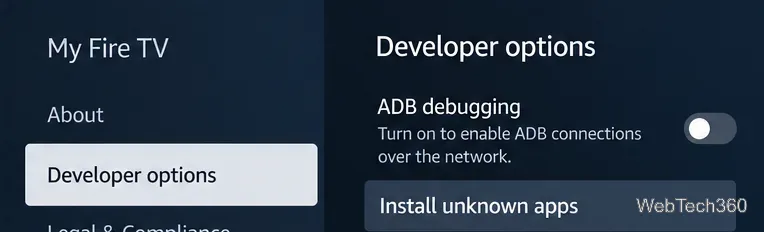
On compatible Fire OS devices, Developer options is where you manage debugging and installer access.
On a compatible Fire OS device, open Settings > My Fire TV > Developer options. If it is hidden, open About, highlight the device name, and press the remote's Select button seven times; then go back. Amazon describes this procedure in its Fire TV support forum.
If you are using a trusted file-manager or installer app that is already available on your device, permit Install unknown apps for that app only, then open the verified APK. For computer-based installation, you need ADB debugging instead. Neither setting works around Vega OS. Revoke temporary permissions afterward.
Step 4: Install, open, and test MX Player
If your Fire OS device allows the local installer, transfer the verified APK using a trusted method, open it, confirm Install, and find MX Player under Your Apps & Channels. Alternatively, use Android Debug Bridge (ADB) from a computer:
In the directory containing your verified APK, run adb install filename.apk, replacing the filename with the one you downloaded. Amazon documents the install command in its Fire TV app installation guide.
Open MX Player, grant media access when needed, and test a video you have permission to watch. SRT subtitles are supported, but touchscreen controls may not translate well to the remote.
What if MX Player will not install?
There is no Developer options menu: Confirm your Firestick is running Fire OS rather than Vega OS. The seven-click method cannot add Android support to Vega.
Downloader is missing: Do not assume it remains available in the Appstore. Amazon has reported availability changes. Avoid lookalike paid downloader apps.
“App not installed” or package errors: Recheck the Android version, APK architecture, free storage, existing app conflicts, and device restrictions. Do not bypass security warnings with untrusted packages.
Playback or controls fail: Check format, file permissions, subtitles, and remote navigation.
MX Player, Amazon MX Player, and VPNs
MX Player is a local media-player app; Amazon MX Player is also used as a streaming-content brand in India. MX Player's official service notice says its TV streaming app is being discontinued as that content moves into Prime Video. This does not make the APK Vega-compatible.
A VPN is not required to install MX Player or play a local video, and it cannot fix an unsupported operating system, blocked installation, or missing codec. For a straightforward experience, use the Fire TV Appstore wherever possible and keep both the device and player updated.