Home
» MEDIA STREAMING
»
Amazon Fire Stick Not Working? Fix No Signal, Wi-Fi, App, and Remote Problems
Amazon Fire Stick Not Working? Fix No Signal, Wi-Fi, App, and Remote Problems
If your Amazon Fire Stick is not working, check power and HDMI first, then troubleshoot Wi-Fi, apps, and the remote. These steps often restore streaming without erasing the device. Save a factory reset for last because it removes downloaded apps and requires setup again.
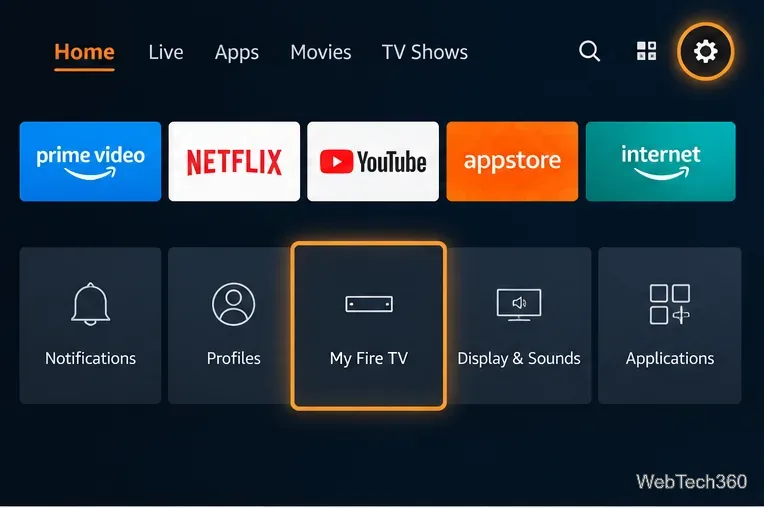
Fire TV menu names vary by model and software. Look for My Fire TV or Device & Software.
1. Restart the Fire TV Stick and check its power
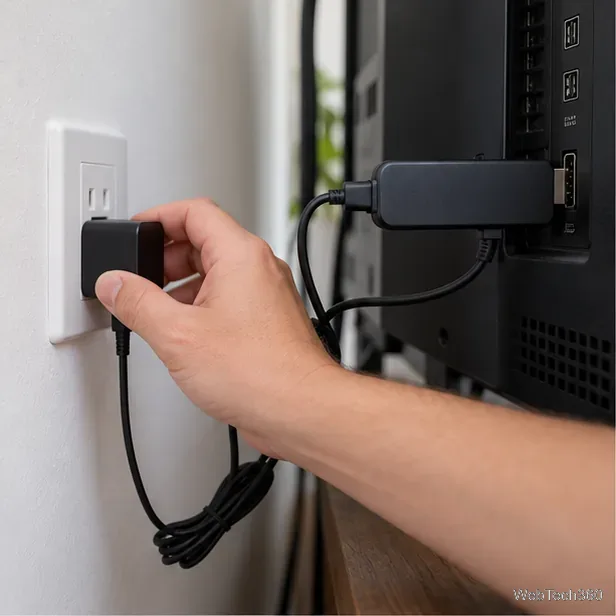
Use the power adapter and cable supplied with the Fire TV Stick, connected to a wall outlet.
Use the cable and adapter supplied with the Stick, plugged into a wall outlet. Check both connections, unplug the device for 60 seconds, then reconnect it. If the screen is frozen and the remote responds, hold Select and Play/Pause together for about five seconds to force a restart. You can also choose Settings > My Fire TV (or Device & Software) > Restart. See Amazon’s power and frozen-screen guidance.
2. Fix a blank screen or “No Signal”
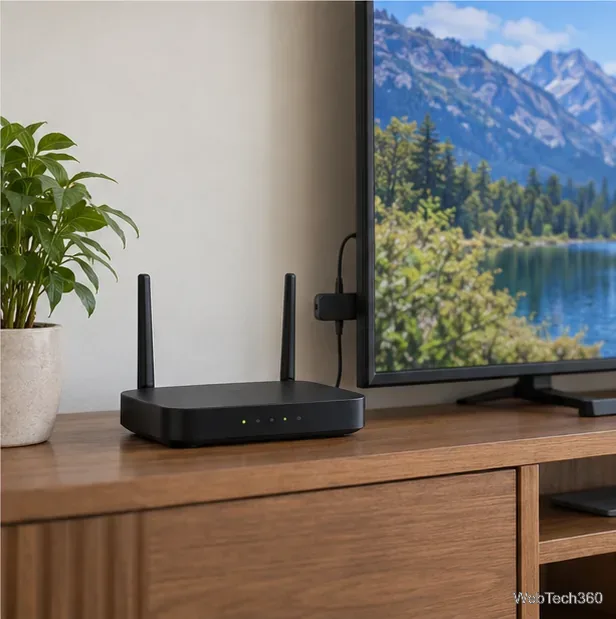
Check the router and Fire TV Stick connection when videos buffer or Wi-Fi drops.
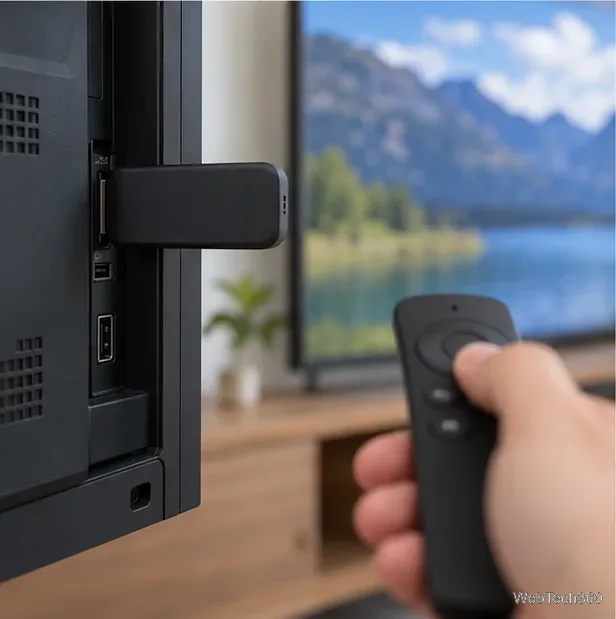
Use the TV remote’s Input or Source button and select the HDMI port where the Stick is connected.
Reseat the Stick and try another HDMI port.
Temporarily bypass an HDMI hub, receiver, or soundbar by connecting directly to the TV. Check that any receiver or soundbar is on the correct input.
If the screen stays blank, restart the Stick and test the HDMI port with another device if available. Follow Amazon’s blank-screen steps for more checks.
3. Troubleshoot Wi-Fi or buffering
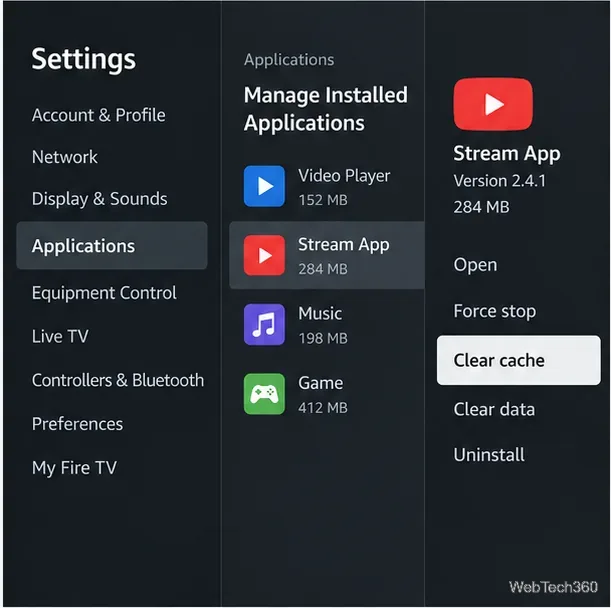
Open the app’s settings and clear its cache to troubleshoot an app that crashes or will not load.
Check whether other devices can access the internet. If they can, open Settings > Network on Fire TV and inspect the connection. On supported models, press Play/Pause on the Network screen for Network Status. Restart the Stick; then toggle Wi-Fi off and on. If needed, forget your network and reconnect with the password.
If multiple devices are offline, unplug the modem and router for one minute. Reconnect the modem first, wait until it is online, then reconnect the router. See Amazon’s Fire TV Wi-Fi guide.
4. Fix an app that crashes or will not open
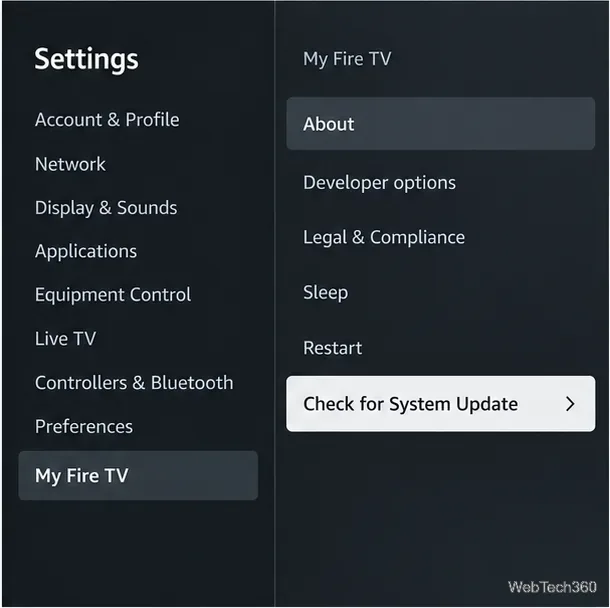
Check for a system update from the Fire TV device settings.
When one app is affected, go to Settings > Applications > Manage Installed Applications, choose it, and select Clear cache. Restart the app. If that does not help, Clear data resets the app and may sign you out or remove its settings. Reinstall it from the Amazon Appstore only if needed. If several apps fail, check Wi-Fi and available storage. Amazon explains app crashes and app cache and data.
5. Update software if the Stick is sluggish
Test whether the Fire TV remote responds before changing audio or device settings.
Open Settings > My Fire TV (or Device & Software) > About > Check for System Update. Install any available update and keep the Stick powered while it completes. If storage is low, uninstall apps you no longer use. See Amazon’s software update instructions.
6. Fix an unresponsive remote or buttons
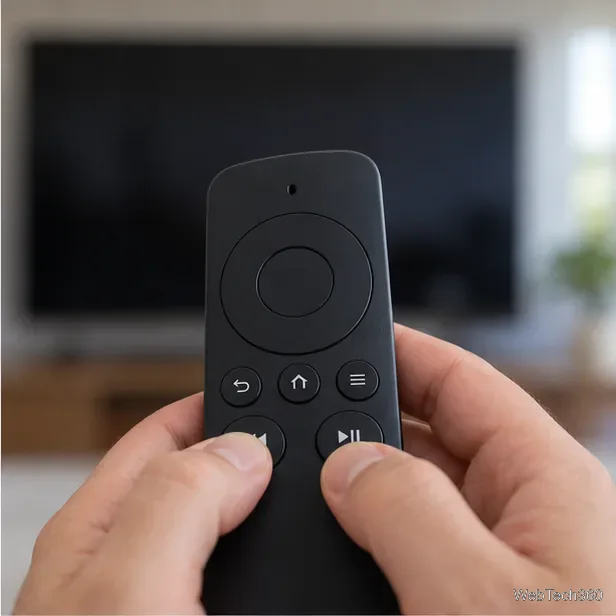
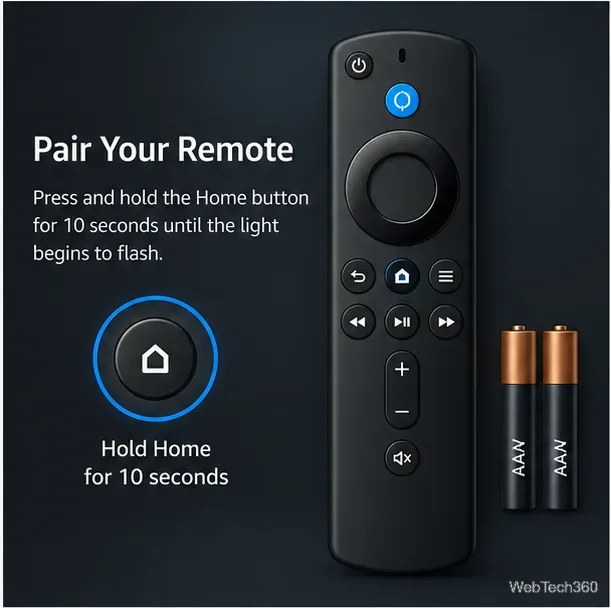
Match the television input to the HDMI port holding the Fire TV Stick.Hold Home to pair the Fire TV remote, and check the batteries if it does not connect.
Replace the batteries with fresh AAA alkaline batteries and try pairing within 10 feet (3 meters) of the Stick. Hold Home for about 10 seconds. If it still will not pair, hold Left, Menu, and Back together for 12 seconds, then hold Home again. See Amazon’s remote pairing guide.
If volume or sound is the problem
If navigation works but volume or power buttons do not, check Settings > Equipment Control > Manage Equipment > TV and confirm the TV brand. For no audio, check mute and the selected speaker. Compatible models can run Settings > Display & Sounds > Audio & Video Diagnostics. See Amazon’s remote volume and audio troubleshooting instructions.
7. Factory reset only as a last resort
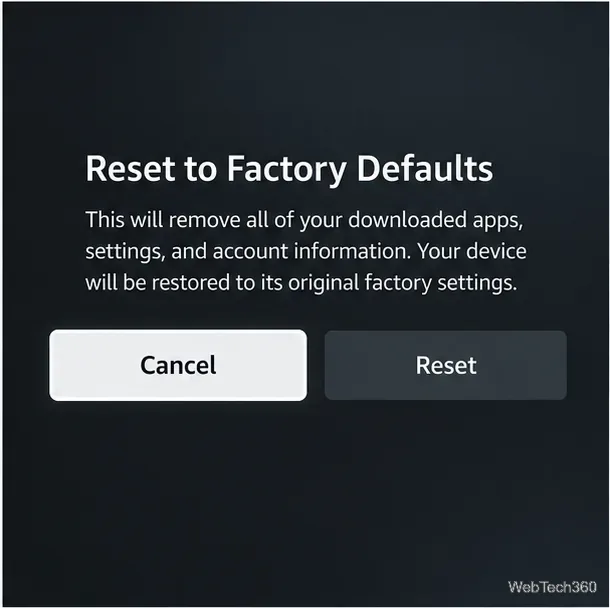
Review the factory reset warning and choose Cancel unless you are ready to erase device setup.
A reset removes downloaded apps and returns the Stick to initial setup. Make sure you have your Amazon sign-in and Wi-Fi password. Go to Settings > My Fire TV (or Device & Software) > Reset to Factory Defaults, and confirm only when ready. Amazon’s factory reset instructions explain the process.
If the Stick still will not power on with compatible equipment, or remains undetected across HDMI ports, contact Amazon Device Support for model-specific help.