Home
» MEDIA STREAMING
»
How to Clear Cache on Firestick and Fire TV Without Resetting Apps
How to Clear Cache on Firestick and Fire TV Without Resetting Apps
To clear cache on a Firestick or Fire TV, open Settings > Applications > Manage Installed Applications, choose the app causing trouble, and select Clear Cache. This removes temporary files without normally deleting your sign-in details or preferences. If several apps are affected, some Fire TV devices also offer a Clear all Application Caches option.
Clearing cache can help when an app freezes, refuses to load, or reports a storage problem. It does not guarantee faster streaming: buffering can also be caused by your internet connection or the streaming service.
How to clear an app's cache on Firestick or Fire TV
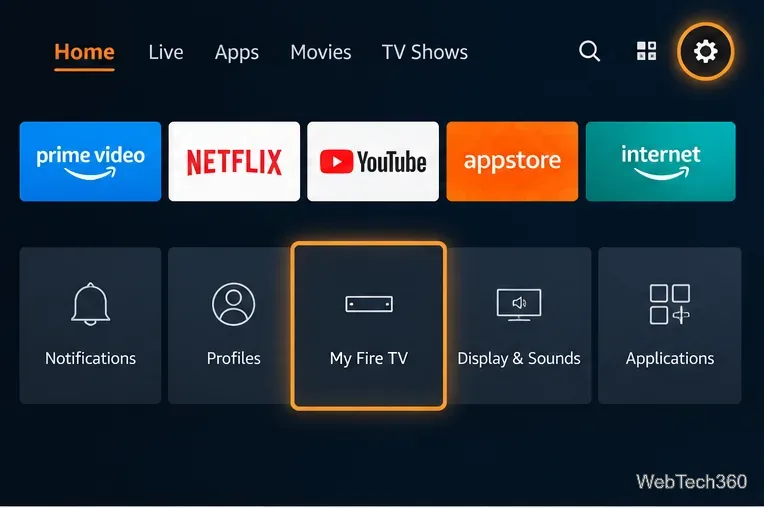
These steps apply to supported Fire TV Stick, Fire TV Cube, and Fire TV devices. Menu placement can vary by model or software version, but Amazon documents the same basic path. The images show the menu locations and controls rather than an exact capture of every device version.
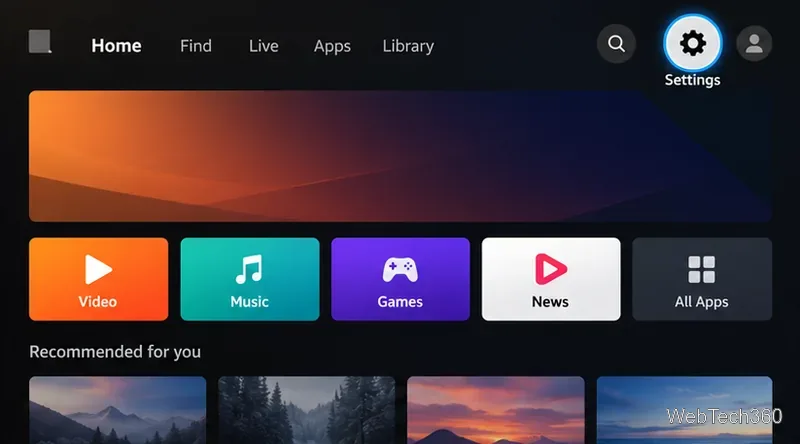
Open Settings. Turn on your Fire TV, go to the home screen, and select the gear-shaped Settings icon. From the Fire TV home screen, select the Settings gear.
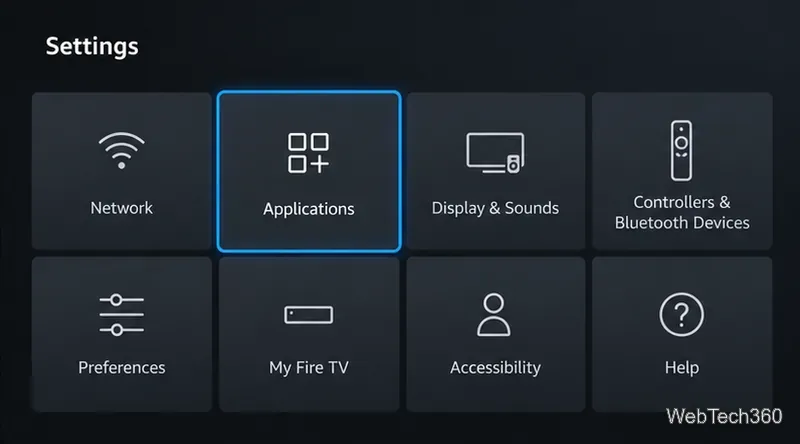
Select Applications. Move through the Settings tiles until you find Applications, then open it. Choose Applications in the Settings menu.
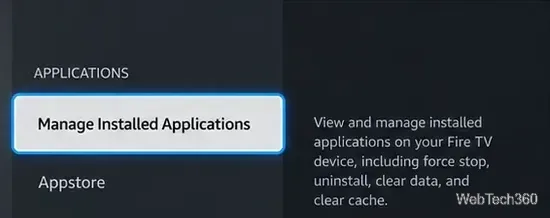
Open Manage Installed Applications. This screen lets you manage individual apps and, on supported devices, clear multiple app caches. Open Manage Installed Applications to find the app you want to troubleshoot.
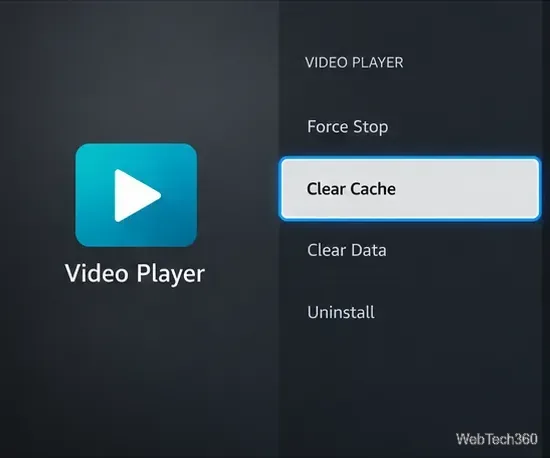
Choose an app and select Clear Cache. Pick an app that is freezing or taking up space, such as a video-streaming app. Select Clear Cache, then reopen the app to check whether the problem is resolved. Do not choose Clear Data as part of routine cache cleanup. Choose Clear Cache; leave Clear Data untouched unless you need to reset the app.
Yes, if your device shows the option. Go to Settings > Applications > Manage Installed Applications, select Clear all Application Caches, and confirm. This is useful when multiple apps have temporary-file issues or the device reports low storage.
If you don't see that command, clear the cache of specific apps individually instead. The available controls can differ across Fire TV models and software versions. Clearing all caches is not the same as a factory reset, and it is not a substitute for uninstalling large apps when storage remains low.
Clear Cache vs. Clear Data: what's the difference?
Clear Cache: Deletes temporary data the app can generally create again. This is the first option to try when an app behaves unpredictably. The app may take a little longer to load the next time it opens.
Clear Data: Resets the app's locally stored information and settings. Depending on the app, you may need to sign in again, reconfigure preferences, or download content again. Save anything important before using it.
Uninstall: Removes the app from the device. Use it when an app is no longer needed, or consider reinstalling it if other troubleshooting steps have failed.
For apps such as Kodi or other sideloaded software, clearing data can remove local configuration, so back up custom settings first. Clearing cache alone is the less disruptive starting point. You do not need to jailbreak the device or install a third-party cleaner to use these Fire TV settings.
What to try if clearing cache doesn't fix the problem
Restart Fire TV. Go to Settings > My Fire TV > Restart (or Device & Software on some models). A restart is different from clearing a particular app's cache, but it can resolve temporary system issues.
Check for system updates. Open Settings > My Fire TV or Device & Software > About > Check for System Update. Outdated software can contribute to app problems.
Check the connection. If videos buffer but menus work normally, test your Wi-Fi and restart your router or modem as appropriate. Cache cleanup cannot fix a weak network connection.
Reset or reinstall only the affected app. If clearing its cache and restarting don't help, consider Clear Data or uninstalling and reinstalling it. Be prepared to sign in again and restore any local settings.
Some Fire TV devices include storage optimization. Amazon says that when a device is low on storage, cache from apps unused for more than 30 days may be cleared automatically. That background cleanup cannot be disabled, but it does not mean the cache of an actively used, malfunctioning app will always be removed for you.
The practical approach is to clear the cache of a problem app first, then check storage, updates, and connectivity if the issue continues. Use Clear Data only when you intend to reset that app.