Home
» MEDIA STREAMING
»
How to Pair a Fire TV or Fire Stick Remote, Including Replacements
How to Pair a Fire TV or Fire Stick Remote, Including Replacements
To pair a Fire TV or Fire Stick remote, insert fresh AAA batteries, turn on the Fire TV, and wait for it to connect. If it does not pair automatically, stand within 10 feet (3 meters) and hold the remote’s Home button for about 10 seconds. The same button usually starts pairing for a replacement remote.
Connect the Fire TV to its HDMI input and power source before attempting to pair the remote.
Pair the Included Fire TV Remote for the First Time
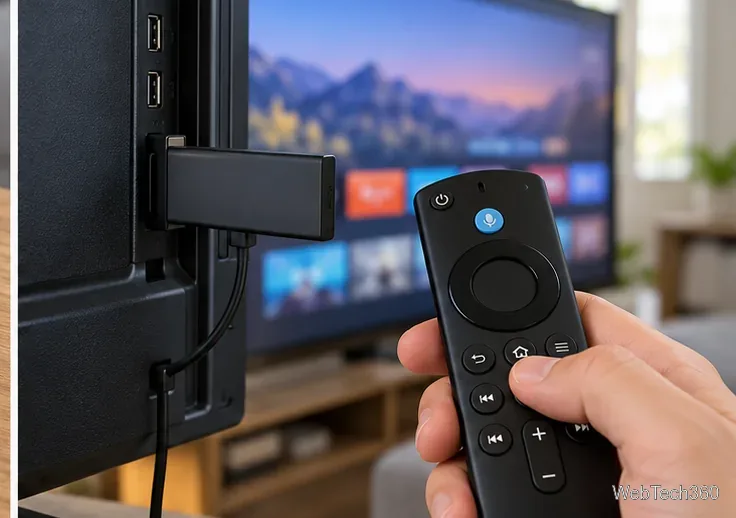
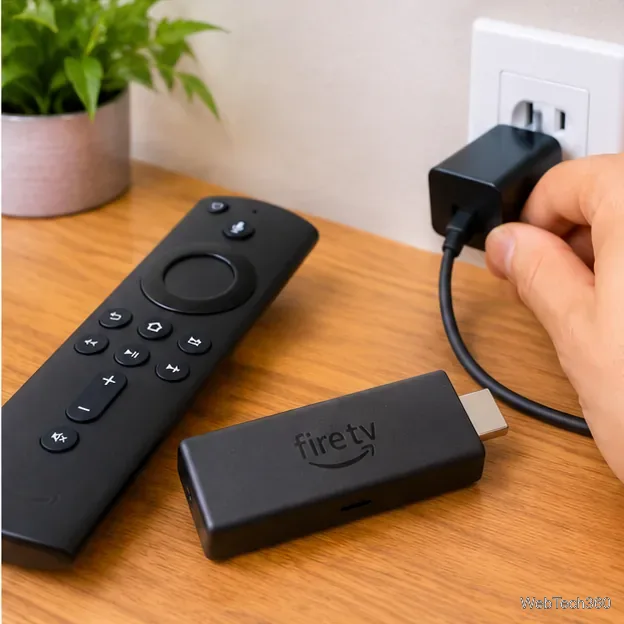
Connect the Fire TV Stick or other Fire TV device to your television and its power adapter. Select the correct HDMI input if necessary.
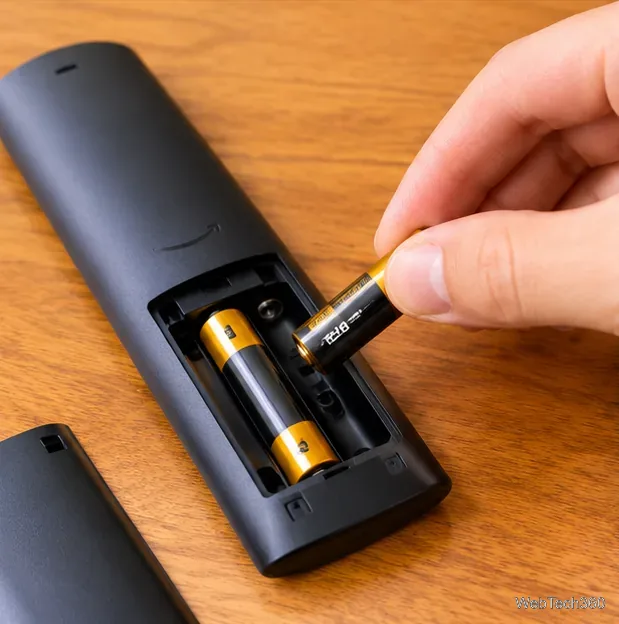
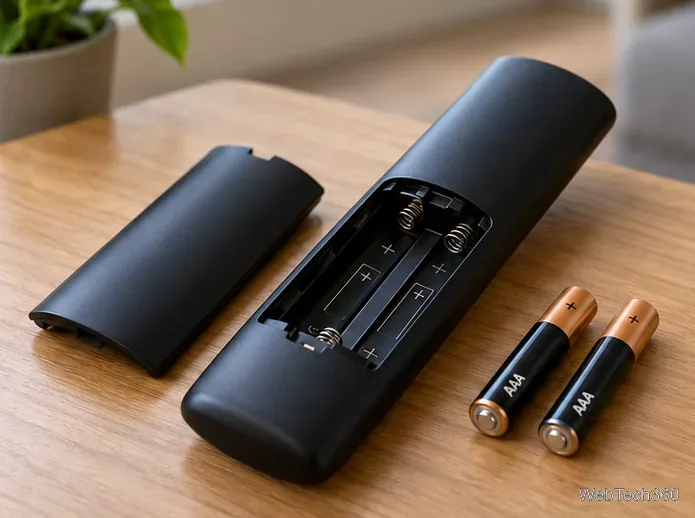
Slide off the remote’s battery cover and install the included AAA batteries, matching the polarity markings.
Wait for the Fire TV setup screen. The supplied remote should pair automatically; follow any prompts displayed on your TV.
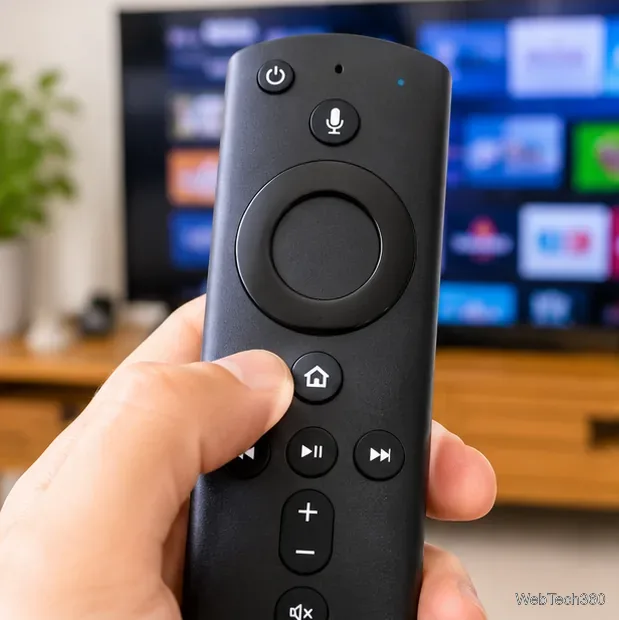
If nothing happens, move closer and press and hold Home for about 10 seconds. Release it once the setup prompt appears or the remote connects.
Check the battery orientation and replace both batteries together if the remote does not respond.Hold Home for approximately 10 seconds to initiate pairing when automatic connection fails.
Amazon recommends using new alkaline batteries if the remote remains unresponsive. See its initial pairing instructions for the current setup sequence.
Add a Replacement or Second Fire TV Remote
If your original remote still works, use it to open the pairing menu. Confirm that the replacement is compatible with your exact Fire TV model; a remote that looks similar is not necessarily interchangeable. Amazon maintains a Fire TV remote compatibility list.
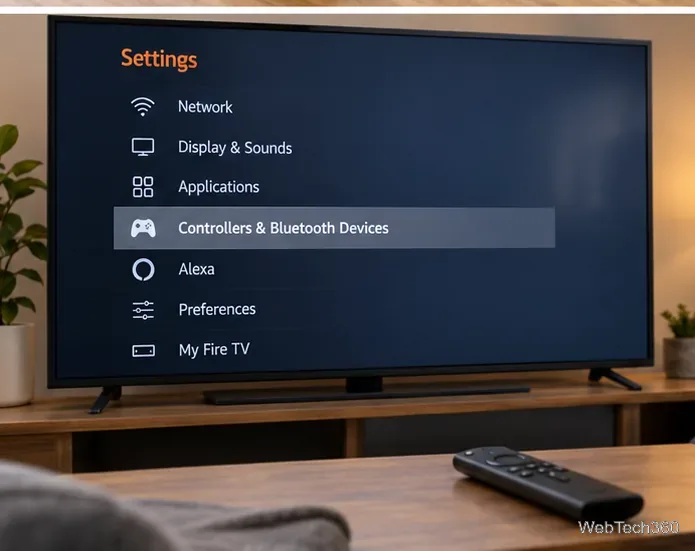
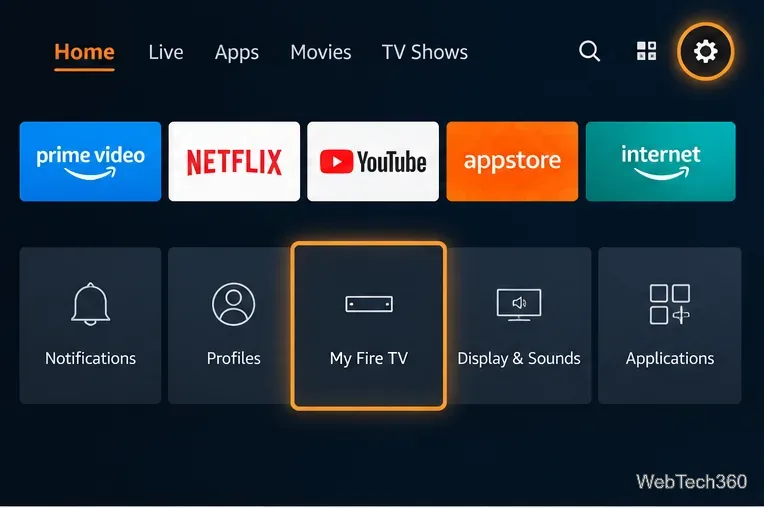
On the Fire TV home screen, open Settings.
Choose Controllers & Bluetooth Devices.
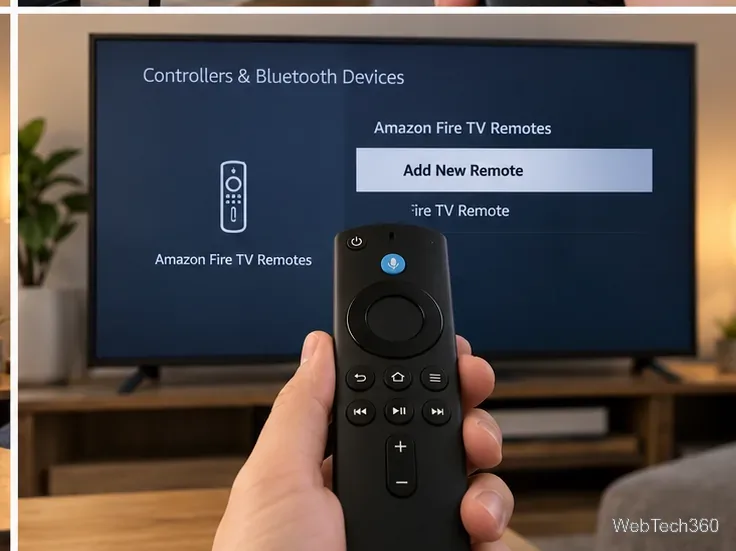
Choose Amazon Fire TV Remotes, then Add New Remote.
Insert batteries in the new remote. If it is not detected, hold its Home button for 10 seconds.
When the new remote appears, select it using the original remote or follow the on-screen pairing prompt.
The remote-pairing controls are under Settings, then Controllers & Bluetooth Devices.Choose Add New Remote to make the Fire TV search for another compatible remote.
Amazon documents this menu path in its additional remote pairing guide. Fire TV can have up to seven controllers paired; if you have reached that limit, remove an unused controller from the device’s controller settings before adding another.
Pair a New Remote Without the Original
If the old remote is missing or broken, try Amazon’s power-cycle method first:
Unplug the Fire TV from power, then reconnect it.
Wait for the screen indicating that the remote cannot be detected.
Insert batteries in the replacement remote. It may connect automatically.
If necessary, hold Home on the new remote for 10 seconds.
Use Your Phone as a Temporary Remote
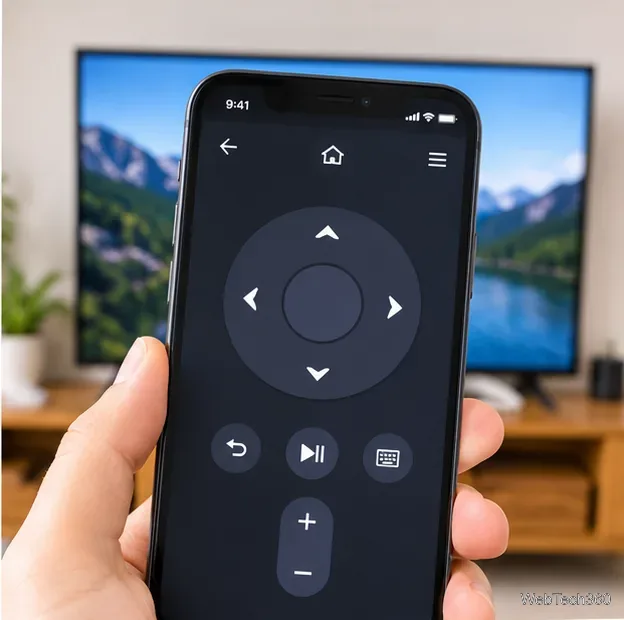
When the Fire TV is already connected to Wi-Fi, the official Amazon Fire TV app can help you navigate its settings. Connect your phone and Fire TV to the same Wi-Fi network, open the app, choose your Fire TV, and follow the on-screen connection prompt. You can then visit Settings > Controllers & Bluetooth Devices > Amazon Fire TV Remotes > Add New Remote and select the replacement remote.
The Fire TV app provides directional controls so you can reach the remote-pairing menu without the original remote.
For the official steps, see Amazon’s Fire TV app pairing instructions. If the app cannot find your Fire TV, check the Wi-Fi connection on both devices; the app cannot serve as a Wi-Fi-free Bluetooth replacement for a lost remote.
Fix a Fire TV Remote That Will Not Pair
Try these checks in order before resetting anything:
Move closer: Stay within 10 feet (3 meters) of the Fire TV during pairing, and reduce nearby obstructions.
Refresh the batteries: Remove both batteries for about 30 seconds, reinstall them, then hold Home again. Replace them with a fresh matched pair if needed.
Restart Fire TV: Unplug its power supply briefly, reconnect it, and repeat the 10-second Home-button pairing attempt.
Check compatibility and device limit: Confirm the remote model is supported and that you have not already paired seven controllers.
Battery problems can mimic a pairing failure; inspect the contacts and try fresh AAA alkaline batteries.Restart the Fire TV by disconnecting and reconnecting its power adapter, not by resetting the whole device.
Reset the Remote If Pairing Still Fails
For most Fire TV remotes, Amazon specifies the following reset sequence:
Disconnect Fire TV from both power and HDMI, and wait 60 seconds.
Hold Left + Menu + Back on the remote together for 12 seconds.
Release the buttons, wait five seconds, and remove the remote’s batteries.
Reconnect Fire TV, wait for the remote-detection message, and reinstall the batteries.
Press Home. If needed, hold it for 10 seconds to pair.
Important: The first-generation Alexa Voice Remote and Basic Edition Remote use different reset combinations. Follow Amazon’s model-specific reset instructions instead of applying the sequence above to every remote. Resetting a remote is different from factory-resetting your Fire TV, which is unnecessary for routine pairing problems.
Pair a Game Controller or Another Bluetooth Accessory
To connect a compatible Bluetooth gamepad, put it into the controller manufacturer’s pairing mode. Then open Settings > Controllers & Bluetooth Devices > Game Controllers > Add New Game Controller. Pairing mode is controller-specific; holding the Fire TV remote’s Home button is not a universal gamepad instruction. Amazon provides a separate game controller setup guide.
For supported Bluetooth keyboards, headphones, and similar accessories, use Settings > Controllers & Bluetooth Devices > Other Bluetooth Devices > Add Bluetooth Devices, then select your discoverable accessory. Feature support varies by Fire TV hardware and accessory.