Home
» MEDIA STREAMING
»
How to Sideload Apps on Smart TVs: Android TV and Google TV Guide
How to Sideload Apps on Smart TVs: Android TV and Google TV Guide
You can sideload apps on many Android TV and Google TV devices by transferring a trusted Android APK file, allowing a file manager to install it, and opening the APK on your television. The steps are straightforward, but they do not work on every smart TV: Samsung Tizen, LG webOS, and Roku TVs cannot install Android APKs as native apps.
Check which smart TV platform you have
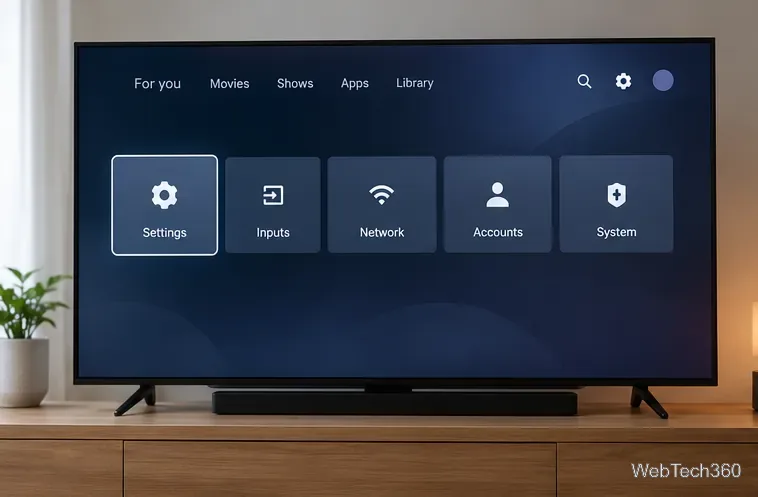
Open the TV’s Settings menu and look under System, About, or Device Information for its operating system. “Smart TV” describes a broad category, not one shared app platform.
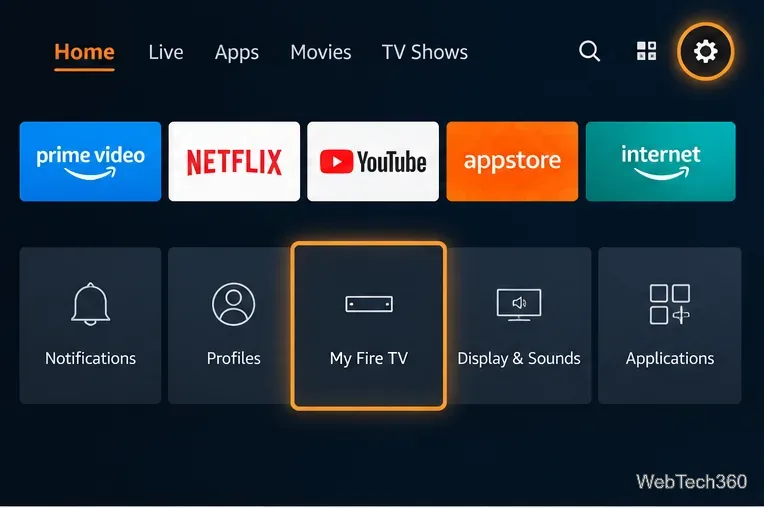
Start in Settings and check the TV operating system before downloading an APK.
Google TV or Android TV: Android APK sideloading is generally possible, subject to device policies and app compatibility.
Amazon Fire TV: Android-based Fire OS models can use APKs, but newer Vega OS models use a different app platform. Check the exact device.
Samsung Tizen, LG webOS, or Roku: Use the TV’s own app store. An Android APK will not run as a normal app on these systems.
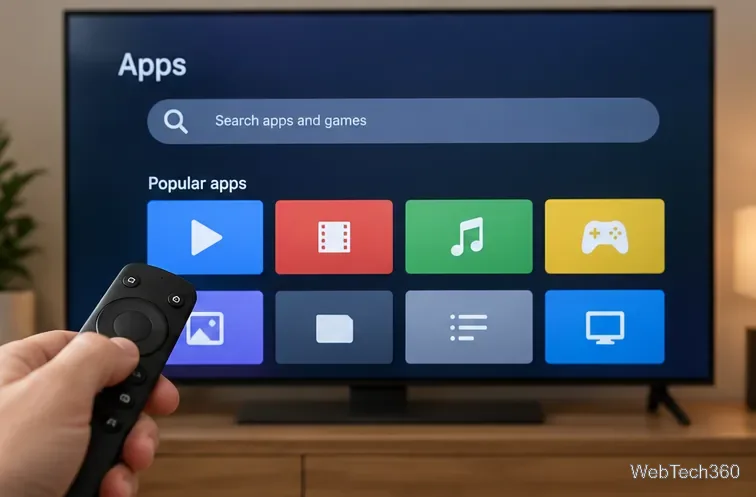
On Google TV, open Apps or Search, find the app, and select Install. This is easier and usually safer than sideloading. If your TV appears as an eligible device on Google Play on the web, you may also install a supported app remotely. Remote Play installation is not sideloading and will not bypass compatibility restrictions. Google’s installation guide explains the regular process.
Search the TV app catalog first; install an available TV-compatible version instead of an APK.
How to sideload an APK using a USB drive
These steps are for Android TV and Google TV devices with accessible USB storage. You need a computer, a USB drive, a file manager on the TV, and a legitimate APK supplied by the app developer. Menus vary by TV model and Android version.
1. Download the correct APK from a trusted source
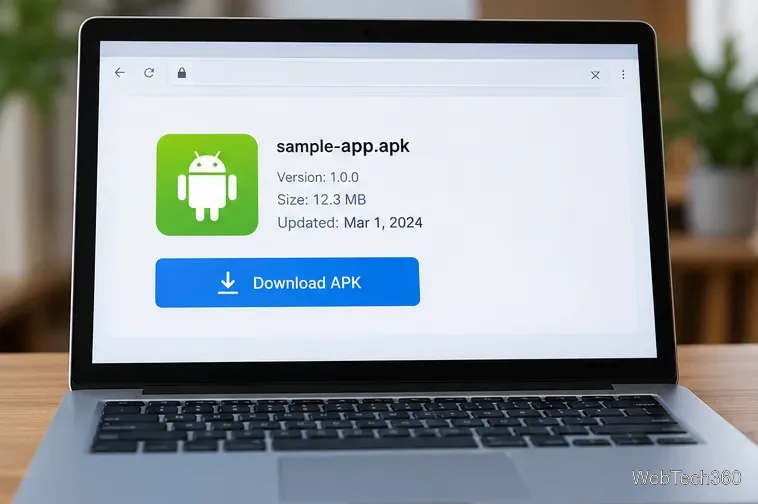
Visit the developer’s official website and choose the APK intended for your device and Android version. Do not use cracked apps, unfamiliar APK mirrors, or files sent through unsolicited messages. If the developer provides a checksum, compare it before transferring the file. An APK is not the same as an app bundle or a ZIP archive.
A sample APK page on a laptop; obtain your real installer from the software publisher.
2. Copy the APK to a USB drive
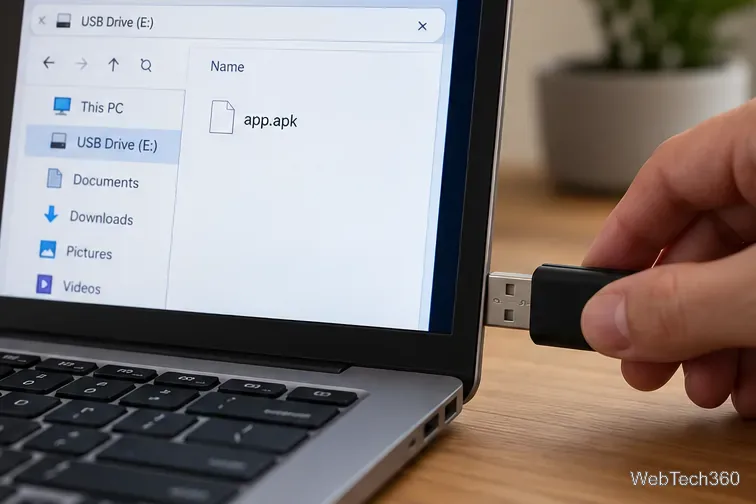
Plug the flash drive into the computer and copy the downloaded .apk file to an easy-to-find folder. Eject the drive safely. You do not need to unpack the APK.
Keep the APK file intact on the USB drive so your TV file manager can locate it.
3. Connect the drive to your TV
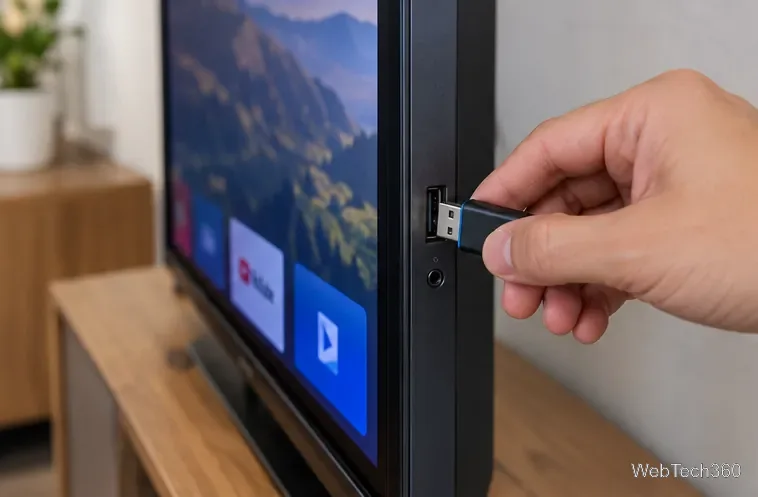
Insert the drive into a supported USB port on the television or Android TV box. If the device has no suitable port, use a supported hub or a network file-transfer method instead. A USB port used only for servicing may not accept storage devices.
Connect the drive to a USB port that the TV supports for external storage.
4. Install and open a file manager
Use Google Play on the TV to install a file manager that supports external storage. One option is File Manager by File Manager Plus, whose listing includes Android TV support. Open the app, grant only the storage access it needs, and navigate to the USB drive.
5. Allow installs from your chosen file manager
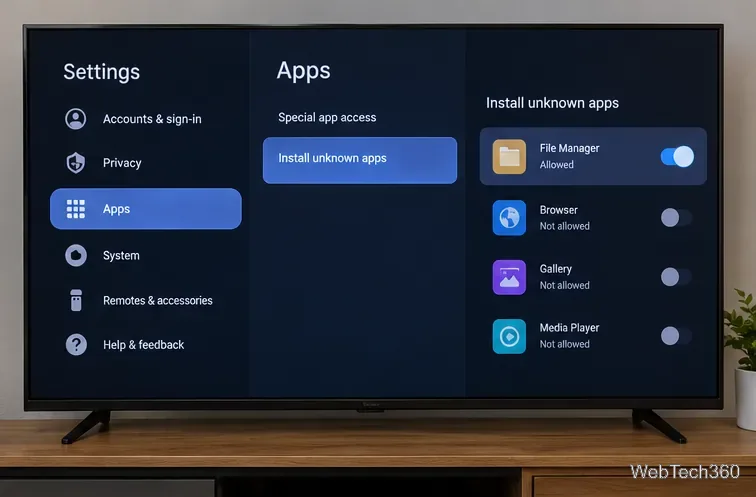
When you try to open the APK, Android may prompt you to authorize the source. Look in Settings > Apps > Special app access > Install unknown apps, or Security & restrictions on some televisions. Enable installation for that file manager only. Unlike older Android versions, modern Android usually grants this permission per app, not through a universal “Unknown sources” switch. Android’s official installation policy explains this distinction.
Allow the file manager to request installation while leaving unrelated apps disallowed.
6. Select the APK and install it
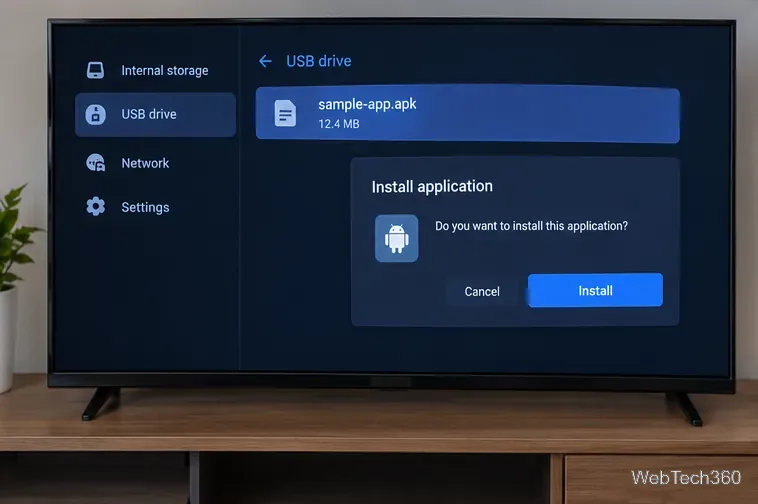
In the file manager, select the APK on the USB drive, review the installation prompt, and choose Install. If Android blocks the app or Play Protect warns that it may be harmful, do not blindly bypass the warning. Recheck the source, permissions, and compatibility.
Select the APK file and read the system installation prompt before proceeding.
7. Launch the installed app
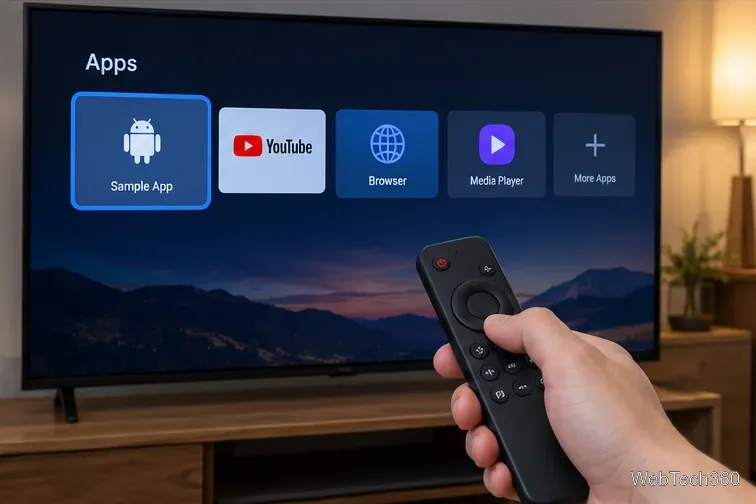
Choose Open if offered, or look under Settings > Apps > See all apps. Phone-oriented apps sometimes lack a TV home-screen tile. The Sideload Launcher - Android TV app can help locate installed apps, but it does not make incompatible software work with a remote.
Launch the new app from an available app list or a sideload launcher.
What if your TV does not have a USB port?
Another option is to transfer the developer’s APK over your home network using a file-transfer app or the file manager’s supported cloud connection. Experienced users can install an APK through Android Debug Bridge (ADB), after enabling the appropriate developer and debugging settings. Google documents the ADB tools; using ADB does not guarantee that an app will run on the TV.
Why does the APK fail to install or open?
“App not installed”: Check available storage, Android version, CPU architecture, and whether a conflicting version is already installed.
Install permission missing: Authorize the specific file manager that opened the APK, not a different app. Some manufacturer-controlled devices restrict sideloading.
App opens but cannot be controlled: It may require touch input, a phone-sized screen, or hardware unavailable on TVs. Android’s TV hardware guidance explains these limits.
App not visible: Check the full installed-app list or a sideload launcher instead of assuming installation failed.
Keep Google Play Protect enabled. As of September 30, 2026, Android has also begun introducing developer-verification protections for participating stores in certain countries; an advanced installation flow may be available for apps from unverified developers. See Google’s current verification guidance for rollout details. Neither sideloading nor a VPN can make a malicious APK safe.
Can you sideload apps on Fire TV?
On Fire OS devices, APK sideloading can be supported; Amazon documents ADB installation for Fire TV developers. However, Vega OS, used by devices including the Fire TV Stick 4K Select, is a different platform and should not be treated as Android APK-compatible. Amazon describes Fire OS and Vega OS separately and provides a distinct developer sideloading process for Vega apps. Check the exact model before following any APK tutorial.