Home
» MEDIA STREAMING
»
How to Speed Up Your Amazon Fire TV Stick: 8 Fixes for Lag and Buffering
How to Speed Up Your Amazon Fire TV Stick: 8 Fixes for Lag and Buffering
To speed up a slow Amazon Fire TV Stick, restart it, install system updates, clear a problem app’s cache, and remove apps you no longer use. If videos keep buffering but menus respond normally, investigate your Wi-Fi instead. These fixes address different causes of slowness, so begin with the symptom you actually see rather than resetting everything.
First, tell menu lag from streaming problems
If the Home screen takes too long to open, apps freeze, or your remote seems delayed across multiple screens, focus on software, storage, and power. If menus work normally but a movie pauses to load, check the network or streaming service first.
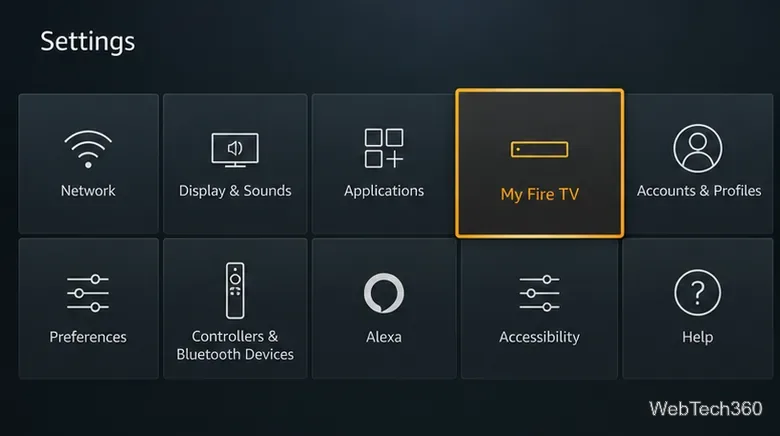
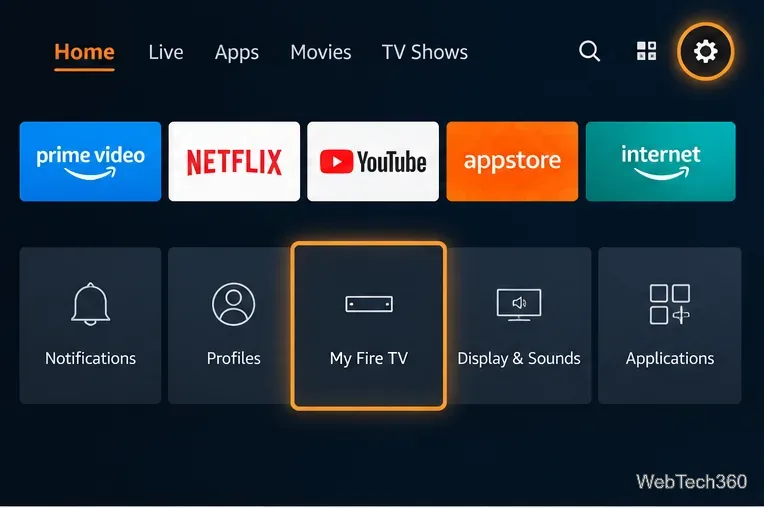
Start from Settings; My Fire TV contains device maintenance controls on many models.
Eight fixes to try, in order
1. Restart your Fire TV Stick
Open Settings from the Fire TV Home screen.
Choose My Fire TV (called Device & Software on some models).
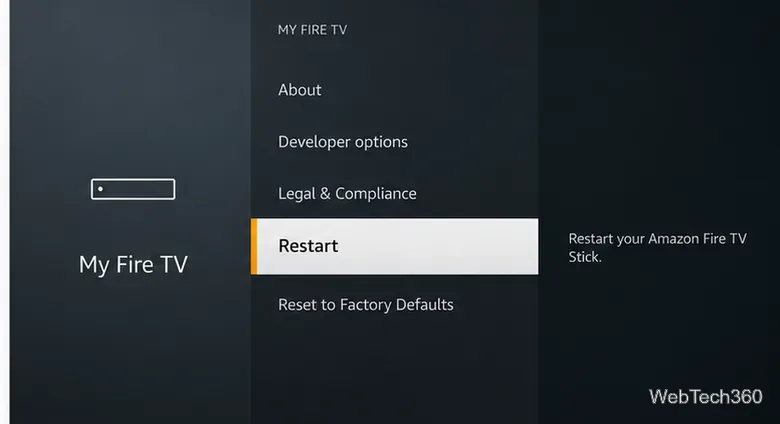
Choose Restart in the device menu instead of selecting the separate factory reset option.
2. Install Fire TV and app updates
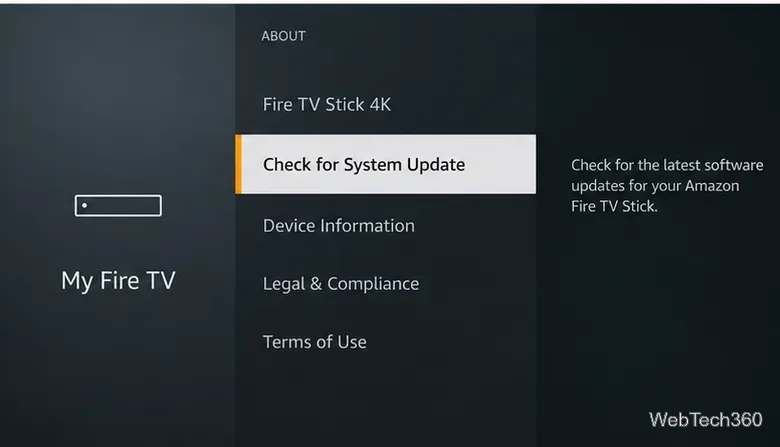
Go to Settings > My Fire TV > About > Check for System Update.
Install any available update, then allow the device to restart if prompted.
For an app that is misbehaving, open its Appstore page and install an update if offered.
Menu labels may differ by Fire TV generation. Amazon documents the system-update path in its software update guide. Keep automatic app updates enabled unless you have a specific reason to manage them manually; switching them off is not a proven speed optimization.
The About screen is where compatible Fire TV devices check for system updates.
3. Clear the cache of an app that freezes
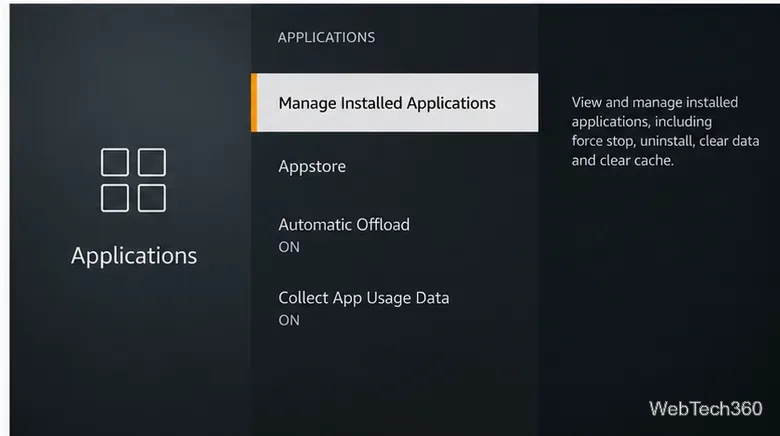
Open Settings > Applications > Manage Installed Applications.
Select the affected app and choose Clear Cache.
Open the app again to see whether playback or loading improves.
Cache clearing removes temporary files, not the app itself. Clear Data is a different, more disruptive option that can erase saved app settings and require you to sign in again. Amazon also documents a Clear all Application Caches option on supported interfaces. Use Amazon’s cache and data guidance rather than an unverified “RAM booster” or cleaner app.
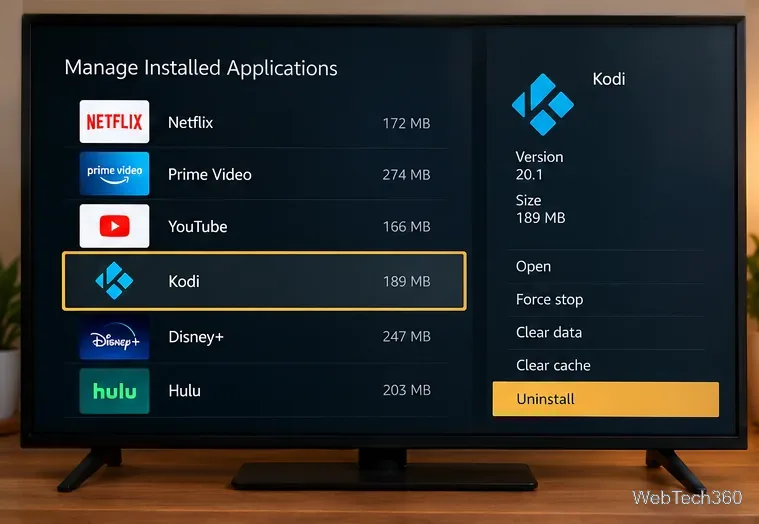
Manage Installed Applications is the entry point for targeted cache clearing.
4. Uninstall apps you no longer need
In Settings > Applications > Manage Installed Applications, select a game or app you no longer use, then choose Uninstall and confirm. Focus on unused downloads rather than removing essential services at random.
Some newer Fire TV devices also support Auto Offload for infrequently used apps. It can free storage while retaining settings for later redownload; availability depends on model and software. See Amazon’s Auto Offload explanation.
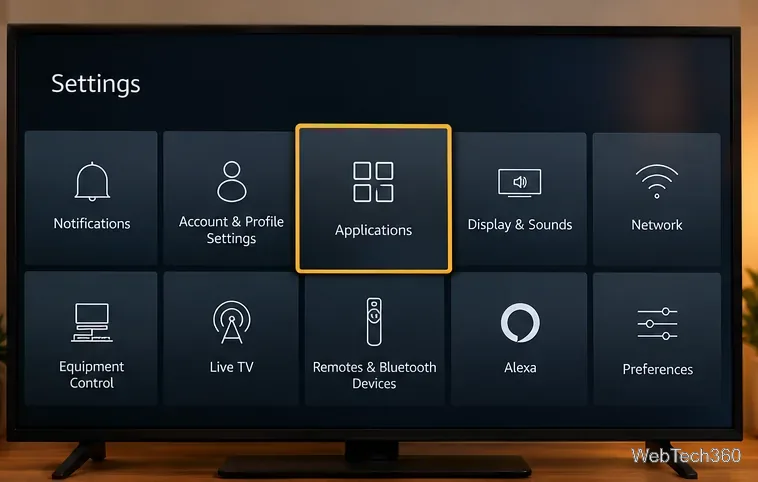
Select Applications to reach installed-app management and storage options.The app detail screen shows the Uninstall command alongside cache and data controls.
5. Test the Fire TV network connection
Open Settings > Network and use the network-status tool. On supported devices, press Play/Pause on the remote to view diagnostics; some models can also run a download speed test. Check whether the Fire TV can reach both your router and the internet. Follow any on-screen recommendations. Amazon explains the differences in its Network Status tool guide.
6. Improve Wi-Fi before blaming the Stick
Move the router closer if practical, or reposition the Fire TV using its compatible HDMI extender so the TV cabinet is not blocking the signal. Pause large downloads on other devices. If several devices buffer, restart the modem and router: unplug both, reconnect the modem first, wait for it to reconnect, and then reconnect the router. A compatible Ethernet adapter may help if Wi-Fi is unreliable. See Amazon’s Wi-Fi troubleshooting steps.
7. Check power and ventilation
Use the power cable and adapter supplied with the Fire TV Stick, or a compatible replacement recommended by Amazon. Avoid relying on a TV USB port that may not supply consistent power. Make sure the device is not tightly enclosed behind warm equipment. Weak power or excessive heat can cause instability that looks like sluggish software; see Amazon’s power and frozen-screen advice.
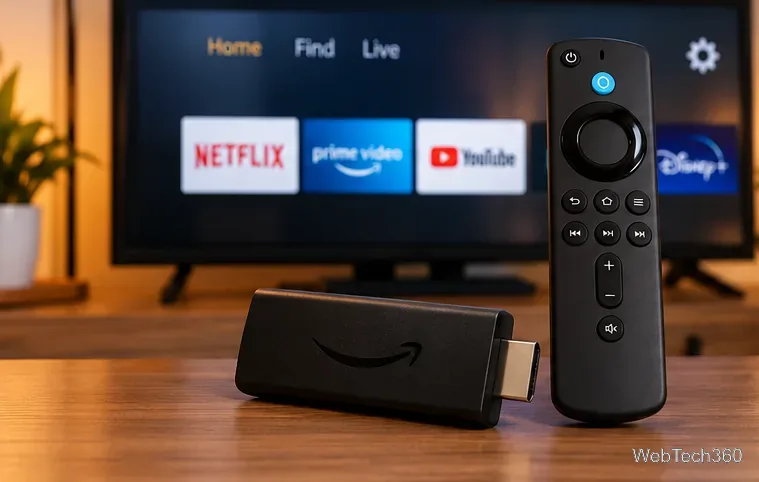
Use the stick with a suitable power adapter and leave space around the device.
8. Factory reset only if the other fixes fail
Warning: A factory reset removes device account information, downloaded apps, and local data. Make sure you have your sign-in details and any needed backups before continuing.
Open Settings > My Fire TV > Reset to Factory Defaults.
Read the warning and confirm only if you want to erase the device.
Set up Fire TV again and reinstall just the apps you need.
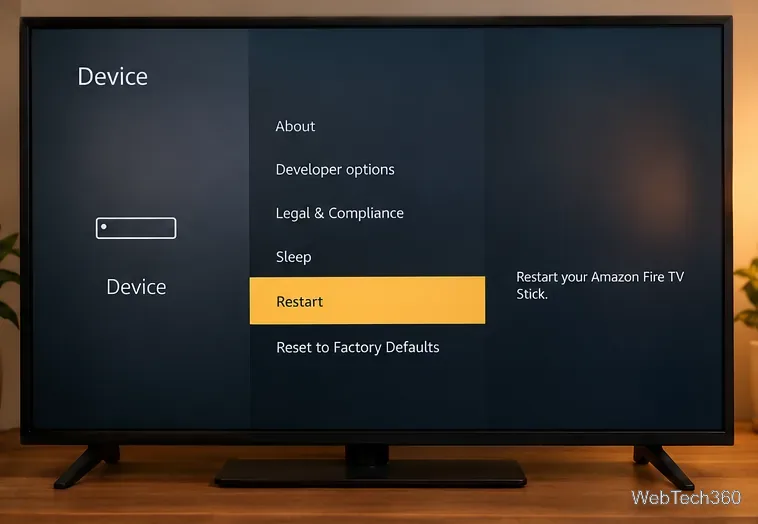
Reset to Factory Defaults appears separately below Restart on this menu layout.
Will a VPN or cleaning app make Fire TV faster?
Not reliably. VPN encryption and server routing can add overhead, and a congested VPN server can make buffering worse. A VPN may change performance under certain network conditions, but it is not a general-purpose Fire TV speed upgrade. Likewise, third-party “cleaner” apps cannot upgrade a Stick’s processor or memory. Use the built-in cache and storage controls first.
If the device still struggles after software, network, and power checks, its age or hardware limits may be the main factor. Compare the same app on another device before paying for a replacement.